FaceTime Like a Pro
Get our exclusive Ultimate FaceTime Guide 📚 — absolutely FREE when you sign up for our newsletter below.

FaceTime Like a Pro
Get our exclusive Ultimate FaceTime Guide 📚 — absolutely FREE when you sign up for our newsletter below.


Make your new iPhone smarter. From AssistiveTouch to Live Text and Siri hacks, discover 22 iPhone tricks that’ll transform how you use your device.
 ByIdowu


Just got your hands on the all-new iPhone 17? Congratulations! Apple’s latest flagship delivers a sleek design, exceptional performance, and plenty of new features that take the iPhone experience to another level. Whether you’ve switched from Android or upgraded from an older iPhone, there’s a lot to explore.
To help you make the most of your new device, here are 22 must-try iPhone tips and tricks that’ll make you feel like a pro from day one.
With AssistiveTouch, you can perform quick actions like taking screenshots or opening the Camera with just one tap.
Here’s how to take screenshots using AssistiveTouch:


Introduced with iOS 13, QuickPath swipe typing lets you glide across letters instead of tapping them. Once you get the hang of it, it’s faster and smoother than traditional typing.
Try it in any text field by swiping across each letter in a word like “iGeeksBlog” without lifting your finger.
If you often type the same phrases, Text Replacement can save you time. For example, you can make “hp” expand into “hyperrealism and Photorealism.”
Set it up by going to Settings → General → Keyboard → Text Replacement, and add your shortcuts.
Battery draining too quickly? Extend your iPhone’s battery life by turning off Location Services, enabling Auto-Brightness, and placing your phone face down when not in use.
You’ll be surprised how much difference these small changes can make.
No selfie stick? No problem. Connect your wired headphones or Bluetooth earbuds, open the Camera, and press the volume button to snap a selfie.
It’s perfect for hands-free shots or group selfies from a distance.
Add your most-used tools to the Control Center for easy access.
Here’s how you can customize the Control Center on iPhone:
Accidentally typed the wrong digit? Just swipe left or right on the number display in the Calculator app to delete the last entry instead of starting over.
With Guided Access, you can lock your iPhone to one app, which is ideal for lending your phone to kids or guests.
To set up Guided Access:

Once set up, you can open and lock any app. For instance, open the Photos app. Now, press the side (power) button thrice to activate guided access and lock your iPhone to the Photos app.
Note: Double-press the side button to switch off Guided Access using Face ID. To use your passcode, press the side button thrice and enter your passcode.
Set your iPhone to stop playing music after a set time, perfect for bedtime playlists.

You can now play your music while asleep or busy; the timer will stop it at the specified time.
If your iPhone has a LiDAR scanner (iPhone 12 Pro or newer), open the Measure app to check dimensions or even someone’s height using AR.
You can assign shortcuts to a double or triple tap on the back of your iPhone.
To activate gestures for Back Tap:
Now, single-tap or double-tap the Apple logo behind your iPhone to see the magic unfold. If you are having trouble setting up Back Tap, try these fixes.
Want your email signature added automatically?
To set up and save your email signature on iPhone:

Now, try sending a message using the built-in Mail app. Your signature will be added at the end.
Siri can do far more than simple searches. You can:
It’s worth exploring these time-saving features in your settings.
Although not the most secure option, you can use Voice Control to unlock your iPhone. Here’s how:


Now, say the phrase or word you entered earlier to unlock your iPhone. If you forgot your iphone passcode, you can check out our guide.
Take control of your privacy by turning off tracking requests.
Here’s how:
To prevent a specific app from tracking you, check out our guide on how to stop iPhone apps from tracking you.
Too many alerts? Use Notification Summary to group them and schedule when they appear.
Go to Settings → Notifications → Scheduled Summary, and choose the apps and times that work best for you.
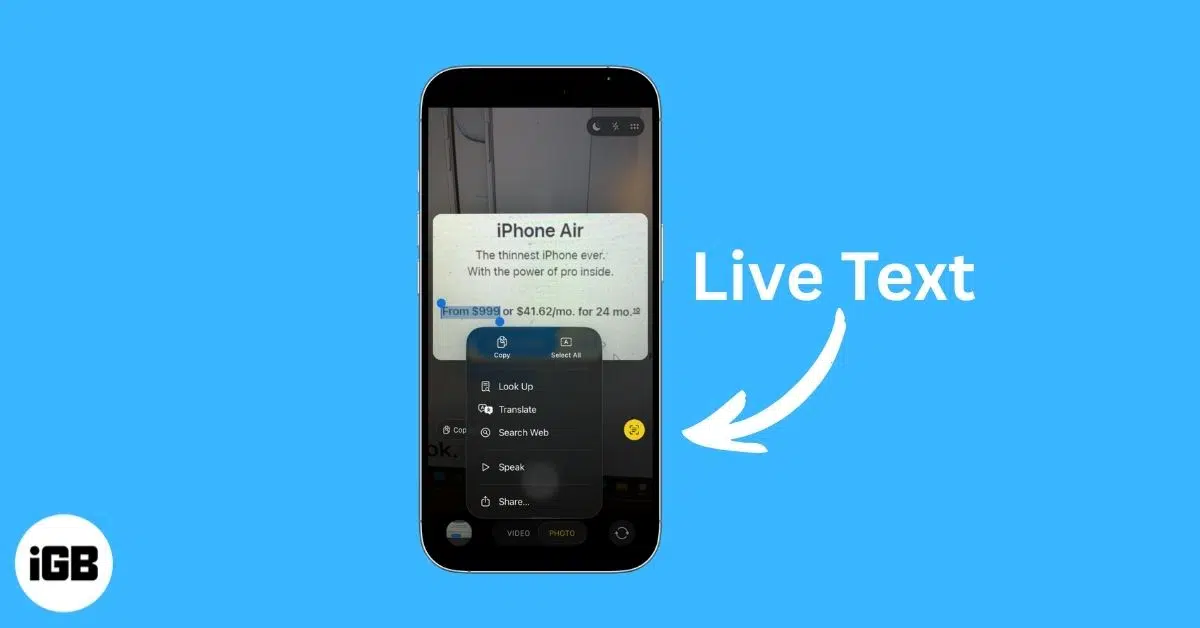
With Live Text, you can copy text from images or photos and even call phone numbers detected in pictures.
Just point your camera at text, tap the indicator, and choose “Copy” or “Call.”
Use the Shortcuts app to automate tasks like turning on Low Power Mode when the battery hits 20% or sending a daily reminder message.
Check out Apple’s gallery of pre-made shortcuts to get started.
If you are curious, you can check our in-depth guide on how to create shortcuts on iPhone and iPad.
This photographic trick is for those who love to display the beauty around them in a unique dimension. Panoramic photos, when taken professionally, are always worth a stare. They give the world a rounded, unbroken perspective.
Want to exhibit your panoramic photographic skills using your iPhone? It’s simple:

Swipe down from the middle of your Home Screen (or within apps) to use Spotlight Search. You can find apps, contacts, files, or even web results without leaving your current screen.
Keep sensitive notes secure by locking them. In the Notes app, swipe left on a note, tap the lock icon, and set a passcode or Face ID.
Check out our comprehensive guide on locking the Note app on iPhone or iPad.
Customize your Home Screen by adding widgets for weather, battery status, or favorite apps.


Whether you’re new to iPhone or upgrading from an older model, these tricks can help you discover hidden gems and personalize your experience. Try them out and you’ll be surprised how much smoother and smarter your iPhone feels.
Read more: