FaceTime Like a Pro
Get our exclusive Ultimate FaceTime Guide 📚 — absolutely FREE when you sign up for our newsletter below.

FaceTime Like a Pro
Get our exclusive Ultimate FaceTime Guide 📚 — absolutely FREE when you sign up for our newsletter below.


If your iPhone goes missing, here's several ways to quickly turn off Apple Pay remotely to keep your cards safe and prevent unauthorized payments.


If your iPhone is lost or stolen, one of the first things you should do is disable Apple Pay remotely to protect your payment cards. While Apple Pay is designed with strong security protections, taking immediate action ensures no one can attempt unauthorized purchases from your device.
The good news is that Apple makes it easy to turn off the service online. You don’t need access to the lost iPhone, just another device and an internet connection. In this guide, you’ll learn how to disable Apple Pay remotely, what happens after you remove your cards, and additional steps you should take to secure your account.
When your iPhone is missing, time matters. Apple Pay requires authentication like Face ID, Touch ID, or a passcode. Therefore, if someone gets your passcode, they could attempt to access saved data, apps, or payment methods.
So, disabling payment access immediately adds another level of protection. It helps:
Apple Pay itself is encrypted and doesn’t store your actual card numbers on the device, but disabling it ensures maximum protection. So, it’s always better to lock things down early rather than wait and worry.
Before you begin, make sure you have access to a few things.
Also, note that even if you remotely suspend Apple Pay cards, your physical cards remain active unless you cancel them separately.
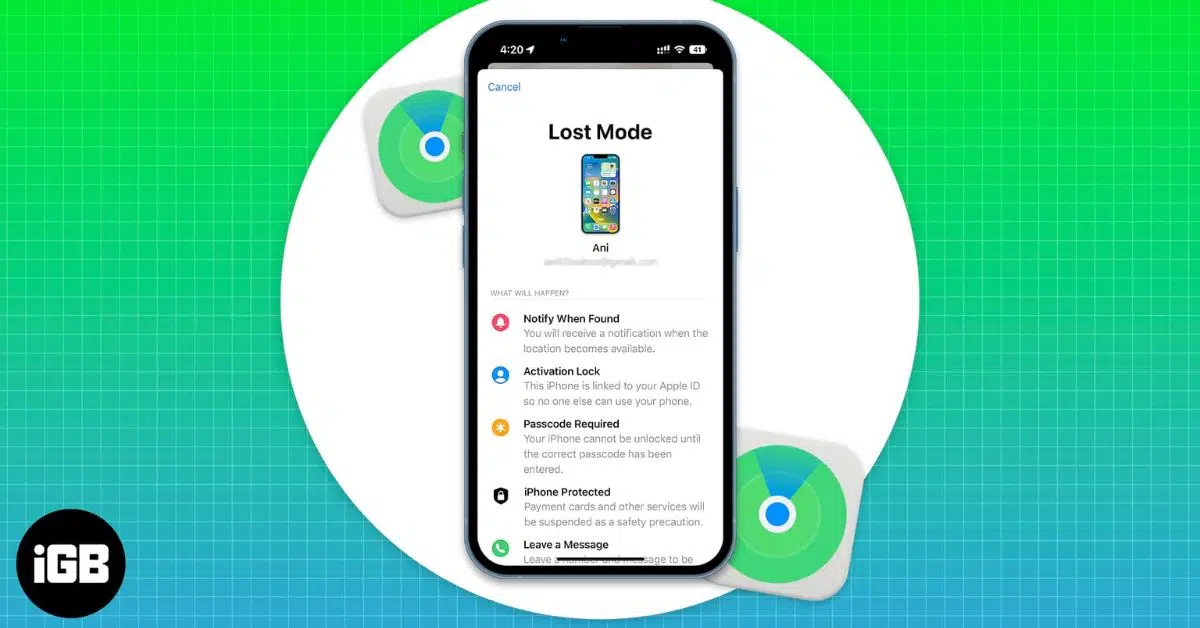
This is usually the fastest and safest method. The Find My feature lets you mark your iPhone as lost and suspend Apple Pay automatically.
Here’s how:


Now that the Lost Mode is activated, the stolen phone is locked, and Apple Pay is turned off remotely so that your payment cards cannot be used. It also helps you track the device even if it’s offline via Find My network.
If you have access to your other Apple devices logged into the same Apple Account, you can remove cards manually.
For another iPhone or iPad:
From a web browser on any device:


Once removed, the cards cannot be used for payments from that device. This method works even if you cannot enable Lost Mode.
If you cannot access your Apple ID immediately, contact your bank. I suggest doing it irrespective of the first two methods.
Banks can:
Explain that your iPhone is lost or stolen and that your card is linked to Apple Pay. This is an effective backup method.
Once you remove Apple Pay from your stolen iPhone:
Importantly, your physical debit or credit cards, banking, and subscription services still work normally unless you cancel them.
If you later recover your iPhone, you can re-enable Apple Pay by adding your cards again.
Turning off Apple Pay is important, but you should also secure your accounts.
Changing your password ensures no one can access your Apple account.


Avoid reusing old passwords.
Check your bank and credit card activity for unusual payments. Look for small test transactions, unknown merchants, and failed payment attempts.
Report anything suspicious immediately.
Contact your mobile carrier and report the device.
They can:
This prevents misuse of your phone number.
You can reduce risk by preparing in advance.
Losing an iPhone can be stressful, but disabling Apple Pay quickly protects your financial information and prevents unauthorized payments.
Fortunately, Apple makes this process simple. You can use any of the methods mentioned in this guide. After securing Apple Pay, take additional steps like changing your Apple ID password and reporting the device to your carrier.
With the right precautions and security habits, your payment information stays safe even if your device goes missing. For more practical iPhone security tips and step-by-step guides, stay tuned!
FAQs
No. Apple Pay requires authentication through Face ID, Touch ID, or the device passcode. Without this verification, payments cannot be completed.
No. Disabling Apple Pay only removes the card from the lost device. Your physical debit or credit cards remain active unless you cancel them through your bank.
You can disable Apple Pay remotely by signing into iCloud Find Devices, selecting your device, and enabling Lost Mode. This suspends Apple Pay cards immediately.