

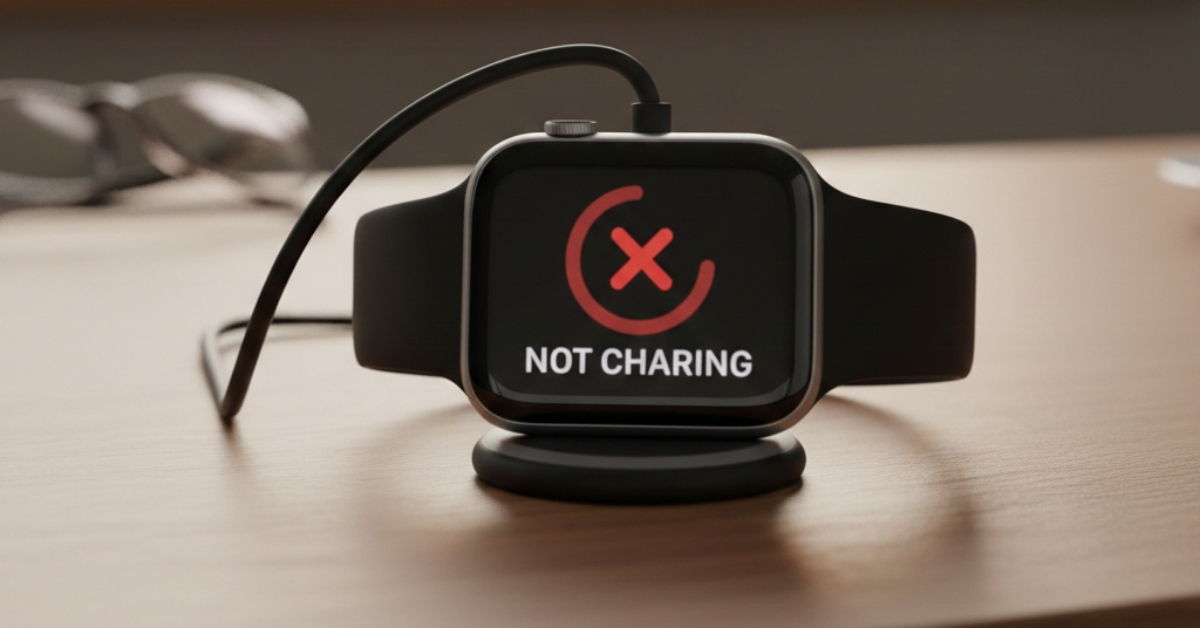
You place your Apple Watch on the charger at night, expecting it to be ready by morning. Instead, you wake up to a blank screen, a red lightning bolt, or no charging sign at all. Frustrating? Absolutely. The good news is that in most cases, an Apple Watch that won’t charge isn’t broken. It’s usually a small, fixable issue, something as simple as dirt, a loose cable, or a drained battery that just needs more time.
This guide walks you through every practical fix in a clear, step-by-step way. We’ll start with what your Apple Watch is trying to tell you, then move through simple checks, deeper troubleshooting, and finally, when it’s time to call Apple Support.
What the Lightning Bolt on Your Apple Watch Really Means
Before fixing anything, it helps to understand the symbols on your screen. Apple Watch charging icons are small, but they tell a clear story if you know how to read them.
- Green lightning bolt means your Apple Watch is charging normally.
- Red lightning bolt means the battery is extremely low and doesn’t have enough power to turn on yet.
- Red lightning bolt inside a ring appears when the watch is on the charger, but still needs time.
- A blank screen usually means the battery is fully drained and hasn’t reached the minimum power level to show anything yet.
If your watch is completely dead, don’t panic. It can take up to 30 minutes on the charger before the lightning bolt appears. This is normal and often mistaken for a charging failure.
Start With Patience: Let a Dead Apple Watch Charge
If your Apple Watch is completely out of battery, it may appear unresponsive at first. Place it on the charger and leave it alone for at least 15 to 30 minutes. During this time, it’s slowly building enough power just to wake the screen.
Many people remove the watch too early, assuming it’s not charging. Give it time. If the red lightning bolt appears, that’s a good sign; you’re on the right track.
Check the Charging Cable, Adapter, and Outlet
Most charging problems stem from power delivery. Even a slightly loose connection can stop charging entirely.
Start by making sure:
- You’re using an Apple Magnetic Charging Cable or USB‑C Magnetic Fast Charging Cable.
- The cable is pushed fully into the USB power adapter.
- The adapter is plugged directly into a working wall outlet.
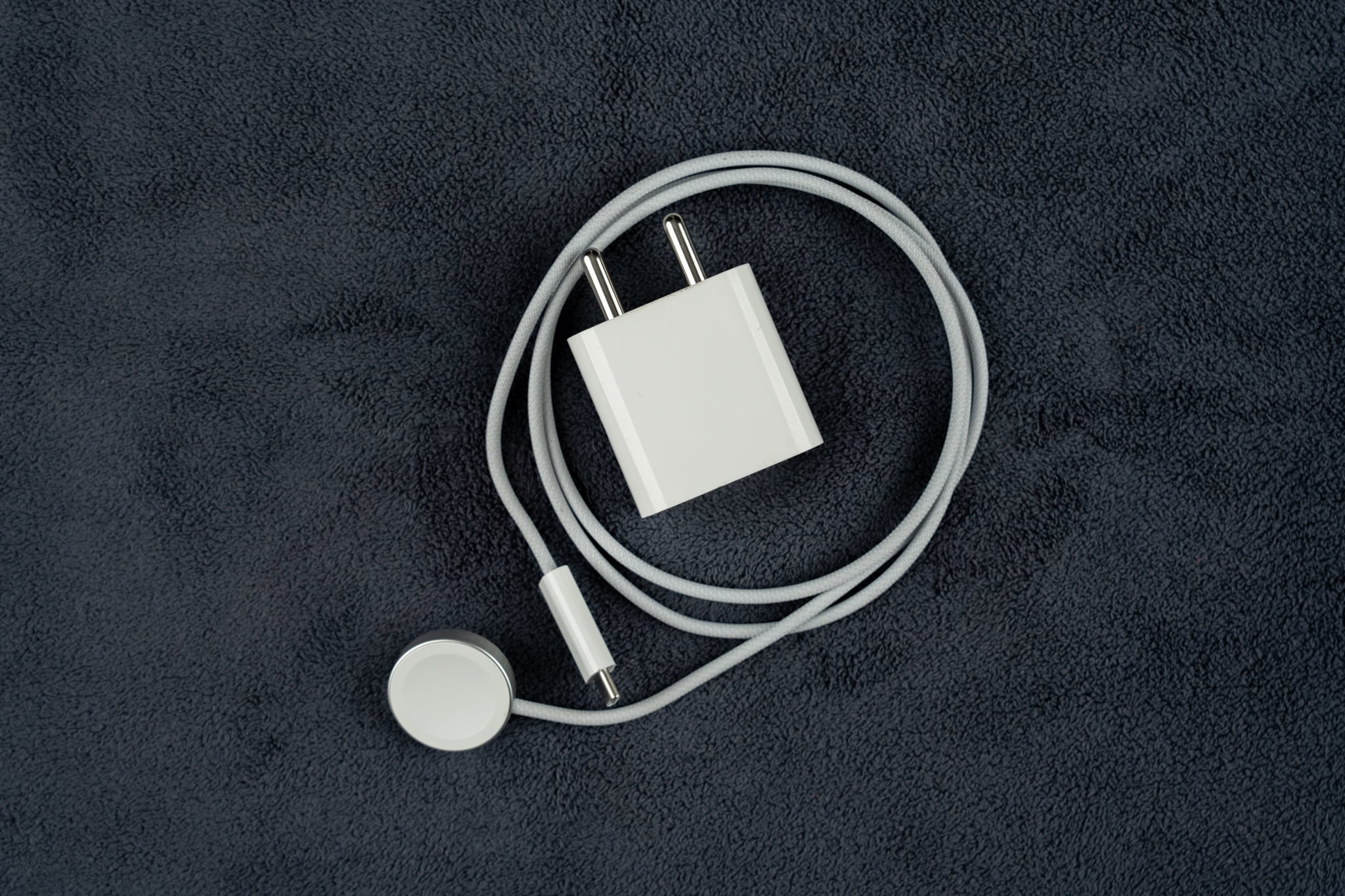
If nothing happens, try a different outlet, power strip, or USB port. A dead wall socket or a weak USB port can appear to be a watch problem when it’s not.
Clean the Back of Your Apple Watch and the Charger
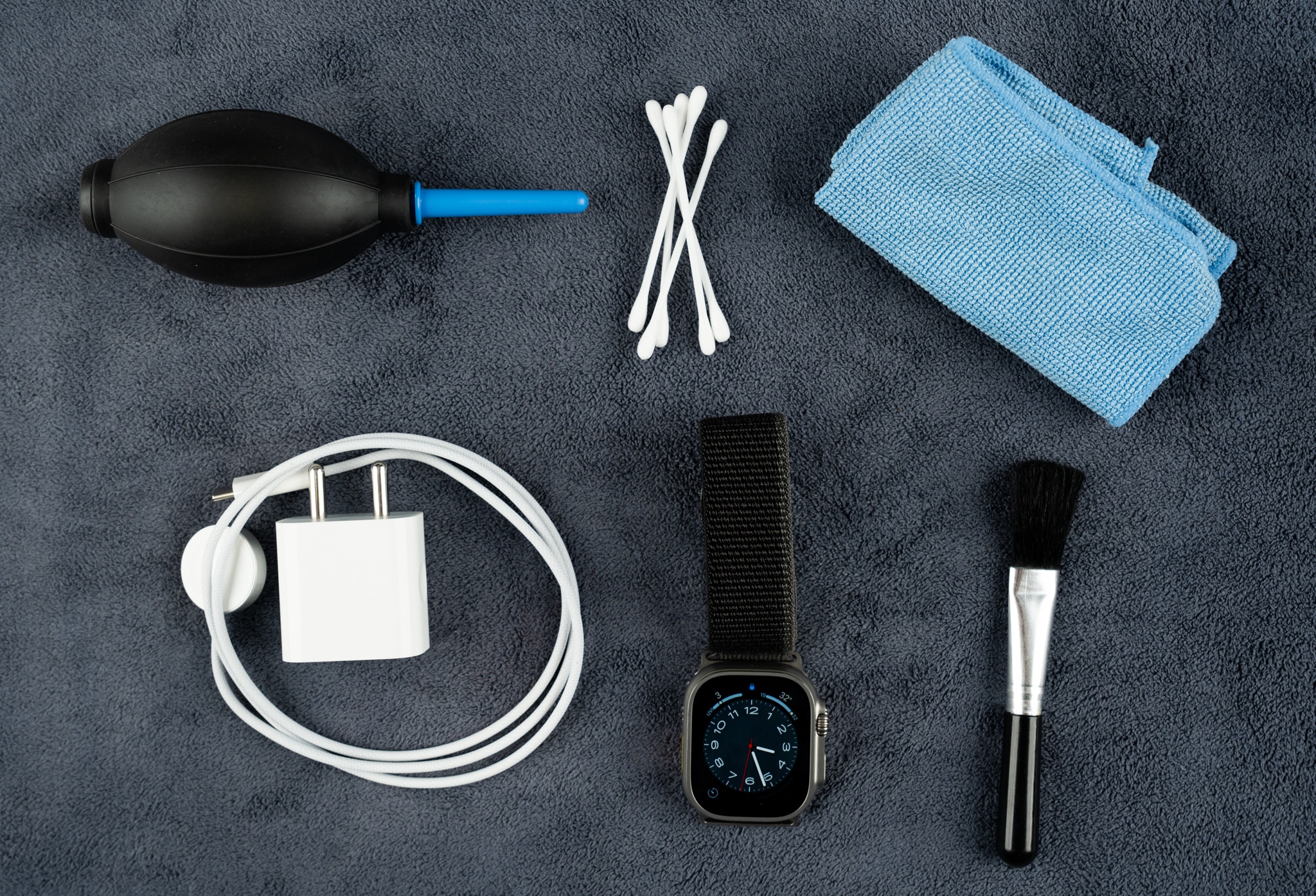
This step may seem simple, but it resolves more charging issues than you’d expect. Sweat, dust, lotion, and grime slowly build up on the back of the watch and the magnetic charger.
Use a soft, lint‑free cloth to clean:
- The back of the Apple Watch.
- The magnetic charging puck.
If needed, lightly dampen the cloth with water or use an alcohol wipe, then dry everything completely. Even a thin layer of dirt can block the magnetic connection.
Also, double‑check that all plastic wrap has been removed from both sides of the charger. Yes, this still catches people off guard.
Reposition the Watch on the Charger
Apple Watch charges magnetically, so alignment matters. Place the watch flat on the charger with the back fully touching the puck. When the magnets line up correctly, the watch should snap gently into place.
If you can lift the charging cable and the watch falls off, the alignment isn’t right. Adjust the angle until it stays attached and shows a lightning bolt.
If you use one of the following charging accessories:
- Apple Watch Magnetic Charging Dock
- MagSafe Duo Charger
Try laying the charger completely flat. For larger models (44mm, 45mm, 49mm) or Apple Watch Ultra, removing the band can improve contact.
Inspect the Charger for Damage or Certification Issues
Take a close look at the charging cable. If you see fraying, discoloration, cracks, or bent connectors, the cable may be failing.
If you’re using a third‑party charger, make sure it’s MFi‑certified (Made for iPhone/Apple Watch). Cheap or uncertified chargers may:
- Fail to charge properly
- Trigger “accessory not supported” warnings
- Cause overheating
If possible, test your watch with another Apple charging cable and power adapter. If it starts charging, you’ve found the culprit.
Force Restart Your Apple Watch
Sometimes the problem isn’t the charger, it’s the software. A force restart can clear temporary glitches that stop charging.
To force restart:
- Press and hold the Side Button and Digital Crown together.
- Keep holding for about 10 seconds.
- Release when the Apple logo appears.
After the restart, reconnect the watch to the charger and wait a few minutes.
Check for Overheating
If your Apple Watch feels hot, it may pause charging automatically to protect the battery. This can happen if:
- The room is very warm
- The charger is uncertified
- The watch was in direct sunlight
Remove the watch from the charger, let it cool down for a few minutes, then try again.
Update watchOS if the Watch Turns On
Charging issues have occasionally been caused by software bugs. If your Apple Watch turns on and has enough power:
- Open Settings on the watch.
- Go to General → Software Update.
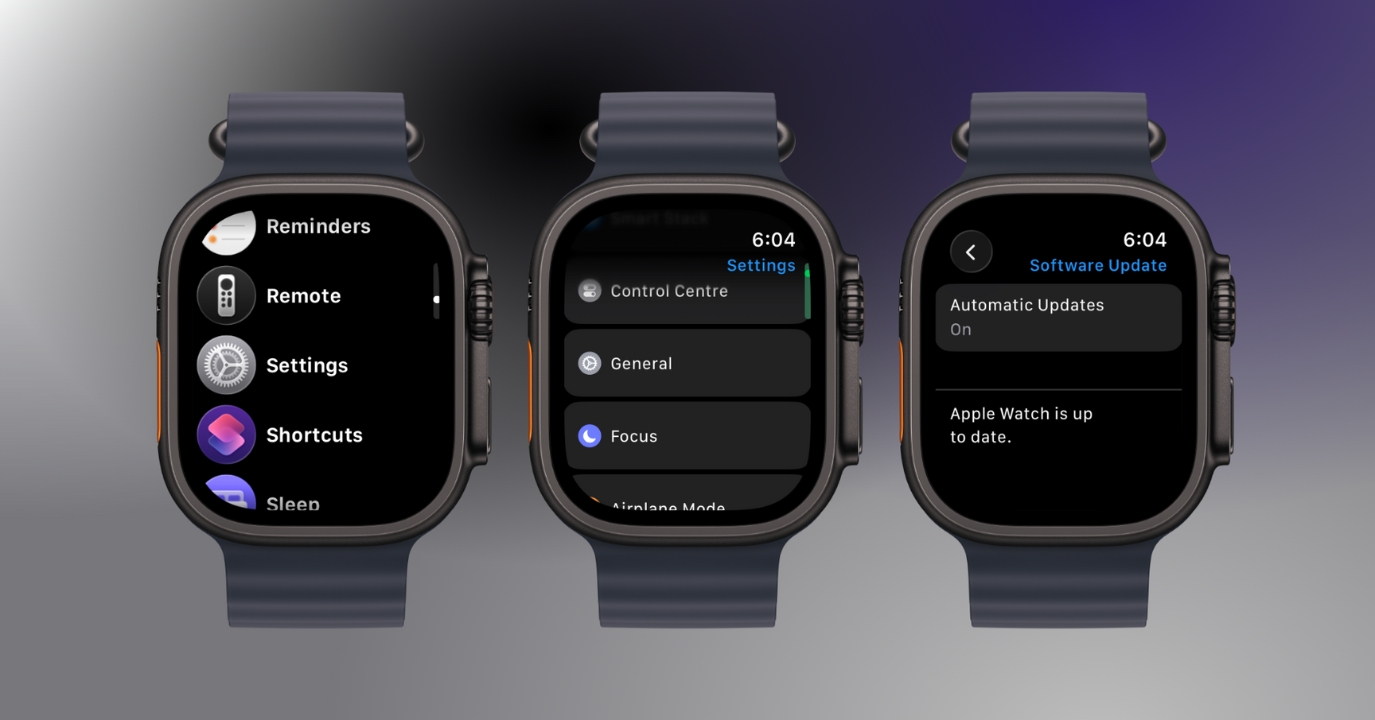

Installing the latest watchOS version can fix hidden charging problems, especially after system updates.
How to Know for Sure If Your Apple Watch Is Charging
When charging starts, a green lightning bolt appears briefly on the screen. If you see a small red lightning bolt while wearing the watch, the battery is critically low.
If the red bolt appears even while the watch is on the charger, it usually indicates the watch is receiving little or no power. That’s your cue to recheck the cable, outlet, and alignment.
When to Contact Apple Support
If you’ve tried everything, cleaning, new cables, force restart, software updates, and your Apple Watch still won’t charge, the issue may be hardware‑related.
At this point:
- Contact Apple Support.
- Book an Apple Store appointment.
- Check if your watch is covered by AppleCare or warranty.
Apple can test the battery and charging system, or replace faulty accessories as needed.
Final Thoughts
An Apple Watch that won’t charge feels stressful, especially when you rely on it daily. But in most cases, the fix is simple: a clean surface, a better cable, proper alignment, or just a little patience. Work through these steps calmly and in order, and chances are your watch will be back on your wrist, fully charged, before you know it.
If not, Apple Support is there to take it the rest of the way. And sometimes, knowing you’ve tried everything already makes that visit much easier.
Read more:


