FaceTime Like A Pro (eBook)

Get our exclusive Ultimate FaceTime Guide 📚 — absolutely FREE when you sign up for our newsletter below.

How to Disable Apple Pay on a Lost or Stolen iPhone

If your iPhone goes missing, here's several ways to quickly turn off Apple Pay remotely to keep your cards safe and prevent unauthorized payments.

Explore with AI:

If your iPhone is lost or stolen, one of the first things you should do is disable Apple Pay remotely to protect your payment cards. While Apple Pay is designed with strong security protections, taking immediate action ensures no one can attempt unauthorized purchases from your device.

The good news is that Apple makes it easy to turn off the service online. You don’t need access to the lost iPhone, just another device and an internet connection. In this guide, you’ll learn how to disable Apple Pay remotely, what happens after you remove your cards, and additional steps you should take to secure your account.

Why You Should Disable Apple Pay Immediately After Losing Your iPhone

When your iPhone is missing, time matters. Apple Pay requires authentication like Face ID, Touch ID, or a passcode. Therefore, if someone gets your passcode, they could attempt to access saved data, apps, or payment methods.

So, disabling payment access immediately adds another level of protection. It helps:

Your Complete iOS 26 Playbook:

Get our exclusive Ultimate iOS 26 Guide 📚 — absolutely FREE when you sign up for our newsletter below.

  • Prevent unauthorized payment attempts
  • Protect your stored cards
  • Reduce fraud risk
  • Secure your Apple account

Apple Pay itself is encrypted and doesn’t store your actual card numbers on the device, but disabling it ensures maximum protection. So, it’s always better to lock things down early rather than wait and worry.

What You Need to Disable Apple Pay Remotely

Before you begin, make sure you have access to a few things.

  • Apple ID and Password: You’ll need your Apple ID credentials to sign in to your account and manage devices remotely. If you don’t remember your password, you can reset it using Apple’s account recovery process.
  • Access to another device: You don’t need another Apple device specifically. Another phone, laptop, or tablet will work. As long as you can access a browser, you can disable Apple Pay.
  • Internet connection and account verification: Make sure you have a stable internet connection. If you have access to your other Apple devices, you may complete verification needs like 2FA authentication. It protects your account from unauthorized changes.

Also, note that even if you remotely suspend Apple Pay cards, your physical cards remain active unless you cancel them separately.

Method 1: Disable Apple Pay Using Find My (Fastest Way)

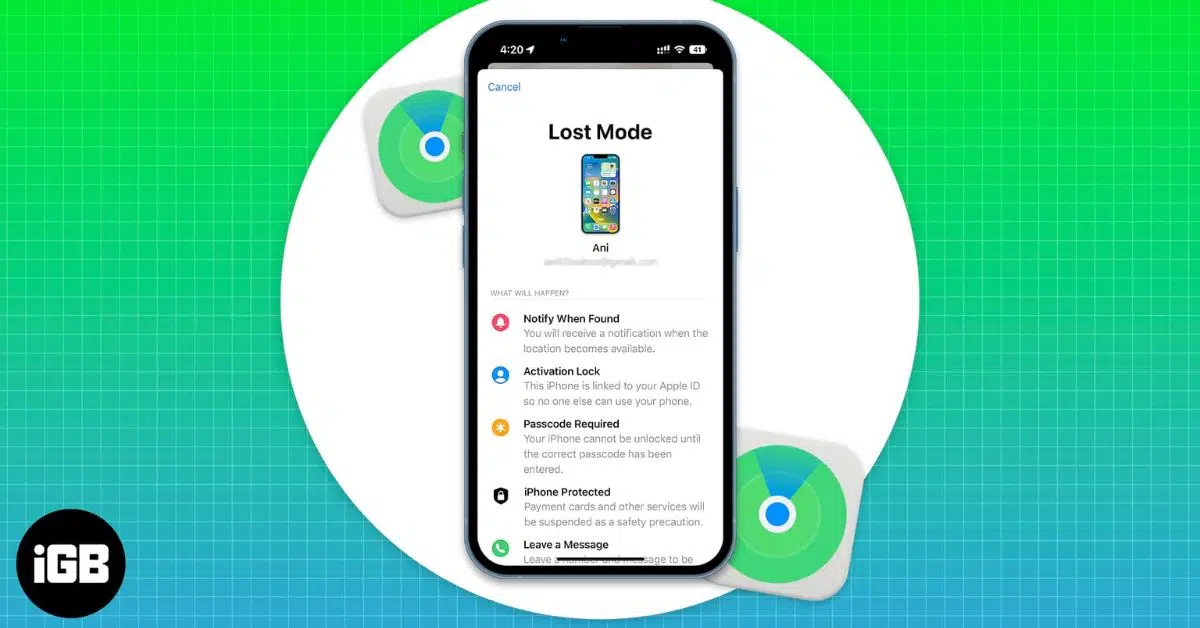
This is usually the fastest and safest method. The Find My feature lets you mark your iPhone as lost and suspend Apple Pay automatically.

Here’s how:

  1. Go to iCloud.com/find/ and click Sign In.
    Go To iCloud And Click On Sing In
  2. Enter your Apple Account email address or phone number and select Continue.
  3. Now, type in your password and click Sign In.
    Enter Email Address Or Phone Number Then Tap Continue
  4. It will open iCloud Find Devices.
  5. Select your lost iPhone on the sidebar.
    Select Your Lost iPhone on the Sidebar
  6. Click Lost iPhone.
    Click Lost Mode
  7. Now, follow the on-screen instructions to add a phone number and a custom message that will be displayed on your lost iPhone screen.
  8. Finally, hit Activate.
    Tap On Activate

Now that the Lost Mode is activated, the stolen phone is locked, and Apple Pay is turned off remotely so that your payment cards cannot be used. It also helps you track the device even if it’s offline via Find My network.

Method 2: Remove Apple Pay Cards Remotely via iCloud

If you have access to your other Apple devices logged into the same Apple Account, you can remove cards manually.

For another iPhone or iPad:

  1. Launch Settings and tap on your name.
  2. Select your lost iPhone.
  3. Then scroll down to the Wallet & Apple Pay section and tap Remove Items.
  4. Now, delete your cards.

From a web browser on any device:

  1. Visit account.apple.com and sign in.
    Launch Settings an d Tap on Your Name
  2. It will prompt you to enter a two-factor authentication code.
  3. Go to Devices from the left pane.
  4. Choose the lost iPhone.
  5. Now, click Remove Items from the Wallet & Apple Pay section.
    Apple Pay Section and Tap Remove Items

Once removed, the cards cannot be used for payments from that device. This method works even if you cannot enable Lost Mode.

Method 3: Contact Your Bank to Deactivate Apple Pay

If you cannot access your Apple ID immediately, contact your bank. I suggest doing it irrespective of the first two methods.

Banks can:

  • Suspend the Apple Pay virtual account number for that device
  • Block digital wallet transactions
  • Monitor suspicious activity
  • Replace cards if necessary

Explain that your iPhone is lost or stolen and that your card is linked to Apple Pay. This is an effective backup method.

What Happens After You Deactivate Apple Pay

Once you remove Apple Pay from your stolen iPhone:

  • Payment tokens stored on that device are suspended
  • In-store contactless payments and all kinds of online transactions stop working
  • Stored card numbers get deleted to protect sensitive information
  • Your Apple Pay account stays active on other devices

Importantly, your physical debit or credit cards, banking, and subscription services still work normally unless you cancel them.

If you later recover your iPhone, you can re-enable Apple Pay by adding your cards again.

Extra Security Steps to Protect Your Apple ID and Payments

Turning off Apple Pay is important, but you should also secure your accounts.

1. Change Your Apple ID Password

Changing your password ensures no one can access your Apple account.

  1. Go to iforgot.apple.com using a browser and click Reset Password.
    Open Given Link And Click Reset Password
  2. Enter your Apple ID email or phone number.
    Enter Your Apple ID Email or Phone Number.
  3. Now, you can set a strong new password from your other Apple devices. If you don’t have one, choose the appropriate option.

Avoid reusing old passwords.

2. Monitor Recent Transactions

Check your bank and credit card activity for unusual payments. Look for small test transactions, unknown merchants, and failed payment attempts.

Report anything suspicious immediately.

3. Reporting the Device as Lost or Stolen to Your Carrier

Contact your mobile carrier and report the device.

They can:

  • Disable the SIM card
  • Prevent calls or data usage
  • Block the device from being used on networks

This prevents misuse of your phone number.

Tips to Prevent Apple Pay Misuse in the Future

You can reduce risk by preparing in advance.

  • Keep Find My enabled at all times: It’s the most important recovery and security tool. Keep it enabled so you can lock devices remotely, track location, and disable Apple Pay quickly.
  • Use a strong device passcode: Avoid simple passcodes like 1234, 0000, or birth year. Use a longer numeric or alphanumeric passcode for better security.
  • Set up instant bank alerts: Transaction alerts notify you immediately when a payment occurs. Opt for email notifications so that you can check them from anywhere. This helps you react quickly to suspicious activity.
  • Regularly review Apple ID devices: Occasionally check which devices are connected to Apple Pay. Go to Settings > [your name] and check the device list. Remove the ones you no longer use.
  • Enable two-factor authentication: 2FA adds another layer of security. Even if someone knows your password, they cannot sign in without the code. From Settings > [your name] > Sign-In & Security, enable Two-Factor Authentication.

Final Thoughts

Losing an iPhone can be stressful, but disabling Apple Pay quickly protects your financial information and prevents unauthorized payments.

Fortunately, Apple makes this process simple. You can use any of the methods mentioned in this guide. After securing Apple Pay, take additional steps like changing your Apple ID password and reporting the device to your carrier.

With the right precautions and security habits, your payment information stays safe even if your device goes missing. For more practical iPhone security tips and step-by-step guides, stay tuned!

FAQs

Can Apple Pay be used if the iPhone is locked?

No. Apple Pay requires authentication through Face ID, Touch ID, or the device passcode. Without this verification, payments cannot be completed.

Does disabling Apple Pay cancel your physical cards?

No. Disabling Apple Pay only removes the card from the lost device. Your physical debit or credit cards remain active unless you cancel them through your bank.

How do I disable Apple Pay remotely without my iPhone?

You can disable Apple Pay remotely by signing into iCloud Find Devices, selecting your device, and enabling Lost Mode. This suspends Apple Pay cards immediately.

Explore with AI:

Add Igeekblog as a preferred source on Google

Ava Biswas
Ava Biswas

Ava is a die-hard Apple aficionado and seasoned writer with a knack for breaking down complex tech concepts into easily digestible content. Having honed her writing and editing skills over 4 years at renowned media houses like TechBurner, Ava crafts informative and engaging articles including troubleshooting guides, product reviews, editorials at iGeeksBlog. When not typing, you can find her exploring the latest Apple releases or pondering the future of tech innovation.

Articles: 596

FaceTime Like a Pro:

Get our exclusive Ultimate FaceTime Guide 📚 — absolutely FREE when you sign up for our newsletter below.


Leave a Reply

Your email address will not be published. Required fields are marked *