FaceTime Like a Pro
Get our exclusive Ultimate FaceTime Guide 📚 — absolutely FREE when you sign up for our newsletter below.

FaceTime Like a Pro
Get our exclusive Ultimate FaceTime Guide 📚 — absolutely FREE when you sign up for our newsletter below.


Master Cinematic mode on your iPhone to create stunning, professional-grade videos effortlessly.
 ByVikhyat


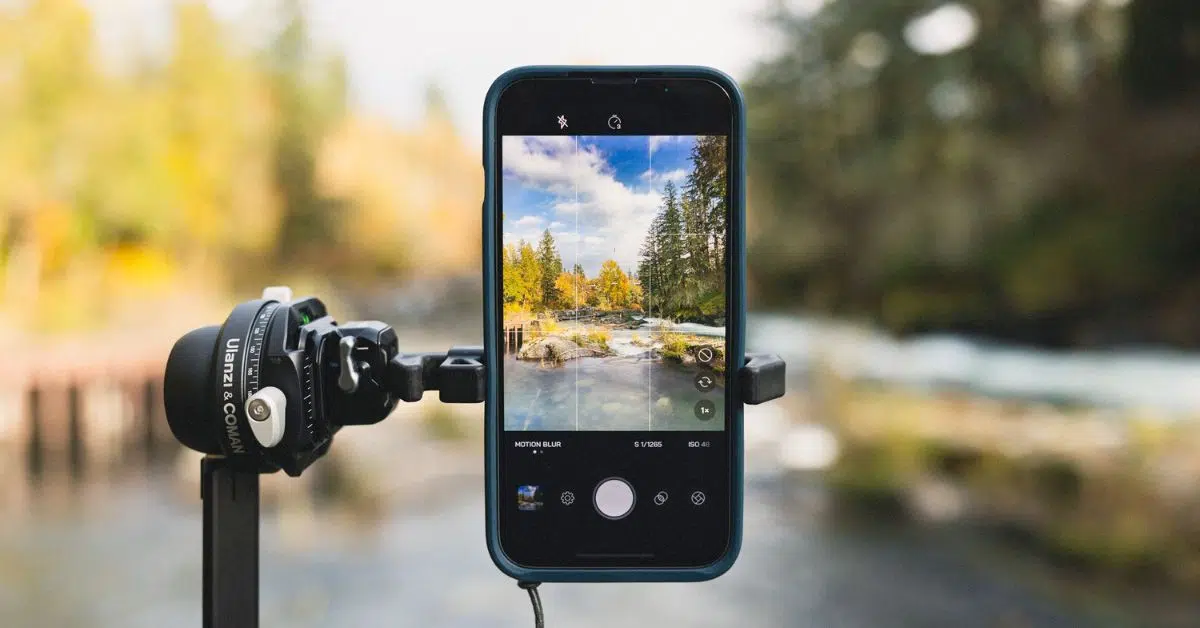
Creating professional-looking videos on an iPhone can feel limiting. Standard video keeps everything in focus, which often makes clips look flat and less engaging. Achieving cinematic background blur typically requires expensive cameras or complex editing software. That’s exactly where Apple’s Cinematic mode comes in.
Introduced with iPhone 13, Cinematic mode adds shallow depth of field, smart focus shifts, and lets you edit focus even after recording. All of it works right inside the Camera app. With just a few taps, you can turn everyday videos into polished, movie-style clips without any advanced skills.
Here’s everything you need to know about the Cinematic mode on iPhone.
Cinematic mode is a video recording mode on iPhones that adds a beautiful depth-of-field effect to your videos, which is to say, it blurs the background to emphasize focus on the subject. This effect gives the video a professional appeal, which many refer to as “movie-like aesthetics.”
iPhones use computational photography combining software and hardware capabilities to mimic the behavior of professional cameras. Put simply, Cinematic mode captures high-quality depth data in Dolby Vision HDR at 30 frames per second to determine the exact distance between the camera and all the subjects in the frame. Then, combined with machine learning from the Neural Engine, the camera smartly picks what to focus on and when to apply focus transitions. You can manually lock focus on a subject, like a person or a thing, to track them throughout the scene if needed.
Another standout feature of Cinematic mode is that it enables your iPhone camera to adjust focus dynamically. For example, if a new subject comes into the frame or the current one looks away, the focus changes automatically. This guides the viewers’ attention and helps tell a story better. Moreover, you can even change the focus or tweak the bokeh effect after the video has been shot.
If you’re wondering how a Cinematic mode video differs from a standard video, here’s what you need to do.
These differences significantly improve the iPhone’s capabilities as a filmmaking device and create exciting new possibilities for video production, particularly on a low budget or with limited resources.
Cinematic mode is available on the following iPhone models:
These devices feature advanced A-series chips and enhanced camera hardware to support Cinematic mode.
Now that you understand the feature well, let’s learn how to use Cinematic mode on an iPhone to elevate your video content, whether you’re a beginner or a budding filmmaker.
Recording a cinematic video is straightforward. This is what the process looks like:

By default, Cinematic mode records in 1080p at 30 fps. However, you can also change the recording quality before starting the video by tapping the resolution and frame rate options at the top right of the Camera app, then switch to 4K for better clarity and choose between 24 or 30 fps on iPhone 14 and later models.
Editing Cinematic mode videos is easy and doesn’t require additional tools. You can adjust focus and blurring level even after capturing the video. Here’s how:

You can also apply a filter, trim the clip, adjust color, etc., just like normal videos. For a detailed guide, check out how to edit videos on iPhone and iPad.
Here are some tips to make the most of Cinematic mode:
| Problem | Why It Happens | How to Fix It |
|---|---|---|
| Background blur looks weak | The subject is too close to the background or depth is set low | Move your subject farther from walls or objects and increase blur using the f slider |
| Focus keeps changing automatically | iPhone detects new subjects and shifts focus on its own | Tap and hold on your main subject to lock focus before recording |
| Cinematic mode is missing | Your iPhone model does not support Cinematic or you’re not in video modes | Make sure you’re using iPhone 13 or newer and swipe through camera modes |
The Cinematic mode on iPhones is a game-changer if you want to shoot professional-quality videos without expensive equipment. With its advanced features and editing capabilities, you can easily produce visually stunning content right on your iPhone.
So go ahead and try the mode yourself. With a little practice, you should soon be able to shoot cinematic videos with your iPhone like a pro.
FAQs
Action mode is designed for stabilization during fast movements, while Cinematic mode focuses on adding depth-of-field effects and dynamic focus transitions. To learn more, go through our guide on using Action mode on iPhones.
Yes, Cinematic mode works with the front-facing camera on supported iPhones.
You can record in up to 4k resolution at 24, 25, or 30 fps on iPhone 14 and later models or 1080p at 30fps on iPhone 13 series.
No, but you can edit the video to reduce the depth-of-field effect. Open the video in the Photos app, tap the edit icon, select the f button, and move the slider all the way to the right.
Read more: