FaceTime Like a Pro
Get our exclusive Ultimate FaceTime Guide 📚 — absolutely FREE when you sign up for our newsletter below.

FaceTime Like a Pro
Get our exclusive Ultimate FaceTime Guide 📚 — absolutely FREE when you sign up for our newsletter below.


A quick guide to the common reasons your HomePod stops responding and the simple methods to fix it.


If your HomePod suddenly stops responding, you’re not alone. Whether it’s ignoring “Hey Siri” or touch controls, failing to show up in the Home app, or just feeling a bit sluggish, the fix is usually easier than it seems. In this guide, I’ll explain why your HomePod isn’t responding and share practical steps you can take to get it working again.
When a HomePod ignores Hey Siri or doesn’t react when you tap the top surface, the cause is usually one of the following things:
For this reason, you may see a No Response alert for your HomePod or HomePod mini in the Home app.
Try these proven methods to fix your unresponsive HomePod in minutes.
It might happen, you’re continuously calling Siri, but HomePod isn’t responding because you haven’t actually turned it on! You can make sure it’s powered on by tapping the top surface. A pulsing white light will show.
Otherwise, open the Home app on your iPhone/iPad and tap on the HomePod. Check if it shows as ‘Playing’ when you initiate music. If it fails even this basic step, power-cycle the speaker before moving to the next step.
Now, check if it responds to your voice commands or touch controls.
If your HomePod or HomePod mini is having trouble connecting to your home Wi-Fi network, accessing your Apple Account, or experiencing another issue, you will see a warning with details in the Home app.
This step ensures you follow the proper troubleshooting steps and quickly fix your HomePod.
Your HomePod automatically connects to the same Wi-Fi network as your iPhone. If you’ve recently changed your Wi-Fi password or moved it to another location, you might lose connection. In this case, when you approach Siri, it will tell you that there’s a problem connecting to the Wi-Fi.
You can also manually verify if there’s a Wi-Fi connection issue from the Home app and connect it to the same network as your iPhone.
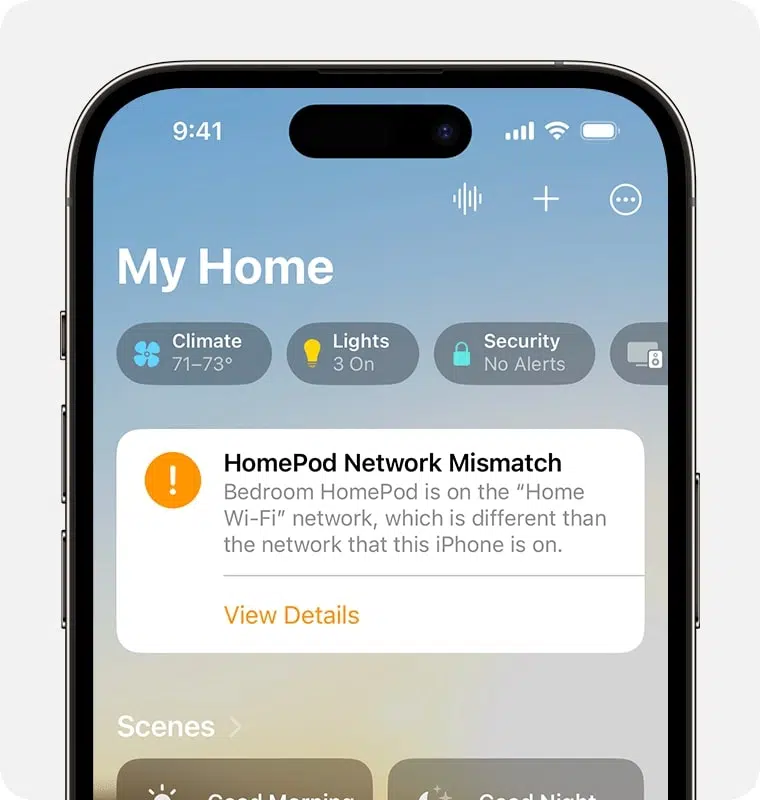

No network mismatch? Then maybe your Wi-Fi is the culprit. To validate this:
Your Wi-Fi signal is poor if the signal strength indicator displays two bars or fewer. Eliminate potential Wi-Fi interference sources, such as microwaves or cordless phones, and try relocating your HomePod closer to your router.
Now that your HomePod and iPhone are connected to the same Wi-Fi network, long-press the top of your HomePod and ask, “Hey Siri, what’s the temperature?” If there’s no response, Siri might be disabled or not listening to you properly.
Now, try some Siri commands in a clear and loud voice. If your HomePod is still not responding, the microphone may be blocked. Check for any physical obstructions and clean your HomePod.
Software bugs can cause HomePod to become unresponsive, interrupting its functions. To clear out such software glitches, simply restart the device. It’s a simple yet proven method.
Apple regularly releases new firmware versions to keep the HomePod working smoothly. By default, those updates happen over the air. You can still verify if any updates are pending.
If your HomePod is still struggling to respond, you need to do a factory reset. This can resolve corrupted settings, network handoffs, or hub registration issues.

If everything else fails and you’re unable to reset it through the Home app, you can do a full hardware reset:
If, after all these steps, your HomePod still doesn’t respond or function, it may indicate a hardware fault or deeper software corruption that needs service. The best possible way is to contact Apple Support.
As HomePod offers much more than just a music-streaming speaker, you might lose productivity on your daily tasks. But we hope you have resolved the error with one of the ways we’ve explained. If yes, then which is it? Tell us about it in the comment section below!
You may also like to read these