FaceTime Like a Pro
Get our exclusive Ultimate FaceTime Guide 📚 — absolutely FREE when you sign up for our newsletter below.

FaceTime Like a Pro
Get our exclusive Ultimate FaceTime Guide 📚 — absolutely FREE when you sign up for our newsletter below.


Clean up your address book fast by merging duplicates and deleting multiple contacts with a few quick steps.


iOS may be in its nineteenth generation, but deleting more than one contact is still slower than it should be because the Contacts app lacks a true multi-select delete option. Many users think they have to remove entries one at a time, which gets old fast when you’re cleaning up a long list. The good news is that there are a few built-in ways to select and delete multiple contacts, even if they aren’t obvious.
This guide walks you through the simplest methods to clear out several contacts at once and keep your address book in order.
Yes, you can delete multiple contacts at once on an iPhone, but there is no traditional checkbox-style selection. Instead, Apple provides two practical approaches that many users still don’t know about.
Moreover, if you own a Mac that is signed in with the same Apple ID you use on your iPhone and have iCloud Contacts sync enabled, you can easily delete multiple contacts using the traditional select-and-delete approach.
The two-finger select and drag gesture brings back a simple way to bulk-select contacts, but it isn’t as intuitive as other iPhone actions and may take a little practice to get right. Here’s how to use it:

If you prefer a clean, desktop-style contact management interface, you can go to iCloud to delete multiple contacts with greater precision. This is the fastest method for users who manage hundreds or thousands of contacts.


Note: Make sure iCloud Contacts sync is enabled on your iPhone so the changes you make on iCloud.com are reflected immediately on your device.
Since iCloud Contacts sync is enabled, you can delete multiple contacts directly from your Mac, and the changes will automatically appear on your iPhone. Here’s how:


If you see many unwanted or duplicate entries, they may be coming from a synced email account rather than from iCloud. Here’s how you can delete all the contacts from a synced email account at once on iPhone:


If your contacts are cluttered with duplicates or outdated entries, start by cleaning them up. iOS can detect duplicates and lets you merge them with one tap, combining repeated names, numbers, and emails into a single card. Once everything is organized, it’s easier to decide which contacts you want to delete.
If you want a simpler way to handle large contact lists and are fine using third-party tools, several reputable apps can delete multiple contacts quickly. Apps like Cleanup Duplicate Contacts, Contacts+, and Delete Contacts+ let you select contacts in bulk, merge duplicates, and fix incomplete entries.
Check their reviews and privacy practices to be sure your data stays safe. These apps can streamline the cleanup process, but only use them if you’re comfortable giving them access to your contacts.
If you accidentally delete important contacts, you may still recover them. Here’s how:


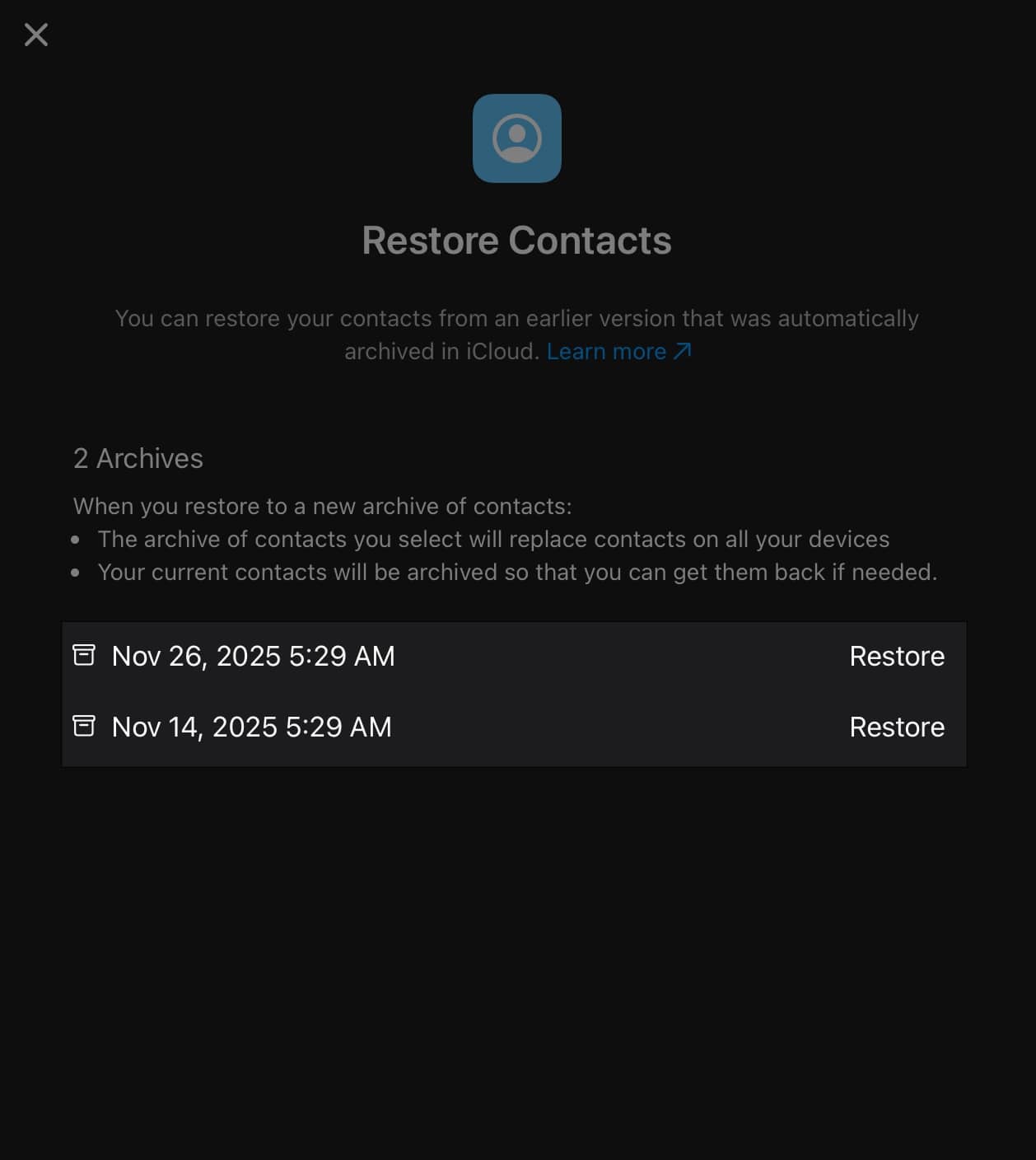

Alternatively, you can restore deleted contacts from an iPhone Backup if you regularly back up to iCloud or Finder. However, this replaces all device data with older backup data.
Sometimes, deleted contacts reappear due to syncing from multiple accounts (Gmail, Outlook, Exchange), disabling iCloud syncing, or pending sync errors after deletion. Here’s how you can fix or ensure the issue never appears:
Now that you have cleaned up your contact list, use these tips to keep it clean so you don’t need to clean it up again:
And that’s it; now you know how easy it is to delete multiple contacts at once on iPhone, even though there isn’t a direct multi-select delete button. The two-finger drag method works well for small, on-device cleanups, but iCloud remains the fastest option for bulk deletions and detailed contact management.
Have questions or found another method? Share your thoughts in the comments.
FAQs
Using iCloud.com is the fastest method because it supports multi-selection via keyboard shortcuts.
Not directly in the Contacts app, but you can delete multiple contacts using iCloud, a Mac, or via third-party cleanup apps.
Use iCloud or a Mac to batch-delete contacts, merge duplicates using iOS tools, remove contacts synced from email accounts, and periodically back up your contact list.
You may like to read: