Introduced with iOS 18, iPadOS 18, and macOS Sequoia, Apple’s Passwords app gives you a secure, dedicated place to store, manage, and organize passwords, passkeys, verification codes, and even Wi Fi credentials across your Apple devices. It also ensures you can use a strong, unique password for every account and network without having to memorize them.
This post details how Apple’s Passwords app works and how you can use it on your iPhone, iPad, or Mac to manage logins more securely and efficiently.
How Does the Apple Passwords App Work?
Built on the same secure foundation as iCloud Keychain, Apple’s Passwords app works like a system-level password vault, storing and syncing your credentials across your Apple devices. It brings everything into one app, making it easier to access saved logins without digging through browser settings or device menus.
You can use the Passwords app to store and manage:
- Account usernames and passwords
- Passkeys
- Two-factor verification codes
- Wi-Fi credentials
- Shared passwords and passkeys
- Sign in with your Apple account details
The biggest advantage is convenience without compromising privacy. Once your credentials are saved, your iPhone, iPad, and Mac can auto-fill them when you sign in to apps and websites.
The Passwords app is also designed to reduce reliance on third-party tools. Instead of using a separate password manager and a separate authenticator app, you can manage most sign-in essentials inside Apple’s ecosystem.
To keep everything secure, passwords are locked behind device authentication:
- Face ID on iPhone and iPad
- Touch ID on compatible Macs
- Device passcode if biometric authentication is unavailable
- Optic ID on Apple Vision Pro
Beyond saving credentials, the Passwords app actively helps you improve account security. It flags weak or reused passwords and alerts you if any of your saved passwords appear in known data breaches, prompting you to update them.
Find Saved Passwords in the Passwords App
Viewing saved logins in the Passwords app is simple. You choose a category, browse the list, then tap an entry to view details.
On iPhone
- Open the Passwords app.
- Select a category to narrow your search.
- Tap a login to view details.
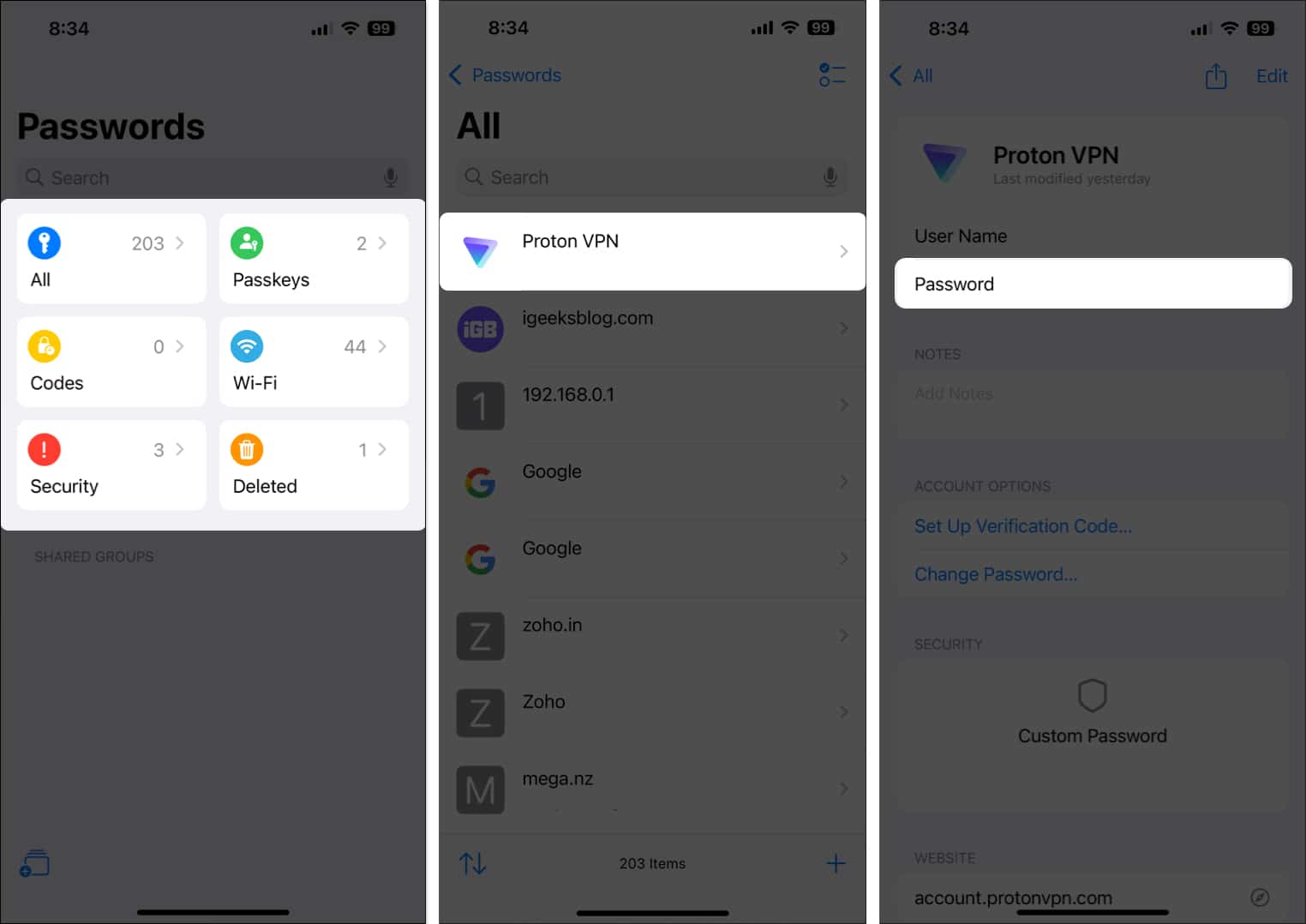
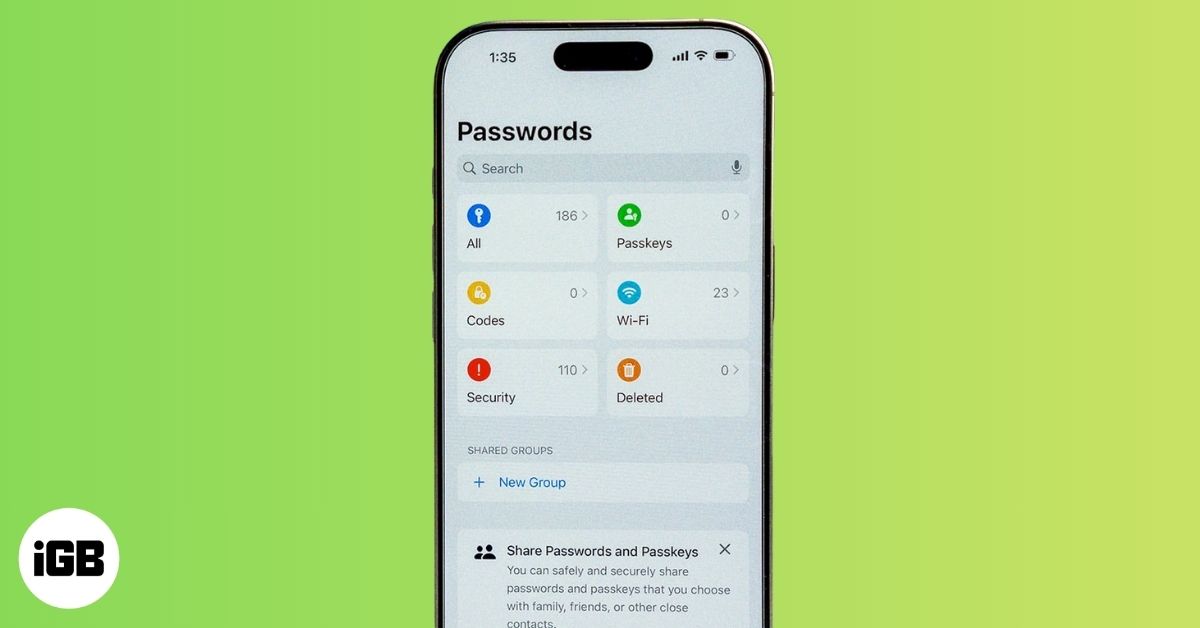
Here is what the categories mean:
- All: Holds all saved passwords and passkeys in a single list.
- Passkeys: Shows websites and apps that support passkey sign-in.
- Codes: Stores saved verification codes for two-factor authentication.
- Wi-Fi: Displays saved Wi-Fi passwords for previously joined networks.
- Security: Lists passwords that may be weak, reused, or compromised.
- Deleted: Stores deleted passwords temporarily before permanently removing them.
Once you open an entry, you can copy the username or password, edit details, or delete the login.
Note:
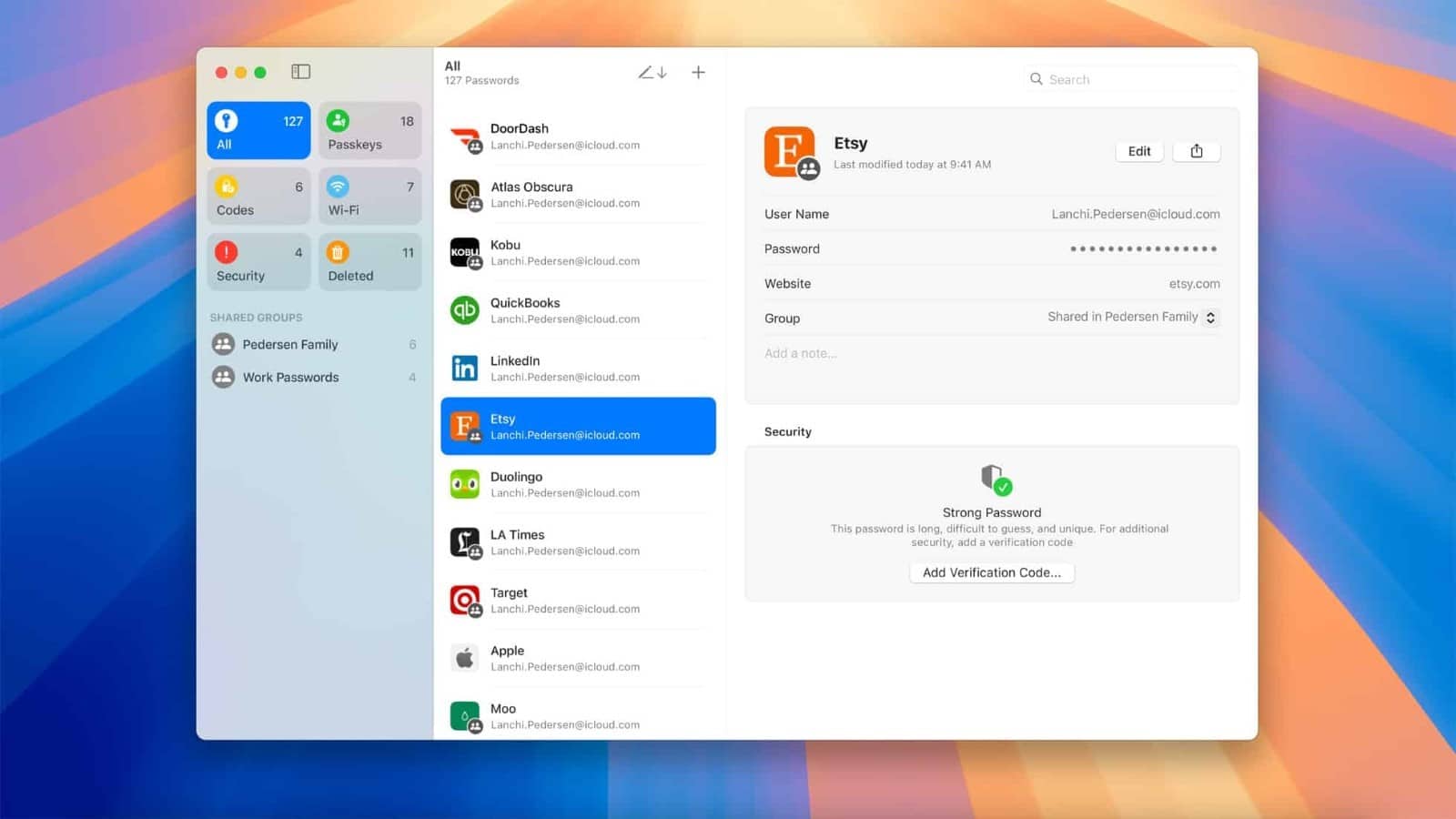
On iPad or Mac
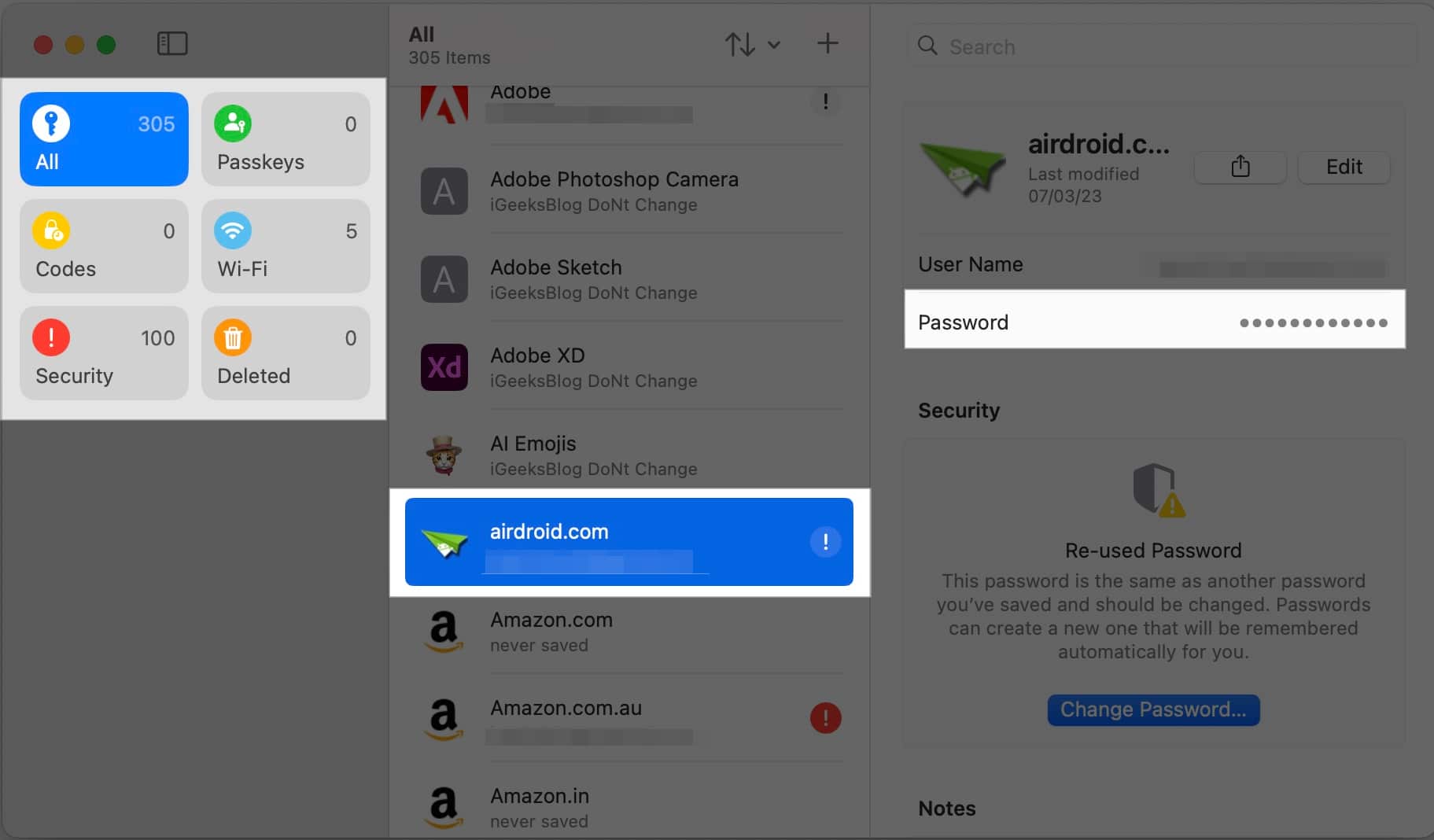
- Open the Passwords app.
- Choose a category from the sidebar.
- Select a login entry.
- Credentials appear in the details pane.

Note:
Add a Password in the Passwords App
Most of the time, you won’t need to manually add passwords because they are saved automatically when you sign up for accounts or log in through Safari and apps. But if you want to add one manually, here’s how:
On iPhone
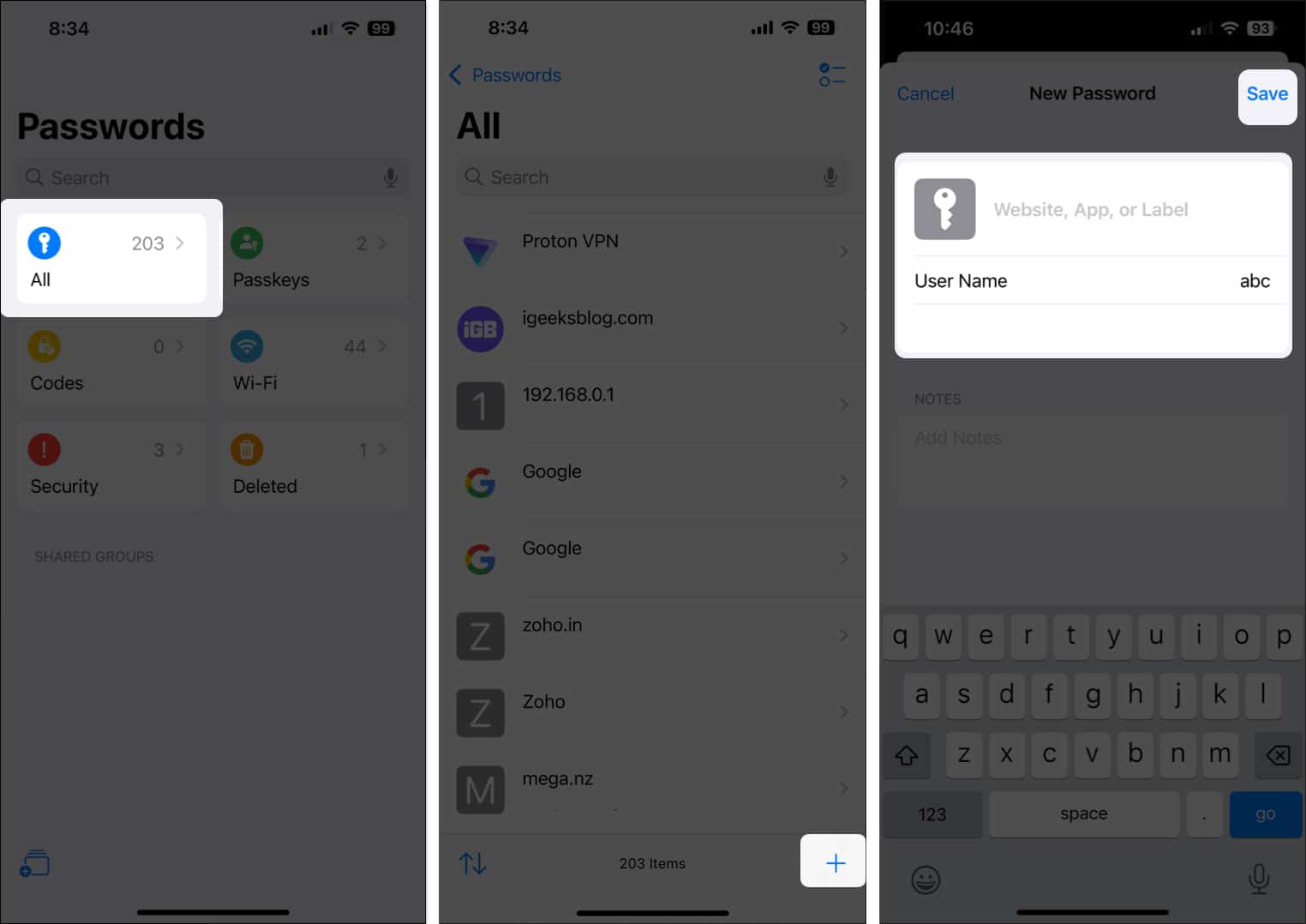
- Open the Passwords app and select All.
- Tap the + button in the bottom-right corner.
- Enter a website or label.
- Add username and password.
- Add notes if needed.
- Tap Save.

On iPad or Mac
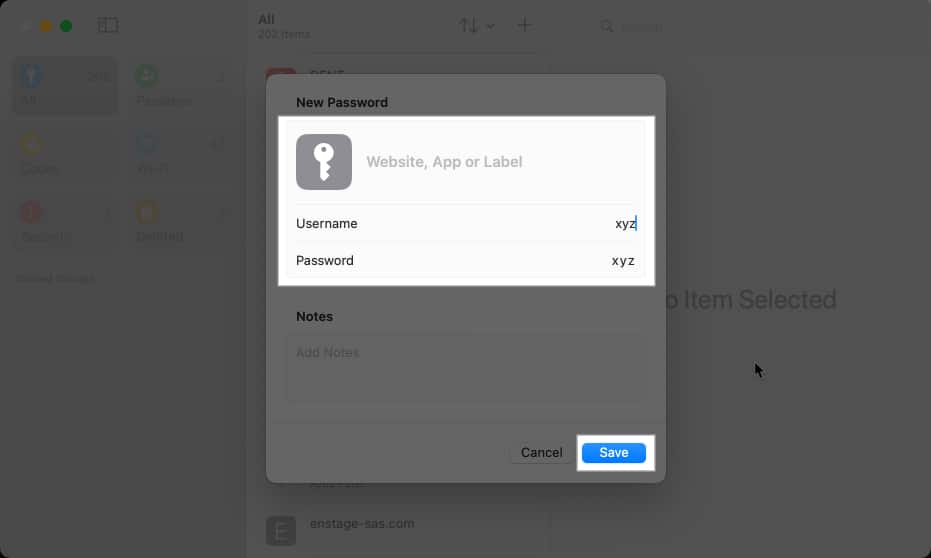
- Open the Passwords app and select All.
- Click or tap the + icon.
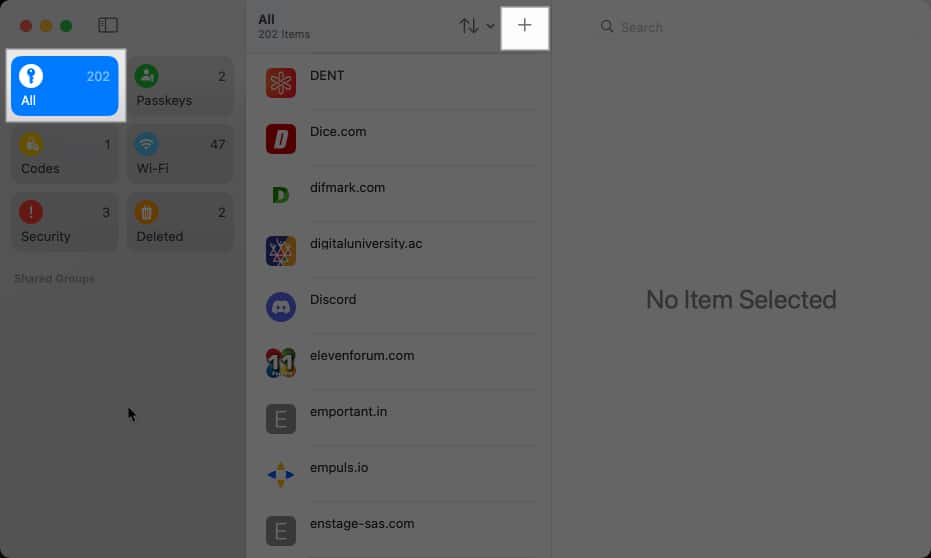
- Enter account name, username, and password.
- Add notes if needed.
- Click or tap Save.


Add 2FA Verification Codes in the Passwords App
Many websites require a verification code during login. You can save these verification codes in Passwords, so your device can generate them and auto-fill them instantly when required.
On iPhone or iPad
- Open the Passwords app and select Codes.
- Tap the + icon.
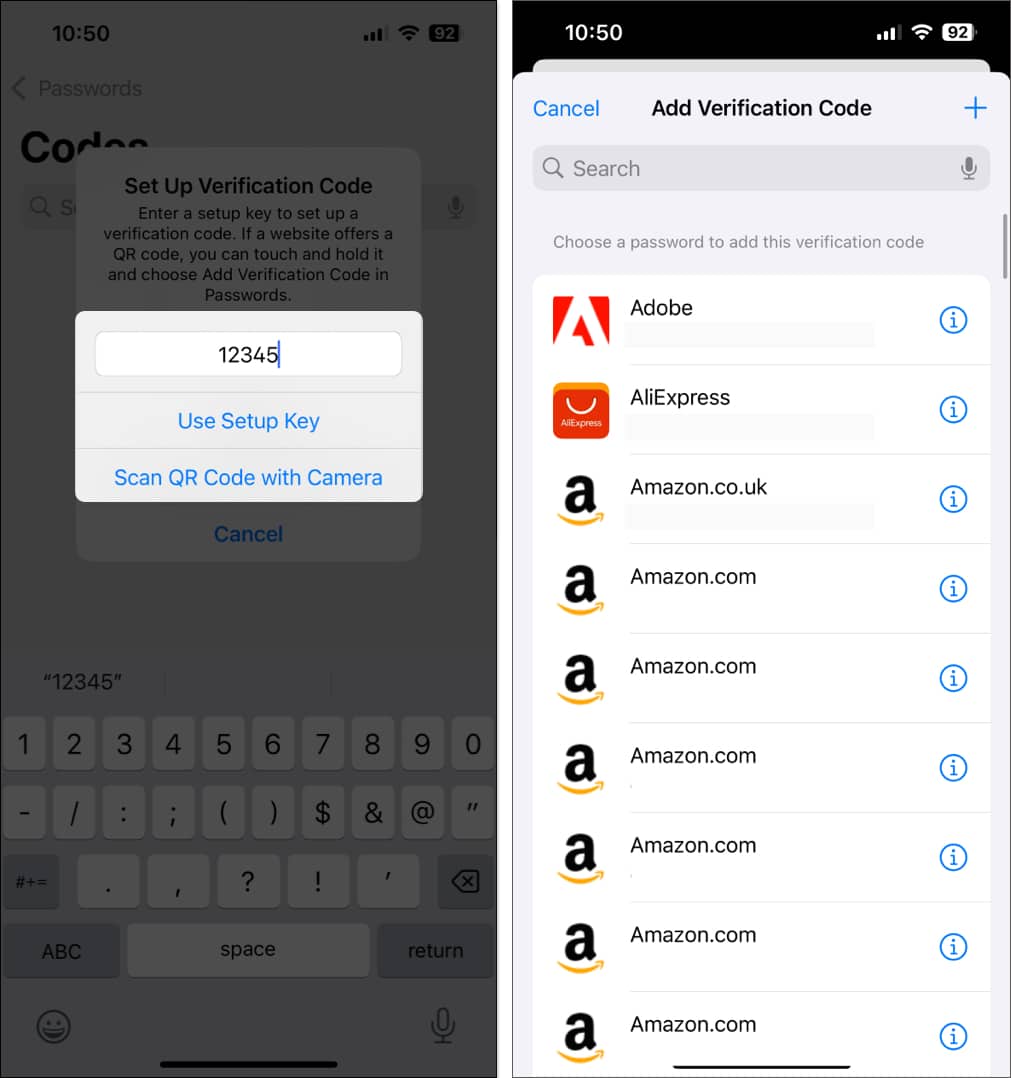
- Enter the setup key or scan the QR code.
- Attach the code to a saved login.

On Mac
- Open the Passwords app.
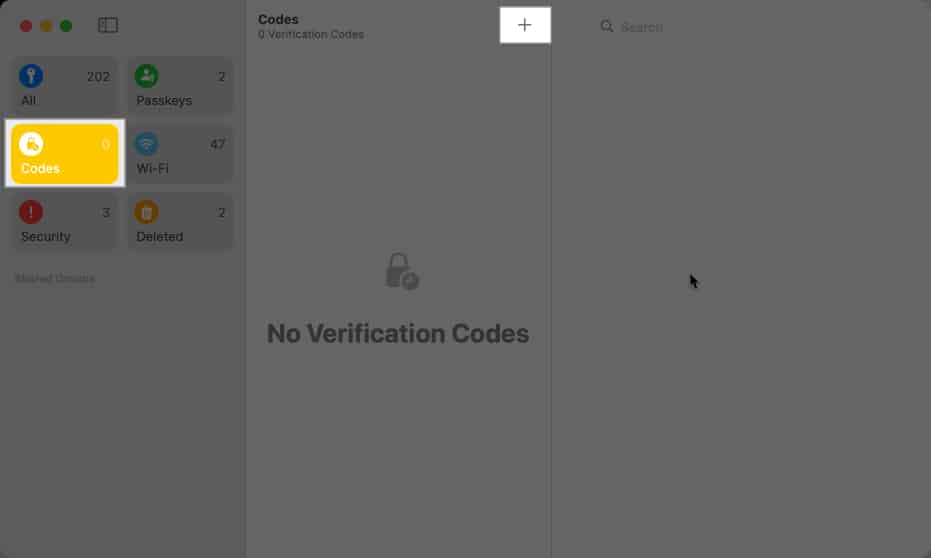
- Select Codes from the sidebar.
- Click the + icon.
- Enter the setup key or upload a QR image.
- Select a login and confirm.
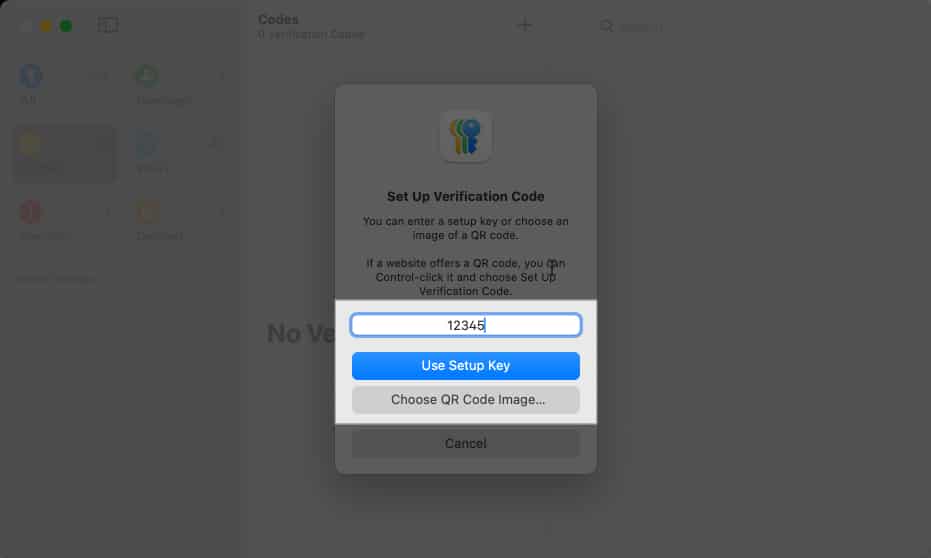


Once set up, the code appears in Passwords and can auto-fill during sign-in, so you do not have to switch apps.
Edit Saved Passwords in the Passwords App
If you ever change your account password, you should update the saved entry if it doesn’t update automatically.
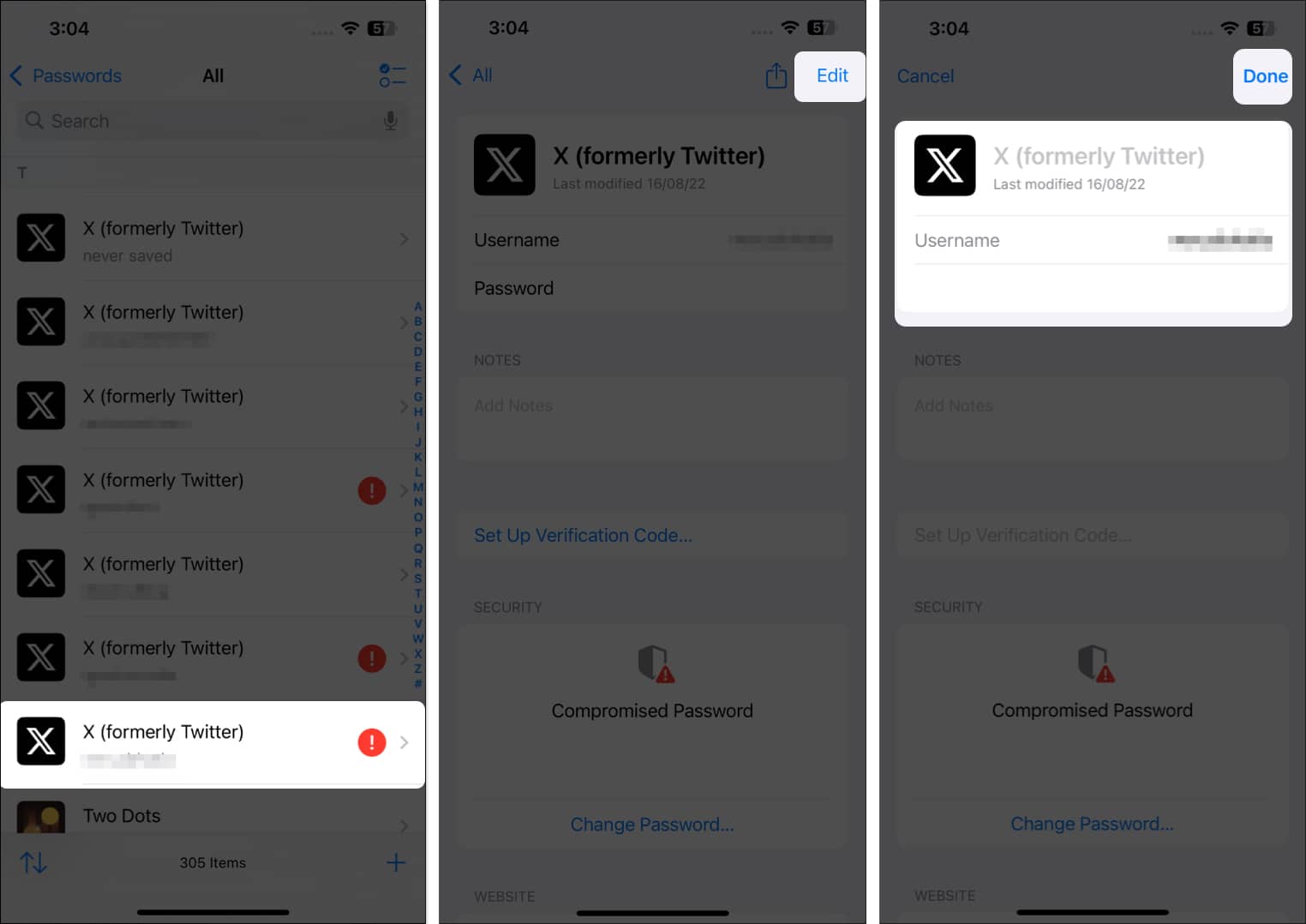
On iPhone or iPad
- Open Passwords and select All or a category.
- Tap the entry you want to update.
- Tap Edit.
- Make the changes, and tap Done.

On Mac
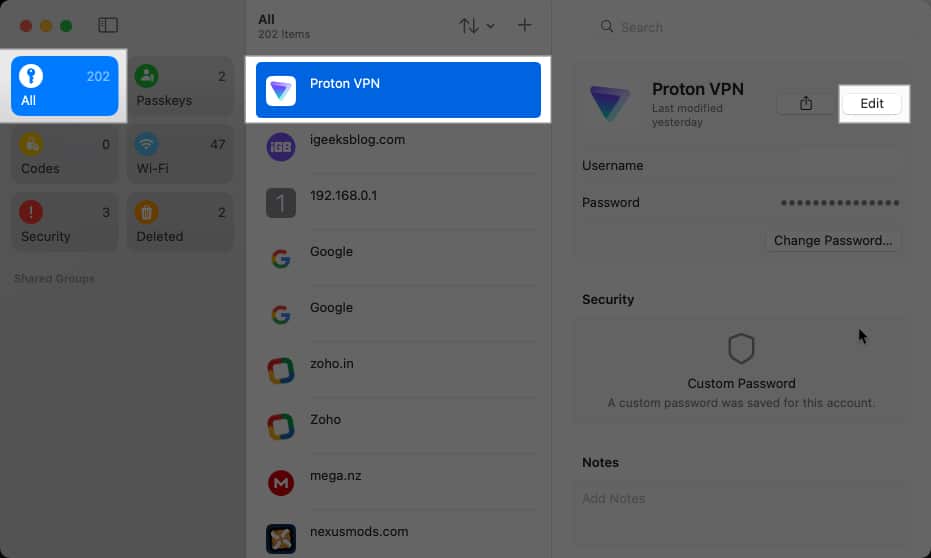
- Open the Passwords app and choose a category.
- Select an entry.
- Click Edit.
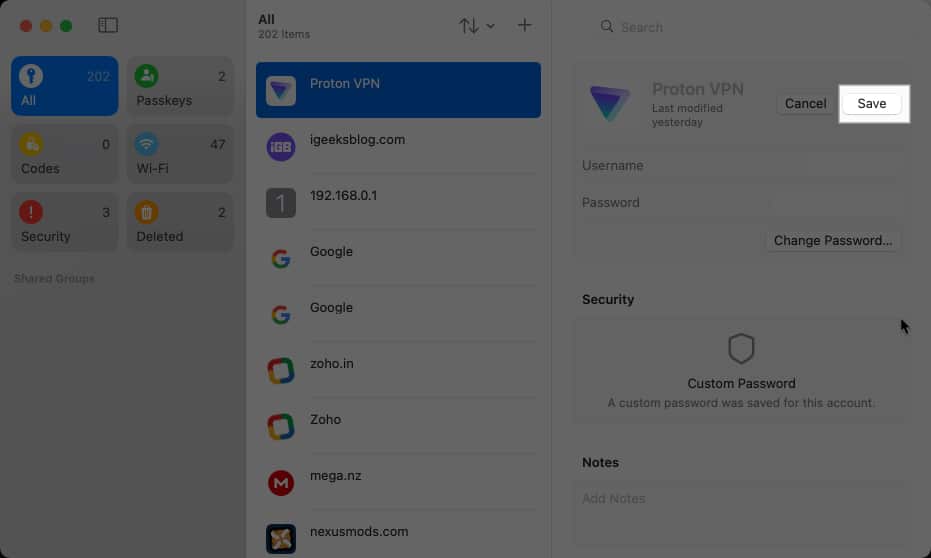
- Update details and click Save.


Delete Saved Passwords in the Passwords App
Deleting old logins is useful for accounts you no longer use. Here is how you can do this:
On iPhone or iPad
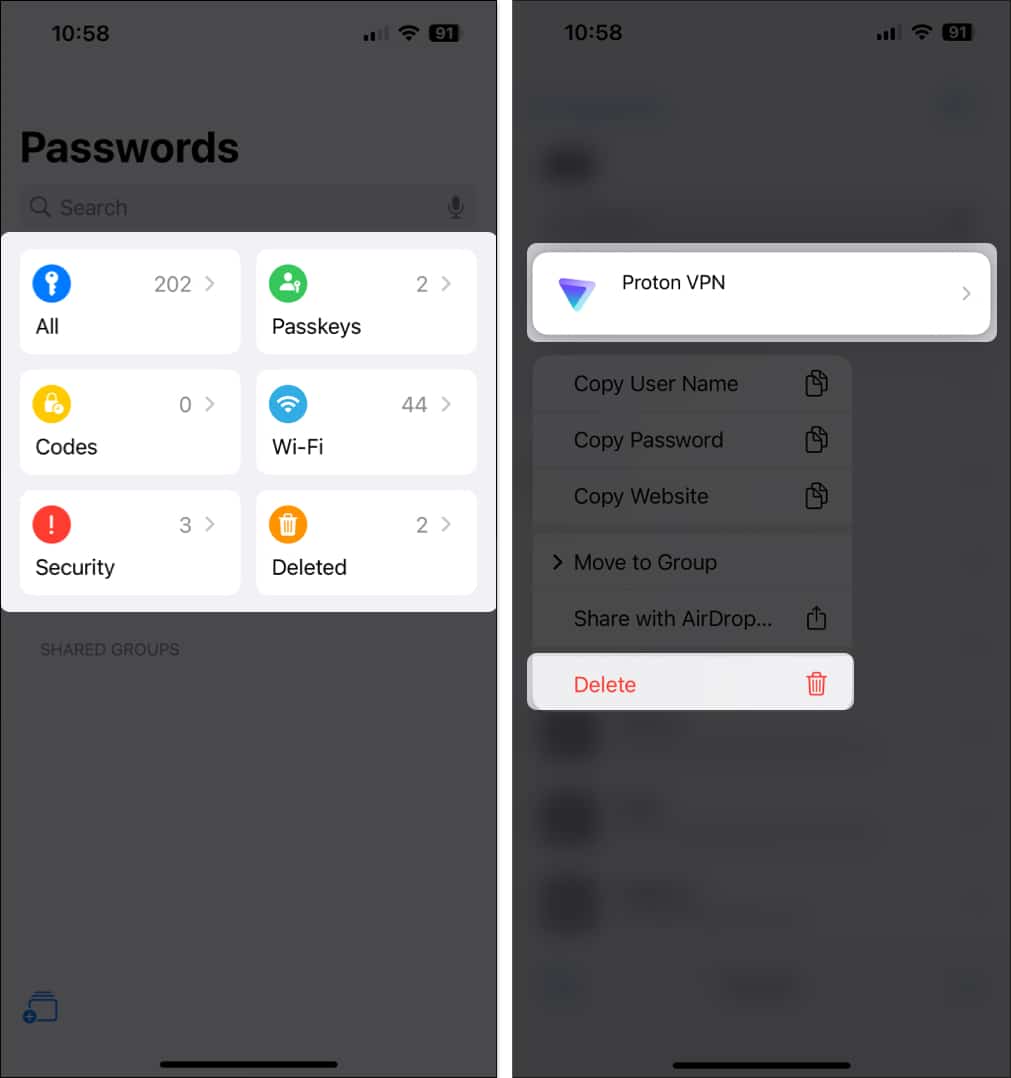
To delete one entry:
- Open the Passwords app.
- Press and hold the login.
- Tap Delete.

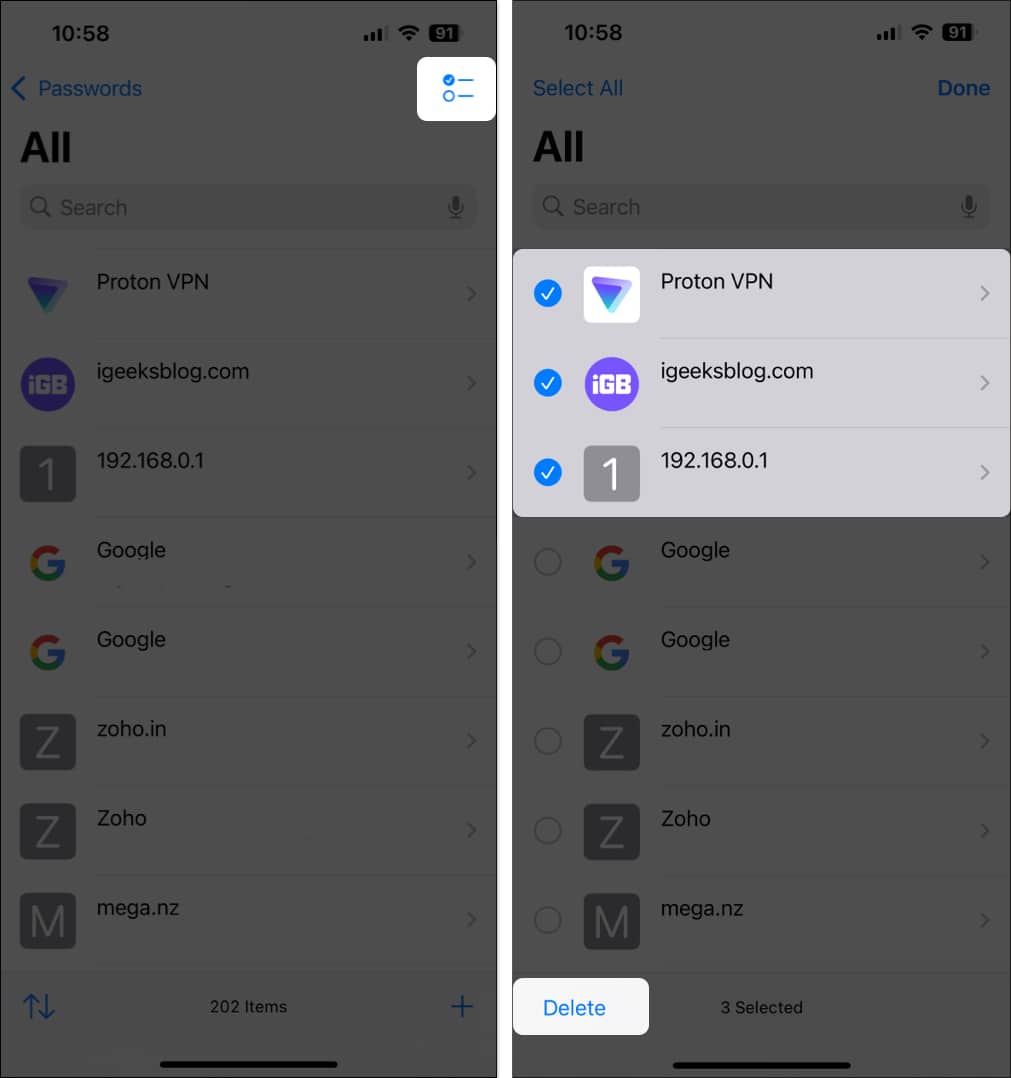
To delete multiple entries:
- Tap Select.
- Pick multiple logins.
- Tap Delete.

On Mac
- Open Passwords and choose a category.
- Control-click an entry.
- Right-click on an entry you want to delete and select Delete.
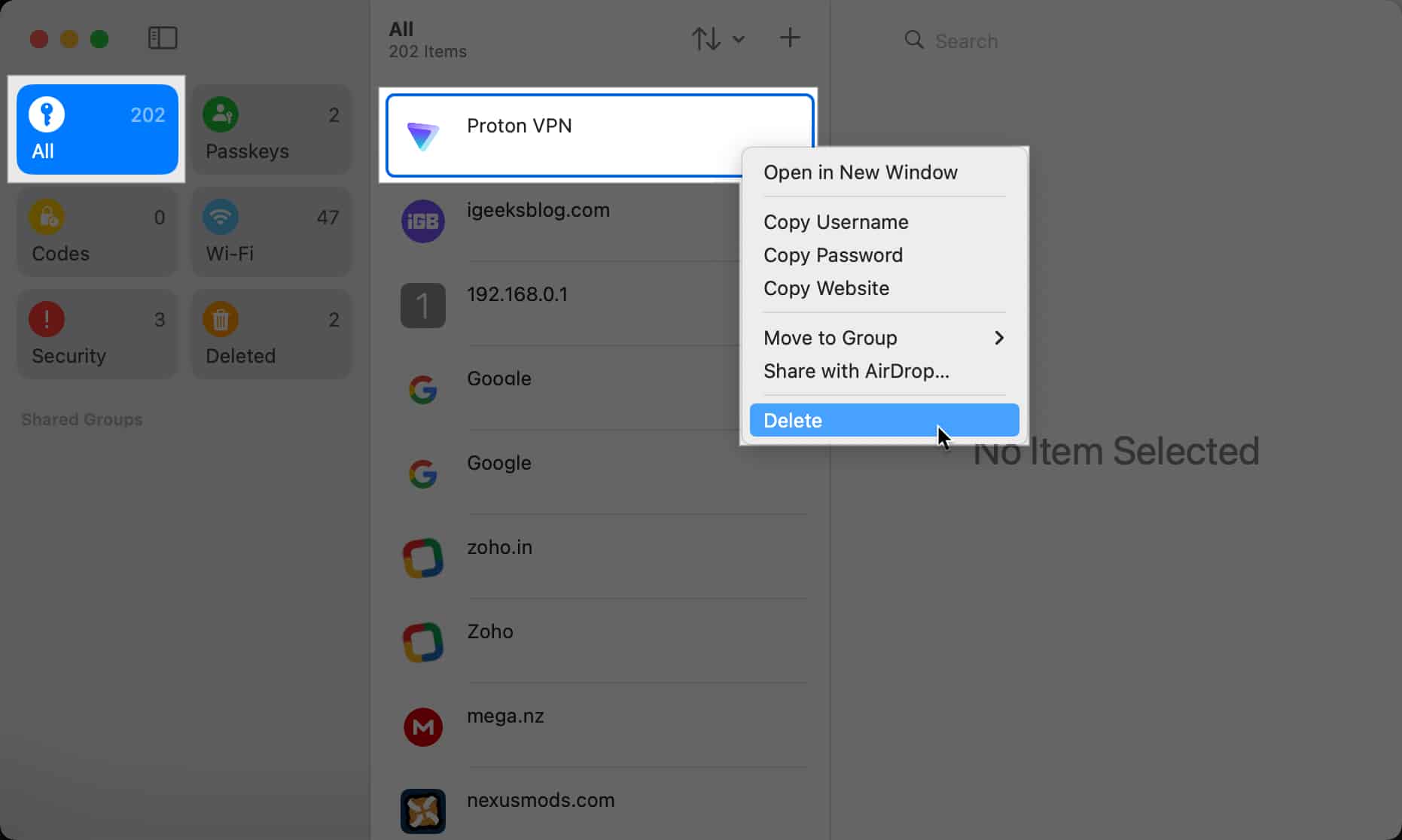

Deleted logins are moved to the Deleted category and remain there for 30 days before being permanently deleted. You can restore them at any time during that period.
Create Shared Password Groups with Family and Friends
If you share accounts with others, Passwords lets you share credentials securely through Family Sharing. Group members can also add passwords, making it well-suited for shared subscriptions or household services.
On iPhone or iPad
- Make sure contacts are saved in the Contacts app.
- Open Passwords and tap New Shared Group.
- Tap Continue, name the group, and tap Add People.
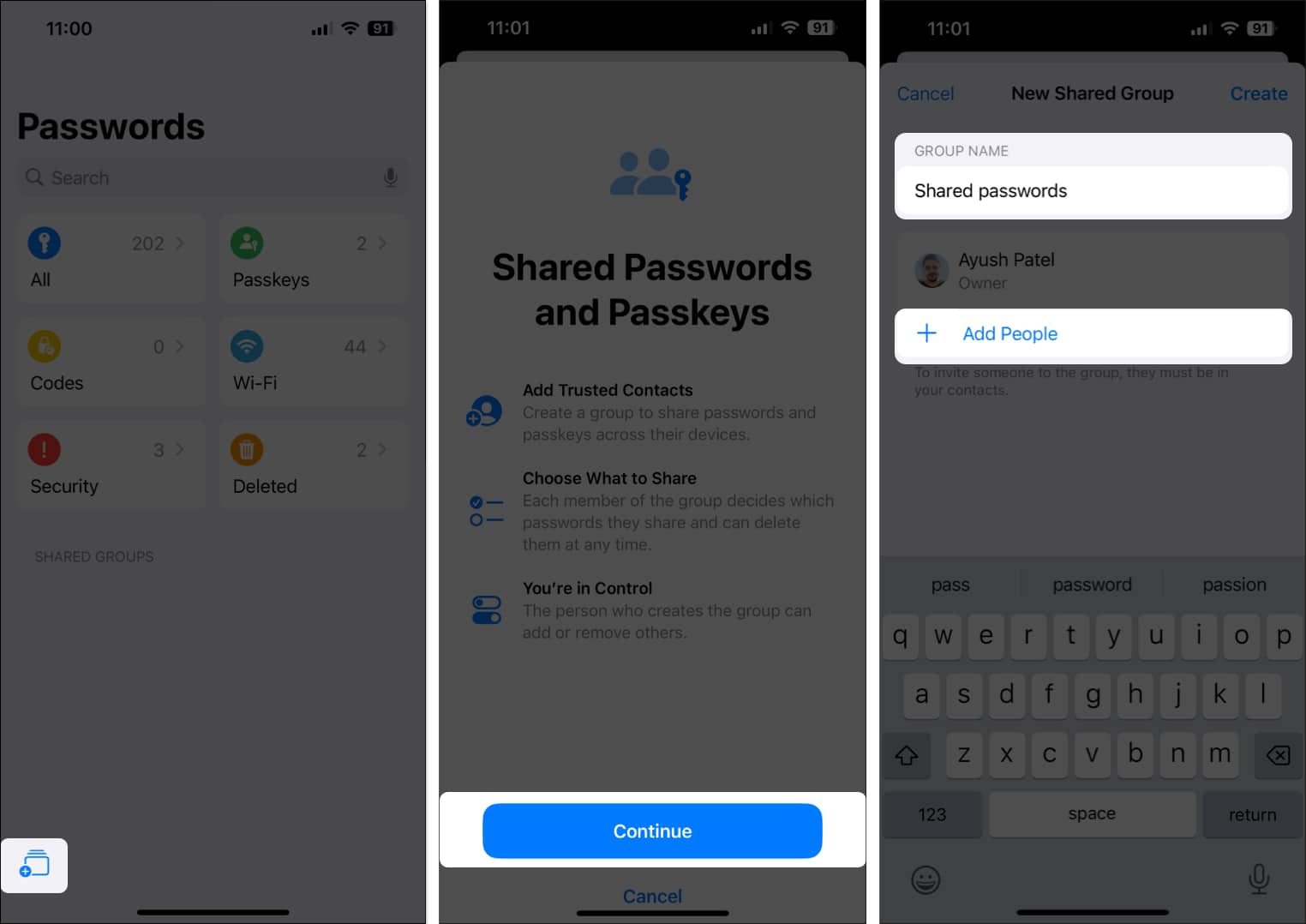
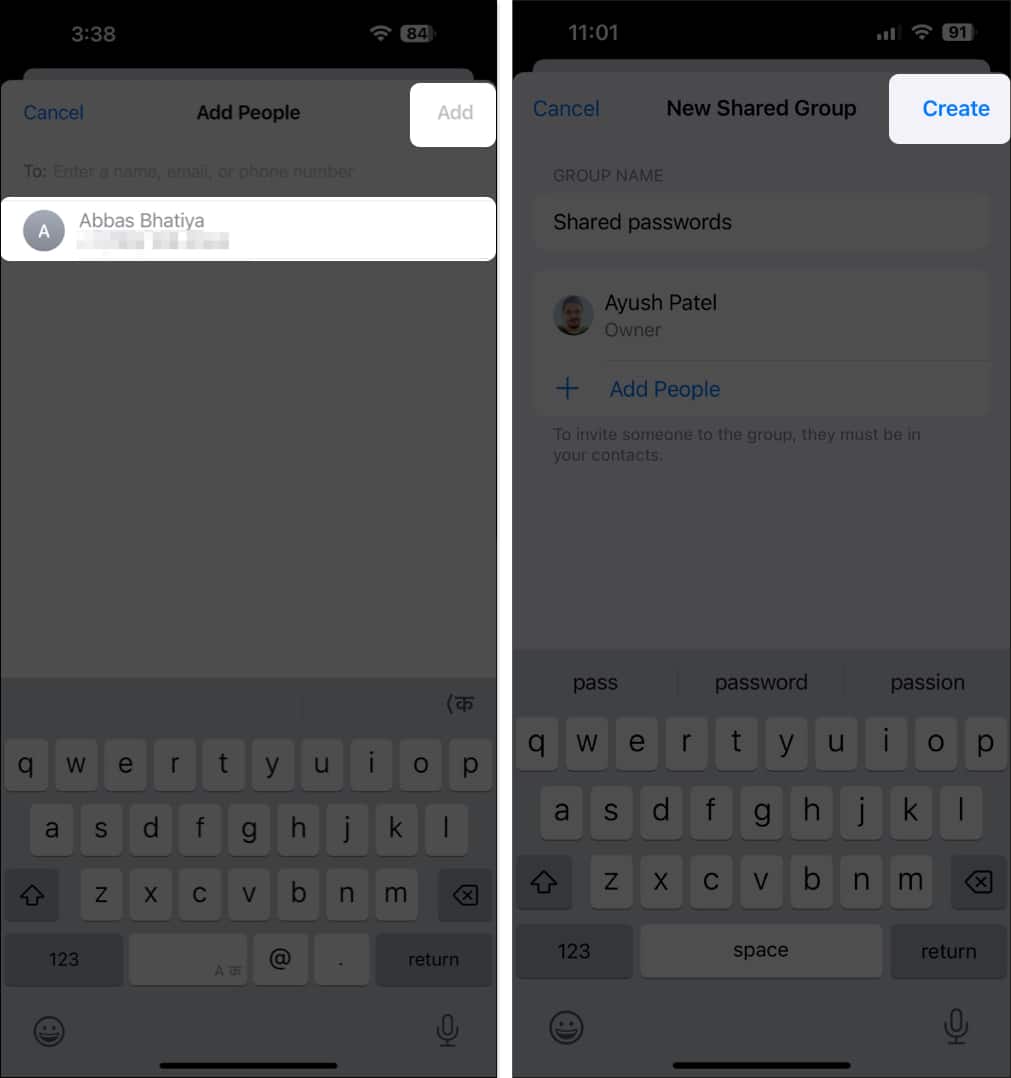
- Select contacts and tap Add.
- Tap Create.
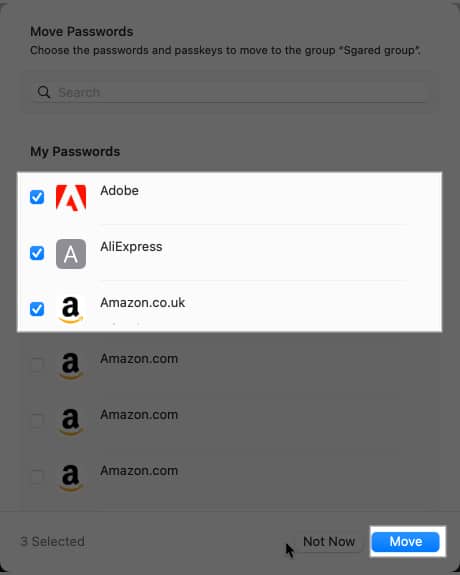
- Select the passwords to share, then tap Move.


On Mac
- Open Passwords.
- From the menu bar, click File → New Shared Group.
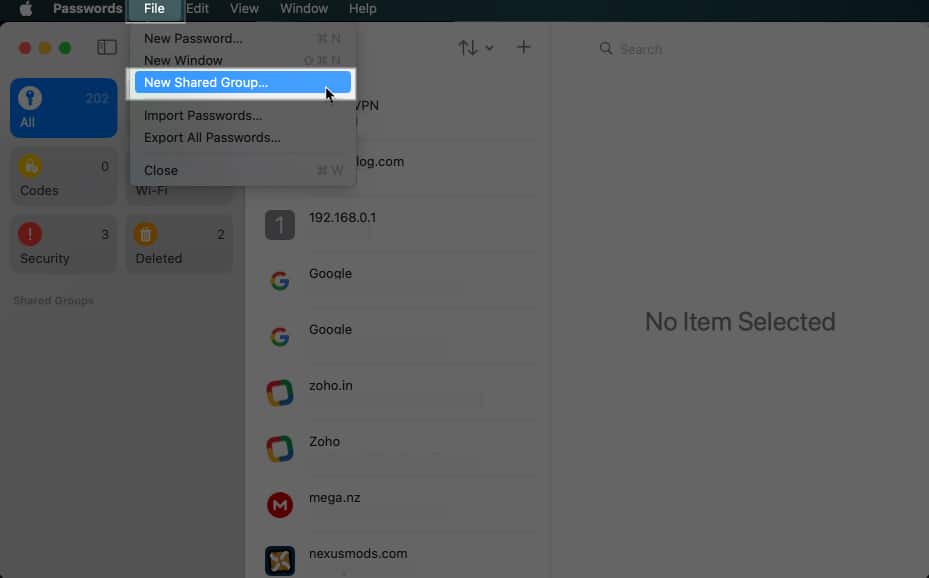
- Click Continue, name the group, and add people.

- Click Create, then choose passwords and click Move.


Note:
Import or Export Passwords on Mac
macOS offers import and export options in the Passwords app, which help you switch to another password manager or create a backup file.
Import Passwords
- Open Passwords.
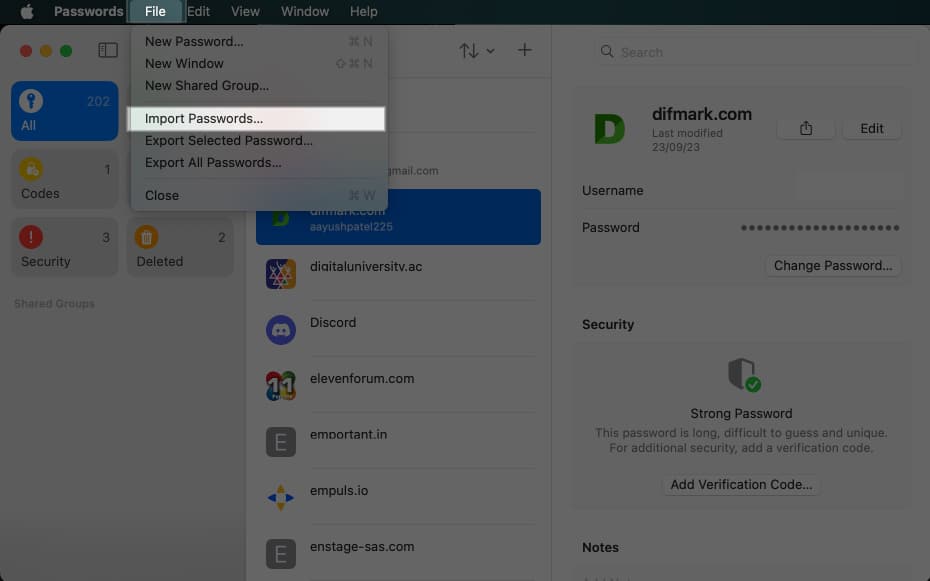
- Click File in the top menu bar, then select Import Passwords from a File in the drop-down menu.
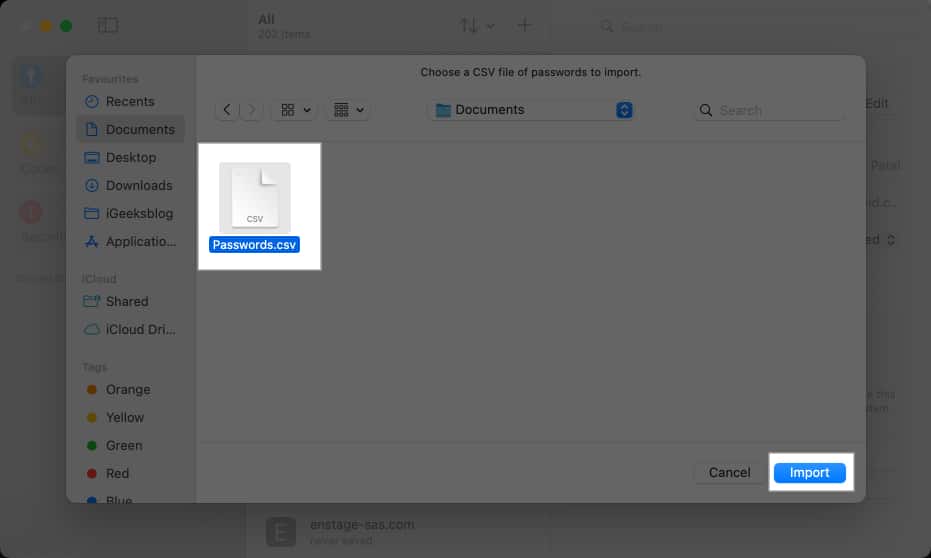
- Select a CSV file and click Import.


Export Passwords
- Open Passwords.
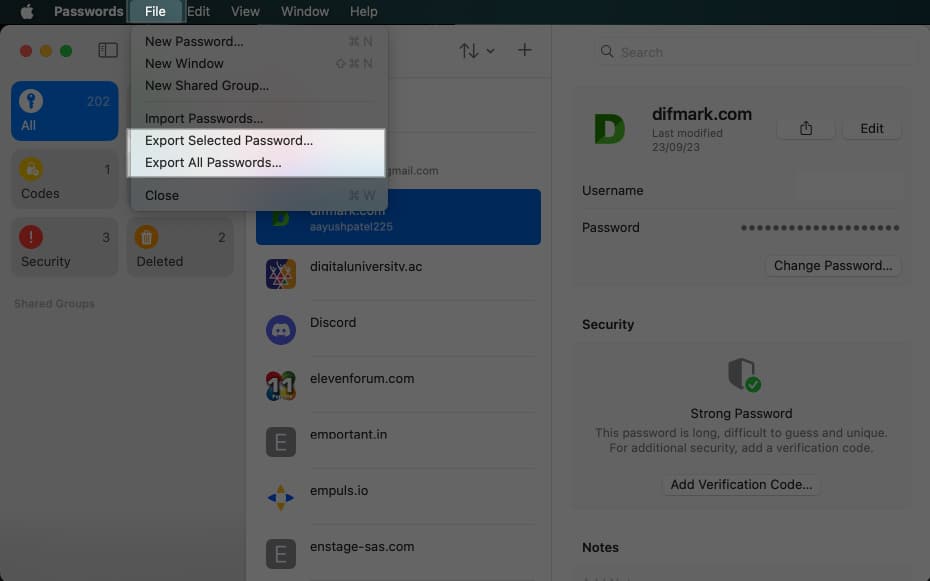
- Click File → Export All Passwords to File or Export Selected Passwords to File.
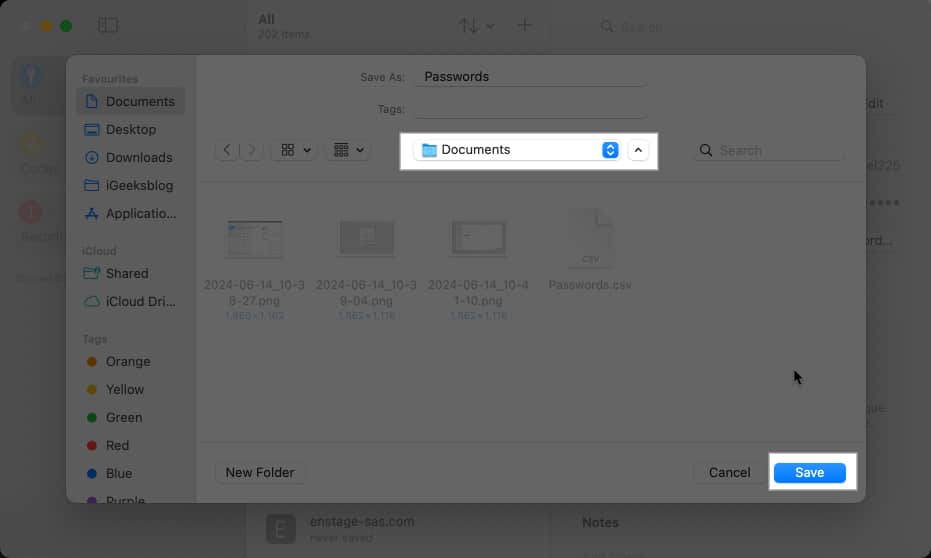
- Select a location and name for your password file and hit Save.


Use Password Security Alerts
Saving passwords is only half the job. What makes Apple’s Passwords app genuinely useful is that it doesn’t just store your credentials; it also helps you spot risky passwords before they cause trouble.
To check your security warnings:
- Open the Passwords app → Security.
- Here, you will see the list of all the saved passwords that may be unsafe:
- Reused passwords that appear in multiple accounts.
- Weak passwords that are easy to guess.
- Compromised passwords that may have been exposed in known data breaches.
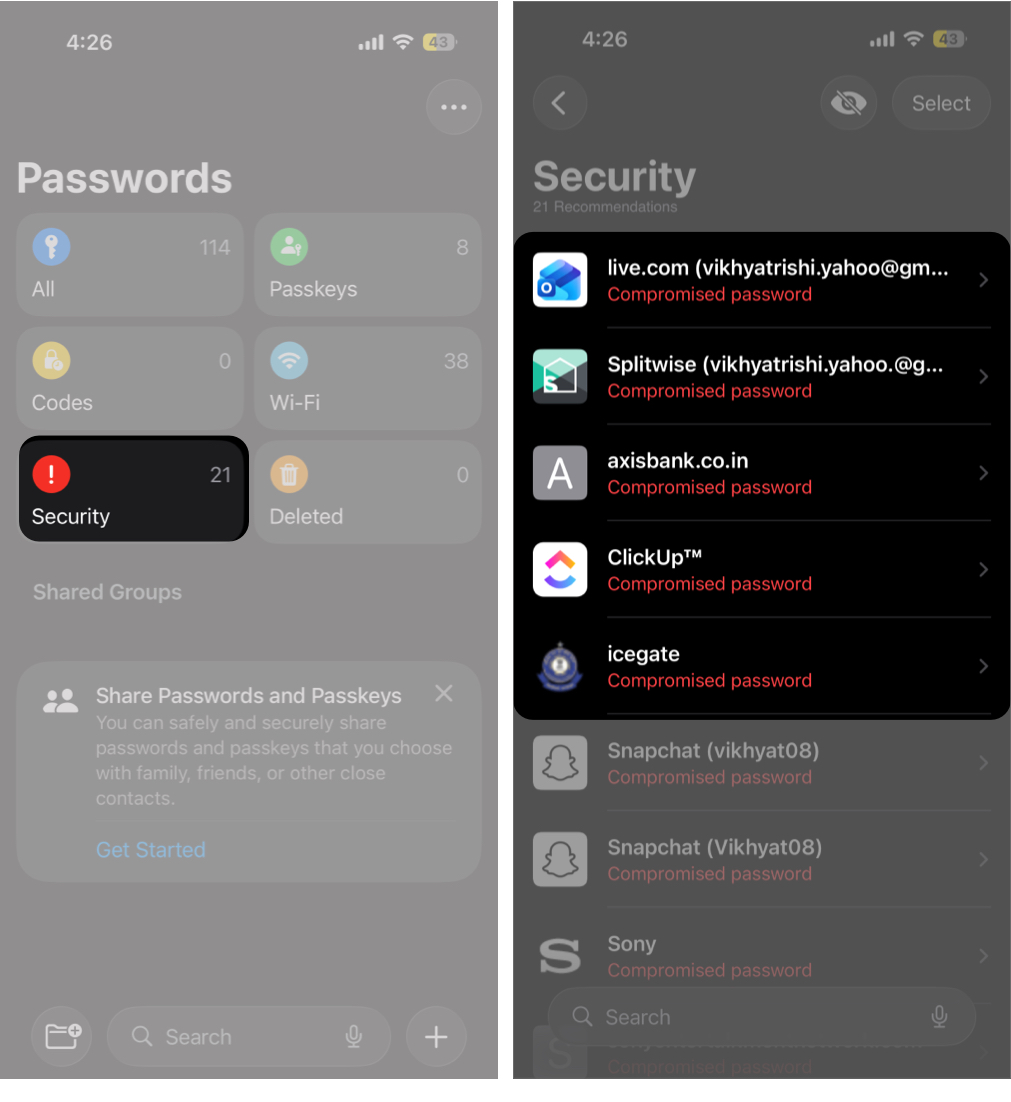

If you ever see a password marked as Compromised, treat it as an urgent matter. Change that password immediately on the website or app, and then return to Passwords to update the saved entry so AutoFill keeps working.
Summing Up…
Apple’s Passwords app makes it easier to manage passwords, passkeys, verification codes, and Wi-Fi credentials across your devices, with the added benefit of built-in AutoFill and security alerts. It simplifies logins while promoting safer habits, such as using unique passwords and promptly fixing compromised credentials.
Have you started using Apple’s Passwords app yet, or are you still relying on a third-party password manager? Share your experience in the comments.