
FaceTime gestures let you trigger on-screen reactions like fireworks or balloons using simple hand signs during a call. While the feature can be fun, it often activates accidentally or leaves users unsure how it really works. This guide explains how FaceTime gestures work, when they trigger, and how to manage or turn them off on iPhone, iPad, and Mac.
What Are FaceTime Hand Gestures?
FaceTime hand gestures, also called Reactions, are a fun way to express yourself during video calls without typing or interrupting the conversation. The best part is you can use this gestures in other video-calling apps as well.
Instead of tapping buttons, you simply use specific hand motions in front of your camera, and your device automatically turns them into 3D Augmented Reality effects that overlays on your video feed. Everyone on the call can see these animations.
Device Compatibility & Requirements
Before you start, make sure your device and software support FaceTime hand gestures:
Supported Devices:
- iPhone: iPhone 12 or later running iOS 17 or later
- iPad with iPadOS 17 or later:
- iPad Pro 11-inch(3rd gen or newer)
- iPad Pro 12.9-inch (5th gen or newer)
- iPad Air (4th gen or newer)
- iPad (10th gen or newer)
- iPad mini (6th gen or newer)
- Mac: Apple Silicon (M1, M2, etc.) running macOS Sonoma or later
- Apple TV 4K with tvOS 17 or newer. You need to use your iPhone or iPad as Continuity Camera.
Note:
How to Enable FaceTime Hand Gestures
If you are unable to perform hand gestures for any reason, you may still trigger FaceTime Reactions. Here’s how:
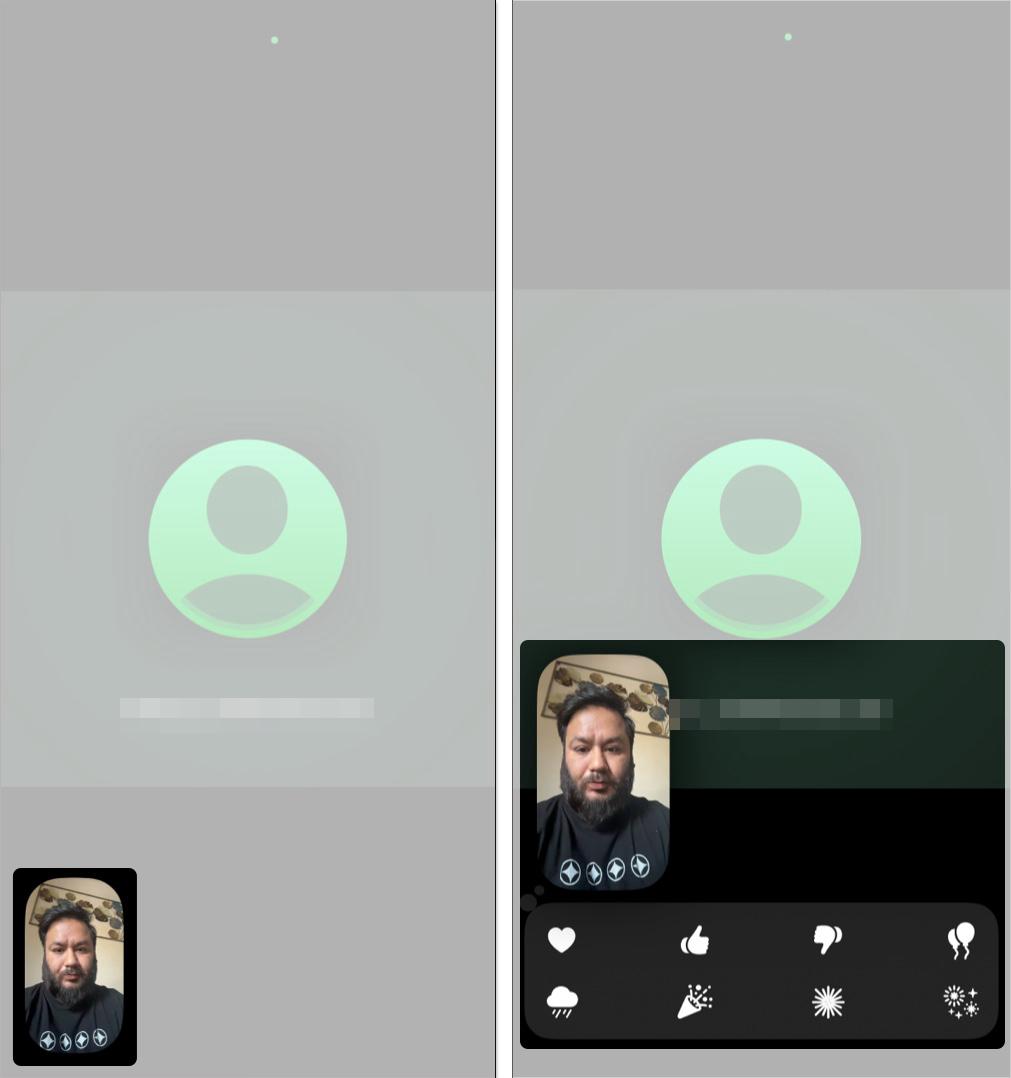
Turn On Hand Gestures On iPhone & iPad
- Open the FaceTime app and start or join a video call.
- Ensure you are using your front camera.
- Tap and hold your video feed located at the bottom. It will show the reaction panel.
- Choose any of the reactions.
Turn On Hand Gestures On Mac
- Open FaceTime and start or join a video call.
- Click the green FaceTime icon in the top menu bar.
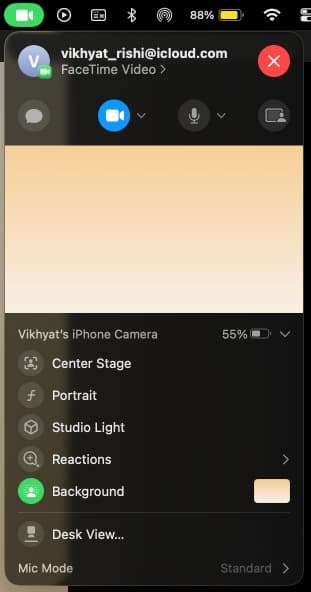
- Select the dropdown next to Reactions and choose a gesture to trigger it.
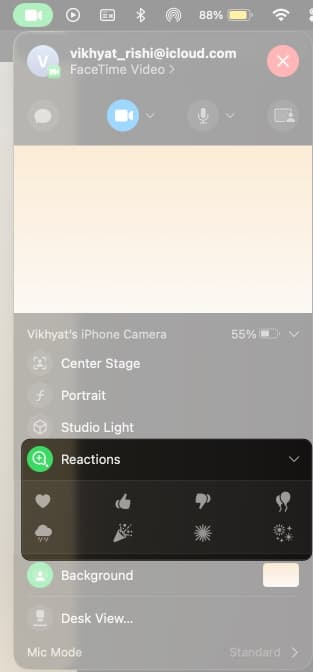
FaceTime Gestures and Their Reactions
| Gesture | Reaction | Notes |
|---|---|---|
| Thumbs up | 👍 Thumbs Up | Triggers easily during normal hand movement |
| Thumbs down | 👎 Thumbs Down | Can activate accidentally on Mac |
| Two thumbs up | 🎆 Fireworks | Requires both hands clearly visible |
| Two thumbs down | 🌧️ Rain | Needs steady hand position |
| Peace sign | 🎈 Balloons | Must be clearly framed and well-lit |
| Peace sign (both hands) | 🎉 Confetti | Often missed if hands move too fast |
| Rock sign 🤘 | 💥 Laser lights | Works best on Mac with wider camera view |
| Heart hands ❤️ | ❤️ Heart | Requires precise hand shape |
How to Use Hand Gestures on FaceTime Call
- Ensure your hands are well-lit and fully visible on the camera. Then make a hand gesture.
- Hold gesture for 1–2 seconds to ensure recognition.
- Keep hands away from your face and inside the camera frame.
- Once FaceTime successfully identifies your reaction gesture, it will show the animation.
- Try different gestures to see the effects appear on everyone’s screen.
During testing, FaceTime gestures triggered most often on Mac because hand movements stay in frame longer than on iPhone. On iPhone, gestures are less likely to activate unless your hands are raised close to the camera.
Practical Tips for Best Results
- Lighting: Use soft, even lighting. Avoid backlighting or harsh shadows.
- Camera Position: Eye level is best; upper body and hands in frame.
- Gesture Clarity: Keep hands away from face/objects.
- Try in Other Apps: Some gestures work in Zoom, Google Meet, and other video apps.
How to Disable FaceTime Reactions
Follow the below steps to prevent triggering hand gesture reactions during a FaceTime call:
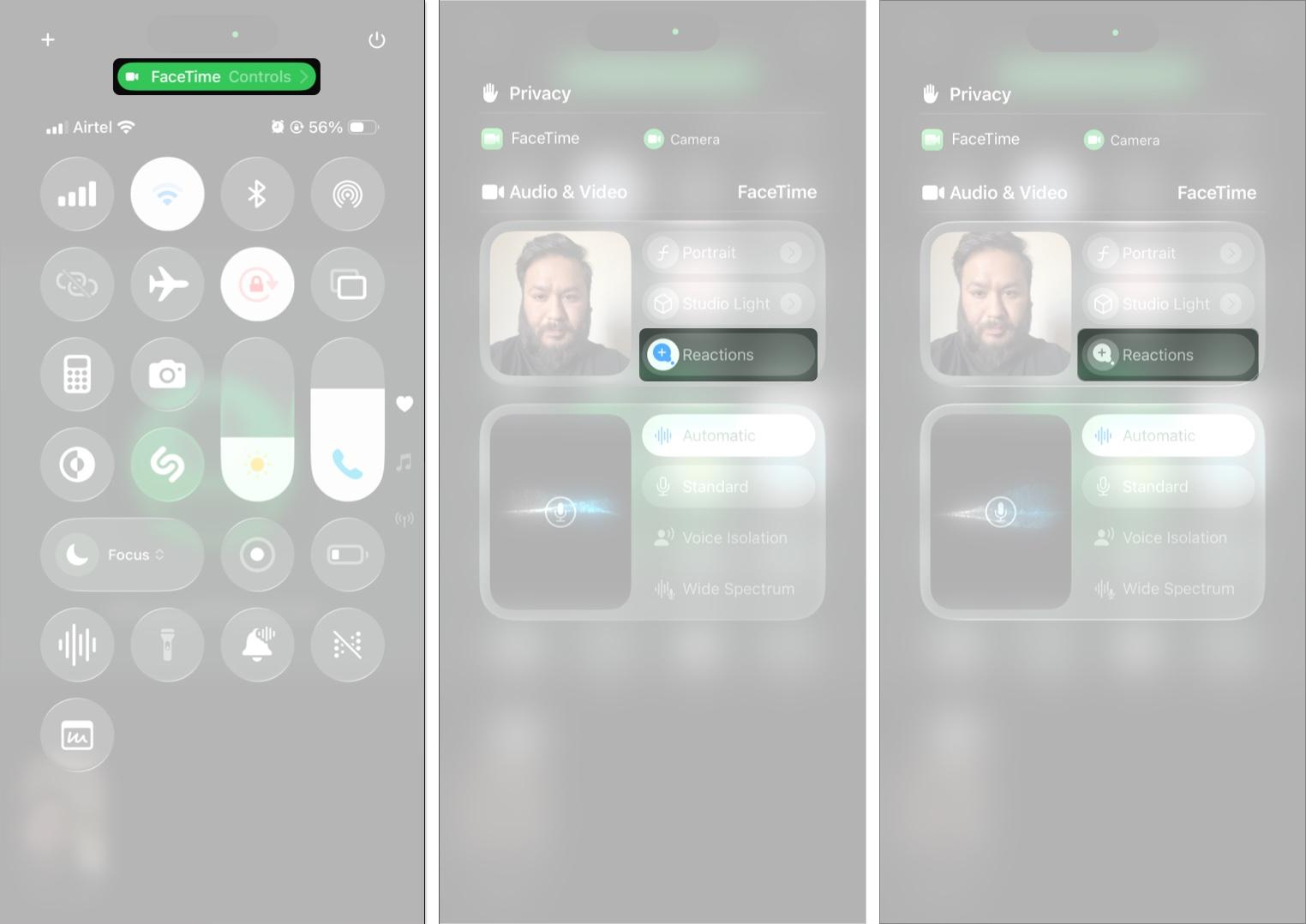
On iPhone and iPad
- During a FaceTime video call, swipe down from the top-right corner of your screen to open Control Center.
- Tap FaceTime Controls at the top.
- Tap Reactions to disable hand gesture reactions (the icon will be highlighted when enabled).
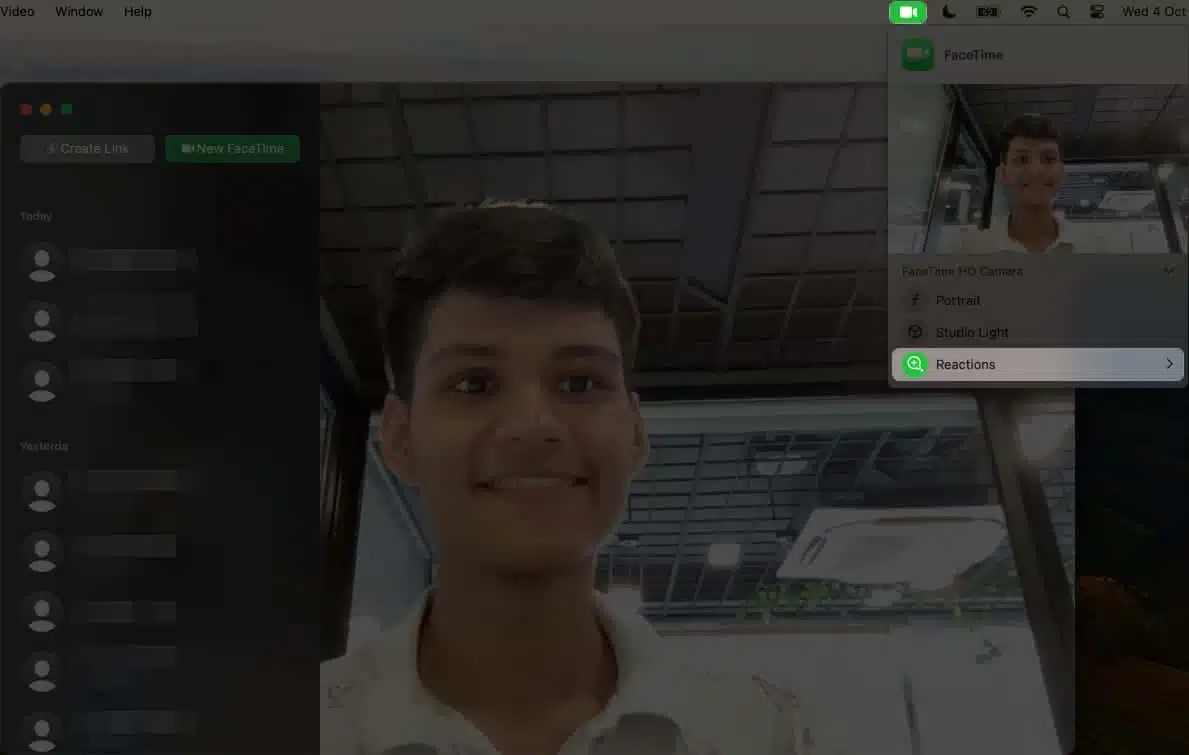
On Mac
- Open FaceTime and start or join a video call.
- Click the FaceTime icon in the menu bar at the top of your screen.
- Click Reactions to turn off gesture reactions.
FaceTime Hand Gestures Not Working? Try This:
- Check device compatibility and update software to iOS 17/iPadOS 17/macOS Sonoma or later.
- Ensure Reactions is enabled in Control Center on iPhone or menu bar in Mac.
- Improve lighting and ensure to use the front camera on your iPhone and iPad.
- Move your position and keep your upper body and hands in frame. Also, hold the gesture for a few seconds.
- If your clothes and room’s paint are in same the color, the camera may struggle to recognize your hands.
- Restart your device or FaceTime app to resolve glitches.
If nothing seems to work, contact Apple Support to get expert help!
Check out: How to Fix FaceTime Not Working on iPhone
Express on FaceTime Like Never Before!
FaceTime gestures are designed to make calls more expressive, but they’re not useful for everyone. Once you understand how they trigger and where they work best, it’s easier to decide whether to keep them enabled or turn them off. If reactions feel distracting during regular calls, disabling gestures gives you a cleaner, more controlled FaceTime experience.
Read more: