PDFs are great for sharing documents, but editing them on a Mac can feel confusing at first. You might want to highlight text, fill out a form, add your signature, or rearrange pages, only to find yourself searching for third-party apps.
What many users do not realize is that macOS already includes built-in tools for working with PDFs. Using Preview, Quick Look, and Pages, you can annotate files, complete forms, sign documents, organize pages, and even edit editable PDFs. This guide explains how to edit and annotate PDFs on a Mac using built-in macOS tools.
What macOS Offers for PDF Editing
macOS focuses on simple, practical PDF tools. You can highlight text, add notes, draw shapes, rearrange pages, and sign documents right out of the box. These features cover most everyday needs, such as reviewing files, leaving comments, and preparing documents to share.
For deeper edits, like changing existing text, macOS also offers a lesser-known option in Pages, provided the PDF is editable.
How to Edit and Annotate PDFs in Preview on Mac
Preview is the main PDF workspace on Mac. It is designed for visual edits like highlights, comments, shapes, and page management. This makes it ideal for reviewing documents or adding feedback without altering the original content structure.
- Go to Finder and open the PDF file you want to edit or annotate.
- Click the Markup icon (pen tip) to reveal annotation tools.
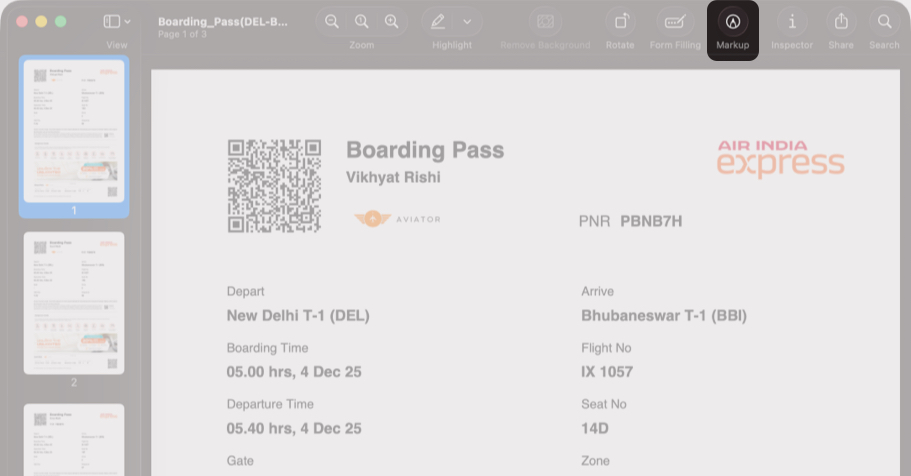
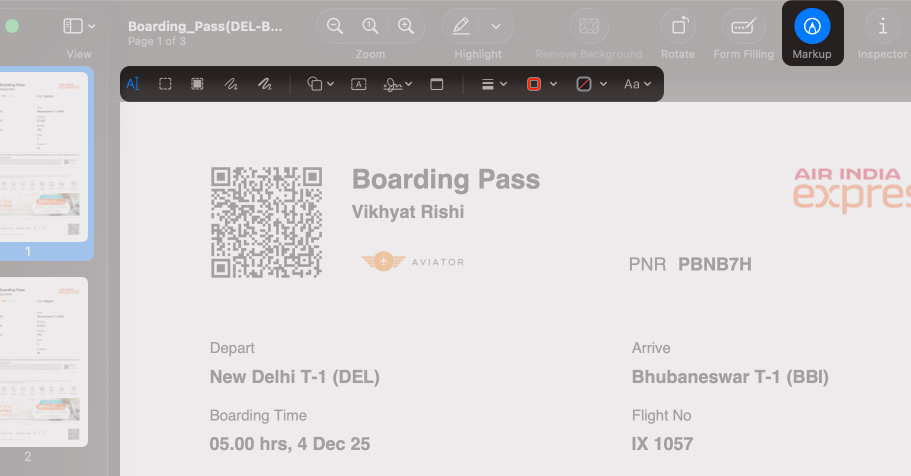
- From the toolbar that appears, you can:
- Highlight or underline text
- Add text boxes
- Insert arrows, circles, and rectangles
- Leave comments
- Draw freehand using your trackpad or mouse
- Once done, press Command + S to save your changes.
Rearranging, Rotating, and Deleting Pages
Preview also lets you manage multi-page PDFs. When you open a multi-page PDF, page thumbnails appear in the left sidebar, making it easy to organize your document visually.
- Drag and drop the PDF pages in the sidebar to reorder them.
- To delete a page, select and press the Delete key.
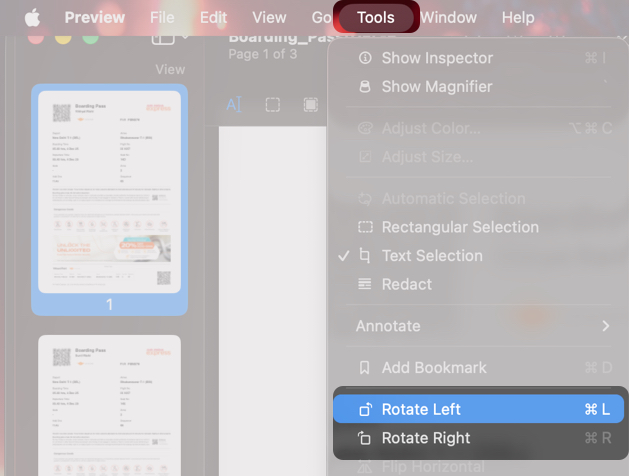
- You can also rotate pages left or right by clicking Tools → Rotate Left or Rotate Right.
How to Fill PDF Forms and Add a Signature on Mac
Preview allows you to fill out forms and sign documents in one smooth flow. Next to the Markup icon, you will see the Form Filling button. It highlights all interactive fields so you can enter details cleanly before adding your signature.
- Open the PDF in Preview.
- Click the Form Filling icon to highlight fillable fields.
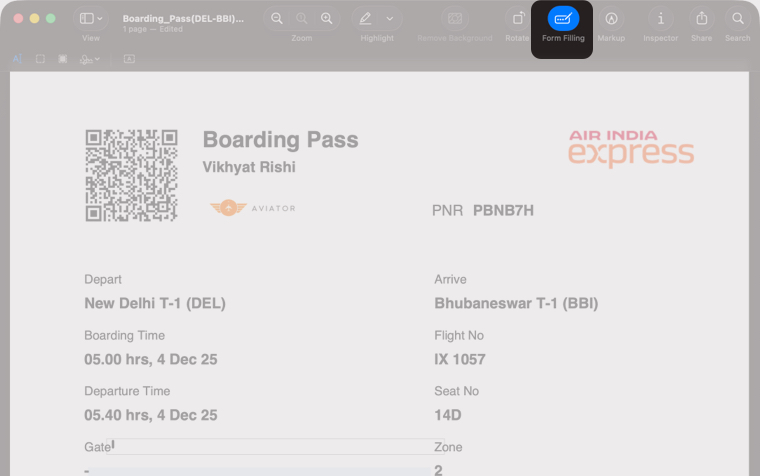
- Now, select each highlighted field to enter your details, such as your name, date, or address.
- To add your signature to the PDF:
- Click the Signature button, and select one of the available signatures.
- If no signature exists, click the Create Signature button.
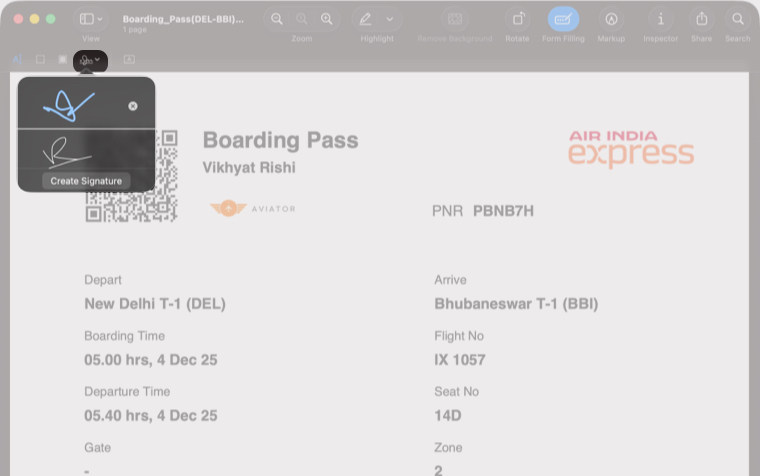
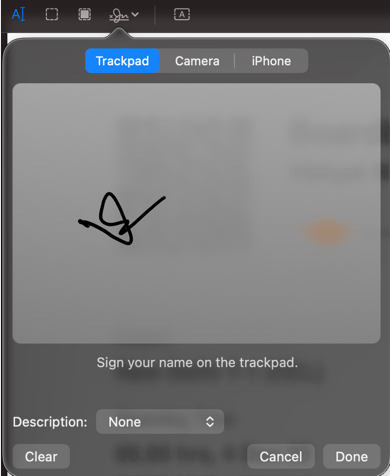
- Next, create your signature by either using the Mac’s trackpad, camera, or iPhone.
- Click Done.
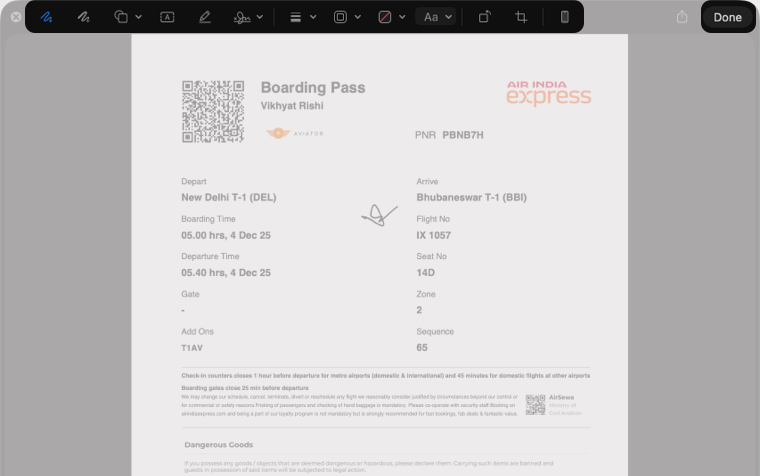
- Now add the signature to the PDF, then drag, place, and resize it as needed.


Annotate PDFs Quickly with Quick Look
Quick Look is built for speed. It lets you make small edits directly in Finder without fully opening Preview. This is useful when you need to highlight something or add a quick note before sending a file.
- Select the PDF in Finder and press the Spacebar to open it in Quick Look.
- Click the Markup icon.

- Add highlights, text, or drawings.
- Click Done to save.


Edit Actual PDF Text Using Pages (If the File Is Editable)
If a PDF is fully editable and not scanned or flattened, you can open it in Pages to modify the actual content.
Pages converts the PDF into a document format, allowing you to change text, replace images, and adjust formatting. This works best with simple PDFs such as resumes or basic documents.
Note:
What You Can and Cannot Edit on Mac
macOS native tools focus on annotation and layout adjustments rather than deep content editing.
| Feature | Supported on Mac (Preview / Quick Look) |
|---|---|
| Highlight or underline text | Yes |
| Add comments and notes | Yes |
| Insert text boxes | Yes |
| Draw shapes and arrows | Yes |
| Add digital signatures | Yes |
| Fill interactive PDF forms | Yes |
| Rearrange PDF pages | Yes |
| Rotate or delete pages | Yes |
| Edit existing paragraph text | No |
| Convert scanned PDFs into editable text | No |
| Modify complex layouts | No |
Tips to Improve Your PDF Editing Workflow
A few simple habits can make PDF editing smoother:
- Zoom in before placing text boxes for better alignment.
- Use different highlight colors to organize feedback.
- Turn on thumbnails when working with long documents.
- Duplicate important PDFs before making heavy edits.
- Use trackpad drawing for quick arrows or circles.
When You Need a Third-Party PDF Editor
While Preview and Pages handle most everyday tasks, advanced workflows may require dedicated tools. Consider third-party apps if you need:
- Direct paragraph editing in complex PDFs
- OCR for scanned documents
- Advanced form creation or editing
- File compression or format conversion
These tools are better suited for legal, publishing, or document-heavy work.
Common PDF Editing Problems on Mac
| Problem | Why It Happens | What You Can Do |
|---|---|---|
| Can’t edit existing text | The PDF is flattened or locked | Try opening it in Pages if editable. Otherwise, use a third-party editor |
| Form fields aren’t clickable | The PDF is not interactive | Use text boxes from Markup |
| Form Filling button does not appear | No fillable fields exist | Switch to Markup and add text boxes |
| Pages will not rearrange | Sidebar thumbnails are hidden | Expand the sidebar or reopen the PDF |
| Signature looks blurry | Low resolution or zoom level | Zoom in before placing the signature |
| PDF will not open properly in Pages | Layout is complex or file is scanned | Use Preview or OCR tools |
| Highlights will not save | File permissions are restricted | Duplicate the PDF and edit the copy |
| PDF does not allow any changes | File is password protected | Remove protection if permitted |
Editing PDFs on Mac Made Easy
That’s it. Working with PDFs on a Mac does not have to be complicated. With Preview and Quick Look, you can handle everyday tasks like highlighting text, filling forms, adding signatures, and organizing pages without installing extra software. For editable PDFs, Pages gives you a way to modify actual content when Preview is not enough.
Still stuck with a PDF on Mac? Leave a comment, and we will help you out.