FaceTime Like a Pro
Get our exclusive Ultimate FaceTime Guide 📚 — absolutely FREE when you sign up for our newsletter below.

FaceTime Like a Pro
Get our exclusive Ultimate FaceTime Guide 📚 — absolutely FREE when you sign up for our newsletter below.


Learn what an EID number is on iPhone and the fastest ways to find it for eSIM activation, troubleshooting, or switching carriers.

 BySandy and Ravi Teja KNTS


You’re switching to a new carrier or setting up an eSIM for travel, and suddenly you hit a wall: “Please provide your EID number.” If you’re staring at that request, wondering what it means or where to find it, you’re in the right place.
Let’s clear this up quickly and get you back to what you were actually trying to do.
An EID (Embedded Identity Document) is a unique 32-digit code permanently built into your iPhone’s eSIM chip. It works like the ID number printed on a physical SIM card, except this one lives inside your phone’s hardware and can’t be removed or changed.
Every eSIM-compatible iPhone has one EID. It’s manufactured into the device, making it as permanent as your phone’s serial number.
Your EID is crucial for activation, troubleshooting, and security. It tells carriers exactly which eSIM chip to provision so your service reaches the right device, helps support teams confirm your device and fix activation issues when something goes wrong, and keeps you safe by making SIM swapping far harder since the eSIM is locked to your phone and can’t be removed or used elsewhere.
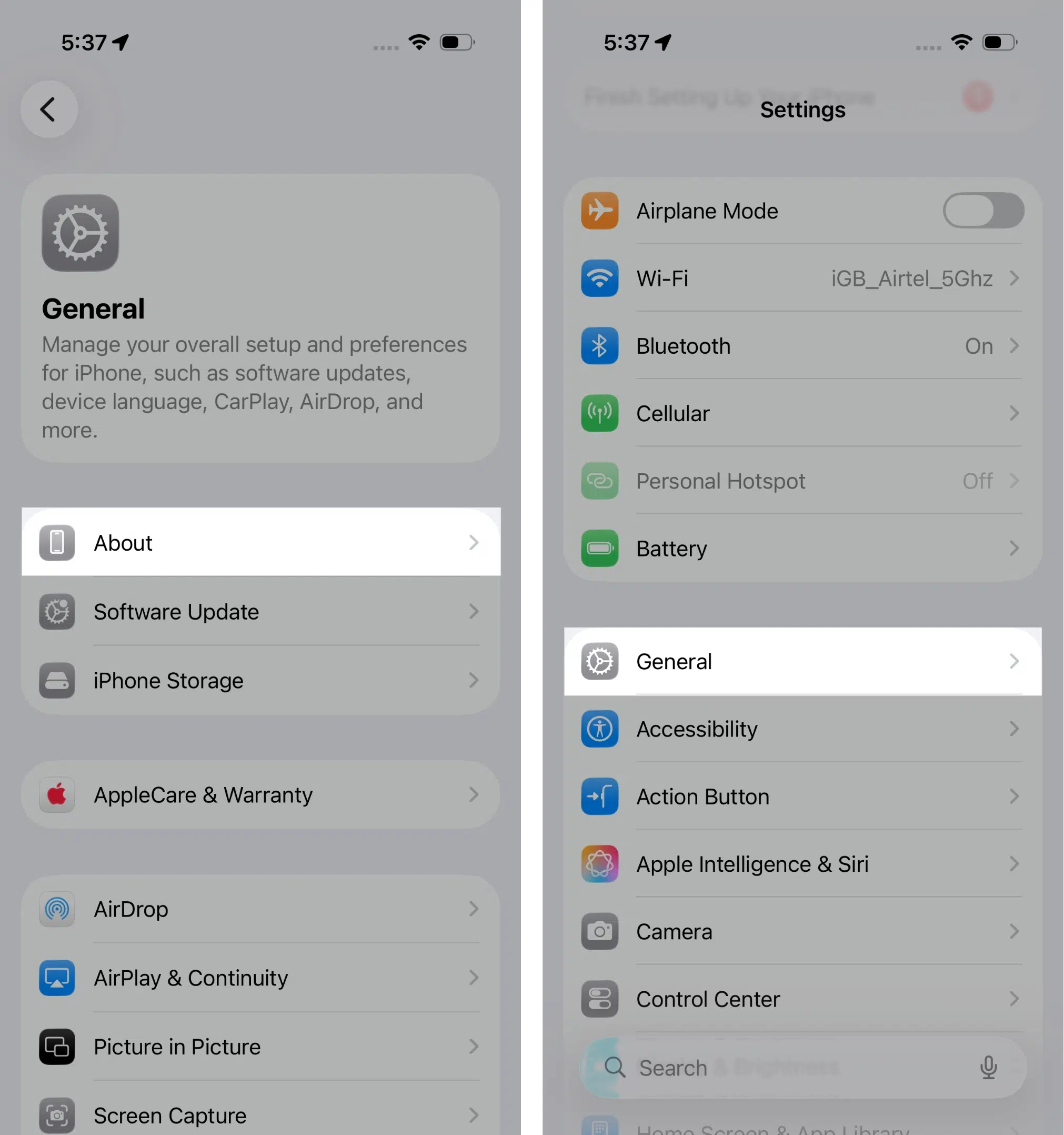
The quickest way to find your EID takes about 15 seconds. Apple keeps all device identifiers in one central location that’s easy to access.

There’s a lesser-known shortcut that works before you’ve even finished setting up your iPhone. When you power on a new device, that “Hello” screen appears in multiple languages. Look in the bottom-right corner for a small Info button (a circle with an “i” inside).
Tap that button, and your iPhone displays several key identifiers right there, including your EID. This saves you from having to skip through setup screens just to reach Settings when you need to activate an eSIM during first-time setup.
Sometimes you can’t get to your iPhone’s Settings screen: maybe the screen is damaged, you’ve already traded the device in, or you’re helping someone else locate their EID remotely. Apple built in several backup methods for situations like these.
Connect your iPhone to your Mac or PC. On Macs running macOS Catalina or later, open Finder and select your device from the sidebar. On older systems or Windows computers, use iTunes or the Apple Devices app.

Once connected, you’ll see your device name with the model name displayed underneath. Click that model name, and it cycles through different identifiers like the serial number, IMEI, and eventually your EID. Keep clicking until you see the 32-digit EID appear.
Head to account.apple.com in any web browser and sign in. Navigate to the Devices section to see all devices linked to your Apple ID. Select your iPhone from the list, and its details page displays the EID along with other device information.

This method works from anywhere; you don’t need the physical device in hand, making it particularly useful if you’re setting up service remotely or your phone isn’t accessible.
If you have an iPad or a second iPhone signed into the same Apple Account, you can find the EID there, too. Go to Settings, tap your name at the top, then scroll down to the devices section. Tap on the iPhone you need information about, and you’ll see its EID in the device details.

Your iPhone’s retail box includes a barcode sticker with all major identifiers, such as the serial number, IMEI, and EID. If you kept the box, flip it over and check the barcode label. The EID is printed right there.

This becomes a lifesaver if your iPhone won’t power on at all.
Sometimes your EID doesn’t appear where it should, which is frustrating when you need it for activation. Before you panic, try these straightforward fixes that resolve most issues.
If none of these steps work and you genuinely can’t locate your EID anywhere, contact Apple Support directly. They can verify whether your specific device supports eSIM and help you access the EID through their diagnostic tools.
Your EID is straightforward to find once you know the path: Settings > General > About, then scroll to that 32-digit code. The shift from physical SIM cards to embedded eSIMs represents a fundamental change in how phones connect to cellular networks. Your EID makes that transition secure and seamless, enabling instant carrier switching, multiple active plans on one device, and simplified international travel.
Next time a carrier asks for your EID, you’ll know exactly what they need and where to find it.
FAQs
Not every iPhone supports eSIM technology. Apple introduced eSIM with the iPhone XS, XS Max, and XR in 2018. Most recent iPhones have EID because they are eSIM-compatible. So if you have a device without eSIM functionality, it may not have an EID number at all.
You’ll need your EID when setting up a new eSIM plan, whether you’re switching carriers, adding a second line, or buying a travel eSIM. You’ll also need it when transferring your eSIM during an upgrade, troubleshooting activation failures, or unlocking your device for international use.
Treat your EID like your IMEI or serial number. Don’t post it publicly on social media or forums. Only share it with legitimate carriers or support teams when you’ve initiated the contact. If someone calls claiming to be from your carrier and asks for your EID, hang up and call the carrier back using their official number. When you’re genuinely activating an eSIM, sharing your EID is completely normal and necessary.
Read more: