- Don’t rely on the serial number alone. A counterfeit device can potentially display identifiers copied from a real iPhone.
- Check Settings → General → About for the model name, model/part number, serial number, IMEI, carrier information, and iOS version.
- On supported iPhones, check Parts & Service History for Genuine, Used, Unknown, Unverified, or other repair-related messages.
- For a second-hand iPhone, make sure Activation Lock is disabled and that the phone can be erased and set up with your own Apple Account.
- You can also try the
*#07#dialer shortcut to reach the Legal & Regulatory information about licensing, warranty information, etc.
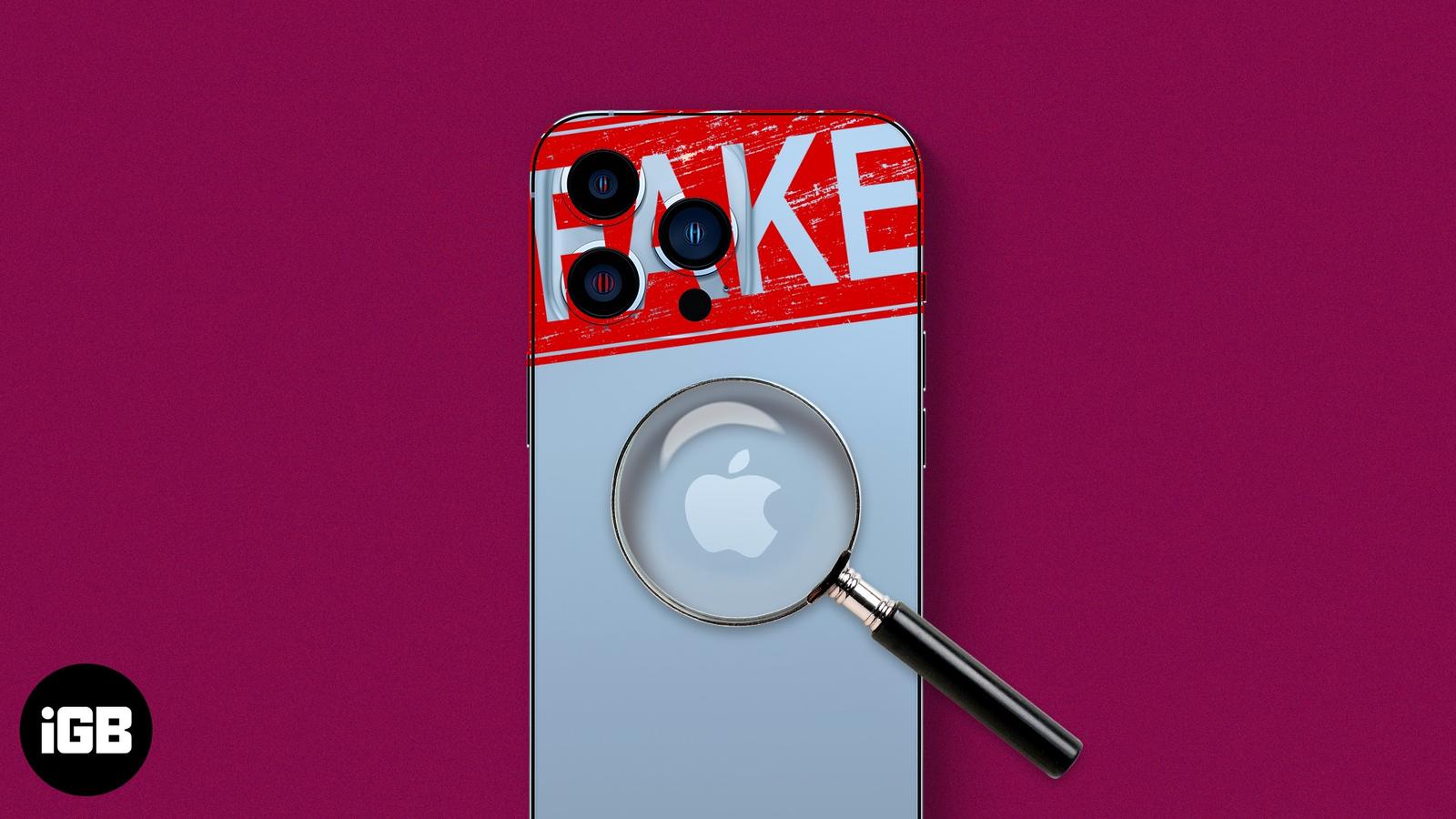
Buying an iPhone in 2026 is a little different from buying one a few years ago. Counterfeit phones can copy Apple’s exterior design surprisingly well, while used iPhones can contain replaced displays, batteries, cameras, or other components.
I would no longer depend on the serial number alone for verification purposes. When verifying an iPhone, I look at several things at once, such as device identifiers, Activation Lock status, Parts & Service History, Apple services, and more. This gives a much clearer picture of whether the iPhone is genuine and Apple-certified or has been repaired or modified.
In this article, I will show you under what conditions you should verify your iPhone’s authenticity, and how to check whether your iPhone is original or counterfeit so you can purchase with confidence.
When should you check if an iPhone is original?
I recommend verifying your iPhone’s authenticity before or immediately after buying it, especially in the following situations:
1. When buying a used or refurbished iPhone
This is probably the most important situation. A used or refurbished iPhone can be completely genuine while still having replacement components. Also, the second-hand market is where most counterfeits appear.
That’s why I don’t stop after checking the serial number. Always verify the device’s Parts & Service History before completing the purchase, even if it looks brand-new.
2. When the price looks suspiciously low
A very low price doesn’t automatically mean the phone is fake, but it is a reason to investigate further.
If someone offers a brand-new iPhone for half the retail price, it’s likely refurbished, stolen, or fake. So, double-check the model number, serial number, and IMEI before paying.
3. When buying from a marketplace
If you have bought your iPhone on online platforms such as OLX, Craigslist, Facebook Marketplace, eBay, or from any individual, do not just rely on the Apple-looking box. Verify it the moment you receive it. Many fake or stolen iPhones are sold online disguised as legitimate.
4. After a repair or replacement
A genuine iPhone can contain non-genuine or previously used replacement components.
If your iPhone has been repaired, especially outside of an Apple Authorized Service Provider (AASP), check that no counterfeit parts were installed. Apple’s “Parts & Service History” feature now lets you confirm this.
5. If you received the iPhone as a gift or promotion
Even if you didn’t purchase the device yourself, I’d still check it before moving personal data onto it.
Fake iPhones can expose you to security risks, poor performance, and no warranty protection.
Why checking iPhone authenticity matters
A genuine iPhone isn’t just about the Apple logo on the back.
I want to know that the device:
- Can receive Apple’s software updates
- Supports Apple’s security and privacy protections
- Can use Apple’s official apps and services
- Doesn’t have an Activation Lock tied to someone else
- Doesn’t contain unexpected replacement components
- Has the hardware it claims to have
- Can be serviced properly through Apple Warranty
- Isn’t being sold with misleading information
Buying a counterfeit iPhone, which may look real but often fails within months, means wasting your hard-earned money. Moreover, it can expo
10 Ways to check if an iPhone is original or fake in 2026
Here’s a step-by-step guide I use to verify an iPhone’s authenticity.
1. Check the Serial Number and IMEI
Your iPhone’s IMEI (International Mobile Equipment Identity) and Serial Number are unique identifiers so it’s the easiest way to verify if the iPhone is original.
To verify your device’s Serial Number:
- Go to Settings → General → About.
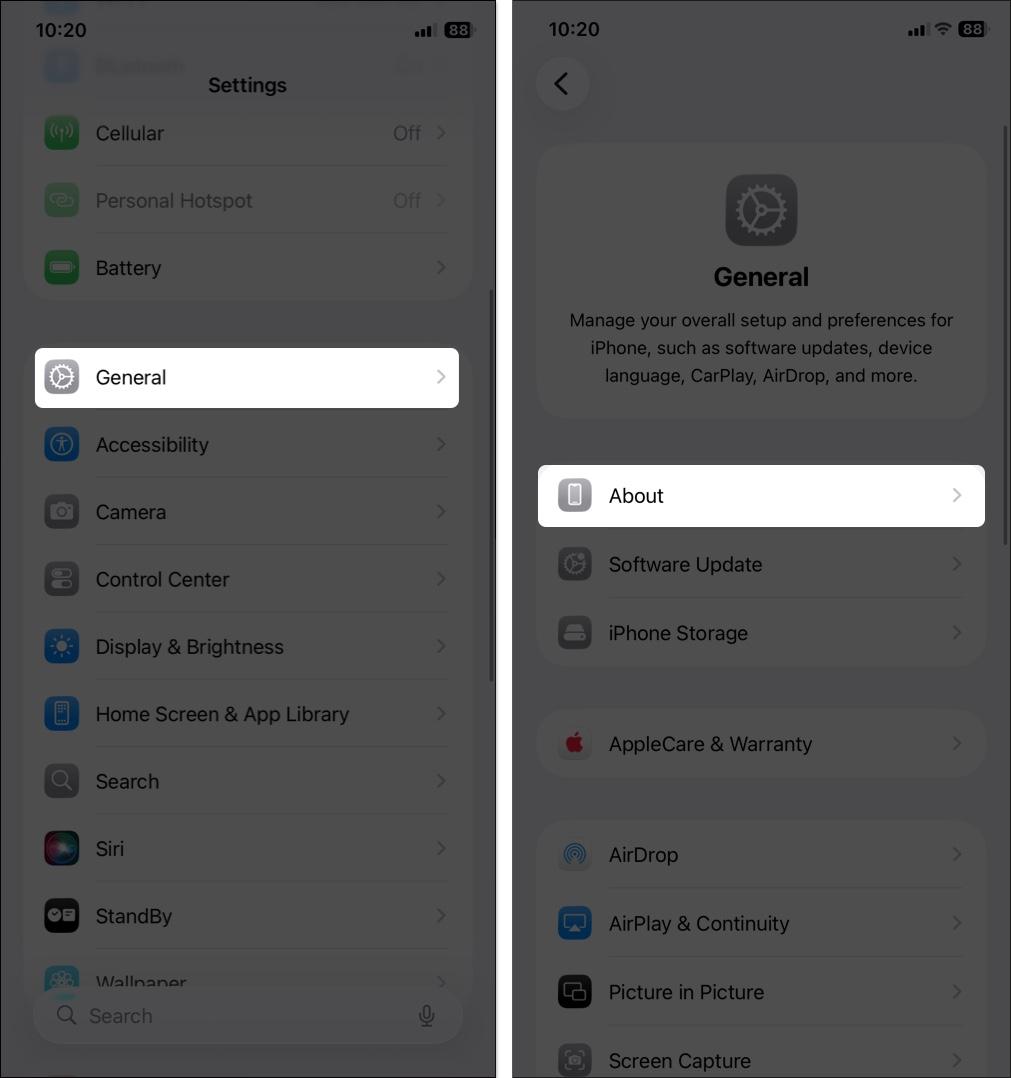
- Copy the Serial Number.
- Visit Apple’s official warranty checker: checkcoverage.apple.com.
- Enter the serial number and confirm the CAPTCHA.
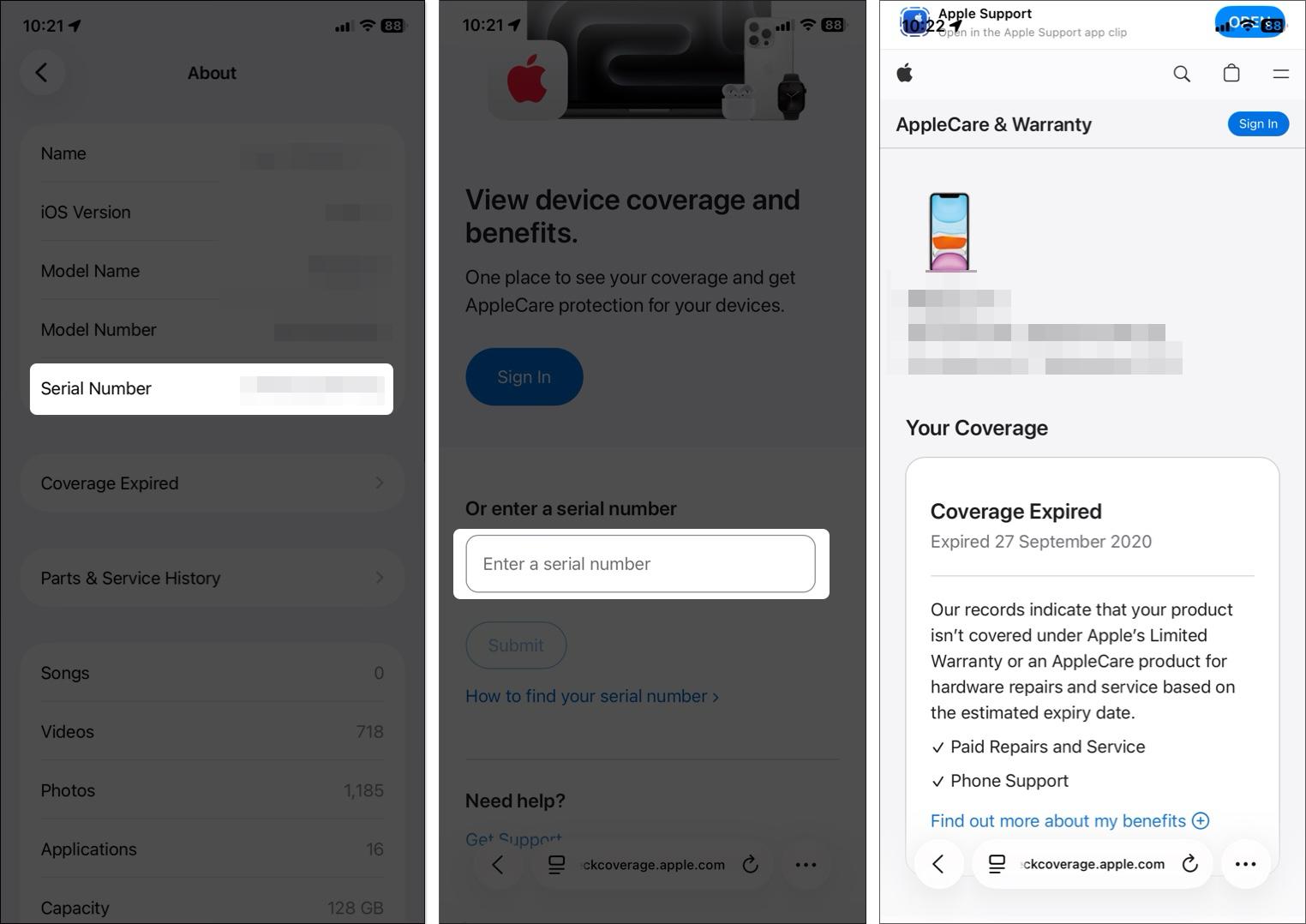
If Apple recognizes your device as a Valid Purchase and shows warranty details, it’s genuine. Otherwise, if it says “invalid serial number,” the phone is fake or unregistered.
From the About screen, you can also check the device’s IMEI, Model name, and EID, and compare these details with the original packaging or purchase documentation where applicable. You may also dial *#06# to see the IMEI number.
Important:
Don’t treat a recognized serial number as proof. A valid serial number only tells you that the identifier is recognized. However, it does not mean that the device you have physically is the original device associated with that identifier. That’s why I always combine this check with the other methods below.
2. Check the Model and Part Number
Each iPhone model number reveals whether it’s new, refurbished, replaced, or personalized. Find it under Settings → General → About → Model Number. 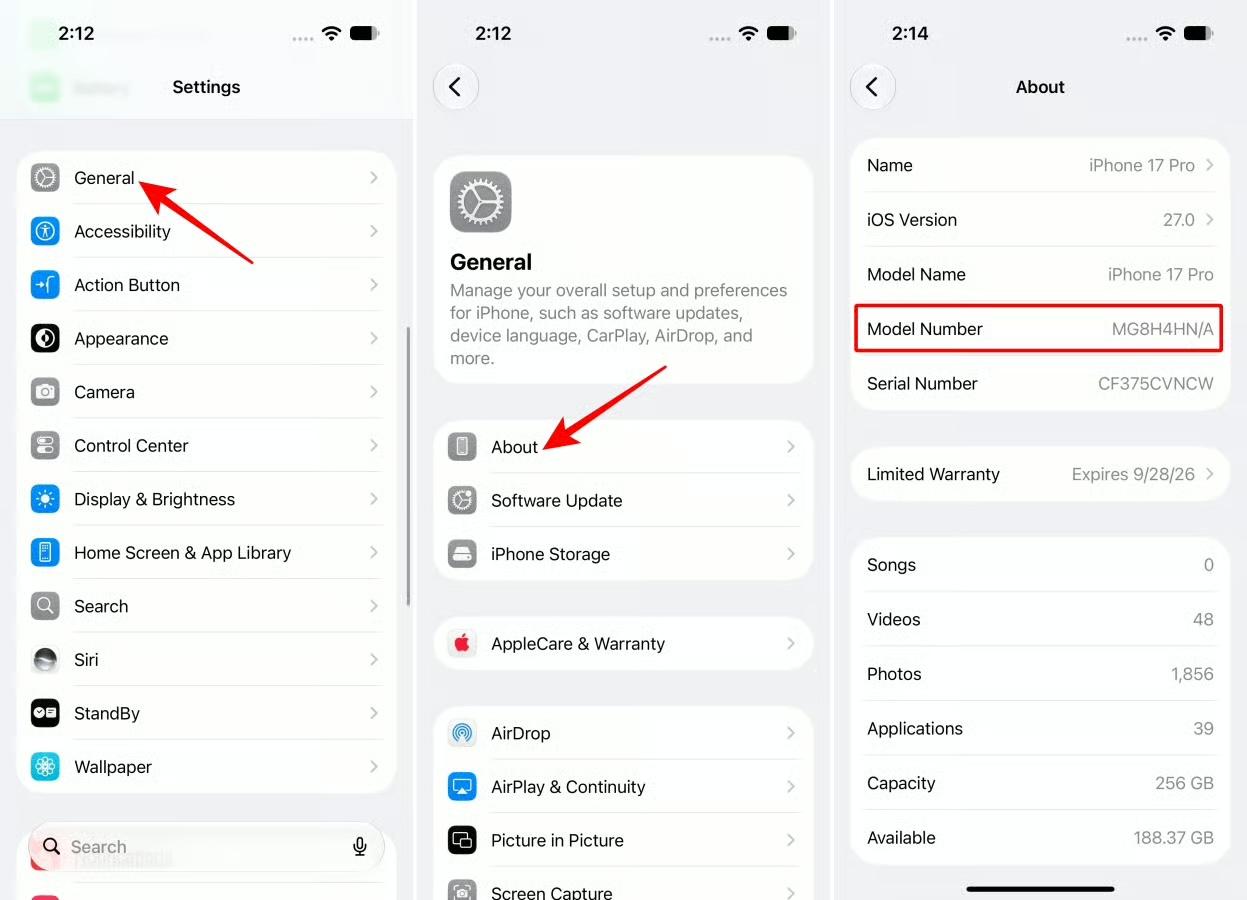
- M – Brand new, purchased retail
- F – Refurbished by Apple
- N – Replacement for a service request
- P – Personalized/engraved by Apple
Note:
These letters appear only in the first character of the part number and may vary slightly by region.
Now, you may find out if someone is trying to sell you a refurbished phone in the name of a new one. Also, tapping that field reveals the actual model number, which you can compare against the number shown on the box.
3. Check Activation Lock before buying a used iPhone
This is one of the checks I would never skip when buying a second-hand iPhone. A phone can be 100% genuine and still be unusable to you because of Activation Lock.
To check the Activation Lock status, you need to have the device in hand since there’s no way to verify it remotely.
- Turn on the iPhone and start the basic setup.
- If you see the “iPhone Locked to Owner” screen or the device asks for the previous owner’s Apple Account password, Activation Lock is still enabled.
Apple specifically advises returning an online-purchased iPhone if you see that message. Unless the previous owner properly erases the device and removes it from their account.
4. Check Parts & Service History
Some customers report scams with serviced iPhones. The device is original, but it may have been repaired with non-Apple parts due to malfunctions. So, the iPhone can not provide the same user experience with those parts installed.
Go to Settings → General → About. If the iPhone has repair information available, you’ll see Parts & Service History.
Depending on the iPhone model and component, Apple can show information for parts such as battery, display, logic board, front camera, and rear cameras.
You may see labels such as:
- Genuine: It means that the repair used genuine Apple parts and processes.
- Used: The part is a genuine Apple component that was previously used in another iPhone.
- Unknown: It can indicate a non-genuine component, an installation or verification issue, a malfunctioning component, or a component that has been modified.
- Unverified: Apple says this can appear when the logic board was previously used in another iPhone. It can affect certain features, including Apple Pay.
So if someone advertises an iPhone as “completely original, never repaired” but Parts & Service History tells a different story, I’d ask questions before buying.
5. Check the iPhone’s physical design
I would recommend checking the device physically because counterfeit manufacturers can imitate software screens, but physical inconsistencies can reveal a lot.
Check:
- Apple logo placement and polish quality (not printed or glued)
- Frame material and finish
- Button placement
- Camera arrangement
- Display bezels and notch
- Charging port and pentalobe screws near it
- Speaker and microphone openings
- SIM tray, where applicable
- Overall weight and build quality
Don’t use a generic checklist for every iPhone, though.
For example, newer iPhones have USB-C, while older models use Lightning. Some models have an Action button, while others have a Camera Control button configuration. Camera layouts also vary by generation.
Compare the phone with the specifications and images for the exact iPhone model you’re buying.
6. Use the Legal & Regulatory shortcut
Open the Phone app and enter *#07#, then press the call button.
On supported iPhones, this can take you to the device’s Legal & Regulatory information. You can also open it from Settings → General → Legal & Regulatory.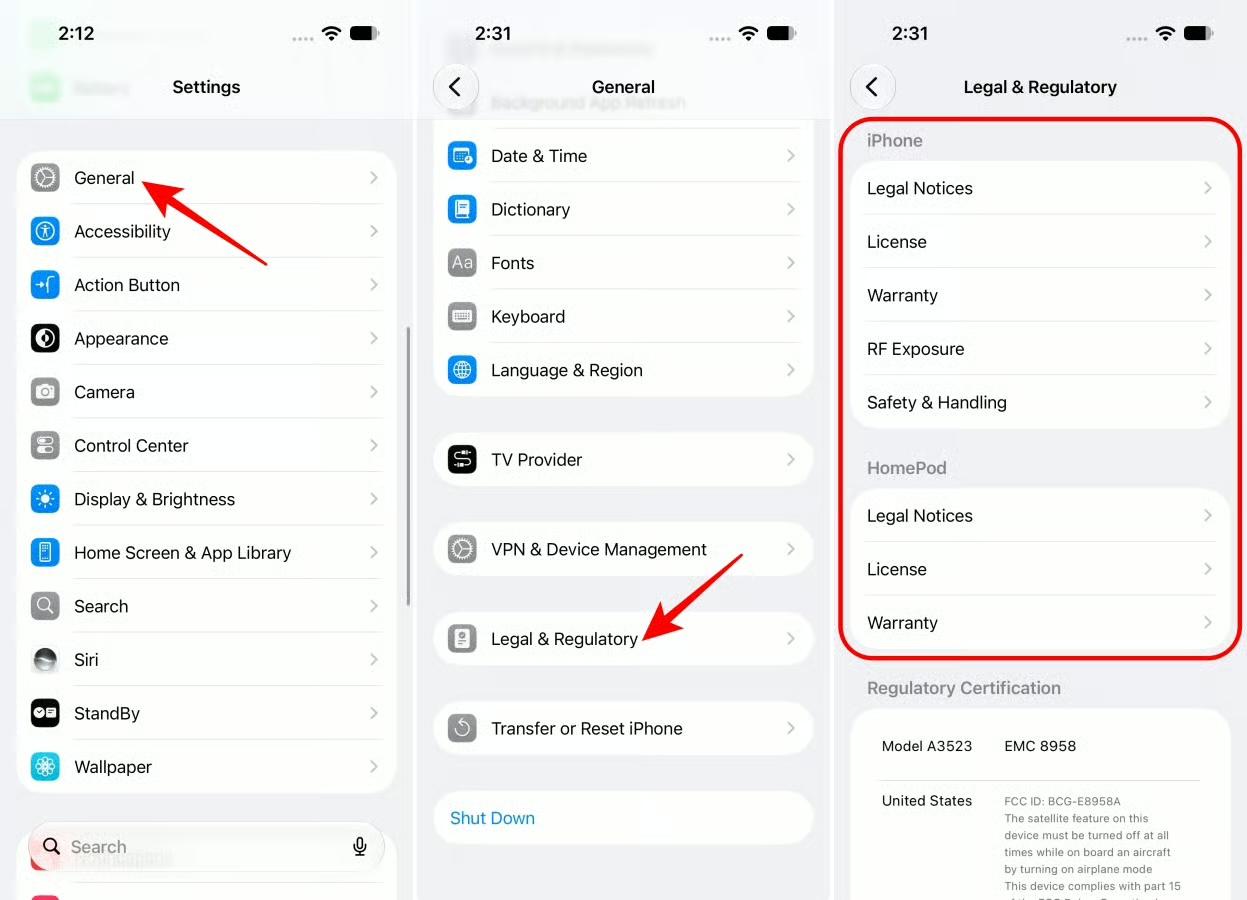
The screen can contain sections such as:
- Legal Notices
- Licence
- Warranty
- RF Exposure
- Safety & Handling
- Regulatory Certification
It gives you another way to inspect the licence and warranty information associated with the device.
7. Check the iOS Version
A sophisticated counterfeit can imitate the appearance of iOS.
Go to Settings → General → Software Update. The phone should behave like a normal iPhone and provide you with Apple’s software update screen. Here, note the iOS version and build number, and check it against Apple’s official support page.
Also, when you set up your new iPhone, it asks you to create an Apple ID. If it prompts you to enter your Google account or anything else, the iPhone is not original.
However, I wouldn’t use the presence of an iOS-like interface as my only authenticity test. Instead, check whether the device can actually use Apple’s ecosystem and services.
8. Check Apple’s built-in settings and services
A genuine iPhone should provide Apple’s normal system environment, including pre-installed apps and features such as:
- Settings
- App Store
- Safari
- Messages
- Photos
- Phone
- FaceTime, where available
- Apple Account services
- Find My
- iCloud services
Don’t just look at the icons. Open the apps and settings and make sure the device behaves like an actual iPhone.
If you see an Android-style interface underneath an iOS-like skin, a Google Play Store, or Android system settings, that’s an obvious red flag.
9. Test Face ID, cameras, and connectivity
Before buying a used iPhone, I would spend a few minutes actually testing it.
- Set up Face ID if the seller allows you to reset the device. If Face ID isn’t working, don’t automatically assume the phone is fake. It could simply have a hardware problem or previous repair.
- Next, open Camera and test the front camera, rear cameras, zoom levels, video recording, flash, and portrait features.
- Finally, test Wi-Fi, Bluetooth, cellular network, AirDrop, and NFC-related functions, such as Apple Pay, where available.
A failure here doesn’t prove the phone is counterfeit, but it can reveal hardware or software problems that matter when you’re buying used.
Also, check the battery health of the iPhone. Don’t pay “like-new” money for a phone with a heavily degraded battery.
10. Get it verified by Apple
In case you still have some doubts about the authenticity of your device, it is advised to get it checked at the nearest Apple Store or Apple Certified Service provider. They can run diagnostics to confirm if your iPhone (and its parts) are authentic Apple components.
This is particularly useful when you’re dealing with:
- A suspicious second-hand phone
- A repaired iPhone
- A device with Unknown parts
- Face ID problems
- A phone with inconsistent identifiers
- An unusually cheap iPhone
- A device whose regulatory or model information doesn’t match the seller’s claims
Don’t make these common mistakes
There are several older authenticity tricks I’d no longer treat as definitive.
- A valid serial number doesn’t prove that the physical hardware is the original device associated with it. Use it together with other checks.
- Missing Apple Pay or other Apple Intelligence features doesn’t automatically mean the phone is fake. Apple services vary by country, region, device and configuration.
- Quick Start failure doesn’t prove a counterfeit. It can fail due to normal setup issues or connectivity problems.
- An “Unknown” part does not necessarily indicate that the whole iPhone is counterfeit. The device itself could be an authentic product from Apple with just one relaced component.
To stay safe, always buy from official Apple Stores or authorized resellers. Avoid deals that seem “too good to be true,” and verify the IMEI and serial number before paying.
Final thoughts
Checking whether an iPhone is original doesn’t take much time, but it can save you from buying a fake, repaired, or locked device. I recommend checking the serial number, IMEI, Activation Lock, Parts & Service History, software, hardware, and Legal & Regulatory information before making your purchase.
A few minutes of checking can save you from a very expensive mistake. So, is your iPhone really original, or is there something hiding beneath the surface?