FaceTime Like a Pro
Get our exclusive Ultimate FaceTime Guide 📚 — absolutely FREE when you sign up for our newsletter below.

FaceTime Like a Pro
Get our exclusive Ultimate FaceTime Guide 📚 — absolutely FREE when you sign up for our newsletter below.


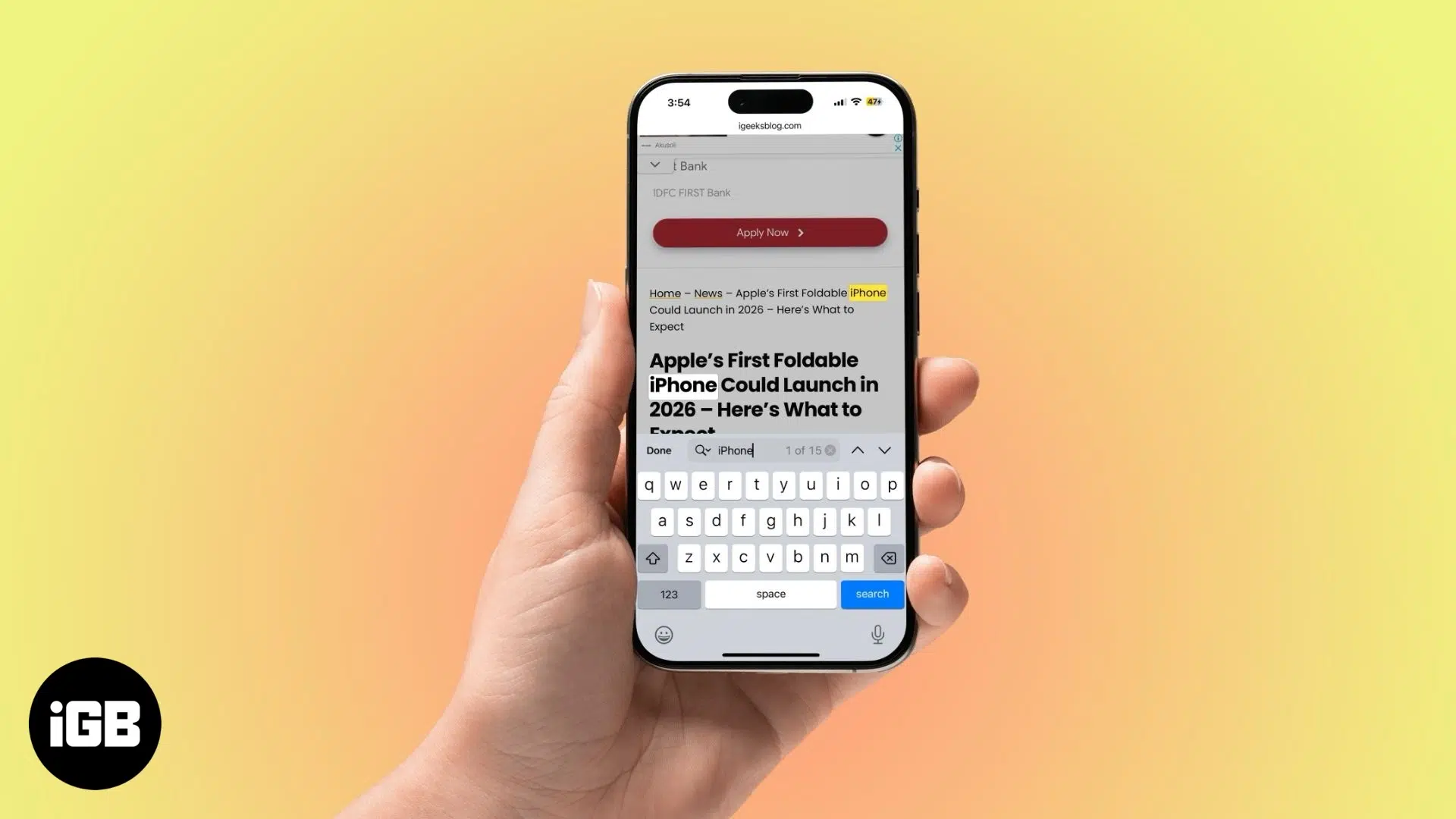
Live Text lets your iPhone recognize and interact with text in photos, videos, and real-world images. This guide shows how to enable and use it effectively.

 ByAva Biswas and Yash Wate


If you have ever wanted your iPhone to copy and interact with text from images and videos in real time, recognize phone numbers from a sign, or instantly translate a sentence captured with your camera, Apple’s Live Text makes it possible. It turns your iPhone into a powerful text recognition tool that works quickly and intelligently.
Whether you are a student, traveler, or professional, this feature helps you get more done with less effort. In this guide, you will learn how to use Live Text to copy text from photos and videos on your iPhone, along with practical tips to get the most out of it.
Live Text is an Apple feature that lets your iPhone detect and interact with text from images and the live camera viewfinder. It uses on-device intelligence to understand what is in front of you and offers actionable options such as copying text, calling a phone number, or translating foreign language text.
Live Text uses on-device machine learning and OCR (optical character recognition). This means your iPhone can read text without sending data to the cloud, making it fast and privacy focused.
When text appears in your camera view or in a photo:
You no longer need to manually type text from signs, menus, or screenshots. Live Text lets you instantly copy long paragraphs, saving time and reducing errors.
Similar to Google Lens, Live Text can recognize:
Live Text supports multiple languages, and recognition improves with each iOS update. It works best when your region and language settings match the text you are scanning.
Before using Live Text, make sure the following requirements are met:
Steps to Enable Live Text:


If you do not see these options, your iPhone model or iOS version may not support Live Text.
Live Text works across the system, including the Camera app, Photos app, and supported apps like Safari and Mail.


Live Text also works with videos. Pause the video at any frame and select the text. The feature is available on Mac as well, so you can use it across Apple devices.
Live Text works inside supported apps:

The experience is consistent across apps. If you can see text, Live Text can usually detect it.
Live Text offers more than simple copy and paste:
Although they often work together, Live Text and Visual Look Up serve different purposes:
Use Live Text when you want to read or interact with text. Use Visual Look Up when you want more information about objects in an image.
If Live Text is not working on your iPhone, try these solutions:
| Live Text icon not appearing | Make sure Live Text is enabled and your iPhone model supports it. |
| Text not being detected properly | Improve lighting, hold the camera steady, and move closer to the text. |
| Device compatibility issues | Older iPhones may not support Live Text. Check Apple’s official compatibility list. |
| Language and region issues | Go to Settings > General > Language & Region and add the required languages. |
Live Text may seem like a small feature, but once you start using it, it becomes a daily productivity booster. It turns your iPhone into a powerful text reader, and after a while, it is hard to imagine using your phone without it.
Have you tried Live Text yet? Share your experience in the comments.
FAQs
Yes. Live Text works offline because text recognition happens on the device. However, features like web search may require an internet connection.
Yes. It works best with neat and clearly written handwriting.
Yes. Open the PDF in the Photos or Files app and use Live Text to interact with the text.
Also read: