
FaceTime Like a Pro
Get our exclusive Ultimate FaceTime Guide 📚 — absolutely FREE when you sign up for our newsletter below.

FaceTime Like a Pro
Get our exclusive Ultimate FaceTime Guide 📚 — absolutely FREE when you sign up for our newsletter below.


If your Mac has battery, fan, or power issues that will not go away after a restart, resetting the SMC can help. This guide explains what the SMC does and shows how to reset it on every Mac model, step by step.


When a Mac starts showing unusual behavior, it is usually a sign that something at the hardware level is not behaving the way it should. The fans might suddenly get loud for no clear reason, the battery may refuse to charge past a certain point, or small things like the keyboard backlight can start acting inconsistently. Restarting the Mac is the first instinct, and sometimes it works, but many times it does not.
That is where resetting the System Management Controller, or SMC, comes in. It is a well-known troubleshooting step that Apple itself recommends in specific situations. The process is safe, takes only a minute or two, and often fixes problems that feel otherwise hard to explain. On newer Macs, it is also far simpler than it used to be.
The SMC, short for System Management Controller, is a small but important chip found in Intel-based Macs. It quietly manages all the low-level hardware tasks you rarely think about until something goes wrong.
This includes things like how your Mac powers on, how the battery charges, how fast the fans spin, how the keyboard backlight behaves, and how the system responds when you close or open the lid. Even the tiny charging light on your Mac charger listens to the SMC.
When the SMC gets confused, your Mac can start showing problems that feel random, frustrating, and hard to explain. Resetting it puts these hardware controls back to their default state.
SMC issues usually show up as hardware-related problems rather than app crashes or software errors. If your Mac feels physically off rather than digitally broken, this step is worth trying.
Common symptoms include:
Apple itself says you rarely need to reset the SMC, but when these specific issues appear and basic fixes fail, it is one of the most effective troubleshooting steps.
Before resetting the SMC, you need to know which kind of Mac you are using. The steps change depending on whether your Mac runs on Apple Silicon or Intel, and whether it has a T2 Security Chip.
You can check this using these steps:


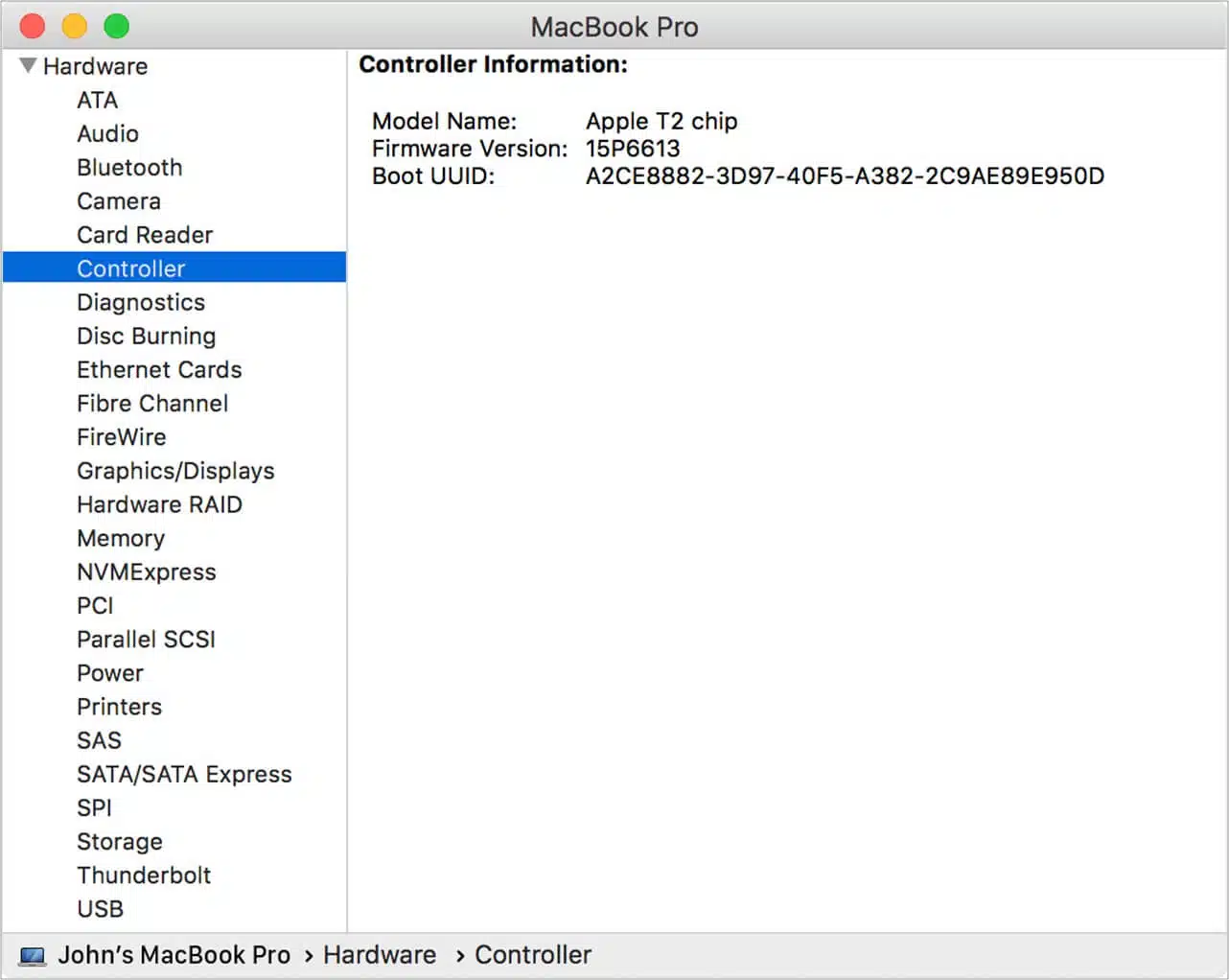
Once you know this, follow the section that matches your Mac exactly.
Now that you know which Mac you are using, follow the steps written for your exact model below. The process varies slightly by Mac model, so make sure you do not mix steps between sections.
If you are using a Mac with Apple Silicon, this part is refreshingly simple. These Macs do not have a separate SMC. Everything the SMC used to handle is built directly into the M-series chip.
As a result, there is no manual SMC reset process.
All you need to do is:
That is it. This reboot automatically performs the Apple Silicon equivalent of an SMC reset.
If your issue persists after this, it may indicate firmware issues rather than SMC behavior. In rare cases, Apple provides tools to revive or restore firmware on another Mac, but this is only necessary when problems are severe.
Most MacBook Air and MacBook Pro models released from 2018 onward include the T2 Security Chip. Apple recommends a softer reset method before using the full key combination.
Start with this first:
If the problem remains, move on to the full SMC reset:
You may notice the Apple logo appear briefly or the Mac turn on and off during this process. That is normal. The first boot after an SMC reset can also take slightly longer than usual.
For desktops such as the iMac, iMac Pro, and Mac mini with the T2 chip, the process is simpler and does not require a keyboard.
Here is what to do:
This fully resets the SMC for T2-equipped desktop Macs.
If your MacBook was released before 2018 and does not include the T2 chip, the SMC reset uses a different key combination.
Follow these steps:

If your MacBook has a removable battery, which is common in models made before 2009, the process is different:
Desktop Macs without the T2 chip follow the same process as newer desktops.
Yes. Resetting the SMC is safe and does not erase your data. It simply resets hardware-related settings back to factory defaults.
That said, a few custom settings, especially related to power or battery behavior, may need to be adjusted again after the reset.
An SMC reset is not a cure-all. It will not fix software bugs, broken apps, corrupted files, or hardware damage.
If your Mac continues to misbehave after resetting the SMC, the issue may be related to macOS itself, firmware corruption, or failing hardware. At that point, reinstalling macOS or contacting Apple Support is the next logical step.
Resetting the SMC is one of those classic Mac troubleshooting steps that sounds complex but is actually very straightforward. When your Mac feels physically wrong rather than software broken, this is often the missing step.
It costs nothing, takes only a minute or two, and in many cases, brings a misbehaving Mac right back to normal. And if it does not, at least you know you ruled out one of the most common low-level causes with confidence.
Read more:


