If Safari is not working on your iPhone or iPad, you are not alone. Many users report issues such as Safari not loading pages, showing a blank white screen, crashing on iOS, search not working, or feeling slow and unresponsive.
The good news is that most Safari problems are easy to fix. Issues often appear after an iOS or iPadOS update, a network change, or a minor settings adjustment. VPN apps, content blockers, corrupted cache files, or Screen Time restrictions are also common triggers.
This guide walks you through a clear, step-by-step troubleshooting process. Follow the steps in order, and Safari should be working again before you reach the end.
First: Check If Safari Is Down or If the Website Is the Problem
Before applying any fixes, confirm whether the issue is with Safari itself or just a specific website.
Try these quick checks:
- Open the same webpage in another browser like Chrome or Firefox.
- Open a different website in Safari, such as apple.com.
- Double-check that the website URL is spelled correctly.
- Use a website status checker on another device to see if the site is down.
If only one website fails to load, the issue is likely with the website’s server, not Safari. Server outages can cause blank pages, loading errors, or timeouts even when your internet connection is working.
Quick Fixes That Solve Most Safari Problems
If Safari is not working on your iPhone or iPad, start with these basic fixes.
Force Close Safari and Reopen It
Safari can freeze in the background due to memory issues.
How to force close Safari:
- Swipe up from the bottom and hold to open App Switcher.
- Find Safari app card and swipe it away.
- Reopen Safari and try loading the website again.
Turn Airplane Mode On and Off
This refreshes your network connection and can improve Wi-Fi or cellular performance.
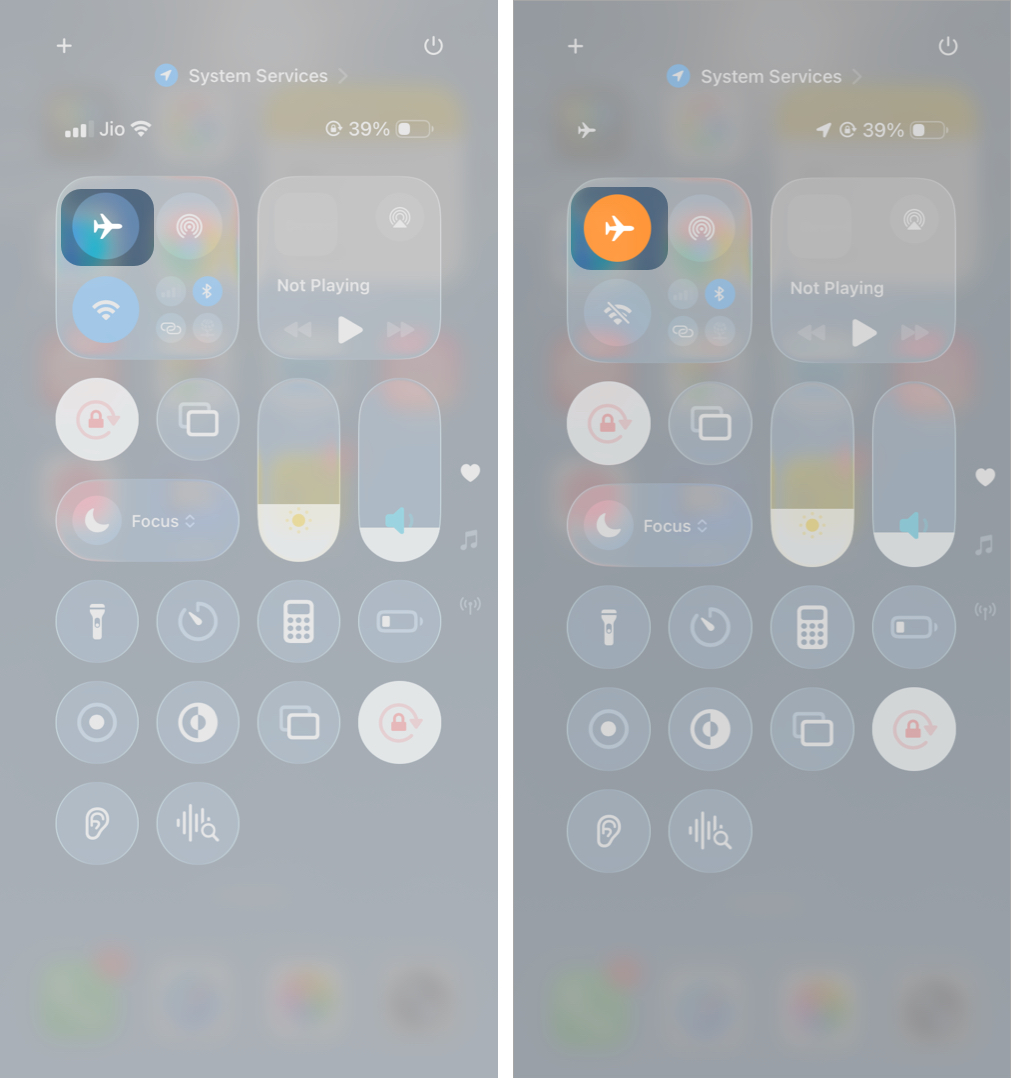
- Swipe down from the top right corner of your iPhone to open Control Center.
- Tap the airplane icon to turn on Airplane Mode.
- Now, wait 10 seconds.
- Turn it off and test Safari.
Restart Your iPhone or iPad
A simple restart fixes many temporary system glitches.
- Press and hold your iPhone’s side button and any of the volume button.
- Drag the slider to power it off.
- Wait for a minute.
- Press the side button again to switch on your iPhone.
Check Screen Time Restrictions
Screen Time can limit app usage, including Safari.
- Go to Settings and select Screen Time.
- Tap App Limits and check if Safari is added to the list.
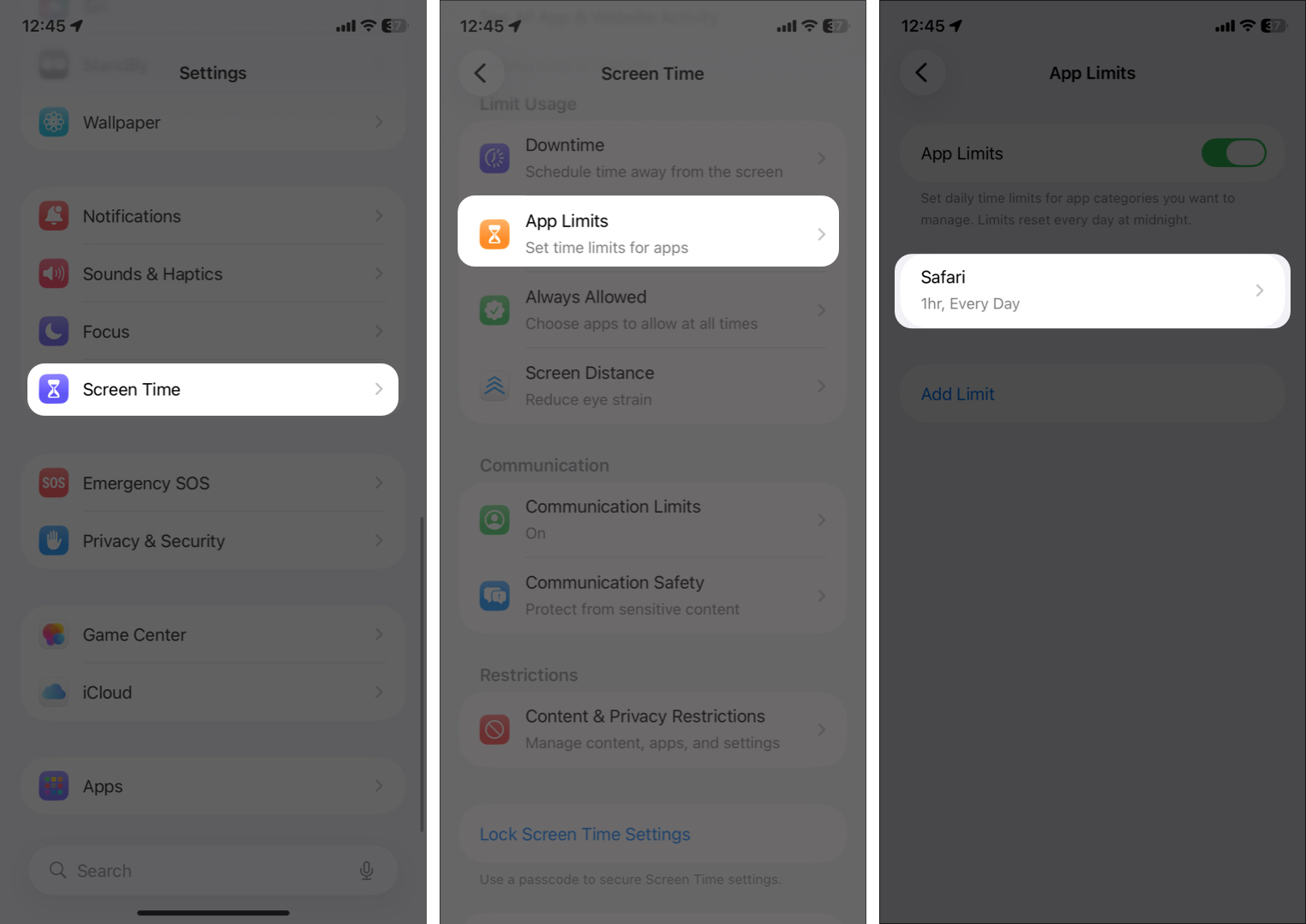
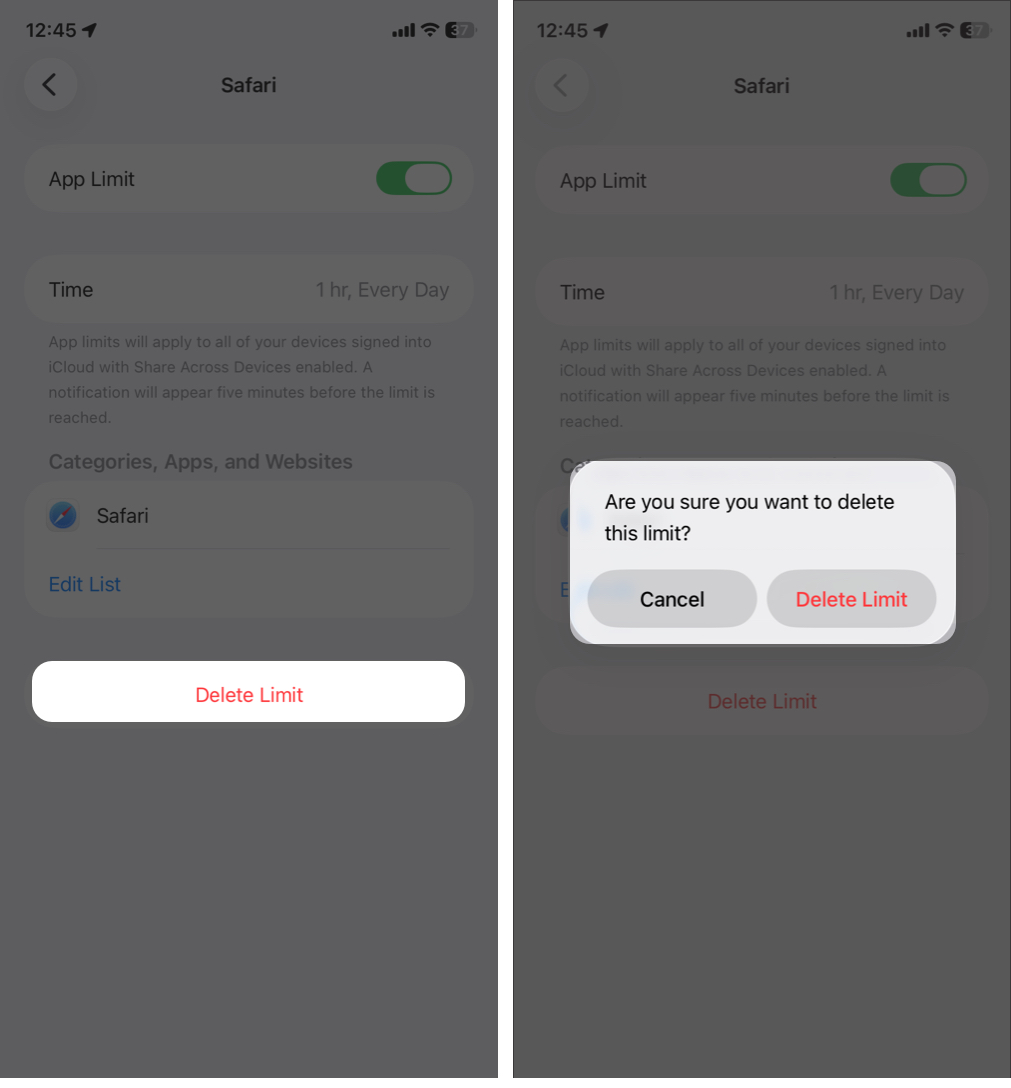
- If yes, then tap Safari and select Delete Limit twice.

While at it, ensure Content & Privacy Restrictions are disabled. If Safari search isn’t working, restrictions are often the cause.
Check Internet and Network Settings
If Safari works inconsistently, the issue may be your network connection.
Switch Between Wi-Fi and Mobile Data
- Open Control Center, turn off Wi-Fi, and try cellular data.
- If you are on cellular data and Safari is not loading web pages, go to Settings > Cellular > Show All and ensure Safari is toggled on.
- Try connecting to a different Wi-Fi network if available.
If Safari works on one network but not another, the problem is network-related.
Reset Network Settings
This can fix hidden network issues. It resets Wi-Fi passwords, cellular settings, and VPN configurations, but your personal data remains safe.
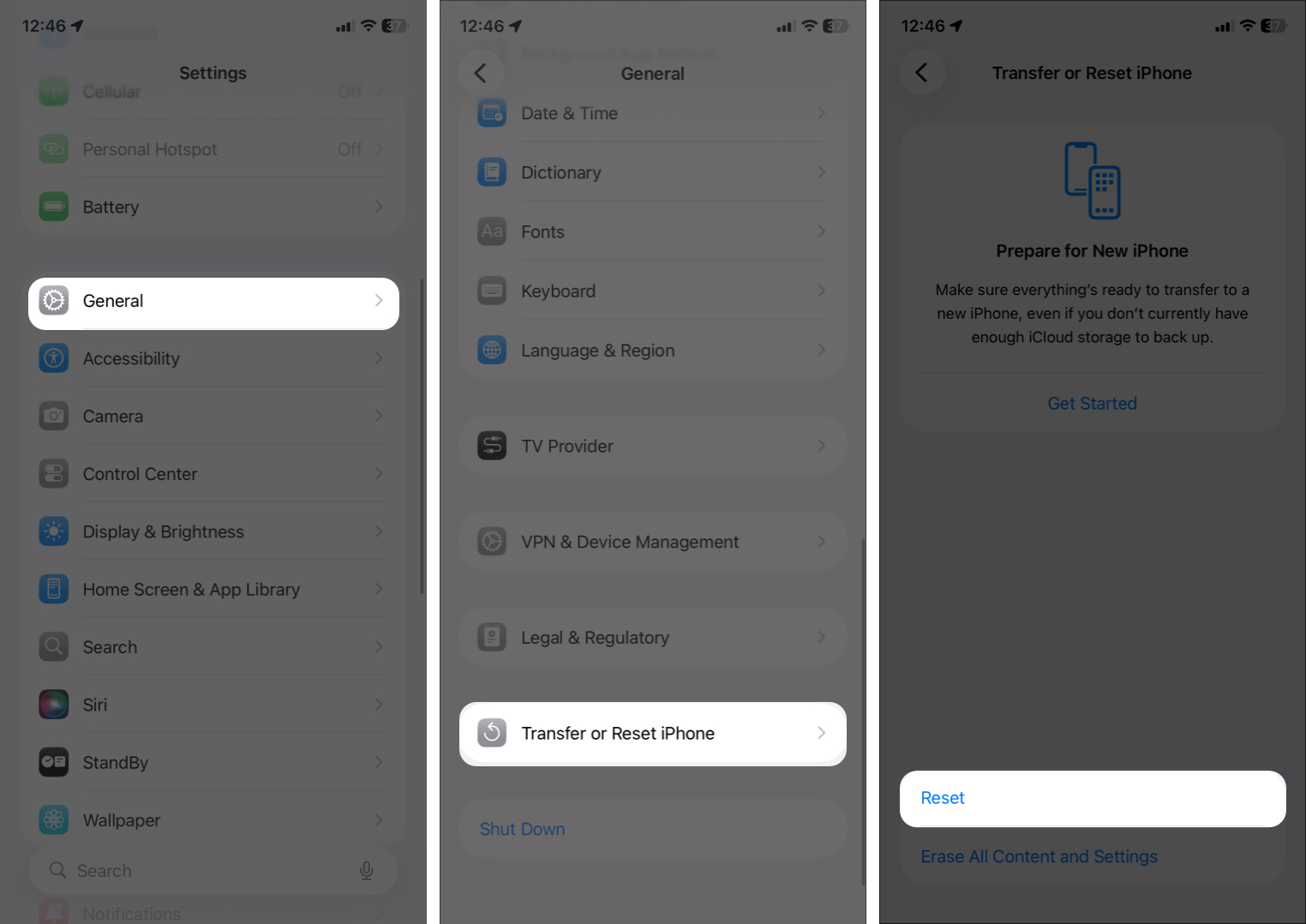
- Open Settings and go to General > Transfer or Reset iPhone.
- Select Reset > Reset Network Settings.
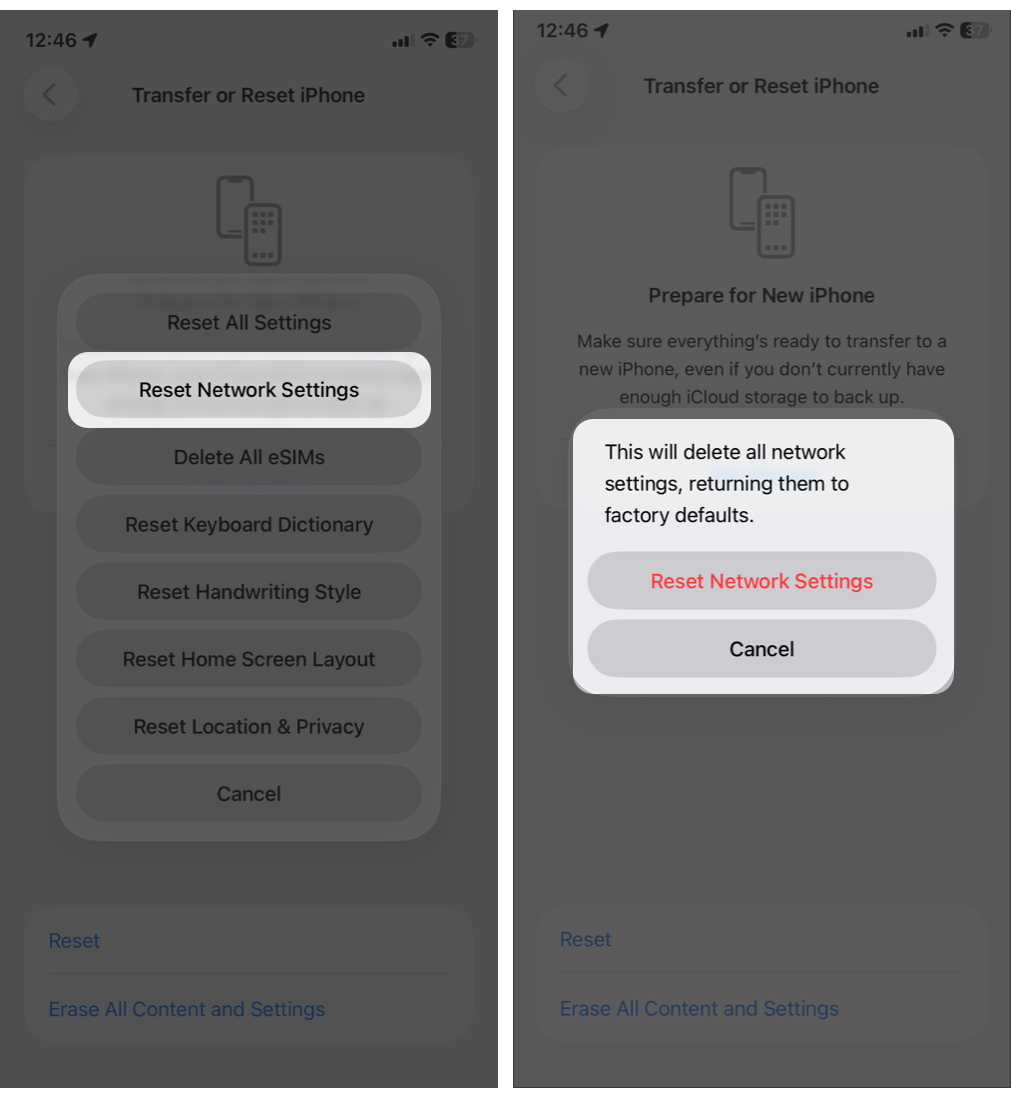
- Enter your iPhone passcode and confirm your choice.


Check DNS, VPN, and Proxy Settings
Custom DNS settings, VPNs, or proxy apps can interfere with Safari.
- Temporarily disable any VPN apps.
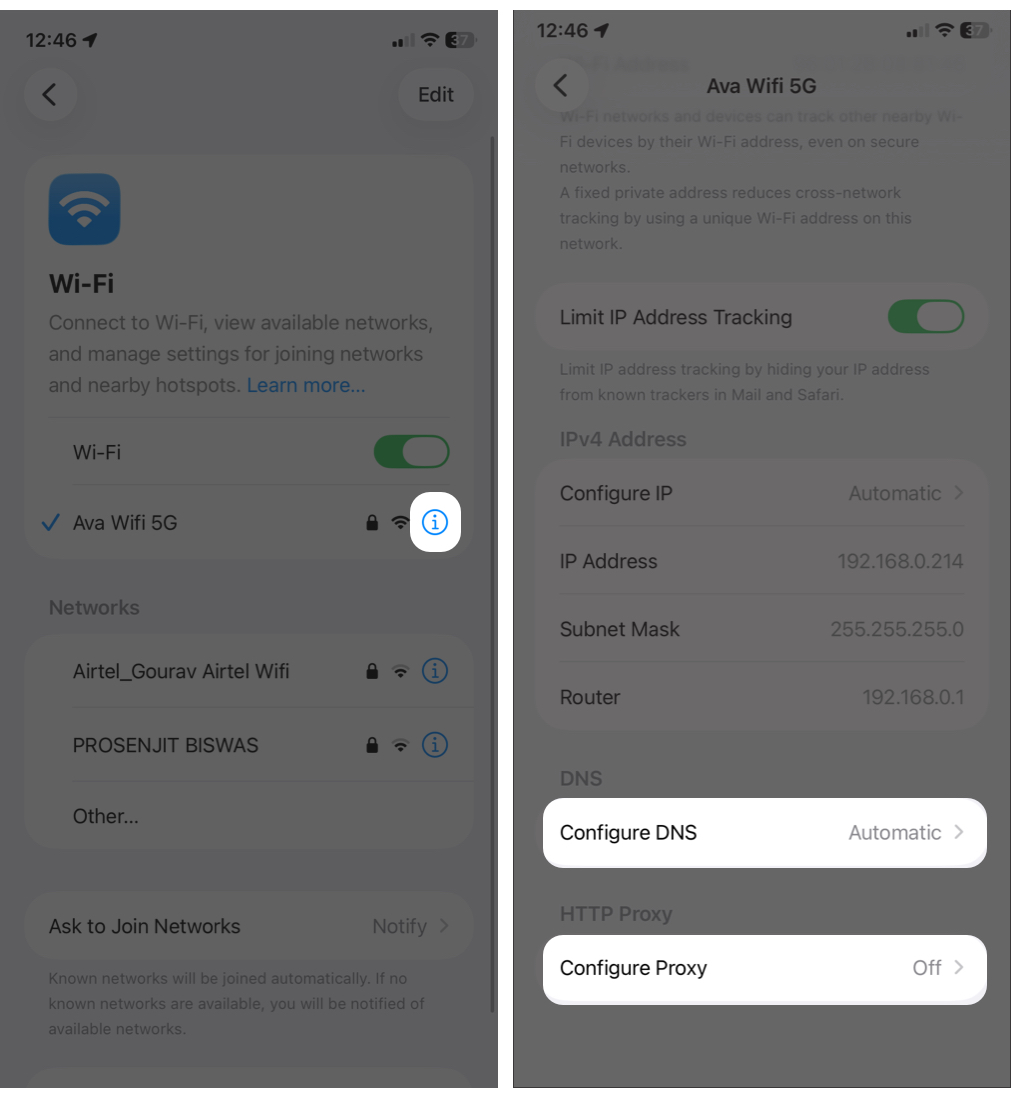
- Remove custom DNS settings. Go to Settings > Wi-Fi and tap the info button next to your network. Set Configure DNS at Automatic and select Off for Configure Proxy. Also, delete DNS cache.
- Test Safari again.

Update iOS or iPadOS
Safari updates are included with system updates. Running an outdated version can cause crashes or loading issues.
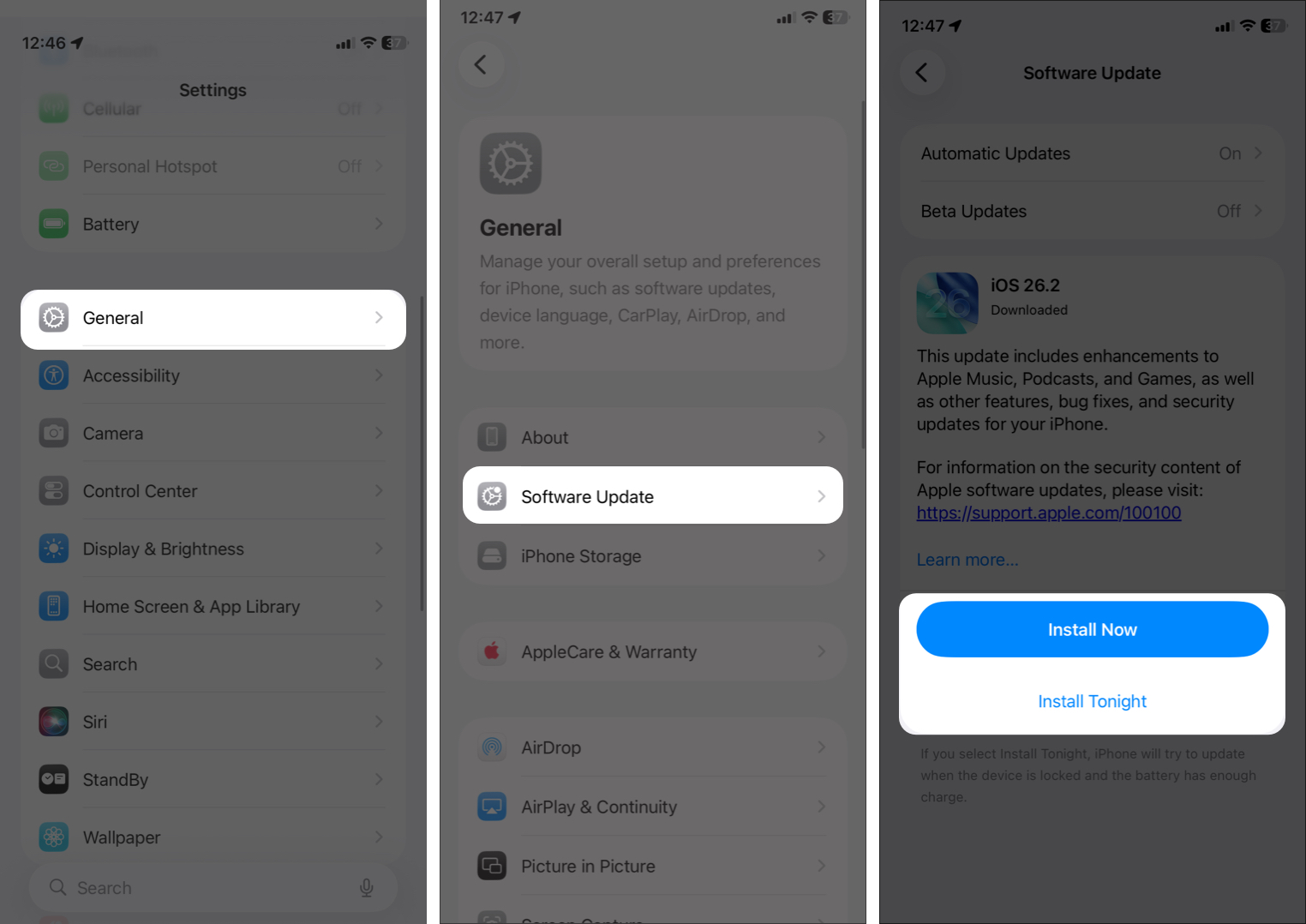
- Go to Settings > General and tap Software Update.
- Install the latest version.

If the update fails, restart your device and try again on a stable Wi-Fi connection with sufficient battery.
Clear Safari History, Cache, and Website Data
If you haven’t cleared out the cached files in Safari for a long time, the junkies have piled up to become problematic for the web browser. Safari may load nothing, show a blank screen, or take a long to display website content or images.
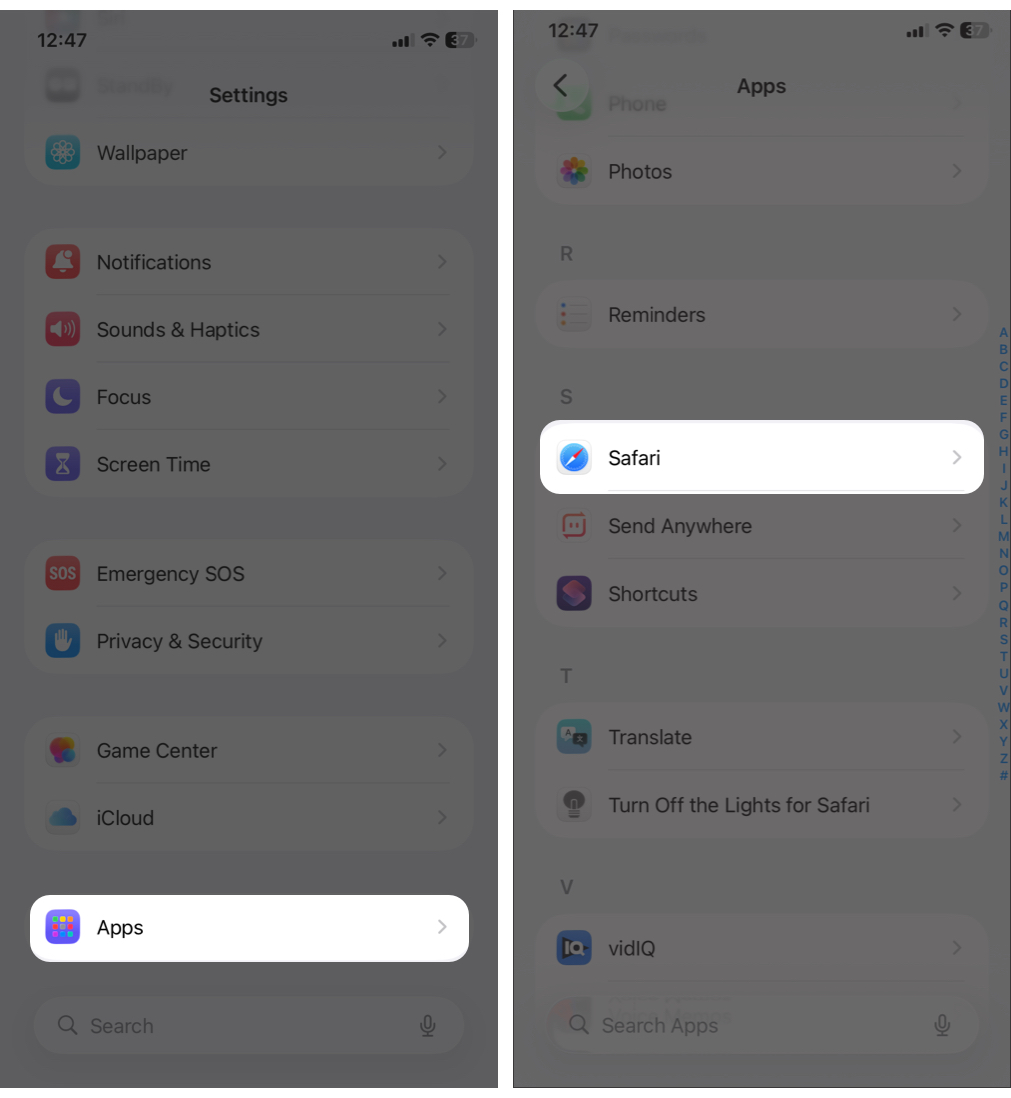
- Navigate to Settings, select Apps and choose Safari.
- Tap Clear History and Website Data.
- Select All history and All Profiles.
- Toggle on Close All Tabs.
- Finally, tap Clear History.
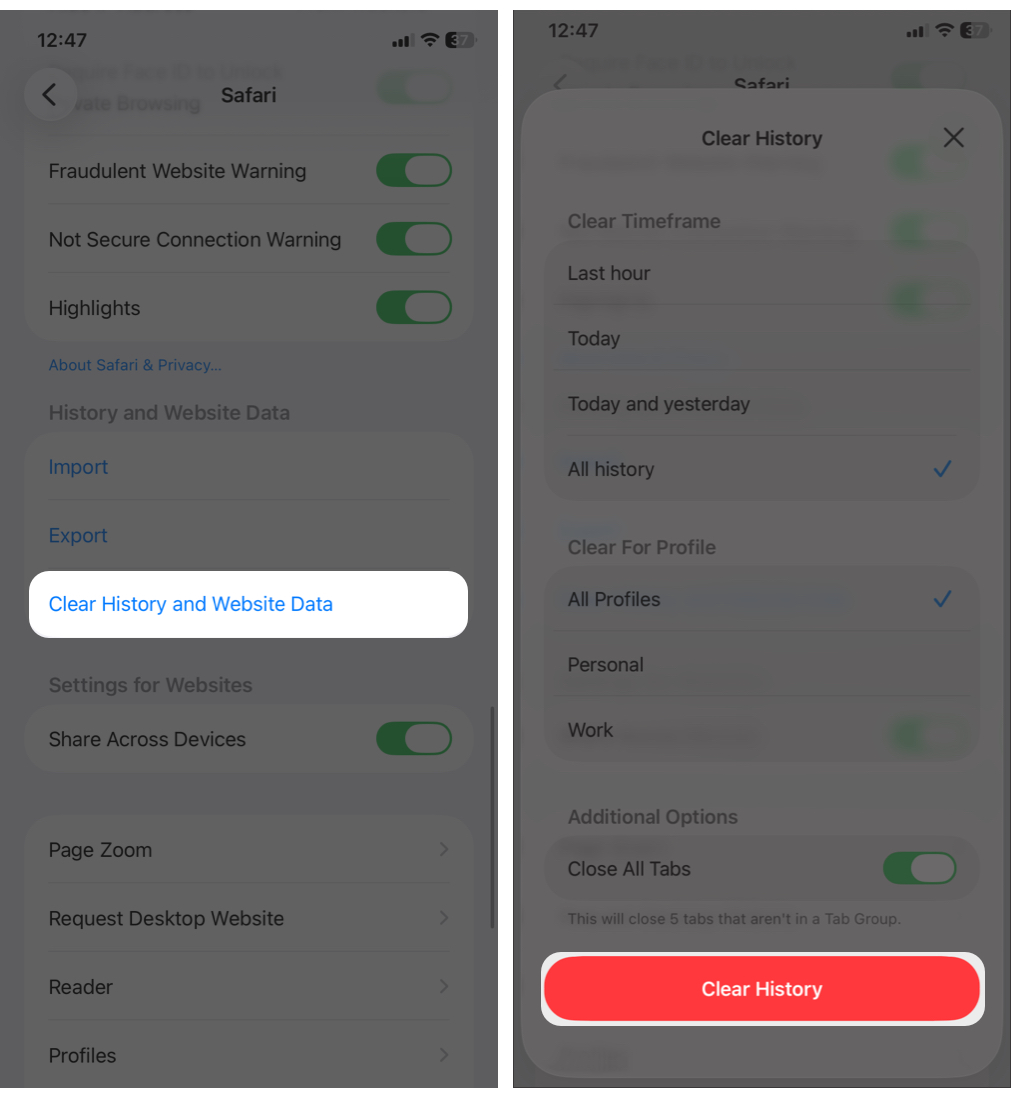


Now, this will delete all browsing activities and your website logins. If you have enabled iCloud sync and Keychain, you can still access saved passwords and bookmarks.
Disable Safari Extensions and Content Blockers
Sometimes, Safari crashes only on certain websites. This is probably due to ad blockers and too many overlapping Safari extensions that can break website scripts.
- Go to Settings > Apps > Safari and tap Extensions.
- Tap an extension and toggle it off for all your profiles. Repeat this step to turn off all extensions.
- Test Safari.
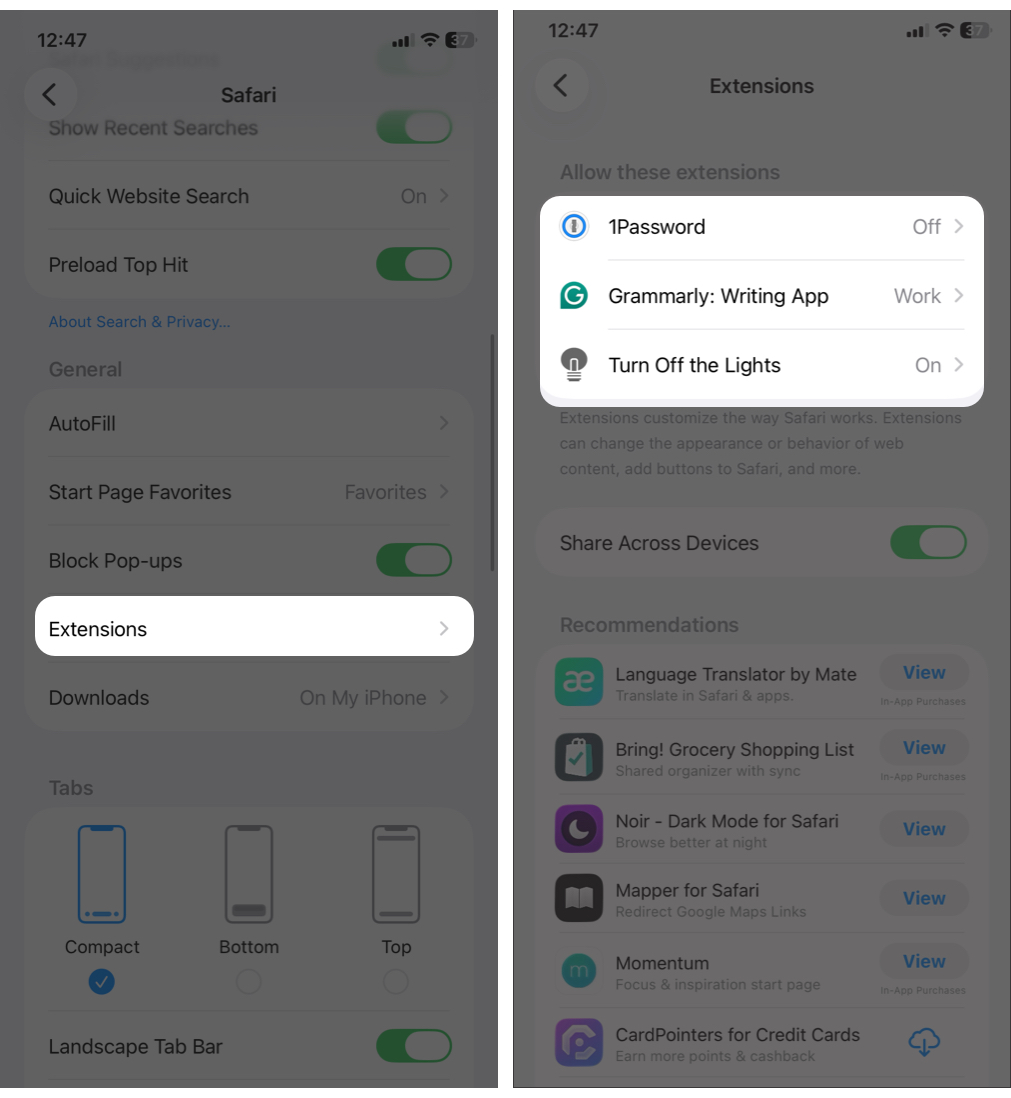

Turn extensions back on one by one to find the problem.
Fix Safari Search Not Working
If Safari opens but search does not respond, try the following:
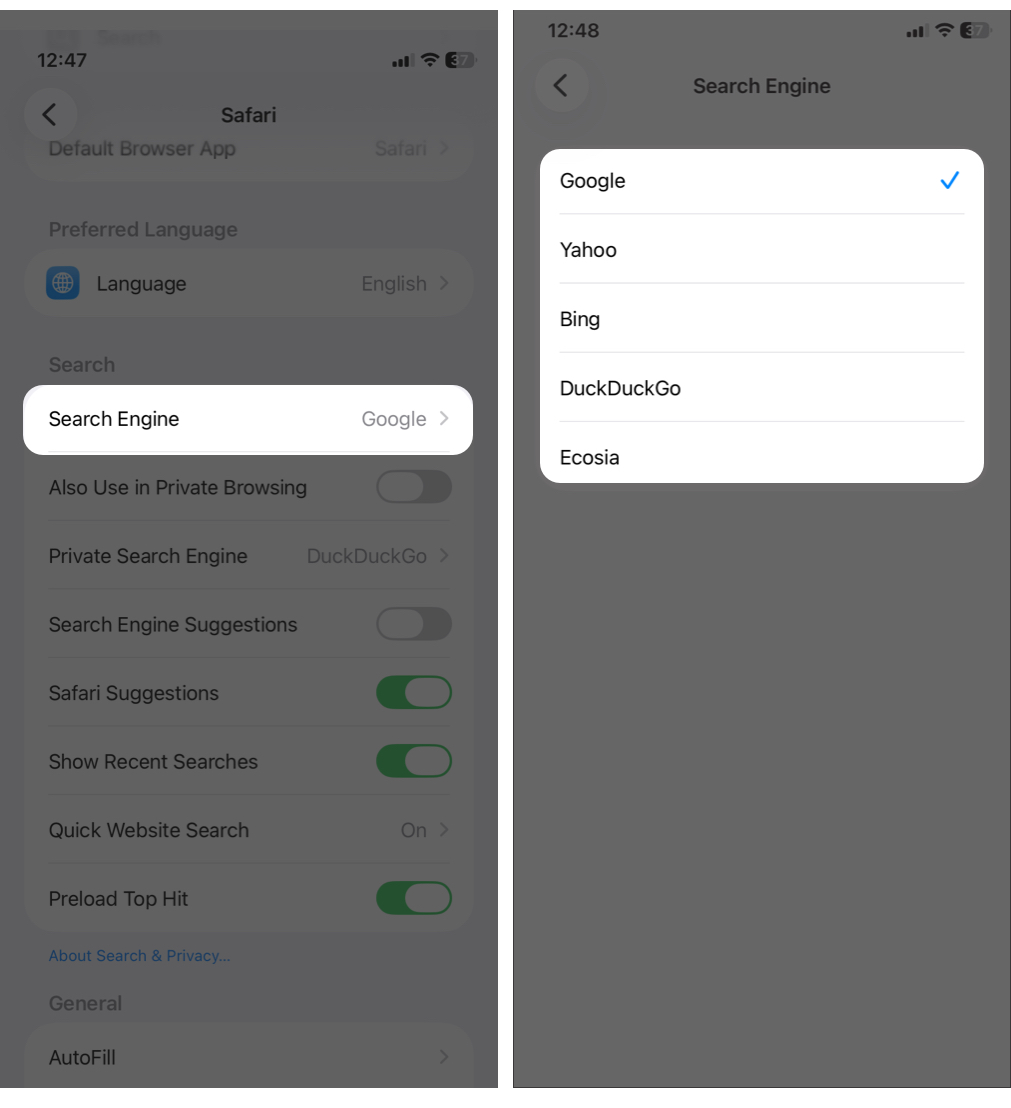
- Change the default search engine from Safari Settings. You may choose between Google, Bing, DuckDuckGo, Yahoo, and Ecosia.
- Turn off and back on Search Engine Suggestions.
- Set Hide IP Address to From Trackers.
- Disable Advanced Tracking and Fingerprinting Protection under Advanced
- Check Language & Region settings so that Safari can fetch the right website.
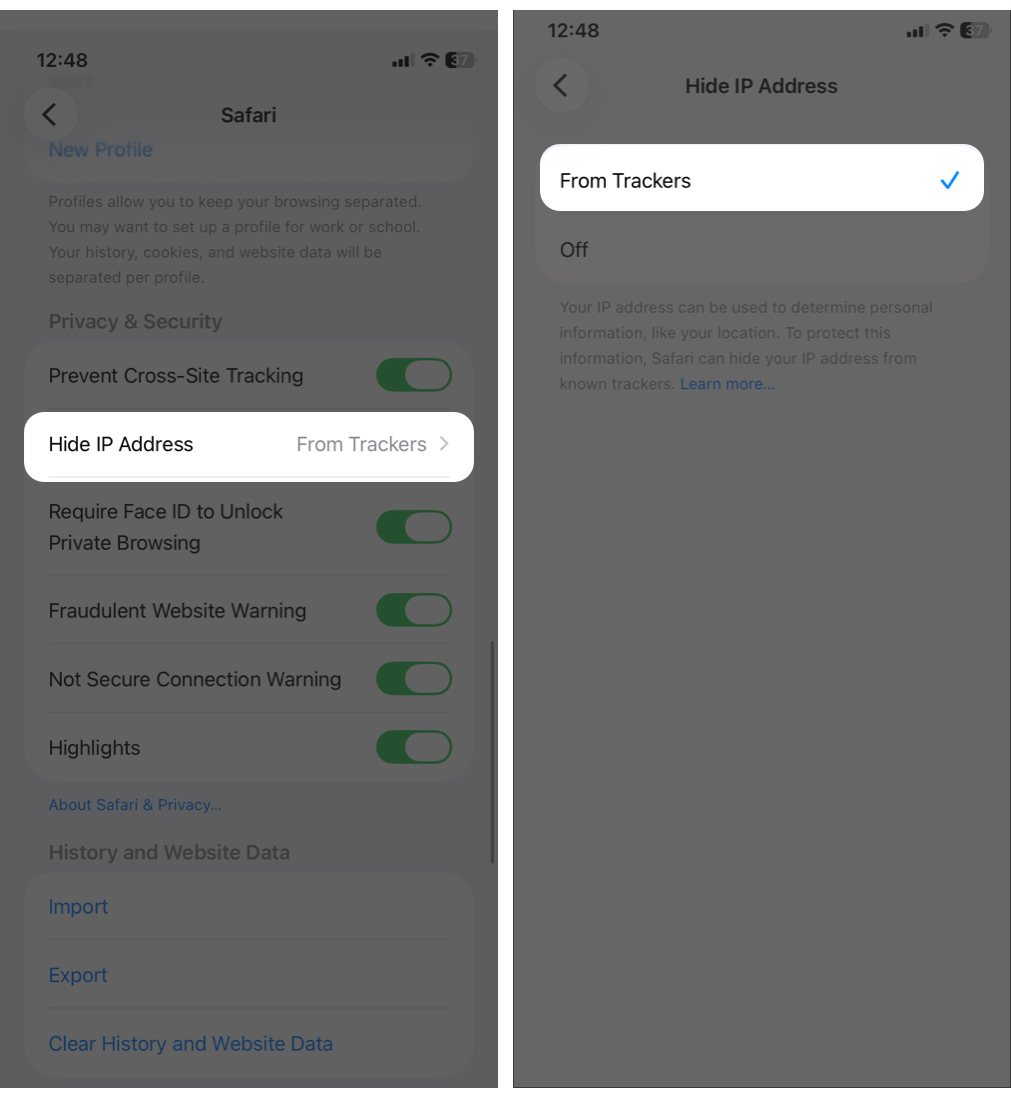


If certain websites do not load, try disabling iCloud Private Relay, which routes traffic through Apple servers and can occasionally cause access issues.
Advanced Fixes If Safari Still Isn’t Working
If basic troubleshooting does not help, the issue may be system-related.
Reset All Settings
This resets system preferences without deleting data.
- Open Settings > General > Transfer or Reset iPhone.
- Tap Reset > Reset All Settings.
- Enter your iPhone passcode and tap Reset All Settings to confirm your choice.
Check Available Storage
Low storage can prevent Safari from loading pages.
- Go to Settings > General > iPhone Storage.
- Free up space if needed. Ensure at least 15-20 GB is available for smooth operation.
Restore the Device (Last Resort)
Factory reset your iPhone if nothing else works. This will restore everything, including your apps, photos, personal data, to its original software state. So, before proceeding, back up your data.
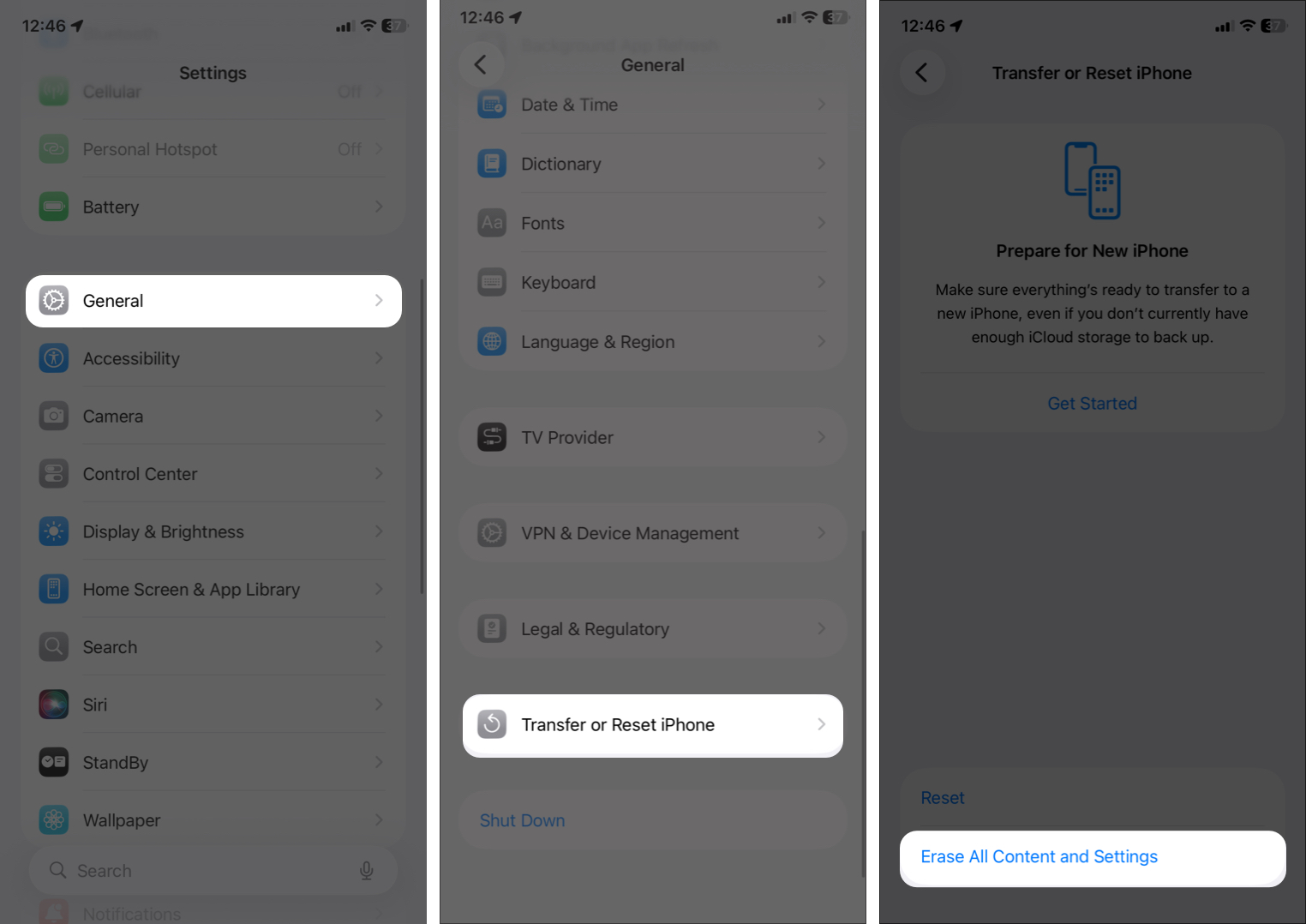
- From Settings > General > Transfer or Reset iPhone, select Erase All Content and Settings.
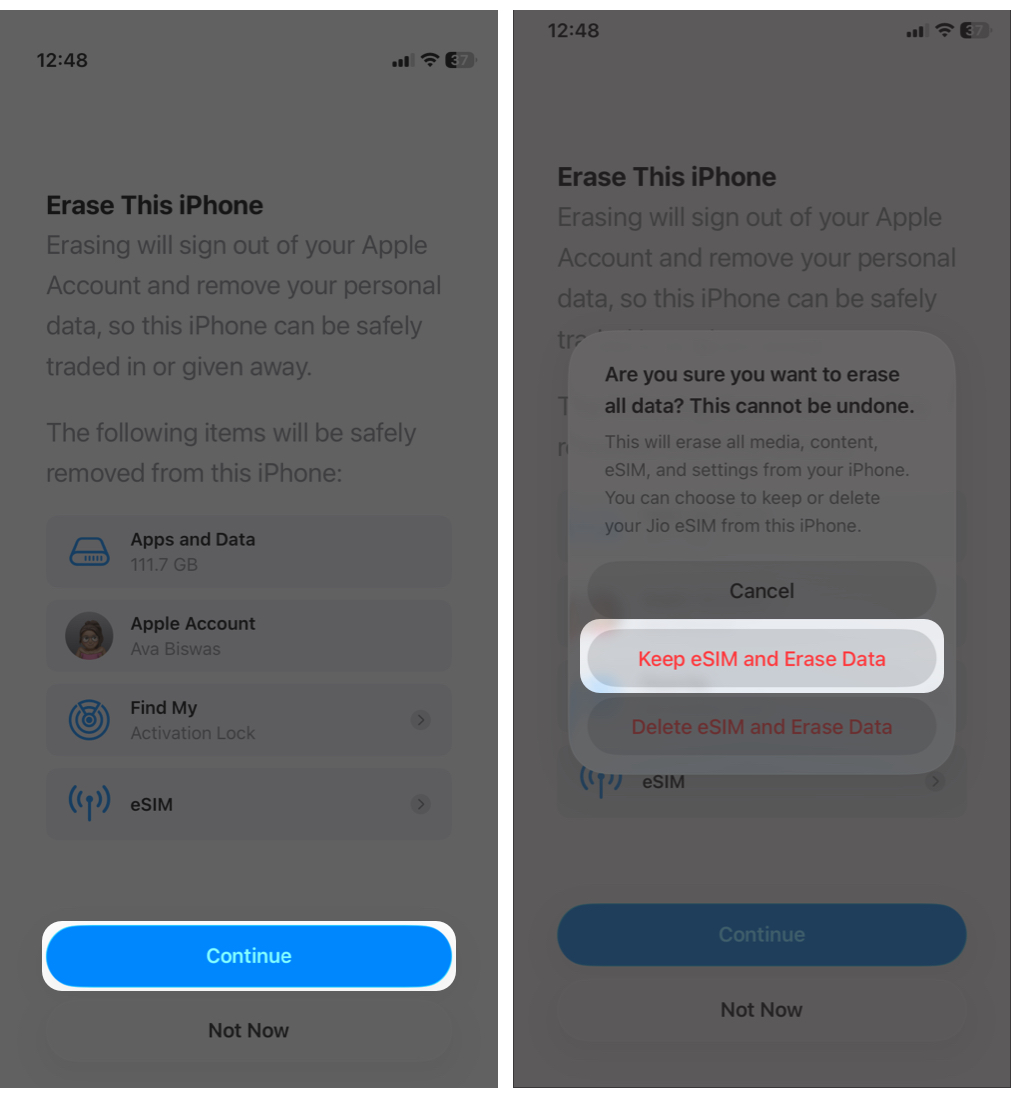
- Tap Continue and select Keep eSIM and Erase Data.
- Follow the on-screen instructions to complete the process.


If problems persist, Apple Support may be a better option.
When to Contact Apple Support
- Safari crashes immediately after opening
- Other system apps fail as well
- You see repeated system-level errors
Be ready to share your iOS version, device model, and the troubleshooting steps you have already tried.
How to Prevent Safari Problems in the Future
To keep Safari running smoothly:
- Keep iOS up to date
- Avoid stacking multiple ad blockers
- Keep VPN apps updated
- Clear Safari data occasionally
- Use only trusted Safari extensions
To undo experimental features, go to Settings > Apps > Safari > Advanced > Feature Flags, then tap Reset All to Default.
Final Thoughts
Start with quick fixes like restarting your device and checking your network. Move step by step through clearing data, disabling extensions, and reviewing DNS or VPN settings. Most Safari issues are resolved long before advanced resets are needed.
Try each fix carefully and note what changes. If Safari still does not work after updates and resets, Apple Support is the safest next step.
If a specific solution worked for you, consider sharing it so it can help others.