
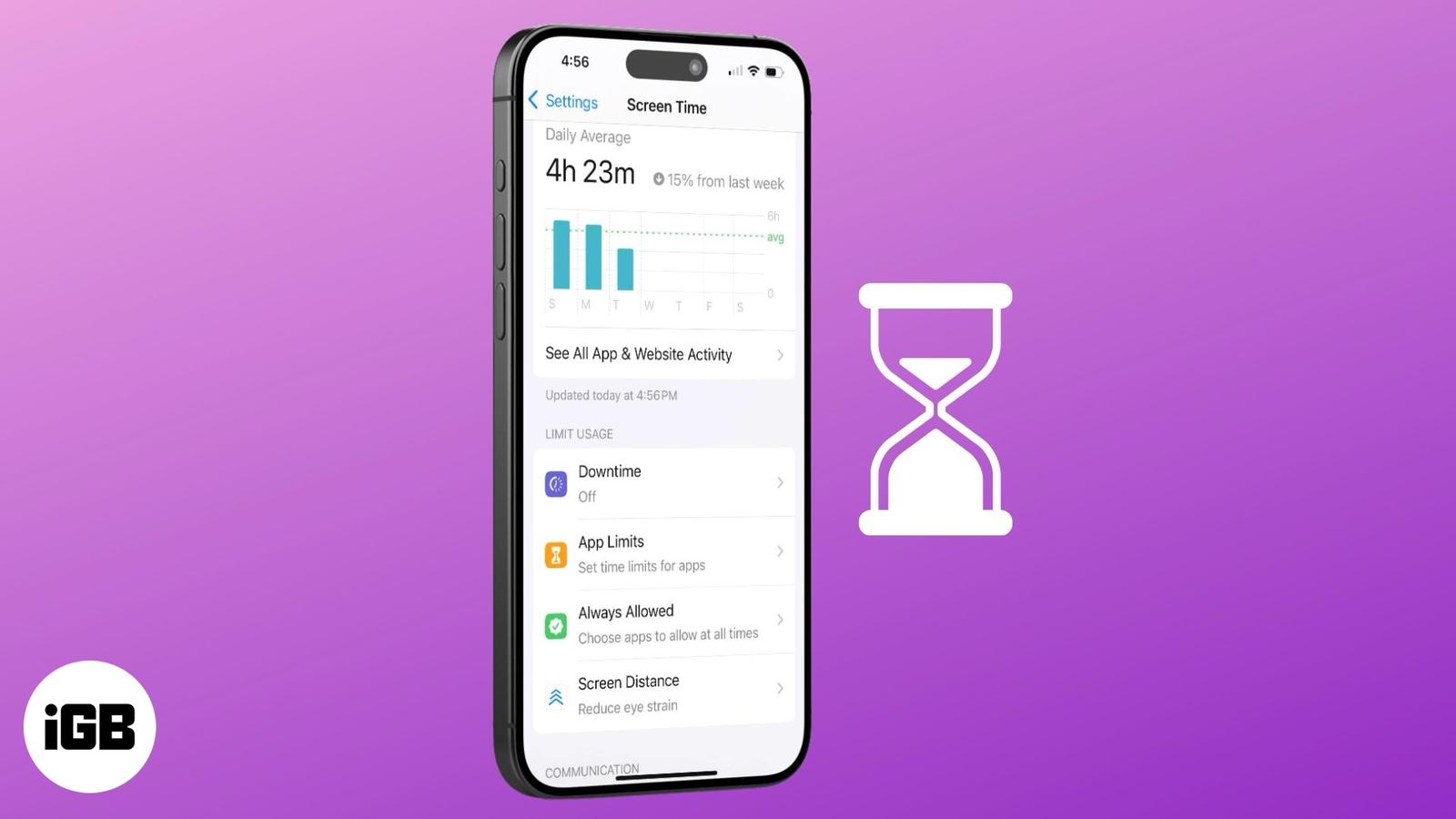
Let’s face it: I spend a lot of time on my iPhone, and simply knowing that isn’t always enough to change my habits. That’s where Apple’s Screen Time feature comes in.
With iOS 27, Apple has redesigned Screen Time, making it much more structured. Instead of relying mainly on individual App Limits and Downtime, I can now organize my usage around Time Allowances and Schedules. That means you can decide how much time you want to spend in certain categories and when those categories should be available.
In this guide, I’ll show you what Screen Time does in iOS 27, how to set it up, and how to use its most useful features on your iPhone or iPad.
What is Screen Time on iPhone?
Screen Time is Apple’s built-in tool for understanding and managing how you use your iPhone and iPad.
This will help you know how much time you spend on your device, the apps and sites you use the most, how frequently you pick up your iPhone, and how many notifications you receive. You can also view daily and weekly reports to understand your usage trends.
But Screen Time isn’t only about statistics. It also gives me tools to control when and how I use apps.
In iOS 27, the main Screen Time controls include:
- Screen Time Schedule: Create time windows that determine when certain apps and categories are available.
- Time Allowances: Set how much time you can spend on app categories such as Entertainment, Games, and Social Media.
- Always Allowed: Choose apps and contacts that remain available regardless of your Screen Time restrictions.
- Communication Limits: Control who you can communicate with during specific periods.
- Content & Privacy Restrictions: Restrict content, purchases, apps, and certain settings.
- Screen Distance: Get an alert when you hold your iPhone too close to your face.
- Share Across Devices: Sync Screen Time settings, schedules, allowances, and reports across compatible Apple devices.
The biggest change in iOS 27 is that Screen Time now works more like a structured daily schedule rather than simply telling me that I have spent too much time in an app.
Why should you use Screen Time on your iPhone?
I don’t think Screen Time is useful simply because it tells me that I’ve spent three hours on social media. Its real value comes from helping me understand where that time is going and then giving me practical ways to change it.
According to health experts, reducing screen time is essential for maintaining overall health and mental well-being, especially for children and teenagers.
Here are some of the main reasons I use it:
- Understand your usage patterns: Screen Time shows me which apps and websites consume most of my attention. You can also check pickups and notifications to see how often your iPhone interrupts you.
- Improve productivity: If social media, games, or entertainment apps constantly distract me, I can use Time Allowances and Schedules to create boundaries around them.
- Create healthier digital habits: Rather than trying to stop using my iPhone completely, I can create specific periods when certain apps are available and limit how long I use them.
- Manage family device usage: Screen Time remains useful for parents who want to manage their children’s device usage through Family Sharing.
- Protect privacy and control content: Content & Privacy Restrictions can be used to restrict certain types of content, purchases, apps, and changes to important settings.
- Reduce eye strain: Screen Distance can warn you when you hold your iPhone too close to your face for an extended period.
How to set up Screen Time on iPhone and iPad
Apple has changed the setup process slightly in iOS 27. You can now start Screen Time from several different sections of the Screen Time settings.
Turn on Screen Time
- Open the Settings app.
- Tap Screen Time.
- Choose one of these options:
- Screen Time Schedule
- Time Allowances
- Manage Screen Time
- Tap Turn On App & Website Activity.
Once App & Website Activity is enabled, Screen Time begins collecting information about your device usage.
Apple also lets me add a Screen Time widget to the Home Screen for quicker access to my usage information.
Create a Screen Time passcode
If you’re using Screen Time to enforce restrictions, I recommend setting a separate passcode. This prevents someone from simply changing the limits you’ve configured.
Here’s how to create one in iOS 27:
- Open Settings.
- Tap Screen Time.
- Tap Manage Screen Time.
- Select Lock Screen Time Settings.

- Type the passcode you want to use for Screen Time and retype it.
- Enter your Apple Account’s email address or phone number to reset the passcode if you forget it.
- Tap OK to save it.

How to use Screen Time on iPhone and iPad
Once Screen Time is enabled, the redesigned interface gives me several ways to understand and control my usage.
Check your Screen Time summary
The Screen Time summary gives me a quick look at how much I use my devices. Apple’s iOS 27 interface now uses Daily Average as the main entry point for these reports, replacing the older See All App & Website Activity workflow.
To check it:
- Open Settings.
- Tap Screen Time.
- Tap Daily Average.
- Tap Day to see daily usage or Week to see your weekly summary.
- Scroll up and tap the left arrow to view the report of the previous day or week.

You can swipe between summaries to review previous usage, spot apps or activities that consume too much time, and consider setting limits.
The report also includes information about:
- Total device usage
- Most-used apps
- App and website activity
- Pickups and first used app after pickup
- Notifications to see which apps send you the most notifications and how often they interrupt you.
I find the Pickups and Notifications sections particularly useful because screen time isn’t always about long sessions. Sometimes the bigger problem is constantly checking the phone for a few seconds at a time.
Set Screen Time Schedules
This is one of the biggest changes I noticed in iOS 27.
A Screen Time Schedule lets you create different time windows and assign Time Allowance categories to them. You can also create schedules for specific days of the week.
To create one:
- Go to Screen Time from Settings.
- Tap Screen Time Schedule.
- Toggle on Schedule.

- Enter your Screen Time passcode if prompted.
- Tap Add Schedule.
- Select the days of the week for the schedule.
- Tap the checkmark to save.

You will be prompted to copy the time windows from your existing schedule. Tap Don’t Copy and then Add Time Window. From there, you can customize the time window.
It lets you:
- Change the name of the time window.
- Change its start and end times.
- Select Time Allowance categories.
- View apps and contacts in Always Allowed.
- Delete the time window.
For example, I could create a “Work” window from 9 AM to 6 PM and choose only the categories I want available during that period. I could then create an “Evening” window with different allowances.
This gives Screen Time a much more flexible structure than simply setting a blanket restriction for the entire day.
Set Time Allowances for apps and websites
Time Allowances replace much of the role that individual App Limits played in older versions of iOS.
To configure them:
- Open Settings.
- Tap Screen Time.
- Tap Time Allowances.
- Here, use the plus and minus to adjust how much time you want to spend on your device.

If you want to limit time spent on social media or games while allowing more time for educational or work-related apps, you can set Time Allowances for categories, such as Entertainment, Games, and Social Media.
To do that,
- In the Time Allowances screen, tap Manage Categories.
- Tap the plus icon at the top, and select the built-in options or Custom to add different types of apps to a category.

- Now, choose the schedule and tap Continue.
- Increase or decrease an allowance using the slider or the minus (-) and plus (+) controls.
- Tap Done to save it.

You’ll receive a notification when you’re close to reaching the limit. Once the time is up, the app will be blocked with a message saying, “You’ve used all your available time allowance.” To extend the time, select Ignore Limit > Enter Screen Time Passcode > Approve for 15 minutes/ an hours / all day. By default, the limit restores every day at midnight.
To change the limit permanently, go to Time Allowances and increase the category timing.
Match Time Allowances to your schedule
iOS 27 also includes a Match Screen Time Schedule option. When enabled, Time Allowances can work with the time windows I’ve created in my schedule.
This means I don’t have to treat every hour of the day the same way. I can have different app categories available at different times during my day.
Apple also lets you see your average daily use for a category and drill down to see the average usage of individual apps inside that category.
Allow apps and contacts at all times
The Always Allowed section lets me keep important apps and contacts available regardless of my Screen Time Schedule or Time Allowances.
This can be useful for apps you need throughout the day or people you may need to contact at any time.
To configure it:
- From Screen Time settings, tap Always Allowed.
- Tap Add Apps, choose apps, and tap the checkmark.

- Next, tap Add People and select Choose From My Contacts from the options. Now, choose contacts and tap the checkmark to save.

To remove an app or contact:
- Open Always Allowed.
- Tap Edit.
- Tap the Remove button next to the app or contact.
Apple specifically notes that Always Allowed can be used for important contacts or apps such as Health, even when other Screen Time restrictions are active.
Enable Content & Privacy Restrictions
Content & Privacy Restrictions are still available in iOS 27 and let me control what can be accessed or changed on an iPhone or iPad.
Content & Privacy Restrictions in Screen Time allow you to manage and limit access to specific content, apps, and privacy settings on your iPhone or iPad.
To enable them:
- From Screen Time settings, tap Content & Privacy Restrictions.
- Toggle on All Restrictions.
- From here, you can reduce or block Siri‘s capabilities, such as Sensitive Topics and Explicit Language.
- Configure Books, Movies, TV Shows, and Music, Podcasts, Fitness, to show Explicit or Clean content.

If you want to prevent anyone from making changes in any app/service settings, tap Allow Changes to Settings, select the app or service, and set it to Don’t Allow. Even new apps can’t access the data and features of that app.
I suggest setting Don’t Allow Changes for essential privacy and security apps and services such as Passcode & Face ID, Accounts, Share My Location, etc. So, an unauthorized person can’t make any changes in these settings.
Bonus:
You can prevent unwanted in-app purchases with Screen Time. Go to Apps & Websites, select App Store, and set In-app Purchases as Blocked. For more detailed information, go through our guide on how to turn off in-app purchases on iPhone.
Enable Communication Safety
Using Communication Safety, you can filter explicit photos and videos on your or your child’s device. It will detect any nude photos and videos received on your device and provide guidance before showing it.
To turn it on:
- Open Settings.
- Tap Screen Time.
- Tap Communication Safety.
- Toggle on Communication Safety.
- Enter your Screen Time passcode if requested.

Apple has expanded its child-safety protections in iOS 27, but I won’t go deep into the parental-control side here. You can learn about them in my iPhone parental controls guide.
Set communication limits
Communication Limits let me control who I can communicate with during particular periods. They apply to communication on Phone, FaceTime, and Messages. However, you will still receive calls or texts from emergency numbers identified by your carrier.
To configure Communication Limits:
- Open Settings.
- Go to Screen Time and select Allowed Contacts.
- Tap During Screen Time.
- Choose who you can communicate with. The available options include:
- Contacts Only
- Contacts & Groups with at Least One Contact

As I don’t like to receive unknown calls during work hours, I selected Contacts Only.
You can also configure communication for periods when the device is paused:
- In Allowed Contacts, tap When Device Paused or Unavailable.
- Choose Always Allowed or Everyone.
If someone is blocked by your Communication Limit settings, their call or message won’t go through while that restriction is active. Their name or number can appear in red in your recent calls or messages until the restriction is changed.
Use Screen Distance to protect your vision
Screen Distance isn’t new to iOS 27, but it remains one of the useful Screen Time tools.
It uses the TrueDepth camera on supported iPhones and iPads to detect when you hold the device too close to your face for an extended period.
To enable it:
- Open Screen Time and go to Content & Privacy Restrictions.
- Tap Screen Distance.
- Toggle on Screen Distance.
- Enter your Screen Time passcode if prompted.
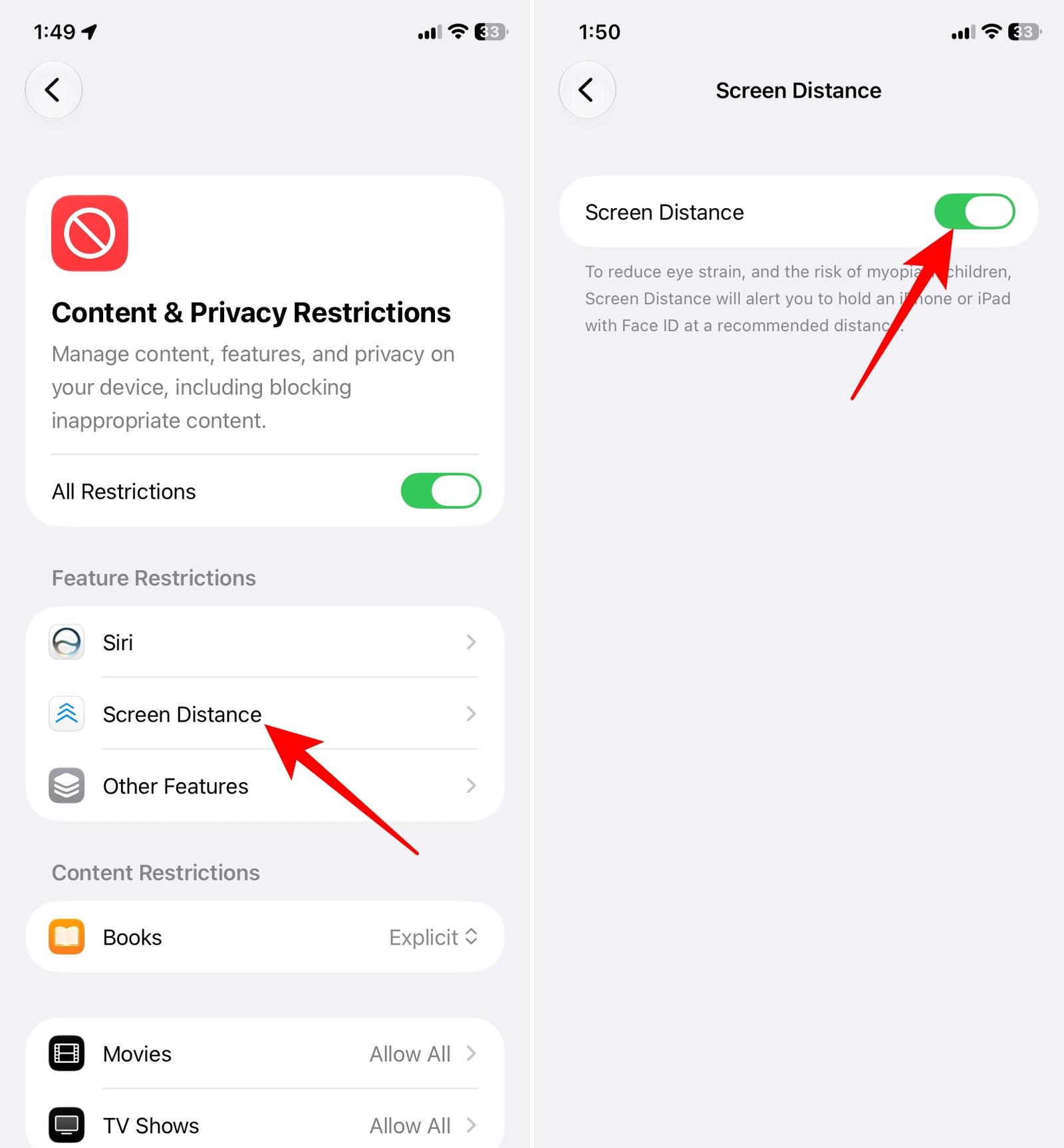
Now, whenever your iPhone detects that it is too close to your face (less than 12 inches or 30 cm) for a long time, a notification will appear urging you to increase the distance.
Use Screen Time across your Apple devices
One of my favorite parts of the updated Screen Time system is the ability to share usage information and settings across devices.
If you use an iPhone, iPad, and Mac with the same Apple Account, you can synchronize Screen Time settings and reports.
This includes:
- Screen Time schedules
- Time Allowances
- Usage data
- Screen Time reports
To enable it:
- Open Settings on your iPhone.
- Tap Screen Time.
- Tap Manage Screen Time.
- Toggle on Share Across Devices.
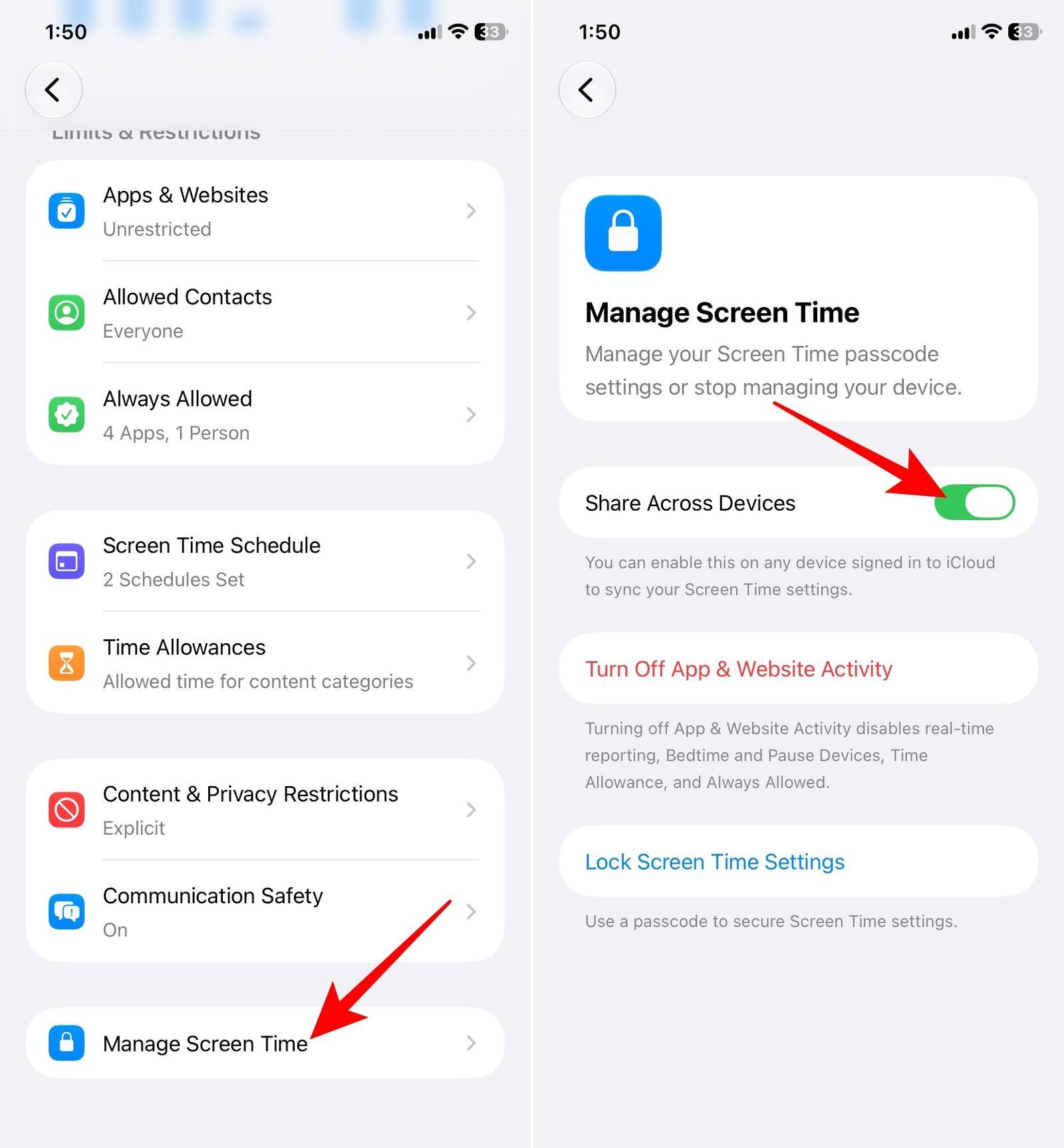
Once enabled, Screen Time settings and limits can apply across your compatible Apple devices. If you turn it off, each device maintains its own Screen Time settings.
Keep in mind that Apple requires the relevant devices to be updated to the latest operating systems to use the newest cross-device Screen Time features.
Use the Screen Time widget to check device usage
I don’t always want to open Settings just to see how much time I’ve spent on my iPhone. That’s where the Screen Time widget comes in. It provides a quick overview of your device usage directly from the Home Screen or the Today View.
To add it:
- Long-press an empty area of the Home Screen.
- Tap the Edit button at the top.
- Tap Add Widget.
- Search for Screen Time.
- Choose your preferred widget size.
- Tap Add Widget.
- Position it where you want.
- Tap Done.
The widget gives me a quick overview of my device activity without opening the Settings app.
How to manage Screen Time for a child
Screen Time for your children can also be managed through Family Sharing on your iPhone or iPad.
Because Apple has substantially expanded and redesigned its parental controls in iOS 27, the exact options available can depend on the child’s account, age, device, and Family Sharing setup.
For the basic setup, open Settings and use the Family and Screen Time controls to select the family member whose Screen Time you want to manage.
Apple’s redesigned parental controls include Time Allowances, Schedules, easier access to usage information, and additional child-safety controls.
How to turn off Screen Time on iPhone and iPad
If you no longer want Screen Time to track your activity, you can turn off App & Website Activity.
Here’s the iOS 27 path:
- Open Settings.
- Tap Screen Time.
- Scroll down and select Manage Screen Time.
- Tap Turn Off App & Website Activity.
- Enter your Screen Time passcode if requested.
- Confirm your choice.
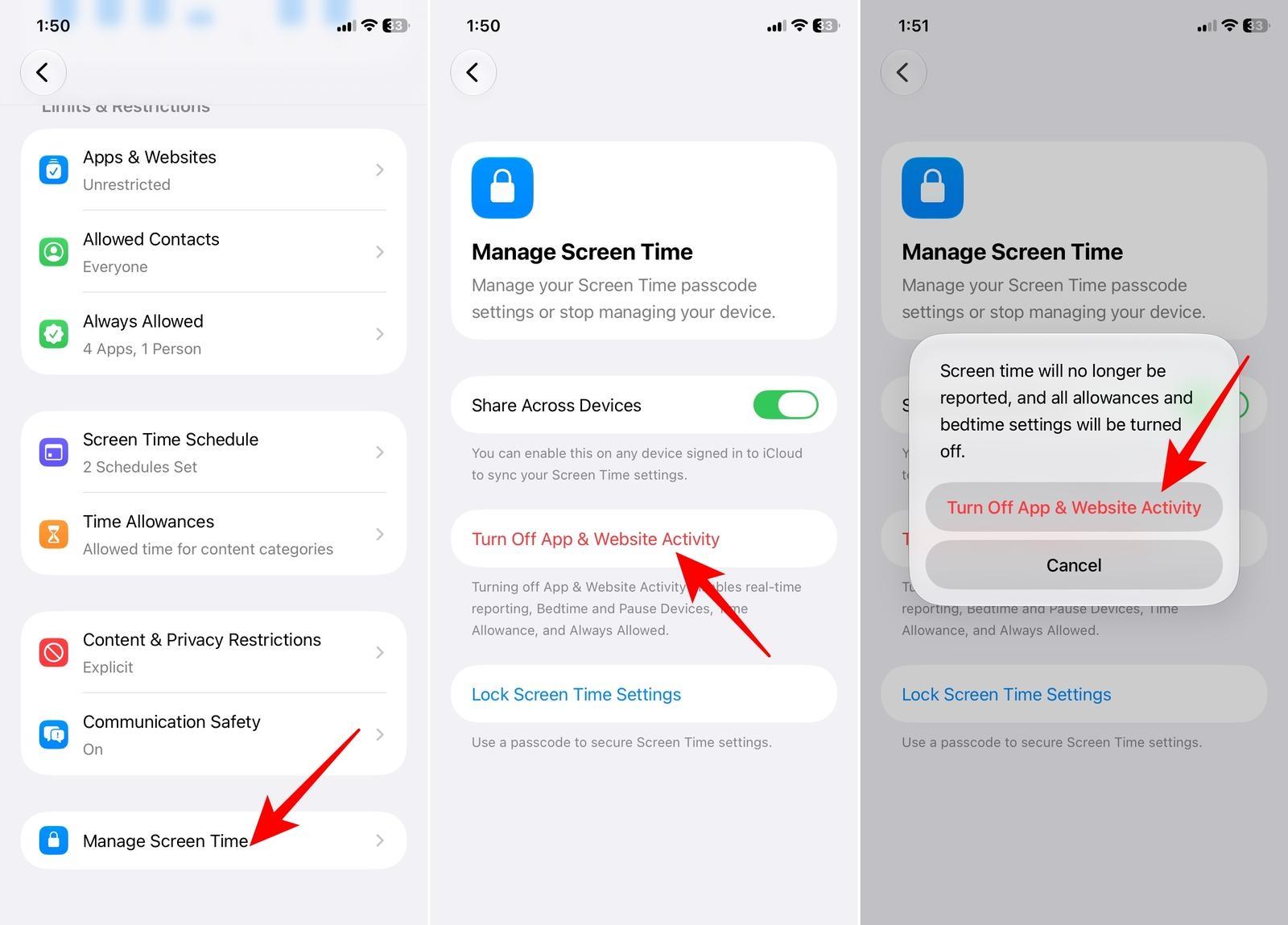
If you don’t want to turn off Screen Time completely, you can also disable individual parts of the system.
Turn off a Screen Time Schedule
- Open Settings → Screen Time.
- Tap Screen Time Schedule.
- Toggle off Schedule.
Remove a Time Allowance category
- Open Settings → Screen Time.
- Tap Time Allowances.
- Tap Manage Categories.
- Select the category.
- Tap Delete [Category Name] Category.
This is different from the older system, where turning off App & Website Activity was the main way to disable the overall Screen Time tracking experience. iOS 27 lets me manage schedules and allowances separately.
Things I learned about Screen Time in iOS 27
After using the updated interface, the main takeaway is that Apple has shifted Screen Time from primarily a usage-reporting and app-limit tool to a more flexible time-management system.
The three settings I would pay the most attention to are:
- Daily Average: Shows me where my time is actually going.
- Screen Time Schedule: Lets me decide when different categories should be available.
- Time Allowances: Lets me decide how much time I can spend in those categories.
If you only want to monitor your usage, the Daily Average report is enough. But if you actually want to change your habits, combining a Schedule with Time Allowances gives you much more control.
Signing off
Screen Time has always been useful for checking how much time I spend on my iPhone, but iOS 27 makes the feature feel considerably more organized. The biggest upgrade isn’t simply a new visual design. It’s the way Apple has separated when I can use certain apps from how long I can use them.
With Schedules, you can create different rules for different parts of your day. With Time Allowances, you can control how much time you spend in categories such as Entertainment, Games, or Social Media. And with Share Across Devices, those settings can follow you across my iPhone, iPad, and Mac.
For anyone trying to reduce distractions without completely abandoning their iPhone, I think the new Screen Time system is worth exploring.
You might also like: