
How to Use Edge Light Video Effects on Mac for Video Calls
Apple introduces Edge Light in macOS Tahoe 26.2, a display-powered ring light effect that boosts video call clarity with real-time facial detection, smart brightness tuning, and broad compatibility across video apps and Apple Silicon Macs.

Starting with macOS Tahoe 26.2, Apple introduced a new video conferencing feature called Edge Light. When enabled, it casts a virtual ring of light around your display, creating a soft, natural glow on your face during video calls, even in dimly lit rooms. You no longer need external lighting equipment or to switch rooms for a call, as your Mac can now automatically illuminate your face in low-light environments.
However, there is a limitation. Edge Light does not activate automatically on all Macs. Keep reading to learn what the Edge Light feature is, how it works, and how to enable it on your Mac.
While using Edge Light for immersive video calls, incoming iPhone calls on your Mac can be distracting. If you want to stop these interruptions, check out how to turn off phone calls on a Mac.
What is Edge Light on macOS and How It Works?
Edge Light is Apple’s latest video effect that mimics a real ring light. Your Mac’s display becomes the light source, so you don’t need extra gear to look brighter and clearer on camera.
It uses the Mac’s Neural Engine to detect your face, determine its position, and adjust the lighting to ensure it looks balanced and natural. The Image Signal Processor also tweaks brightness in real time to match your environment.
Apple added a smart touch: the lights fade away when your mouse approaches the screen edge, so the feature never gets in your way.
Which Macs Support Edge Light?
Edge Light is available on all Apple Silicon Macs and also works with Apple’s Studio Display when it is connected to a supported Mac. This ensures consistent lighting across built-in and external display setups.
On most Macs, Edge Light needs to be enabled manually during video calls. However, Mac models released in 2024 or later can activate the feature automatically when the system detects low-light conditions.
The feature also supports external cameras, which makes it equally useful for professionals using dedicated webcams and for everyday users relying on their Mac’s built-in camera.
How to Turn On Edge Light on Your Mac
You can enable Edge Light from the video effects panel, alongside tools like Portrait Mode, Studio Light, Reactions, and Backgrounds. It works with major video apps, including FaceTime, Zoom, and Webex. Here’s how:
- Open FaceTime or another supported video calling app (Zoom or Webex, for example).
- Now, click the green FaceTime icon in the top menu bar.
- Select Edge Light from the drop-down menu (video effects panel).
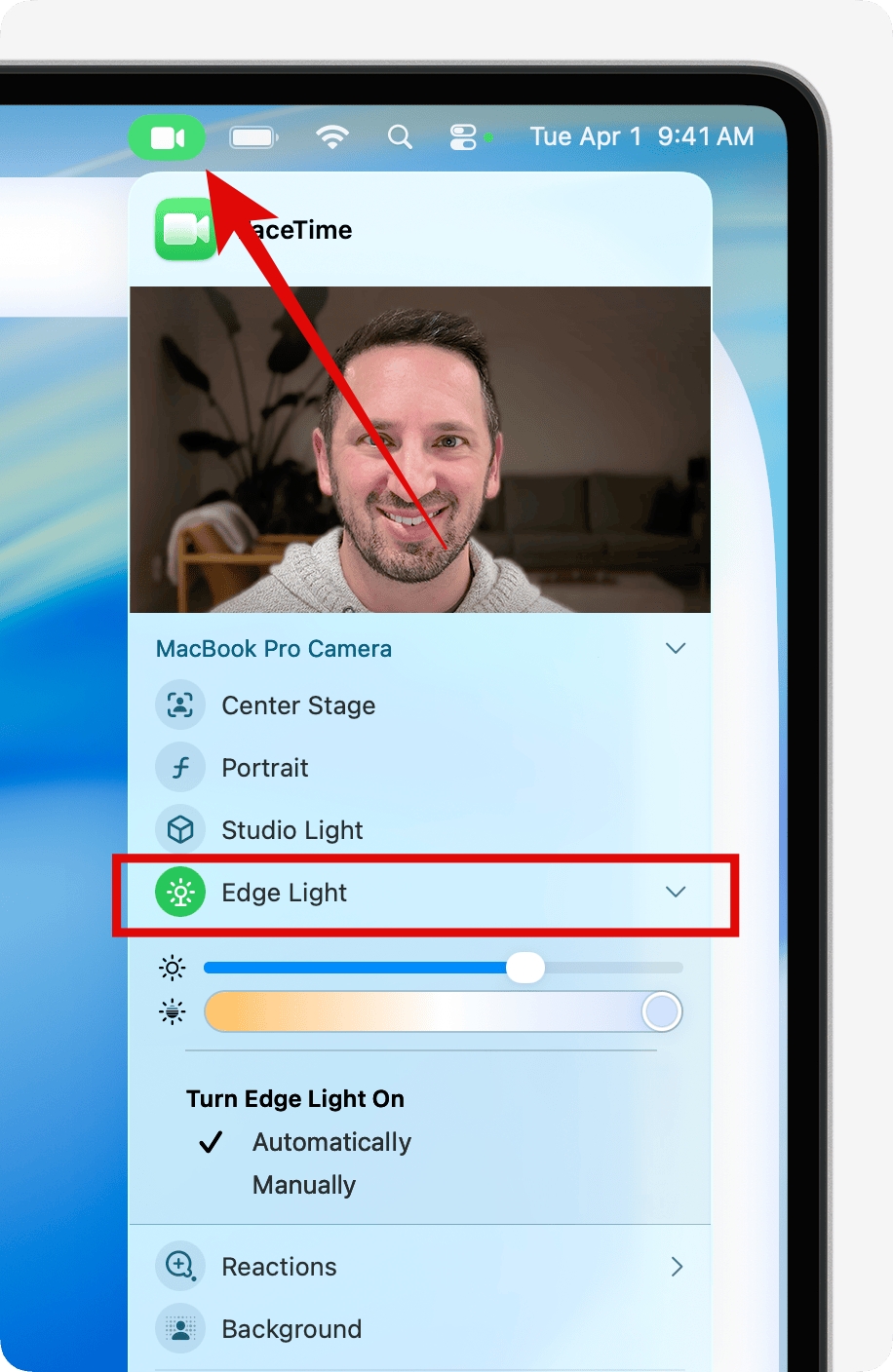
- Click the down chevron next to Edge Light to access customization options:
- Use the Brightness slider to adjust lighting intensity.
- Use the Warmth slider to fine-tune the color temperature.
Enable Automatic Edge Light Activation on Newer Macs
If you own a Mac released in 2024 or later, you can enable automatic Edge Light activation. Once turned on, your Mac detects low-light conditions and automatically activates Edge Light without any manual input. To enable this:
- Open the video call effects drop-down menu.
- Here, look for the Automatic toggle located directly below the expanded Edge Light options.
Wrapping Up
Although a minor addition for most users, Edge Light is a practical and meaningful improvement for anyone who regularly takes video calls on a Mac. With support for all Apple silicon Macs, compatibility with external cameras, and automatic activation on newer models, Edge Light fits naturally into both everyday video calls and professional setups.
Have you tried Edge Light yet? Let us know how it works for you in the comments.

Written by
VikhyatVikhyat has a bachelor's degree in Electronic and Communication Engineering and over five years of writing experience. His passion for technology and Apple products led him to the tech writing space, where he specializes in writing App features, How-to guides, and troubleshooting guides for fellow Apple users. When not typing away on his MacBook Pro, he loves exploring the real world.
View all posts →