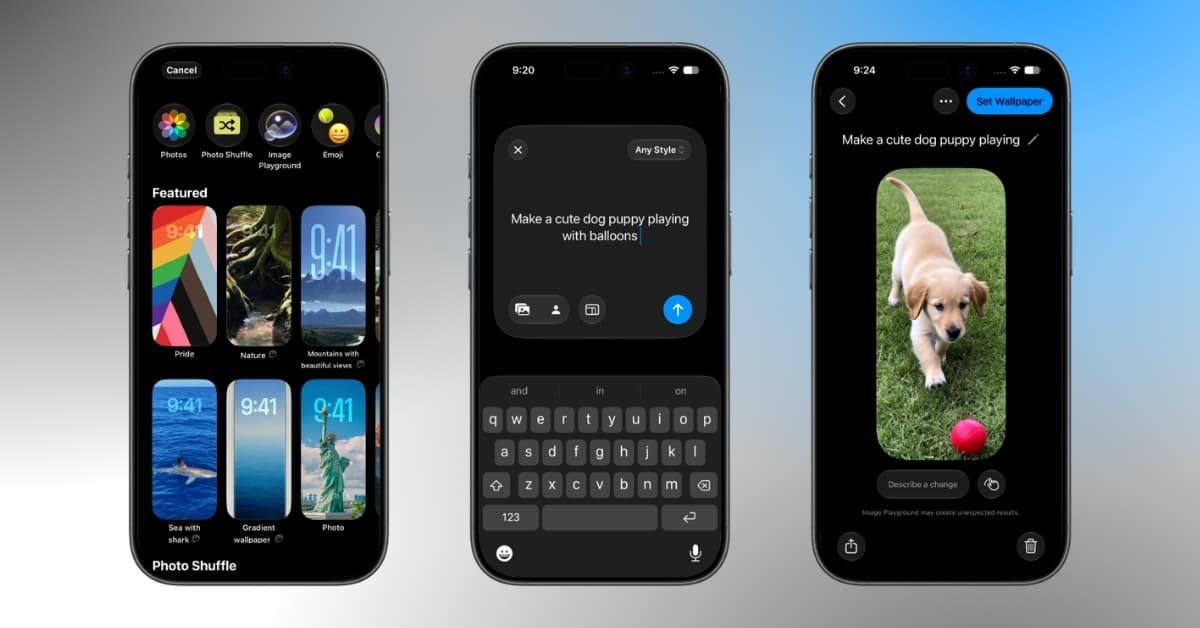
For years, finding a great iPhone wallpaper usually meant browsing Pinterest, downloading images from wallpaper apps, or cycling through the same collection of photos already sitting in your library. That changes with iOS 27.
Apple now lets you create AI wallpapers directly on your iPhone using Apple Intelligence and Image Playground. Simply describe what you want and let the AI generate it for you. For the first time, your wallpaper can be something that doesn’t exist anywhere else.
After spending some time with the feature, I was surprised by how naturally it fits into the existing wallpaper workflow. Instead of feeling like another standalone AI tool you’ll forget about after a few days, it feels like a feature people will actually use.
If you’ve been wondering how to generate wallpapers with Apple Intelligence in iOS 27, this guide covers everything you need to know, including requirements, setup steps, prompt ideas, and the limitations of the new feature.
What is the AI wallpaper generator in iOS 27?
With iOS 27, Apple has integrated Image Playground directly into the wallpaper picker. Instead of choosing from the iOS 27 stock collection or your Photos library, you can now create entirely new wallpapers using text prompts. The feature supports various styles and themes, making it easy to create personalized backdrops that match your taste.
What stood out to me is Apple’s approach. Rather than hiding wallpaper generation inside a separate AI app, Apple integrated it directly into the place where people already customize their Lock Screen. That makes the feature feel less like an AI demo and more like a natural part of iOS.
Additionally, you don’t always have to generate wallpapers manually. iOS 27 can automatically create AI-generated wallpapers and place them in the Featured section. These suggestions are often based on your photos but reimagined in new artistic styles. Every AI-created wallpaper is marked with the Image Playground icon, making it easy to identify.
If you like one of Apple’s suggested wallpapers, you can simply select it and set it as your wallpaper instantly.
Requirements for creating AI wallpapers on iPhone
Before you begin, there are a few requirements you’ll need to meet.
You’ll need:
- An iPhone that supports Apple Intelligence,
- iOS 27 installed,
- Apple Intelligence enabled and fully configured on your device.
This means older devices won’t get access to the feature even if they support iOS 27.
How to create AI wallpapers on iPhone in iOS 27
Apple offers multiple ways to generate AI wallpapers in iOS 27, whether you want to create an image from scratch, use Image Playground directly, or expand an existing photo with Apple Intelligence.
Method 1: Generate AI wallpapers from the Lock Screen
This is the method most people will use.
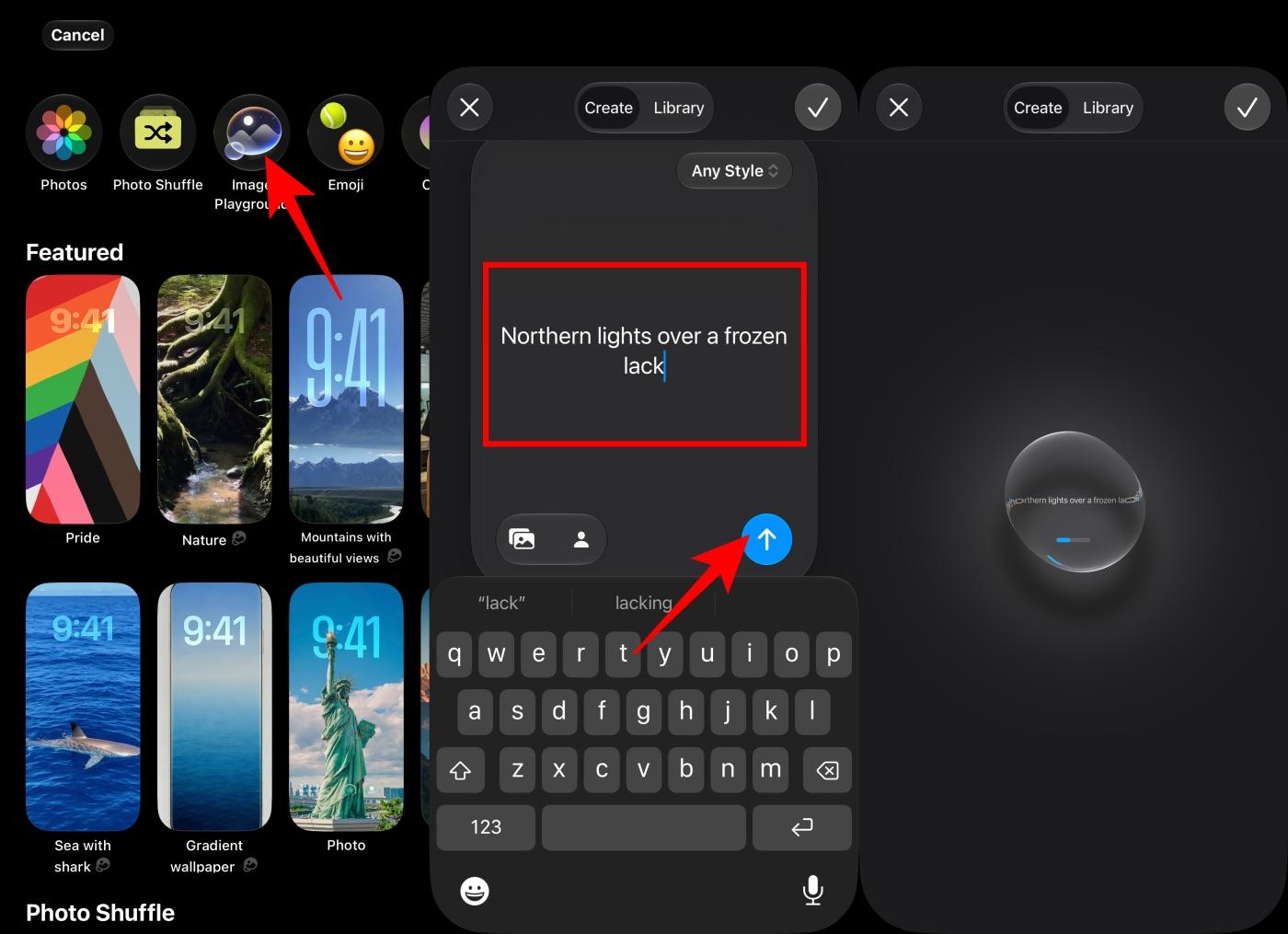
- Press and hold your Lock Screen. Tap the plus button to add a new wallpaper. Alternatively, you can go to Settings → Wallpaper → Add New Wallpaper.
- Inside the wallpaper picker, tap the new Image Playground option among the available wallpaper categories.
- Type a prompt describing what you want in detail. For example: Minimalist mountain range at sunrise or Cyberpunk city reflected in water.
- After entering your prompt, tap the send button and wait for the AI to generate your wallpaper.
- Once the image is generated, you can review the result and describe a change to generate additional variations.
- If satisfied, tap the checkmark button → Add → Set as Wallpaper Pair to apply it to your iPhone Lock Screen and Home Screen.
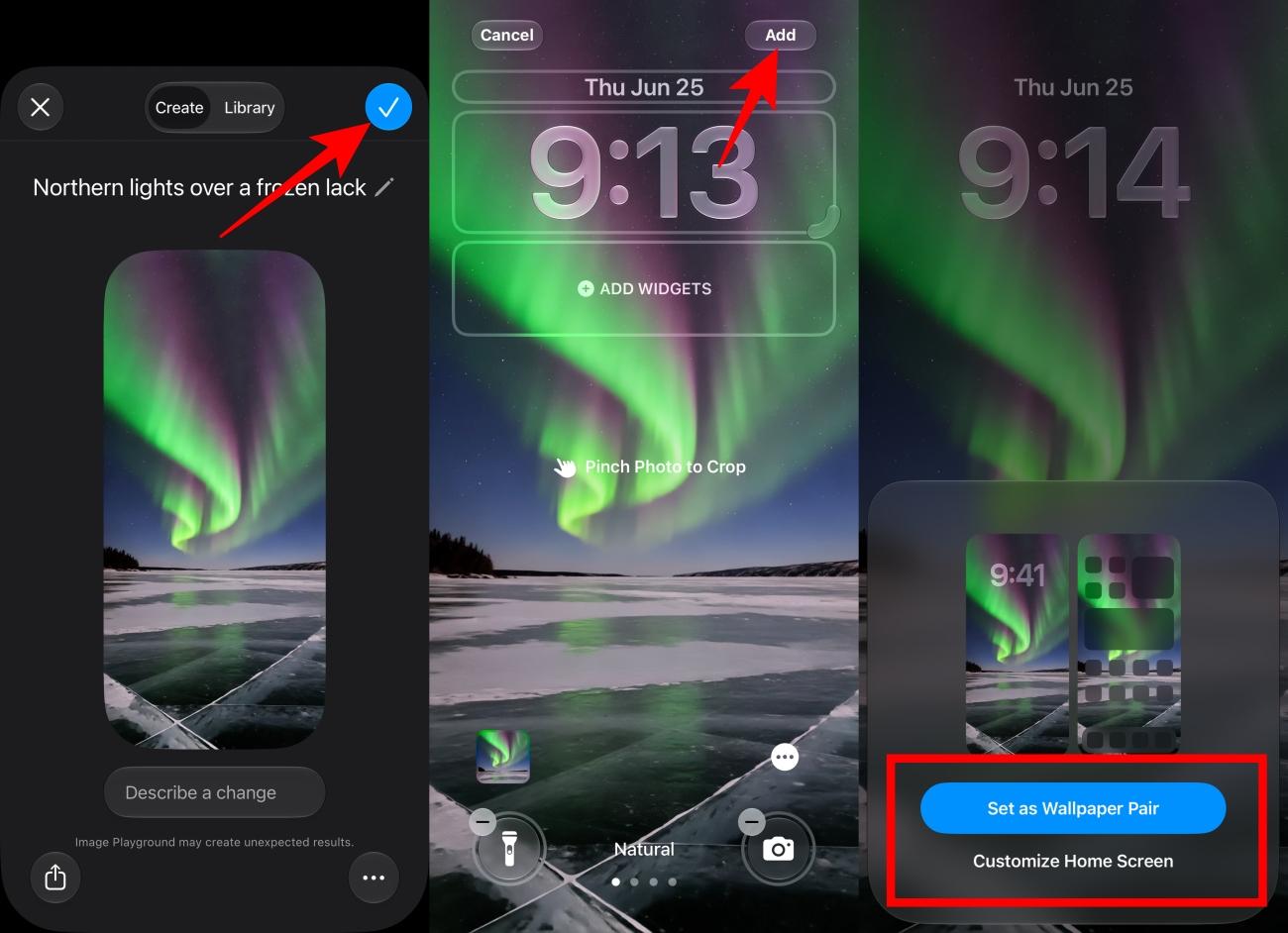
The entire process happens inside the wallpaper customization flow itself. The best part is that you can choose a specific art style or use your existing photos as a reference for more personalized wallpapers.
In my testing, generating a wallpaper usually took only a few seconds. Results varied depending on the prompt, but detailed descriptions consistently produced better images than simple one- or two-word requests.
Method 2: Create wallpapers with the Image Playground app
If you want more flexibility, you can also create images directly inside the Image Playground app.
- Launch the Image Playground app and tap the plus icon at the bottom.
- Tap the aspect ratio icon and select Wallpaper.
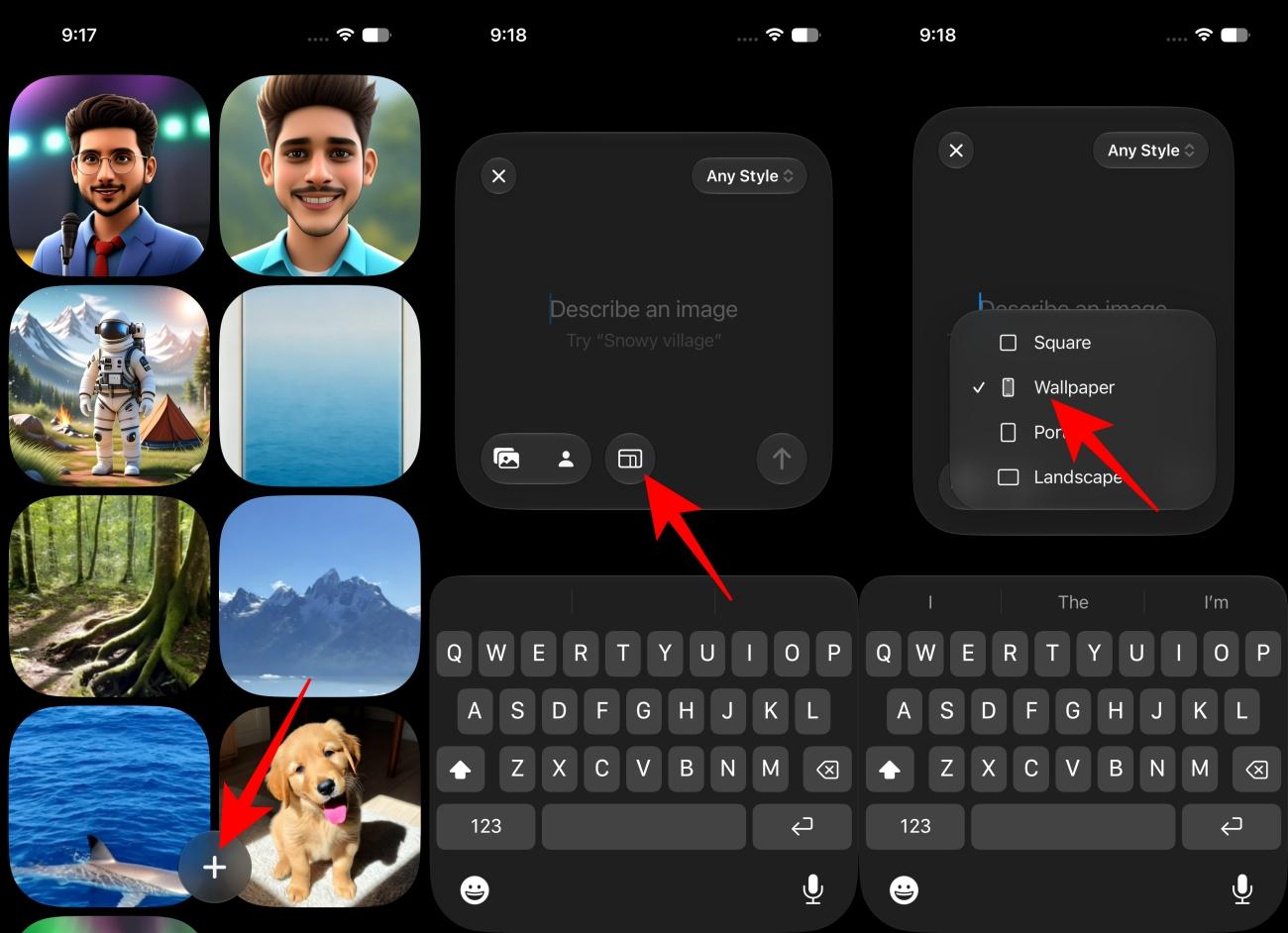
- Now, type a description of the wallpaper you want to create and tap the send button.
- Wait for the image generation and tap Set Wallpaper.
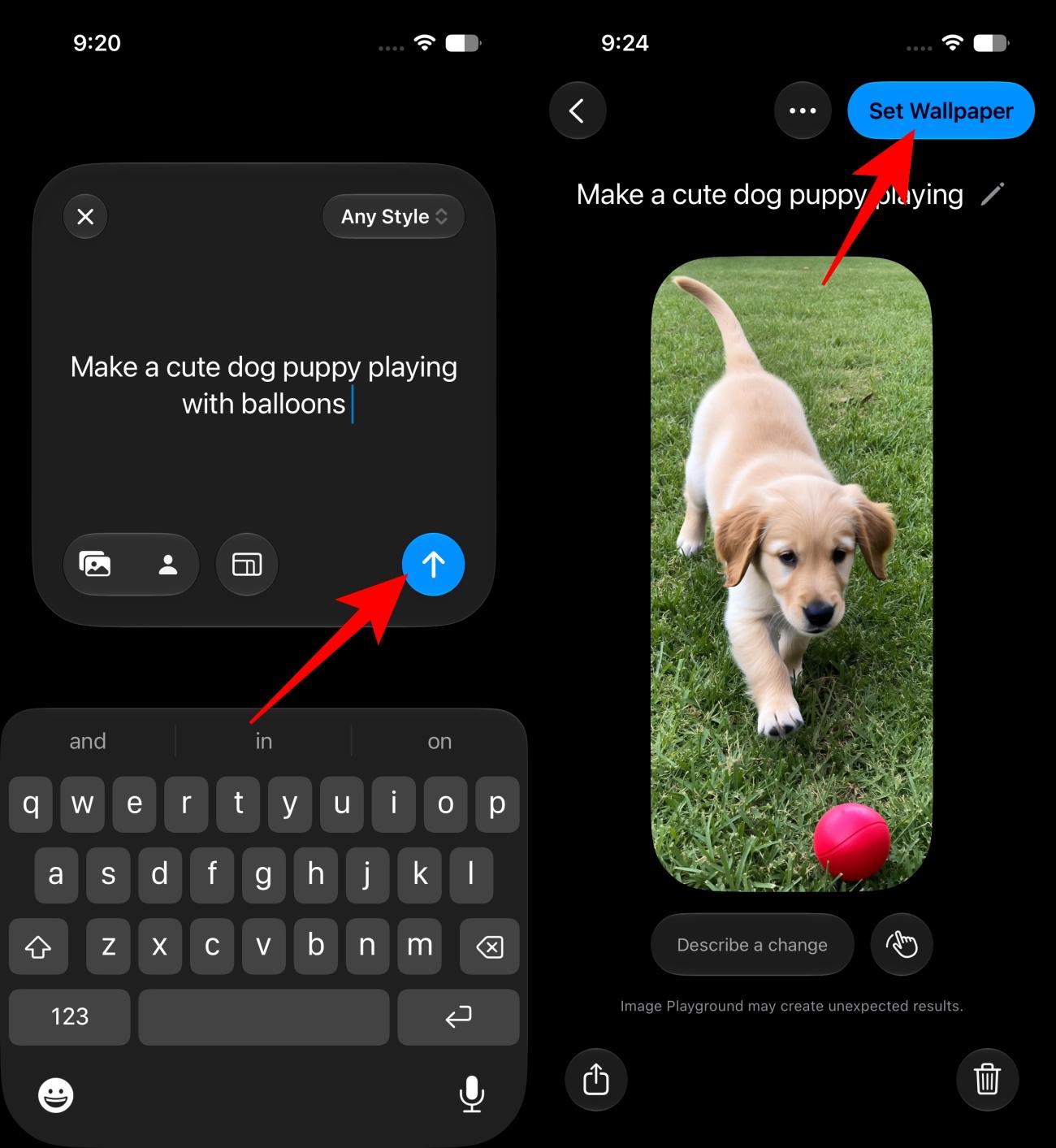
This route is the one I ended up using most often. It’s easier to experiment with multiple ideas and variations before deciding which image deserves a permanent place on your Lock Screen.
As a bonus, I also tried asking the new Siri AI to generate a breathtaking space wallpaper inside Image Playground and apply it automatically. In practice, this ended up being one of the fastest ways to create a new wallpaper.
Method 3: Extend existing photos with Apple Intelligence
Another useful iOS 27 Photos feature lets you expand an existing image using Apple Intelligence. This means you can finally use photos that don’t perfectly fit the Lock Screen without awkward cropping.
To use it:
- Go to the wallpaper picker from Lock Screen or Settings and tap Photos.
- Now, choose the image you want to use and resize it until empty space appears around the image.
- You will see a Extend button appear.
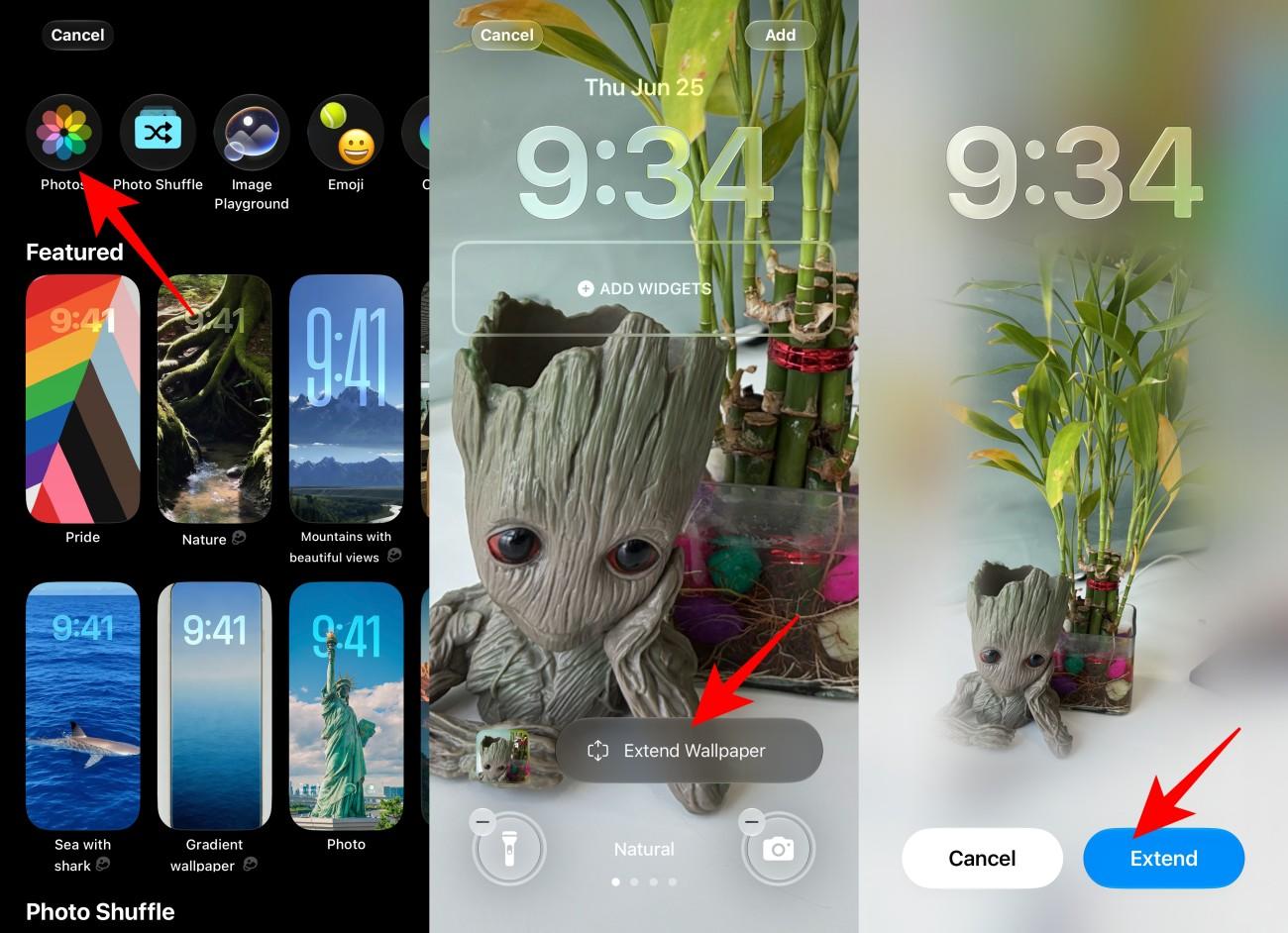
- Tap it and wait for iOS 27 to fill those gaps using AI-generated content that blends naturally with the original photo.
- Once done, tap Add → Set as Wallpaper Pair to apply it.
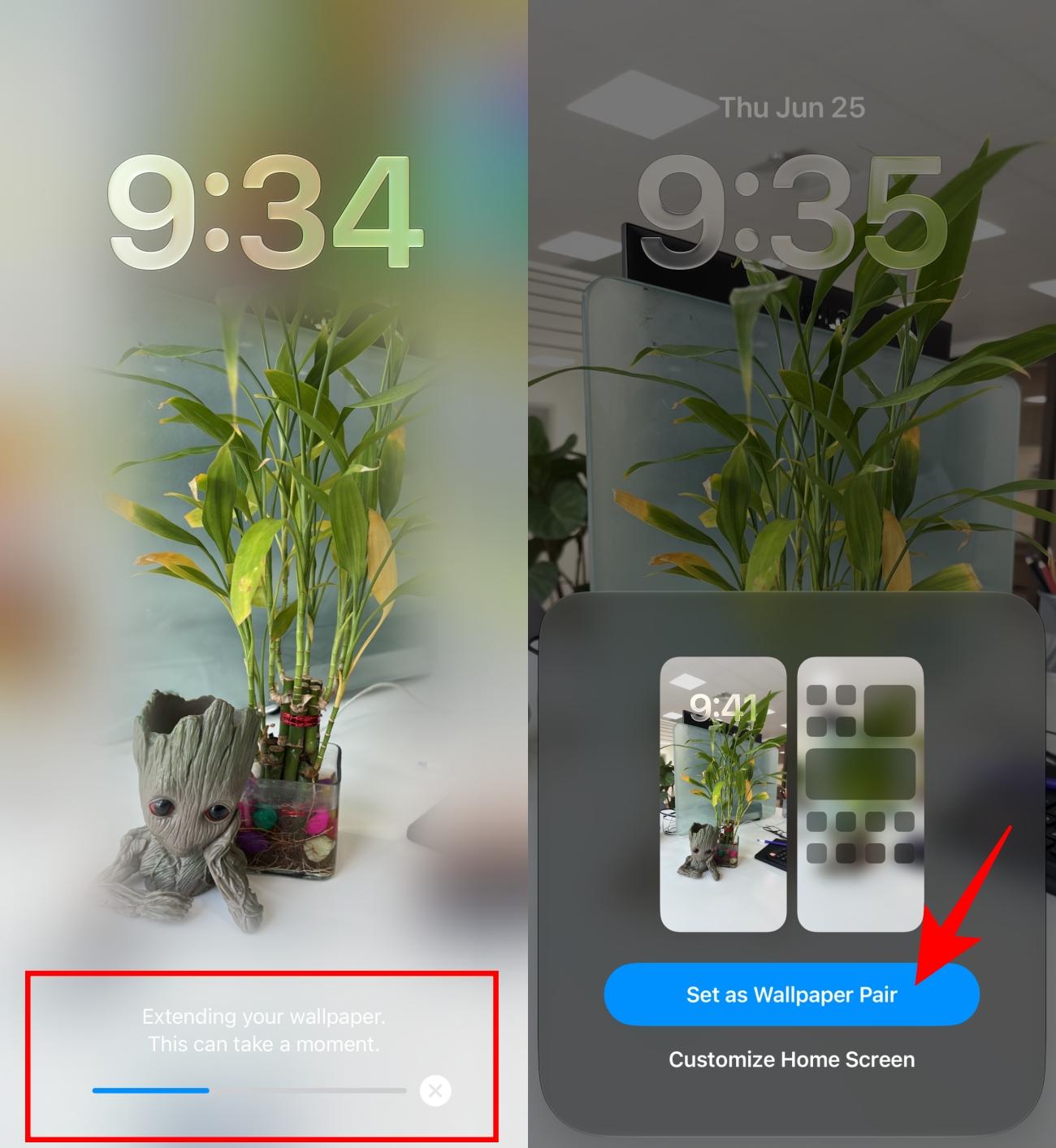
The result is often surprisingly good. It’s one of the most practical Apple Intelligence features because it repurposes photos you already have rather than requiring you to generate something entirely new.
I found this especially useful for portraits and travel photos. Instead of cropping out important parts of the image, Apple Intelligence can often extend the scene convincingly enough that it’s difficult to tell where the original photo ends and the generated content begins.
Best AI wallpaper prompts to try on iPhone
One thing I learned quickly is that vague prompts rarely produce memorable wallpapers. The best results came from combining a subject, a mood, a lighting style, and a setting into a single description.
Nature wallpaper prompts
- Northern lights over a frozen lake
- Waterfall flowing through crystal caves in soft morning lights
- Cherry blossom forest in spring rain
- Volcano island at sunset with purple skies
Sci-Fi wallpaper prompts
- Futuristic city on Mars
- Photorealistic spaceship flying through a nebula
- Cyberpunk skyline with flying cars
- Floating city above the clouds
Personalized Wallpaper Prompts
- Your initials made of neon light
- Your favorite hobby represented as artwork
- A city inspired by your personality
The best wallpapers usually come from combining multiple ideas instead of relying on single-word prompts. Always include a subject and describe the mood, atmosphere, and lighting for the best results.
Limitations of AI wallpapers in iOS 27
As impressive as the results can be, there are still a few limitations worth keeping in mind.
- Device restrictions: You’ll need an Apple Intelligence-compatible iPhone, such as an iPhone 15 Pro or newer model.
- Prompt quality matters: Detailed prompts consistently generate better results than short or generic descriptions.
Other Image Playground improvements in iOS 27
The new AI wallpaper creator isn’t the only upgrade coming to Image Playground in iOS 27. Apple has significantly improved its AI image generation tool, making it far more capable than previous versions.
Most notably, the app now supports generating photorealistic images. In iOS 26, Image Playground was limited to Animation, Illustration, and Sketch styles. With iOS 27, users can now generate realistic-looking images directly from text prompts.
Apple has also introduced updated image-generation models and new editing controls, making it easier to refine and customize AI-created images. The result is higher-quality output that works better for wallpapers, Contact Posters, invitations, presentations, and other creative projects.
Should you use AI wallpapers on iPhone?
The ability to create AI wallpapers on iPhone may seem like a small addition compared to some of Apple’s bigger AI announcements at WWDC 2026, but I can easily see it becoming one of the most-used Apple Intelligence features.
People change wallpapers all the time. The difference now is that you’re no longer limited to images that already exist. If you can describe it, there’s a good chance your iPhone can generate it.
What I like most is that Apple didn’t turn wallpaper generation into a separate destination. It sits directly inside the customization flow, which makes it feel like a natural extension of the iPhone experience rather than another AI experiment.
For anyone who enjoys personalizing their device, AI wallpapers are one of the more practical and genuinely fun additions in iOS 27.
What do you think about the new AI wallpaper feature? Let us know in the comments below.
Don’t miss these related reads: