
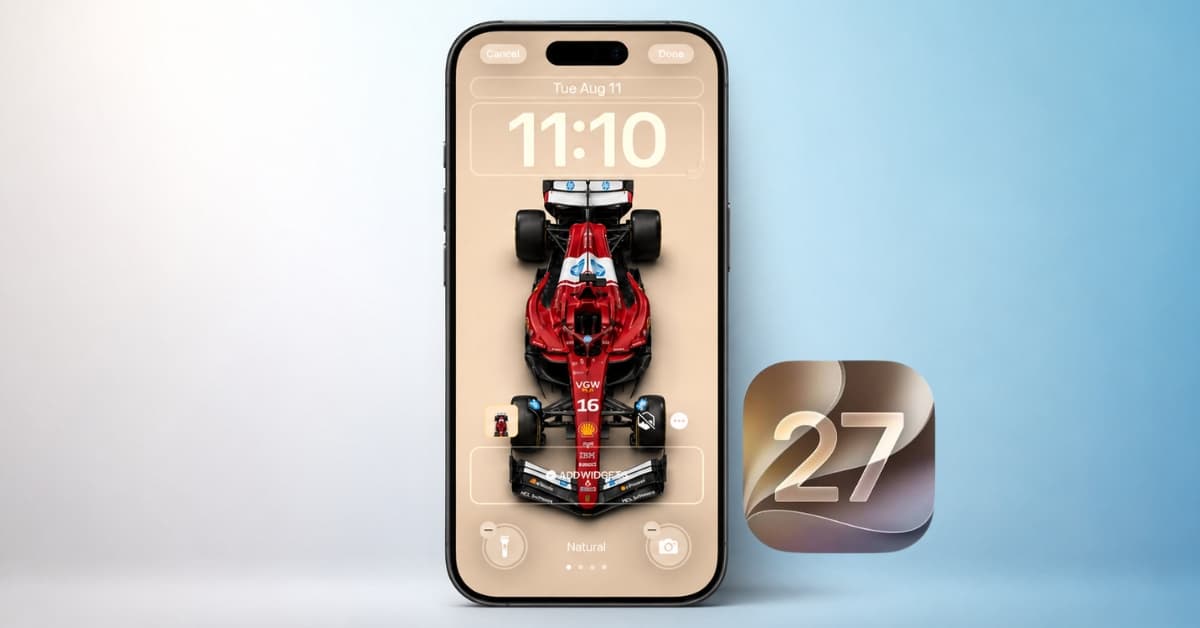
The Lock Screen got its big redesign back in iOS 16, and since then, Apple has mostly left it alone. iOS 27 changes that. This year’s update brings a smaller movable clock, AI-generated wallpapers, a fix for photos that never fit the screen, and, finally, a way to dismiss that stubborn Now Playing widget.
Shrink the clock and move it out of the way
The Lock Screen clock has always sat large and centered, right where the best part of your wallpaper usually is. iOS 27 adds a compact mode that shrinks the clock and tucks it up next to the date, leaving your wallpaper almost completely uncovered.
- Touch and hold the Lock Screen, then tap Customize.
- Tap the clock to open the Font & Color panel.
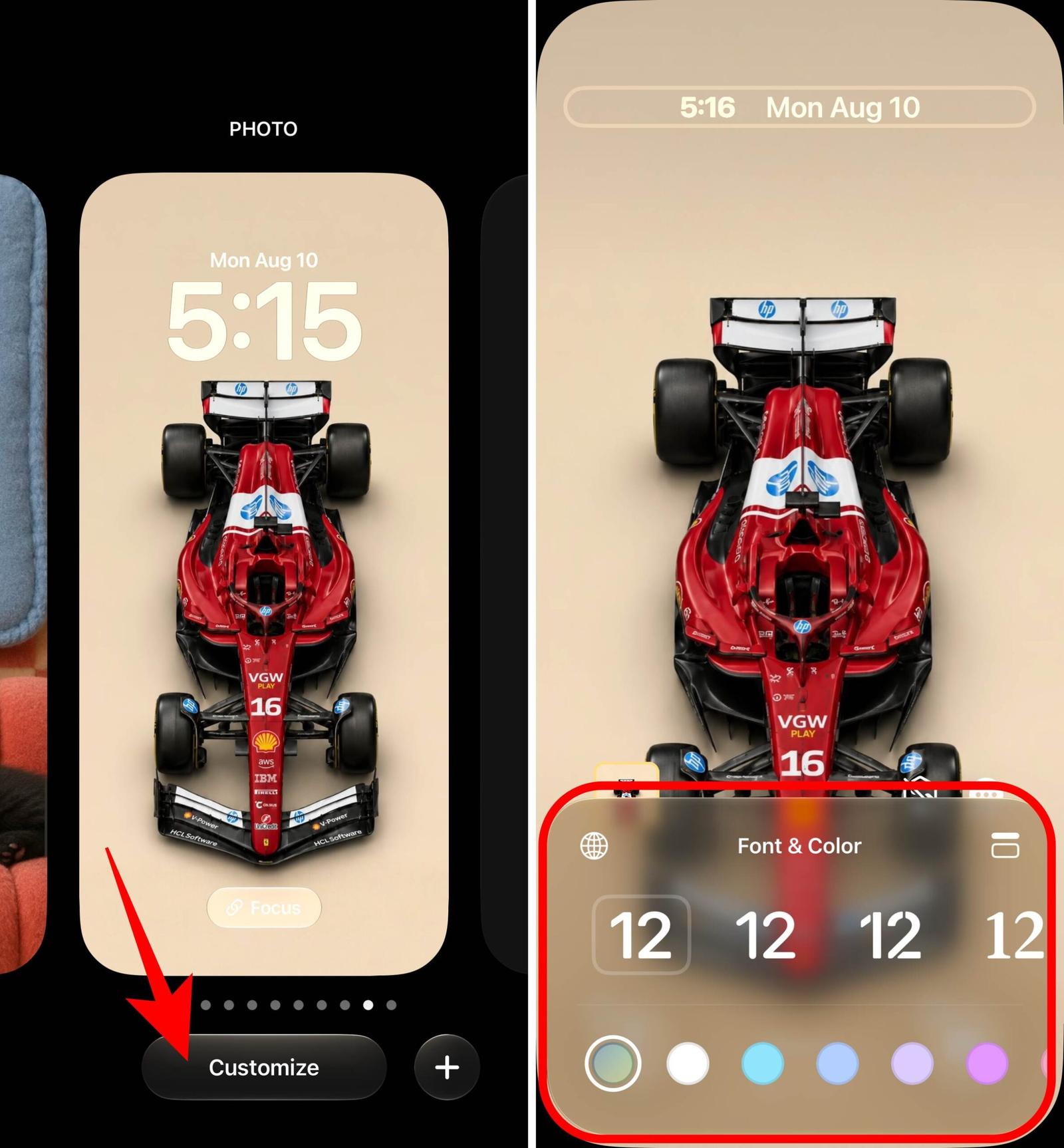
- Tap the two horizontal bars icon in the top-right corner of the panel.
- Tap anywhere on the wallpaper, then tap Done.
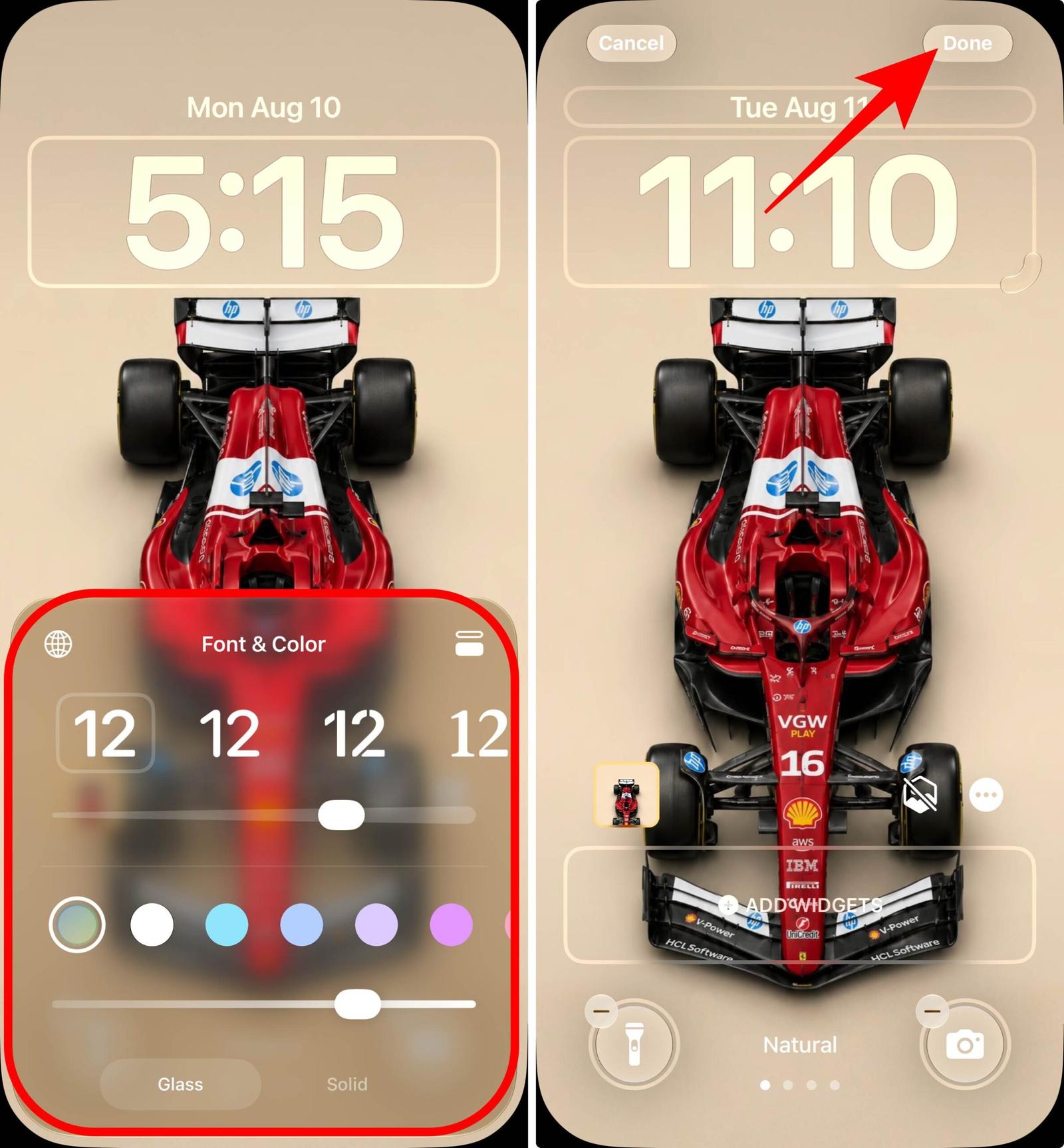
The clock instantly shrinks and moves to the top row. You can still change its font, weight, and color in compact mode, though the Liquid Glass slider for the clock isn’t available while it’s compact. The setting applies per wallpaper, so you can keep a big clock on one Lock Screen and a compact one on another. Tap the same icon again to go back to the full-size clock.
Generate wallpapers with Image Playground
Instead of hunting for the perfect wallpaper, you can now describe one and let your iPhone make it. iOS 27 builds Image Playground directly into the wallpaper picker, so you don’t need to create an image elsewhere and set it manually.
- Go to Settings → Wallpaper → Add New Wallpaper. You can also long-press the Lock Screen and tap the + button.
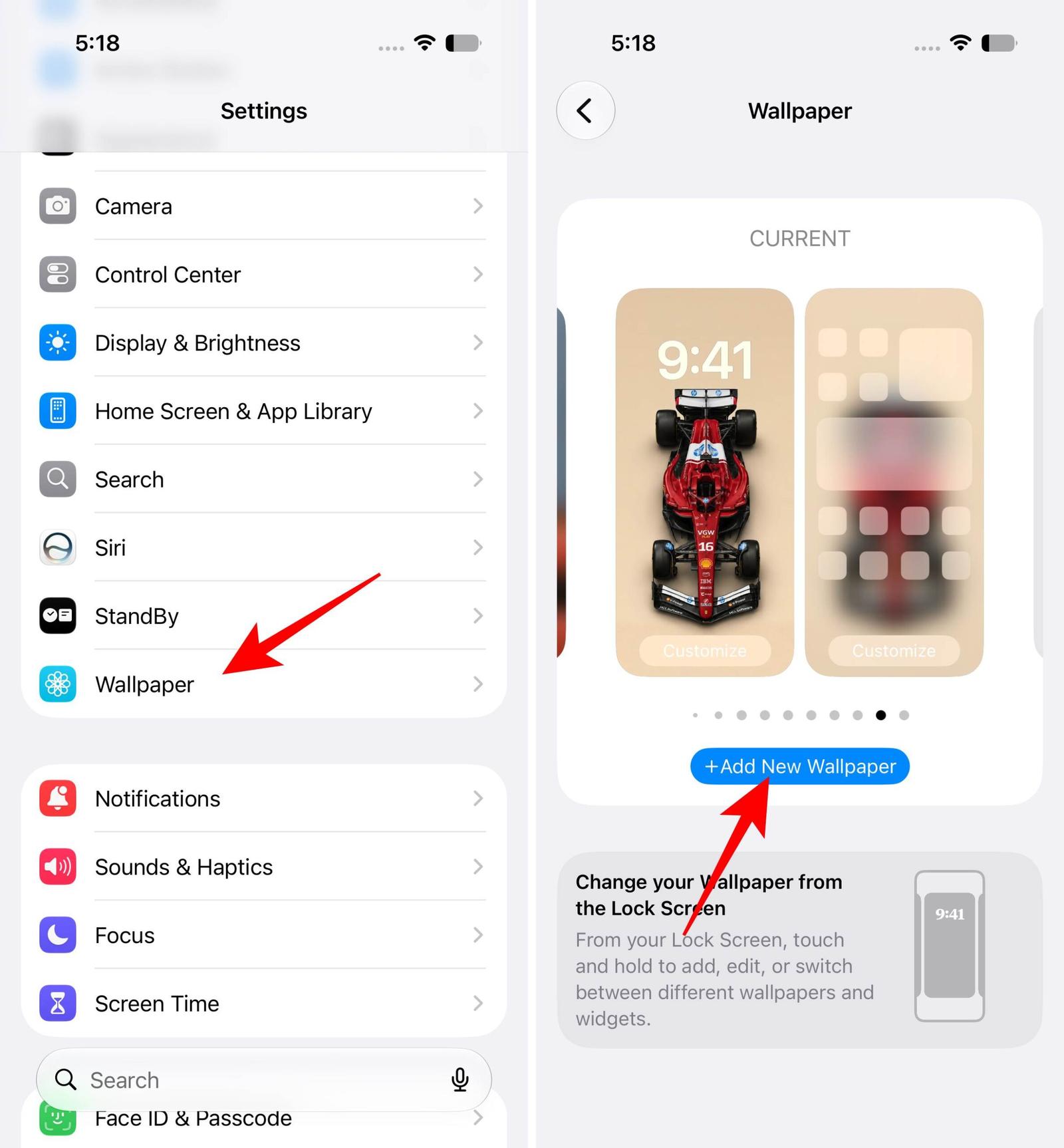
- Tap Image Playground.
- Describe the wallpaper you want, or pick a photo from your library and apply a style like Retro Illustration or Animation.
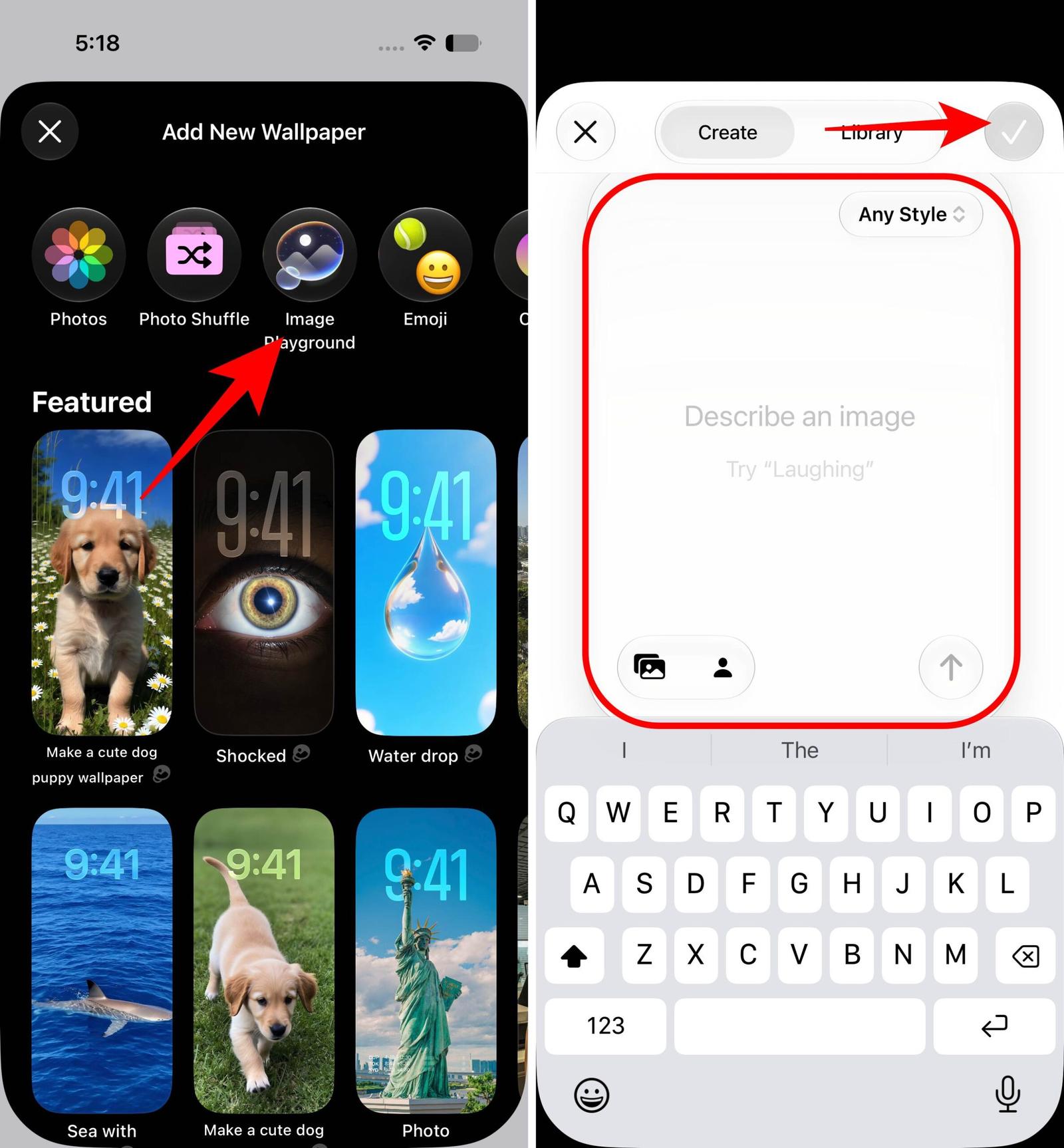
- Set the result as your Lock Screen.
This needs Apple Intelligence, so it works on iPhone 15 Pro and later, including all iPhone 16 and 17 models. The results have the usual Image Playground look, stylized and illustration-like rather than photorealistic, so it’s better for fun, personalized wallpapers than realistic scenery.
Extend a photo that doesn’t fit the screen
Everyone has a favorite photo that falls apart as a wallpaper because it’s cropped too tight or shot in the wrong orientation. The new Extend option uses Apple Intelligence to generate matching detail around the edges of the photo, so it fills the entire screen naturally instead of getting zoomed and cropped.
- Go to Settings → Wallpaper → Add New Wallpaper and choose your photo.
- Tap the three-dot button.
- Tap Extend Wallpaper, then confirm with Extend.
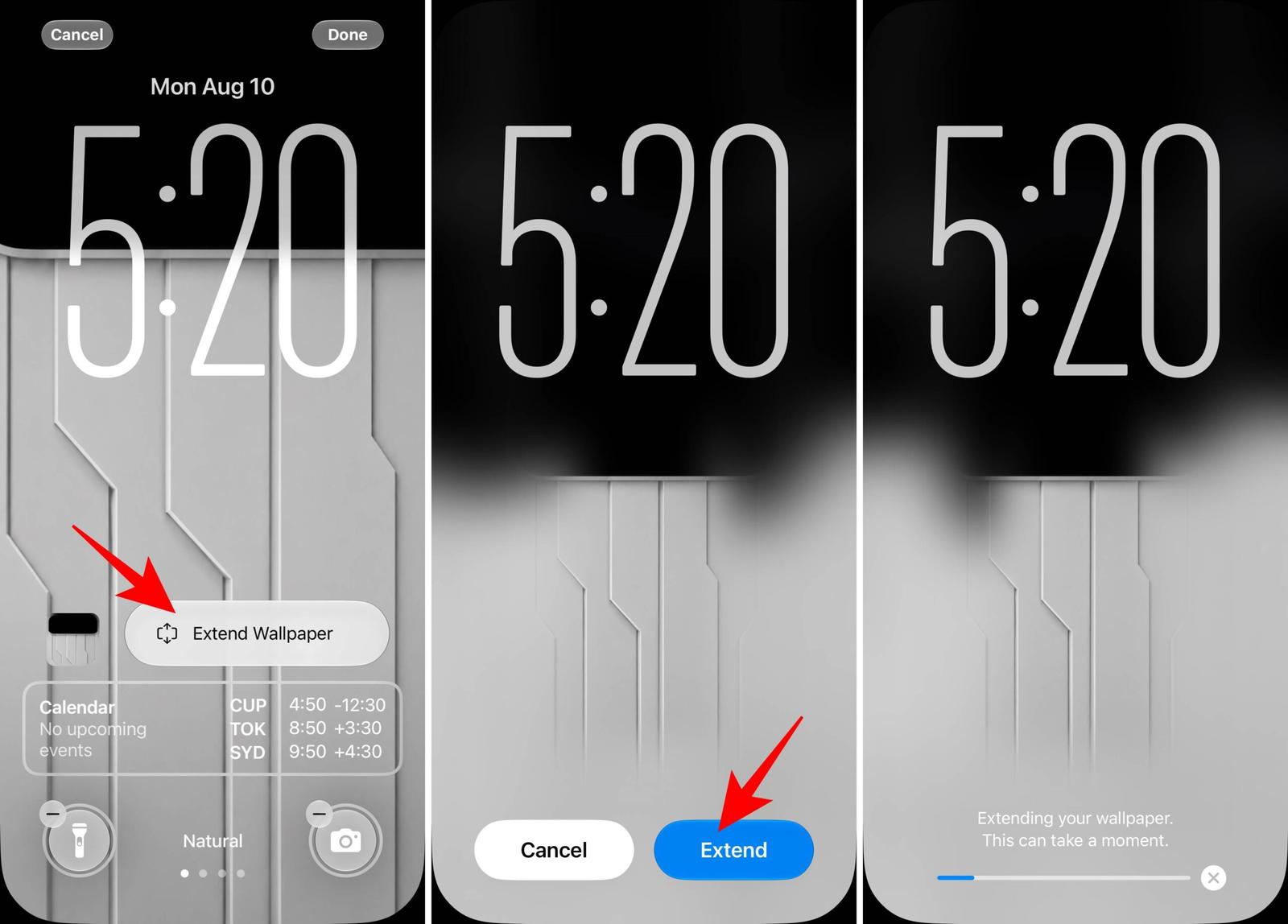
It can also straighten a tilted horizon or add breathing room around a subject that’s too close to the frame. It won’t work on every image, and since the fill is AI-generated, simple backgrounds like skies and landscapes blend better than busy, detailed ones. There’s also a daily limit on how many images you can extend, though Apple hasn’t said the exact number.
Swipe away the Now Playing widget
Until now, once you played music or a video, the Now Playing widget parked itself on your Lock Screen until you were done. In iOS 27, you can finally clear it: swipe left across the playback controls, and a Clear button slides in. Tap it, and the widget disappears without stopping your audio.
Dismissing it also removes the Now Playing bubble from the Dynamic Island, so your music keeps playing in the background with a completely clean screen. The widget comes back if you pause and resume playback, and it’s per app, so starting media in a different app brings up a fresh widget.
Adjust how transparent Liquid Glass looks
If you found Liquid Glass too see-through in iOS 26, or you actually liked the clear look and wanted more of it, iOS 27 gives you a full slider instead of the old two-position toggle.
- Open Settings and tap Appearance.
- Tap Liquid Glass.
- Drag the slider left for a clearer, more transparent look, or right for a more tinted, solid one.
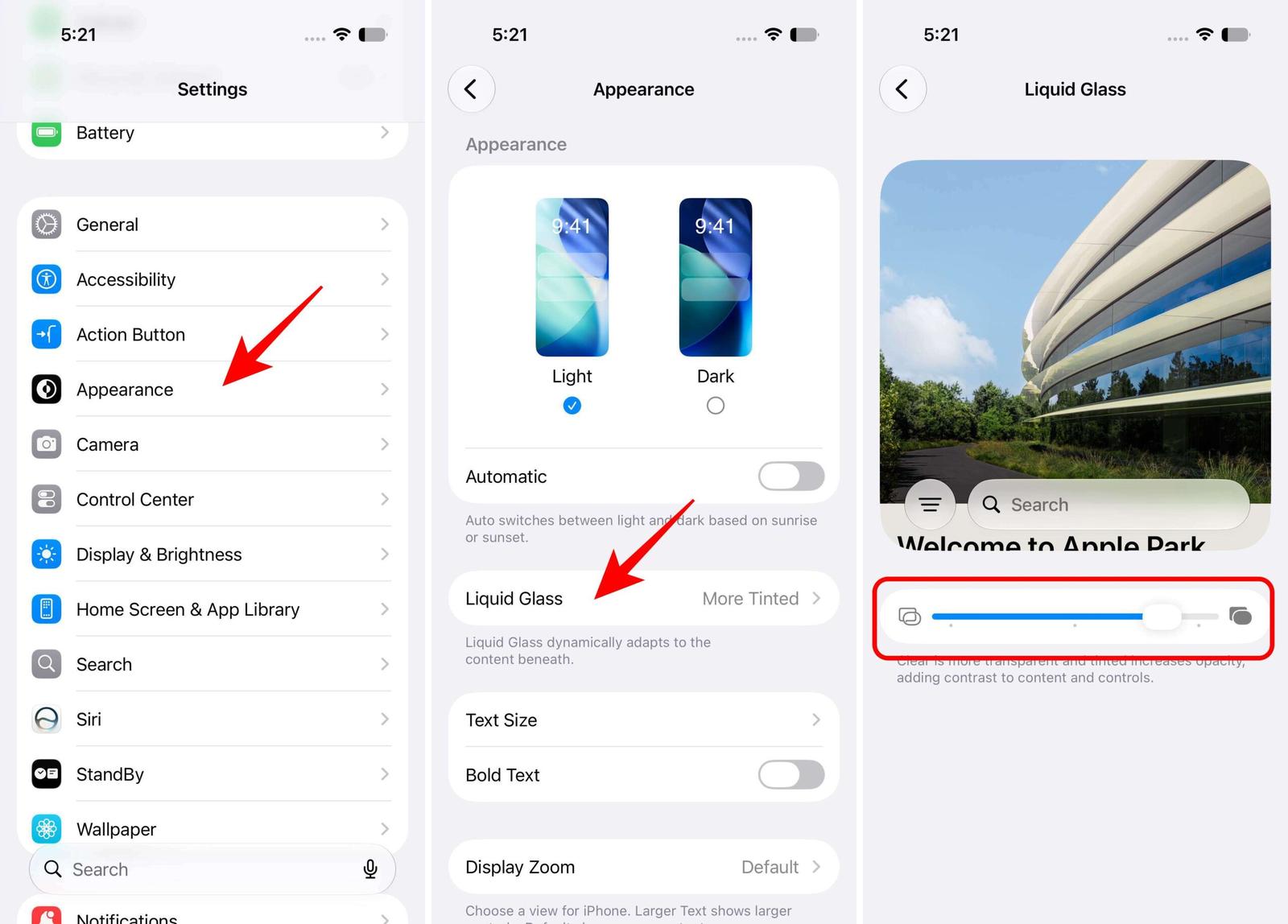
The change applies system-wide, and on the Lock Screen, it affects the clock, widgets, and notifications, so text stays readable even on busy wallpapers if you push the slider toward tinted. Appearance is a new Settings section in iOS 27 that also holds Light/Dark mode and text size. If the slider still isn’t enough, Reduce Transparency under Settings → Accessibility → Display & Text Size removes nearly all translucency.
None of these are headline features on their own, but together they fix most of the long-standing Lock Screen complaints: the clock covering wallpapers, photos that don’t fit, and the Now Playing widget that wouldn’t leave. If you’re on the iOS 27, the compact clock and Extend are the two worth trying first. Everyone else gets them in September; until then, there’s still plenty you can customize on your Lock Screen in iOS 26.
Make your iPhone Lock Screen your own
iOS 27 may not completely reinvent the Lock Screen, but these small changes make it noticeably more useful and personal. The compact clock gives your wallpaper more room to shine, Image Playground lets you create custom backgrounds, and Extend finally fixes those photos that never quite fit the screen.
I also appreciate the ability to dismiss the Now Playing widget without stopping playback, while the new Liquid Glass controls give you more freedom to fine-tune how the interface looks.
If you’re already running the iOS 27, I’d recommend trying the compact clock and Extend feature first.
More to explore: