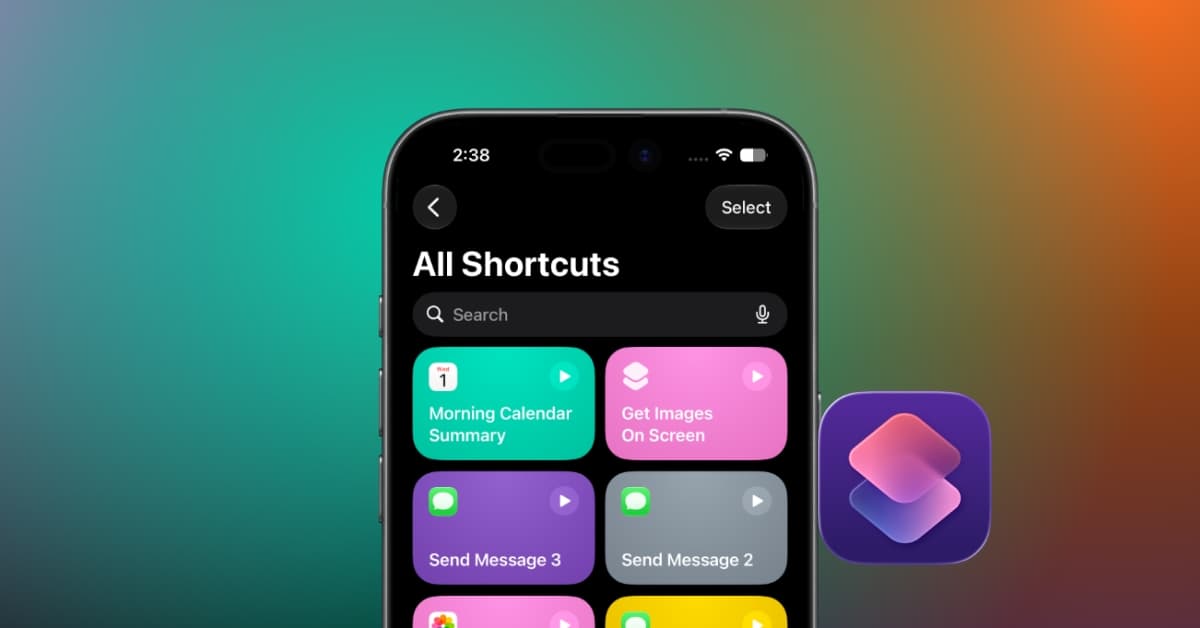
I’ll admit it: every time someone recommended Apple’s Shortcuts app, I’d nod politely and promise to try it. Then I’d open it, look at the endless list of actions, and close it again. Building workflows, linking actions together, and figuring out why something broke simply felt too complicated.
With iOS 27, Apple is finally changing that. Instead of piecing together actions manually, you can simply describe what you want in plain English, and Apple Intelligence helps create the shortcut for you. Additionally, it introduces many quality-of-life updates. Explore what’s new in the iOS 27 Shortcuts app and how to use them.
Why Apple had to rethink the Shortcuts app
I’ve always liked the idea of automating everyday tasks on my iPhone, but the Shortcuts app never made it easy to get started. There were unlimited options, and yet, it was not that easy to create any automation, as you would be going through multiple actions, linking them together, and hoping they would work.
That complexity kept many iPhone users away. Unless you enjoyed experimenting with workflows or following online tutorials, Shortcuts could feel more like a tool for developers. Most people simply didn’t have the time or patience to learn how it worked.
Apple clearly recognized this problem with iOS 27. Instead of adding more advanced features, the company focused on making Shortcuts approachable for everyone. If this experience works as smoothly as Apple promises, Shortcuts could finally become one of those apps people actually use every day.
“Describe a Shortcut” is the biggest upgrade in iOS 27
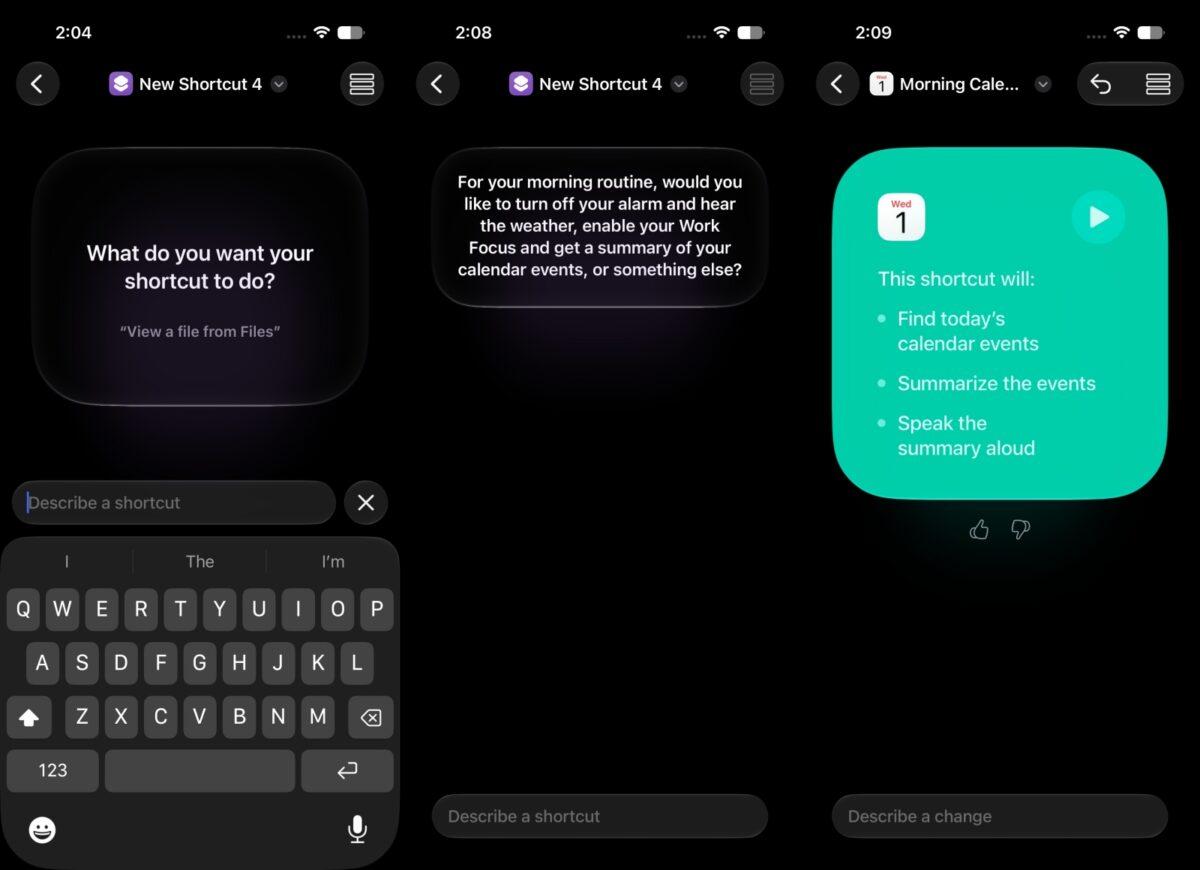
If there’s one feature that completely changed how I use the Shortcuts app, it’s the new AI-powered Describe a Shortcut feature. Instead of dragging actions into a workflow or figuring out which settings to combine, you simply tell your iPhone what you want to happen. For example,
I asked it to create a morning routine that shows today’s weather, calendar events, and to-dos. Apple Intelligence built the shortcut automatically. Once the shortcut is generated, you can review every step, make changes if needed, or ask AI to refine it further. What impressed me most was that I could also improve my existing shortcuts using Apple Intelligence instead of rebuilding them from scratch.
Therefore, beginners don’t have to build everything from scratch, while experienced users still have complete control over how their automations work. Here are a few examples of the kinds of shortcuts you can create using natural language:
- Turn on Sleep Focus every night at 10 PM, set tomorrow’s alarm based on my first Calendar event, and dim the room lights.
- Send my family a text when I leave the office and start the navigation to my home.
- Show today’s weather, calendar events, and reminders every morning and give a summary of all the tasks.
For me, this isn’t just another AI feature—it’s a completely different way of interacting with the Shortcuts app. You can even access it on iPadOS 27 and macOS Golden Gate.
Apple Intelligence models now power Shortcuts
The other change that caught my attention is that you can choose new Apple Intelligence models that can search the web to get information.
There are four options available:
On-Device Apple Intelligence
For everyday tasks that prioritize speed and privacy, Shortcuts can use Apple’s on-device intelligence. Since the processing happens directly on your iPhone, requests are handled quickly, and your personal information stays on the device whenever possible.
Cloud and Cloud Pro
Some tasks require more processing power than an iPhone can provide. In those cases, Shortcuts can tap into Apple’s Private Cloud Compute. Cloud Pro can search the web and incorporate that information directly into your automation. According to Apple, this system is designed to offer more advanced AI capabilities while maintaining strong privacy protections.
ChatGPT integration
For requests that benefit from broader knowledge or more detailed content generation, Shortcuts can also use ChatGPT. This opens the door to automations like drafting emails, brainstorming ideas, summarizing lengthy documents, or generating text based on a prompt.
New Automation Triggers and Shortcut Actions in iOS 27
iOS 27 also expands what your automations can do. One of the biggest changes is that Apple has merged Automations directly into the main Shortcuts experience. Instead, automation triggers are now integrated into the main shortcut-building experience. It may sound like a small interface tweak, but I think it makes the app feel much more cohesive.
New Automation triggers
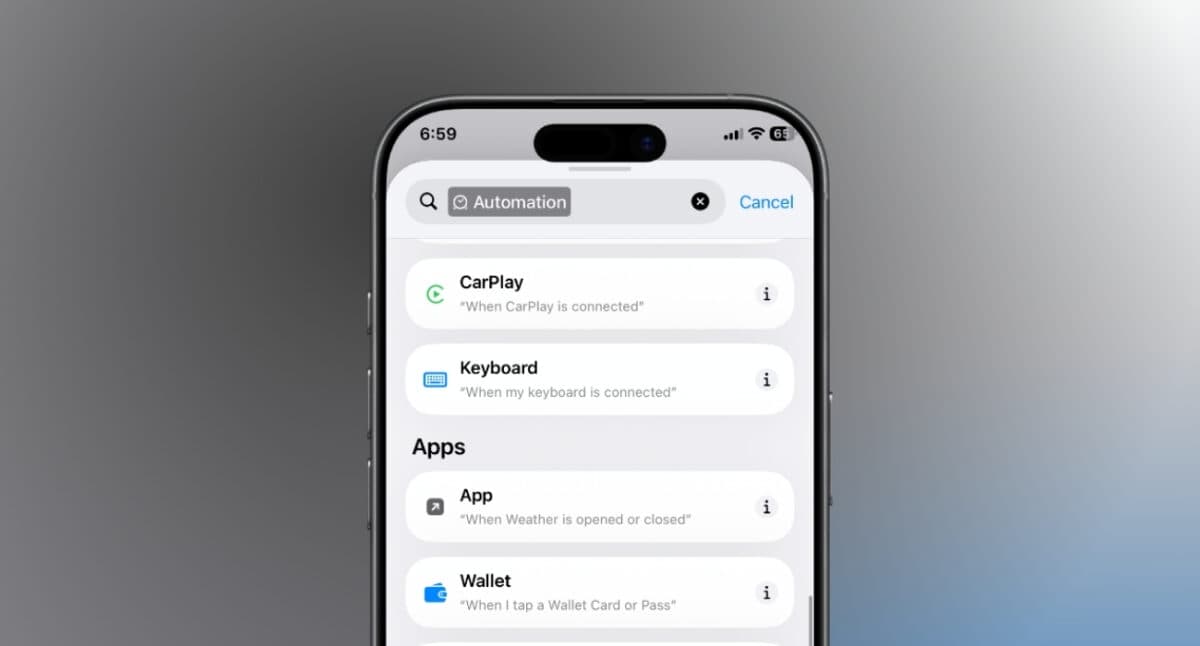
Apple has introduced several new triggers that let shortcuts run automatically when specific events occur, including:
- When you take a screenshot
- When you receive a notification from an app
- When a hardware keyboard connects
- When an Apple Watch workout starts
The notification trigger is easily my favorite addition. Imagine automatically turning on a Focus mode when your work app sends an urgent alert, logging package delivery notifications into Notes, or having your smart home lights switch on when your food delivery app notifies you that the driver is nearby.
More built-in Shortcut Actions
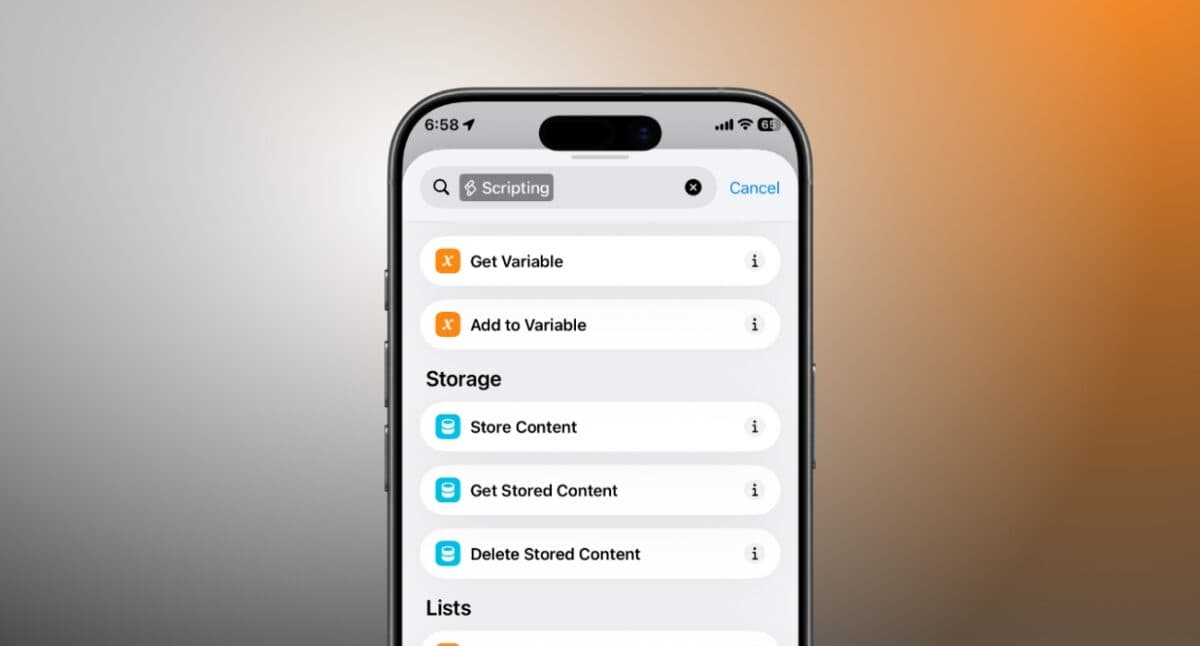
Apple has also expanded the list of actions available throughout the Shortcuts app, making it easier to automate tasks across more system apps.
Some of the most useful additions include:
- Messages: Send messages to a group conversation, delete conversations, mark text as read, search in Messages, open an inbox, and send Tapback.
- Notes: New actions for creating notes and recording audio directly from a shortcut.
- Photos: Open a photo, auto-enhance a photo, delete albums and photos, favorite photos, and hide photos.
- Reminders: Create Group, create Section, delete groups, lists, and sections, and edit list in Reminders.
- Accessibility: Toggle Hearing Aid Mute and toggle Vehicle Motion Cues.
- Storage Actions: New actions let shortcuts store and retrieve data, making it possible to build workflows that remember information between runs.
To me, these small additions make iOS 27’s Shortcuts update so compelling.
Updated “Get What’s On Screen” could become an underrated feature
One feature that I think deserves more attention is the improved “Get What’s On Screen” action. Context has always been the missing ingredient in automations. Now shortcuts can better understand what’s currently displayed on your screen and use that information in later actions.
Think about what that enables. For example, I asked Apple Intelligence to build a shortcut that can summarize the article I’m reading, extract important points, and save it to Notes. You can also tweak it to ask Apple Intelligence questions about what you’re looking at.
Instead of switching between five different apps, the shortcut handles everything in sequence.
My favorite Shortcut ideas to try in iOS 27
If I were updating my iPhone with iOS 27, these are the automations I’d build first.
- Morning Dashboard: One tap opens today’s weather, calendar events, reminders, and news briefing.
- Meeting Prep: Summarize long emails, gather today’s documents, and open your next calendar event automatically.
- Workout Mode: Automatically enables Focus Mode, plays a playlist, silences notifications, and logs the workout.
- Travel Assistant: Turn on Low Power Mode, download maps, share your ETA, and open your boarding pass.
- Screenshot Organizer: Every screenshot is automatically categorized, renamed, and stored in the correct album.
- Evening Shutdown: Dim the display, enable Sleep Focus, adjust smart home devices, and prepare tomorrow’s reminders.
None of these ideas require complicated programming anymore. That’s exactly why they feel achievable.
Which iPhones support the new Shortcuts features?
The good news is that the redesigned Shortcuts app is part of iOS 27. So, anyone with a compatible iPhone will get the updated interface and many of the new automation improvements. However, not every feature is available on every device.
The biggest limitation is Apple Intelligence. Features like Describe a Shortcut, AI-powered shortcut generation, and intelligent actions require an iPhone that supports Apple Intelligence. That means you’ll need one of the following models:
- iPhone 15 Pro and 15 Pro Max
- iPhone 16 and 17 models
The same AI-powered experience is also available on iPads with an M-series chip, iPad mini with A17 Pro, and Macs with an Apple silicon chip.
Shortcuts is more approachable in iOS 27!
I’ve always believed Shortcuts had enormous potential within the Shortcuts app, but up until this point, it seemed like an app designed only for power users. With iOS 27, Apple isn’t just adding more capabilities—it’s making automation approachable for everyone.
Of course, some of the biggest features are limited to Apple Intelligence-supported devices. Even so, the improvements to the Shortcuts app show that Apple is serious about making automation a core part of the iPhone experience rather than a niche tool.
And if Apple continues improving this AI-first approach, I can easily see Shortcuts becoming one of the most-used productivity apps on the iPhone. Which feature are you eager to try? Let me know in the comments below!
You might also like: