Apple has now seeded iOS 27.2 developer beta 4, likely the last build before the Release Candidate. With the stable version of iOS 27 (currently 27.0.1) already available to everyone through Software Update, the developer beta program is now the way to test upcoming features before they roll out publicly. iOS 27.2 brings expanded Siri AI language support (French, Japanese, Korean, Portuguese, and Spanish), Dual Capture mode in Group FaceTime, Apple TV app profiles on iPhone, a refreshed Apple Music app icon, and compatibility with Apple’s new HomeView experience that works with the new Apple TV 4K and HomePod mini 2.
Beta 4 (build 24B5110a) arrived about a week after beta 3, with Apple shifting into the final-stretch cadence ahead of the public rollout expected later this month. Notably, Apple pulled the redesigned Health app from this build, confirming it was never meant to ship with 27.2 and will arrive in a later software update instead. Beyond that, this stage is about bug fixes and polish.
If you’re ready to try iOS 27 features early, the installation process is simpler than ever. You no longer need a paid developer account or beta configuration profiles, everything can be done directly from your iPhone in just a few taps. Here’s how to download iOS 27.2 developer beta on your iPhone.
Before you install iOS 27.2 developer beta
There are a few things I always do before installing any developer beta:
- Create a full iCloud or computer backup.
- Make sure the iPhone has at least 50% battery.
- Connect to a reliable Wi-Fi network.
- Confirm that the device supports iOS 27. It’s available on iPhone 11 and later.
- Sign in with your Apple Account.
Developer betas are designed for testing, not daily reliability. Unexpected crashes, battery drain, and app compatibility issues are fairly common during the early stages of beta development.
How to install iOS 27.2 developer beta
The entire process takes only a few minutes.
Step 1: Enroll in the Apple Developer Program
- Open the Apple Developer website.
- Sign in with your Apple Account. There’s no fee involved for basic developer beta access.
Step 2: Enable and install iOS 27.2 Developer Beta
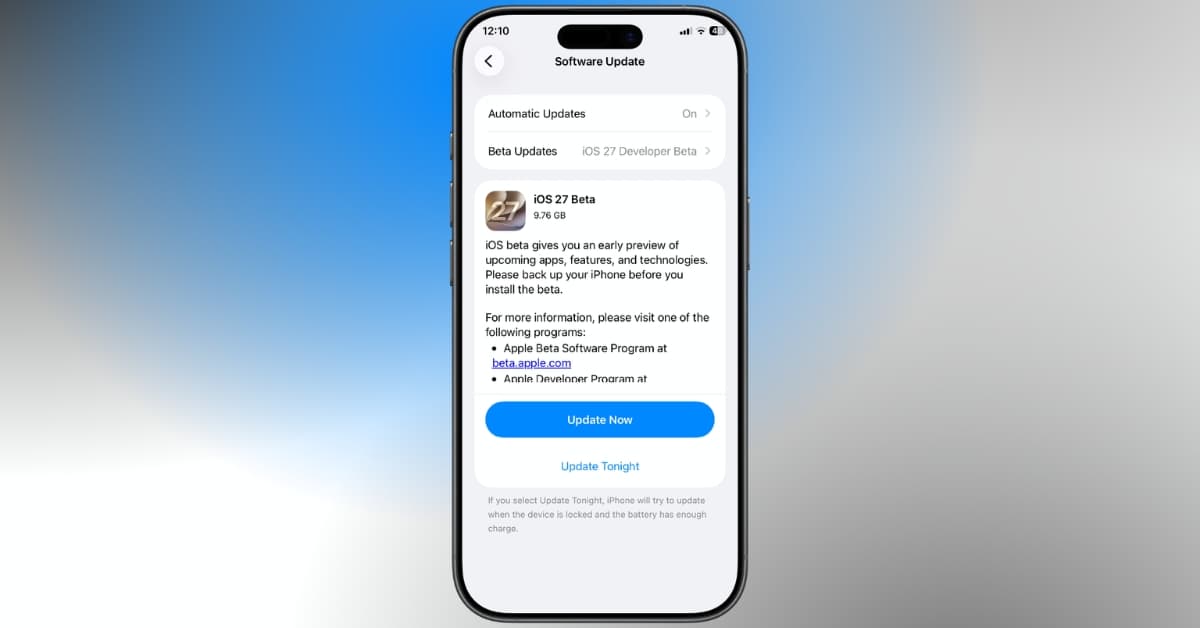
- Go to Settings > General > Software Update.
- Here, tap on Beta Updates. Allow your device a few moments to check for available updates.
- Select the iOS 27 Developer Beta option on the next menu and tap Back to return to the Software Update screen.
- After a few seconds, the iOS 27 Developer Beta update should appear. Finally, tap Download and Install.
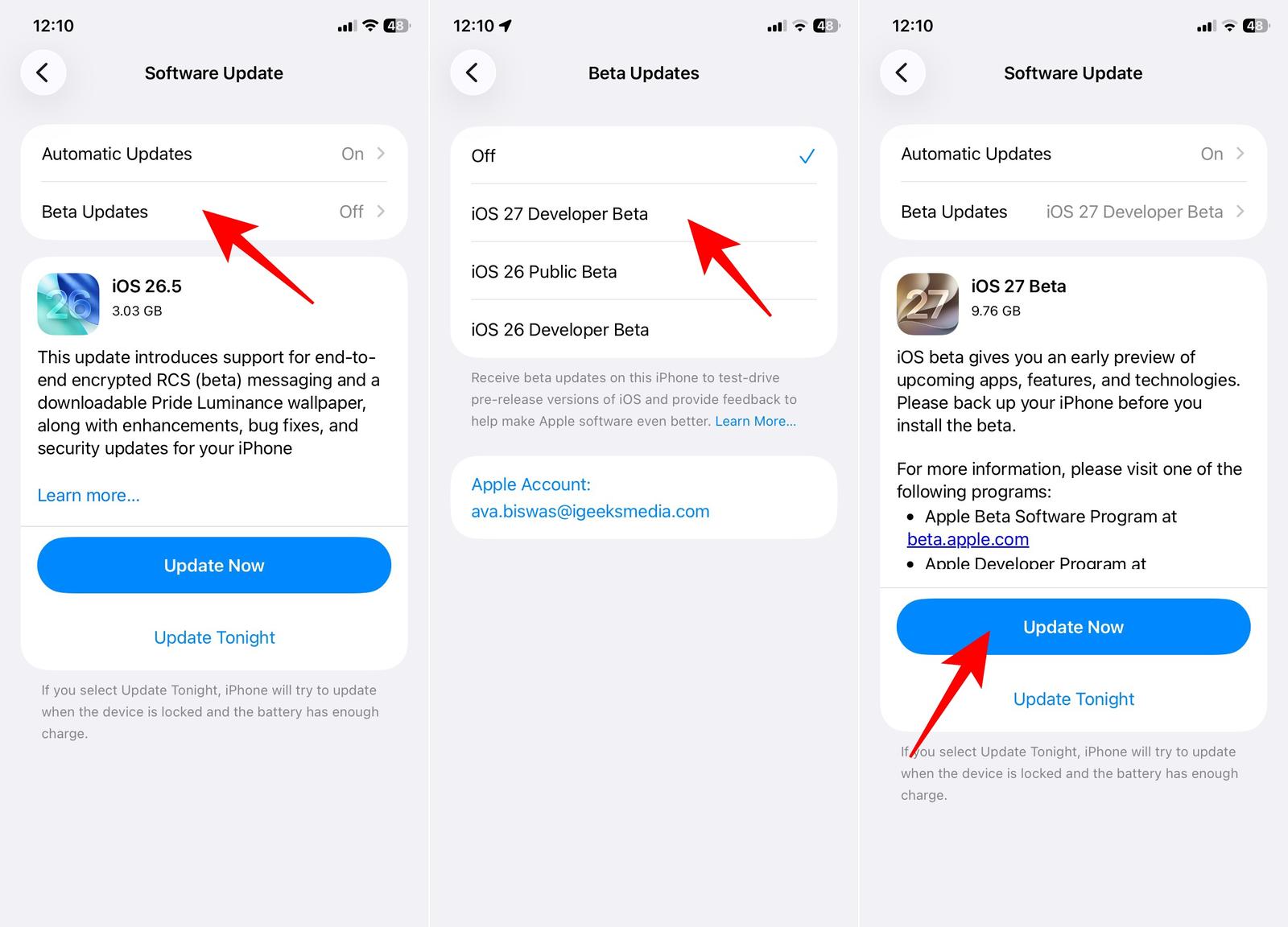
- Enter your passcode when prompted and accept Apple’s terms.
Your iPhone will download the update and restart automatically. Depending on your internet speed, the process may take anywhere from 15 to 45 minutes. Once the installation is complete, you’ll boot into iOS 27.2 and can begin exploring the new features.
What if the iOS 27.2 developer beta doesn’t appear?
This is one of the most common issues people run into. Here are a few troubleshooting steps that usually help:
- Make sure you’re signed into the correct Apple Account that is enrolled in the Apple Developer Program.
- Restart your iPhone. I’ve seen beta updates appear immediately after a simple reboot.
- Go back to the Beta Updates menu in Settings. Set it to Off, then enable the Developer Beta again.
- Be patient. When Apple releases a new beta, servers often get overloaded. Sometimes the update appears after waiting a few hours.
Is the iOS 27.2 developer beta worth installing?
In my experience, that depends entirely on which iPhone you’re using.
Install it if:
- You enjoy testing new features early.
- You’re a developer checking app compatibility.
- You have a secondary iPhone available.
- You’re comfortable reporting bugs and troubleshooting issues.
Skip it if:
- This is your only iPhone.
- You rely on banking, business, or work-related apps.
- Stability matters more than getting new features early.
27.2 betas are more polished than early WWDC-era developer builds, but they still carry real risk. Expect the occasional visual glitch, battery hit, or third-party app that refuses to play nicely until the developer ships an update.
How to leave the iOS 27.2 beta program
If you decide the beta experience isn’t for you, turning off future beta updates is easy.
- Open Settings, tap General, and select Software Update.
- Open Beta Updates.
- Choose Off.
Your iPhone will stop receiving future beta builds and will return to the stable release track once Apple publishes the next public version of iOS 27. You can also revert back to the stable iOS 27 release if you face severe issues.
Final thoughts
Installing the iOS 27.2 developer beta is now much easier than it was a few years ago. Apple has removed most of the barriers, letting users join the beta program and download the latest build directly through Software Update. No profiles, no paid account needed.
iOS 27.2 leans into practical upgrades on top of the stable iOS 27.0.1 release: Siri AI expanding into French, Japanese, Korean, Portuguese, and Spanish, Dual Capture mode in Group FaceTime, Apple TV app profiles on iPhone, a refreshed Apple Music icon, and compatibility with the new HomeView experience arriving with the new Apple TV 4K and HomePod mini 2. The redesigned Health app that appeared in earlier betas has been pulled and will land in a future release later this year.
That said, it’s still a developer beta designed for testing, not daily use. If your iPhone is critical for work, school, or daily communication, the public beta is the smarter, safer choice. With the full iOS 27.2 release expected before HomePod mini 2 arrives on October 30, the wait won’t be long.
Might be you like: