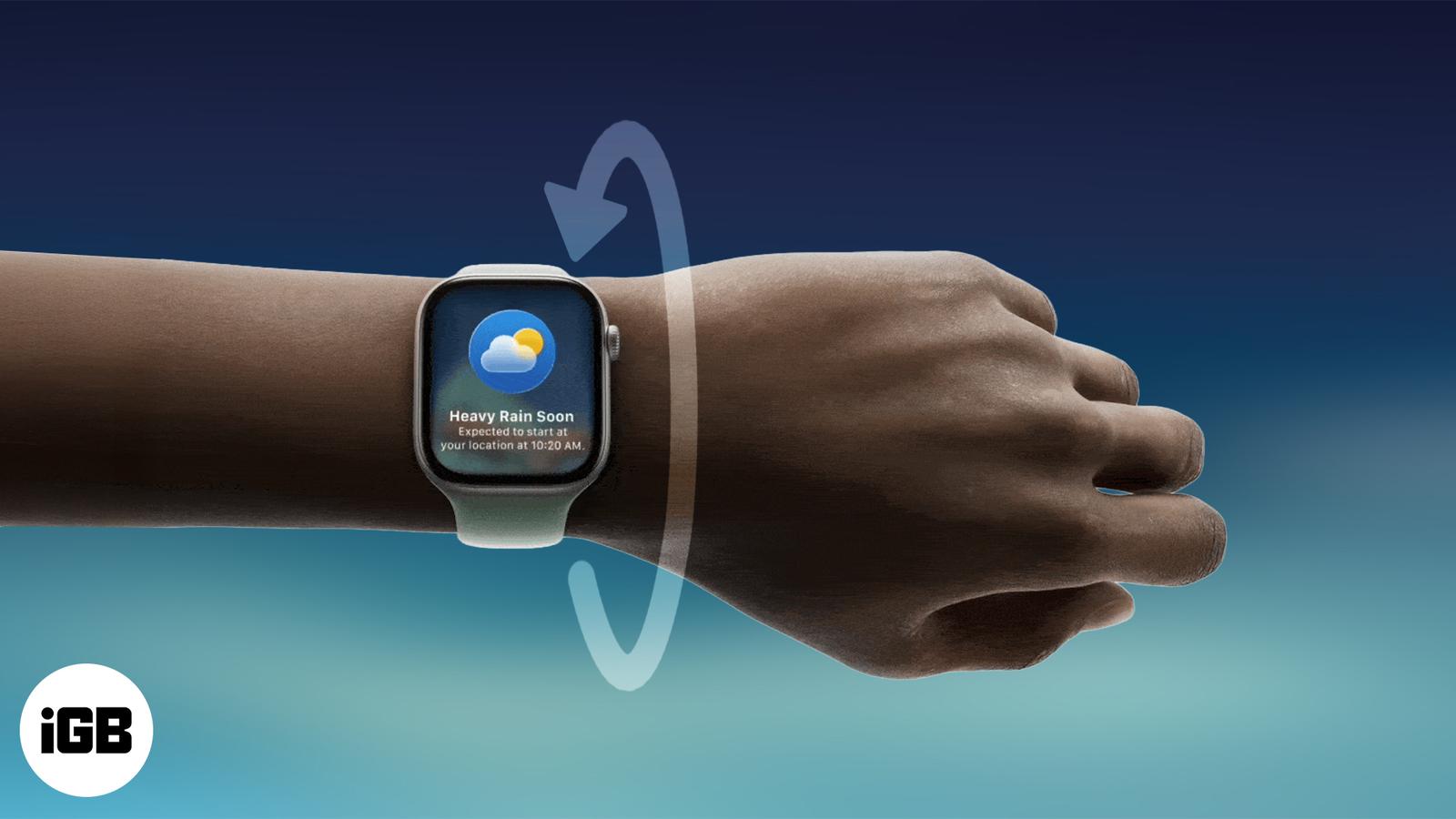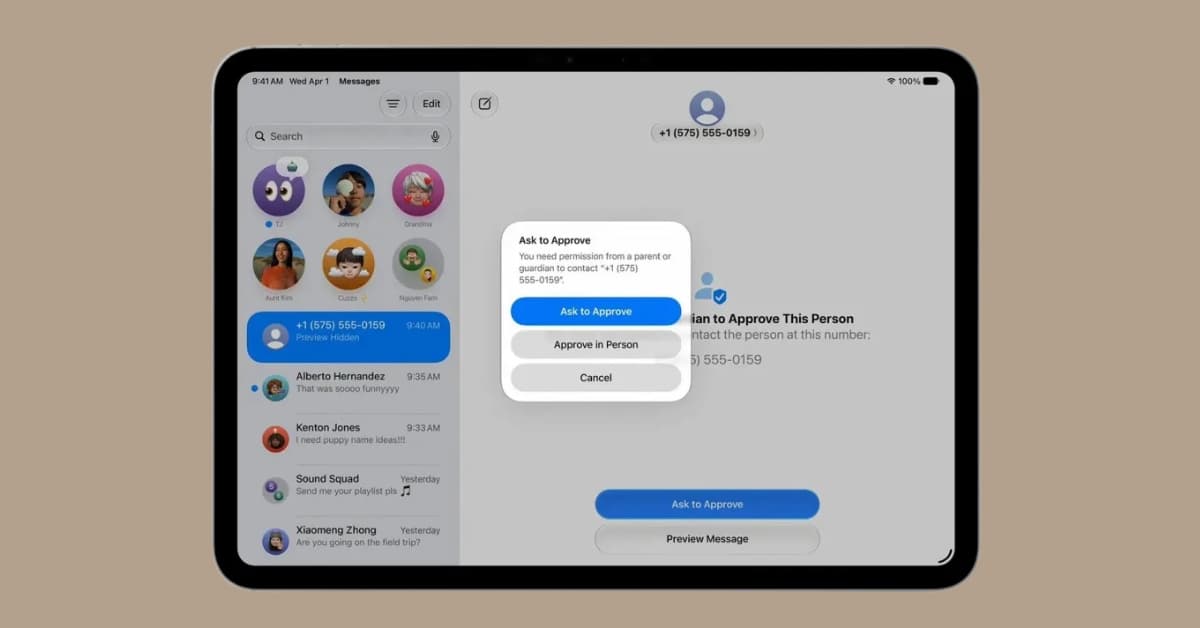
Apple has now seeded iPadOS 27.2 developer beta 4, likely the last build before the Release Candidate. With the stable version of iPadOS 27 (currently 27.0.1) already available to everyone through Software Update, the developer beta program is now the way to test upcoming features before they roll out publicly. iPadOS 27.2 brings expanded Siri AI language support (French, Japanese, Korean, Portuguese, and Spanish), Dual Capture mode in Group FaceTime, Apple TV app profiles on iPad, and compatibility with Apple’s new HomeView experience that works with the new Apple TV 4K and HomePod mini 2, on top of the full iPadOS 27 feature set: an upgraded Siri AI experience, expanded Apple Intelligence across Photos, Safari, Shortcuts, Wallet, and Passwords, and the smoother Liquid Glass design with improved opacity and a transparency slider.
Beta 4 (build 24B5110a) arrived about a week after beta 3, with Apple shifting into the final-stretch cadence ahead of the public rollout expected later this month. Notably, Apple pulled the redesigned Health app from this build, confirming it was never meant to ship with 27.2 and will arrive in a later software update instead. The broader iPad-specific upgrades from iPadOS 27 all carry forward, including the improved multitasking experience, persistent menu bar, resizable iPhone apps, and faster Siri access through Command + Space.
If you want to get hands-on with these upgrades before the wider rollout, you can install the beta on your iPad in just a few minutes. That said, it’s still an unfinished build. Bugs, app compatibility issues, battery drain, and occasional performance hiccups are all part of the deal during the testing phase, so avoid installing it on your primary iPad.
Ready to jump in? Here’s how to enroll in the iPadOS 27.2 developer beta program and download it on your iPad.
What you need before installing iPadOS 27.2 developer beta
Before downloading the beta, make sure:
- Your iPad is compatible with iPadOS 27. It requires an A14 Bionic chip or newer.
- You’re signed in with your Apple Account.
- You have a stable Wi-Fi connection.
- Your iPad has at least 50% battery or is connected to a charger.
- You have created a recent backup using iCloud or a computer to be able to downgrade to a stable version if something goes wrong.
How to download iPadOS 27.2 developer beta
First, you need to enroll in the Apple Beta Software Program from the official website (https://beta.apple.com/) and sign in with your Apple Account.
Then follow these steps directly on your iPad:
- Launch the Settings app on your iPad.
- Navigate to General and select Software Update.
- Tap Beta Updates.
- Wait a few seconds for updates to load. From the list of available beta channels, choose iPadOS 27 Developer Beta.
- Go back to the previous screen. The iPadOS 27.2 Developer Beta should now appear as an available update.
- Tap Download and Install. Enter your passcode if prompted and accept Apple’s terms and conditions.
- Wait for the installation to complete. The update will download, verify, and install automatically.
Your iPad will restart several times during the installation process. Once completed, you’ll be running iPadOS 27.2 Developer Beta.
iPadOS 27.2 beta update not showing up?
If the developer beta isn’t appearing:
- Check Apple Account: Verify that you’re signed into the correct Apple Account under Settings > [your name banner].
- Restart your iPad: A simple restart often refreshes beta update availability.
- Check device compatibility: Unsupported iPads won’t receive the update even if Beta Updates are enabled.
- Wait for Apple’s servers: Developer beta releases can roll out gradually, so availability may vary during the first few hours after launch.
How to stop receiving iPadOS 27.2 beta updates
If you later decide to leave the beta program:
- Open Settings.
- Go to General > Software Update.
- Tap Beta Updates.
- Select Off.
Your iPad will remain on the installed beta version until Apple releases a newer public version.
Final thoughts
Installing the iPadOS 27.2 developer beta is easier than ever. Apple delivers beta updates directly through the Software Update section, so there’s no need to download profiles or connect to a computer. As long as your iPad is supported and you’re signed in with the appropriate Apple Account, you’re just a few taps away from the latest build.
iPadOS 27.2 leans into practical upgrades on top of the stable 27.0.1 release: Siri AI expanding into French, Japanese, Korean, Portuguese, and Spanish, Dual Capture mode in Group FaceTime, Apple TV app profiles on iPad, and compatibility with the new HomeView experience arriving with the new Apple TV 4K and HomePod mini 2. The redesigned Health app that appeared in earlier betas has been pulled and will land in a future release later this year. Developer betas are built for testing, not daily use, so always back up your iPad before installing in case you need to roll back.
With the full iPadOS 27.2 release expected before HomePod mini 2 arrives on October 30, this beta is your best window into what’s coming next before it lands for everyone.
Which iPadOS 27 features are you most excited about? Drop your thoughts in the comments below!
Might be you like: