For years, I treated one rule of casting as non-negotiable: my phone and TV had to be connected to the same Wi-Fi network. If my phone switched to mobile data or the TV got connected to a different network, casting stopped working. It was one of those annoying tech limitations everyone had to accept.
But the good news is YouTube is changing how its phone-to-TV experience works. You can now send YouTube videos from your phone to your TV without both devices being on the same Wi-Fi network, as long as you’re signed in to the same YouTube account.
Here’s what the new YouTube companion device feature is and how I use it to cast videos from my phone to my TV.
YouTube has quietly changed how phone-to-TV casting works
For a long time, casting felt pretty straightforward. My phone found my TV on the local Wi-Fi network, I tapped the Cast button, selected the device, and the video moved to the big screen. It worked most of the time.
But the experience also came with a frustrating limitation. Both devices generally needed to be on the same Wi-Fi network. That sounds simple until you actually encounter real-world situations. For example, your phone is on mobile data because the Wi-Fi is slow, or your TV is connected to a different network, or you’re using a guest network.
As announced in the support forum, YouTube’s new approach moves away from relying entirely on local network discovery and introduces a more connected companion experience. When my phone and TV are signed in to the same YouTube account, the two devices can work together irrespective of being on the same Wi-Fi network.
And honestly, that should have been the default years ago.
How to cast YouTube from mobile to TV without joining the same Wi-Fi
The best part about the new YouTube companion device feature is that the setup doesn’t appear to require complicated pairing tricks, TV codes, or network workarounds. The key requirement is simple: sign in to the same YouTube account on both your phone and TV.
Here’s how to use your phone as a YouTube companion device:
- Open the YouTube app on your smart TV.
- Make sure you’re signed in to your YouTube account.
- Open YouTube on your Android phone or iPhone.
- Sign in using the same account.
- Find a video you want to watch. Tap the three-dot menu next to the video right on the homepage feed.
- Select Play on different device.
- Choose your TV from the list.
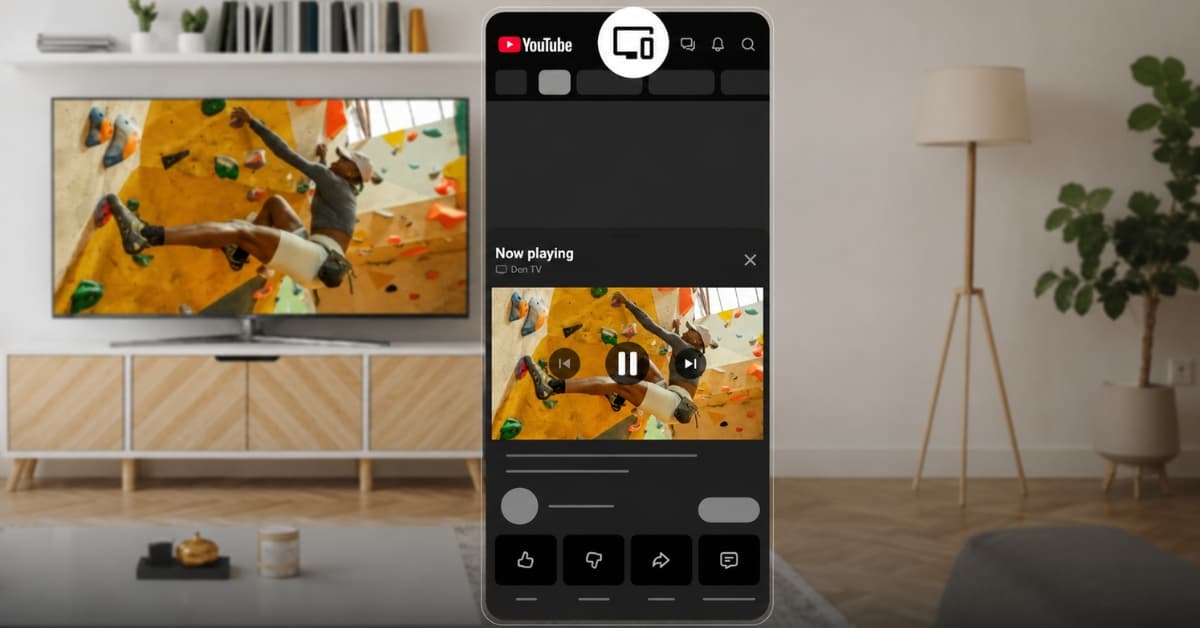
- A companion panel will open. You can control playback on your TV from there.
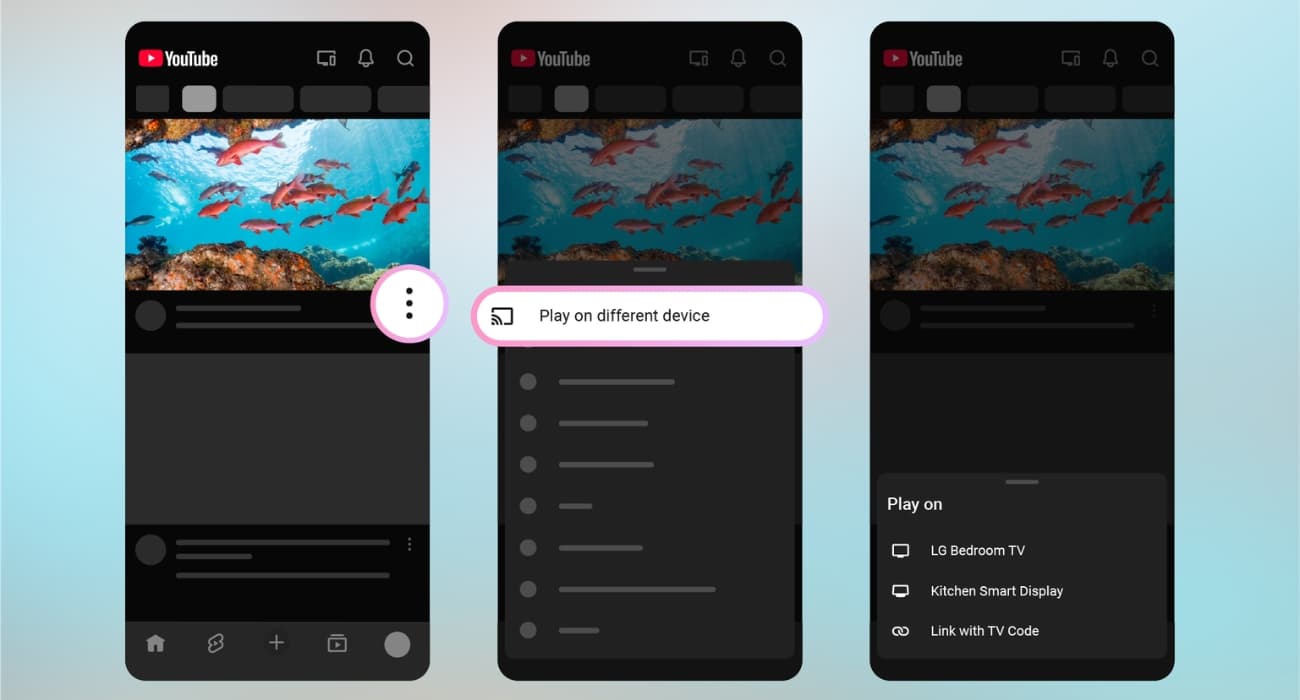
The video can then be sent directly to the TV. What I particularly like about this is that YouTube is removing an unnecessary step from the old casting workflow.
Previously, I would need to start playing something on my phone, tap the Chromecast button to search for my TV, and then start watching it on the big screen. Now, the “Play on different device option makes the process much easier. It will also stop the constant fighting over the TV remote when multiple people are sitting together.
I tried watching Shorts and kept using my phone while a video played on my TV
This is where YouTube’s new companion experience gets interesting.
You can now continue using YouTube on your phone while a completely different long video plays on the TV. That means I could theoretically have a 40-minute travel documentary playing on my TV while scrolling through YouTube Shorts on my phone.
My first thought? This sounds like sensory overload. But after thinking about how people actually use their phones today, I understand why YouTube added it.
Maybe someone mentions a destination, product, creator, or song. Normally, you would interrupt the TV and search for it or wait until the current video ends. With the companion experience, I can simply search for it in the YouTube app on my phone while the TV keeps playing uninterrupted for everyone. Ask YouTube makes the discovery interactive.
YouTube’s new app-to-TV experience also lets you:
- Read and leave comments.
- Like the video.
- Subscribe to the channel.
- Browse the description.
- Search for another video.
- Explore YouTube Shorts.
- Create and manage playlists.
All of this can happen without hijacking what’s currently playing on the TV. If you want to control your TV, tap the devices icon at the top of your mobile app home screen.
Things I learned after trying it
- This isn’t traditional casting anymore: Previously, casting was heavily associated with local Wi-Fi discovery. Now, ensure you are signed in to the same YouTube account.
- The same Wi-Fi is not required: You can use mobile data, multiple networks, or switch networks for better internet speed.
- My phone is no longer just a remote: I can interact with YouTube independently, rather than feeling like the mobile has been hijacked by whatever is playing on the TV.
- I can use YouTube on TV much faster: I have always preferred discovering content on my phone. The interface is faster, and searching is easier. And once I find something interesting, the TV is the better place to actually watch it.
The only caveat is that this new experience appears to lean heavily toward account-based pairing. That makes it excellent for my phone and TV, but it raises questions about how flexible the experience will be for large-group viewing, where multiple people traditionally cast from different devices.
Who will actually benefit from this?
I don’t think this update is equally important for everyone. But for some people, it’s going to solve an incredibly annoying problem.
If you:
- Constantly switch between Wi-Fi and mobile data
- Use mesh networks, guest networks, dual-band routers, and multiple access points
- Don’t like typing with a TV remote
- Watching content with others
- Heavily use YouTube as a replacement for traditional television
Final take
Casting YouTube to a TV without being on the same Wi-Fi sounded impossible until now. But YouTube’s new companion device experience shows that the old rules of casting are changing.
What I like most is that this isn’t just about removing the same Wi-Fi requirement. My phone and TV can now work together more naturally, with my phone helping me discover, search, and control content while the TV handles the actual viewing.
Would you use your phone as a YouTube companion, or do you still prefer the traditional casting method? Let me know in the comments below!
You might also like: