I didn’t realize how much time I was wasting on YouTube until it became a habit. I would open the app to watch one specific video, and within minutes, I’d find myself stuck in the Shorts section, scrolling endlessly without even thinking about it. It wasn’t intentional, and that’s what made it worse. The transition from one video to another was so seamless that I didn’t even notice when I lost control of my time.
For the longest time, there was no real way to avoid Shorts. YouTube kept pushing them everywhere, from the home feed to recommendations and even a dedicated tab. So when YouTube quietly introduced a way to limit Shorts completely, I had to try it.
And surprisingly, it works.
You can now turn off YouTube Shorts (almost)
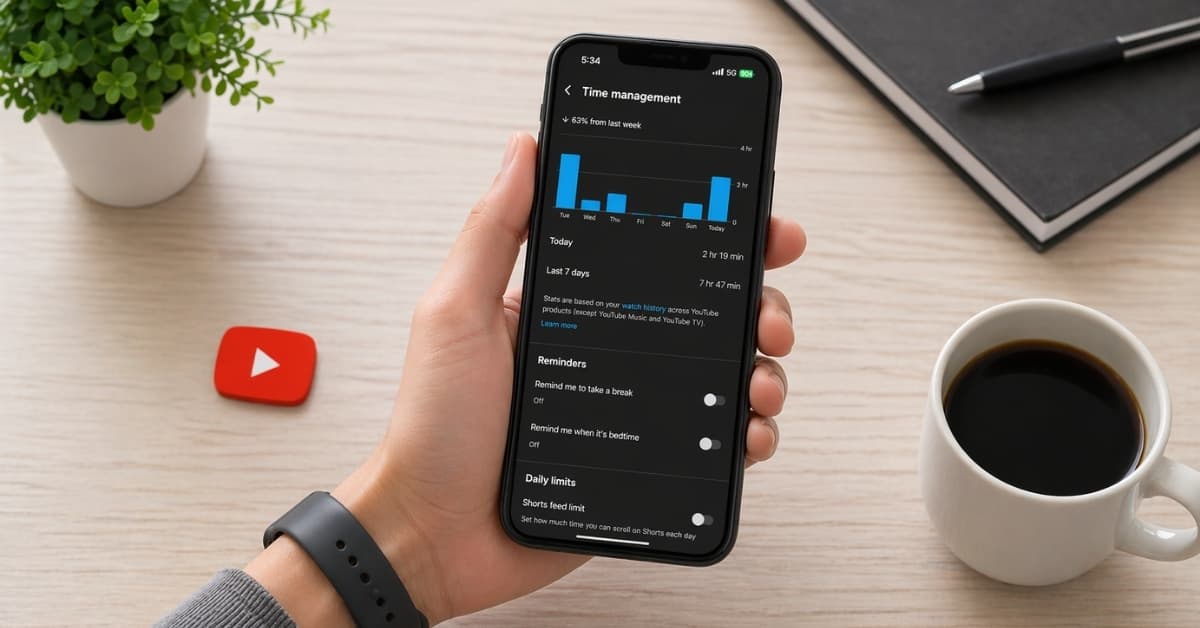
YouTube has added a feature inside its Time Management settings that allows you to control how much Shorts content appears in your feed. While it’s not labeled as a direct “turn off” option, setting the Shorts feed limit to zero minutes effectively removes most Shorts from your experience. This is the closest thing to a ‘turn off Shorts’ button YouTube has ever offered.
Once enabled, Shorts stop dominating your home feed, and the app feels noticeably cleaner. Instead of being pulled into quick, repetitive clips, you start seeing more of the content you actually came for.
How to turn off YouTube Shorts
The process is straightforward, takes less than a minute, and the change is immediate and noticeable. Here’s how:
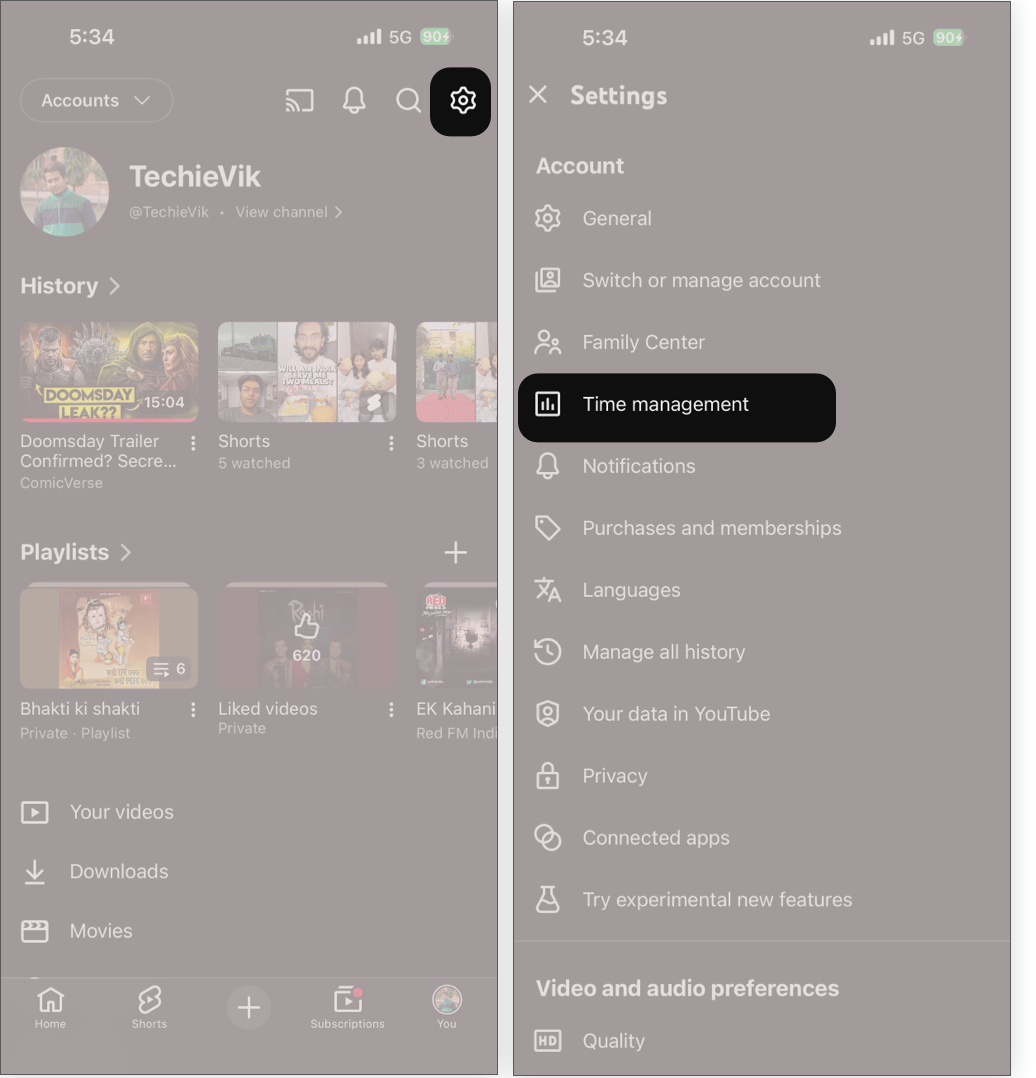
- Open the YouTube app on your phone.
- Here, tap your profile icon in the bottom right corner.
- Now, tap the Settings icon in the top right corner.
- Select Time Management.
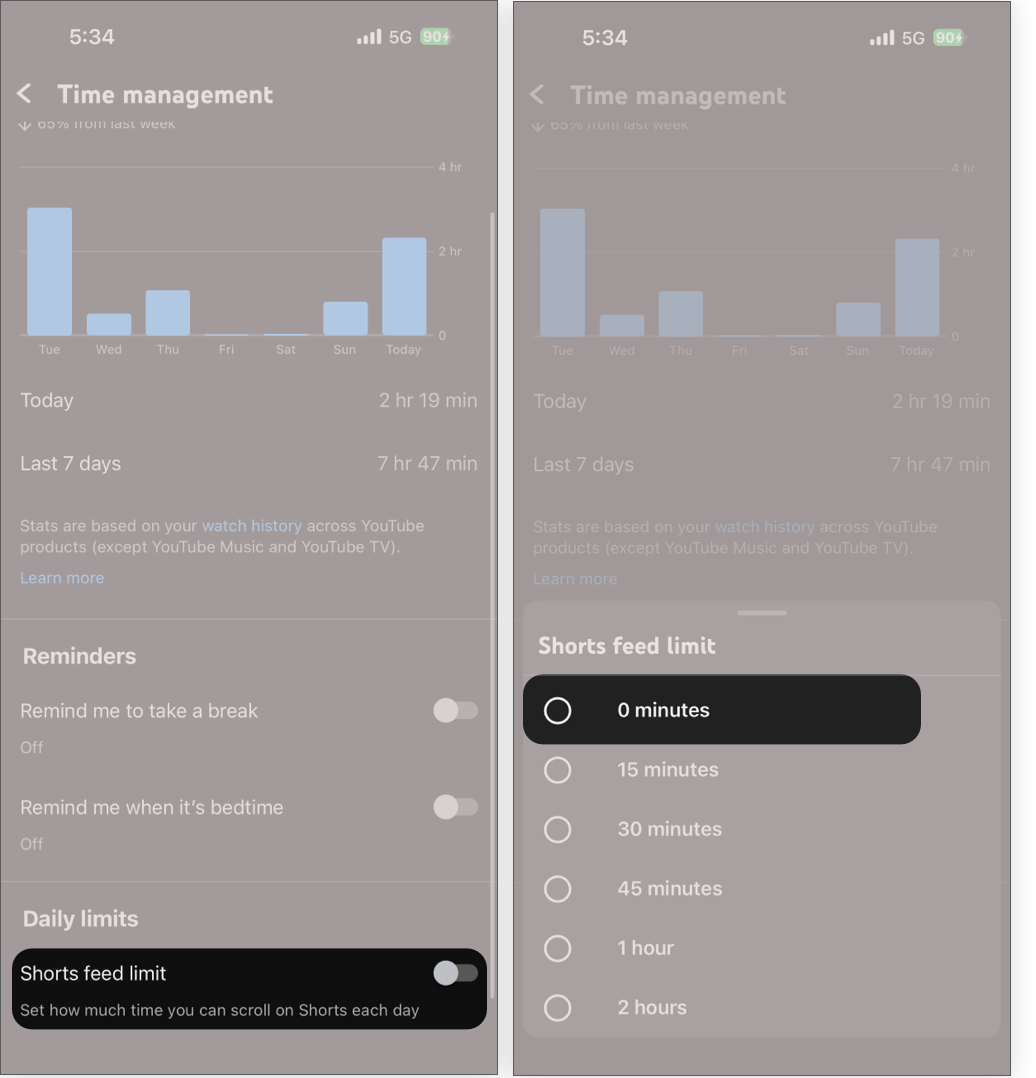
- Next, toggle on the Shorts feed limit under Daily limits.
- Choose the 0 minutes option.
What changes after disabling Shorts
Setting 0 minutes as the time limit for Shorts doesn’t completely remove Shorts from YouTube, but it does eliminate the most distracting part of the experience. Shorts will no longer flood your home feed, and the endless vertical scrolling loop is effectively cut off.
There are still a few cases where Shorts might appear, such as in search results or when accessed through direct links. However, these instances are far less intrusive compared to the default experience.
My experience after turning YouTube Shorts off
After using this setting for a couple of days, the difference was immediately noticeable. I wasn’t opening YouTube out of habit anymore, and when I did, I actually watched what I intended to watch. My screen time dropped naturally without any effort or external restrictions.
More importantly, the platform started feeling useful again. Instead of mindlessly consuming random clips, I was back to watching long-form videos that I had consciously chosen. It felt like a reset, both in terms of content and usage behavior.
You may like to read: Spotify vs YouTube Music: Quick comparison
What to do if Shorts still appear
If you still notice Shorts occasionally appearing in your feed, you can further refine your experience by:
- Marking them as “Not interested.”
- Avoiding opening Shorts links.
- Sticking to your subscriptions for a few days.
These small actions help the algorithm adjust and reduce the chances of Shorts showing up again.
Finally, a way to use YouTube intentionally
This update doesn’t remove Shorts entirely, but it fixes the part that causes the problem. Once the endless scroll is gone, YouTube stops pulling you in and starts behaving like a tool again. The difference is subtle at first, then obvious. You open the app, watch what you came for, and leave without getting sidetracked.
It’s not a perfect solution, but it’s he first one that actually changes how the app feels.
More Like this: