I always assumed that if I selected a route in Google Maps and shared it with someone, they would see the exact same route. But that wasn’t always the case. Google Maps would sometimes suggest a completely different path, ignoring the shared route.
It was most irritating when I was planning a scenic drive and wanted to avoid certain roads.. After experimenting with different options, I found a simple trick that stops Google Maps from changing my route.
Here’s how to keep Google Maps on a specific route.
Why Google Maps changes shared routes
Here’s the biggest misconception I had: choosing a route isn’t the same as locking a route. When Google Maps shows multiple ways to reach a destination, it lets you select the one you prefer. Naturally, I assumed that the selection would only be shown when I shared it.
But Google Maps is fundamentally designed for dynamic navigation. It continuously evaluates traffic, road conditions, closures, and other factors that might make another route more efficient. So when someone opens a shared Google Maps route, the app can still recalculate the journey.
Normally, that’s actually useful. If there’s a major accident ahead, I don’t want Google Maps blindly following an outdated plan just because I selected that road three hours ago. But things become problematic when the route is important.
Imagine planning a scenic road trip. You deliberately choose a beautiful route through small towns and viewpoints. Google Maps then decides that a boring highway will save 12 minutes. Technically, Google Maps did its job. But it completely missed the point.
The same thing happens when you:
- Want to avoid a stressful highway.
- Know a particular road is easier to drive.
- Plan a motorcycle ride.
- Want everyone in a convoy to follow roughly the same path.
- Need to pass through specific towns.
- Prefer a familiar route over Google’s suggested shortcut.
Google Maps is excellent at answering, “What’s the fastest way to get there?” But sometimes that’s not the question I’m asking.
The simple trick that finally worked: Adding stops along the way
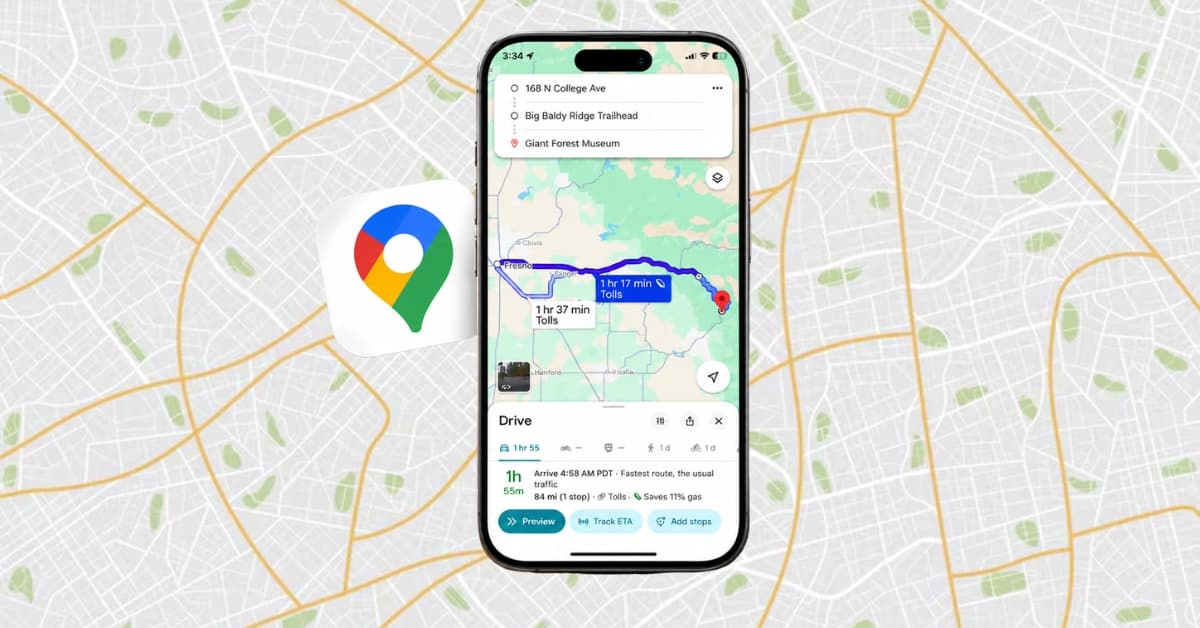
The solution was surprisingly obvious once I understood how Google Maps thinks. Instead of creating a route with the starting and final destination points, you need to create something more like this: Start → Stop 1 → Stop 2 → Final Destination. Those extra stops act as strategic waypoints.
Google Maps now has to calculate a journey that reaches those locations. It still has the freedom to choose roads between them, but it has significantly less freedom to suddenly send the entire trip in a completely different direction. We will see how to customize and lock a Google Maps route in the next section.
Let’s say you are planning a trip between two cities but specifically want to avoid the toll highway. In that case, I will add one or two towns along that custom route as intermediate stops, rather than endlessly trying to force Maps onto the preferred route.
Now the navigation can’t simply ignore those places and send you straight down the highway. The route has to pass through them. The best part is that the stops don’t necessarily have to be places where you plan to spend time. Sometimes, they’re simply guideposts.
How do I choose the right waypoints?
If you add a stop point every few kilometers, your route becomes unnecessarily complicated. The goal isn’t to micromanage Google Maps into following every turn. It’s to give it just enough direction to keep it close to your intended route.
I’ve found that the best waypoints are the ones placed at decision points. These are the places where Maps is most likely to betray my original plan.
For example, I look for:
- A town I specifically want to pass through: If Maps keeps trying to route me around a town, I simply add that town as an intermediate stop. Now it becomes part of the journey rather than an optional detour.
- A point before an unwanted highway: Google Maps might follow your preferred road for most of the journey before suddenly rerouting you onto a highway. In that case, add a waypoint shortly before the point.
- A landmark on the scenic route: I always add a viewpoint, popular attraction, café, petrol station, or other landmark along the road I plan to take. Even if I don’t plan to stop there for long, it helps anchor the route in the right direction.
- A major junction: Sometimes you don’t care about the exact road leading to or from a location. A strategically placed waypoint near a major junction can be enough to keep the route on track.
My simple rule is to add the minimum number of stops needed to influence the journey. If you are confused, you can use the Gemini AI-powered Ask Maps feature for route-planning tips.
How to set up a shareable route that stays on track
Once you start using waypoints, making Google Maps follow a specific route becomes pretty straightforward.
Here’s the process I use:
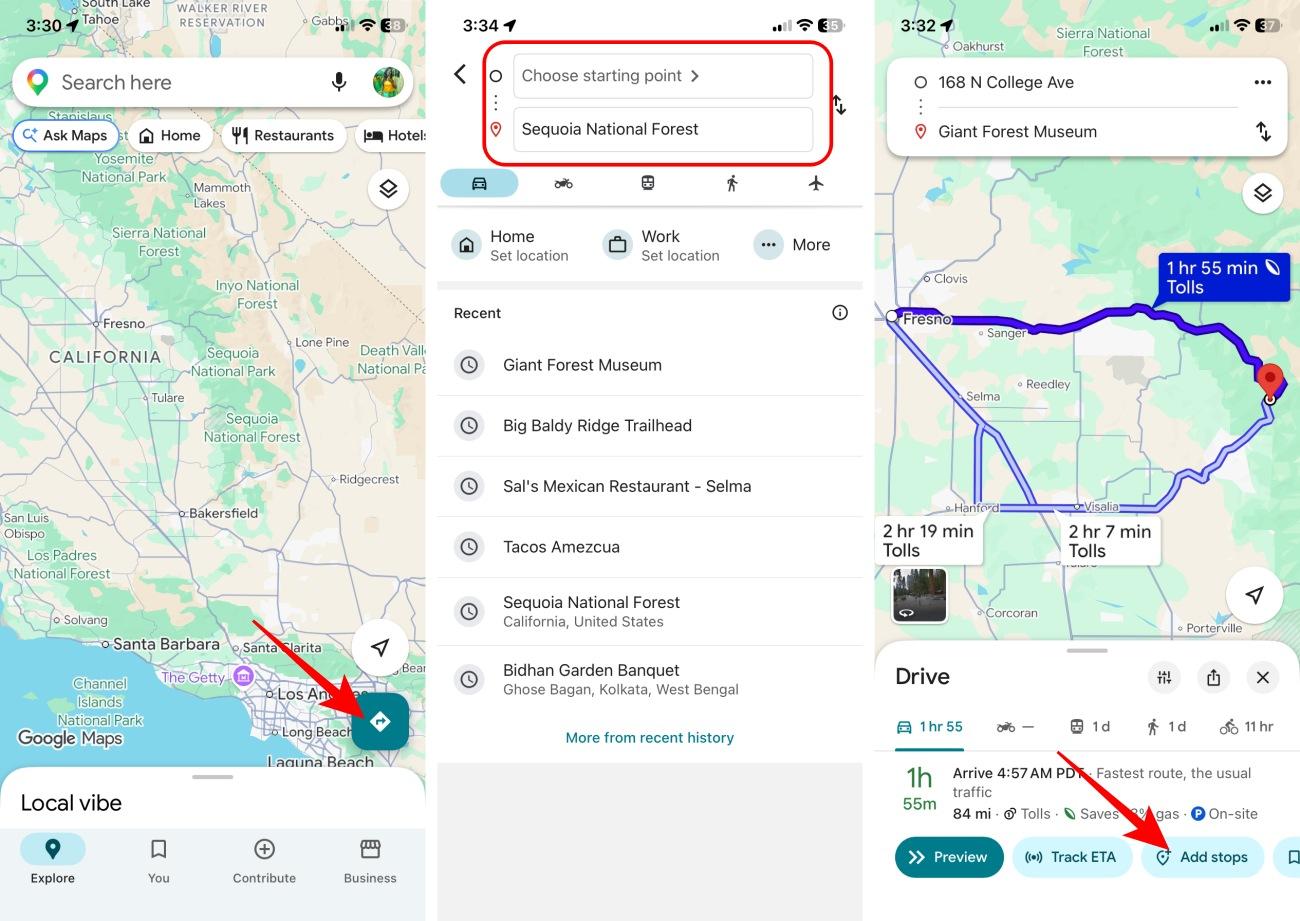
- Open Google Maps and tap the navigation icon.
- Now, enter your starting point and final destination as usual.
- Google Maps will suggest multiple routes. You may customize it by selecting options such as Avoid tolls and Avoid highways. Now, choose the route that makes sense for you.
- Tap Add stops at the bottom.
- Maps suggests Points of interest and Top restaurants along the way. Choose among them or search for a location you want to drive by.
- Repeat the above step to add multiple stops in order.
- Now, review the entire route to avoid an unnecessary detour.
- Once the route includes your key waypoints, tap the share button and send the directions to your family or friends.
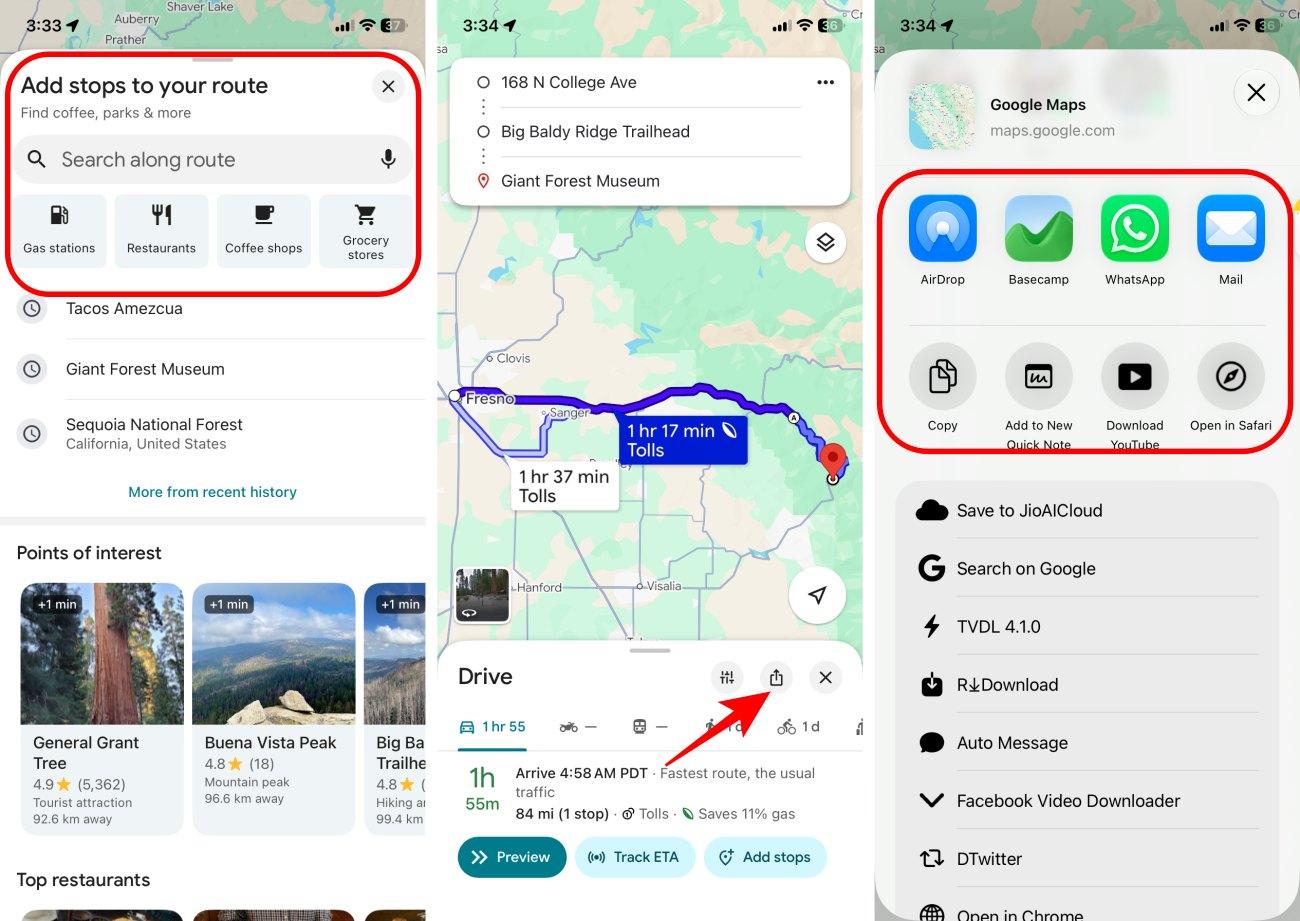
When they open the link, Google Maps will show the multi-stop route you created.
This isn’t a perfect route lock, and that’s actually okay
I want to be very clear about one thing: adding stops does not permanently lock Google Maps onto every road you choose. And honestly, you wouldn’t want it to. If a road suddenly closes, it will be a no-brainer for Google Maps to stubbornly insist on driving into a barricade just because you planned that route yesterday.
Navigation needs flexibility. So, even with intermediate stops, Google Maps can still respond to:
- Traffic jams
- Road closures
- Accidents
- Construction
- Temporary restrictions
- Changing road conditions
But because the app still needs to reach my chosen waypoints, the overall journey is much more likely to stay close to my original plan.
When should you use this trick?
I don’t use waypoints for every Google Maps journey. If you’re commuting somewhere familiar or simply want the fastest route, follow Google Maps rerouting suggestions.
But I absolutely use this trick when the journey matters as much as the destination.
- Scenic road trips: If you’re planning a road trip specifically to enjoy the drive, don’t let Google Maps optimize all the interesting parts out of it.
- Group drives and convoys: When multiple people are driving separately, sharing a route with strategic waypoints gives everyone a clearer structure to follow.
- Motorcycle rides: The curves, roads, scenery, and stops are often the entire reason for the ride. Therefore, letting an algorithm constantly optimize the route for speed makes very little sense.
- Avoiding roads you don’t want to take: Maybe there’s a highway you dislike or a particular road is stressful to drive on. Waypoints along the way save you from having to manually navigate every turn.
- Routes through specific towns: If I need to pass through a particular town for food, fuel, sightseeing, or any other reason, adding it as a stop makes the route much more predictable.
Prevent Google Maps from rerouting!
Google Maps is great at finding the fastest route, but the fastest route isn’t always the one you want to take. I learned that simply selecting a route doesn’t guarantee that it will stay the same when I share it.
Adding a few strategic stops along the way is a simple workaround that gives you more control over the journey. It doesn’t completely lock the route, but it makes it much harder for Google Maps to take the trip in a completely different direction.
Have you ever had Google Maps completely change a route you carefully planned? I’d love to know how you dealt with it.
You might also like: