My Google Photos library is a mess, and I’m pretty sure I’m not alone in this. We all have thousands of photos, including vacation pictures, family memories, screenshots, duplicate shots, and random images we probably no longer need. I’ve always planned to organize them properly, but honestly, who has the time?
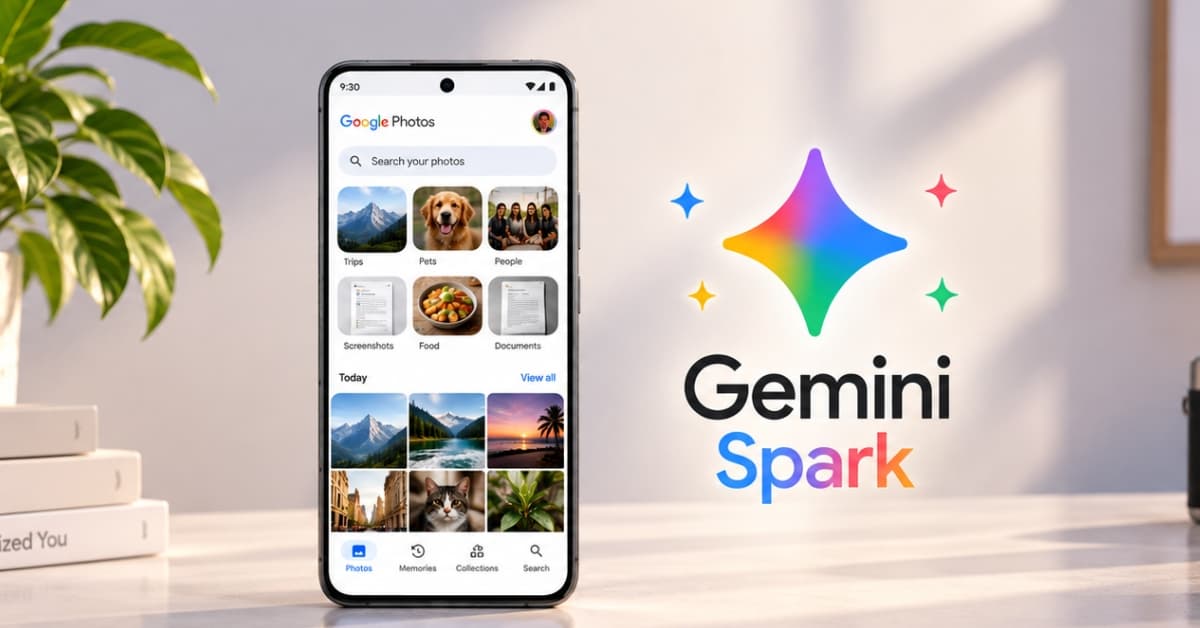
That’s why Gemini Spark caught my attention. Instead of manually sorting photos, creating albums, finding the best shots, and editing images one by one, I can simply tell Gemini what I want done. It can handle multiple photo-related tasks as part of a single workflow.
And honestly, this feels like one of the first genuinely useful AI agents for everyday users. Here’s how to use Gemini Spark with Google Photos.
What is Gemini Spark, and why does it matter for Google Photos?
Gemini Spark is Google’s agent-style AI experience designed to handle tasks and workflows rather than simply answer questions. The difference is important.
Usually, you may ask, “Find my photos from my trip,” and Gemini gives you an answer. But a Gemini Spark workflow can look more like this: “Find the best 15 photos from my trip, enhance the beach photos, create a shared album, and draft an email with the album link.“
Instead of helping me perform each step, Gemini Spark can connect those steps into one workflow. That’s exactly what makes its Google Photos integration more interesting.
Google says Spark can combine actions such as searching and curating photos, editing images, creating albums, sharing them through connected apps, extracting text from images, and scheduling recurring workflows. Overall, it makes turning a giant pile of memories into something useful effortless.
Why I stopped organizing photos manually
I used to think organizing photos was one of those small digital habits I should develop. For example, create albums after every trip, delete blurry photos, separate screenshots from camera pictures, pick the best images, rename important albums, etc.
The problem? Every single one of those tasks sounds easy on its own. Together, they become an exhausting digital chore.
Let’s say you return from a week-long vacation with 800 photos and videos.
Before Gemini Spark, organizing them properly would mean:
- Opening Google Photos
- Searching through hundreds of images
- Identifying duplicates
- Choosing the best shots
- Editing selected photos
- Creating an album
- Naming the album
- Adding photos
- Creating a shareable link
- Sending it to friends or family
All of these tasks seem boring and daunting.
Gemini Spark could finally change that by taking a natural-language request and turning it into an actual workflow instead of giving me another feature I have to learn.
The Gemini feature I use most: Finding my best photos automatically
If I had to pick the feature I’m most excited about, it wouldn’t be AI photo editing. It would be finding my best photos and videos.
Gemini Spark can search and curate photos and videos based on subjects, locations, dates, or events. It can also identify the best shots and filter duplicates. This sounds simple, but I think it solves one of the biggest problems with smartphone photography.
We take too many photos and end up with dozens of versions of essentially the same moment. And choosing the good photos afterward looks like a serious manual task. Because they get buried between screenshots, duplicates, accidental photos, and blurry shots.
That’s where I see Spark becoming genuinely useful.
You can give it prompts like:
- Find the best photos from my birthday celebration last month and remove obvious duplicates from the selection.
- Find my best landscape photos from 2026.
- Pick the 20 best family photos from our vacation.
Gemini Spark can also create and organize albums
Creating photo albums is another task I always intend to do and almost never finish.
Gemini Spark can create new private or shared albums and save curated photos into them. This opens up some genuinely useful possibilities.
For example:
- Create an album with the best photos from my London trip.
- Find all photos from my sister’s wedding and organize them into an album.
- Create a private album with my favorite food photos from this year.
The feature becomes more interesting when I combine organization with other actions.
Instead of simply saying, “Create a vacation album,” I could theoretically create a full workflow: “Find the best 50 photos from my recent vacation, enhance the landscape photos, create an album called Summer Escape 2026, and make it ready to share.“
That’s the point at which Gemini Spark starts to feel less like an AI chatbot and more like a digital assistant.
Google also says new albums created by Spark are private by default, which is reassuring. Gemini asks for permission before sharing an album.
The interesting part: Gemini can handle multi-step photo tasks
This is where I think people might underestimate the Google Photos integration. AI search, AI editing, and automatic album creation are useful. But multi-step workflows are where everything starts becoming significantly more powerful.
I tried this feature using these steps:
- Launch the Gemini mobile app or go to gemini.google.com.
- Tap the Menu icon at the top and select Spark.
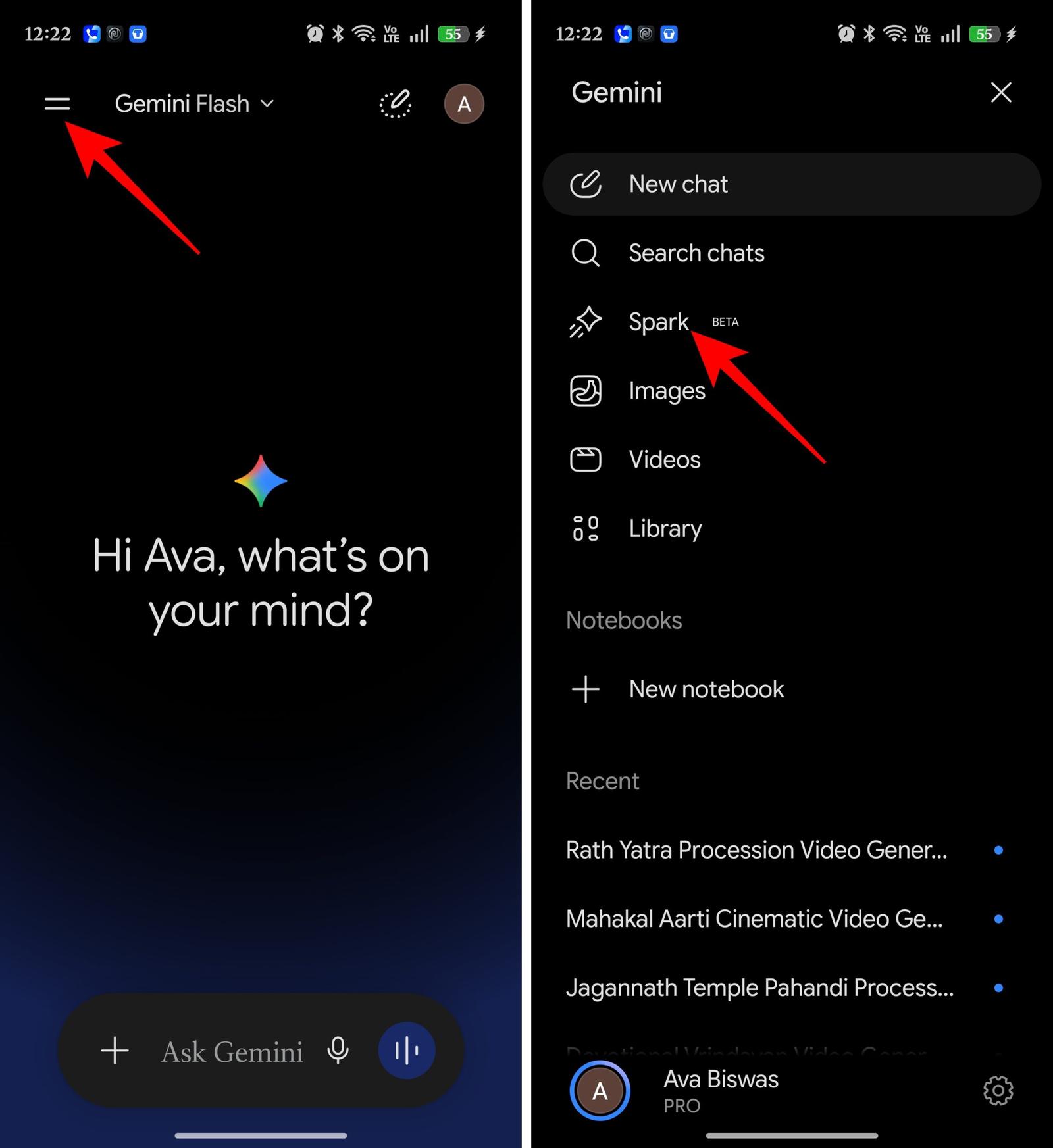
- In the text box, enter this prompt: Find the best 15 photos from a trip, enhance specific images, add them to a shared album, and draft an email containing the link.
- Tap the Submit button.
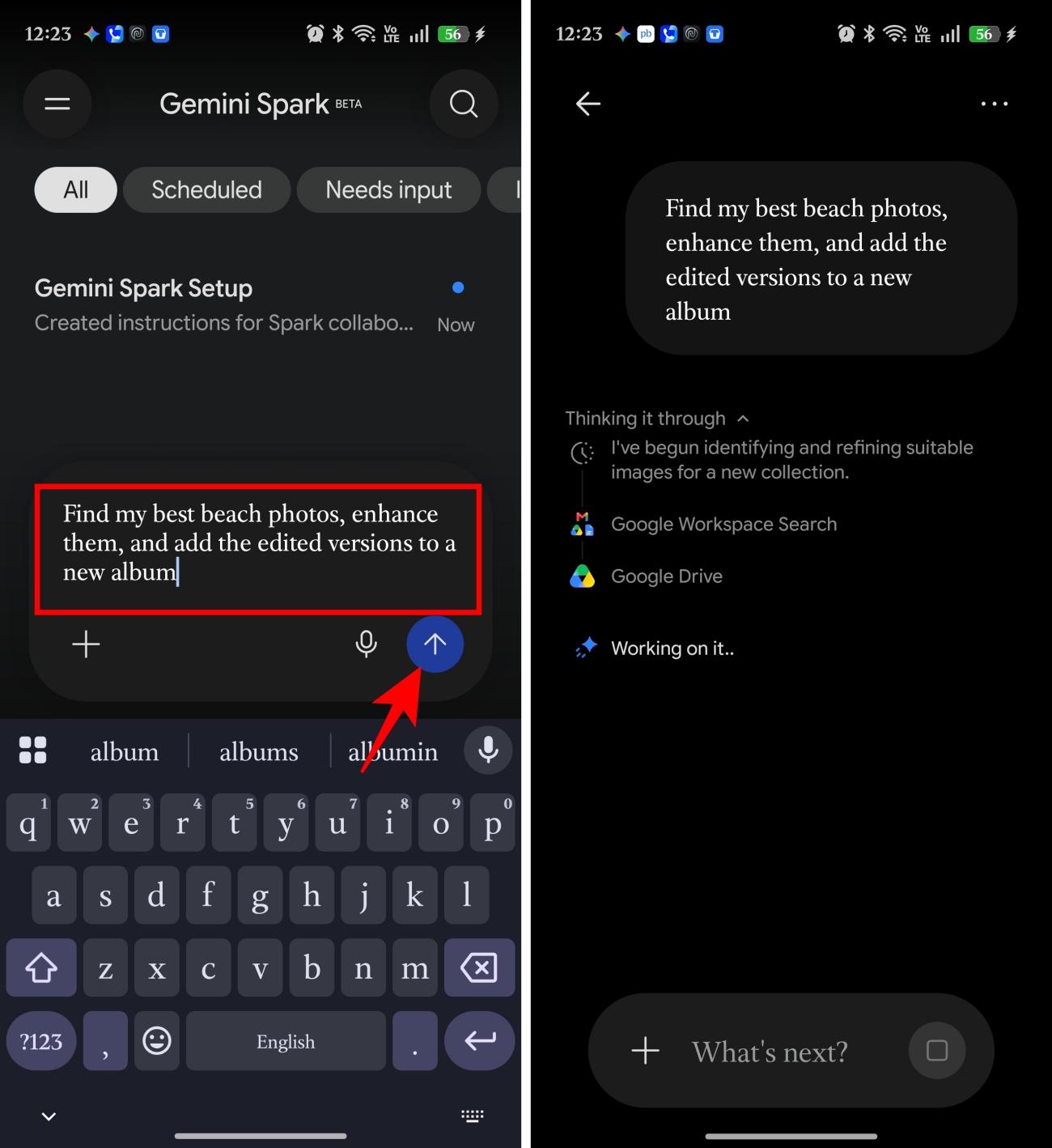
That workflow crosses several traditionally separate tasks: Google Photos → Image selection → Photo editing → Album creation → Sharing → Gmail.
Normally, I would need to manually jump between multiple screens and apps. Gemini Spark connects them.
Here’s another example I find genuinely interesting: Find the concert schedule in a photo and cross-reference it with my Google Calendar to determine which date I’m available.
Google specifically highlights workflows where information extracted from images can be used across connected apps.
I didn’t expect scheduled photo organization to be so useful
Gemini Spark can run recurring workflows for Google Photos in the background. For example, you can ask Gemini to automatically create monthly highlight albums or sort photos of receipts.
This is probably the feature I’d experiment with the most. Photo organization fails when it becomes a one-time project. Within a few months, it would become messy again. Recurring automation solves that problem differently.
For example:
- Every Sunday, find my best photos from the previous week and add them to a weekly highlights album.
- At the end of every month, create an album containing my favorite family photos.
- Every week, find photos of receipts and organize them separately.
That last example might sound boring, but I actually think it’s incredibly practical.
My Google Photos library often doubles as temporary storage for things like receipts, bills, product labels, event posters, travel confirmations, and restaurant menus. I take photos because it’s faster than writing things down. Then those images disappear into my library. Scheduled automation could finally give those forgotten images a purpose.
Photo editing becomes part of the workflow instead of a separate task
One thing I particularly like about the Gemini Spark approach is that editing doesn’t have to be a separate destination anymore.
Normally, my workflow involves finding a photo, opening the editor, adjusting the image, saving, going back, and repeating.
With Gemini Spark, editing can become one step inside a larger workflow. It can enhance images, apply quick fixes, create stylized images, and generate collages or other visual creations. Importantly, edits are made to a new copy rather than overwriting the original image.
That last part matters a lot to me. I love experimenting with photo editing, but I don’t want an AI agent permanently modifying my original memories.
Imagine this request: Find my best beach photos from last month, brighten the underexposed ones, and add the edited versions to a new album.
That’s far more useful to me than opening an AI editor and individually experimenting with every image.
Things I would actually automate with Gemini Spark
I can think of dozens of theoretically impressive things Gemini Spark could do with Google Photos.
But these are the automations I would actually use.
1. Weekly photo highlights
I would set up something like: Every Sunday, find the best photos and videos I captured that week and create a private weekly highlights album.
This would essentially create a visual diary without me having to maintain one.
2. Travel albums automatically
After returning from a trip, you may create a workflow such as: Find the best photos from my recent trip, filter duplicates, enhance the landscape shots, and organize everything into an album.
Honestly, this alone could save hours.
3. Screenshot cleanup
My photo library is full of screenshots I needed once and never looked at again.
I would love to experiment with finding screenshots containing receipts, booking information, and important documents and organizing them separately.
Google says Spark can extract text from images and use that information in broader workflows, which makes this type of automation particularly interesting.
4. Monthly family albums
This might be one of the most meaningful uses.
Enter this prompt: At the end of every month, find the best family photos and create a monthly memories album.
Instead of discovering random memories years later, you would have an automatically generated, organized timeline.
5. Food photo collections
I know this sounds incredibly specific, but I take far too many photos of food. Google’s example of automatically creating a weekly food-photo collage is actually one of the more fun use cases.
Something like: Every weekend, find my best food photos, create a collage, and add them to a weekly album.
6. Event sharing
This is where multi-step automation becomes genuinely convenient.
Find the best photos from yesterday’s party, create a shared album, and prepare the link to send to everyone.
I wouldn’t necessarily trust an AI to send something automatically without reviewing it. But letting it do everything up to the final confirmation? That’s exactly the kind of automation I want.
Privacy concern: Giving AI complete control of your memories
Here’s where my excitement about Gemini Spark becomes more complicated.
Your Google Photos library might be the most personal digital archive you own. It contains things you intentionally saved or completely forgot were there, including family moments, screenshots, documents, locations, events, and potentially sensitive information captured in photos.
So while I find Gemini Spark’s capabilities exciting, I don’t think users should casually connect an AI agent to their entire photo history without understanding what they’re allowing.
Thankfully, Google has built some guardrails into the workflow. Original photos remain untouched during editing because Spark creates a copy, newly created albums are private by default, and Gemini asks for confirmation before actions such as sharing albums or sending emails.
Who can use Gemini Spark with Google Photos?
This is the part that will disappoint a lot of people.
Right now, Google Photos integration in Gemini Spark is rolling out gradually, so not everyone will see it immediately. Moreover, users need to meet specific requirements such as:
- Be 18 years or older
- Be located in the United States, subject to regional availability restrictions
- Be eligible to use Gemini Spark with Google AI Pro or Ultra subscriptions
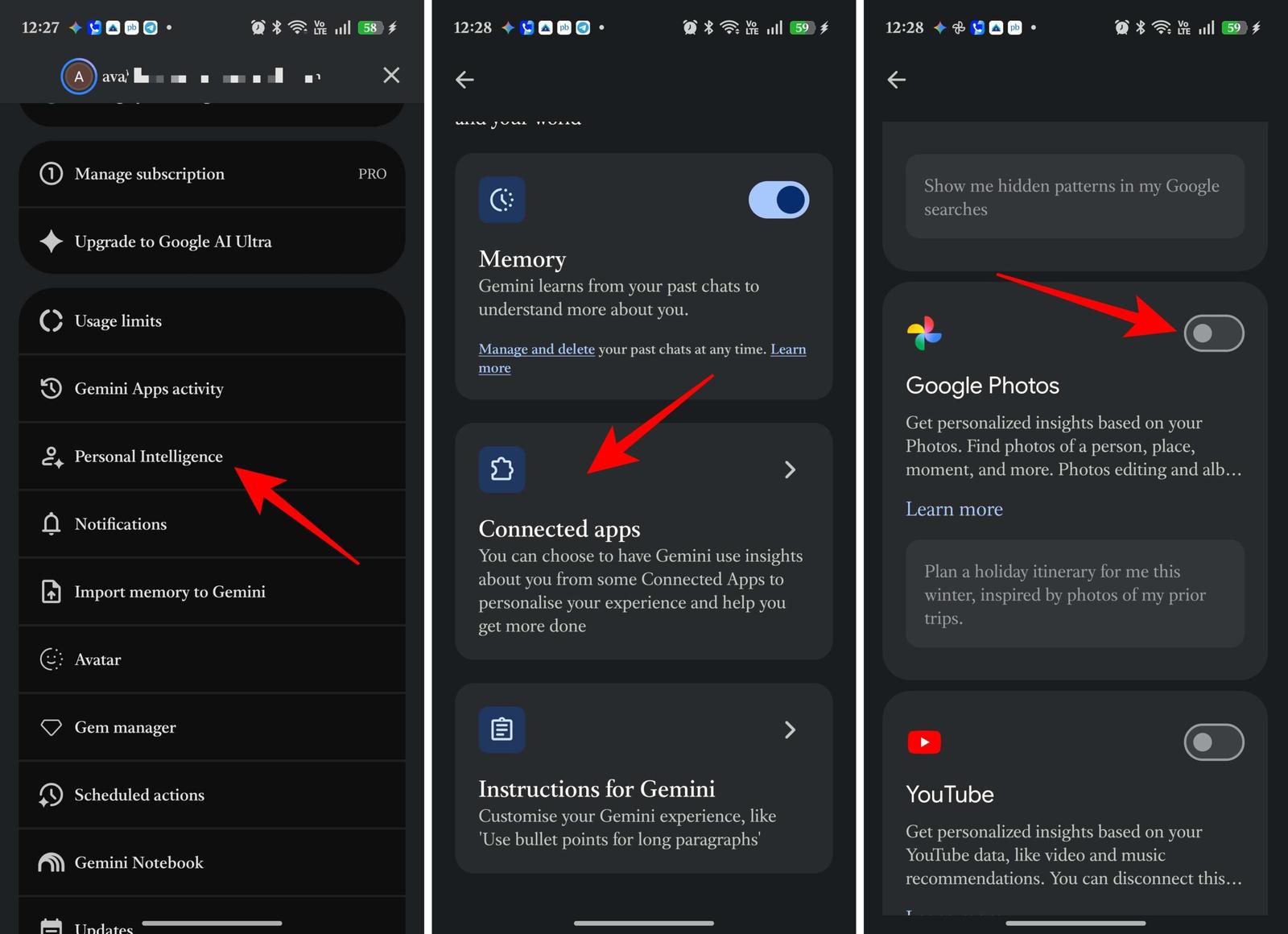
- Toggle on Google Photos in the Gemini app through Settings > Personal Intelligence > Connected apps > Turn on Google Photos
- Use the feature in English
- Access it through the Gemini mobile app or Gemini on the web
The availability limitation is frustrating, especially since this feels like a feature that could be useful to almost anyone with a large Google Photos library. But given how much personal data and automation is involved, I also understand why Google may be rolling it out gradually.
Gemini Spark makes managing Google Photos easier!
I’ve used plenty of AI features that felt impressive for five minutes and then quietly disappeared from my workflow. This one feels different.
Not because Gemini Spark can magically edit photos, create albums, or search through my Google Photos library. Those are useful features individually, but they’re not the real story. The best part is that Gemini Spark can connect them. You can describe an outcome instead of manually executing every step required to reach it.
Would you trust Gemini Spark to organize your entire Google Photos library, or would you rather keep control of your memories yourself? Let me know in the comments.
You may like to read: