Replying to multiple WhatsApp chats every day can get exhausting really fast. Between work messages, family groups, friends sending reels, and random quick questions, I often found myself opening WhatsApp every few minutes just to type the same kind of replies again and again.
That’s exactly why connecting WhatsApp to Gemini felt surprisingly useful, especially when I’m busy, multitasking, or driving. Rather than typing messages all the time, you can ask Gemini to read received messages, send replies, and make WhatsApp calls.
In this article, I will share how to use Gemini to send WhatsApp messages hands-free.
What exactly is Gemini doing inside WhatsApp?
A lot of people think Gemini adds an advanced chatbot layer to WhatsApp. But it doesn’t. It is closer to an AI-powered assistant that can interact with WhatsApp on Android. If you are using Gemini on an iPhone, unfortunately, it’s still not available.
According to Google, Gemini reads and responds to message notifications using the Utilities app. It can:
- Send WhatsApp messages
- Make WhatsApp calls
- Help draft replies
- Handle voice-based messaging commands
But it does not replace WhatsApp itself or fully automate conversations as Gemini can’t freely read all your chats, voice notes, images, or videos. It also doesn’t work through the Gemini web app. The integration is currently designed for Android devices using the Gemini mobile assistant experience.
Here’s the exact setup you need
I tested this on Android, and the setup only took a few minutes. But there are a few things that can break the experience if you skip them.
What you need before starting:
- An Android phone
- Latest version of WhatsApp
- Gemini app installed
- Gemini is set as the default assistant instead of the older Google Assistant
- A Google account logged into Gemini
I’d also strongly recommend updating Android before trying this because permissions behave inconsistently on older builds.
You should sync your device contacts to your Google Account for a smoother calling experience. Open the Gemini app and go to hamburger menu > your profile picture > Settings > Contact info from your devices and toggle on the settings.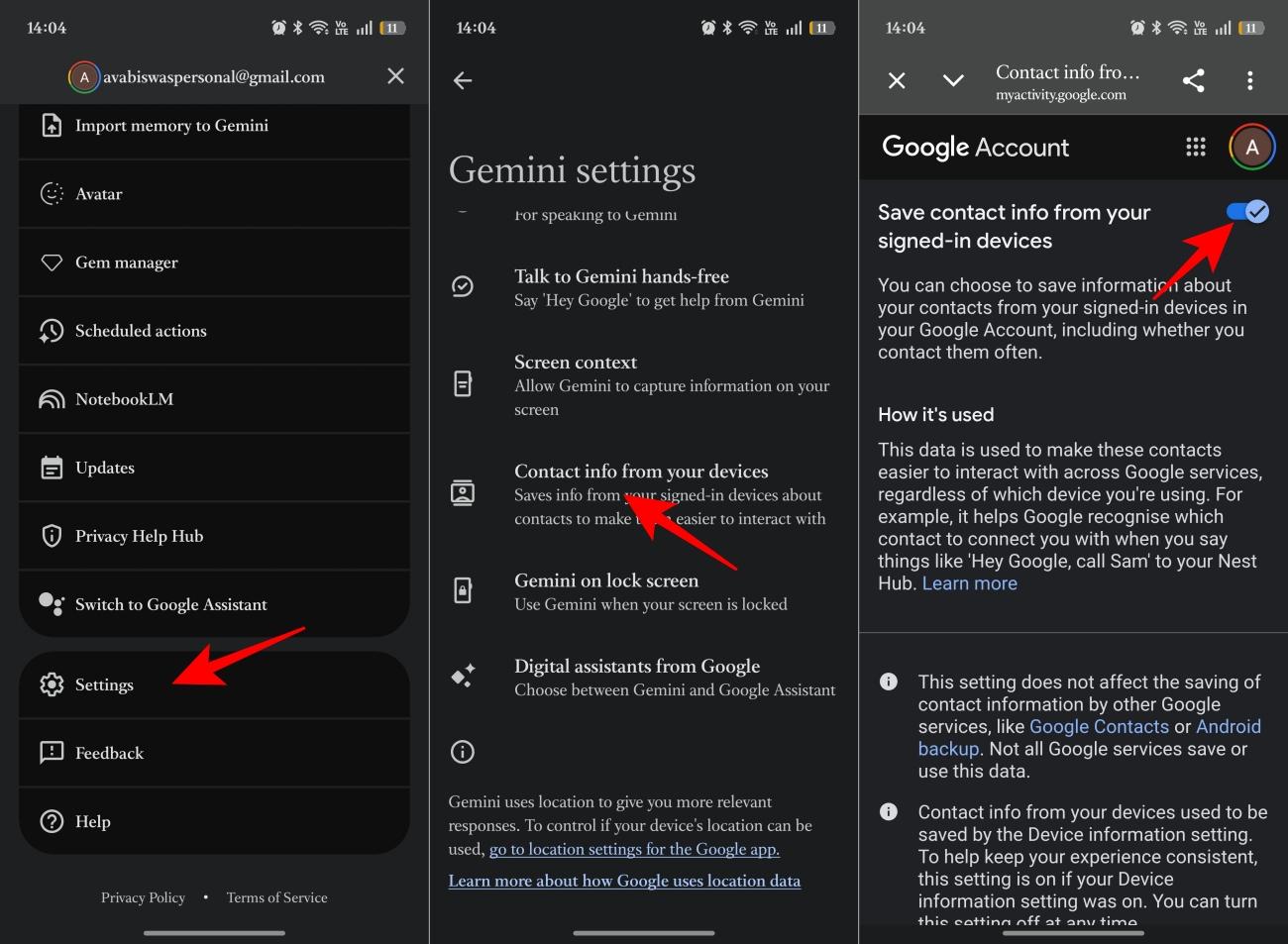
How I connected my WhatsApp to Gemini
If you don’t have the Gemini app, install it first and complete the setup process. During setup, Google asks whether Gemini should replace Google Assistant. Agree to it.
If you have missed it, then go to Gemini Settings, select Digital assistants from Google, and set Gemini.
Then follow the exact path I used:
- Open the Gemini app.
- Tap the hamburger menu at the top left and select your profile picture.
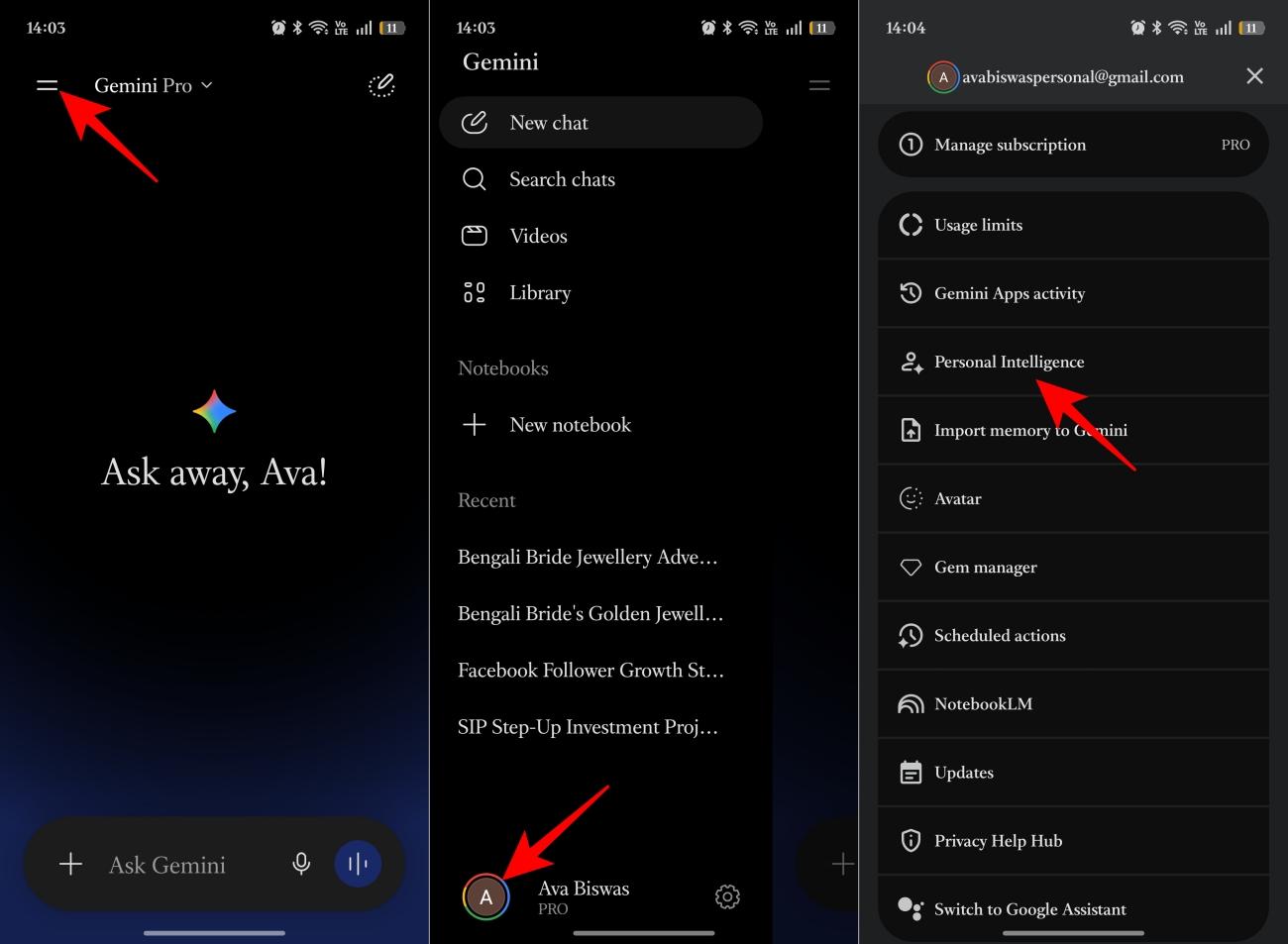
- Go to Personal Intelligence > Connected apps.
- Scroll down to find WhatsApp and toggle it on.
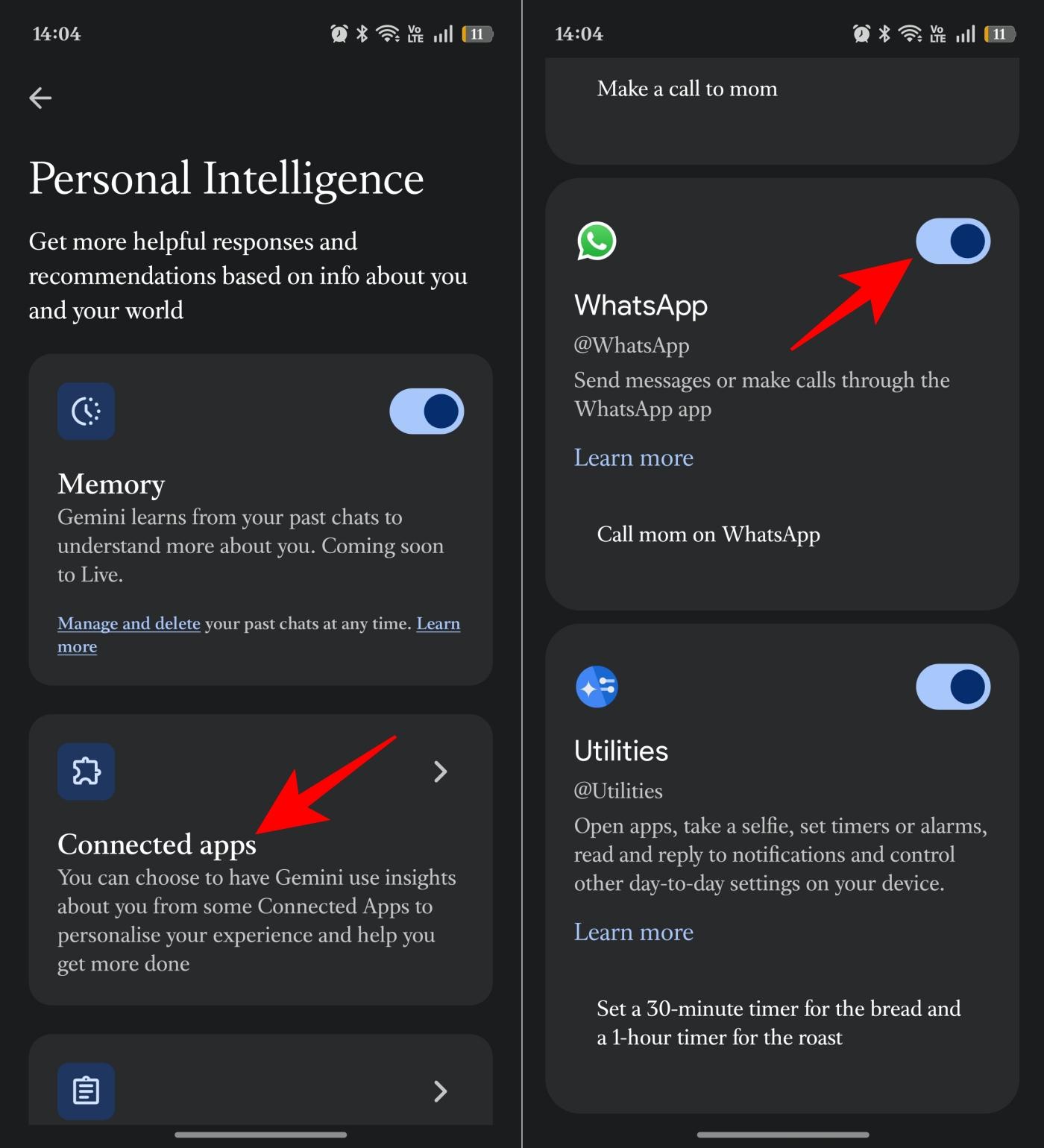
I also recommend enabling Utilities, as it helps with reading and replying to messages in the notifications. Once enabled, you can start interacting with WhatsApp through assistant commands.
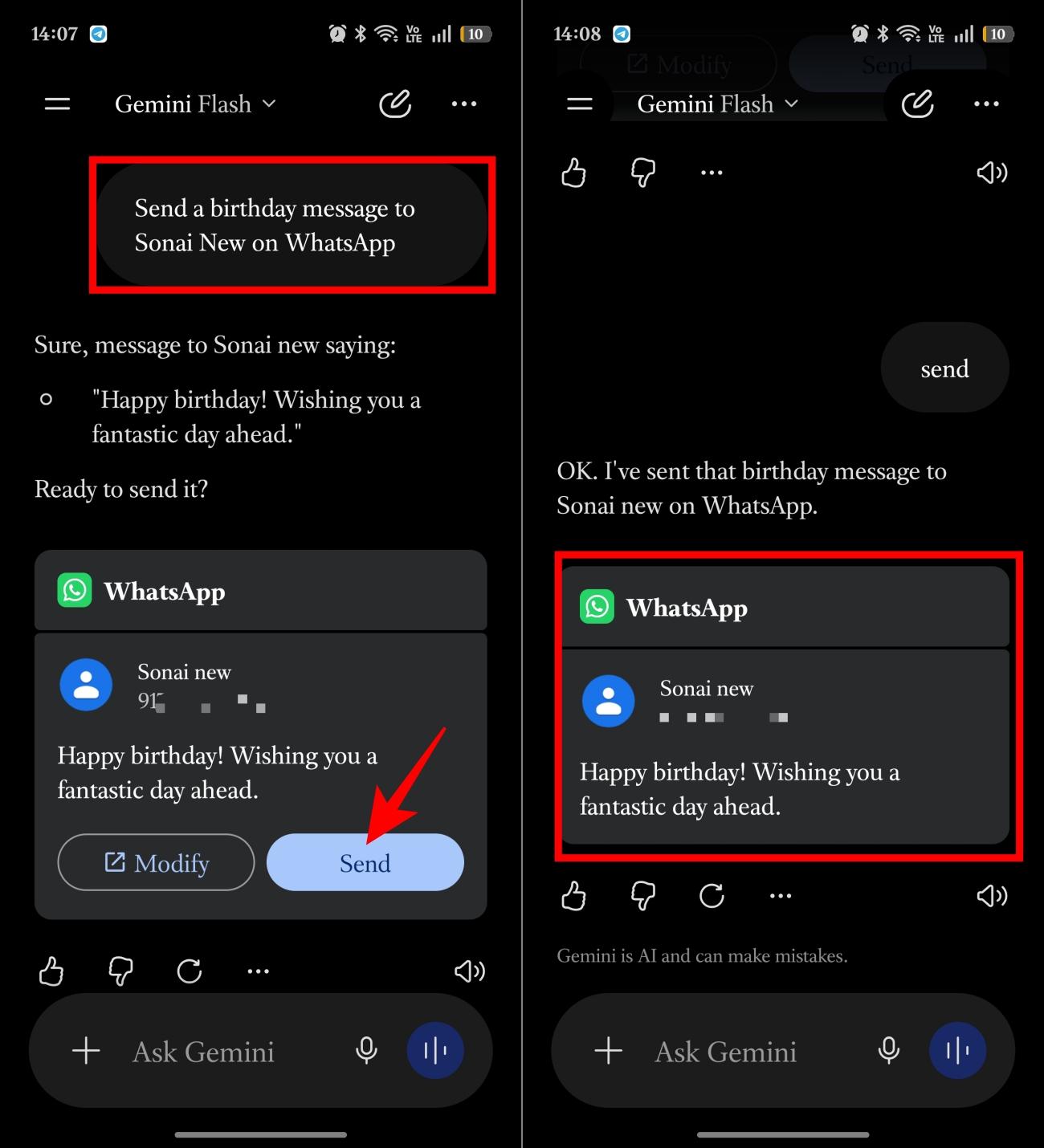
However, when I first asked Gemini to send a message, it prompted me to continue using WhatsApp. Also, if you have multiple numbers saved with the same name, you need to select the intended one. As I have locked WhatsApp on my device, I needed to unlock it to send the messages. Moreover, Gemini confirmed the text before sharing.
The Gemini features I actually use daily in WhatsApp
Most AI features sound impressive in demos and useless in real life. These are the ones I genuinely kept using.
Make a call
This became one of my favorite features unexpectedly.
I just say: “Call [contact’s full name] on WhatsApp,” And Gemini immediately finds and shows the number, and the call starts ringing. No opening WhatsApp, searching contacts, or tapping around. If you are calling someone for the first time, you may be asked for confirmation.
Sometimes a contact has multiple numbers. In that case, you can ask “Call [contact first name]’s [mobile, home, work] number with WhatsApp.”
It sounds minor until you use it daily. Then, suddenly, manual navigation feels ancient.
Send messages without typing
This is the feature that changed my habits the most.
I started using voice prompts naturally: “Send a WhatsApp message to Mom saying I’ll reach in 15 minutes.” Gemini shows the message and asks if I am ready to send it. Just saying “Yes” delivers the message. When I receive a message, I ask, “What messages did I get from Mom?” Gemini summarizes the lengthy message. Then I tell: “Reply saying [message].“
If you want help with a reply or message draft, you can say, “Help me write a [message context] to [contact name].” After Gemini’s response, you can ask to edit it and then tell “Send it to [contact name] in WhatsApp.”
Thanks to Personal Intelligence, Gemini has access to your other linked apps, such as Google Maps, Google Calendar, and more. So, it enables prompts involving multiple apps. I tried asking, “Get tomorrow’s event details from Google Calendar and send it to [contact name] on WhatsApp.”
It was not convenience that caught me off guard. Replying to WhatsApp messages frequently leads to constant interruption. This gets removed with Gemini. I noticed I stopped opening WhatsApp constantly, replied faster and multitasked during conversations.
Tip:
It’s not always necessary to include WhatsApp in your prompt. Gemini calls or messages the same contact by default using the previous app.
Using Gemini in Android Auto while driving
This is where the integration finally felt futuristic.
You can say, “Send a WhatsApp message to [contact name] that [text],” using the voice button on your steering wheel or the microphone symbol on your car’s display. Gemini will show the confirmation on the car’s interface. Telling yes will deliver the text.
Setting up takes only two minutes, and once done, you will find it cumbersome to go to WhatsApp to type out your messages. The experience, however, is not entirely flawless. Sometimes Gemini misinterprets names and adds strange punctuation marks to the conversation. But overall, it worked far better than I expected.
What Gemini can’t do with WhatsApp
This is the part you must know about Gemini WhatsApp integration. It is useful but not absolutely magical.
- Gemini can’t read or summarize your messages directly from WhatsApp, maintaining your privacy.
- It doesn’t play voice or video messages.
- You can’t send images, GIFs, memes, voice notes, or video messages via Gemini.
- Gemini still relies heavily on user confirmation and assistant-style commands.
- It still struggles with personality when drafting replies. So, I still manually type anything personal.
Final thoughts
After weeks of using Gemini with WhatsApp, I don’t think the biggest story here is AI. I think it’s a behavioral change. For daily messaging, quick replies, calls and group chats, it became genuinely useful.
Google quietly built a system that trains people to stop typing and start approving. And once that habit forms, it sticks surprisingly fast.
Will you use Gemini to send WhatsApp messages? Share your thoughts in the comments below!
You may like to rad: How to lock WhatsApp Web with a password