If you’re planning to install the iOS 27, you may want to wait a few minutes. Apple has changed how Shared Albums work, and one of the most useful iCloud storage tricks no longer works for new Shared Albums created after installing.
Until now, I’d move older photos and videos into a Shared Album and delete them from my Photos library once everything finished syncing. Whenever I needed those files again, I’d simply open the Shared Album. They were still available without taking up my personal iCloud storage. It almost felt like Apple had left a useful loophole open.
That workaround still works on iOS 26, but the current iOS 27 changes the rules for newly created Shared Albums.
Here’s everything you need to know.
How the Shared Albums iCloud storage trick worked
Apple originally introduced Shared Albums so people could share photos and videos with friends and family. Over time, many iPhone users realized they could also use them as a simple way to free up iCloud storage.
Whenever I needed to reclaim space, I’d create a Shared Album, upload older photos, screenshots, wallpapers, or downloaded videos, and wait for everything to finish uploading. Once the upload was complete, I’d delete those files from my Photos library.
The content remained accessible through the Shared Album whenever I needed it, but it didn’t count toward my personal iCloud storage. Since Shared Albums compress photos and videos, I never used this method for important memories or original-quality backups. Instead, it worked well for screenshots, wallpapers, downloaded media, and other files I simply wanted to keep without paying for additional iCloud storage.
What’s changing in iOS 27?
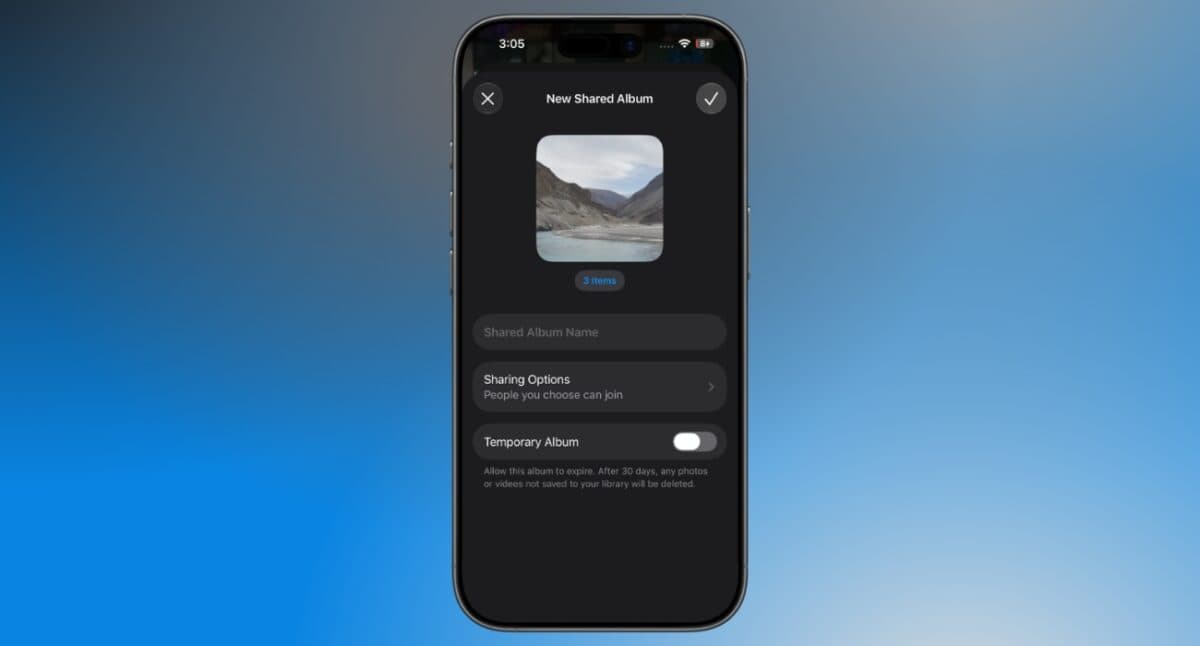
Creating a Shared Album in the current iOS 27 now begins with a choice. You can create either a temporary Shared Album that expires after 30 days or a permanent one.
The biggest change is that photos and videos added to permanent Shared Albums now count toward your iCloud storage, while temporary Shared Albums are intended only for short-term sharing.
If you’ve been using Shared Albums to store photos online without filling up Apple’s free 5GB iCloud plan, new albums created in iOS 27 no longer work the same way.
Create Shared Albums before updating to iOS 27
Fortunately, this change currently applies only to Shared Albums created in iOS 27. Based on my testing, Shared Albums created on iOS 26 continue to follow the previous behavior, and you can still add photos and videos to them after updating.
If you’re planning to install the latest iOS 27, I’d recommend creating any Shared Albums you think you’ll need before updating. You don’t even have to add photos immediately. As long as Apple continues treating them as legacy Shared Albums, you’ll still have somewhere to upload files without following the new storage rules.
Should you delay updating to iOS 27?
I wouldn’t avoid installing iOS 27 solely because of this change, especially if you’re eager to try Apple’s latest features. However, if you’ve been relying on Shared Albums to stretch Apple’s free 5GB of iCloud storage, I’d recommend creating any albums you expect to use before installing the iOS 27.
Every new permanent Shared Album counts toward your personal iCloud storage, effectively bringing one of the best free iCloud storage workarounds to an end.
Were you already using Shared Albums this way? Let me know in the comments below.
You might also like: