Every time I switched to a new Android phone, Google would faithfully restore dozens of apps I hadn’t touched in months, along with game data, shopping apps, and random utilities. On the other hand, there was no easy way to decide what actually deserved a spot in my cloud backup.
That always felt like a strange oversight. Android gives users endless ways to customize their phones, yet cloud backups remained an all-or-nothing affair. Thankfully, that’s finally changing.
Google is rolling out per-app backup controls, allowing Android users to choose which apps get backed up to the cloud. Here’s how the new backup settings for individual apps work and how to use them properly on Android.
What’s new in Android’s app data backup settings?
Until now, Android automatically backed up app data for all supported apps whenever Google Backup was enabled. If an app participated in Android’s backup system, its data was generally backed up automatically.
Now, Google is introducing individual toggles for SMS & MMS messages, Call history, Device settings, and individual apps. That means you can decide which data should be included in your Google backup. For example, if I don’t want a particular app’s data restored when I switch phones or reset my device, I can turn it off without affecting everything else.
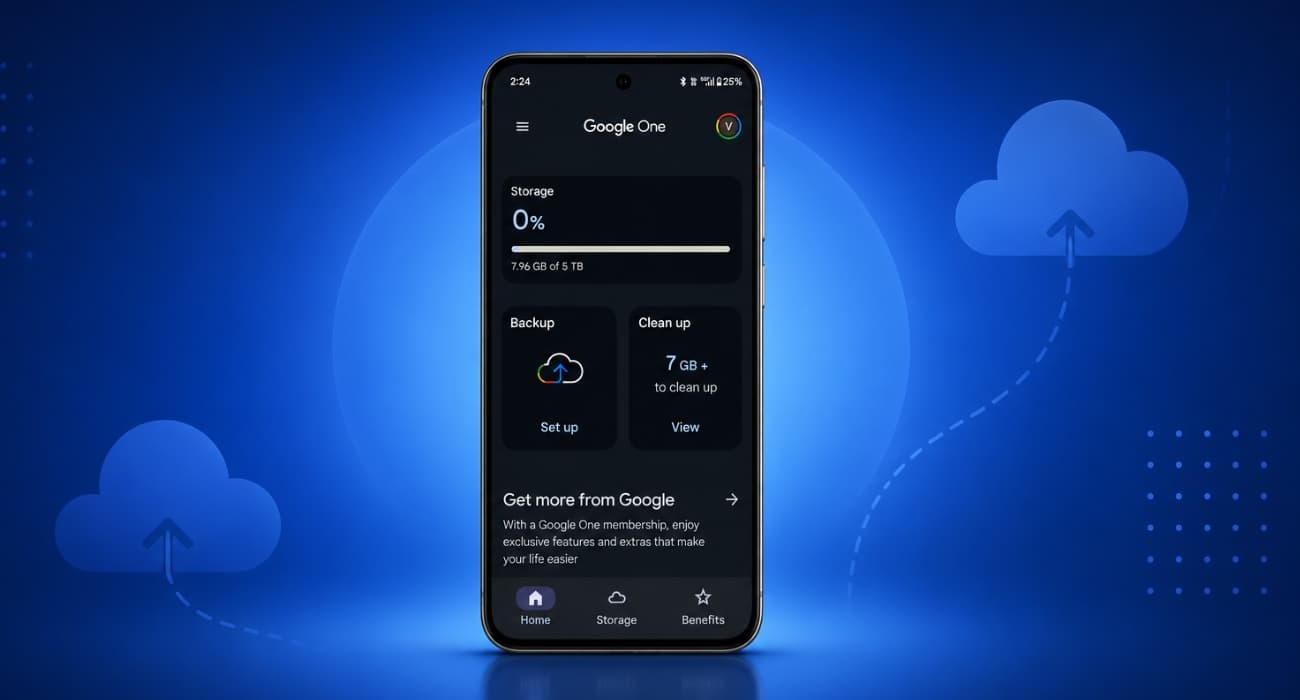
One thing worth keeping in mind is that all Android backup data now counts toward your Google Account storage quota. Previously, photo uploads and MMS attachments were counted, while most backup data was stored separately. But that’s no longer the case. Google says it may increase users’ backup size by about 40 MB on average.
So, as I was close to my free storage limit, these new per-app controls helped me reclaim some cloud storage by disabling backup for unnecessary apps. This works especially well for third-party apps like WhatsApp and games that sync their own data to Google Drive
Which Android devices support per-app backup controls?
Google appears to be rolling out the feature gradually through Google Play services rather than tying it to a major Android OS update.
Early sightings have mostly been on Pixel devices running stable Android 16 and 17 builds with updated Google Play services version 26.24 and later. The best part is that there’s no opt-in, so you may receive the feature without installing the next Android version or enabling a setting.
If you don’t see it today, don’t panic. Samsung devices haven’t shown the feature yet, and Google hasn’t confirmed a timeline for expanding beyond Pixel. As with most Play services rollouts, availability will likely widen in stages over the coming weeks.
How to turn off backup for individual apps on Android
Once the feature reaches your device, changing your backup preferences only takes a minute. As per the 9to5Google report, you need to follow these steps on a Pixel:
- Open the Settings app.
- Go to Accounts and backup.
- Select Google backup → Other device data.
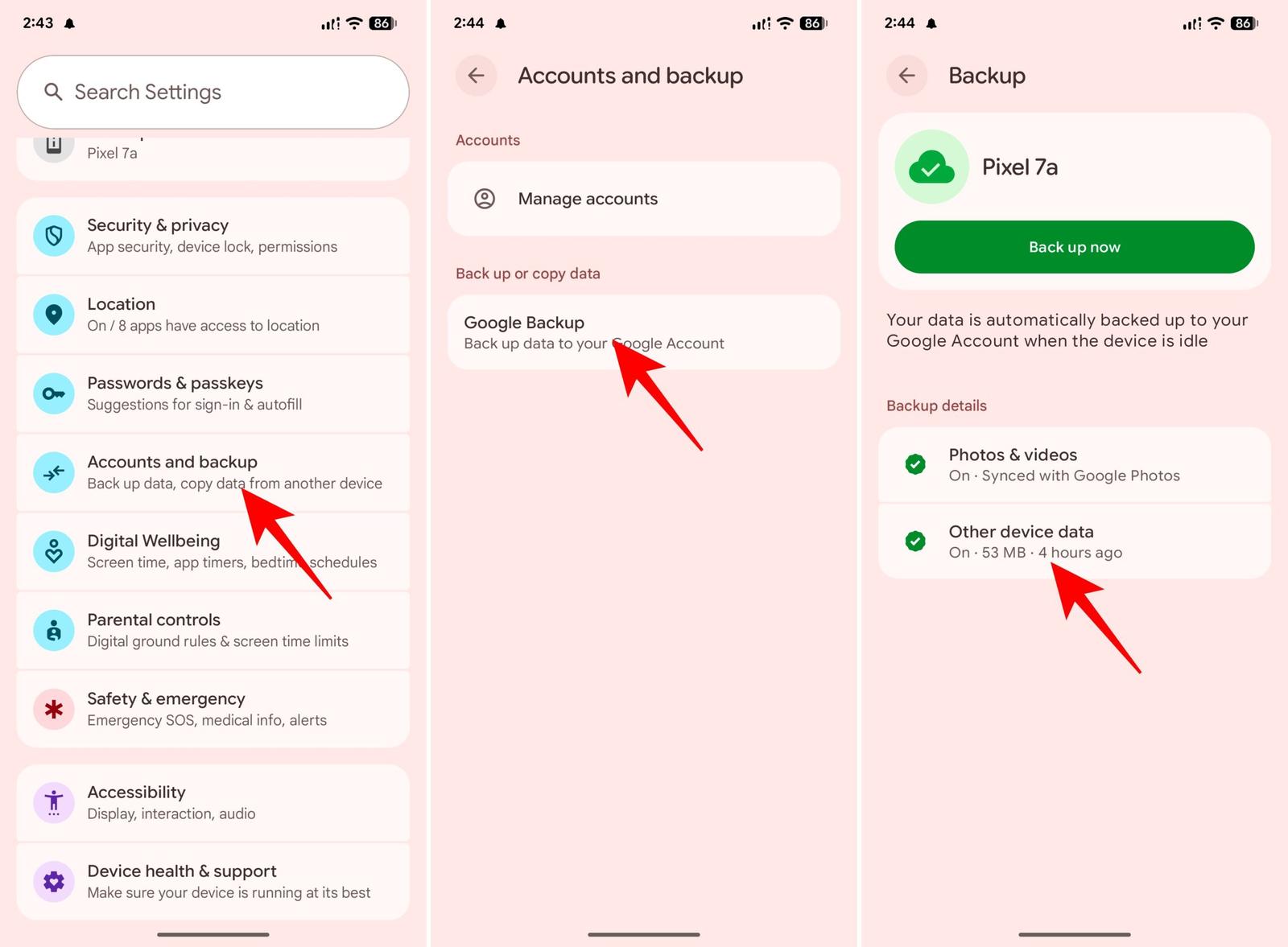
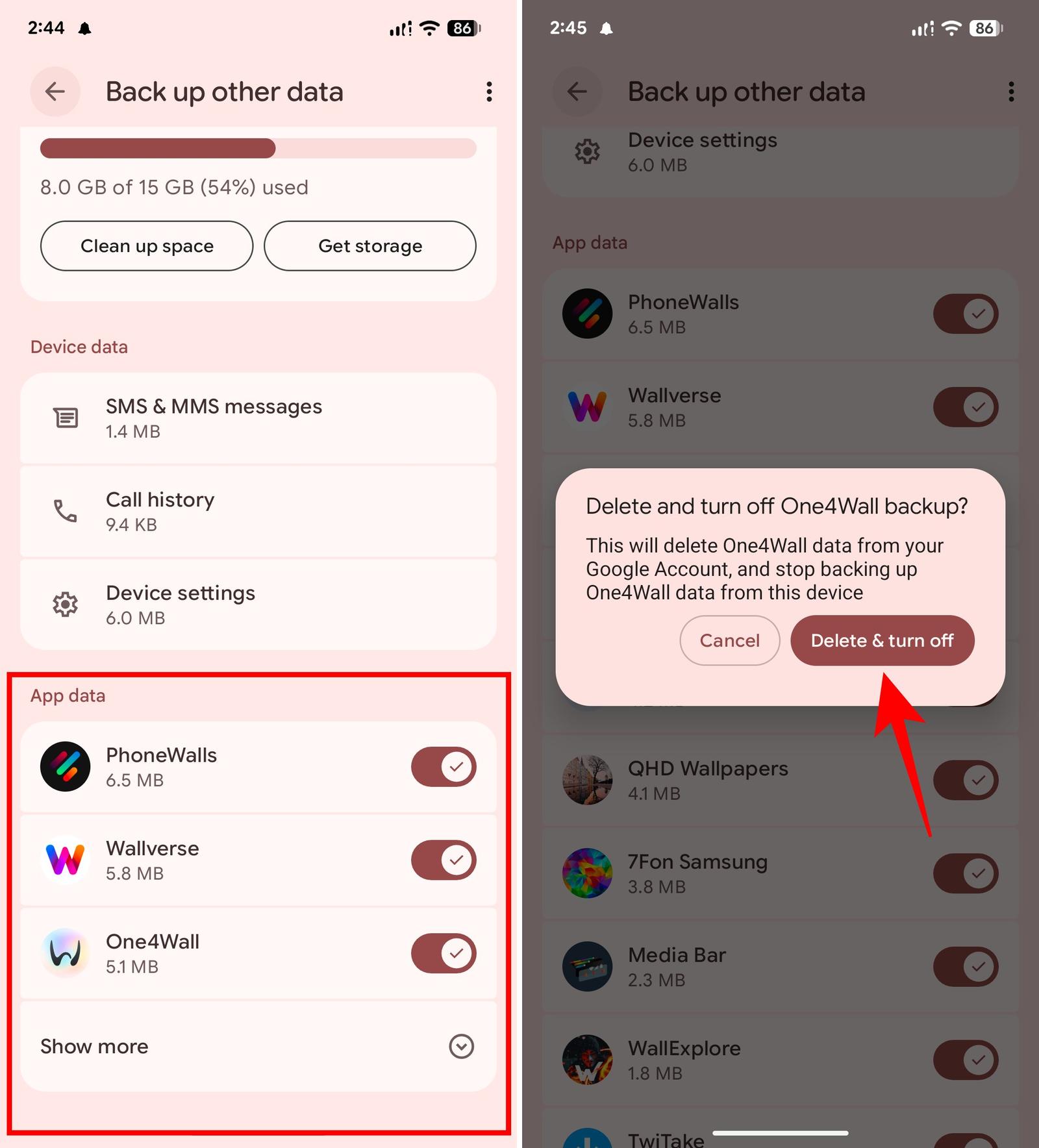
- You will see a new App data section with the top three apps using the most backup space.
- Tap Show more to see a list of the supported apps. By default, backup is enabled for all.
- Toggle off the app you want to stop backing up and confirm by tapping Delete & turn off.
The exact menu names may vary slightly depending on your phone, but the overall experience is straightforward.
Previously, the backup page only displayed “Apps & app data” with a count and combined storage figure. The new App data page replaces it, showing how much backup data each app uses, along with an individual on/off toggle. I found the “No data backed up” label helpful for identifying apps that aren’t currently saved to my cloud.
Also, note that now you can opt out of backup of system data, such as SMS and MMS messages including RCS chats, call history, and device settings, to reclaim Google storage. This is the first time Google is offering such granular controls.
What happens when you turn off backup for an app?
Before you disable backup for an app, it’s worth understanding exactly what Android does behind the scenes.
When I switched off an app’s backup, Android displayed a warning explaining that the app’s existing backup data will be deleted from your Google Account, and no backups for that app will be created from your current device. In other words, you’re not just stopping future backups; you’ll also lose the cloud backup that already exists for that app.
Note:
that Android only keeps the most recent backup for each app. Every new backup replaces the previous one. That means once an app’s backup is deleted, there’s no earlier version you can recover later.
However, worry not, as nothing is deleted from your phone itself. The app and its local data remain intact. The change only affects what’s stored in Google’s cloud backup. If you later factory reset your phone, that app’s data won’t be restored automatically.
Therefore, I’d recommend being careful about turning off backups for apps storing any valuable information locally. If an app already syncs everything to its own cloud service, turning off Android Backup may have little impact. But for apps that rely on Android’s backup system, disabling it means you’ll need to set them up from scratch after switching devices.
Which apps should you exclude from Android backup?
If I were customizing Android backups today, these are the first apps I’d consider removing from my cloud backup:
- Games I rarely play
- Shopping apps
- Food delivery apps
- Airline and hotel apps
- Seasonal apps
- Event-specific apps
- Utilities I only use occasionally
On the other hand, I’d absolutely keep backups enabled for:
- File managers
- Locally stored notes
- Games with offline progress
- Productivity tools
- Communication apps
- Apps with important local settings
For me, the deciding question is simple: would I lose anything important if Android didn’t restore this app? If the answer is yes, the backup toggle stays on. I only disabled backups for password managers, email apps, streaming services, social media, and work apps with cloud sync, since they all continue right where I left off with a simple sign-in.
If you’re hesitant about keeping sensitive apps backed up, worry not. Android’s Auto Backup data is end-to-end encrypted using your device’s lock screen credentials on Android 9 and higher, so Google can’t read the saved data.
My take: Why this update matters more than it seems
At first glance, Android’s per-app backup controls sound like a tiny settings update. They aren’t. Rather than saving a little cloud storage, the biggest advantage is reducing unnecessary clutter when you move to a new phone.
I have lots of apps that were installed on a whim, or that I use very occasionally. None of those probably need their data restored every time I switch to a new device. For people who care about privacy, there’s another benefit. If you don’t want to carry forward the footprint of certain apps, you can now simply opt out without disabling cloud backups altogether.
What do you think about this new backup setting? Share your opinion in the comments below!
You might also like: