
For years, sending files from Android to iPhone felt unnecessarily complicated. I’ve used everything from transferring large files via cable, emailing myself photos, sending videos on WhatsApp, to uploading to Google Drive just to download it again.
To make the process easier, Google has added support for AirDrop in Quick Share. So, Android can now transfer files directly to iPhones and vice versa. Here’s how to use AirDrop on Android, along with the limitations I faced and possible alternatives.
Google added AirDrop support in Quick Share: How it works
Google didn’t magically turn Android into iOS overnight. What actually happened is more subtle and interesting.
Android already had Quick Share (previously Nearby Share) to transfer files wirelessly to another Android. Now, Google has expanded the system to interact with Apple’s AirDrop. That means your Android phone can detect an iPhone nearby and send files to it directly, without using apps, links, or cloud storage. So, all the shared content stays local and encrypted.
The underlying process remains the same peer-to-peer system that both platforms have used for years. Bluetooth handles device detection, while the Wi-Fi Direct protocol is responsible for file transfer. The difference now is compatibility. Android is no longer trapped within its own ecosystem, giving way to the most important strength of Apple.
You may like: How to enable one-handed mode (Step-by-step)
Supported Android devices
Right now, support is limited to newer devices. Google started the rollout with the Pixel 10 series and gradually offered it to Galaxy devices. Here’s the list of Android phones that can use AirDrop via Quick Share right now.
Google Pixel (Fully supported)
- Pixel 10, Pixel 10 Pro, Pixel 10 Pro XL
- Pixel 10 Pro Fold
- Pixel 10a
- Pixel 9, Pixel 9 Pro, Pixel 9 Pro XL
- Pixel 9 Pro Fold
- Pixel 9a
- Pixel 8a
Samsung Galaxy (Requires One UI 8.5 on some models)
- Galaxy S26, Galaxy S26+, Galaxy S26 Ultra
- Galaxy S25, S25+, S25 Ultra, S25 Edge
- Galaxy S24, S24+, S24 Ultra
- Galaxy Z Fold 7
- Galaxy Z Flip 7
- Galaxy Z Fold 6
- Galaxy Z Flip 6
- Galaxy Z TriFold
Other brands:
- HONOR Magic V6
- OnePlus 15
- Xiaomi 17T Pro
- OPPO Find X9, X9 Pro, X9 Ultra, X9s
- OPPO Find N6
- Vivo X300, X300 Pro, X300 Ultra
This looks like a long list, but it’s still mostly flagship phones. If you’re not using a recent Pixel or Galaxy device, chances are you don’t have this yet. The feature may come to the Motorola Razr Fold 2026, OPPO Find X8 series, and HONOR Magic8 Pro in the coming months.
How to use AirDrop on Android (Step-by-Step)
If you have a supported device, the actual process is surprisingly simple, and that’s what makes this so powerful.
First, I am showing the steps to send files from Android to iPhone. You can apply the same to macOS as well.
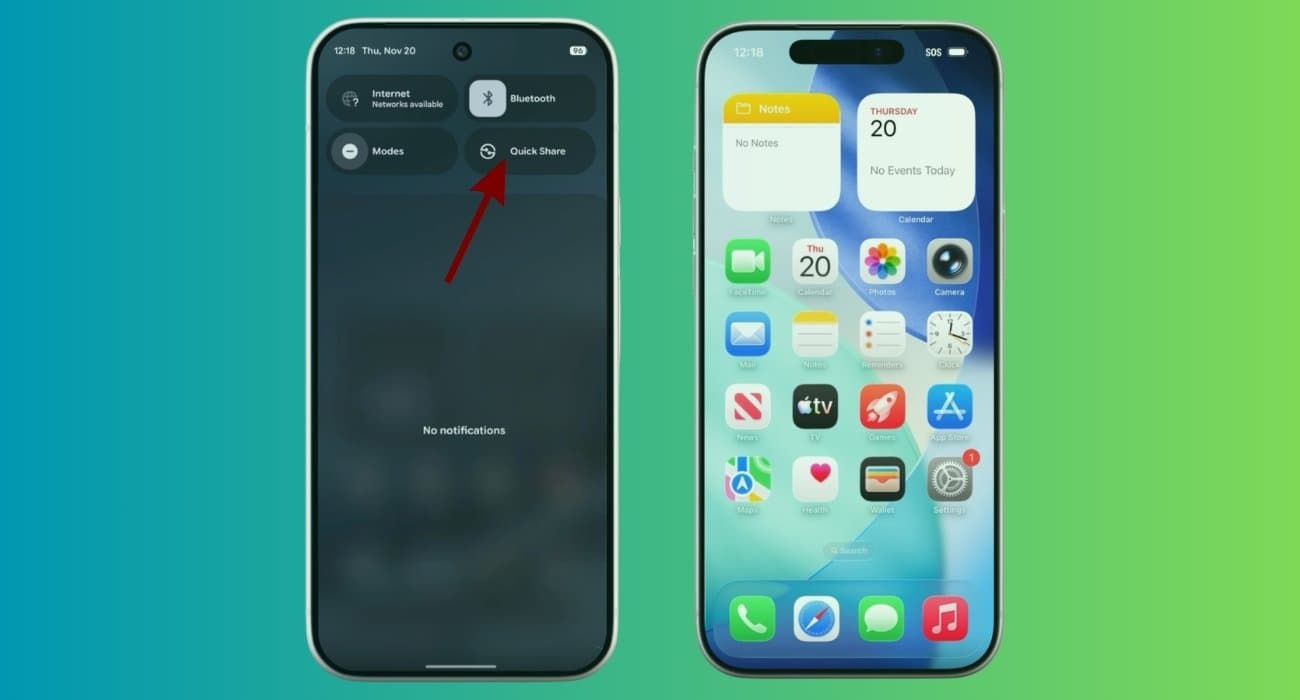
- On your Android phone, swipe down to open Quick Settings. Here, ensure Bluetooth and Wi-Fi are enabled and select Quick Share.
- Tap the three-dot icon > Settings. Then select Who can share with you and set the visibility to Everyone for 10 minutes. This ensures the iPhone can be detected.
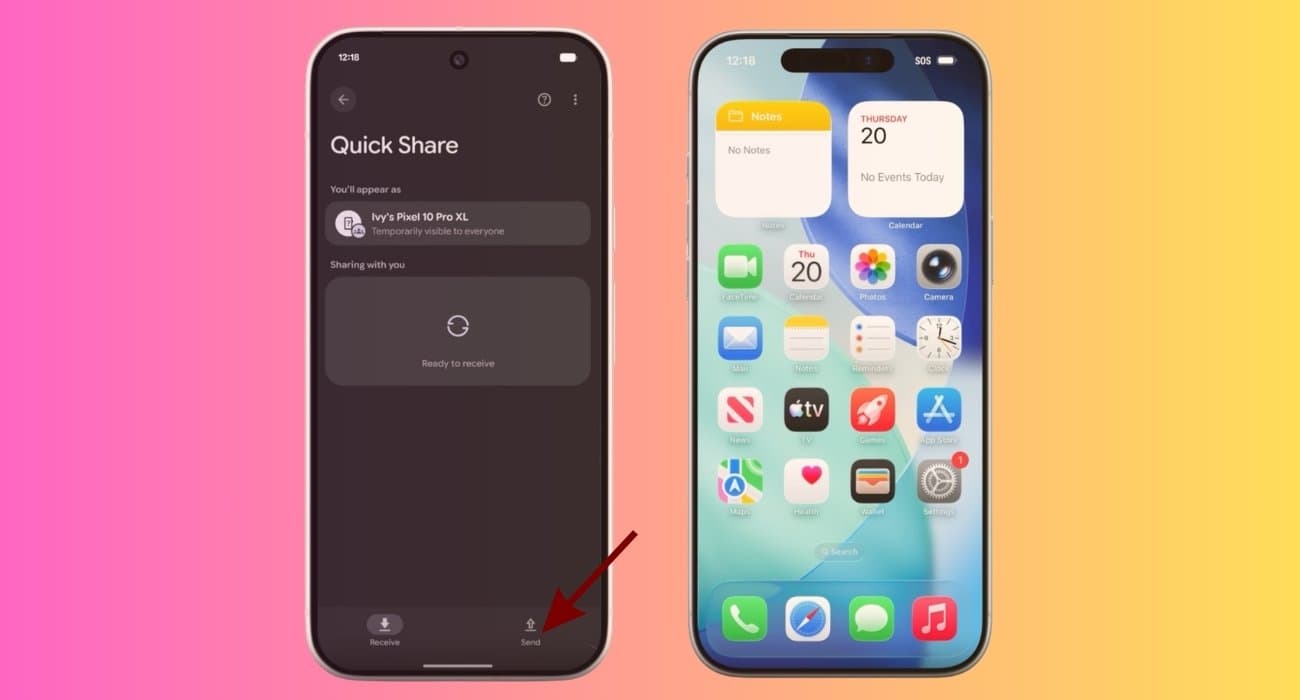
- Get back to the Quick Share screen and move to the Send tab.
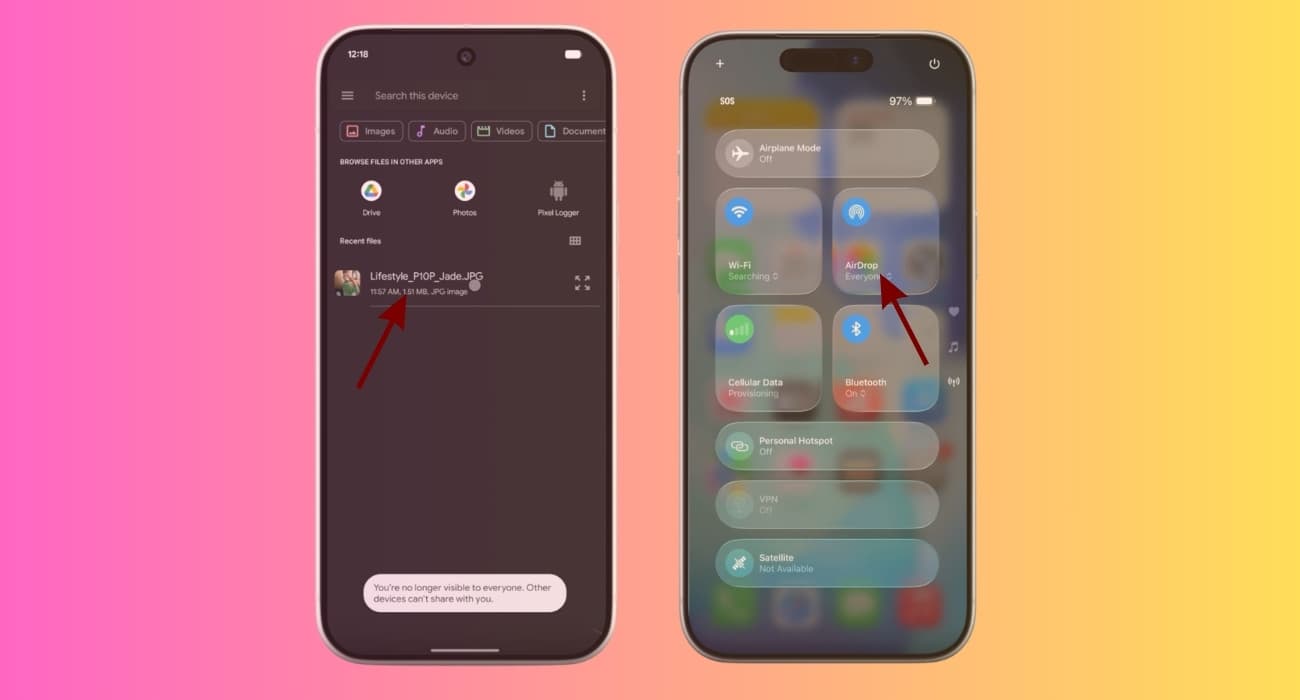
- Now, tap Select and choose any image, video, or files you want to transfer.
- Next, take your iPhone and swipe down from the top left corner to open Control Center. Tap and hold the AirDrop tile and set it to Everyone.
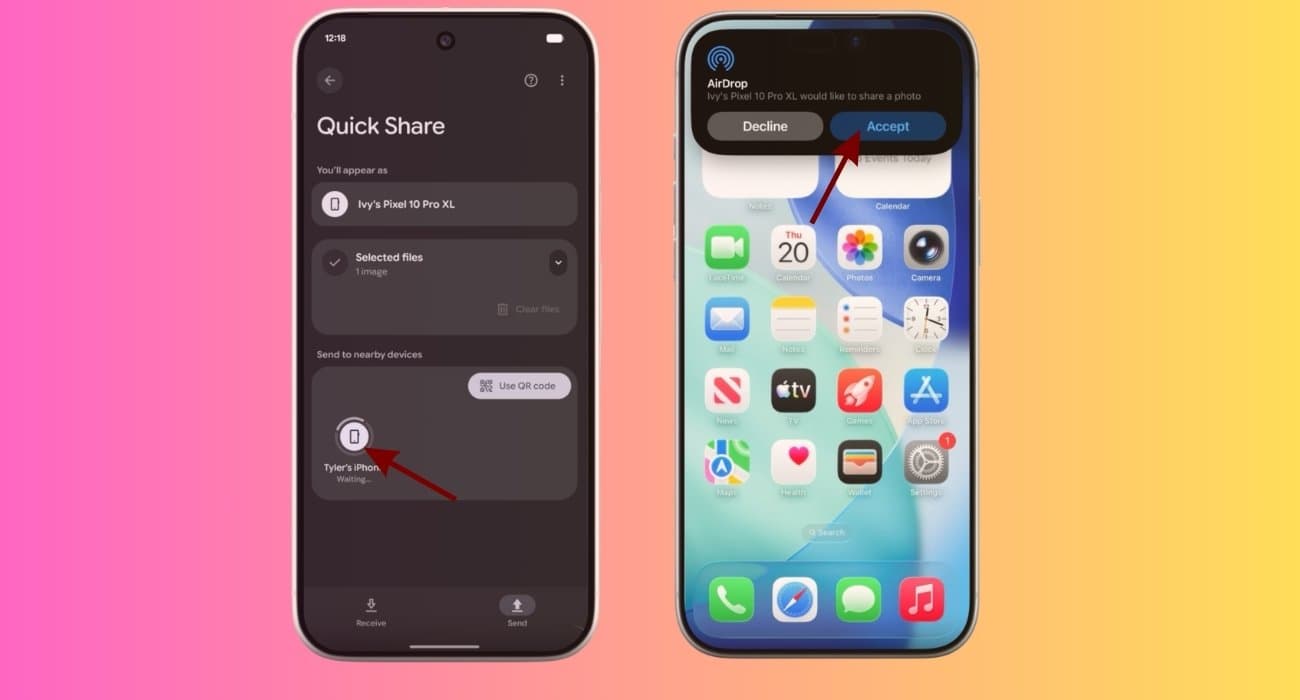
- You will see your iPhone name appear on Android. Tap it.
- The iPhone displays a standard AirDrop pop-up. Tap Accept, and the transfer starts instantly.
- Wait for the transfer to complete. You can access the pictures and videos directly in the Photos app and the document in the Files app.
Tip:
s: As I have set Quick Share to Everyone, I skip the first four steps. Instead, I open Photos or Files, select the media or document, tap the Share button > Quick Share. Your phone starts scanning for nearby devices. Once the iPhone shows up, tap it. That’s all!
Transfer files from iPhone to Android
Now, let’s see how you can send photos and videos from an iPhone.
- Launch the Photos app and open the image or video you want to share.
- Tap the share button and select AirDrop from the Share Sheet.
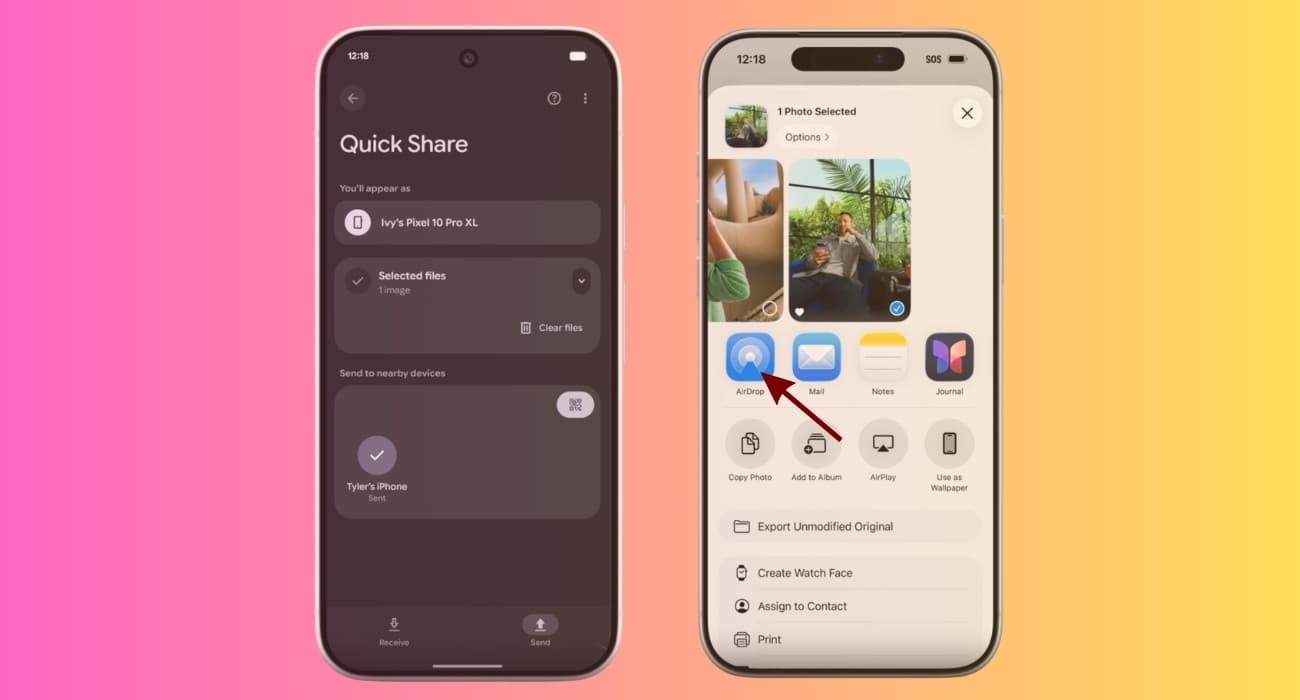
- Now, go to Quick Share on your Android as mentioned above and stay on the Receive tab.
- Your Android phone name will appear on the AirDrop list. Select it.
- Tap Accept on your Android to start the transfer.
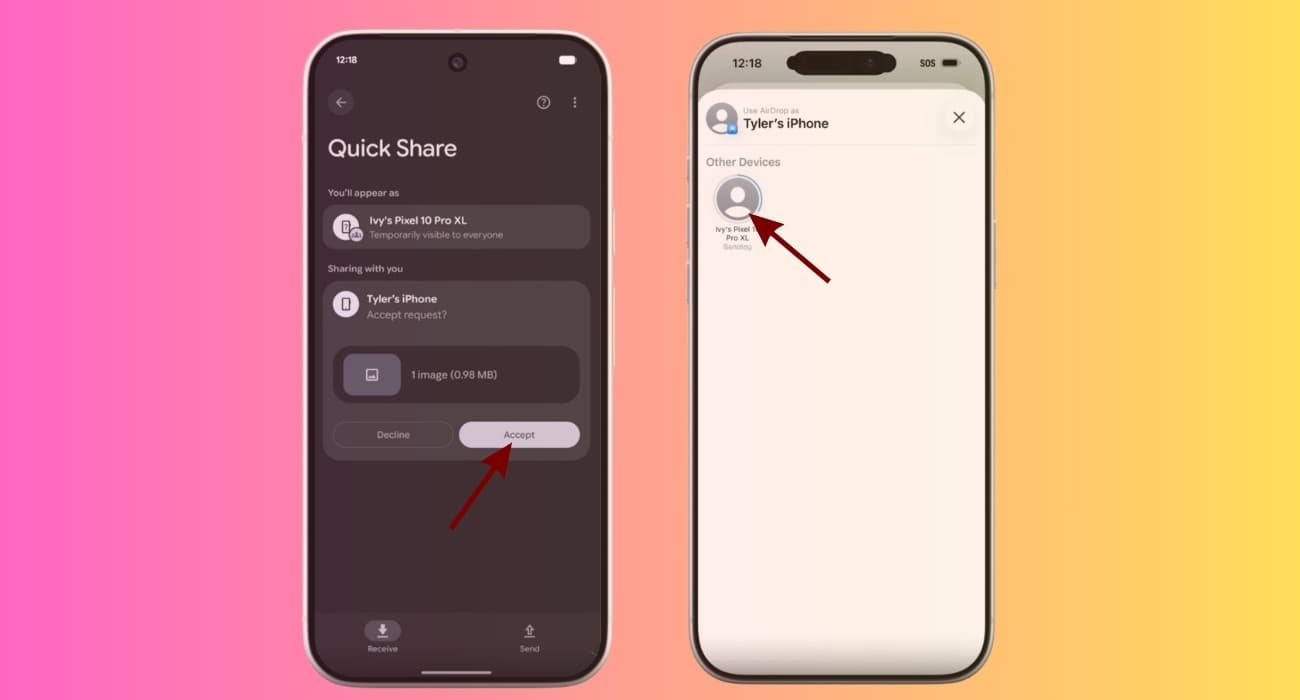
- Once done, tap Open to view the content.
Limitations (Honest reality check)
As good as this sounds, let’s not pretend it’s perfect.
The biggest annoyance is that you need to set AirDrop visibility to Everyone on the iPhone. It feels slightly uncomfortable, especially if you’re in a public place. Apple clearly hasn’t optimized AirDrop for this kind of cross-platform use yet.
Then there’s consistency. Sometimes the devices detect each other instantly. Other times, there’s a delay. So, it’s not as frictionless as native AirDrop between Apple devices.
I also found that both devices need to stay active and close to each other. If the screen turns off or the devices move too far apart, the connection can drop or fail to initiate.
Finally, this feature still isn’t everywhere. Until it reaches mid-range phones and older devices, it’s hard to call this a complete solution. Right now, it feels like a preview of the future rather than the final version.
Alternatives I still use for Android file sharing
Until this AirDrop support reaches more Android phones, I still rely on a few tools that are simply more consistent.
- My go-to is Send Anywhere. It works like AirDrop but across almost any device. No internet or login, just connect to the same Wi-Fi and send files instantly. It’s the most reliable option I’ve used.
- For quick, no-install transfers, I use Snapdrop. Open it in a browser on both devices, and it just works. Great for one-off sharing.
- And when I need something dependable, regardless of distance, I fall back to Google Drive. It’s slower, but it never fails.
And currently, they feel more universal than the Android-based implementation of AirDrop.
Final take
This is one of those updates that feels huge in real life. For years, Apple had a silent advantage. AirDrop was not very flashy, but it greatly improved daily experiences. It kept people inside the ecosystem without them even realizing it.
Android never had an answer to that until now. But Google is actively working on cross-platform interoperability with features like RCS messaging and AirDrop support. Now, using an Android phone doesn’t feel locked out of Apple’s world.
What do you think about this feature? Let me know your thoughts in the comments below!
You may like to read: