
AI has been everywhere lately, slowly moving from being a buzzword to something you actually use every day. It started with phones, then laptops, and now it is finding its way into cars as well. With iOS 26.4, Apple has opened up Apple CarPlay to third-party voice-based AI apps, and ChatGPT is one of the first to land on the platform.
Unlike traditional in-car assistants, which rely on fixed commands, ChatGPT leans more towards conversations. As an Apple ecosystem writer, I decided to try it out in a real-world setting.
While ChatGPT clearly follows Apple’s strict guidelines to keep CarPlay distraction-free, the actual experience turned out to be a bit different from what I expected.
To see where ChatGPT fits into your driving experience, here’s everything you need to know about using ChatGPT on CarPlay.
Prerequisites to use ChatGPT on Apple CarPlay
Before getting started, make sure you have the basics covered. You will need an iPhone that supports iOS 26, along with a car that supports Apple CarPlay, either wired or wireless.
Your device should be running iOS 26.4 or later, and you must have the latest version of the ChatGPT app installed. Since everything works online, a stable internet connection is also necessary.
How to use ChatGPT on Apple CarPlay
Using ChatGPT on CarPlay is pretty straightforward and does not require any complicated setup.
- Start by connecting your iPhone to your car using a USB cable or wireless CarPlay.
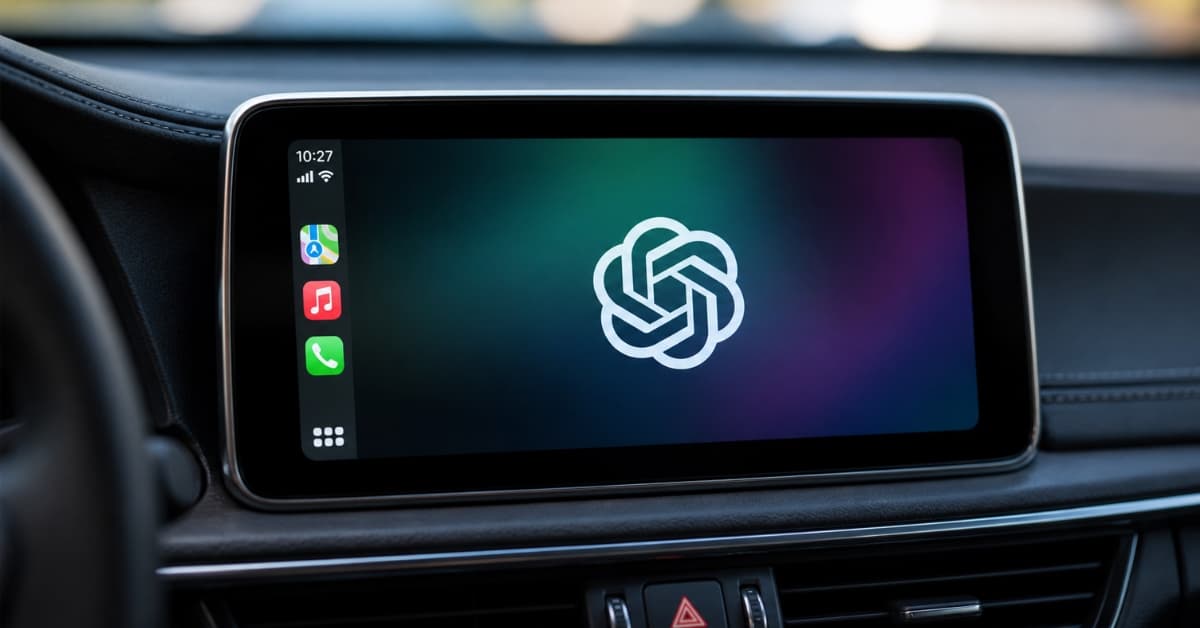
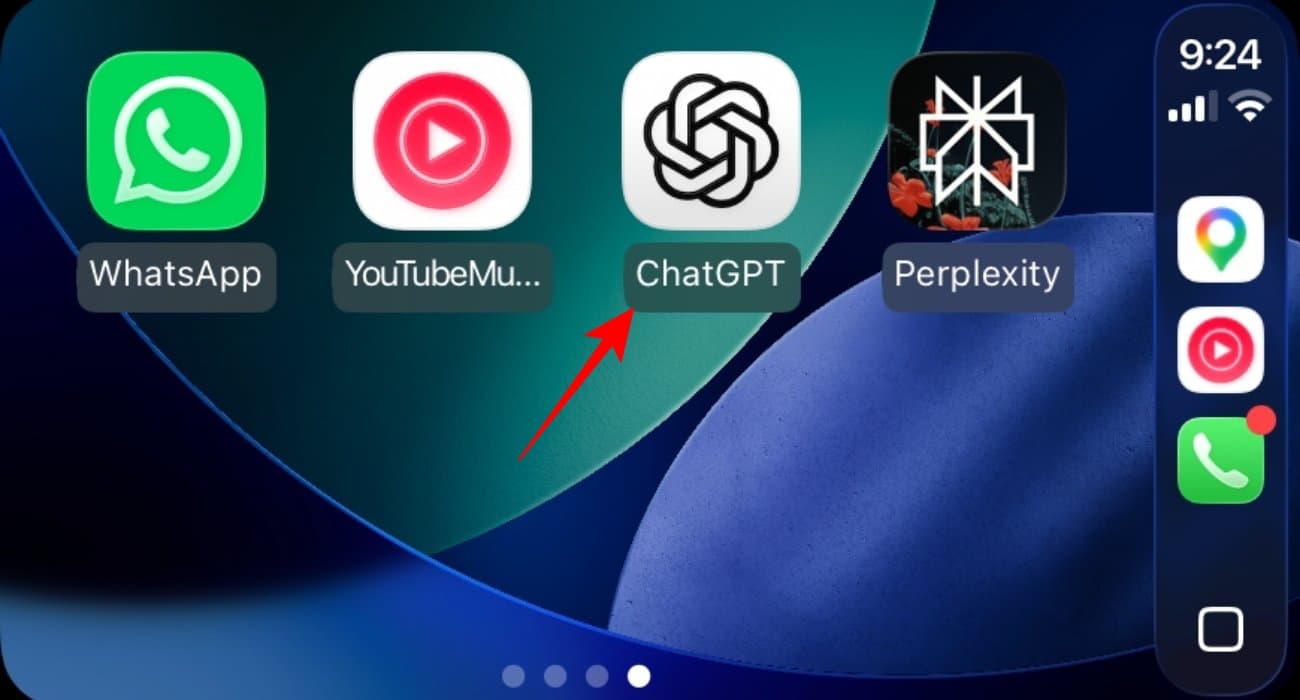
- Once the CarPlay interface appears on your car’s display, look for the ChatGPT app in the app grid and open it.
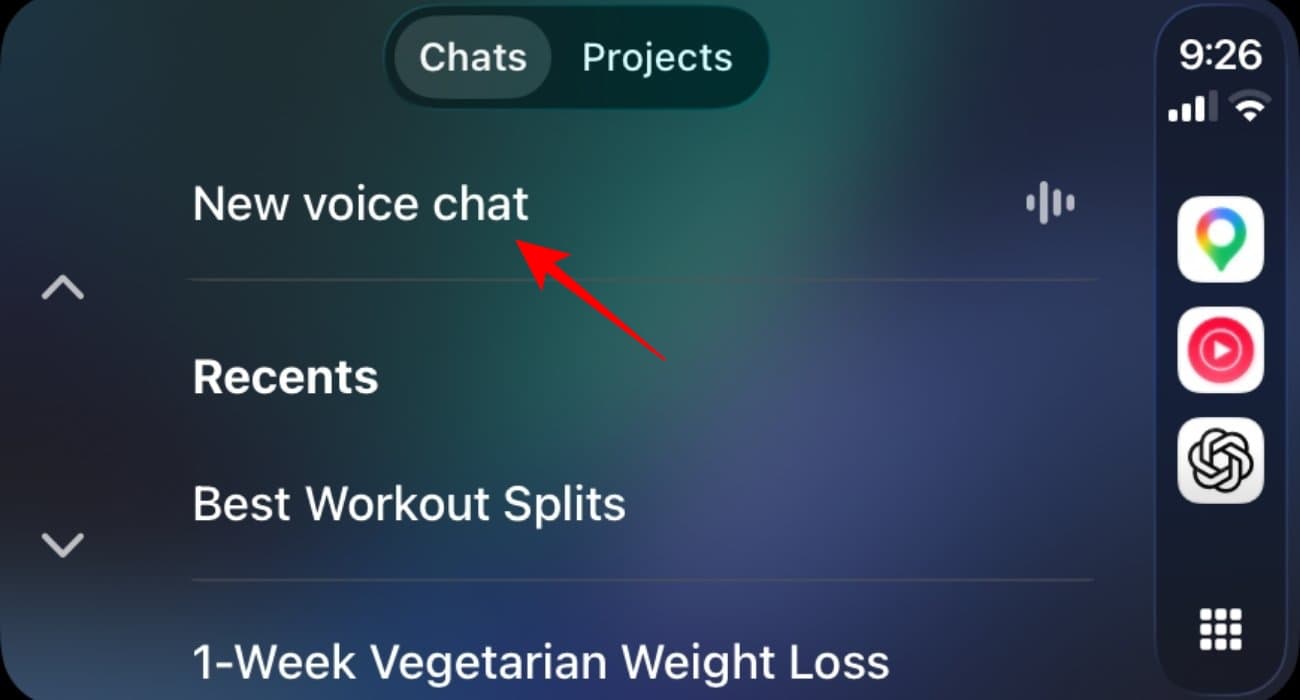
- Inside the app, tap on “New Voice Chat” or an existing chat to begin.
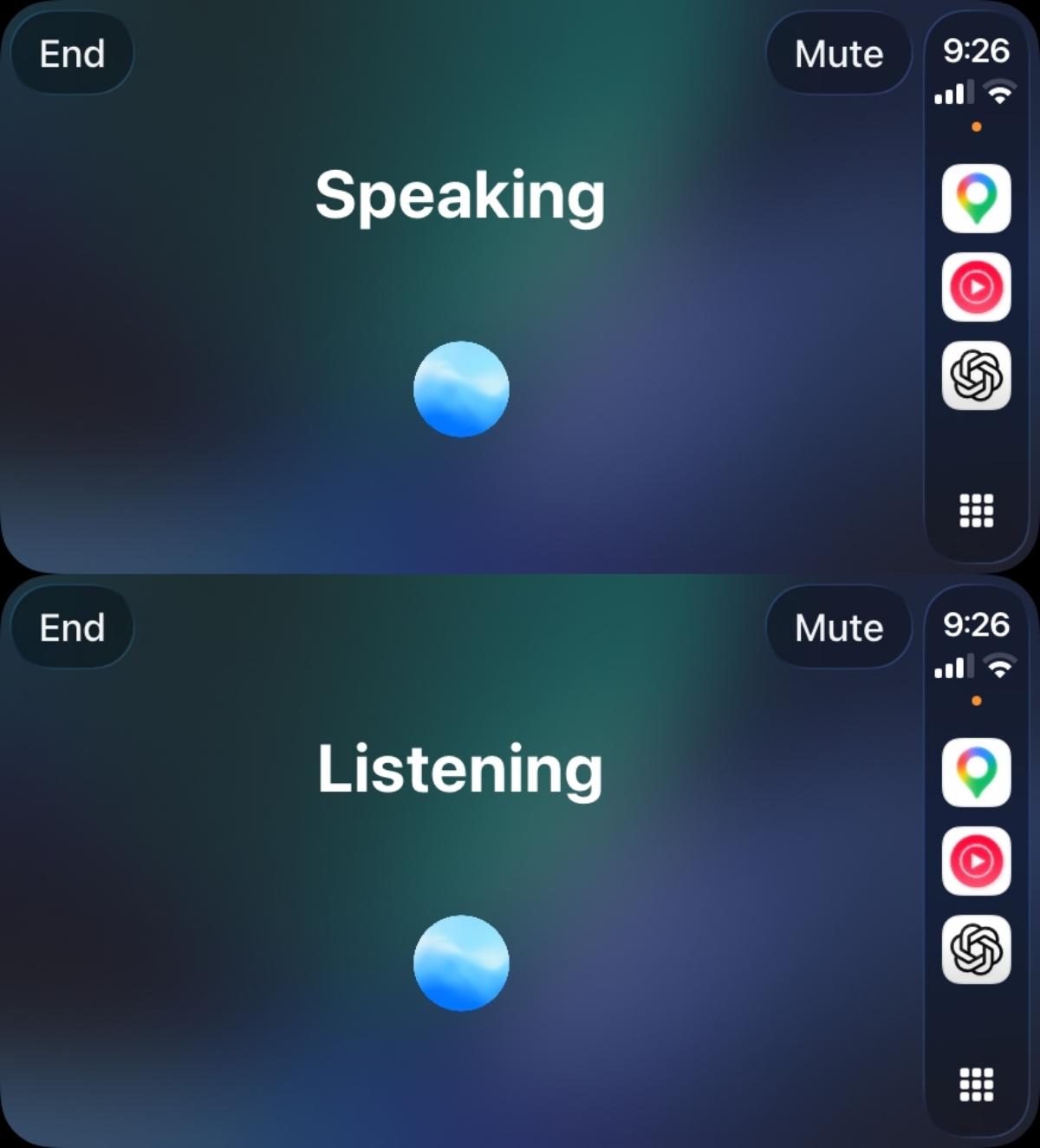
- You can then start speaking, and ChatGPT will respond in real time. The interaction is entirely voice-based, so there is no typing or on-screen conversation.
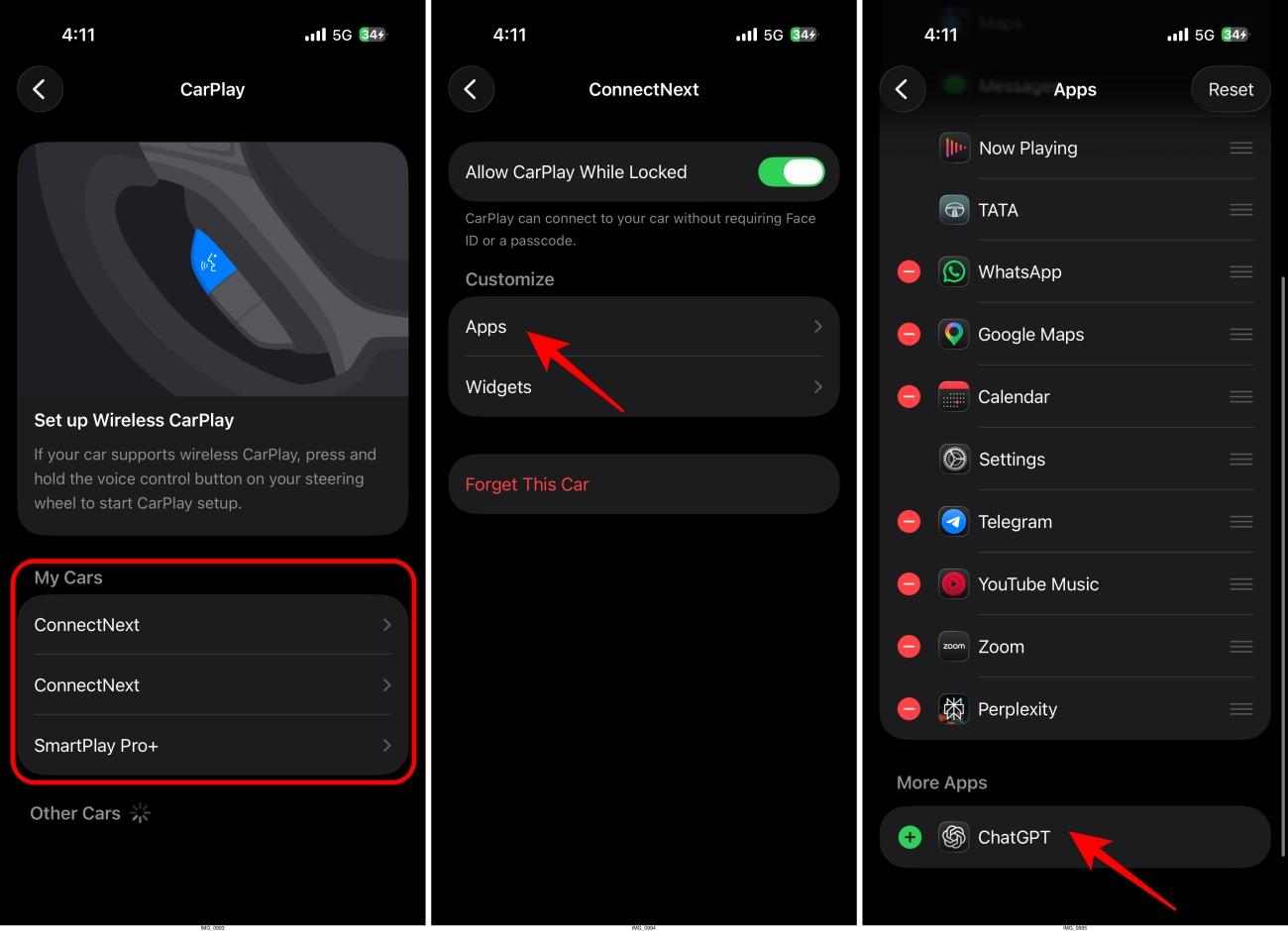
If the app does not appear on your CarPlay screen, you can add it manually. On your iPhone:
- Go to Settings → General → CarPlay.
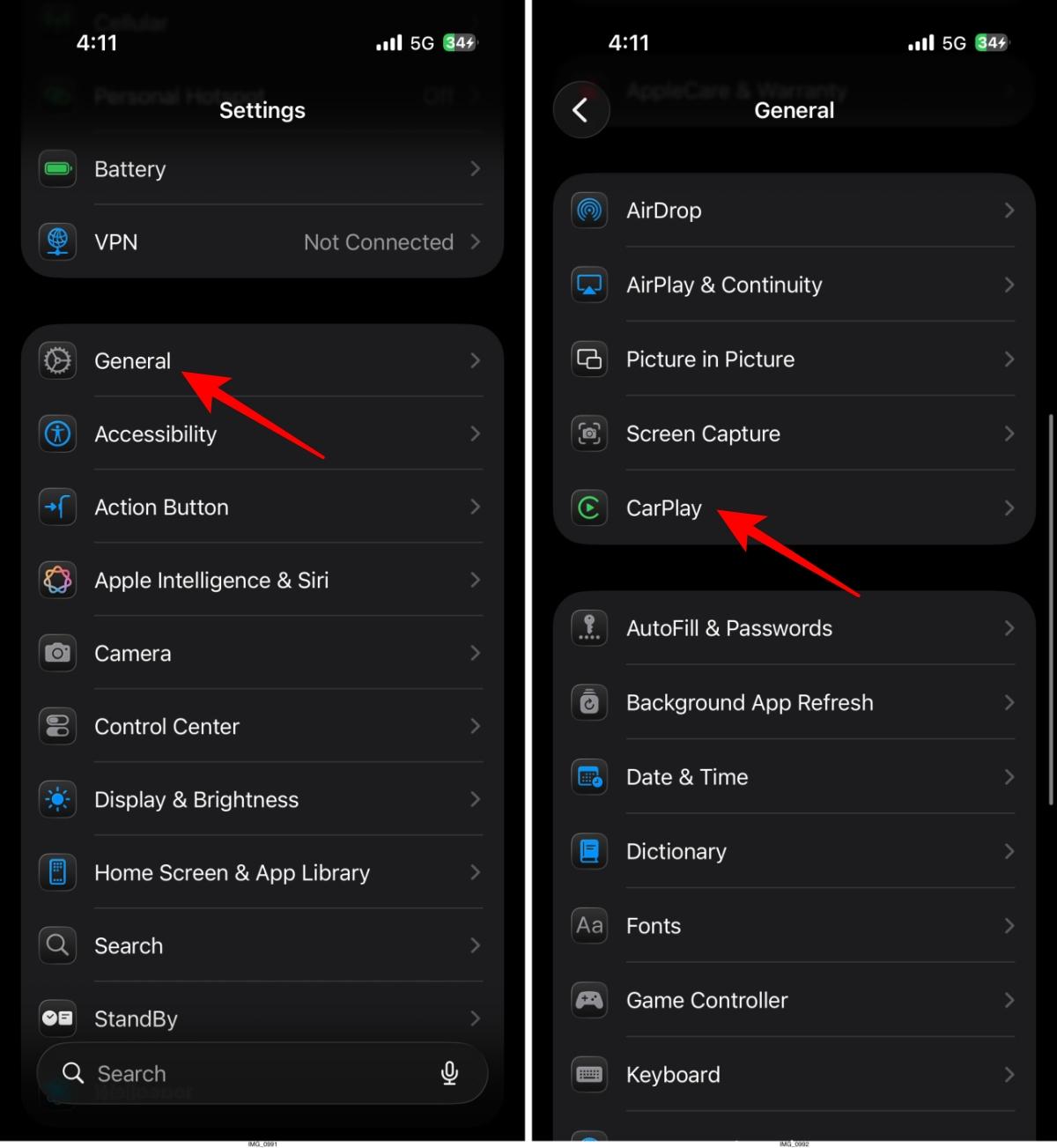
- Here, select your car, and then tap Apps under Customize.
- Now, tap the + (Add) button next to ChatGPT from the available apps list.
What the experience actually looks like
The first thing you notice is how different it is from using ChatGPT on your phone. There is no chat window, no text responses, and nothing you can quickly glance at. The entire interaction is built around voice, which changes the experience more than you expect.
You are not limited to fixed commands like you are with traditional in-car assistants. You can ask open-ended questions, jump between topics, or even think out loud. In that sense, it feels less like controlling a system and more like talking to something that understands context.
But that smoothness only goes so far.
The biggest break in the experience is that it is not fully hands-free. You have to tap the screen to start a conversation or continue one. There is no wake word, no always-listening mode. You can use Siri to open the app, but that still adds an extra step, and in a car, even small interruptions stand out.
There is also no visual feedback; the screen only shows basic states like listening or speaking, along with simple controls such as mute and end. That keeps things distraction-free, but it also means you cannot quickly review or confirm what was said.
After a while, you start to see where it fits. ChatGPT works best as a conversational companion rather than a control system. It is useful for asking questions, breaking down ideas, or just having something to interact with during a drive. But when it comes to actually doing things, like changing music or setting navigation, you still fall back to Siri.
Where ChatGPT on CarPlay falls short
After using it for a while, it becomes clear that ChatGPT on CarPlay is not trying to replace your existing in-car assistant, at least not yet. Its biggest limitation is that it operates in isolation.
Unlike Siri, ChatGPT cannot interact with your car or other CarPlay apps. It cannot change music, control navigation, send messages, or trigger any system-level actions. No matter how well it understands your request, it simply cannot act on it.
Another limitation is how restricted the interface is. While the voice-only approach helps reduce distractions, it also removes any form of visual confirmation. You cannot read responses, skim information, or quickly go back to something you missed. Everything depends on listening, which is not always ideal while driving.
The lack of a wake word further adds to the friction. Having to tap the screen every time you want to start or continue a conversation breaks the flow and makes it feel less seamless than it should be in a driving environment.
There is also limited continuity. Even if you are logged in, the chat history on CarPlay is basic and does not reflect the full, detailed conversations you would see on your phone or laptop. This makes longer interactions feel slightly disconnected.
Put all of this together, and you get a system that is intelligent, but not deeply integrated. It understands more than traditional assistants, but it cannot do more. And that gap is hard to ignore.
What you can and cannot do with it
After spending some time with it, the real value of ChatGPT on CarPlay shows up in specific situations rather than everyday tasks.
It works best when you are not trying to control the car, but just want something to engage with while driving. For example, during longer drives, it can help break down a topic you have been thinking about, explain something quickly, or even help you structure ideas on the go.
It is also useful in moments where you would normally pick up your phone. Say you want a quick explanation of something, or you are trying to think through a problem. Instead of waiting, you can just ask and get an answer instantly.
In that sense, it feels more like a thinking companion than a traditional assistant.
But outside of these scenarios, its role becomes limited. The moment you need to actually do something, like play music, navigate, or interact with apps, you switch back to Siri without even thinking about it.
And that is where ChatGPT currently sits in CarPlay. Not as a replacement, but as something you turn to in between tasks.
ChatGPT on CarPlay: Early, but interesting
Right now, ChatGPT on CarPlay feels more like something you try out than something you rely on every day. It’s interesting, occasionally useful, and still figuring out its place. But once you’ve used it, it’s hard not to think about how much better this could get with deeper integration. And that alone makes it worth trying, even in its current form.
Do you see yourself using ChatGPT, or is this still too early to matter? Curious to hear your take in the comments.