
Local AI usually sounds better in theory. The idea is simple enough: run a model on your own phone, laptop, or desktop instead of sending every prompt to the cloud. The problem is the tradeoff. Small models that we can easily run on our laptops and phone are often weak. Whereas large models run into compute limits even on most expensive consumer laptops and desktops.
Gemma 4 is Google’s attempt to make that tradeoff less painful by making small local models more intelligent than they previously could be.
How Gemma 4 uses memory and compute
The lineup is easiest to understand through what each model asks from the hardware. The smaller models focus on fitting into tighter devices, while the larger ones trade more memory for stronger local performance.
| Model | Core detail | Best fit |
|---|---|---|
| Gemma 4 E2B | 2.3B effective parameters, 128K context, text/image/audio input | Phones, edge devices, low-memory laptops |
| Gemma 4 E4B | 4.5B effective parameters, 128K context, text/image/audio input | Stronger phones, tablets, laptops, Macs |
| Gemma 4 26B A4B | 25.2B total parameters, about 3.8B active per token, 256K context | Macs, desktops, consumer GPUs |
| Gemma 4 31B | 30.7B dense model, 256K context | High-memory Macs, strong GPUs, workstations |
The smaller models, Gemma 4 E2B and E4B, use Per-Layer Embeddings. That is why Google talks about them in terms of effective parameters. The idea is to get more useful behavior from a smaller model without pushing the memory cost too high for phones, tablets, and laptops.
The 26B model uses a different trick. Gemma 4 26B A4B is a Mixture-of-Experts model with 25.2B total parameters, but only about 3.8B active per token. The full model still has to fit in memory, so this is not magic compression. The advantage is that generation does not use the full dense 26B worth of active compute for every token.
Then there is Gemma 4 31B, a dense 30.7B model for people with enough memory and stronger local hardware. It is the quality-focused option in the family, not the efficiency play.
How to run Gemma 4 on your device
The process is completely different on desktops and mobiles, but you can get the model running on both.
On Mac, Windows, and GPU desktops:
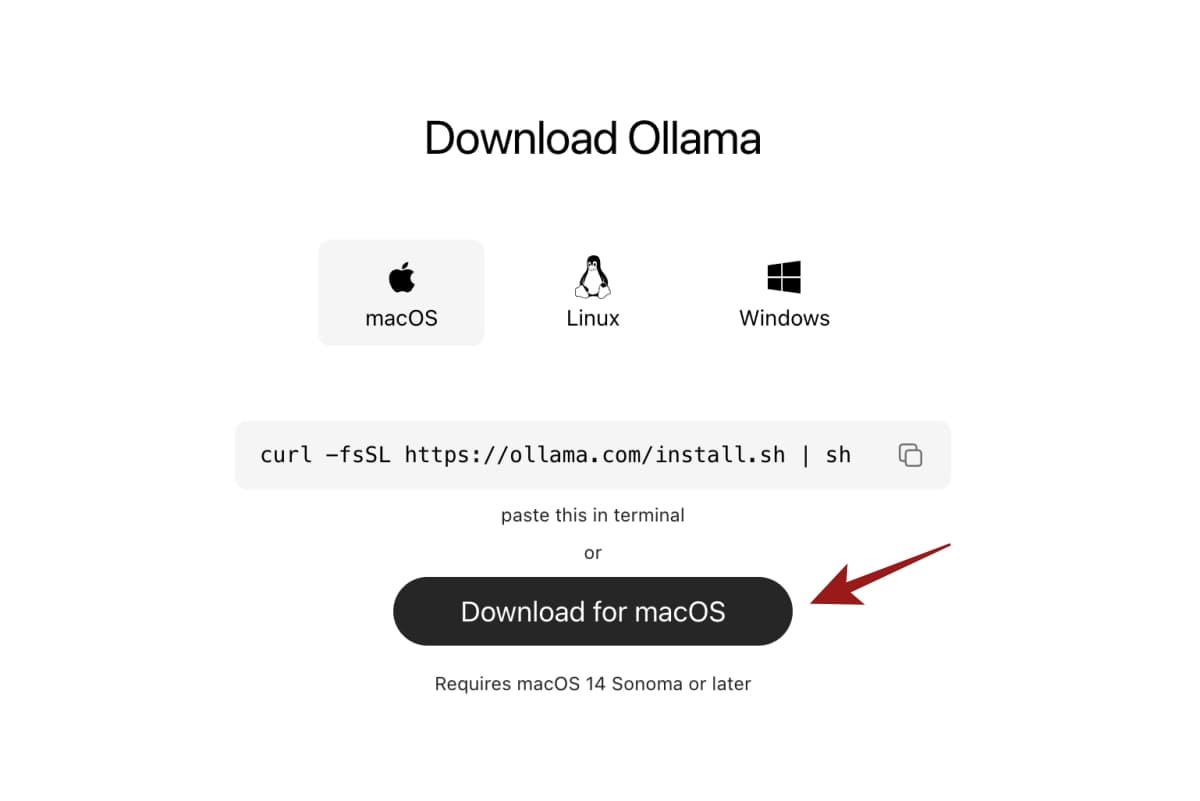
- Install Ollama.
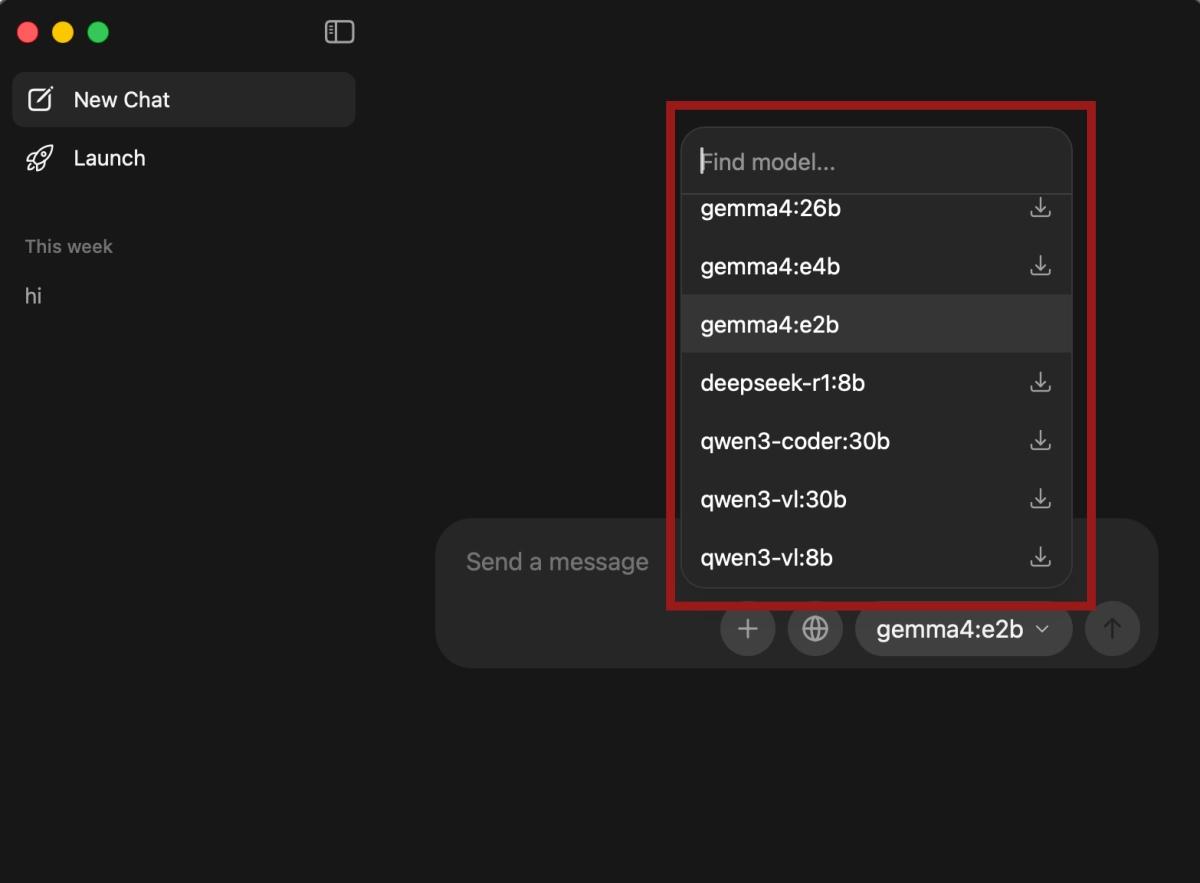
- Open the app and search for Gemma 4.
- Pick the model based on your hardware:
- E2B for low-memory laptops.
- E4B for most Macs and Windows laptops.
- 26B A4B for stronger Macs, gaming laptops, and GPU desktops.
- 31B for high-memory machines.
- If you use Ollama, run the model from Terminal or PowerShell:
ollama run gemma4:e2b
ollama run gemma4:e4b
ollama run gemma4:26b
ollama run gemma4:31b
On Android and iPhone:
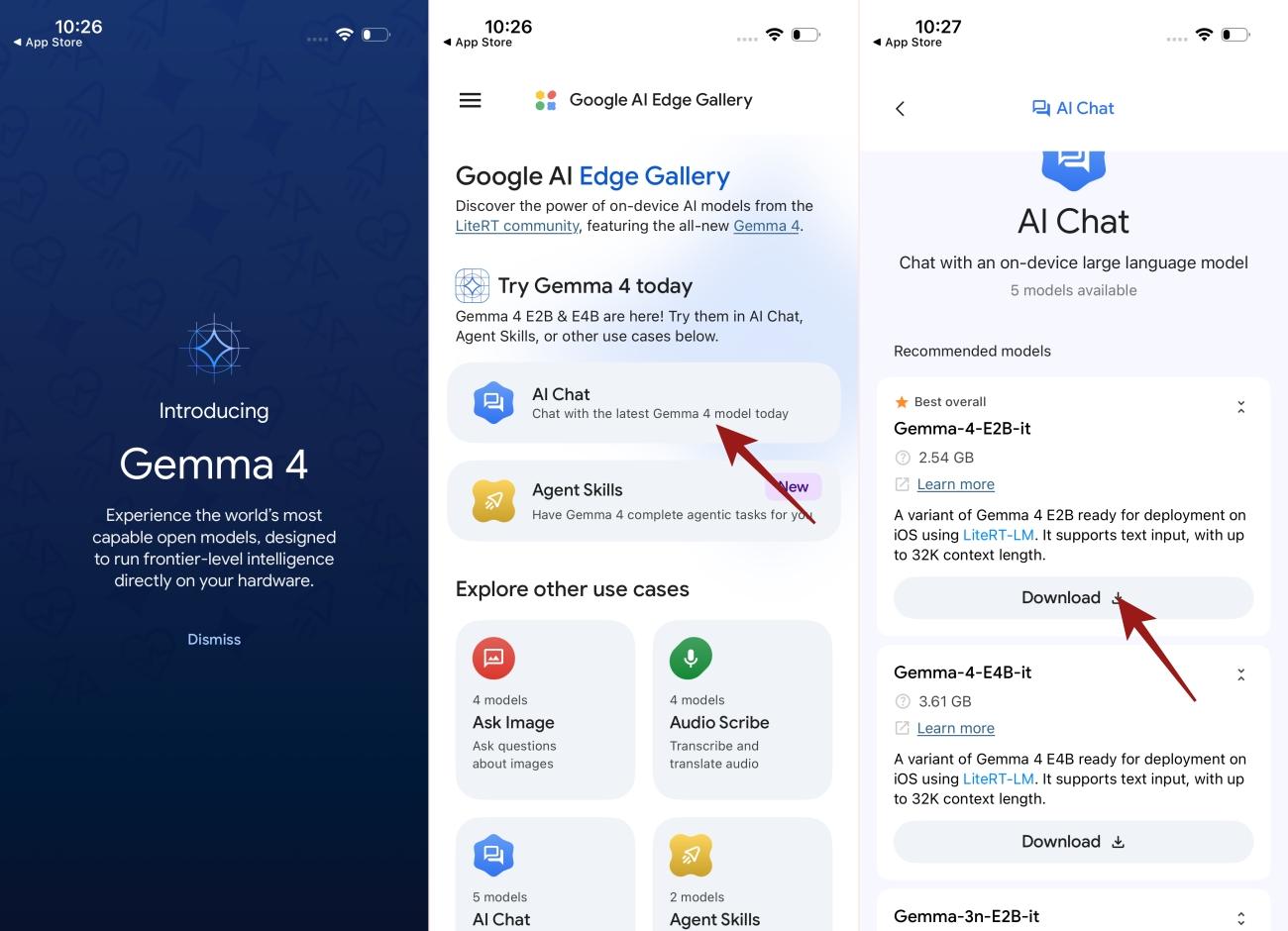
- Install Google AI Edge Gallery on Android and iPhone.
- Tap on the AI Chat app
- Download Gemma 4 E2B first.
- Test it with short prompts, document photos, screenshots, or voice-note tasks.
- Try E4B only on newer phones with enough memory.
- Avoid 26B A4B and 31B on phones. Treat them as desktop-class models.
What this actually means for local AI
Gemma 4 is not a replacement for cloud models like ChatGPT, Claude, or Gemini. Those systems will still be better for the hardest reasoning, coding, and analysis jobs.
The more interesting change is lower down the stack. Gemma 4 makes local AI more useful for private, repeated, everyday work: OCR, screenshots, summaries, rewrites, transcript cleanup, structured extraction, and simple agents. It being a reasoning model also helps with overall quality of the response.
That is where lighter models can matter. They do not have to beat the cloud. They have to be useful enough to run close to the user, on the hardware people already own.