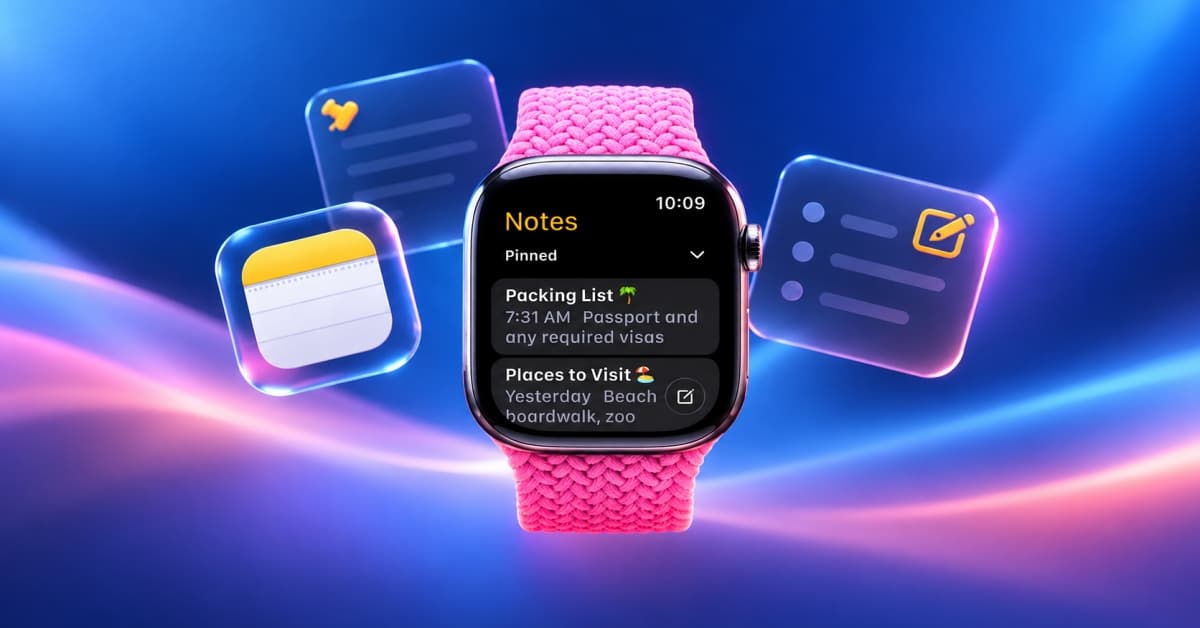
Apple Watch has become much more useful for quick tasks, and the Notes app is a good example. Introduced with watchOS 26, Notes lets you create new notes, view existing ones, pin important information, and delete notes without reaching for your iPhone.
With watchOS 27, the Notes app remains a convenient way to capture information on the go. Whether I want to remember a shopping item, check a saved address, or quickly jot down an idea, having Notes on my wrist makes these small tasks easier. However, it is still a simplified experience rather than a full replacement for Notes on the iPhone or Mac.
Here’s what you can do in the Notes app on Apple Watch and how to use it like a pro.
What you can do with Notes on Apple Watch
The Notes app on Apple Watch focuses on quick access and basic note management. Here’s what you can do:
- Create new notes using voice dictation, the onscreen keyboard, or Siri.
- View existing notes that are synced from your iPhone, iPad, or Mac via iCloud.
- Pin important notes so they stay at the top of your notes list.
- Unlock locked notes (if you’ve enabled Face ID or passcode protection on your iPhone).
- Tick off checklist items if your existing note includes tasks or to-do lists.
- Delete notes you no longer need.
Your notes stay synced across supported devices signed in to the same Apple Account with iCloud Notes enabled. This means changes made on one device can appear on your other devices.
One of the biggest advantages is Siri support. You don’t even need to open the app—just raise your wrist and say, “Take a note,” and it’s saved instantly. This is especially handy when your hands are full, or you’re out for a run.
Notes app limitations on Apple Watch
Although Notes is useful for quick tasks, it has some limitations you should know about before relying on it as your primary note-taking tool.
- You can’t edit existing notes: To change the text of an existing note, open it on your iPhone, iPad, or Mac. Your changes will sync through iCloud.
- Some formatting isn’t visible: Tables, checklists, headings, and certain attachments, such as drawings and audio recordings, aren’t displayed on Apple Watch.
- The experience is simplified: You can create new plain text notes and manage basic items, but you won’t get the complete editing and formatting tools available on your iPhone or Mac.
These limitations make sense for a small display. I would use the watch to capture quick thoughts and check information, then switch to my iPhone or Mac when I need to make more substantial changes.
Device and software requirements
To use the Notes app on Apple Watch, make sure the following are in place:
- watchOS 26 or later installed on your Apple Watch.
- An Apple Watch Series 6 or later, including Apple Watch SE (2nd gen) and all Apple Watch Ultra models.
- An iPhone 11 or newer running iOS 26 or later to enable Siri support.
- Notes is configured to sync across your devices via iCloud.
- Siri language should match your device language for dictation to work properly.
How to use the Notes App on Apple Watch
Once your Apple Watch is updated to the latest watchOS version, follow these steps:
- Open the Notes app from the app grid or list view. It gets installed automatically with the watchOS 26 update.
- You’ll see a list of your synced notes, similar to how it appears on iPhone.
- Turn the Digital Crown to scroll through your notes. Pinned notes appear at the top of the list, followed by other notes sorted by date.
- Tap to open and view any note. Locked notes can be accessed by entering your passcode.
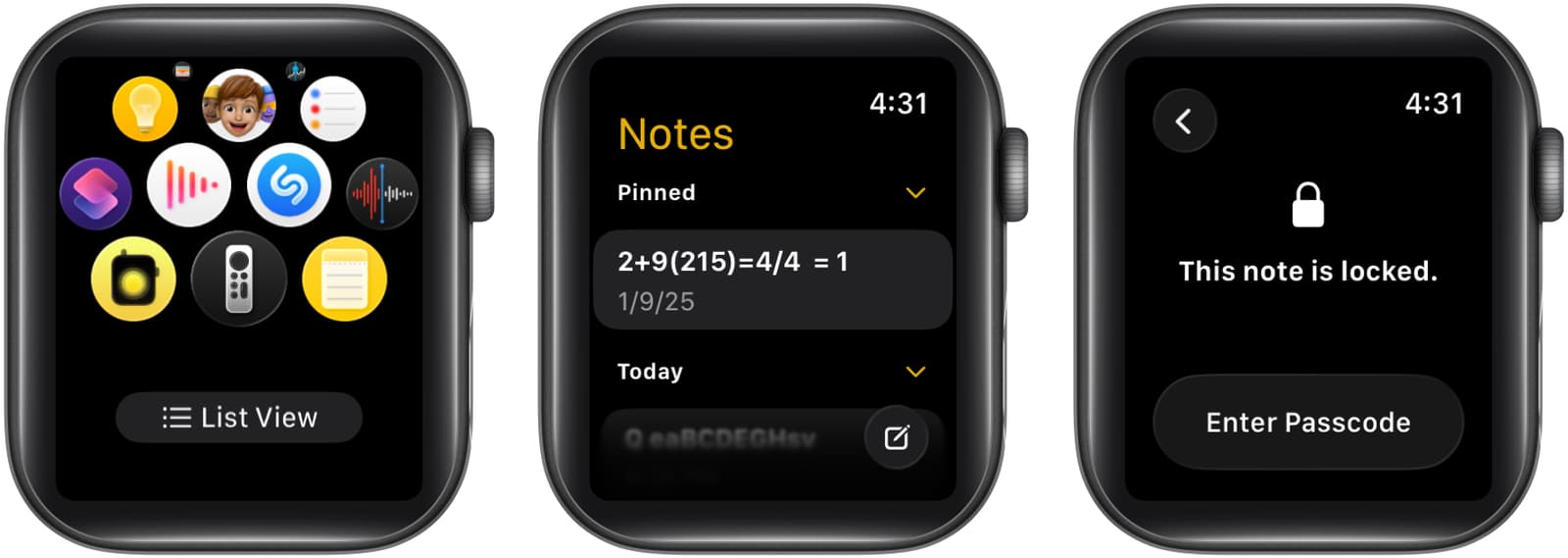
- To create a new note, tap the floating new note icon in the bottom-right corner.
- Use voice input, on-screen keyboard, or swipe typing to write your note.
- Tap Done to save the note.
- Swipe right on a note to see the Pin option.
- Swipe left on a note to see the Delete option.
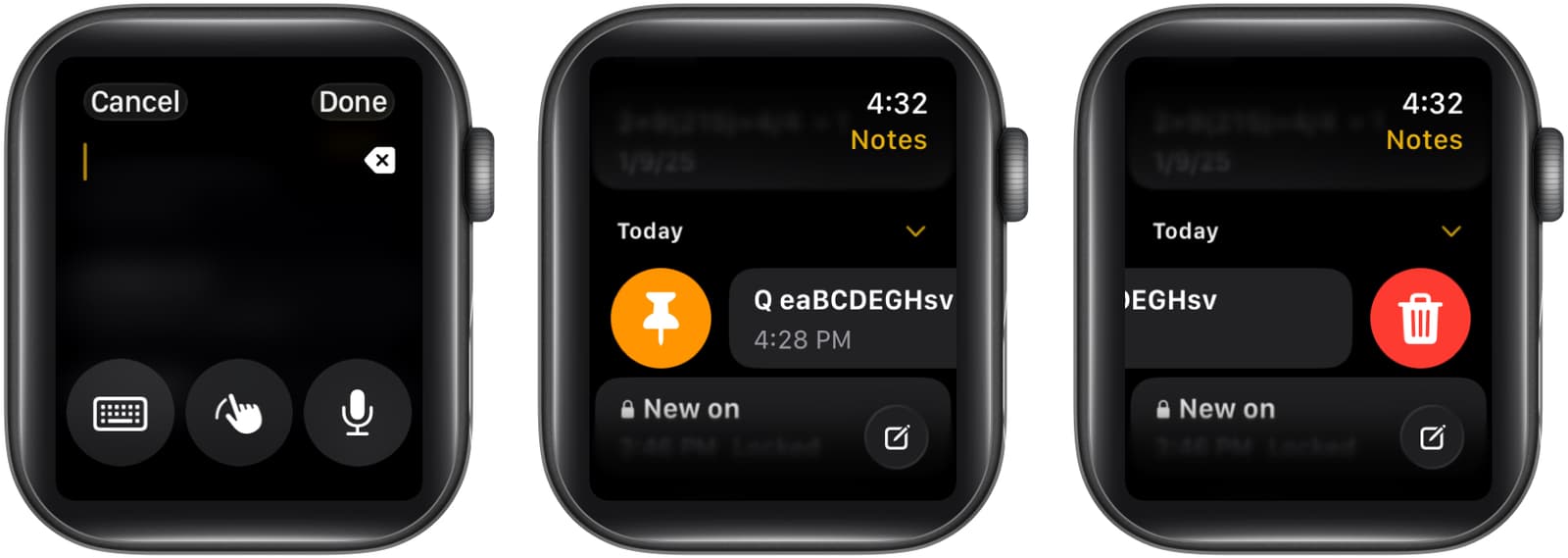
That’s it! You can now manage your notes right from your wrist—quick, simple, and always accessible. Be careful when deleting notes because the action affects your synced Notes library. If you accidentally delete something, you can recover it from the Recently Deleted folder on your iPhone within 30 days.
I always ask Siri to start a new note. This is useful when you want to capture an idea quickly without manually opening the app.
Want more new features? Here’s everything new in watchOS 27.
How Notes sync across Apple devices
One of the most useful aspects of Notes on Apple Watch is its integration with iCloud. When you create a note or make a supported change on another device, the information can sync across your devices signed in to the same Apple Account.
To check your setup, open Settings on your iPhone, tap your Apple Account name, go to iCloud, and check that Notes is enabled.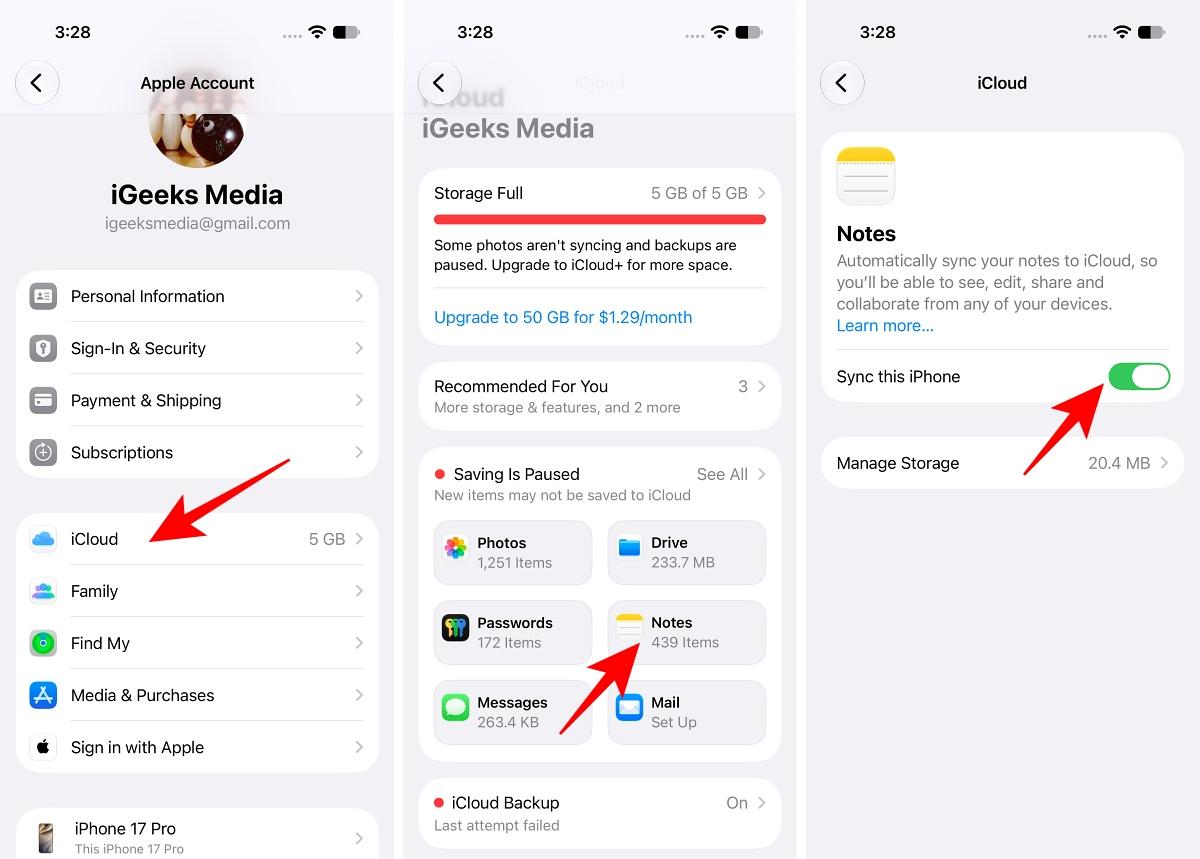
If your notes aren’t appearing on your watch, first confirm that iCloud Notes is enabled and that your devices are signed in to the correct Apple Account. Also check your internet connection and give iCloud some time to sync.
Notes on Apple Watch in watchOS 27: Is it worth using?
The Notes app is a useful addition to Apple Watch, particularly if you already rely on Apple Notes across your devices. You can create quick notes, check saved information, pin important items, and delete unwanted notes without pulling out your iPhone.
However, I wouldn’t treat it as a complete note editor. The inability to edit existing notes and the limited support for formatting and attachments mean that longer notes are still easier to manage on an iPhone, iPad, or Mac.
For everyday reminders, short ideas, and quick reference information when your iPhone isn’t immediately within reach, Notes on Apple Watch is worth using.