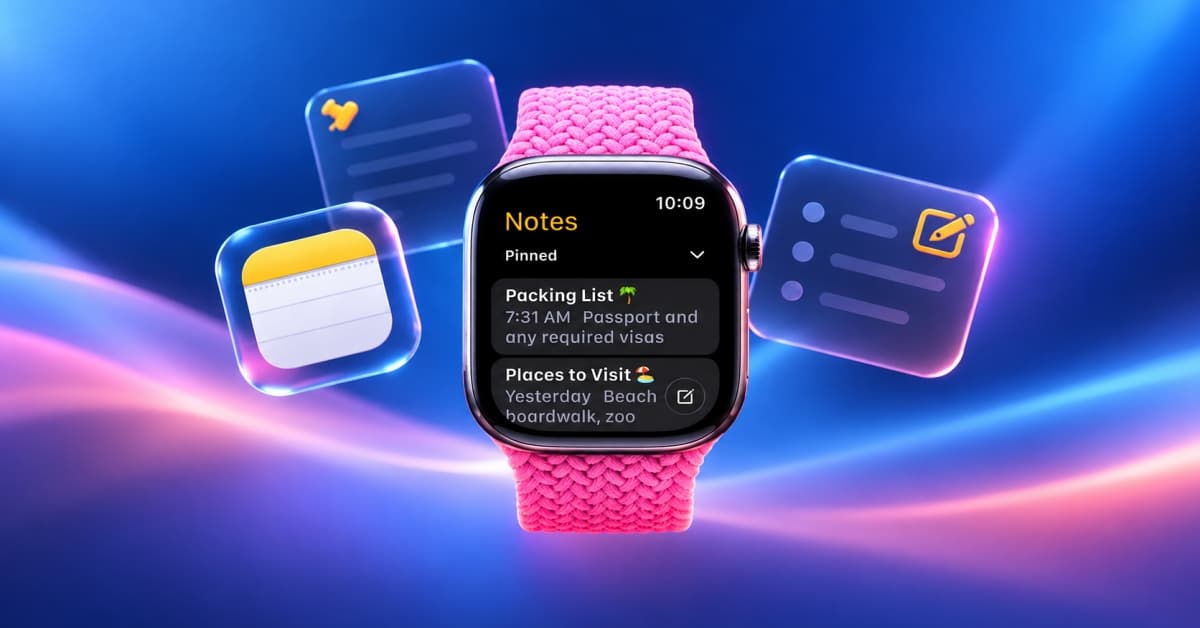
Apple Notes offers a convenient way to jot down important thoughts, ideas, or anything you want to remember. But imagine the frustration of not finding a note you took earlier when you need it most.
Thankfully, the Apple Notes app offers an easy tool to organize your notes and keep the most important ones at the top so you can get to them faster. Keep reading to learn how to ping a note in the Apple Notes app on your iPhone, iPad, and Mac.
What does pinning a note do in Apple Notes?
Pinning is a great way to improve the accessibility of your frequently needed notes in Apple Notes. When you pin a note, it moves to the Pinned section at the top of your notes list in the app. As a result, every time you open the app, you can access it directly without needing to find it.
Similar to other notes, pinned notes are visible across all your Apple devices. This means a note you pin on your iPhone will appear under the Pinned section on your iPad and Mac, too.
How to pin notes in Apple Notes
Pinning notes makes organization easy if you have a long list of notes. Here’s how to pin your notes in the Apple Notes app on an iPhone, iPad, and Mac.
On iPhone and iPad
- Go to the Apple Notes app and open the note you want to pin.
- Tap the three dots in the top-right corner and select the Pin option.

Alternatively, there are a couple more ways to pin a note in the Notes app on your iPhone. Long-press on the note you want to pin and select Pin Note. Or swipe right on the note you want to pin and tap the pin icon on the left side.
Go back to the folder by tapping the arrow in the upper-left corner, and you should see the pinned note under the Pinned section.
On Mac
- Open the Notes app.
- Control-click on the note that you wish to pin and select Pin Note.
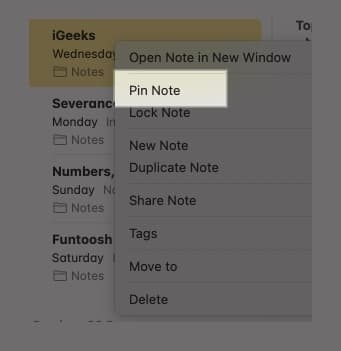
Alternatively, you can also pin a note like this:
- Click on the note you want to pin to select it.
- Click File in the menu bar and choose Pin Note.
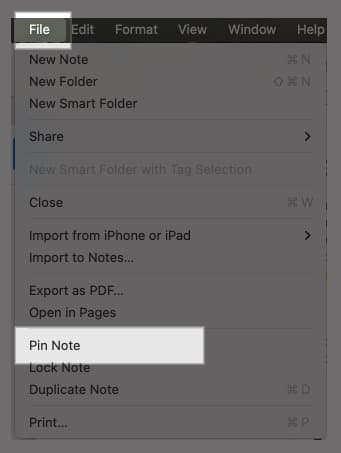
Your pinned note will be accessible from the Pinned section in the Notes app.
How to unpin notes in Apple Notes
If you don’t need to keep old notes you no longer need pinned in the Notes app, you can simply unpin then to declutter the Pinned section. Here’s how you do it on your iPhone, iPad, and Mac.
On iPhone and iPad
- In the Notes app, locate the note you want to unpin under the Pinned notes section.
- Open the note, tap the three dots in the top-right corner, and choose Unpin.

Alternatively, long-press on your pinned note and select Unpin Note. You can also just swipe right on the pinned note and select the unpin icon on the left side.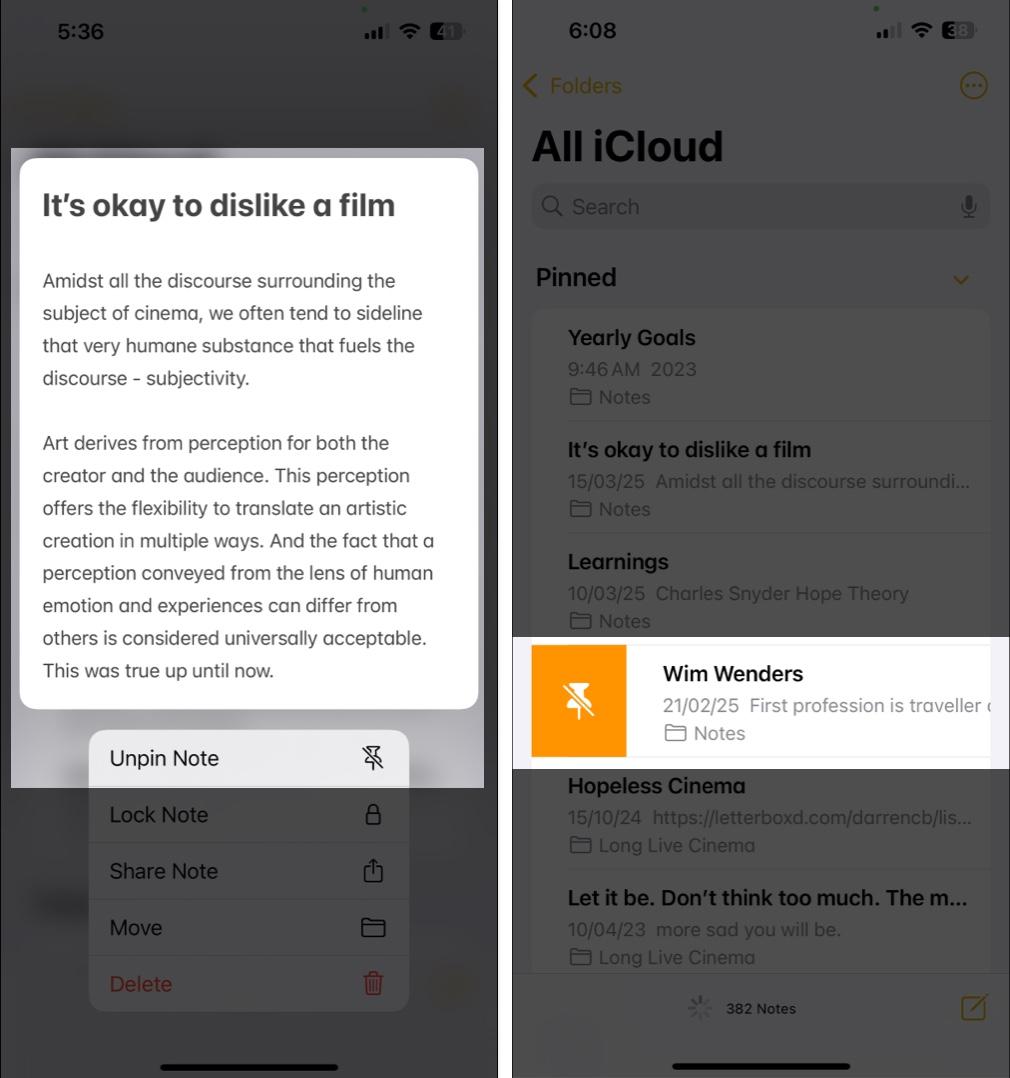
On Mac
- In Notes, locate the note under the Pinned section you want to unpin.
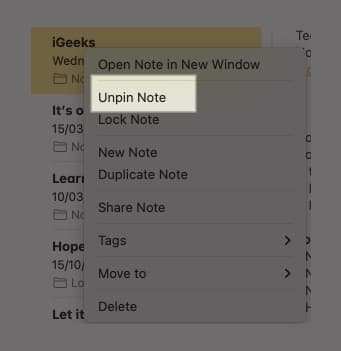
- Control-click on the note and select Unpin Note.
Alternatively, select the pinned note, click on File, and choose Unpin Note.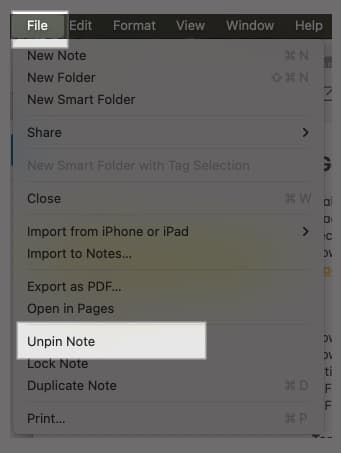
Wrapping up
Pinning notes in the Apple Notes App makes the organization of notes easy and helps you quickly check your most important notes. Your pinned notes will be synced across all your Apple devices if the Notes app has been enabled for your iCloud account.
Contents you may find useful: