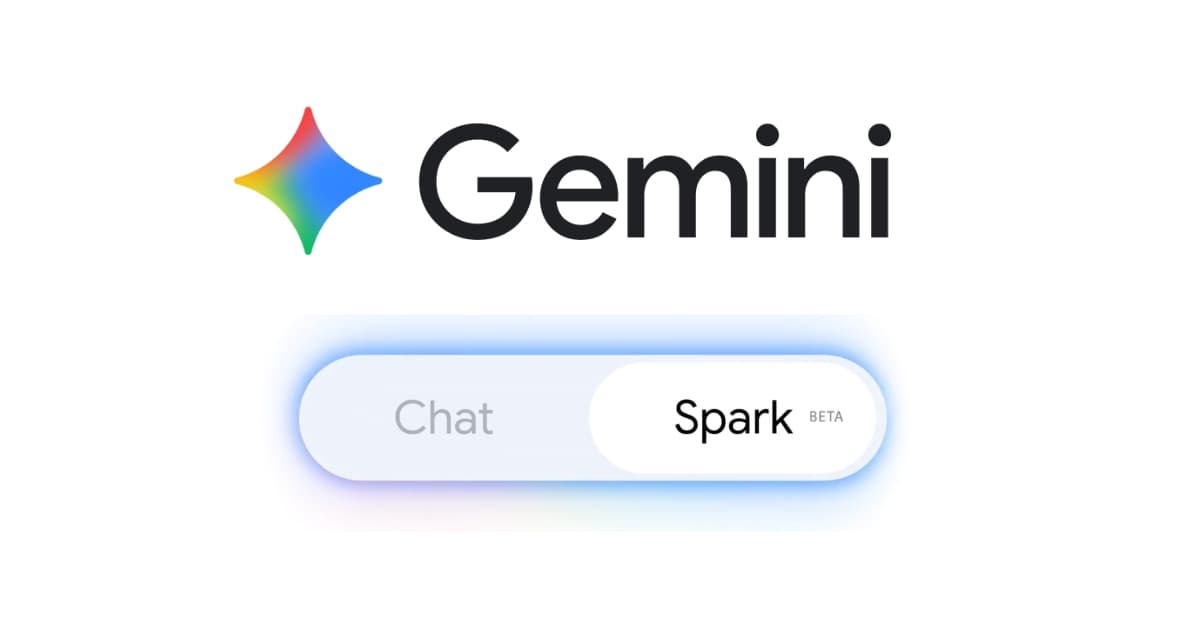
Imagine asking Gemini to watch for cheaper flight tickets and remind you when the price drops. That is the idea behind Gemini Spark, Google’s new 24/7 AI agent announced at I/O 2026.
Spark is built for tasks that need follow-up. You give it a job, allow the apps it needs, and it can keep working in the background. For important actions, such as sending emails or spending money, Google says Spark will ask before moving ahead.
What you can do with Gemini Spark
Spark helps when a task needs more than one quick answer. It can check, compare, organize, and remind across apps like Gmail, Calendar, Drive, Docs, Sheets, Maps, and the web.
Here are some simple examples:
- Track cheaper flights: Watch a route and remind you when prices drop.
- Plan around your calendar: Find a dinner slot that does not clash with meetings.
- Follow up on invoices: Find unpaid client emails and draft replies for review.
- Track applications: Collect job or internship deadlines in a Sheet.
- Turn meetings into tasks: Pull action items from notes and make a follow-up list.
- Organize trip details: Bring flight emails, hotel bookings, and saved places into one plan.
Spark can connect small pieces of information. It can find a deadline in Gmail, match it with a file in Drive, check your calendar, and turn that into a list, reminder, or draft.
These app connections are off by default, so Spark does not get broad access unless you allow it. If you get access, start with low-risk tasks before trusting it with emails, purchases, shared files, or sensitive accounts.
Must read: How I used Gemini to search apps on Play Store
How you can try Gemini Spark
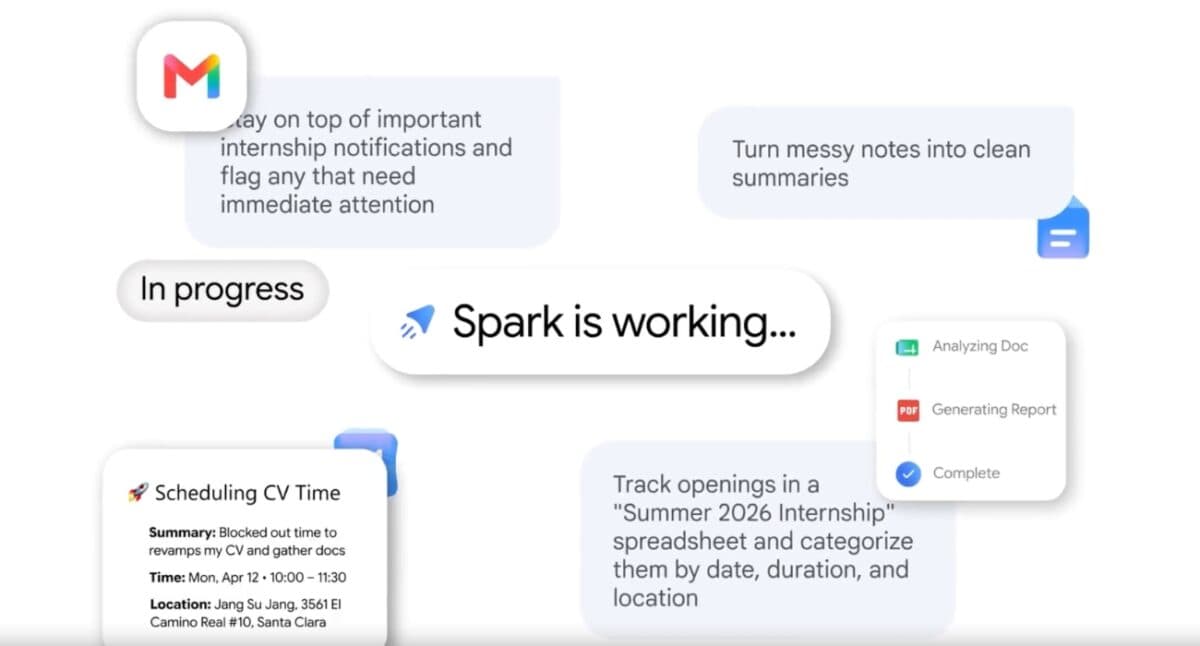
Gemini Spark is rolling out first to trusted testers and as a beta for Google AI Ultra subscribers in the United States. Users need to be 18 or older, and Spark may not appear on every eligible account immediately.
Google AI Ultra starts at $99.99 per month in the U.S. Google currently lists Spark as U.S. only and English-only for Ultra users.
To check for Spark:
- Open gemini.google.com or the Gemini app.
- Sign in with your Google AI Ultra account.
- Look for Spark in the Gemini interface.
- Start with a simple task, such as tracking cheaper flight tickets.
- Connect only the apps Gemini asks for.
- Review Spark’s plan before approving any action.
Before using Spark for real work, check your Gemini privacy settings. If Spark asks for browser, app, or file access, approve only what the task actually needs.
Where Spark still falls short
Spark is expensive and limited right now. Most people cannot try it yet, and the $99.99 monthly starting price only makes sense if it saves real time every week.
Reliability matters more here than with a normal chatbot. A bad answer is easy to ignore. A bad agent action can affect an email draft, shared document, browser session, or task list. Keep Spark away from sensitive work until you trust how it handles smaller tasks.
Privacy is the other tradeoff. Spark becomes useful by understanding your context, but that context may include emails, files, calendar events, browser sessions, and websites where you are signed in. If that feels too invasive, wait for the beta to mature.
Gemini Spark vs Daily Brief vs Personal Intelligence
Google kind of has similar products or features that can confuse people. Daily Brief gives you a personalized morning summary. Personal Intelligence helps Gemini answer using your connected Google app data. Spark uses approved context from your apps to carry tasks forward in the background.
The short version: Daily Brief tells you what needs attention, Personal Intelligence gives Gemini better context, and Spark tries to act on that context.
Spark is the most ambitious of the three, but it needs the most caution. Use it slowly, keep access narrow, and review the work before letting it touch anything important.
You might also like: