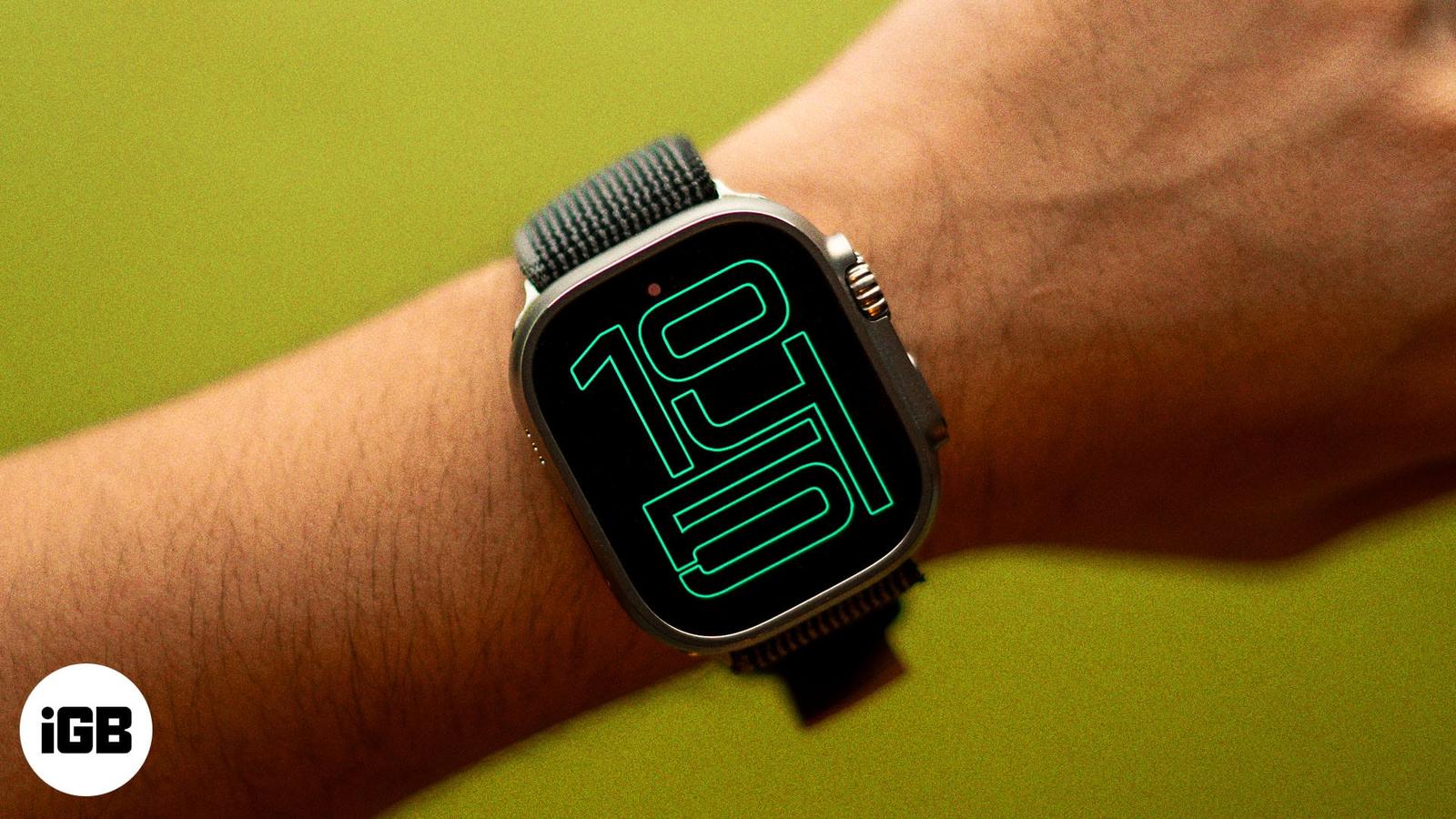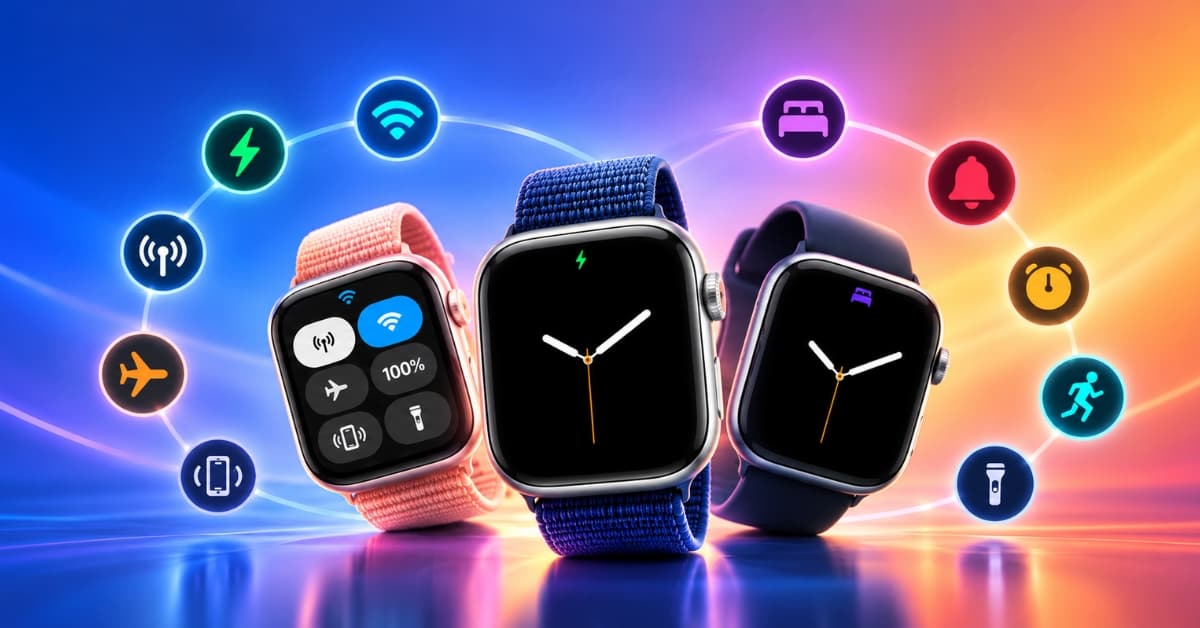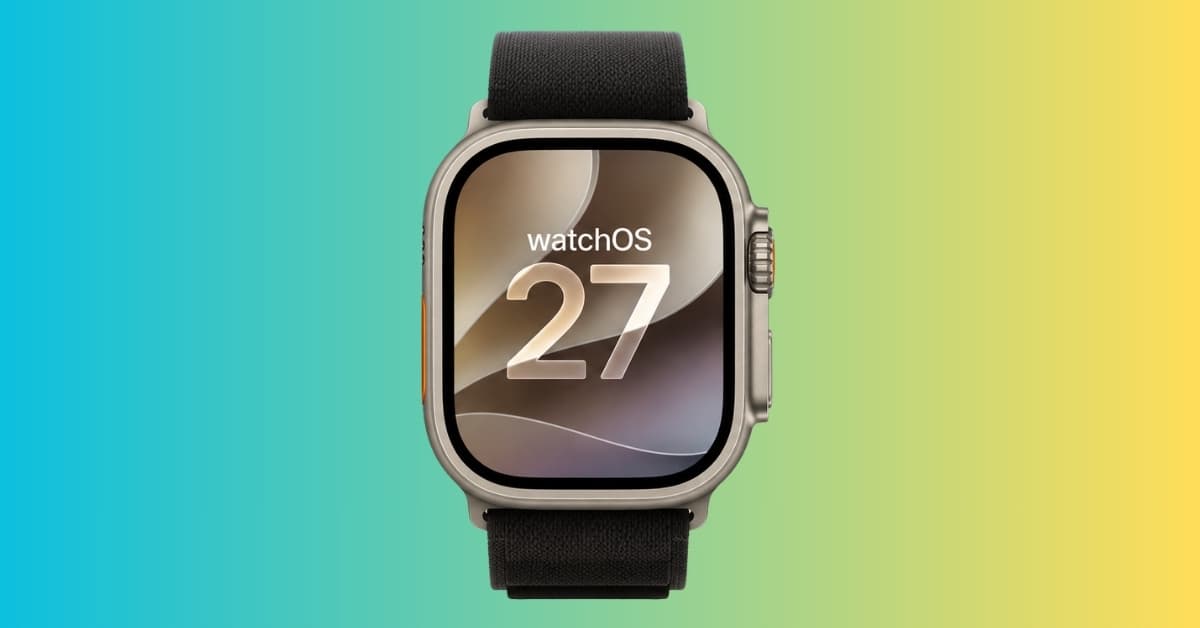
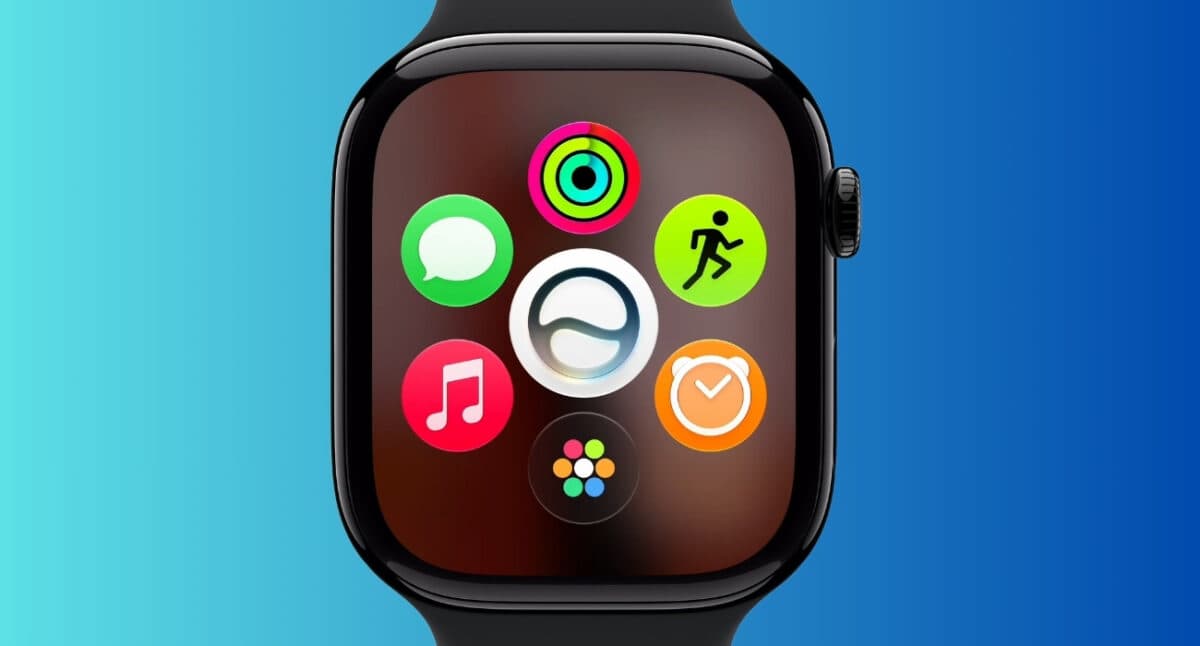
Apple has now seeded watchOS 27.2 developer beta 4, likely the last build before the Release Candidate. With the stable version of watchOS 27 already available through the Watch app on your iPhone, the developer beta program is now the way to test upcoming features before they roll out publicly. watchOS 27.2 brings expanded Siri AI language support (French, Japanese, Korean, Portuguese, and Spanish), on top of the full watchOS 27 feature set: Siri AI with back-and-forth conversations, Workout Buddy with iPhone-free coaching and progressive metrics, a new dynamic app grid, smarter Smart Stack suggestions with a one-handed tap gesture, a unified Find My app with Precision Finding, custom Wallet passes, Cycle Tracking perimenopause notifications, and battery optimization tools that can suggest turning off rarely used features.
Beta 4 (build 24S5112a) arrived about a week after beta 3, with Apple shifting into the final-stretch cadence ahead of the public roll out expected later this month. Don’t expect major new user-facing changes in this drop, this stage is about bug fixes and polish.
That said, there is one critical thing to know before you proceed. Unlike iPhone or Mac, you cannot downgrade an Apple Watch after installing a beta. If something goes wrong, returning to an earlier watchOS version is not an option you can do yourself. It would require sending the watch to Apple for service, which is not covered under warranty. Only install this on a secondary Apple Watch you can live without.
Still want in? Here’s everything you need to know about installing watchOS 27.2 developer beta on your Apple Watch.
Things to know before installing watchOS 27.2 developer beta
Before you begin, keep the following requirements and limitations in mind:
- Your Apple Watch must be compatible with watchOS 27.
- The paired iPhone must be running iOS 27.2 developer beta.
- Some watchOS 27 features may require Apple Intelligence-compatible devices.
- Your Apple Watch needs at least 50% battery.
- The watch must be connected to its charger during installation.
- Your iPhone should be connected to a stable Wi-Fi network.
- Once installed, watchOS beta software isn’t easy to remove or downgrade.
Apple Watch models compatible with watchOS 27
Apple has confirmed that watchOS 27 supports the following Apple Watch models:
- Apple Watch SE (3rd generation)
- Apple Watch Series 10
- Apple Watch Series 11
- Apple Watch Ultra 2
- Apple Watch Ultra 3
How to install watchOS 27.2 developer beta
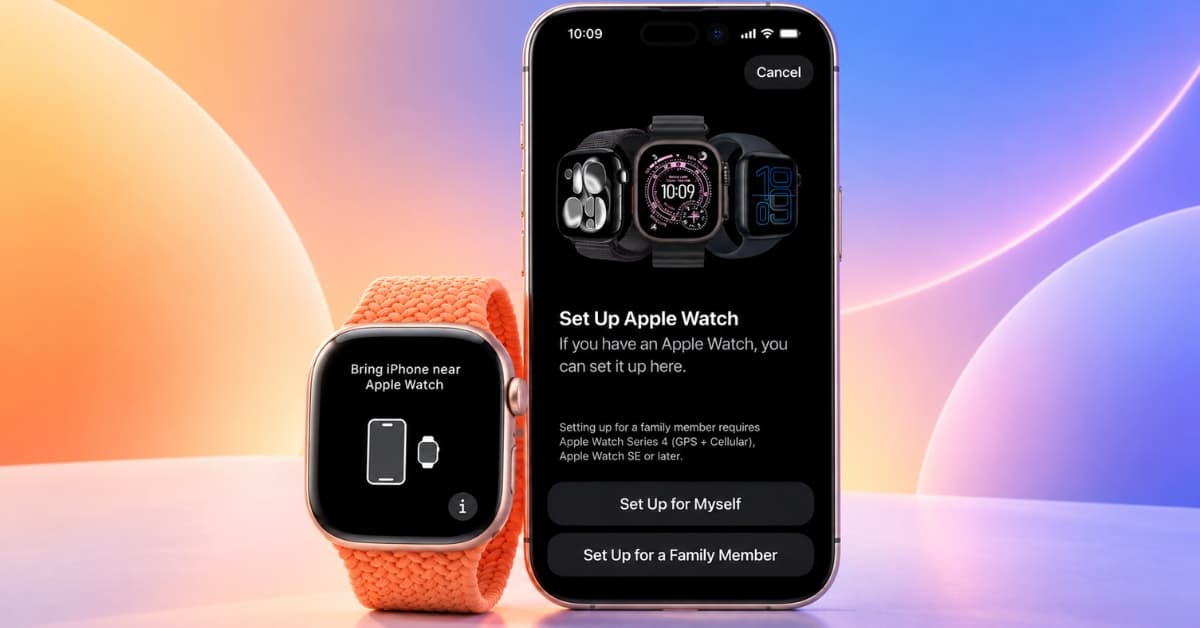
Before proceeding, ensure that the Apple Account on your paired iPhone is enrolled in the Apple Developer Program. You’ll also need to install iOS 27.2 developer beta on the paired iPhone, as watchOS 27.2 beta updates aren’t available on devices running a public version of iOS.
Once everything is set up, you’re ready to install the beta.
Now that your Apple Watch is eligible for beta updates, installing watchOS 27.2 developer beta is fairly straightforward. Here’s how:
- Open the Watch app on the paired iPhone and ensure you are on the My Watch tab.
- Here, tap General, followed by Software Update on the subsequent menu.
- Now, tap Beta Updates, then choose watchOS 27 developer beta.
- Next, tap the Download and Install button once the update becomes available.
watchOS 27.2 developer beta not showing up?
If you don’t see the watchOS 27.2 developer beta in the Software Update section, don’t panic. In most cases, one of the following requirements hasn’t been met yet:
- iPhone is running iOS 27.2 developer beta.
- The same Apple Account is enrolled in the Apple Developer Program.
- Apple Watch supports watchOS 27.
- Both devices are connected to the internet.
Apple’s beta servers can also get overloaded shortly after a new release, so sometimes the simplest solution is to wait a while and try again later.
Can you remove watchOS 27.2 beta?
Unlike iOS and macOS betas, watchOS betas are difficult to remove once installed.
You can leave the beta program at any time and stop receiving future beta builds. However, the version already installed on your Apple Watch will stay there, as Apple doesn’t provide a user-facing option to revert to an earlier watchOS release.
Once the beta is on your watch, you’re essentially committed to it until Apple ships the next stable update, which for watchOS 27.2 is expected toward the end of October.
Should you install watchOS 27.2 developer beta?
Now that watchOS 27 is publicly available, the developer beta is really just a way to preview upcoming point updates like 27.2 before they ship to everyone. Given that watchOS betas can’t be rolled back at home, I’d think twice before putting one on your primary Apple Watch.
In my experience, watchOS betas tend to be more unpredictable than iPhone betas. Bugs, battery drain, delayed notifications, and syncing issues aren’t unusual, and if something goes wrong, you can’t simply downgrade your Apple Watch at home.
Unless you’re eager to get your hands on a specific watchOS 27.2 feature like the expanded Siri AI languages, sticking with the stable watchOS 27 release or waiting for the 27.2 public beta is the safer path.
Ready to test watchOS 27.2?
Installing watchOS 27.2 developer beta 4 is the fastest way to preview Apple’s newest Apple Watch features before the wider public roll out. This build sits on top of the stable watchOS 27 release, layering in expanded Siri AI language support covering French, Japanese, Korean, Portuguese, and Spanish, along with refinements Apple is polishing ahead of the public release expected before HomePod mini 2 arrives on October 30.
Just remember that beta software comes with trade-offs, and on Apple Watch, downgrading to a stable version is not possible on your own. Only install it on a secondary watch you can afford to keep on beta until the public release arrives.
If you prefer a smoother experience, the public beta is a safer option for most users, and the stable watchOS 27 release is already available if you’d rather skip testing unfinished software altogether.
If you have already installed watchOS 27.2 beta 4, let us know your favorite new feature in the comments!
Read More: