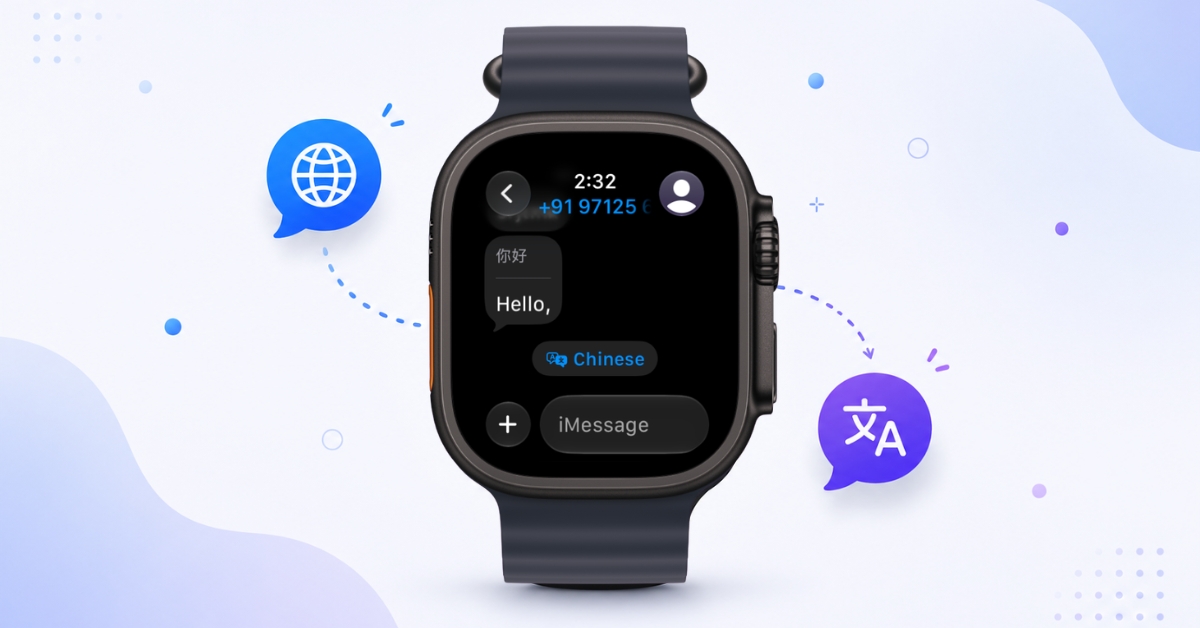
I mostly use my Apple Watch to check messages when I’m away from my phone, so running into a text in another language usually means waiting until I can translate it. Live Translation in watchOS 27 removes that extra step by showing the translation right in the conversation. I can quickly understand the message and move on without breaking my workflow.
Here is everything you need to know to get it working.
What you need before you start
Live Translation in Messages is not available to every Apple Watch user. Before you can use it, make sure you have:
A compatible Apple Watch
Live Translation requires watchOS 27 running on Apple Watch Series 9, Apple Watch Ultra 2, or newer. Older models, including the Series 8 and the original Apple Watch Ultra, do not support watchOS 27.
A paired iPhone with Apple Intelligence enabled
The translation models run on your iPhone, not the watch itself. You need an iPhone 15 Pro or newer running iOS 27 with Apple Intelligence turned on. Standard iPhone 15 models are not supported.
A supported language pair
Live Translation currently supports English (US and UK), Dutch, French, German, Italian, Portuguese (Brazil), Spanish (Spain), Turkish, Chinese (Simplified and Traditional), Japanese, Korean, and Vietnamese. If you need to translate between two languages not on this list, the feature will not appear.
Downloaded language packs
The languages you want to translate between need to be downloaded to your iPhone before the feature will work. You can do this ahead of time, which is strongly recommended before a trip.
How to download languages on your iPhone
For Live Translation to work on your watch, you need to download the relevant language packs to your paired iPhone. Here’s how:
- Open Settings on your iPhone.
- Tap General, then Language and Region.
- Tap Translation Languages.
- Select the languages you want to download.
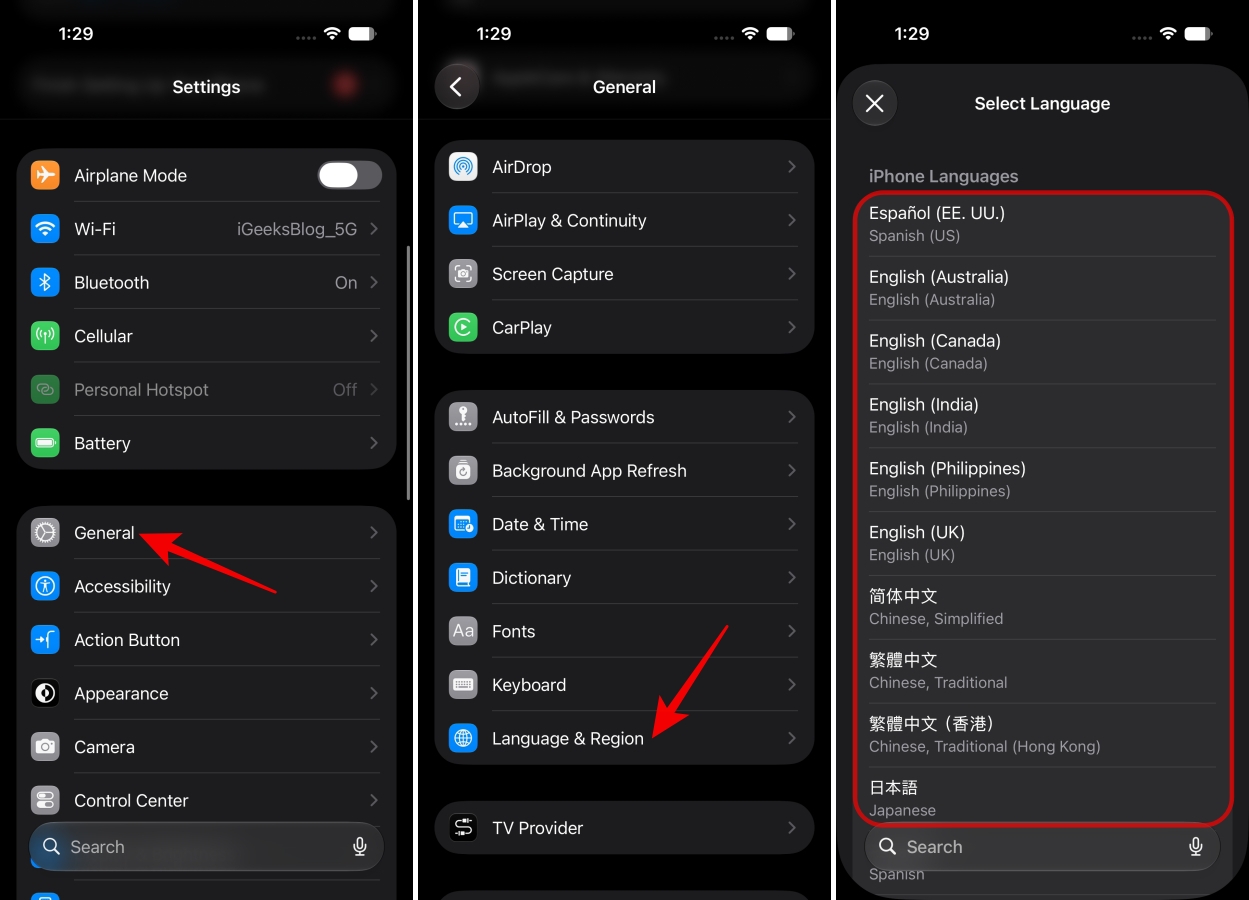
Once downloaded, those language packs are available for on-device translation across your iPhone and paired Apple Watch.
How to turn on Live Translation in a conversation on Apple Watch
Now that you have the preferred languages downloaded, turning on Live Translation for a specific conversation is pretty straightforward.
- Open the Messages app on your Apple Watch.
- Tap the conversation (or the contact name at the top).
- When a message in a foreign language arrives, you will see a prompt to turn on Live Translation. Tap it to enable it for that conversation.
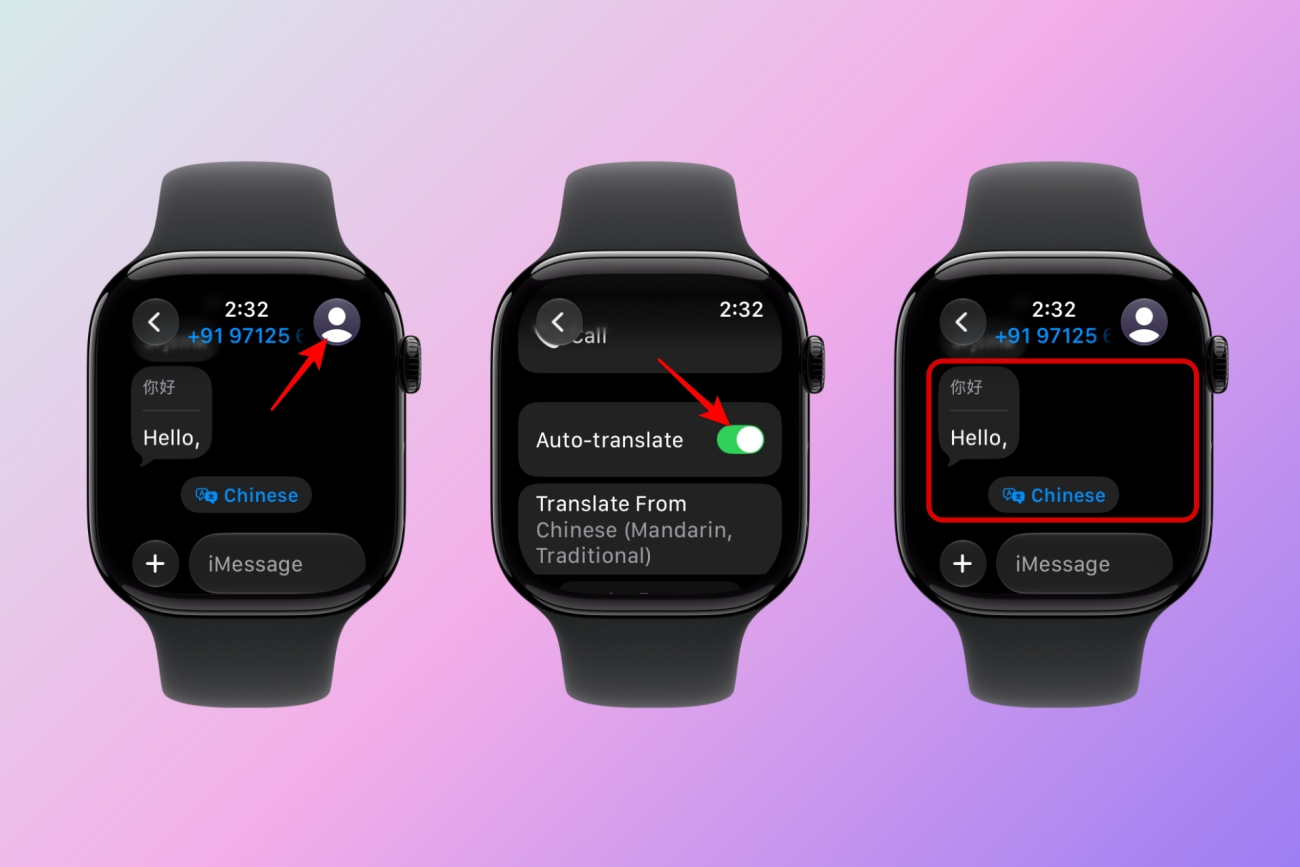
Once done, any incoming messages in the other language will be translated automatically and appear inline in the conversation thread, directly below the original text.
How to view the original text
Translated messages show both the translation and, optionally, the original. If you want to see what was actually written:
- In the conversation, tap the language label shown at the bottom.
- Choose to show the original text alongside the translation.
This is useful if you have some knowledge of the language and want to cross-reference, or if you want to verify the translation feels right in context.
How to change the translation languages
If you want to adjust which language you are translating from or to:
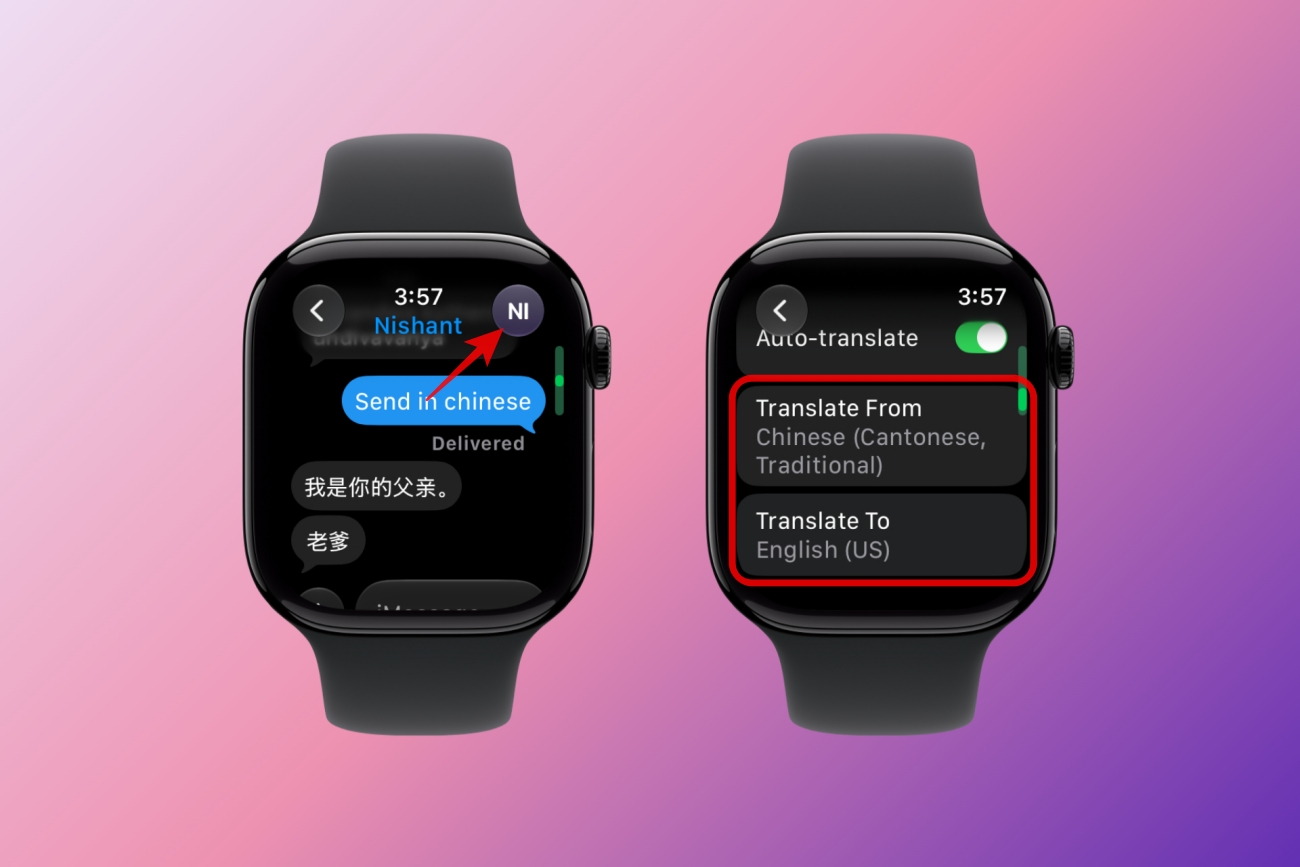
- Open the conversation you want to change the translation language for.
- Tap the contact icon in the top right corner.
- Scroll down and tap Translate From or Translate To.
- Select the language you want.
How to turn off Live Translation
If you no longer want messages in a conversation to be translated:
- Open the conversation for which you want to turn off Live Translation.
- Tap the language label at the bottom of the conversation.
- Tap Stop Translating.
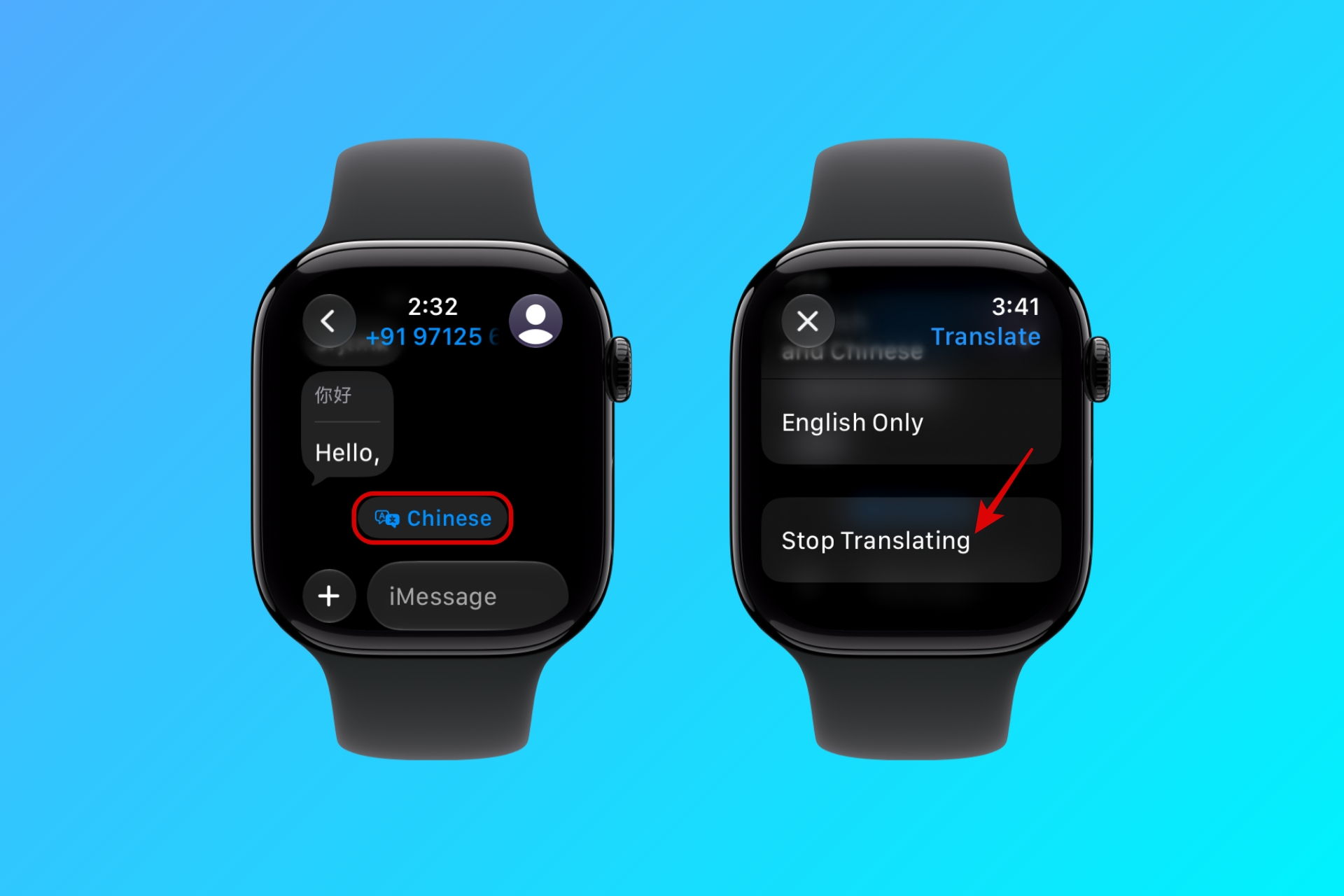
Translation will stop immediately. Existing translated messages will remain visible, but new messages will no longer be translated automatically.
A few things worth knowing
Like most Apple Intelligence features, Live Translation comes with a few conditions and limitations that are good to know.
- It works without your iPhone nearby, with a caveat: If your Apple Watch has cellular service and is away from your iPhone, the feature may still work for translation display, but downloading new language packs requires your iPhone to be present. Keep in mind that cellular data charges may apply when using the feature on a cellular Apple Watch.
- It is not available in the EU yet: Apple Intelligence features, including Live Translation, are not available at launch in the EU on iOS and iPadOS. The situation for watchOS in the EU may differ, but if you are based in Europe, check Apple’s current regional availability before expecting this to work.
- Replies are still up to you: Live Translation handles incoming messages only. If you want to reply in the other person’s language, you will need to compose that yourself or use the Translate app on your iPhone for assistance.
Making multilingual chats easier…
And that’s pretty much all there is to it; some features only become useful when you find yourself in the right situation, and Live Translation in Messages is one of them. Instead of copying text into a translator or reaching for your phone, you can understand messages in another language directly from your Apple Watch. It’s a small addition that makes multilingual conversations much more convenient.
Which watchOS 27 feature has impressed you the most so far? Tell us in the comments below.