

You’ve picked a movie for the flight and packed your MacBook. Before you leave, check whether you can play that movie once the Wi-Fi goes out. Netflix streams on a Mac through supported browsers such as Safari and Chrome. Adding Netflix to the Dock gives you a shortcut to the streaming site. Official offline downloads work through the Netflix app on supported devices, including iPhones and iPads.
Your best option depends on where you want to watch. A phone is easy to use on a short commute. For a longer film with subtitles, you might prefer the MacBook’s larger screen. Here’s how to prepare for either situation and check that playback works before you go.
Download Netflix shows on your iPhone or iPad
If you’re comfortable watching on your phone or tablet, use the download feature in the Netflix app. It’s available on supported iPhones and iPads, Android devices, Fire tablets, and Chromebooks with Google Play. Each download stays in the Netflix app on the device where you saved it.
On your iPhone or iPad, look for the download arrow on the movie’s page or beside an individual episode. You can also open My Netflix → Downloads to browse titles available to save. Download over Wi-Fi, and choose Standard in the app’s download quality settings if you’re short on storage. For a series, saving just the episodes you expect to watch leaves more room for photos and other travel essentials.
Once the download finishes, stay signed in and turn on Airplane Mode. Make sure Wi-Fi is off, then play the title from Downloads. If you’ll be watching somewhere noisy, check the subtitles as well. It’s easier to fix a missing language track at home than halfway through a flight.
Troubleshoot missing or expired downloads
The download button is missing. Try another title. Some movies and shows are available for streaming only. If the button is missing across the app, check for updates to the Netflix app and your device software.
A title has expired. Reconnect to Wi-Fi and check whether Netflix lets you renew or download it again. If you saved something for the return flight, check it again before you head to the airport. A title that has left the catalog can’t be renewed.
You’ve reached your download limit. Netflix’s ad-supported plans allow 15 downloads per device per calendar month. Deleting a watched episode frees up space on the device. The download allowance resets at the start of the next calendar month.
What if you’d rather watch on your MacBook?
You may already have a few episodes saved on your phone. On a long train ride, though, you might prefer the MacBook’s larger screen for reading subtitles or watching a movie with someone. Can you use the Netflix downloads you already have?
A movie you download through Netflix on an iPhone or iPad stays in the app on that device. You can’t send it to your Mac as a video file using AirDrop, and Netflix doesn’t support AirPlay from an iPhone or iPad.
To watch the same title offline on your MacBook, you’ll need a video file saved directly on the Mac. That’s where a third-party downloader can help. Keeprix Video Downloader, for example, can save supported titles available through your Netflix subscription as MP4 or MKV files, provided you’re authorized to save them. Once the file is on your Mac, you can open it in a compatible video player whenever you’re ready to watch, even without Wi-Fi.
How to save and watch Netflix offline with Keeprix
Keeprix, which contributed this guide, makes a desktop downloader for macOS 12 or later. It opens Netflix in a built-in browser and can save supported titles as MP4 or MKV files. Resolution, audio, and subtitle choices depend on the title. You’ll need to sign in to your Netflix account and have access to the title you select.
For a title you’re authorized to save, try one movie or episode before queuing several.
- Open Netflix and Select a Title. Install the Mac version of Keeprix, open the app, and select Netflix.
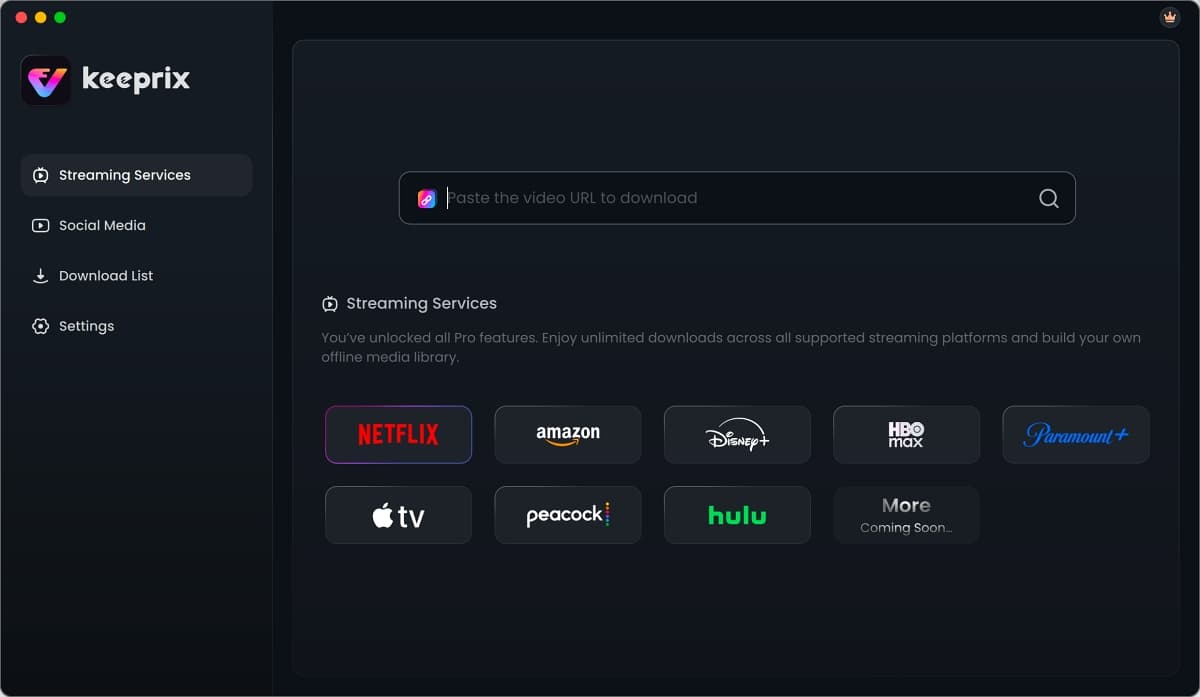
- Sign in through the built-in browser, then open the movie or episode you want to watch. Click the Download button to continue.
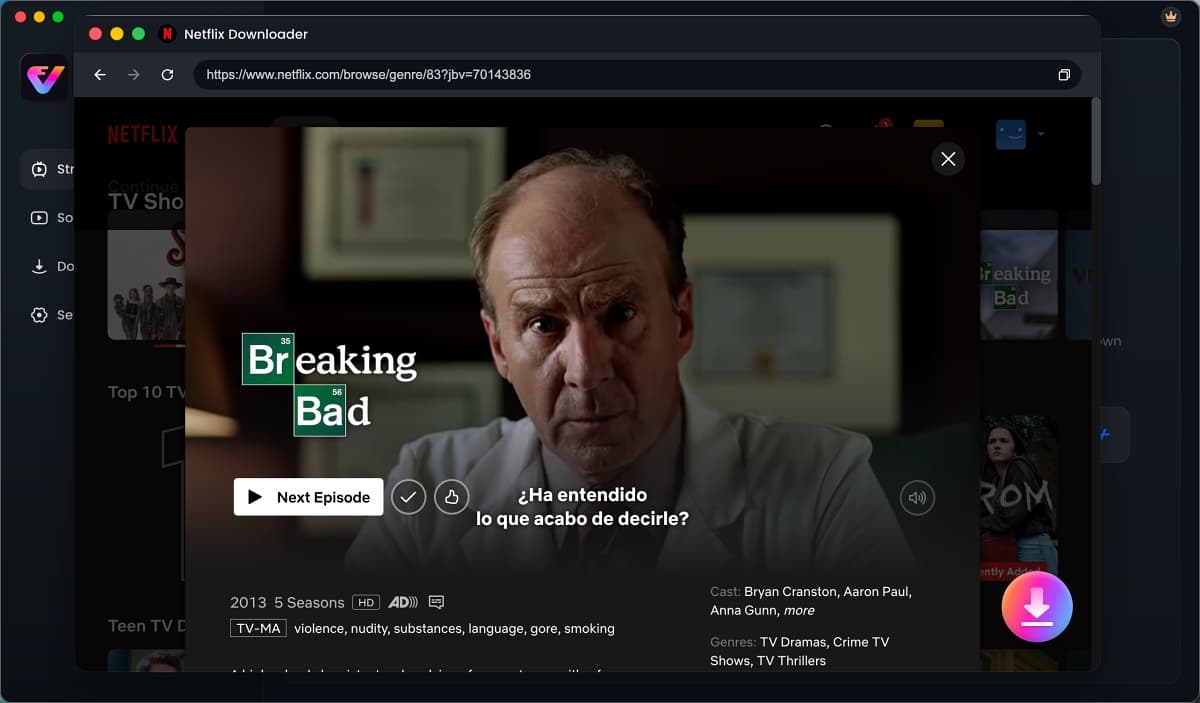
- Choose Your Settings and Download. Open the download settings and choose an output format, resolution, audio language, and subtitles from the available options.
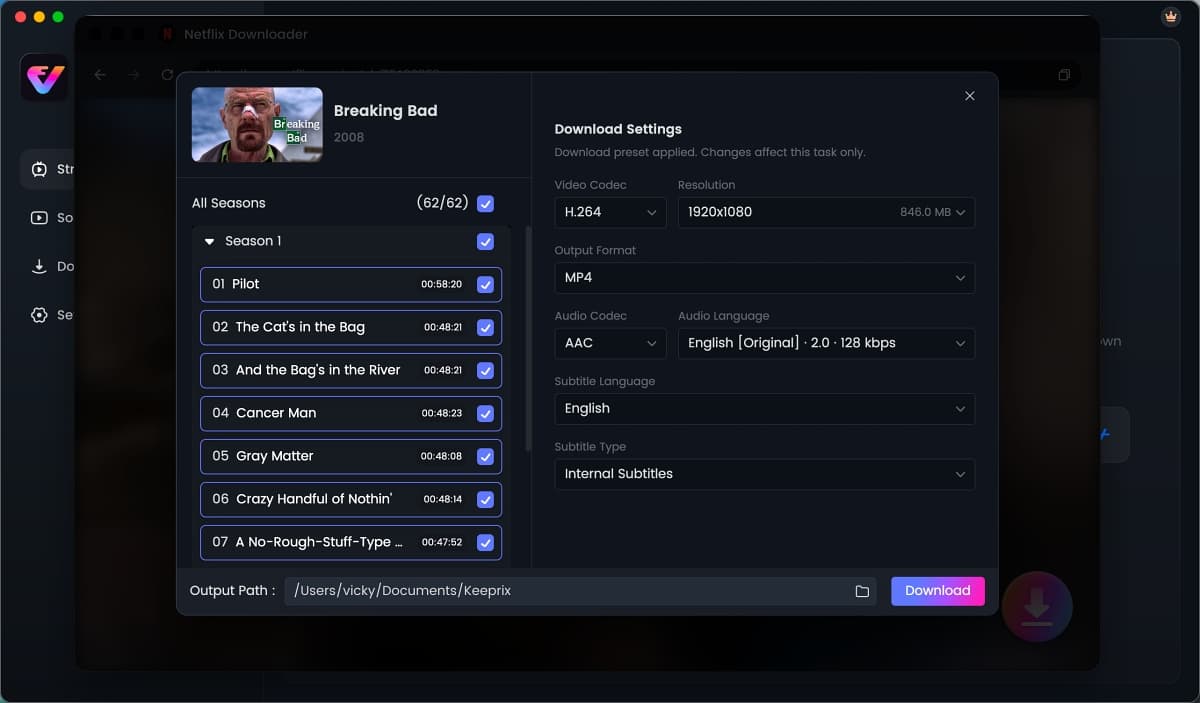
- Test the File Offline. Once the download finishes, open the saved file from Finder with Wi-Fi off. Play the beginning, skip to a later scene, and check the sound and subtitles. If the subtitles are in a separate file, keep it with the video and confirm that your player can load it.
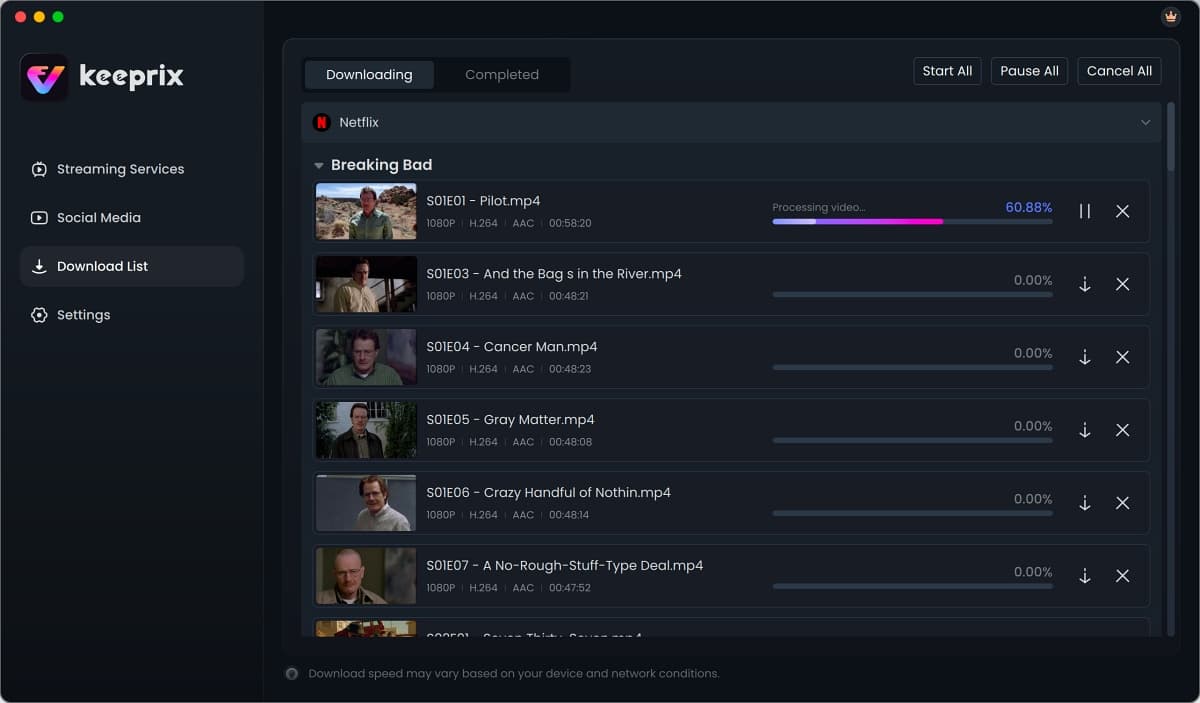
Before you pack, open the exact movie or episode you want to watch on the device you plan to use. A minute of playback with Wi-Fi off can catch an expired download, a missing subtitle, or a file your player can’t open while you still have time to fix it.
Conclusion
If you’re happy watching on your iPhone or iPad, download your movie or episodes in the Netflix app before you leave. If you’d rather use your MacBook’s larger screen, check that the video file you’ve saved opens in your preferred player.
Either way, turn off Wi-Fi and play a scene with the audio and subtitles you plan to use. If you’ve picked something for the return trip, check that it still plays before you head home.