
For years, one of the most frustrating things about using an iPhone was that every important sound was tied to a single volume control. If I lowered notification sounds to stop constant interruptions during the day, I also risked lowering my morning alarm or important reminders without realizing it.
iOS 27 finally resolves this issue, providing individual volume control for alarms, timers, notifications, system sounds, and ringtones. No need to use one alert volume level, as you can now customize each category separately. Here’s how to set different alarm and notification volumes on iPhone.
What’s new in iOS 27 volume controls?
The biggest change is simple: alarms and notifications no longer have to share the same volume setting.
Prior to iOS 27, Apple grouped ringtone volume, alert sounds, alarm volume, timer sounds, and system notifications under a largely unified control. While there were some exceptions, most users had limited flexibility when trying to balance loud alarms with quieter notifications.
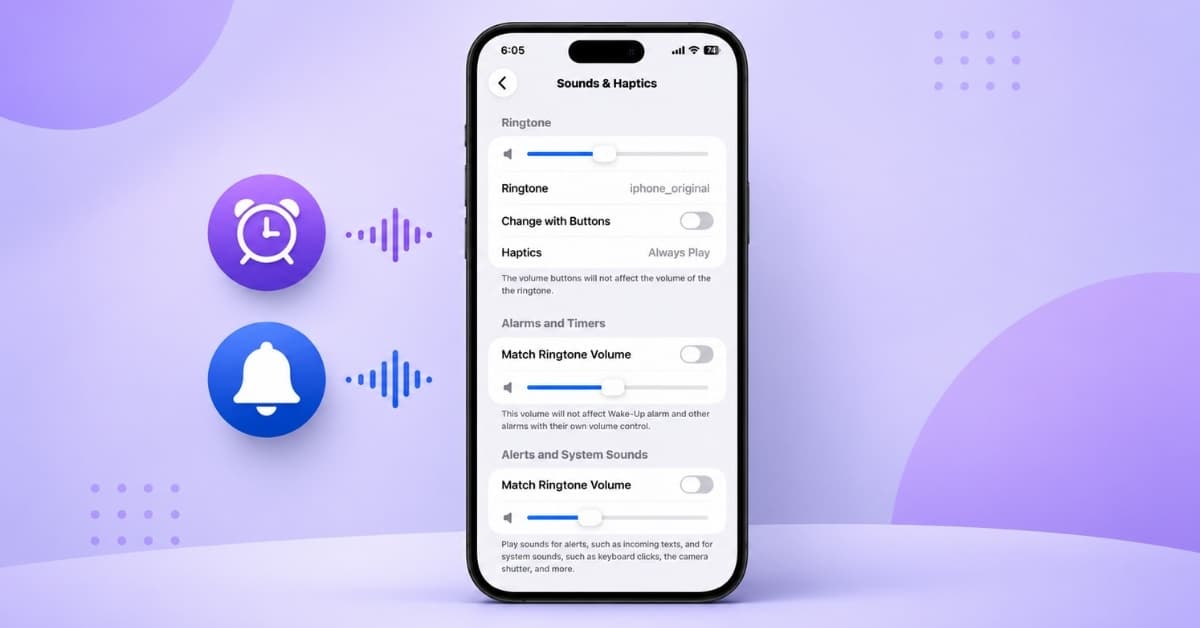
In iOS 27, Apple is introducing new settings called Match Ringtone Volume. If the toggle is kept on, then all the sounds will remain tied to the ringtone volume. However, switching it off will result in individual volume sliders for different categories.
What sounds can be controlled separately?
The new system expands Apple’s audio controls significantly.
| Sound type | Separate volume in iOS 27 |
|---|---|
| Ringtones | Yes |
| Alarms | Yes |
| Timers | Yes |
| Alerts like incoming text | Yes |
| System sounds like keyboard clicks, camera shutters, etc. | Yes |
| Wake-up alarm | Managed separately |
Apple notes that Wake-Up alarms associated with Sleep schedules and other third-party alarms continue to operate through their own controls. This means your morning alarm can remain loud enough to get your attention while incoming messages and app notifications stay quiet throughout the day.
How to customize alarm and notification sounds in iOS 27
Apple has made the feature relatively easy to find. To access the new controls:
- Open Settings.
- Tap Sounds & Haptics.
- Scroll down to Alarms and Timers or Alerts and System Sounds.
- Toggle off Match Ringtone Volume.
- Adjust the dedicated volume slider.
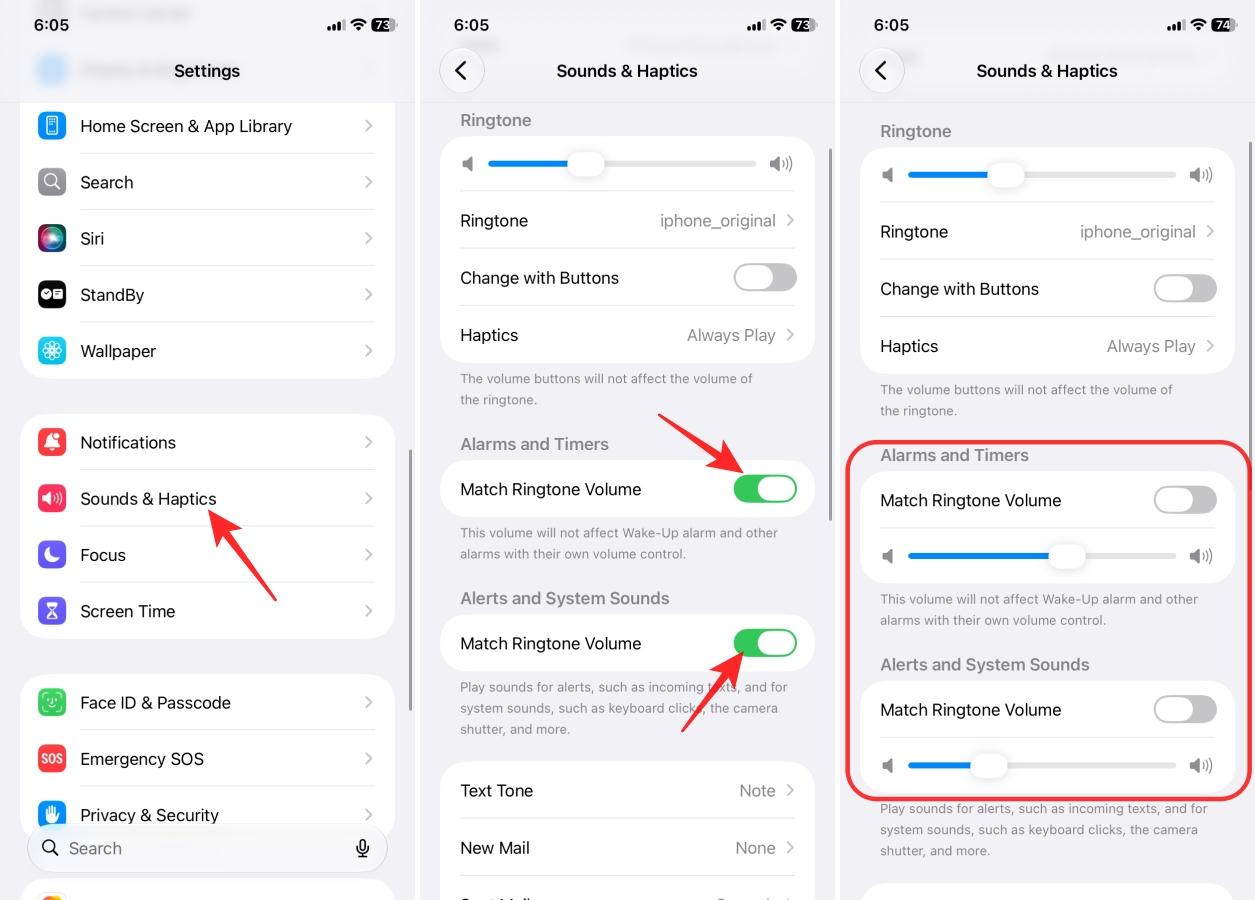
Once separate controls are enabled, users can create personalized sound profiles. For example, I have kept alarms at 100% volume, set notifications at 30%, left ringtone volume at 60%, and lowered system sounds to minimize distraction. I also have set different tones for text, new mail, calendar alerts, and reminder alerts.
Things to know before using separate volume controls
Before enabling the feature, there are a few details worth remembering:
- By default, everything is still connected with ringtones.
- You must disable Match Ringtone Volume to unlock separate sliders.
- Wake-Up alarms continue using their own dedicated settings.
- Users can return to the traditional unified setup at any time by re-enabling the toggle.
Why this feature matters
Separate volume controls may seem like a small feature, but it has been one of the most requested iPhone improvements for years. Because Android users have long enjoyed separate sliders for media, alarms, calls, and notifications.
This issue with the single slider was especially evident for those users who:
- Receive hundreds of notifications daily
- Work irregular schedules
- Depend on multiple alarms
- Use Focus modes extensively
- Travel frequently across time zones
Now, everyone can have the freedom to customize each sound category according to its importance, making the iPhone behave more intelligently in everyday situations
Availability and supported devices
At WWDC 2026, Apple highly focused on Siri AI, refined Liquid Glass, and new Apple Intelligence. The separate volume controls were part of the quality-of-life upgrades.
The feature is currently available in the compatible iPhone devices with the iOS 27.
Final thoughts
Independent volume controls may not be the flashiest feature in iOS 27, but they could end up being one of the most useful.
For years, iPhone users had to choose between loud alarms and quiet notifications. Apple has finally eliminated that compromise by allowing alarms, timers, alerts, and system sounds to be managed separately.
It’s a small change on paper, yet one that can have a huge impact on daily life. Whether you’re trying to avoid missing an important wake-up call or simply want more control over how your iPhone sounds throughout the day, iOS 27 finally gives you the flexibility users have been asking for.
Must Read: