
How to See Parts and Service History on iPhone (iOS 26)
A quick guide to viewing your iPhone’s repair, replacement, and service history directly in Settings.
When you send your iPhone for a repair or plan to buy a refurbished one, its service history is more important than most people realize. Apple’s Parts and Service History feature makes it easy to see whether key components like the screen, battery, display, or camera have been replaced.
In this guide, you’ll learn how to check Parts and Service History on your iPhone and understand what each label really means, so you can make smarter decisions with confidence.
What is Parts and Service History on iPhone
Parts and Service History is a built-in iOS feature that logs any component that has been replaced or serviced. It indicates whether the part is genuine Apple hardware, an unknown third‑party component, or a used part that was previously installed in another device.
Apple introduced this feature to:
- Improve repair transparency.
- Protect users from poor-quality components.
- Help buyers verify that the repair used genuine Apple parts.
- Check the used or refurbished iPhone is original, avoiding scams.
Having genuine parts is important as they work better and last longer. Also, it helps keep up the resale value of your iPhone.
How Apple’s Parts and Service History Works
Apple uses a combination of software and hardware checks to detect replaced components. When an iPhone is repaired by Apple or Authorized Service Providers, it’s logged into the History. This information is automatically populated from Apple’s repair records.
It’s made possible because each major iPhone part has a unique hardware identifier. During repair, the part does a secure pairing with the logic board so that iOS can compare it with Apple’s database to ensure originality.
The best part is:
- You cannot edit or reset this section.
- Apple does not track personal data.
- It is strictly read-only information.
Note:
When You Should Check Parts and Service History
You should check this section in several situations:
- Before buying a used or refurbished iPhone: Verify repair claims, confirm genuine parts, and avoid hidden issues.
- After screen, battery, or camera replacement: Ensure the repair was completed correctly.
- When troubleshooting performance issues like battery draining fast, Face ID or camera problems, or display issues.
- Before selling or trading in your iPhone: Buyers may check it as genuine parts increase trust and value.
iPhone Models That Support Parts and Service History
Apple gradually rolled out this feature across models starting from iOS 15.2 and later:
| Models | Parts |
|---|---|
| iPhone XR, XS, XS Max, SE (2nd and 3rd gen) | Battery |
| iPhone 11 series | Battery and display |
| iPhone 12 series and newer | Battery, display, Logic Board assembly, TrueDepth camera, and rear camera |
If you have an iPhone 15 or later, you can also see if the replaced Apple hardware was previously used in another iPhone.
How to See Parts and Service History on iPhone (Step by Step)
Follow these simple steps:
- Open Settings and go to General.
- Tap About.
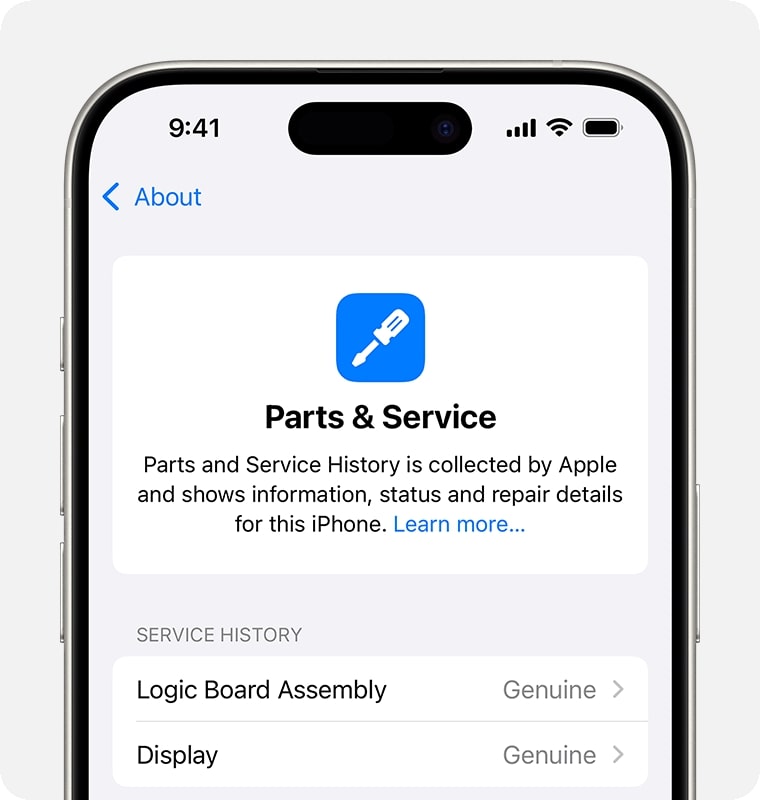
- If your iPhone has been repaired, you will see Parts and Service History.
- Tap it to see the list of replaced components like Display, Battery, Camera, etc.
- Each part shows a status label such as Genuine, Used, and Unknown.
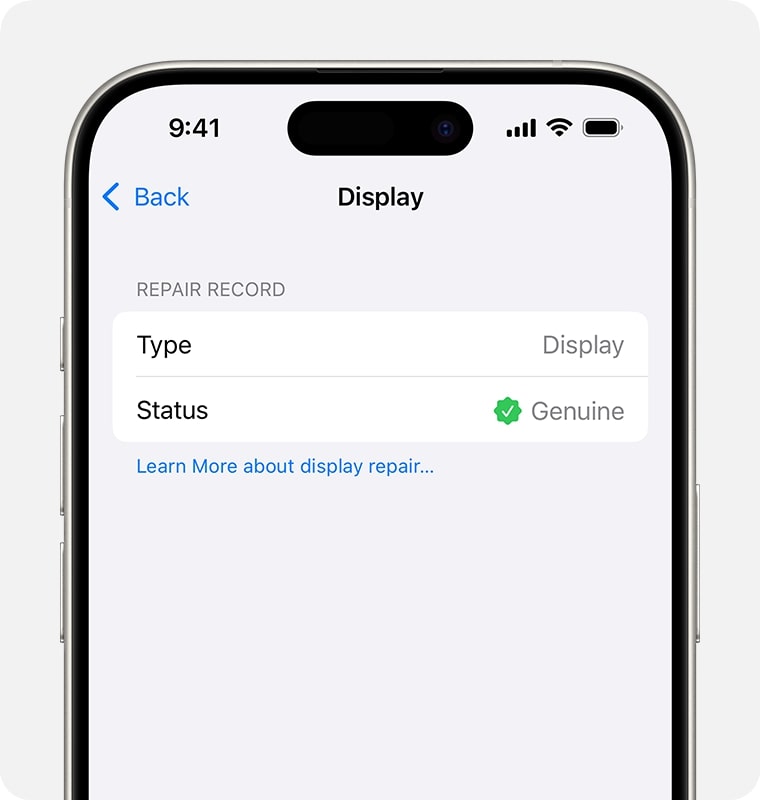
- Tap the component for more information about it, including the date of service. Ensure your iPhone is connected to the internet.
If the repair was not completed, it shows a Finish Repair message. We’ll discuss this in the next section.
Understanding Parts and Service History Labels
- Genuine: Official Apple component properly paired and calibrated.
- Used (iPhone 15 and Later): Genuine Apple part previously used in another iPhone. Still verified by Apple.
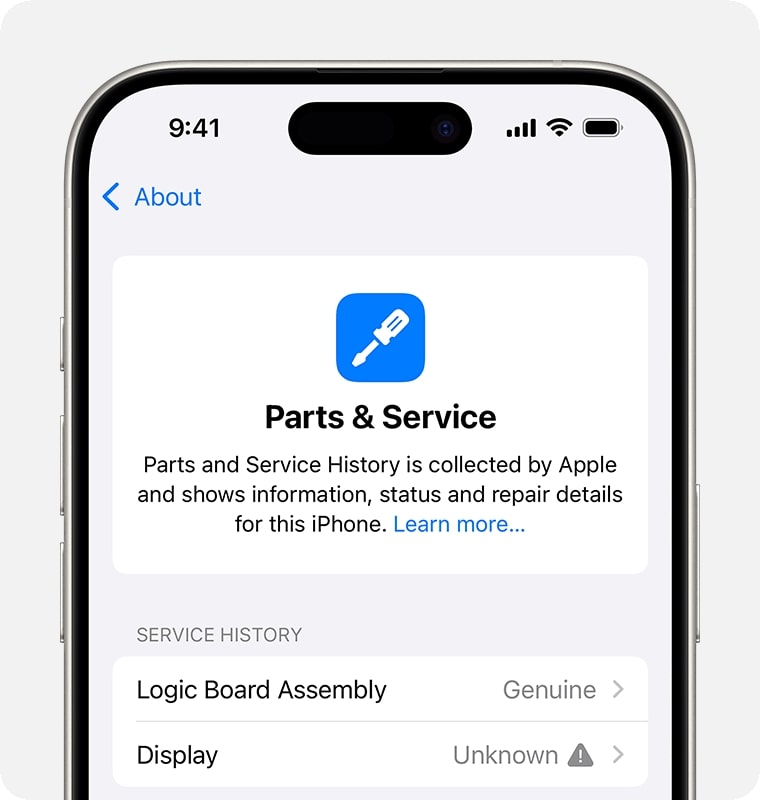
- Unknown: Apple cannot verify the part. May be third-party or improperly installed.
- Finish Repair Message: If the setup or calibration was not done after the replacement, you will see it. You can’t use Face ID or Touch ID to unlock your device or to sign in to apps until it’s done.
What Genuine Apple Part Means
A Genuine Apple Part means it was installed by Apple or an Authorized Service Provider with proper calibration and security pairing. So, your iPhone remains fully compatible with iOS features after repair.
Benefits
- Best performance.
- No warning messages.
- Higher resale and trade-in value.
- Safer long-term use.
What Unknown Part or Non-genuine Part Means
This label appears when a third-party part was used as a replacement or a genuine part wasn’t properly paired with your iPhone’s logic board, so Apple can’t verify the repair. Your phone may still work, but some features may become unavailable.
Possible Downsides
- Reduced performance.
- Battery health issues.
- Face ID or camera problems.
- Lower resale value.
Messages About Replaced Parts or Multiple Repairs
To help you combat poor-quality servicing, your iPhone shows a notification the first time you unlock it after a repair and again in five days if an unknown part is found.
This indicated the replacement part:
- Is nongenuine.
- Isn’t functioning as expected.
- Hasn’t been verified and linked to your iPhone after the repair was done.
- Has been modified or can’t be verified.
You can contact the repair service provider about this.
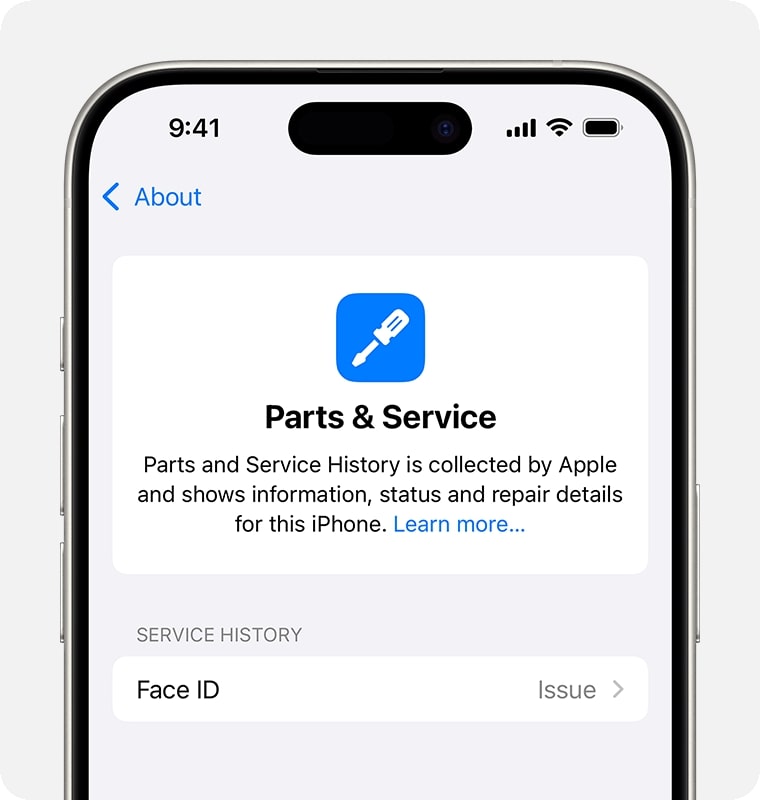
Moreover, if a component problem seriously impairs the device’s functioning and has to be fixed, you will see the issue listed in the Parts and Service History. For example, if the TrueDepth camera of your iPhone is not serviced properly, it may cause Face ID issues.
What to Do If Your iPhone Shows Unknown or Non-genuine Parts
You have a few options:
- Visit an Apple Authorized Service Provider.
- Replace the part with a genuine Apple component.
- Decide if performance meets your needs.
If buying a used iPhone, you may negotiate the price or consider returning the device to avoid future hassles and security issues.
Best Practices to Keep Service History Clean
- Always use Apple or Authorized repair centers or opt for Apple’s Self Service Repair program.
- Avoid cheap third-party repairs.
- Complete repairs properly and check everything before accepting the device.
- Keep service receipts.
- Update iOS regularly.
Note:
Final Thoughts
Checking Parts and Service History on iPhone is simple but extremely powerful. It helps buyers avoid scams, owners verify repair quality, and sellers increase trust and value.
Always go for genuine parts and authorized repairs to ensure the best performance and fewer issues. If you found this guide helpful, save it and share it with anyone buying or selling an iPhone.
Frequently Asked Questions

Written by
Mahit HuilgolMahit is an engineer by Education with a corporate stint to his name. He ditched the corporate boardroom wars in favor of the technology battleground. For the better part of a decade, he has worked for popular publishing outlets, including Dennis Publishing, BGR India, AppStorm, MakeUseOf, and iPhonehacks.
View all posts →More from How-to

Snapchat Parental Controls: How to Set Up Family Center and Keep Your Teen Safe
Snapchat’s Family Center lets parents monitor their teen’s friend activity and screen time without reading private messages. Here’s how to set it up and what to expect.
 VikhyatMarch 3, 2026
How to Block and Unblock Someone on Instagram
Instagram lets you block or unblock someone in seconds. Follow these simple steps to take full control of your privacy and online peace.
 Ava BiswasMarch 2, 2026
Apple Watch Not Responding? 8 Fixes That Actually Work
Is your Apple Watch unresponsive or stuck on a black screen? Here are 8 proven fixes to help you unfreeze it and get it working again quickly.
VikhyatMarch 3, 2026