

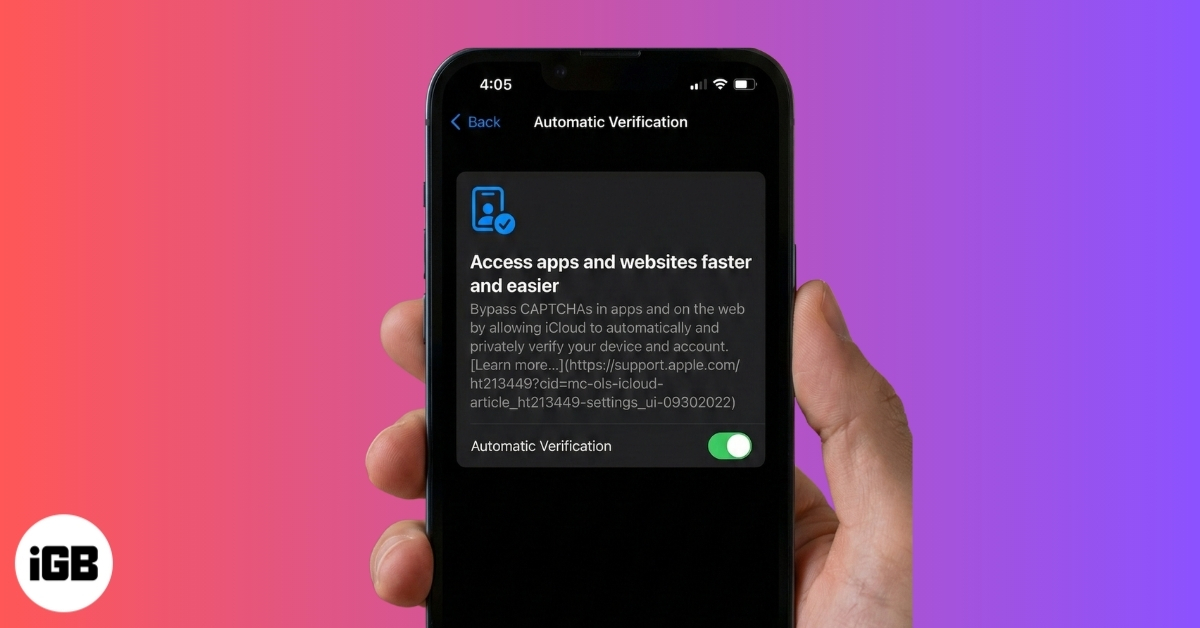
While browsing the web, you have likely encountered CAPTCHA challenges asking you to prove you are not a robot. Although these tests help websites prevent spam, fake accounts, and automated attacks, they can slow down simple tasks like logging in or submitting a form. Automatic Verification solves this problem by allowing your Apple device to confirm that you are a real human in the background, without requiring you to complete image puzzles or repeat prompts.
Keep reading to learn how Automatic Verification works and how to enable it on your iPhone and Mac.
What is CAPTCHA?
CAPTCHA is a small test that websites use to verify that you are a real person, not a robot. You usually see it when a site asks you to click “I’m not a robot,” type blurry letters from an image, or select pictures that show things like traffic lights or buses. Websites use CAPTCHA to stop automated programs from sending spam, creating fake accounts, guessing passwords, or overloading their systems. It serves as a quick checkpoint that most humans can pass easily, but computer bots struggle with.
How Automatic CAPTCHA Verification Works
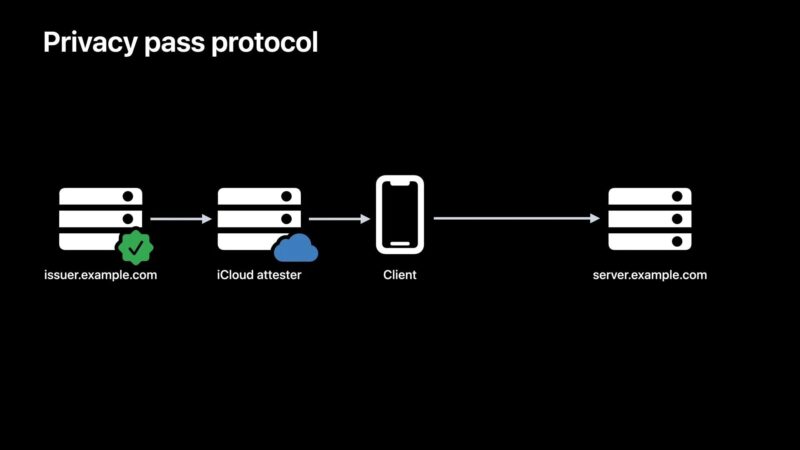
Automatic Verification is Apple’s privacy-preserving method for confirming that you are a real human without requiring you to solve a CAPTCHA challenge. It relies on cryptographic verification rather than visual puzzles.
Here is the process in technical terms, simplified:
1. Website Requests Verification
When you visit a supported website, the site may request proof that you are human. Traditionally, this triggers a CAPTCHA challenge.
2. Device Generates a Private Access Token
If Automatic Verification is enabled, your iPhone, iPad, or Mac securely generates a Private Access Token. This token confirms that:
- The request is coming from a legitimate Apple device
- The device has passed integrity checks
- The user is not a bot
This happens locally on your device.
3. No Personal Data Is Shared
The website receives confirmation that you are a valid human user, but it does not receive:
- Your Apple ID
- Your IP address details beyond normal browsing
- Your identity
- Any tracking information
The system is designed so verification and identity remain separate.
4. Website Skips the CAPTCHA
If the site supports the protocol, it accepts the token and grants access immediately, without displaying a CAPTCHA.
How to Enable Automatic Verification on iPhone
Automatic Verification is enabled by default on supported iPhones. You do not need to manually turn it on in most cases, but you can confirm that the setting is active by following these steps:
- Open Settings and tap your Name and Photo name at the top.
- Now, tap Sign-In & Security.
- Tap Automatic Verification.
- Next, toggle on Automatic Verification if it’s off.
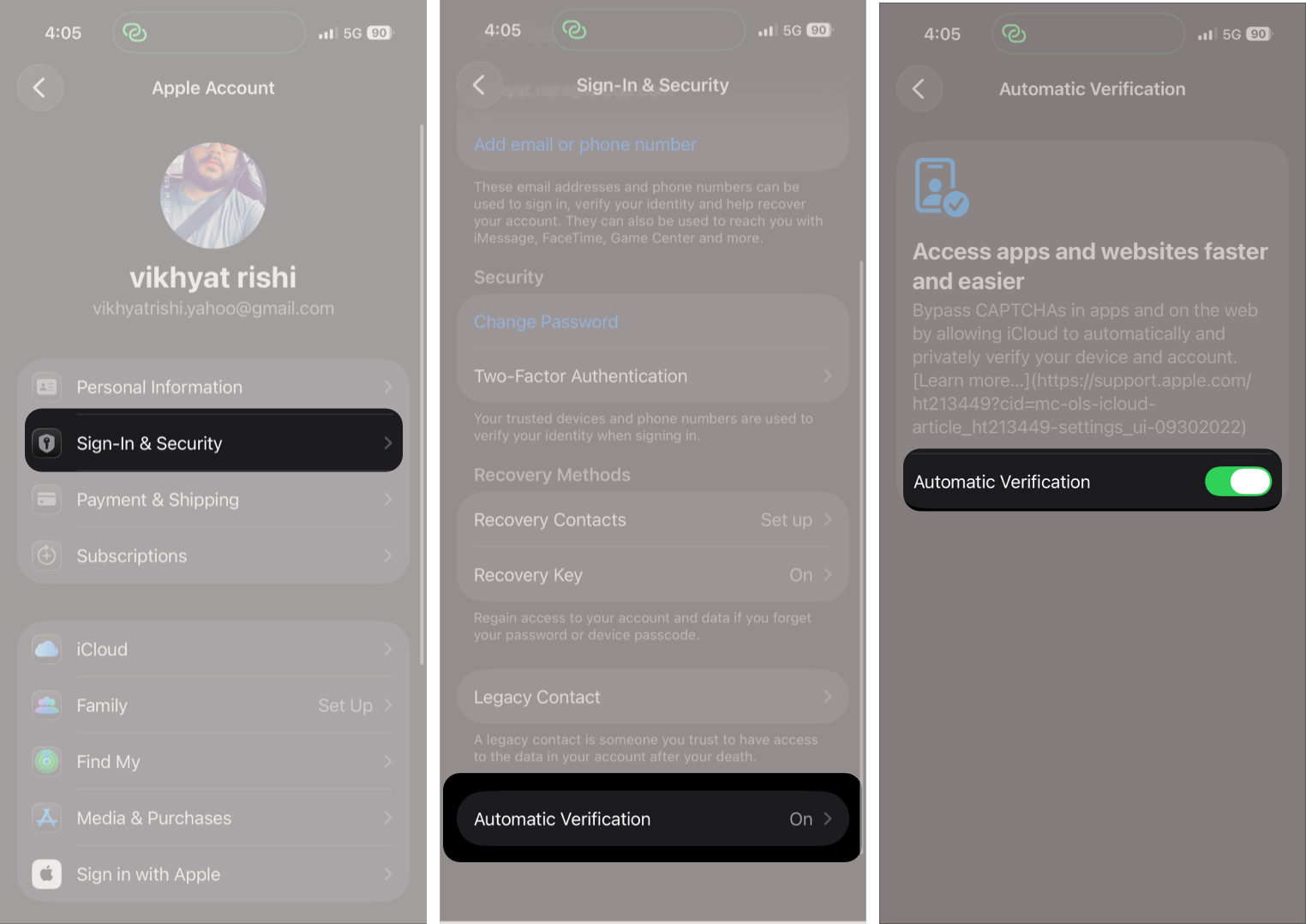
If the toggle is already enabled, you are all set.
How to Enable Automatic Verification on Mac
As on iPhone, Automatic Verification is enabled by default on supported Macs. You do not need to enable it manually. Here’s how you can confirm if the setting is active:
- Open System Settings and click your Name and Photo in the sidebar.
- Select Sign-In & Security.
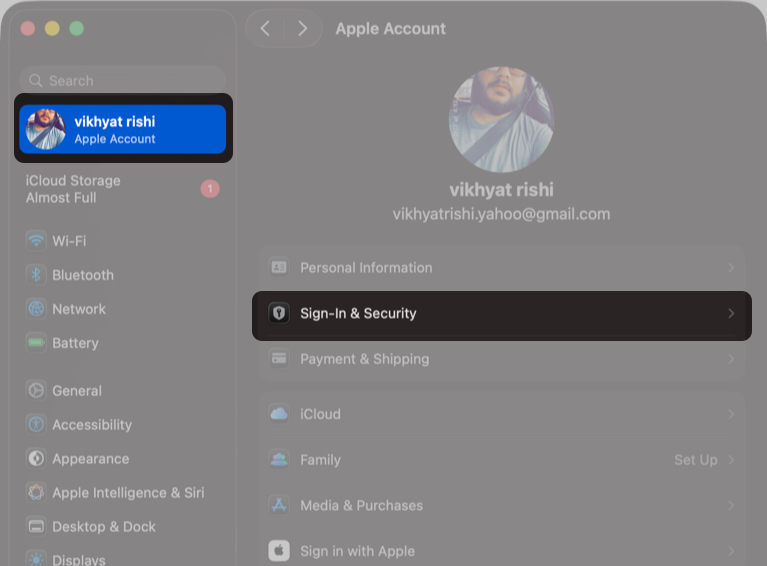
- Click Automatic Verification.
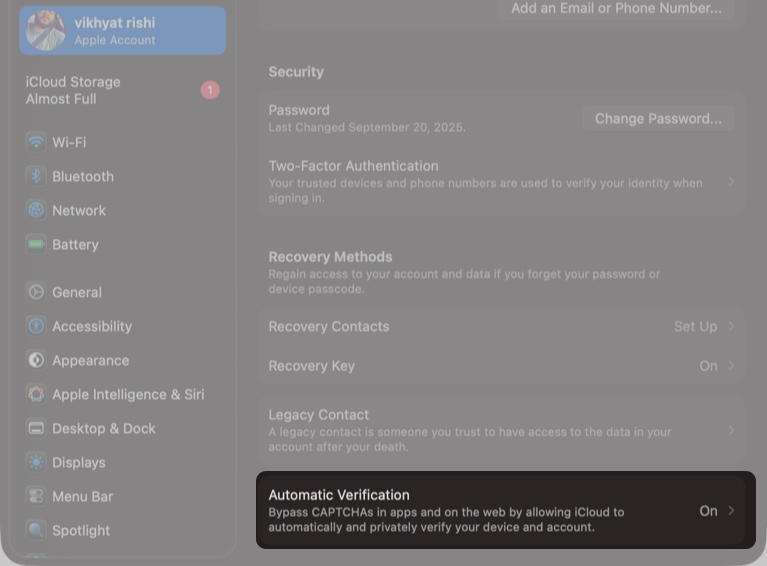
- Toggle Automatic Verification on if it’s not already, then click Done.
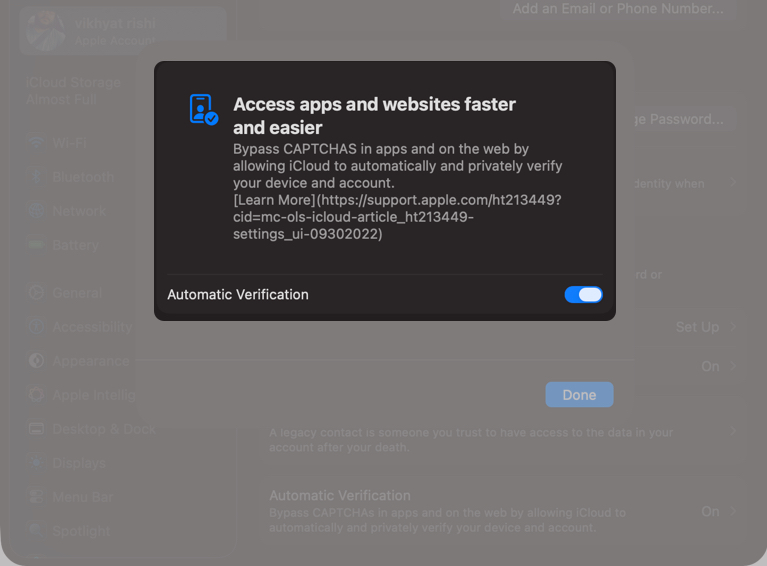


Once enabled, supported websites will skip CAPTCHA verification when possible.
Why You Might Still See CAPTCHAs
Automatic Verification works only if:
- The website supports Private Access Tokens
- You are signed in with your Apple ID
- Your device software is updated
If a site does not support this system, you will still see traditional CAPTCHA challenges.
Security Without the Friction…
Automatic Verification on iPhone and Mac quietly removes one of the most frustrating parts of browsing. Once enabled, your device handles human verification in the background while keeping your identity private. If you are still seeing frequent CAPTCHA challenges, check that the feature is enabled and that your device is up to date.
Have you noticed fewer CAPTCHA prompts on your iPhone or Mac? Share your experience or drop your questions in the comments below.
Read more: