FaceTime Like a Pro
Get our exclusive Ultimate FaceTime Guide 📚 — absolutely FREE when you sign up for our newsletter below.

FaceTime Like a Pro
Get our exclusive Ultimate FaceTime Guide 📚 — absolutely FREE when you sign up for our newsletter below.


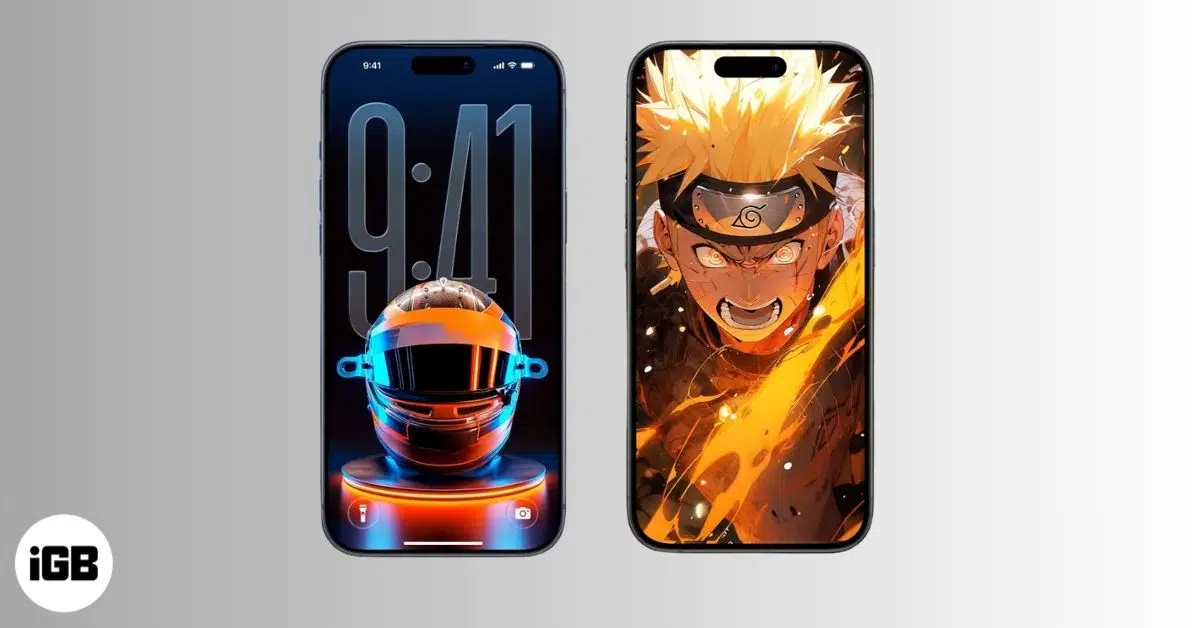
Lock Screen widgets enhance productivity, provide quick access to essential information, and personalize your experience. Here's some of the most useful and stylish iPhone lock screen widgets.


Your iPhone Lock Screen is no longer just a place to check the time. It is now smart, personalized, and can display vital information without unlocking your device. With the right widgets, you can now track your day and stay productive right from your Lock Screen.
In this article, we’ll explore the best iPhone lock screen widgets worth trying in 2026 and how they can make your daily iPhone use faster, easier, and more enjoyable.
Lock screen widgets are designed to give you useful information instantly, without needing to unlock your phone or open apps.
One of the biggest benefits is quick access to information. With a single glance, you can see the weather, upcoming events, fitness progress, battery levels, or reminders. This small convenience adds up throughout the day.
Widgets also bring a strong personalization and productivity boost. You can tailor your Lock Screen to suit your lifestyle, such as minimal and focused for work, colorful and expressive for personal use, or data-heavy if you love stats and tracking.
Right now, iOS supports several kinds of widgets:
Together, these options turn the Lock Screen into a smart dashboard rather than just visuals.
Not all widgets are created equal. Here’s what you should consider before adding them to your Lock Screen.
The following are some of the most popular and trusted iPhone widget apps that continue to stand out.

Widgetsmith remains a favorite for customization lovers. It allows you to build widgets for date, weather, photos, battery, activity tracking, and more. You can fine-tune fonts, colors, borders, and themes to perfectly match your wallpaper. The best part is that you can set different widgets for different times of day.
Best for users who want full creative control without complexity.

iScreen combines iOS 26’s Liquid Glass-inspired widgets, wallpapers, and themes in one app. It offers pre-designed widget packs, like X-Panel, Step Count, Launcher, etc., which look great right out of the box. I liked its interactive widgets to play games and a couple of widgets to stay connected with loved ones.
It’s ideal if you want stylish widgets with minimal setup.

Color Widgets focuses on bold visuals and simple customization. You can choose from their unlimited widget options and edit their fonts, styles, color scheme, and much more. It will make your Lock Screen stand out while also providing info such as time, weather, and steps taken.
Best suited for those who prefer colorful designs.

Want to make your Home Screen and Lock Screen look harmonized with aesthetic themes, widgets, and icons? Themify takes a step further to include full theme packs with widgets, icons, and wallpapers. Its interactive lock screen widgets are designed to match complete iPhone themes.
Perfect for a fully themed iPhone experience.

Widgetable adds fun, interactive widgets like shared pets, sleep and distance trackers, daily activity, mood bubbles, and other friend-based widgets. When your widgets update, it syncs to your friend’s screen in real-time. The widget themes are cute, playful, and social.
Best for couples, friends, and anyone who enjoys interactive widgets.

Widgy is one of the most powerful widget builders available. It lets advanced users create data-rich widgets with custom layouts and real-time information. Even the app lets you import your favorite widgets and edit them to your liking. Moreover, you can share your work with others.
If you are a power user or data enthusiast and want to create your widget from scratch, you should download it.
Customizing your Lock Screen doesn’t have to be complicated. First, you need to add a widget. Long-press on the Lock Screen, tap Customize > Add Widget, then select your widget app from the list, and choose the widget.
It’s also worth noting that many popular iPhone apps, like Carrot Weather, Fantastical, Mela Recipe, Sports Alerts, WaterMinder, etc., now offer built-in lock screen widgets. These native widgets often perform better and integrate seamlessly with their apps.
Widgets are lightweight, but they still use system resources.
Lock screen widgets have become an essential part of the iPhone experience. They help you stay informed, organized, and connected, all without unlocking your phone.
No matter your style, start small, experiment with layouts, and refine your setup over time. With the right widgets, your iPhone Lock Screen can be both functional and personal in just a few minutes.
Which widgets do you use regularly? Let me know in the comments below!