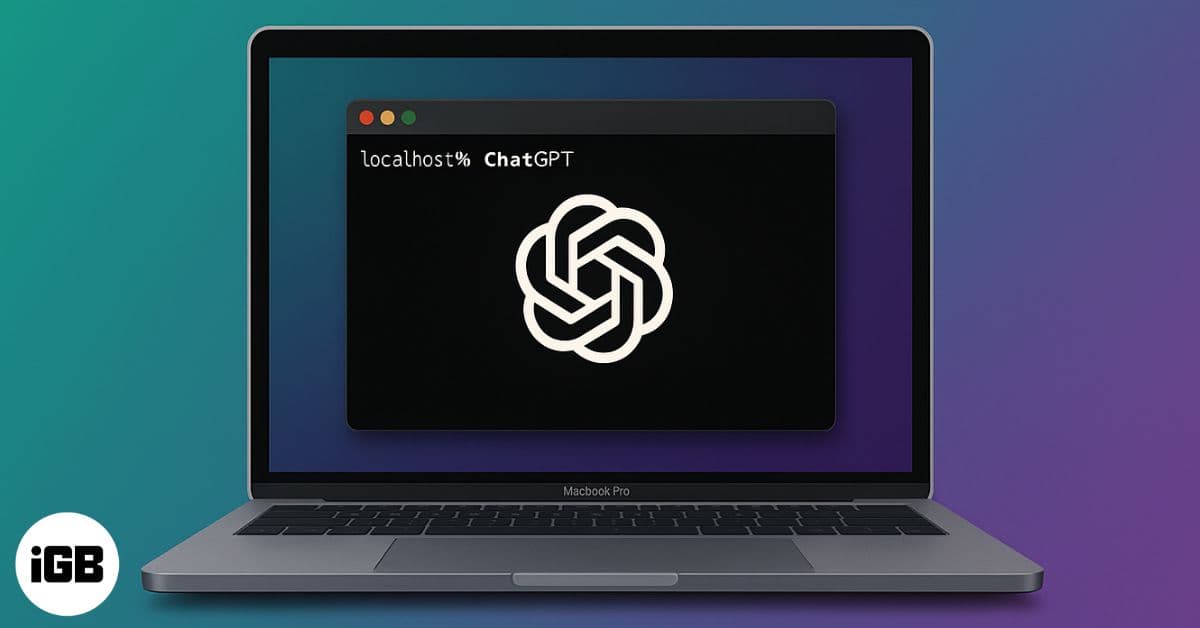
- gpt-oss brings open-source ChatGPT to Mac with downloadable weights and local offline use, boosting privacy and hands-on AI control.
- Needs Apple Silicon and Terminal use — requires 8GB RAM, 4–10GB storage, internet for setup, and comfort using Mac’s command line.
- Homebrew and Ollama power the setup — Homebrew manages tools, while Ollama runs and organizes AI models efficiently on macOS.
- Offline chatting runs through Terminal after you download gpt-oss-20b using Ollama, letting you chat locally without cloud-based data sharing.
- Clearing models or using Docker UI is optional — remove old models or use Docker to launch a private web interface for AI chats in-browser.
Until now, you could run many AI models offline on your Mac without the internet, but ChatGPT wasn’t one of them. That changes with the release of gpt-oss. This open version of ChatGPT has its weights publicly available and can be freely downloaded from the Hugging Face platform.
OpenAI has released two versions: the powerful gpt-oss-120b for high-end GPUs, and the lighter gpt-oss-20b, which works smoothly on a Mac with 16GB of RAM. The smaller model is perfect for Apple Silicon Macs (M1, M2, M3), making it accessible to most users.
What You’ll Need
We’ll be running the lighter gpt-oss-20b model locally. And here are the requirements to run it on your Mac. If you’re wondering, yes, you can install these models on Windows and Linux too. You can also use the ChatGPT app on Mac for a more native experience if you prefer OpenAI’s official tool.
- Apple Silicon Mac (M1, M2, or M3 recommended)
- At least 8GB RAM (16GB or more is better)
- 4–10GB free disk space (depending on model size)
- Internet connection (only for setup)
- Basic comfort with the Terminal app
Step 1: Install Homebrew (Skip if Already Installed)
Homebrew is a package manager that lets you install software easily via Terminal.
- Open Terminal from Launchpad or Spotlight.
- Paste this command (⌘) and press Return:
/bin/bash -c "$(curl -fsSL https://raw.githubusercontent.com/Homebrew/install/HEAD/install.sh)"- Once it’s done, check by typing:
brew doctorIf it says Your system is ready to brew, you’re set.
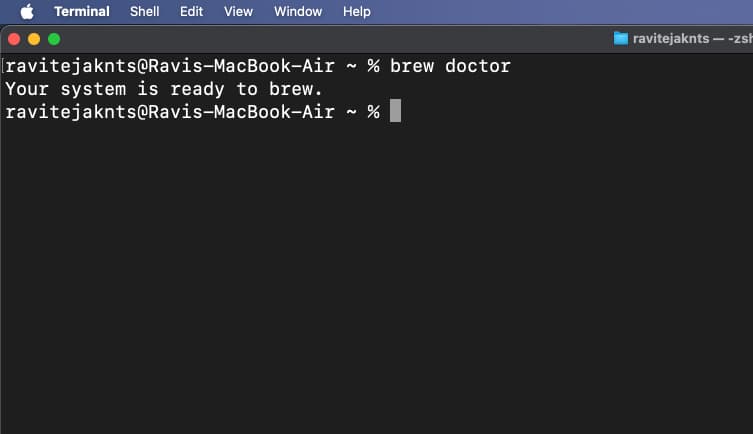
If you’re having any issues or want a more detailed step-by-step process, check out our guide on how to install Homebrew on a Mac.
Step 2: Install Ollama – The Local AI Engine
Ollama is the easiest way to run AI models locally.
- In Terminal, type:
brew install ollama- Start Ollama:
ollama serveKeep this running in the background.
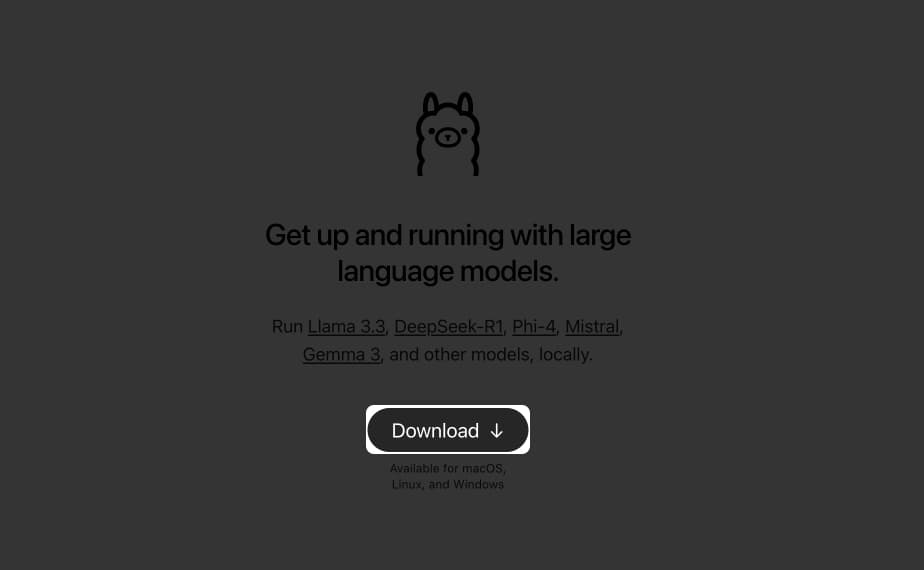
Alternatively, download the Ollama app from its website, install it as you would any other Mac app, and open it.
Step 3: Download and Run gpt-oss-20b Locally
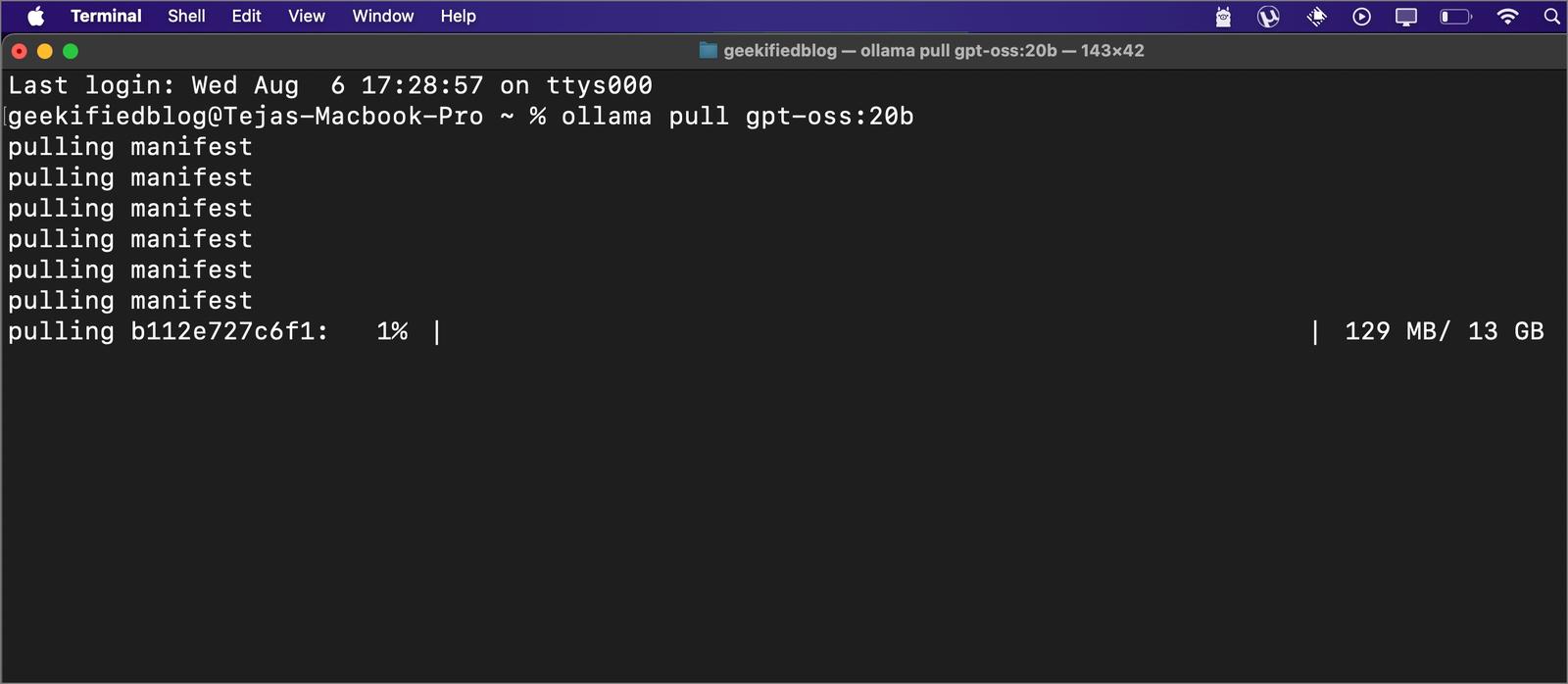
Now that Ollama is installed and running, it’s time to bring the gpt-oss-20b model onto your Mac. This step will download the model and prepare it for offline use.
- In Terminal, run:
ollama pull gpt-oss:20b- Once downloaded, start the model:
ollama run gpt-oss:20bYou’ll now see a prompt where you can chat directly.
Step 4: Chat Locally Without Internet
Type your message and press Return. Responses will appear right below. To exit, press Control + D. To restart later, use:
ollama run gpt-oss:20b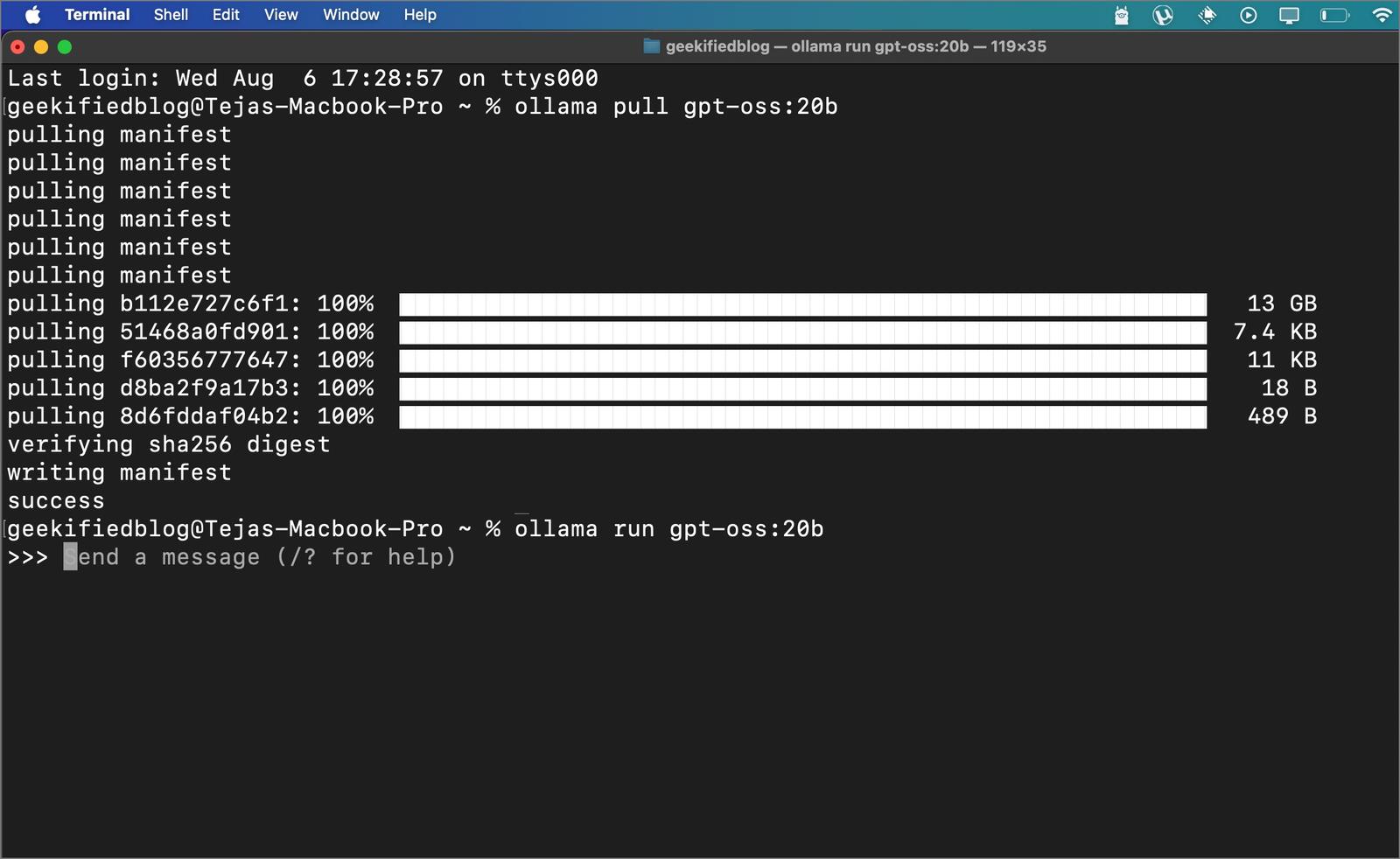
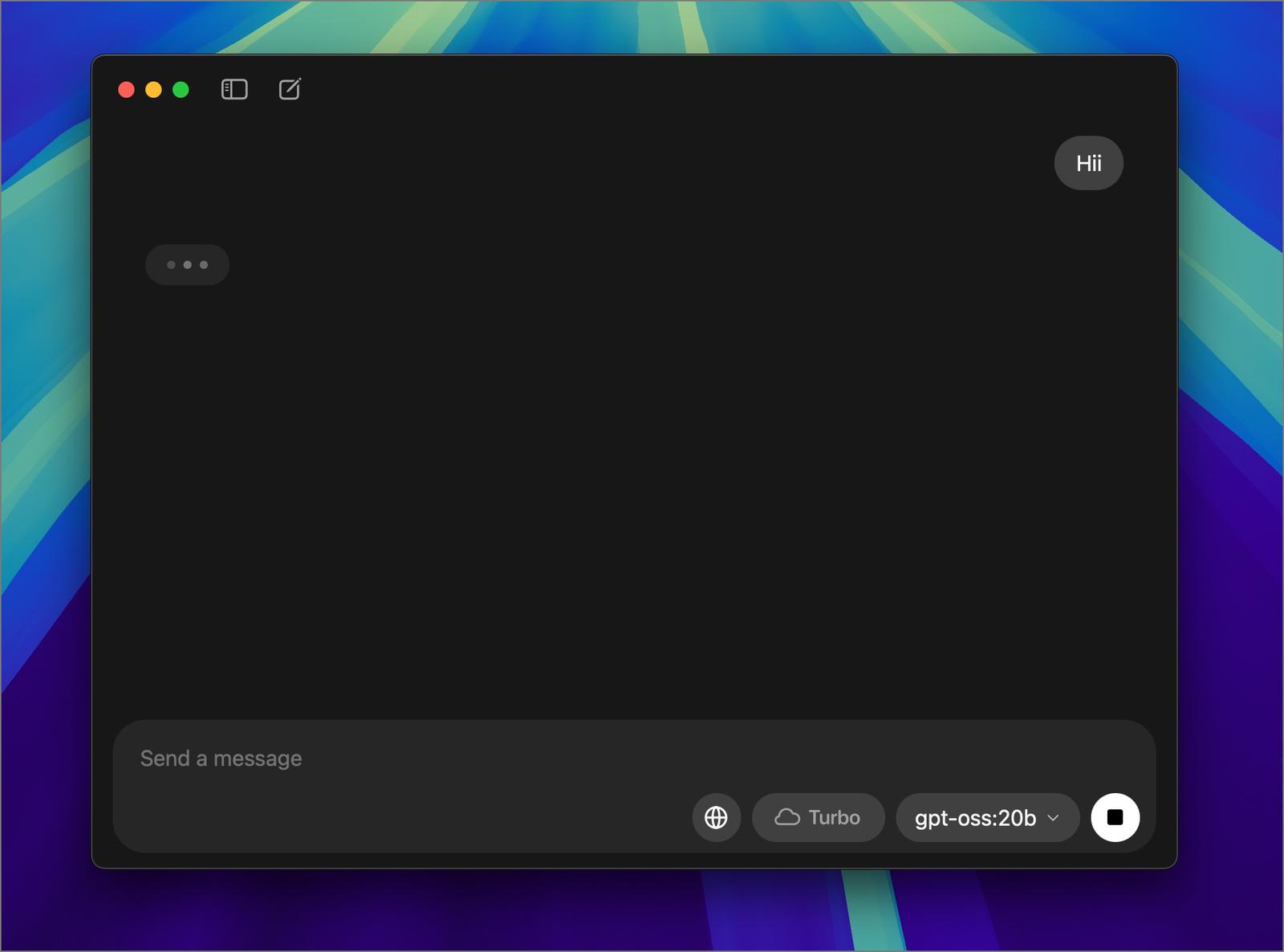
With the recent update to Ollama, you now have a clean chat interface. Just open the Ollama app, tap the Ollama icon in the menu bar, and click on the Open Ollama option.
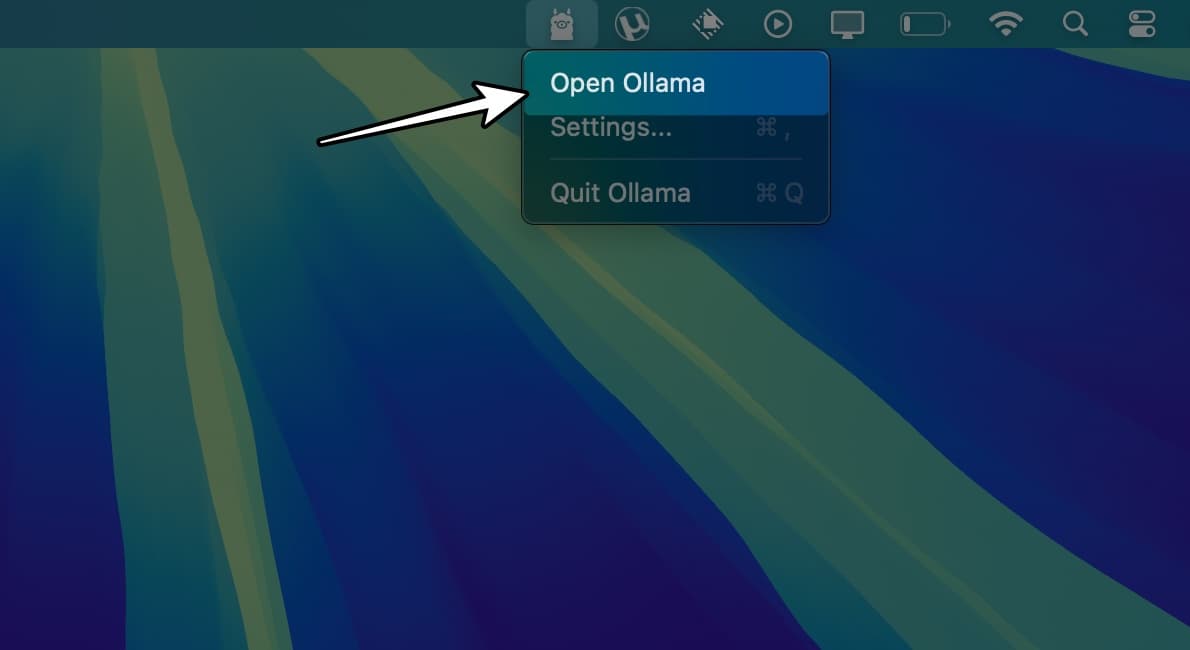
This will open a chat interface. Simply select the new gpt-oss 20b model from the model selection drop-down and start chatting.
Step 5: Manage Your Installed Models
Once you have the model running, it’s useful to keep track of what’s installed and remove any models you don’t need. Here’s how you can manage them:
- See installed models:
ollama list- Remove a model:
ollama rm gpt-oss:20bBonus: Add a Web Interface (Optional via Docker)
If you have installed Ollama through Brew (Ollama chat will not be available) or you prefer to use the Open WebUI version with Docker, you can follow the steps below:
- Install Docker: Download Docker Desktop, install it, and confirm with:
docker --version- Pull WebUI:
docker pull ghcr.io/open-webui/open-webui:main- Run WebUI:
docker run -d -p 9783:8080 -v open-webui:/app/backend/data --name open-webui ghcr.io/open-webui/open-webui:main- Open your browser and go to:
http://localhost:9783/Create an account, and start chatting in a clean, browser-based interface.
Other Ways to Run gpt-oss on Your Mac
If you prefer not to use Ollama, there are other methods from Hugging Face:
1. Transformers (Python)
Best for developers comfortable with Python who want full control over prompts, reasoning levels, and integration into apps. Great for research or building custom AI workflows.
- Install dependencies:
pip install -U transformers kernels torch- Run the model:
from transformers import pipeline
pipe = pipeline("text-generation", model="openai/gpt-oss-20b", torch_dtype="auto", device_map="auto")
outputs = pipe([{ "role": "user", "content": "Explain quantum mechanics clearly."}], max_new_tokens=256)
print(outputs[0]["generated_text"][-1])
2. vLLM – Run OpenAI-Compatible API Locally
Ideal for running an OpenAI-compatible API locally. Perfect if you want to connect local models to apps expecting an OpenAI endpoint.
- Install with uv:
uv pip install --pre vllm==0.10.1+gptoss --extra-index-url https://wheels.vllm.ai/gpt-oss/- Start server:
vllm serve openai/gpt-oss-20b3. LM Studio – GUI-Based Model Management
Great for users who want a clean GUI without messing with Docker. An easy way to download and run models visually.
Use this command:
lms get openai/gpt-oss-20b4. Hugging Face CLI – For Advanced Users
Best for advanced users who want direct access to raw model weights for custom deployment, fine-tuning, or experiments.
Download weights:
huggingface-cli download openai/gpt-oss-20b --include "original/*" --local-dir gpt-oss-20b/Your Mac, Your AI – Run ChatGPT Offline
That’s it. You now have ChatGPT-like AI running locally on your Mac, fully offline. No cloud, no accounts, no data leaving your machine. Whether it’s drafting emails, brainstorming, or experimenting with AI, gpt-oss and Ollama make it private, fast, and yours.
Don’t miss these related reads: