FaceTime Like a Pro
Get our exclusive Ultimate FaceTime Guide 📚 — absolutely FREE when you sign up for our newsletter below.

FaceTime Like a Pro
Get our exclusive Ultimate FaceTime Guide 📚 — absolutely FREE when you sign up for our newsletter below.


Make calls from your iPhone without showing your name and phone number!

 ByAnkur and Ava Biswas


If you want to make a call without revealing your number, your iPhone gives you multiple ways to hide your Caller ID. Whether you want to keep your number private for one call or keep it hidden at all times, Apple makes the process simple.
This guide walks you through every method, explains what each option does, and highlights limitations you should be aware of.
Hiding your Caller ID masks your phone number, so the person you’re calling sees an incoming call banner or a full-screen call with a “No Caller ID” label. No name and number will be displayed. Thus, they won’t be able to know who called them.
People hide Caller ID for several reasons:
Whatever your reason, iOS 26 offers built-in tools to handle it safely.
This is the easiest and most common way to hide your number. Once enabled, every call you make will display “No Caller ID.”
How to turn off your Caller ID in iOS 26:
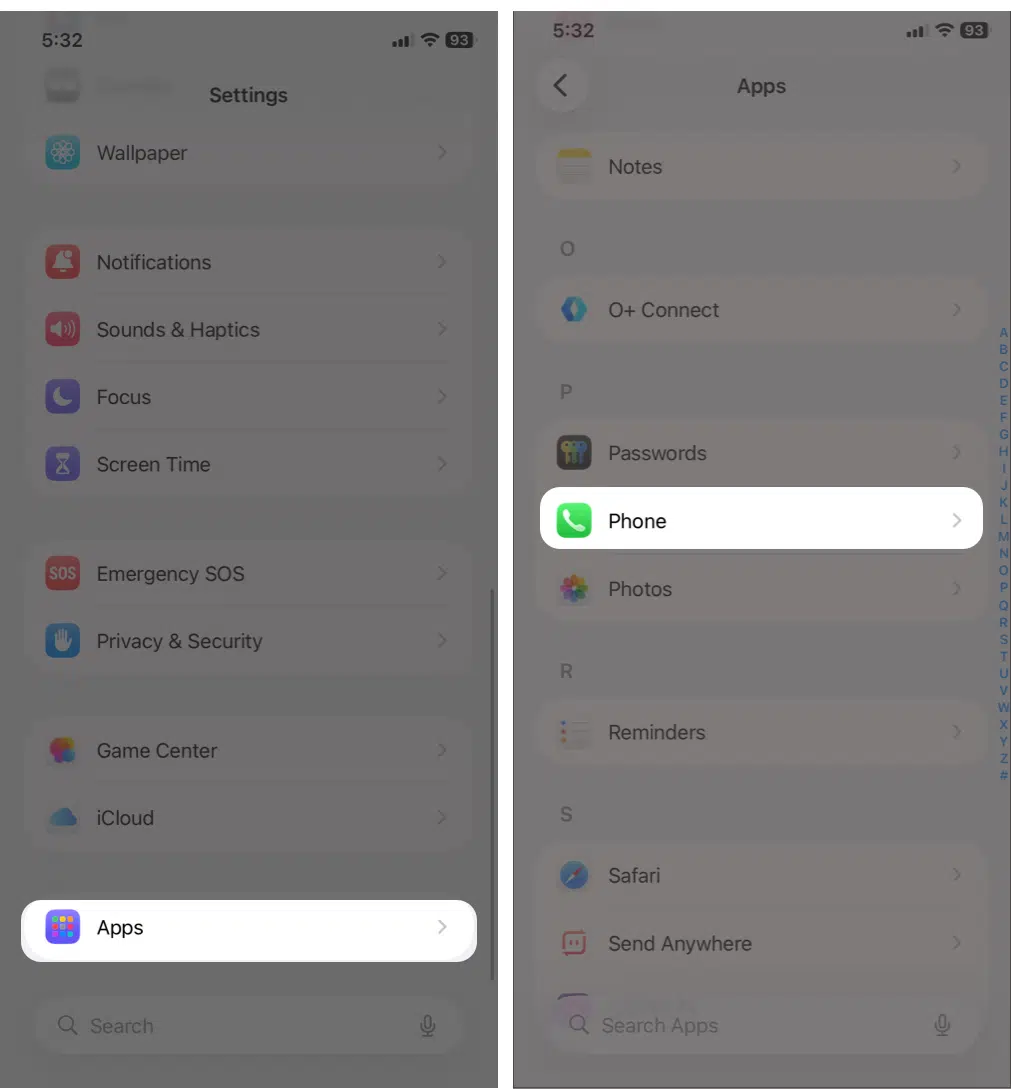

When this switch is off, your number stays hidden for all outgoing calls unless you intentionally reveal it (more on that later).
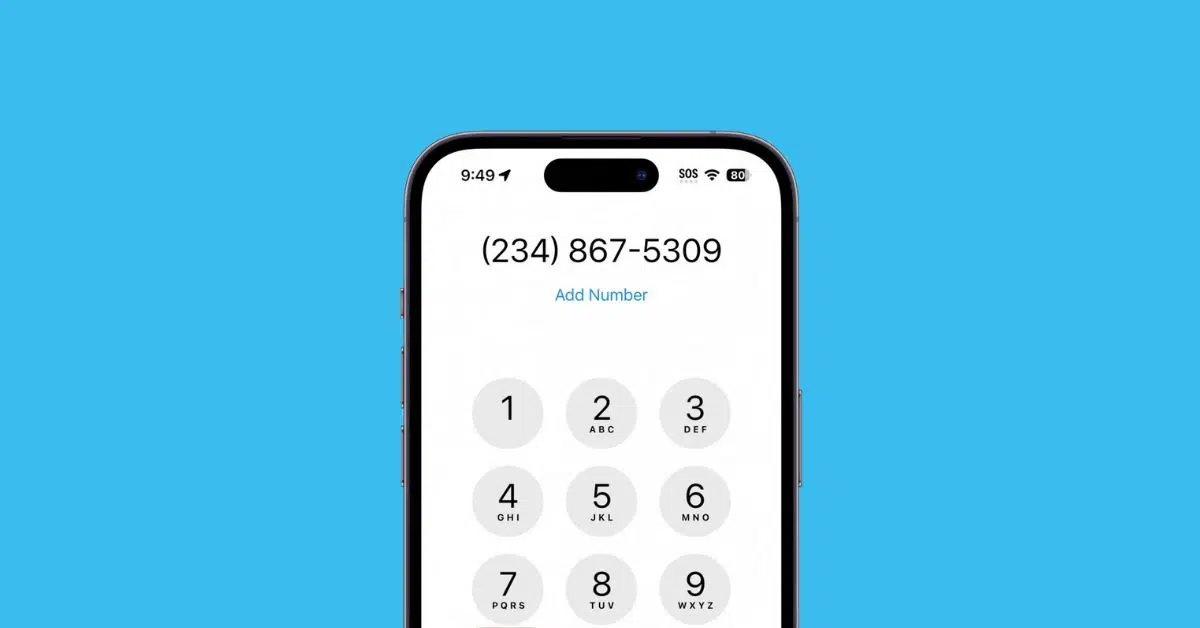
If you want to reveal your number normally but hide it for a single call, iOS supports this via a carrier prefix.

The person you’re calling will see No Caller ID, whereas your number is visible to others.
If you use other US carriers, stay in European countries, or travel to countries such as Australia, South Africa, Canada, or India, the code to hide Caller ID is #31#. For South Korea, it is *23#, and for the United Kingdom and Ireland, it is 141. Check the code for your country here.
This is ideal when:
If you want total privacy without relying on settings or prefixes, your mobile carrier can disable your Caller ID at the account level. Also, this method is the only way if your carrier doesn’t support short codes.
What carrier blocking does
Some carriers provide this for free; others may charge a small fee. You need to enable this option in the carrier’s official app or on its website.
For Verizon, you will have to sign in to your account. Next, under Block Services or Additional Services, you will find the Caller ID option. From here, you can hide it.
For Sprint, sign in to your carrier account. Next, select your phone, then click Change my service > Setup your phone > Block Caller ID.
If the app or website method (or the first two methods) does not work, contact your carrier’s customer care via phone, email, or in-store and ask for help blocking the caller ID.
Even when Caller ID is off, there will still be some instances where your number will show.
Caller ID may still show if you call:
These systems override privacy settings for safety or verification reasons.
If you want your phone number to show normally:
Hiding Caller ID on an iPhone is fast, easy, and even adaptable to your needs. You can make your calls totally private or hide them for just a single call. And you have multiple options that work reliably. If you liked this guide, check out more comprehensive iPhone tips and tricks.
FAQs
Yes, almost everyone, but emergency services and toll-free numbers can still see it.
Yes. Caller ID hiding only affects voice calls, not SMS or iMessage.
Most countries support Caller ID blocking, but availability varies by carrier.
Read More: