
How to Restore Closed Safari Tabs on iPhone, iPad, and Mac
Learn how to quickly restore accidentally closed Safari tabs using simple methods.
- Why Safari tabs close accidentally: Tabs may disappear due to accidental gestures, app crashes, automatic cleanup, software bugs, or shared device activity.
- Use Shake to Undo to reopen closed tabs: Enable Shake to Undo under Accessibility settings, then shake your iPhone or iPad to instantly reopen the last closed Safari tab.
- Recover tabs via the Tabs Switcher: Press and hold the “+” button in Safari’s Tabs view to see and reopen your recently closed tabs with one tap.
- Find lost tabs in Safari History: Open the Bookmarks icon, select the History tab, and browse through your visited pages to reopen any missing sites.
- How to restore closed tabs on Mac: Press Command + Z to undo a tab closure or check the History menu for a list of recently closed pages to reopen them.
Have you accidentally closed an important tab in Safari and can’t remember which page it was? Don’t worry; we’ve all been there. Whether it’s an unintentional tap, a glitch, or a crash, Safari makes it easy to reopen closed tabs on iPhone, iPad, and Mac.
Here’s your complete guide to restoring closed Safari tabs in iOS 26 and macOS Sequoia.
Why Safari Tabs Close Accidentally on iPhone or iPad
Before jumping into the fixes, it helps to understand why tabs disappear in the first place:
- Accidental taps or swipes: When quickly switching tabs, it’s easy to hit the close button or swipe a tab away.
- App crashes or low memory: A temporary freeze or crash can cause tabs to vanish when Safari reloads.
- Automatic tab cleanup: Safari can automatically close tabs after a day, week, or month, depending on your settings. Go to Settings → Apps → Safari → Close Tabs → Manually to stop this.
- Software bugs or updates: After a major iOS update, Safari may reset session data.
- Clearing browsing data: Deleting Safari history or data removes open tabs.
- Other users: If you share your device, someone may have closed your tabs or tab group.
How to Restore Accidentally Closed Safari Tabs on iPhone or iPad
Whatever the reason you mistakenly closed Safari tabs, these solutions will surely help.
1. Use “Shake to Undo”
Believe me, the iPhone’s Shake to Undo feature is a lifesaver. It’s an Accessibility feature that allows you to quickly undo or redo certain actions. For example, you can quickly undo or redo typing and restore recently closed Safari tabs.
This feature is enabled by default. So, when you accidentally close an active Safari tab, simply shake your iPhone → Pick the Undo Close Tab from the pop-up to reopen the web page.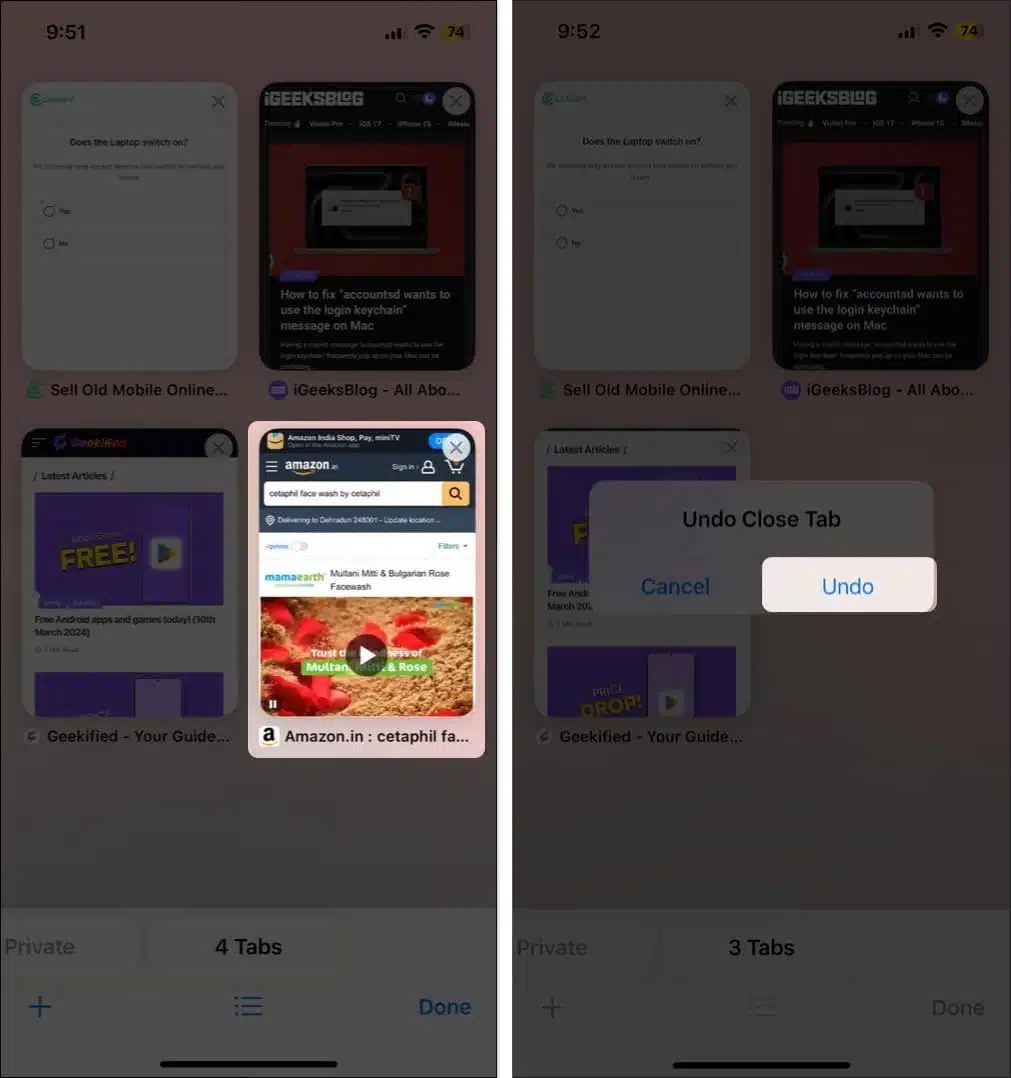
If you are unable to use this feature for some reason, you may need to enable it manually.
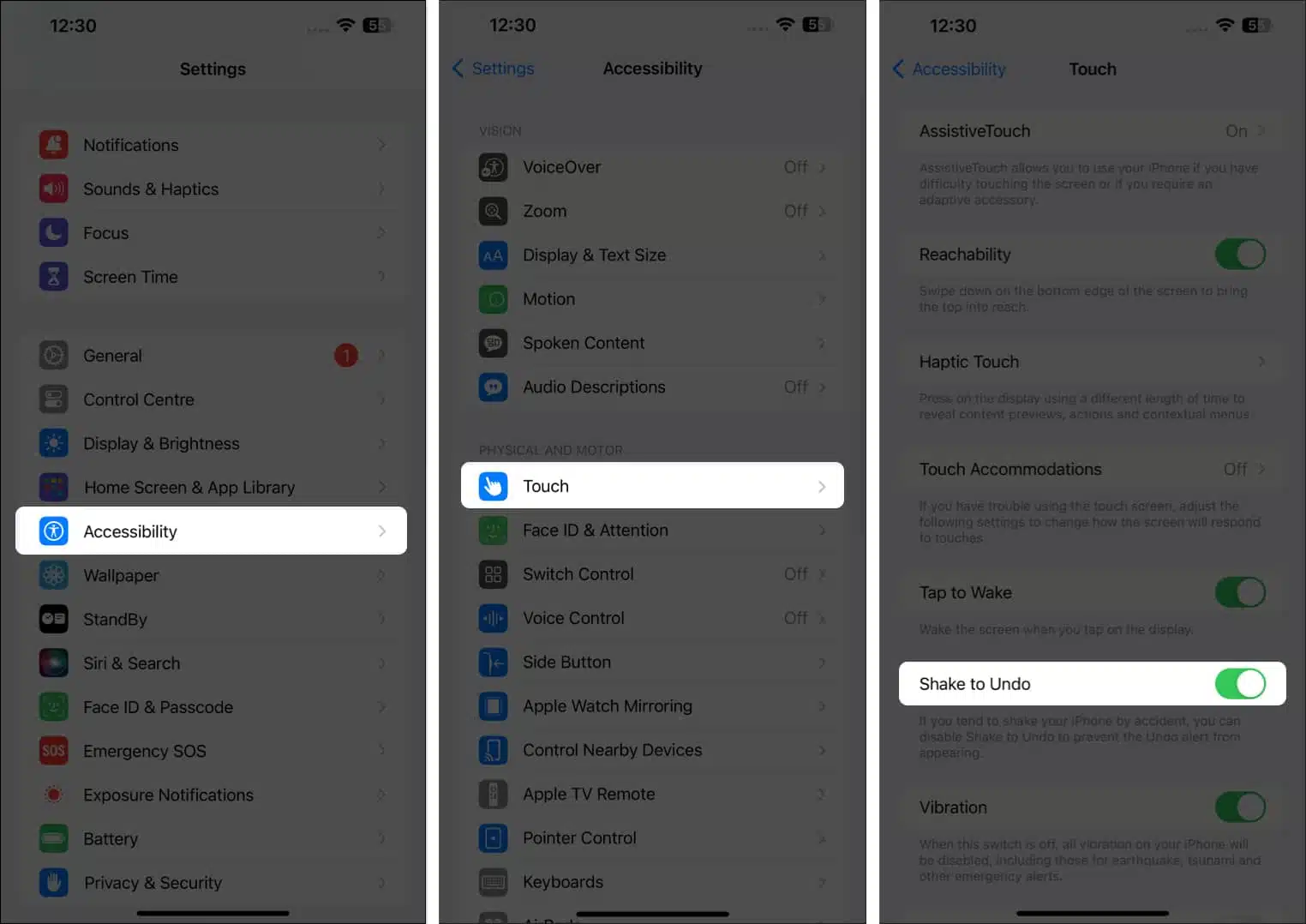
- Open Settings → Head to Accessibility.
- Tap Touch under the Physical and Motor section.
- Now, toggle on Shake to Undo if it is not already.
You can use the Shake to Undo feature to instantly restore the last closed tab. But what if you want to reopen multiple closed Safari tabs?
2. Reopen Recently Closed Safari Tabs from Tabs Switcher
Well, there’s a secret Safari trick that helps you do that. Safari has a hidden Recently Closed Tabs list that lets you access all your past browsing sessions.
- Open Safari → Tap the three-dot icon next to the address bar, then tap All Tabs.
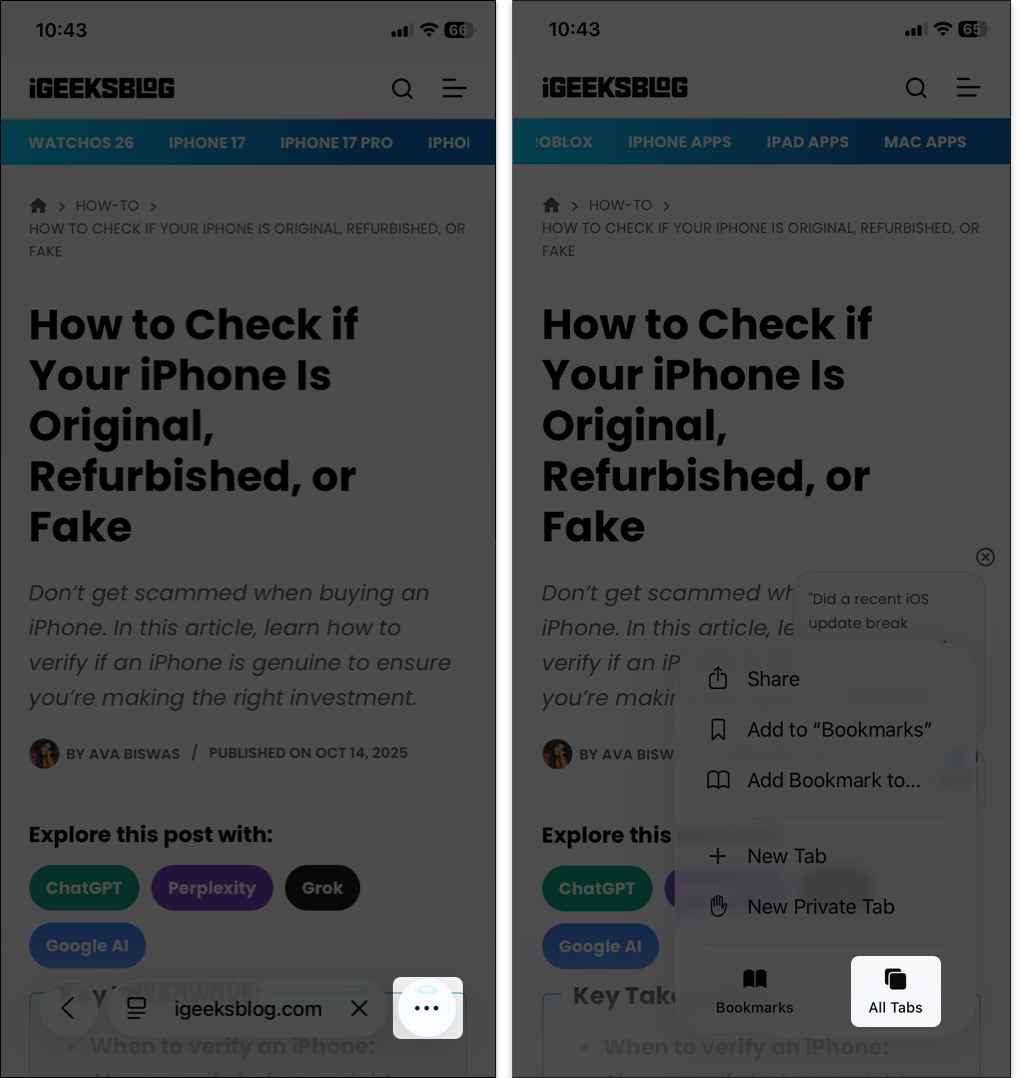
- Tap and hold the + (plus) icon at the bottom left corner.
- Doing so will open the list of all recently closed tabs.
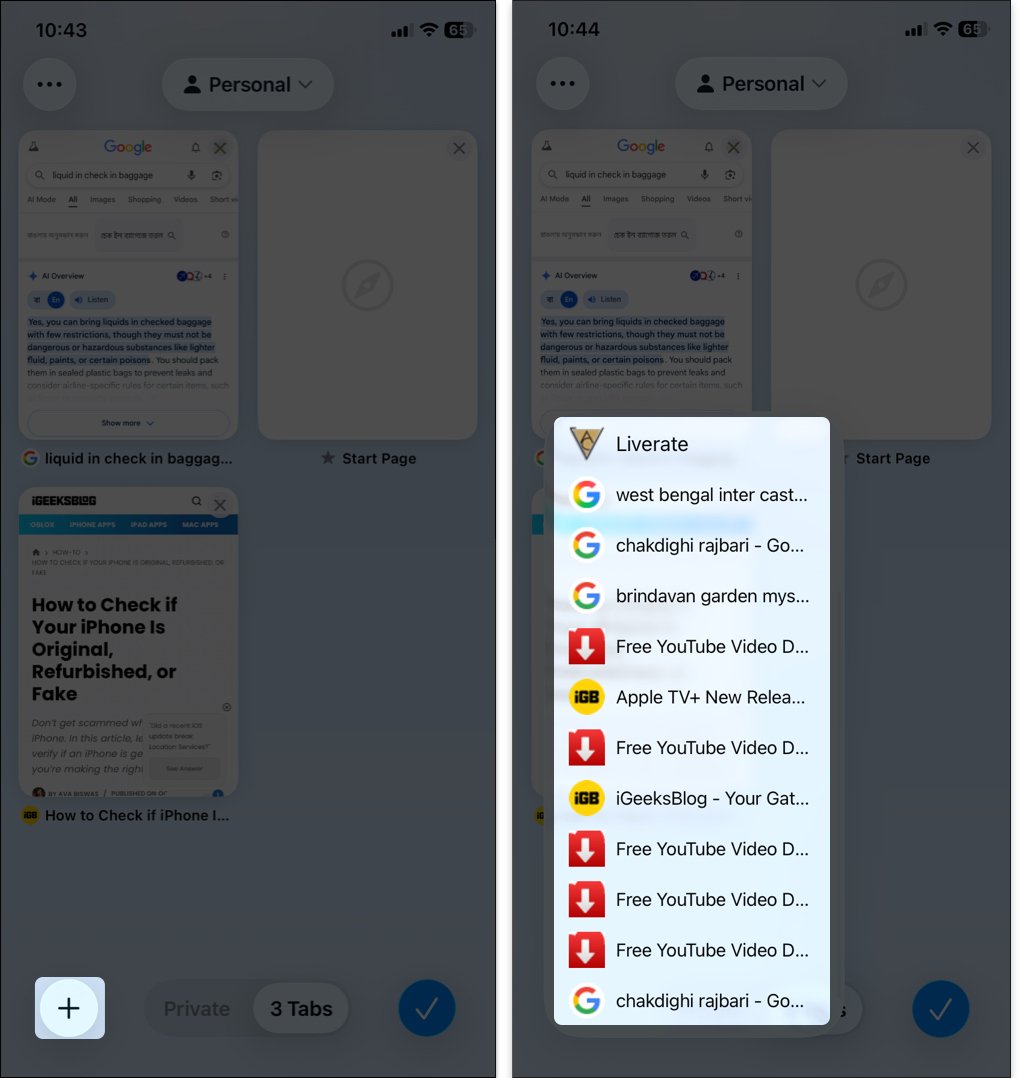
- Then tap the web page you want to reopen.
3. Restore Closed Safari Tabs from History
If you can’t find your closed tab in the “Recently Closed Tabs” list, it may have been deleted many days ago. This trick for retrieving closed tabs works not only in Safari but also in most other iPhone browsers.
- Open Safari → Tap the three-dot icon and select the Bookmark icon below the address bar.
- Go to the Personal History tab (Clock icon 🕘) on the right.
- Select your desired day or date. Select the Web Page you want to reopen.
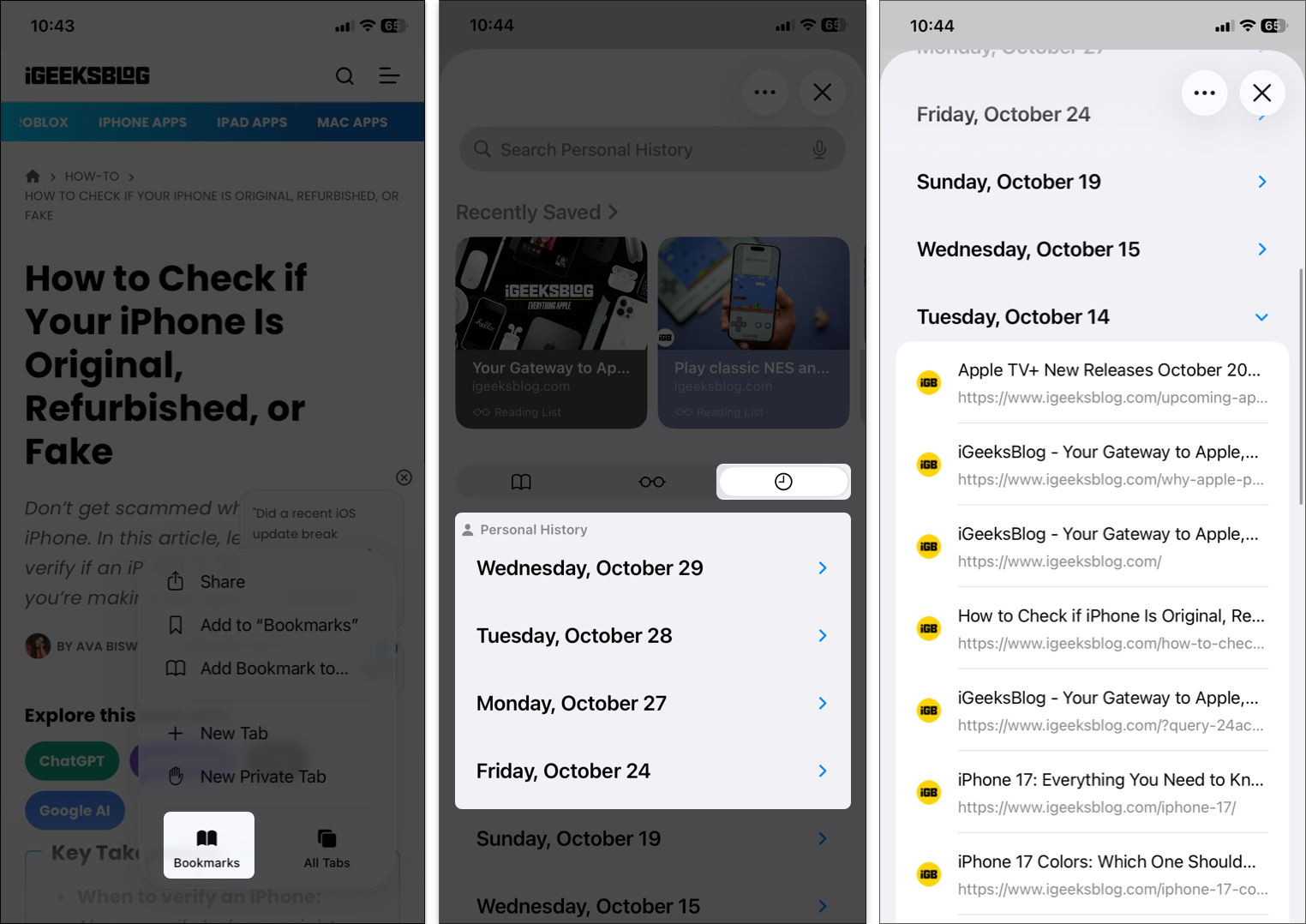
- You can tap and hold the page and open the tab in a dedicated Tab Group.
Accessing your Safari browsing history can also help if you are dealing with the disappearing Safari tabs issue on your iPhone.
Tips to Avoid Losing Tabs
While researching a topic, I sometimes accidentally close tabs in Safari. So, I use a few tricks to keep my tabs open. You may also follow these tips to mitigate the problem:
- Enable iCloud Tabs: You may enable iCloud Tabs to sync your Safari open tabs and Tab Groups across devices. So, if you close tabs by mistake, you can often recover them from another device. To enable this, access Settings → Your Apple ID → iCloud → Saved to iCloud → Toggle on Safari.
- Use Reading List: Save important tabs to keep them open and accessible. It also lets you read those saved webpages while offline.
- Create Tab Groups: Group related pages (e.g., “Research” or “Shopping”) to organize them and reopen them at any time.
- Be cautious with gestures: When using Safari on your iPhone, be mindful of your swipes and taps to avoid unintentionally closing tabs.
How to Reopen Recently Closed Tabs in Safari for Mac
If you have lost all your Safari tabs while browsing on a Mac, you can quickly restore them.
1. Use Keyboard Shortcut
The easiest way to restore accidentally closed Safari tabs is to use keyboard shortcuts. Simply press Command (⌘) + Z to undo closing the last tab.
However, if you have performed another action after the tab is closed, this shortcut will undo that action rather than reopening the tab. In this case, the Shift + Command (⌘) + T shortcut can reopen the most recently closed tab.
Whichever Keyboard shortcut you use, press it repeatedly to reopen multiple recently closed tabs on Safari.
2. Use the New Tab Icon
You can use Safari’s New Tab icon to get a list of recently closed tabs. Right-click on the + icon at the top right corner of the window. Then select the tab you want to reopen. It will restore it to the location where you first opened it. Thus, you can continue browsing the tabs as organized as before.

However, you accidentally closed the Safari window, so you can’t find the list of recently closed tabs. Therefore, move to the next solution.
3. Check Your Safari History
Safari records all your browsing activity under the History menu. While a Safari window is open, click History on the menu bar and select Recently Closed. Choose the tab you want to reopen. If your Safari app crashed or was closed accidentally, select Reopen All Windows from Last Session.
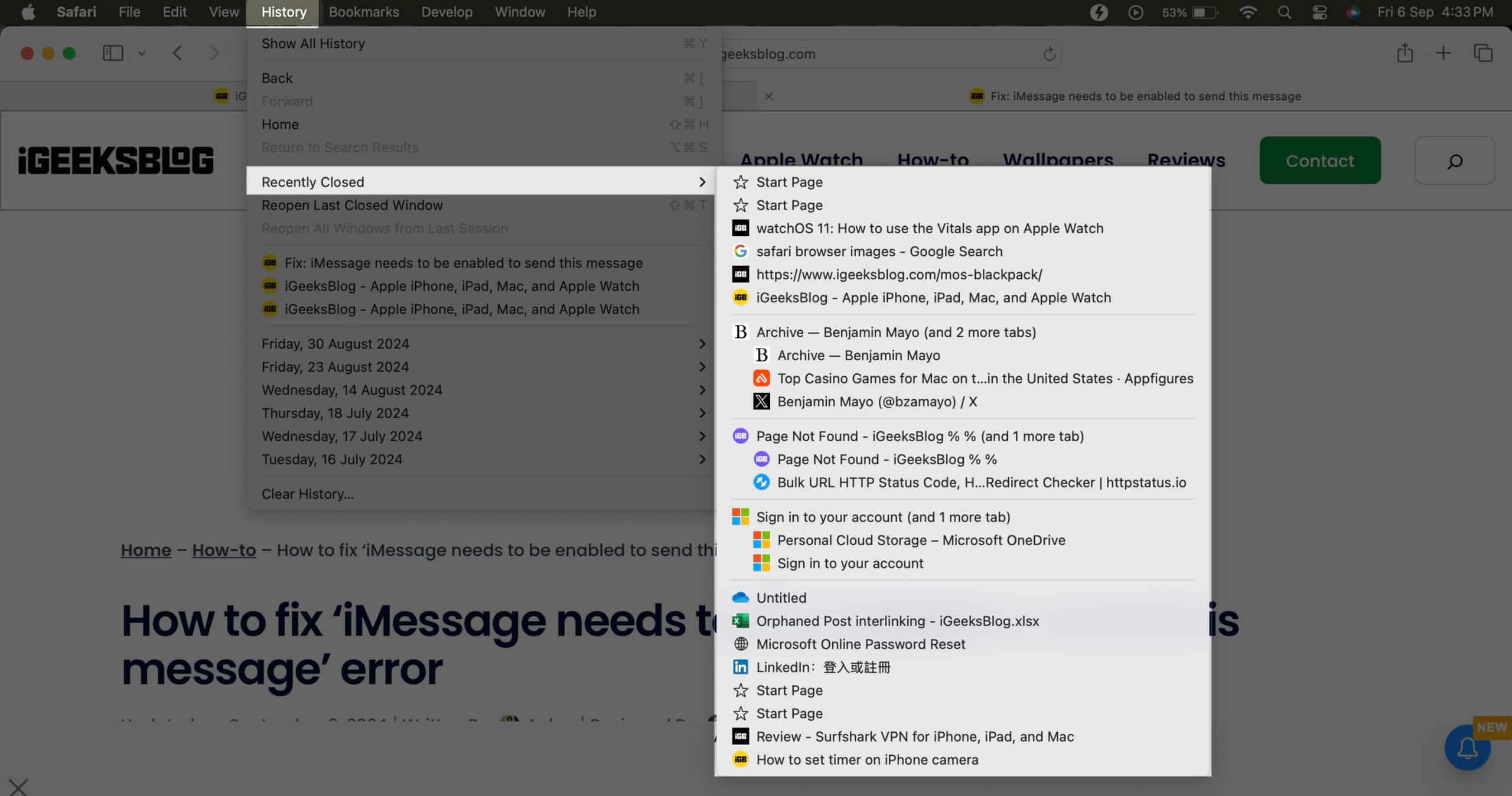
You can choose a method and restore all accidentally closed Safari tabs on a Mac based on the number of tabs.
Get Back Your Tabs!
That’s how you restore closed Safari tabs on your iPhone, iPad and Mac. I suggest following the tips I mentioned to avoid losing Safari tabs. Even if you accidentally hit the close (x) button on a Safari tab, use any of the methods shown in this article.
Frequently Asked Questions
Topics

Written by
Jignesh PadhiyarJignesh Padhiyar is the co-founder of iGeeksBlog.com, who has a keen eye for news, rumors, and all the unusual stuff around Apple products. During his tight schedule, Jignesh finds some moments of respite to share side-splitting content on social media.
View all posts →More from How-to

Snapchat Parental Controls: How to Set Up Family Center and Keep Your Teen Safe
Snapchat’s Family Center lets parents monitor their teen’s friend activity and screen time without reading private messages. Here’s how to set it up and what to expect.
 VikhyatMarch 3, 2026
How to Block and Unblock Someone on Instagram
Instagram lets you block or unblock someone in seconds. Follow these simple steps to take full control of your privacy and online peace.
 Ava BiswasMarch 2, 2026
Apple Watch Not Responding? 8 Fixes That Actually Work
Is your Apple Watch unresponsive or stuck on a black screen? Here are 8 proven fixes to help you unfreeze it and get it working again quickly.
VikhyatMarch 3, 2026