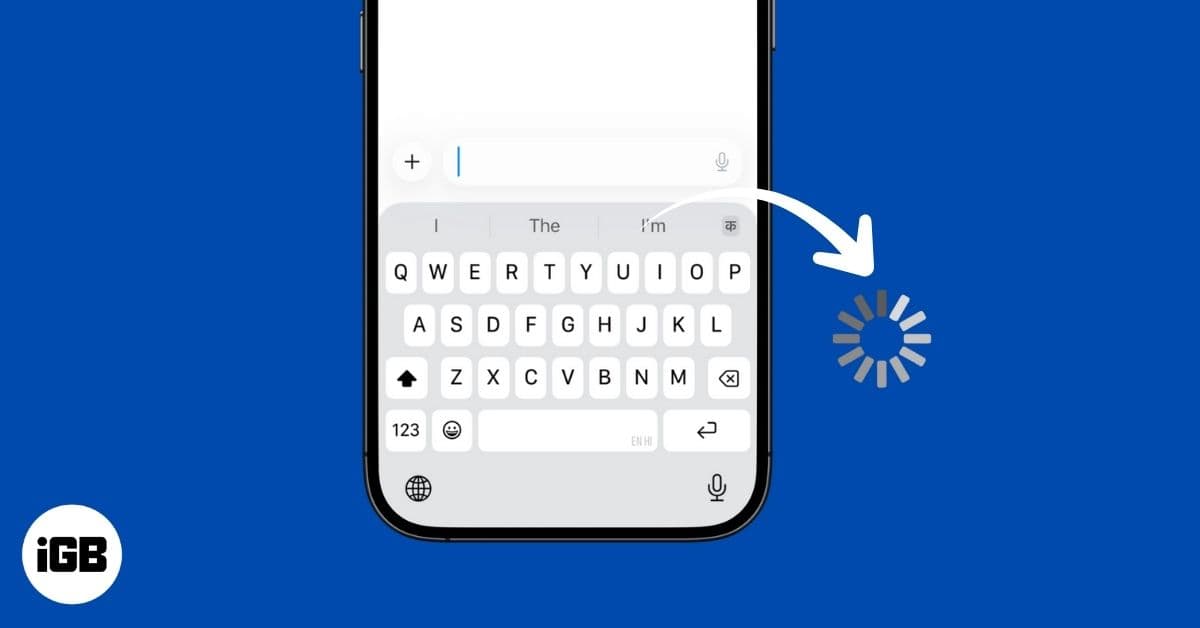
- Why iPhone keyboards lag: Low storage, outdated iOS, background apps, system bugs, or overloaded features like Predictive Text can cause slow and unresponsive typing.
- Force restart to clear temporary glitches: Restarting your iPhone frees system memory, resets background processes, and often restores normal keyboard speed within seconds.
- Update iOS and installed apps: Installing current iOS and app updates removes known bugs and improves overall typing performance across system keyboards.
- Remove problematic third-party keyboards: Switching to Apple’s default keyboard eliminates conflicts from third-party apps that may slow typing or create delay.
- Reset keyboard settings if issues persist: Resetting the Keyboard Dictionary and toggling features like Auto Correction or Predictive Text can fix mislearning and improve responsiveness.
There’s nothing more irritating than tapping away on your iPhone and watching the keyboard freeze, skip letters or lag behind your fingers. If your typing feels unresponsive or delayed, you don’t need to accept it as just how it is. Here are well-tested steps to fix iPhone keyboard lagging issues.
Why Your iPhone Keyboard Might Be Slowing Down
Before jumping into fixes, it’s helpful to know what often causes the keyboard to misbehave:
- Out-of-date iOS: Older or bug-ridden iOS builds can cause typing delays or glitches.
- Low storage: Having too many keyboards or languages installed can fill up storage, causing system responsiveness to suffer.
- Heavy memory usage: Running many apps or background processes can tie up RAM and slow down interactive features like the keyboard.
- Feature overload: Predictive text, autocorrect, haptics, and third-party keyboards each add processing overhead.
- System bugs: In iOS 26, users are reporting keyboard mis-mapping (pressing one key, getting another) and unresponsive keys, suggesting system-level issues.
- Third-party keyboard apps: They often have more features, but that can also create conflicts, especially on older iPhones.
Knowing these helps decide whether a simple fix will do or whether more thorough troubleshooting is needed.
How to Fix Keyboard Lag on iPhone
Struggling with a slow or unresponsive keyboard on your iPhone? Try these simple fixes to get it working smoothly again.
1. Force Restart Your iPhone
A force restart clears temporary glitches and frees up system memory, making your keyboard function normally.
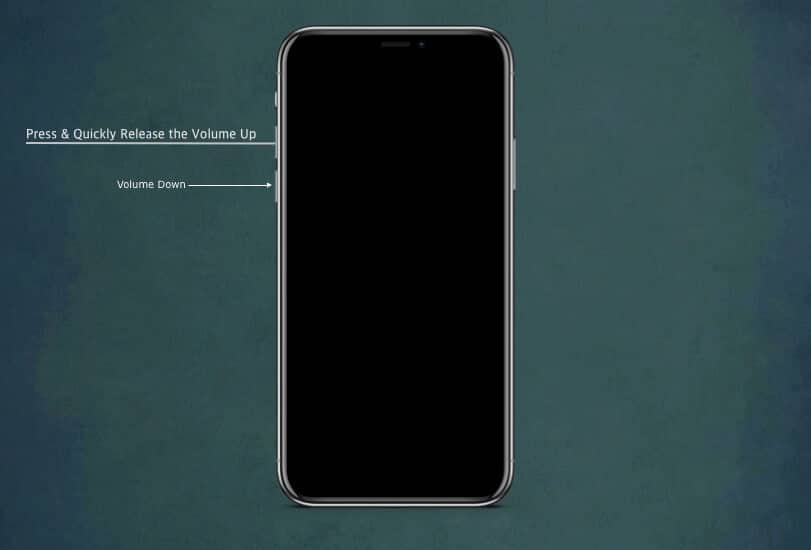
- Press and release the Volume Up button, then press and release the Volume Down button on your iPhone.
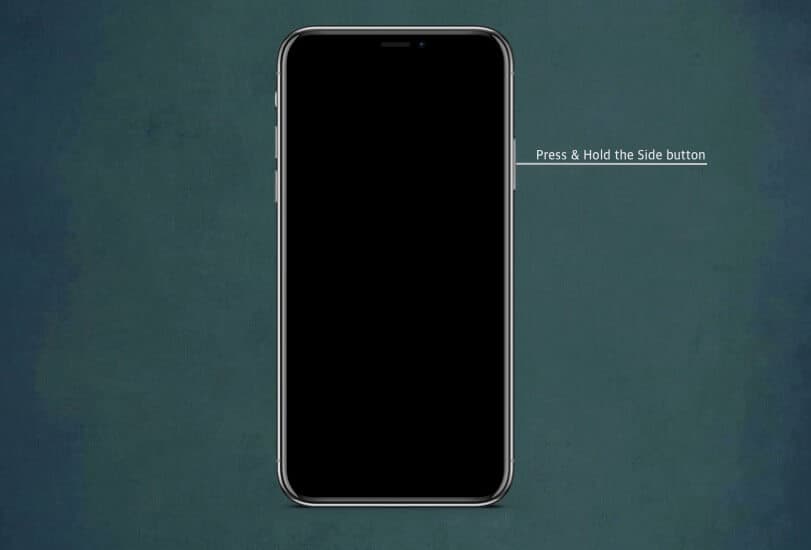
- Press and hold the Side button until the Apple logo appears.
- After restarting, see if typing is responsive.
This will close all background apps and processes to reduce lag.
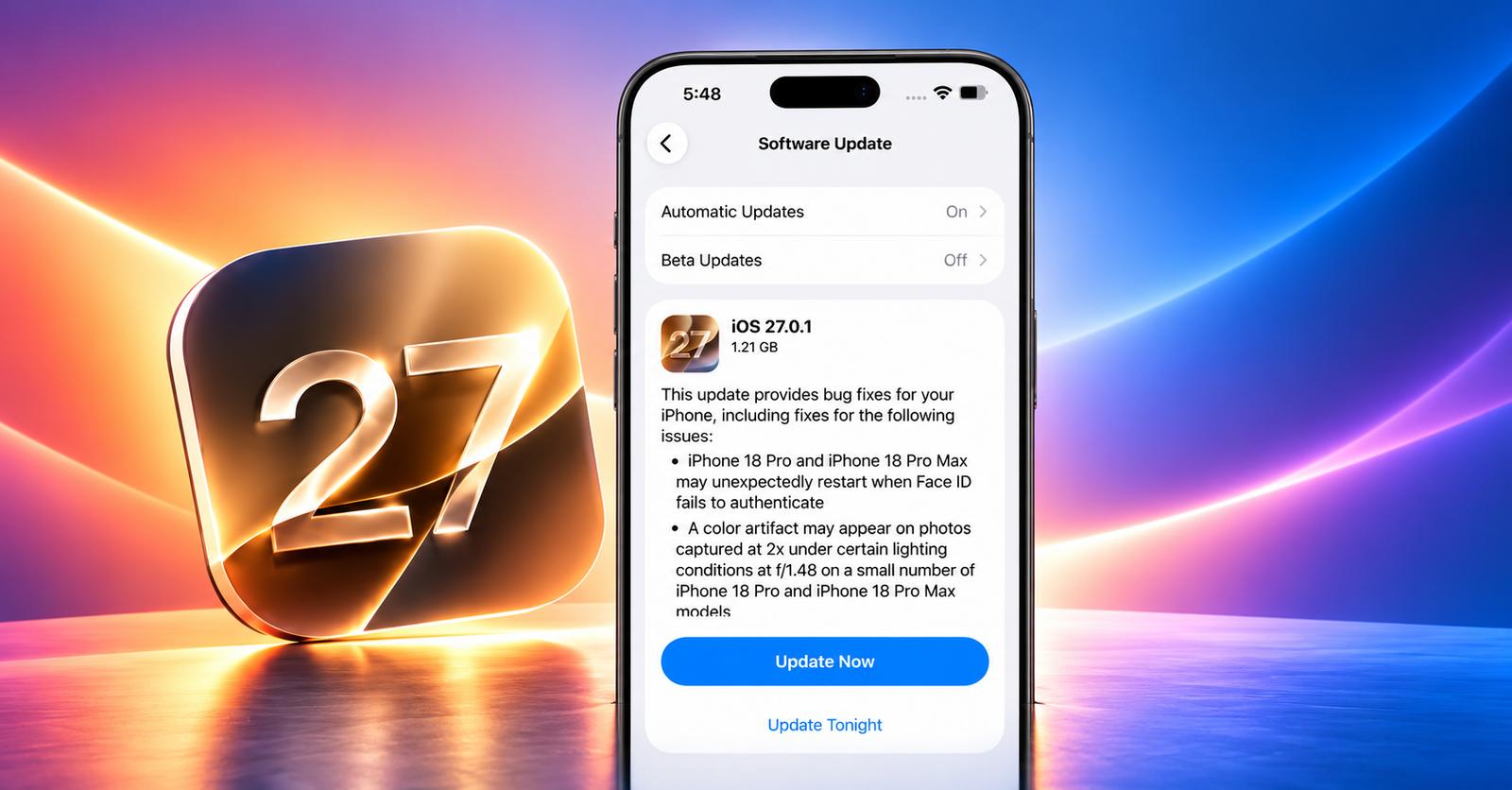
2. Update iOS and Apps
If your keyboard lag is due to a bug, updating can solve it.
- Open Settings and go to General → Software Update.
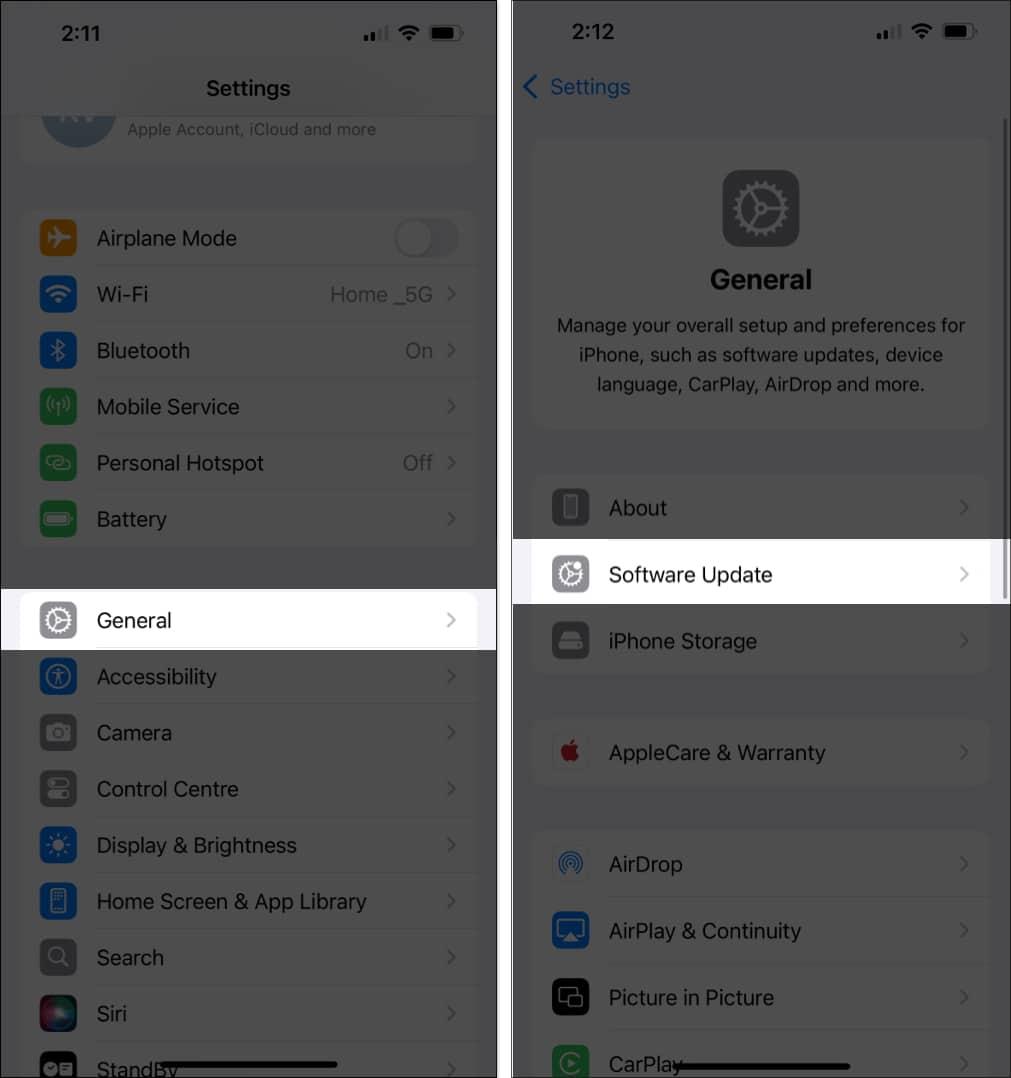
- If an update is available, download and install it.
Also, update your apps via the App Store. Sometimes keyboard lag is isolated to a specific app due to compatibility issues.
3. Remove Third-Party Keyboards
Third-party keyboards, such as Grammarly or SwiftKey, can sometimes slow down your iPhone. Try switching back to Apple’s default keyboard, which is lighter and more reliable.
To remove one:
- Go to Settings → General → Tap Keyboard.
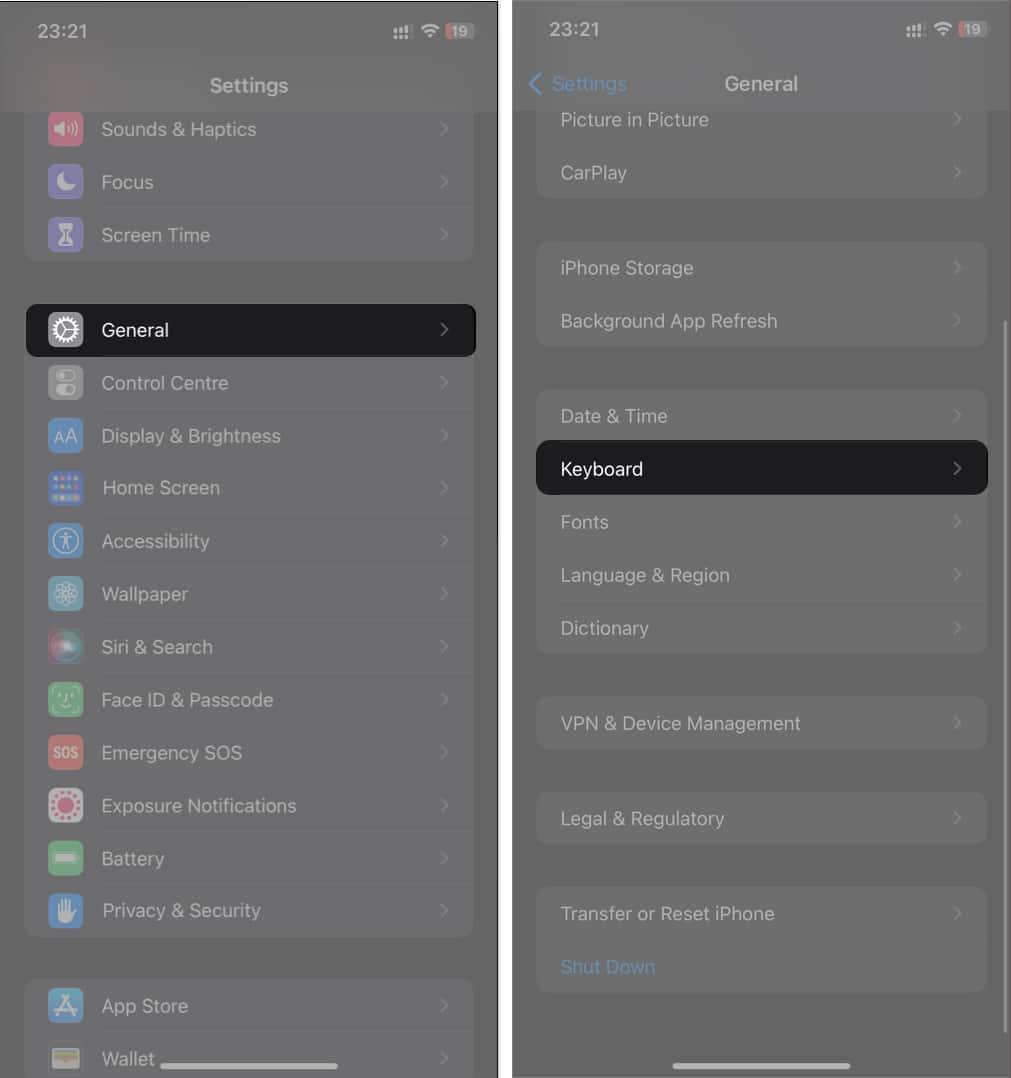
- Select Keyboards at the top → Tap Edit at the top-right.
- Touch the red round icon to the left of the third-party keyboard.
- Finally, tap Delete to the right to remove the keyboard.
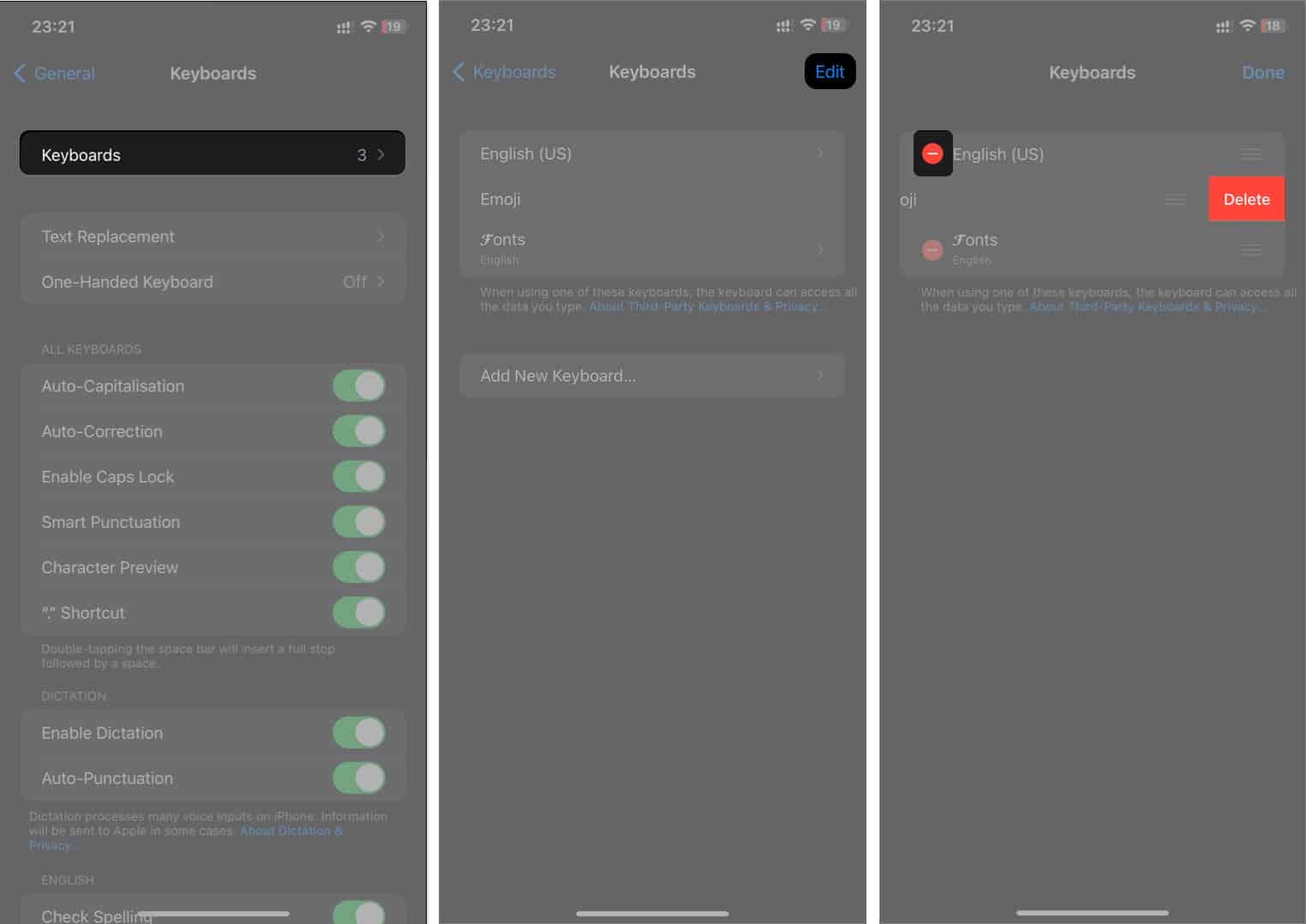
Keep the built-in keyboard and test typing again.
4. Reset Keyboard Dictionary
Corrupted custom word entries or keyboard settings can sometimes lead to weird behavior.
To reset your iPhone Dictionary:
- Go to Settings → General.
- Tap Transfer or Reset iPhone, then tap Reset.
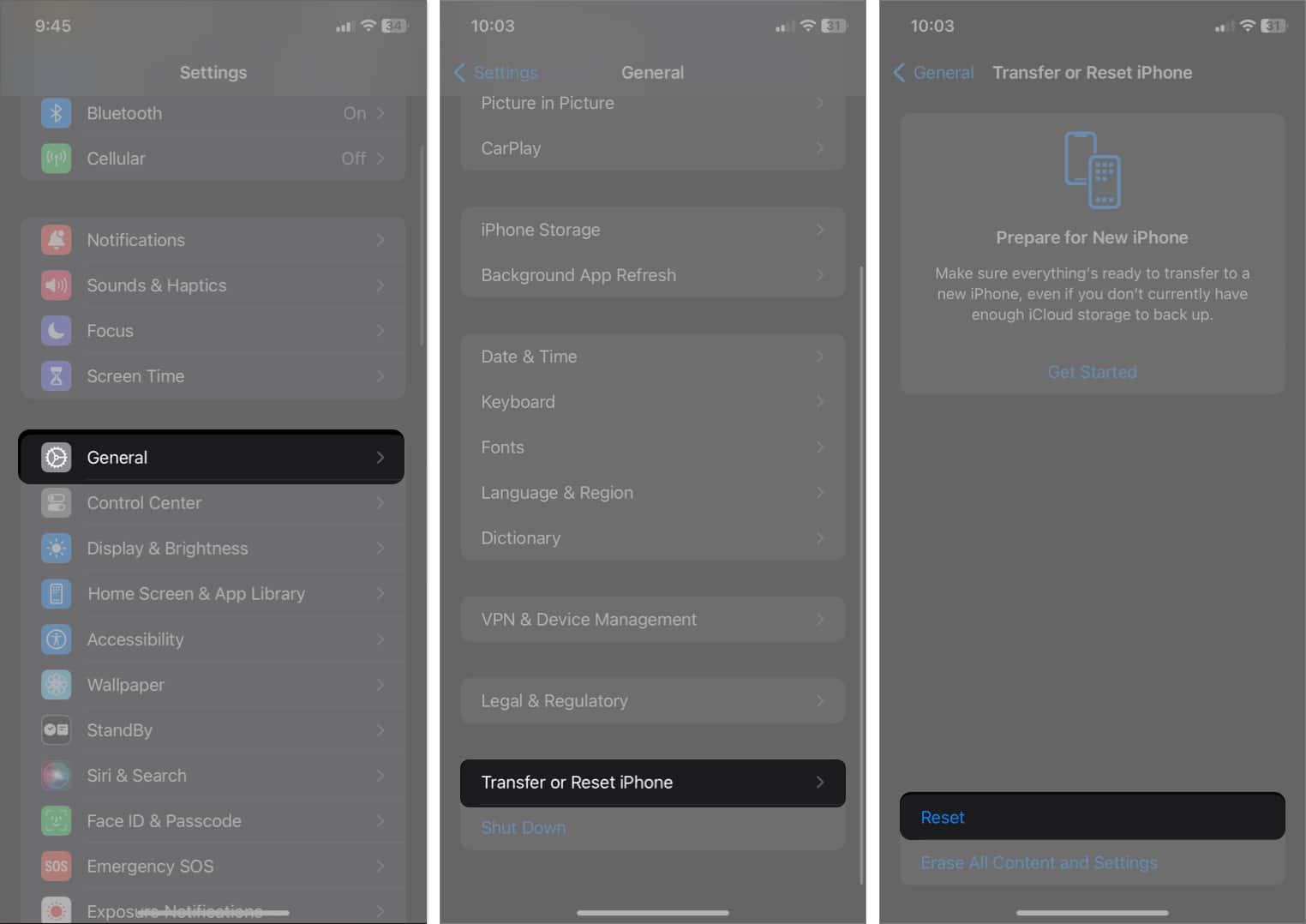
- Tap Reset Keyboard Dictionary.
- Enter your passcode when prompted.
- Finally, tap Reset Dictionary.
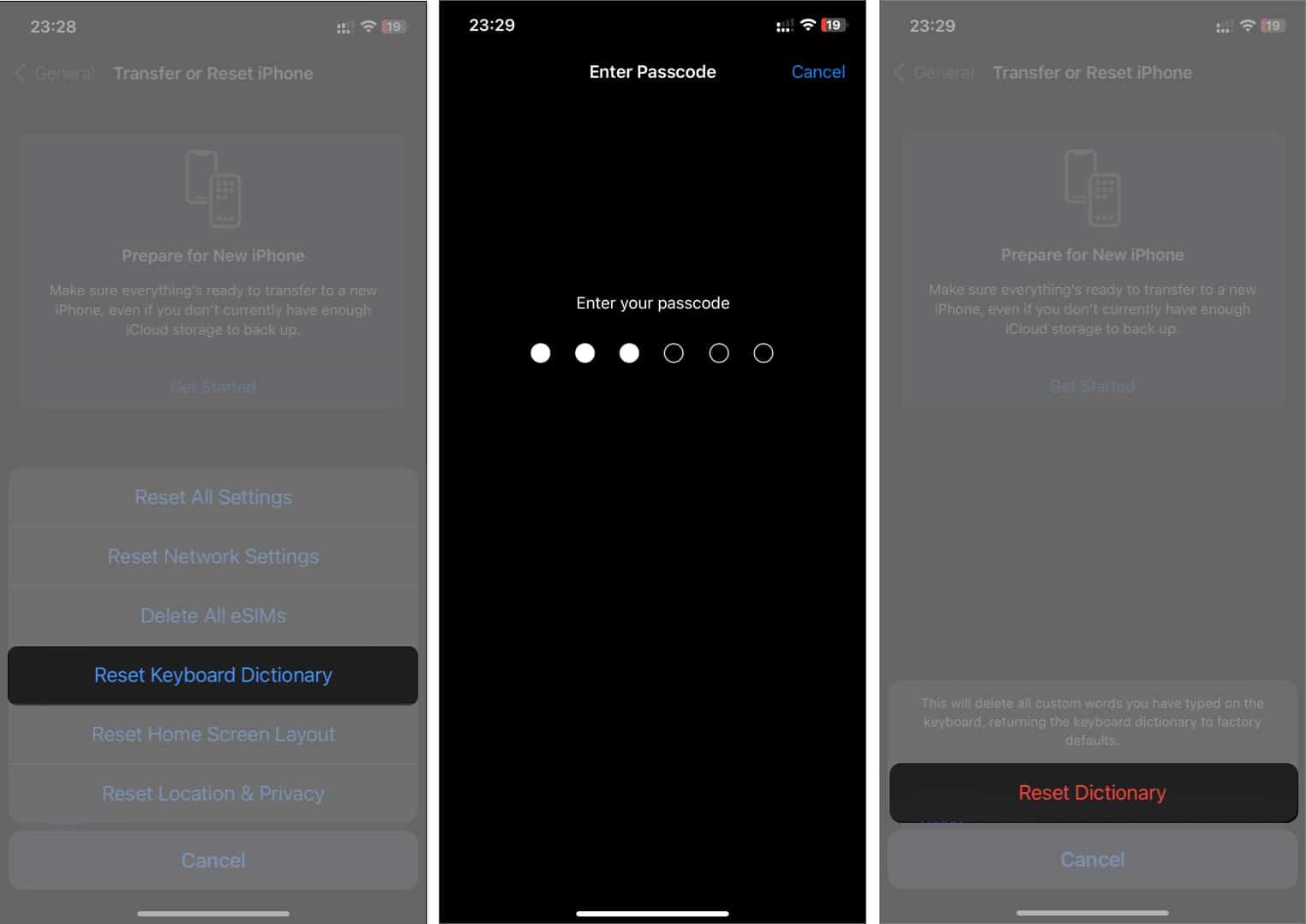
Keep in mind, this erases all custom words you’ve saved.
5. Manage Background Activity & Storage
Running too many apps in the background can eat up RAM and cause lag. So, freeing up memory can restore responsiveness.
To stop background activity:
- Head to Settings → General → Go to Background App Refresh.
- Tap Background App Refresh.
- Select Off to deactivate apps from running in the background.
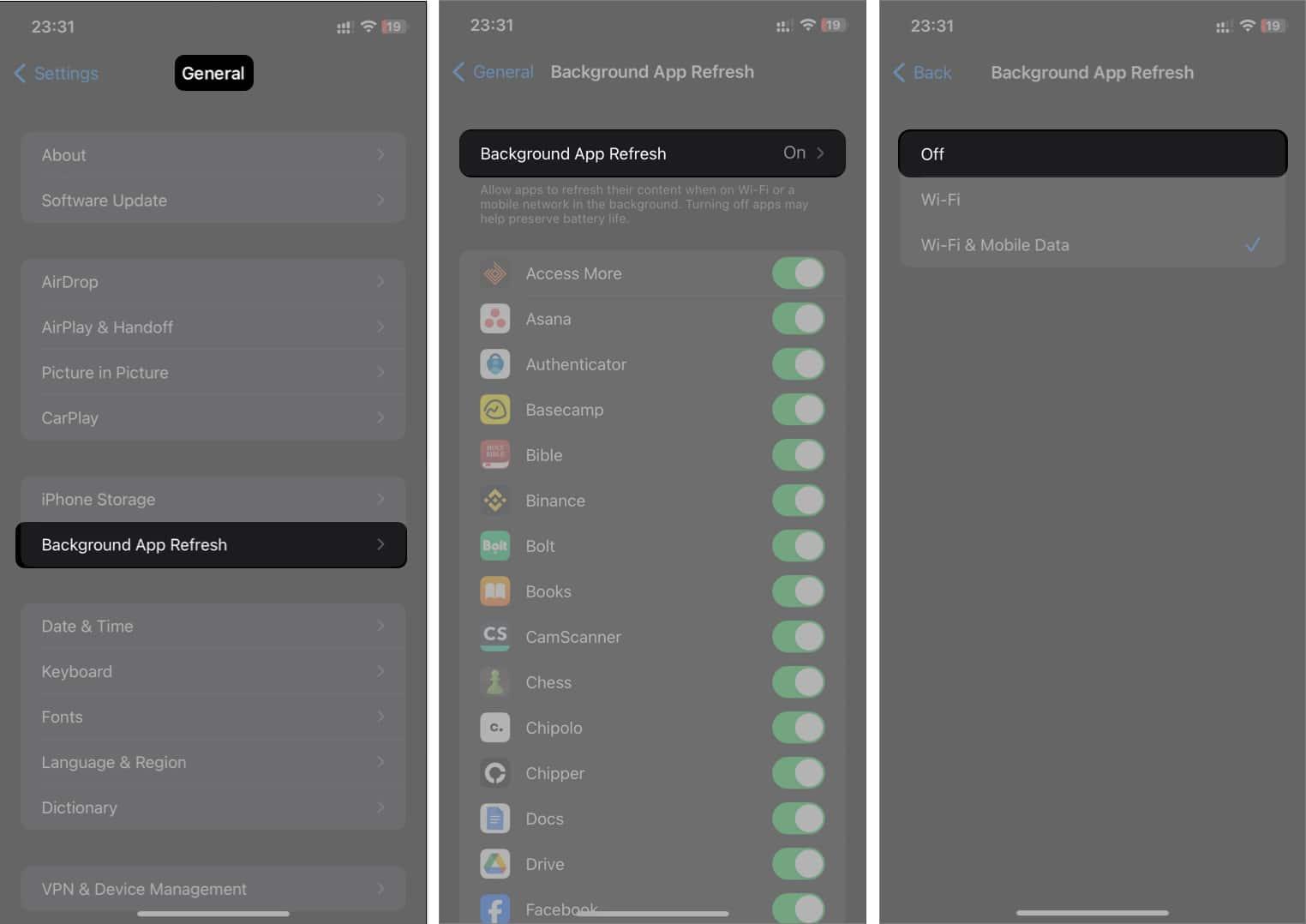
Also, clean up unused apps, large files, and recently deleted folders. Ensure you have at least ~10–15% free storage as a general rule of thumb.
6. Disable Predictive Text and Auto-Correction
Predictive features can sometimes slow down typing.
Here’s how:
- Go to Settings → General → Keyboard.
- Scroll down and toggle off Predictive Text and Auto-Correction.
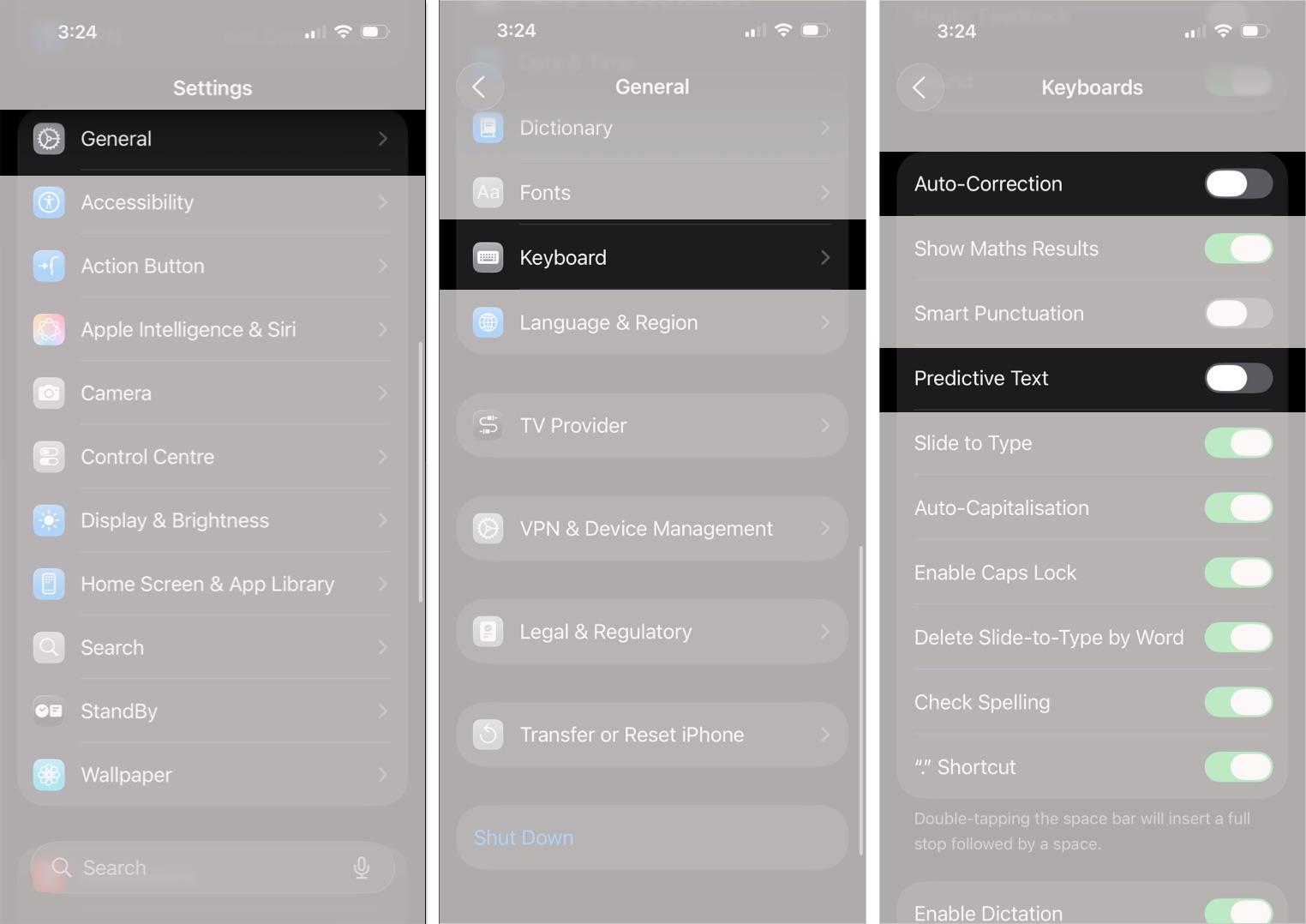
This also turns off Inline Predictions.
7. Enable “Reduce Motion”
Animations and transitions can affect performance on older hardware.
- Go to Settings → Accessibility → Motion.
- Toggle on Reduce Motion.
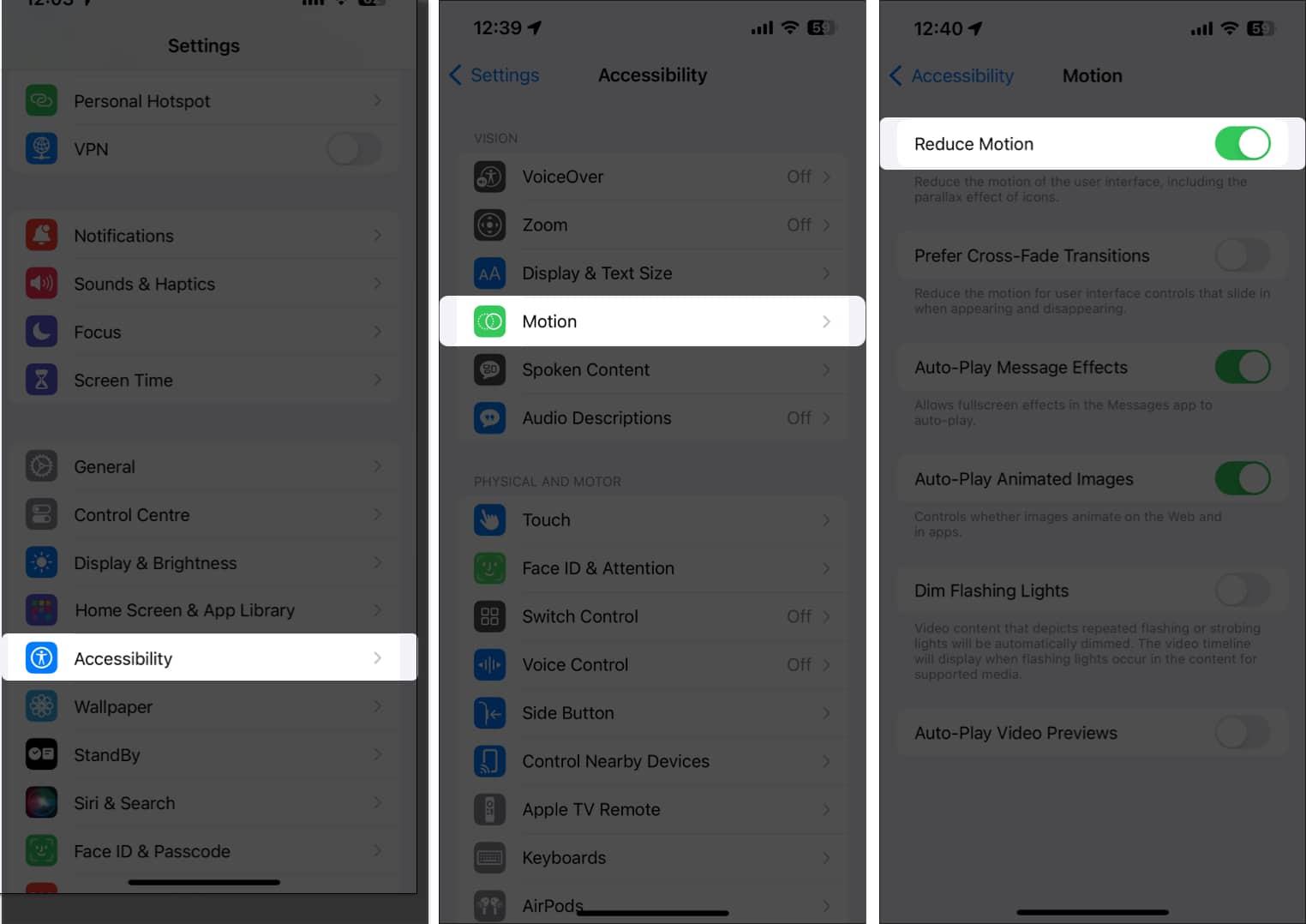
This can make typing feel snappier by reducing UI load.
8. Toggle Keyboard Settings Off and On
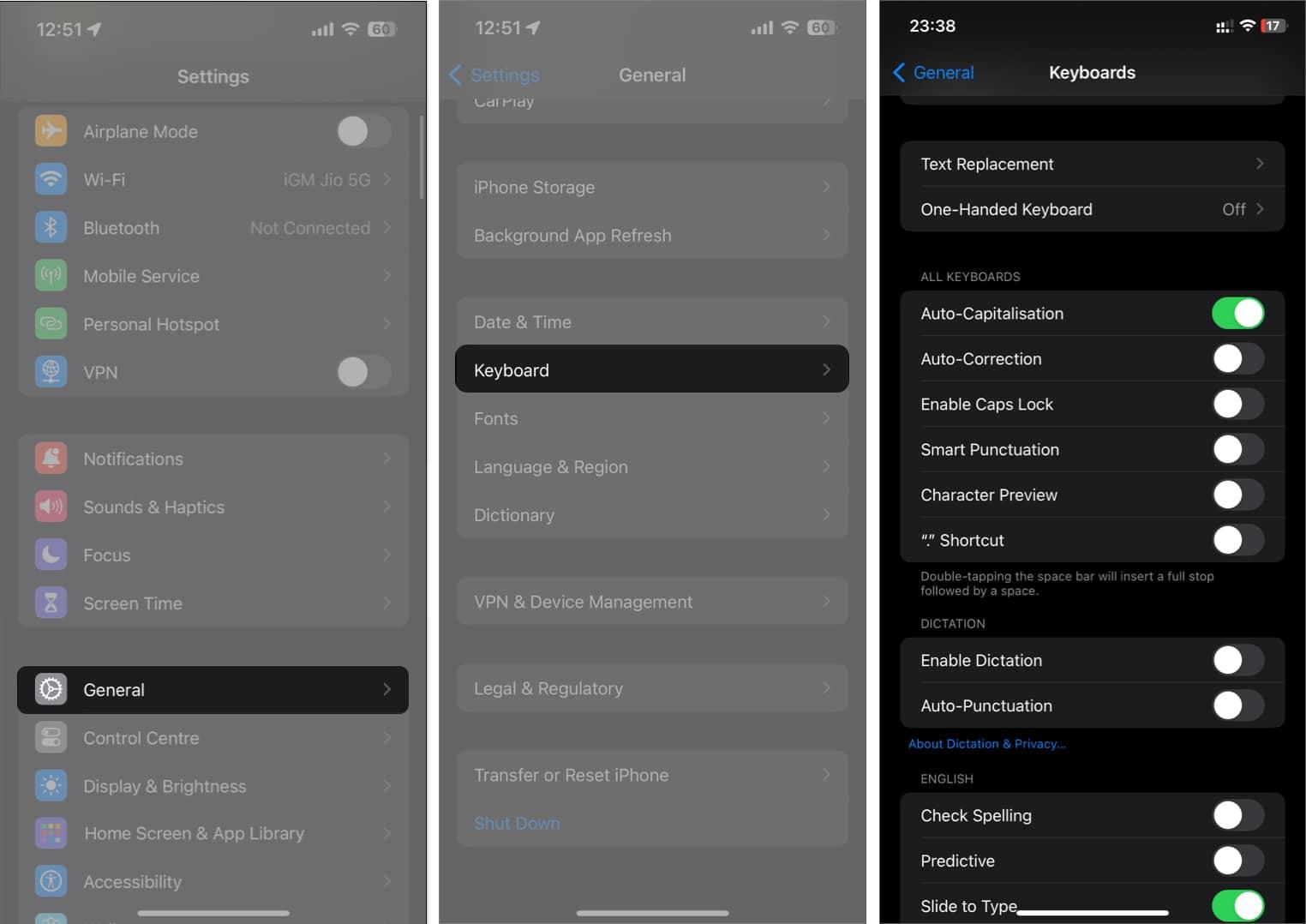
Sometimes, a specific setting can cause your iPhone keyboard to lag. Try disabling all keyboard options (like auto-capitalization and spell check) if you’re unsure which one is the culprit.
- Go to Settings → General → Keyboard.
- Turn off all keyboard-related toggles (slide to type, spell check, smart punctuation, etc.).
- Then toggle them on one at a time, testing typing after each change, until lag reappears.
9. Test Across Multiple Apps
If lag occurs only in one app (for example, a heavy browser or social media app), it may be the app rather than the keyboard system.
- Try typing in Notes, Messages, and Safari.
- If lag is confined to one app, update or reinstall that app rather than fix the system.
10. Reset All Settings (Last Resort)
If nothing else works, resetting all settings resets system preferences without erasing your content. Back up your data first.
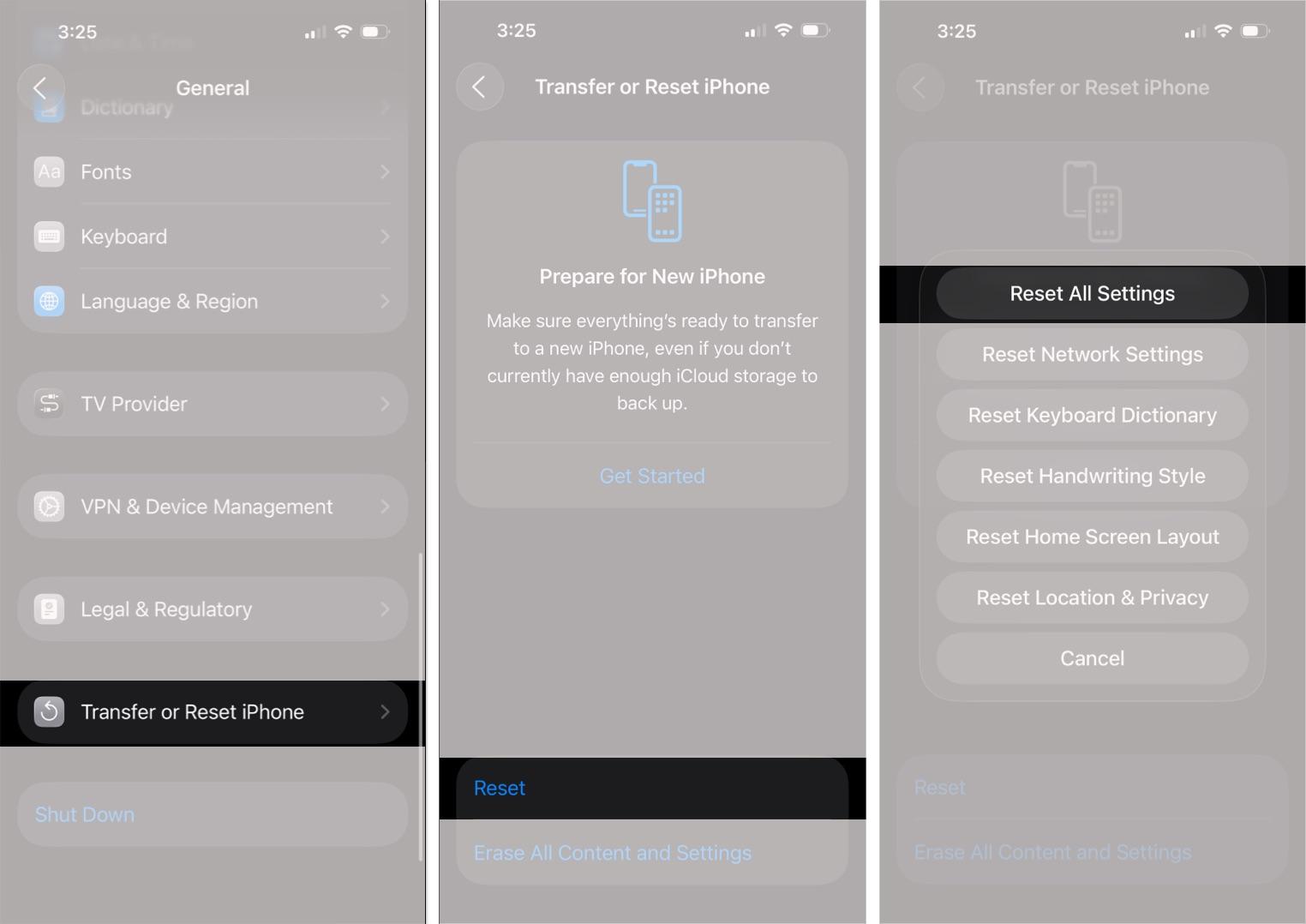
- Head to Settings → General → Transfer or Reset iPhone.
- Tap Reset.
- Tap Reset All Settings. Enter your passcode, then follow the on-screen instructions to restore your iPhone to its factory settings.
Note:
Contact Apple Support
If the problem continues, reach out to Apple Support. Since keyboard lag is usually software-related, they should be able to help quickly.
iPhone Keyboard Lag, Solved!
Your iPhone’s keyboard should feel responsive. If it doesn’t, you don’t have to live with a sluggish typing experience. Follow the steps above to quickly restore smooth performance. If you’re still having quirks, the issue may be systemic, so contact Apple Support for professional assistance.
Did you get your keyboard working again? In the comments section, let me know what worked for you.
Read more: