
20 Best Apple Maps Tips and Tricks for iPhone Users on iOS 26
Here are some hidden Apple Maps tips and tricks to help iPhone users navigate smarter on iOS 26.
Apple Maps has quietly become one of the most powerful and surprisingly intuitive navigation tools on the iPhone. With iOS 26, Apple added smarter routing, richer offline maps, and better real-time awareness. Whether you use Apple Maps daily or only when you’re traveling, these tips will help you get more out of the app in 2025.
1. Download Offline Maps
If you’re heading somewhere remote or want to save mobile data, download the area in advance.
- Open Apple Maps.
- Tap your profile photo → Offline Maps.
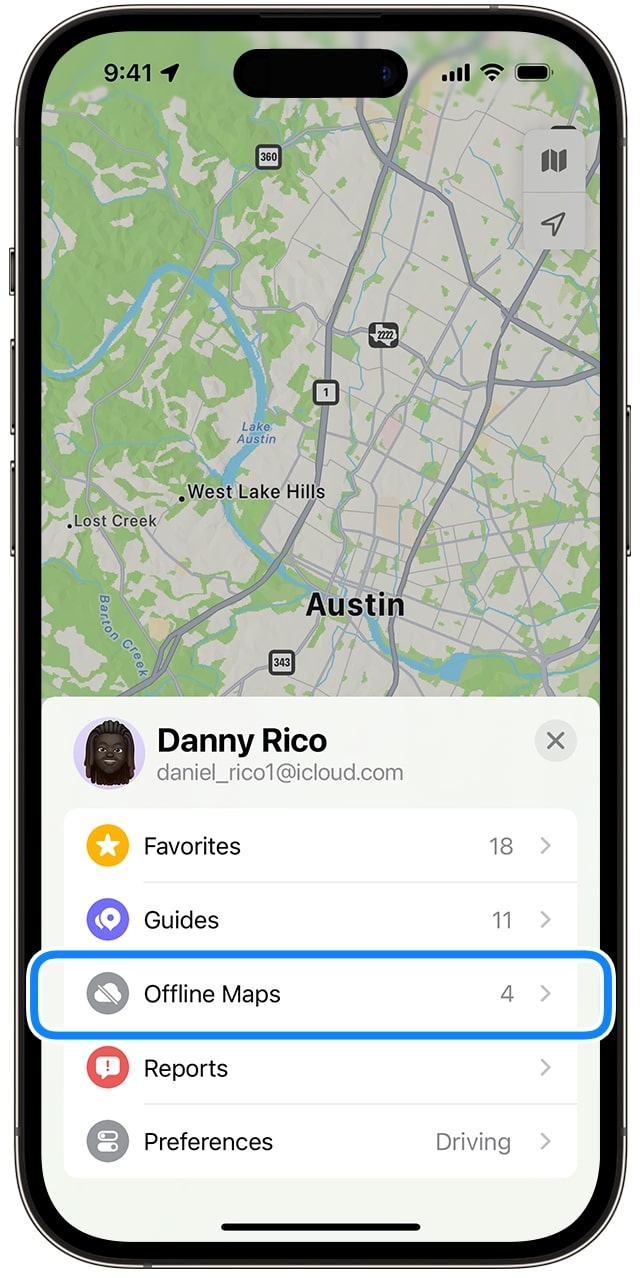
- Choose Download New Map.
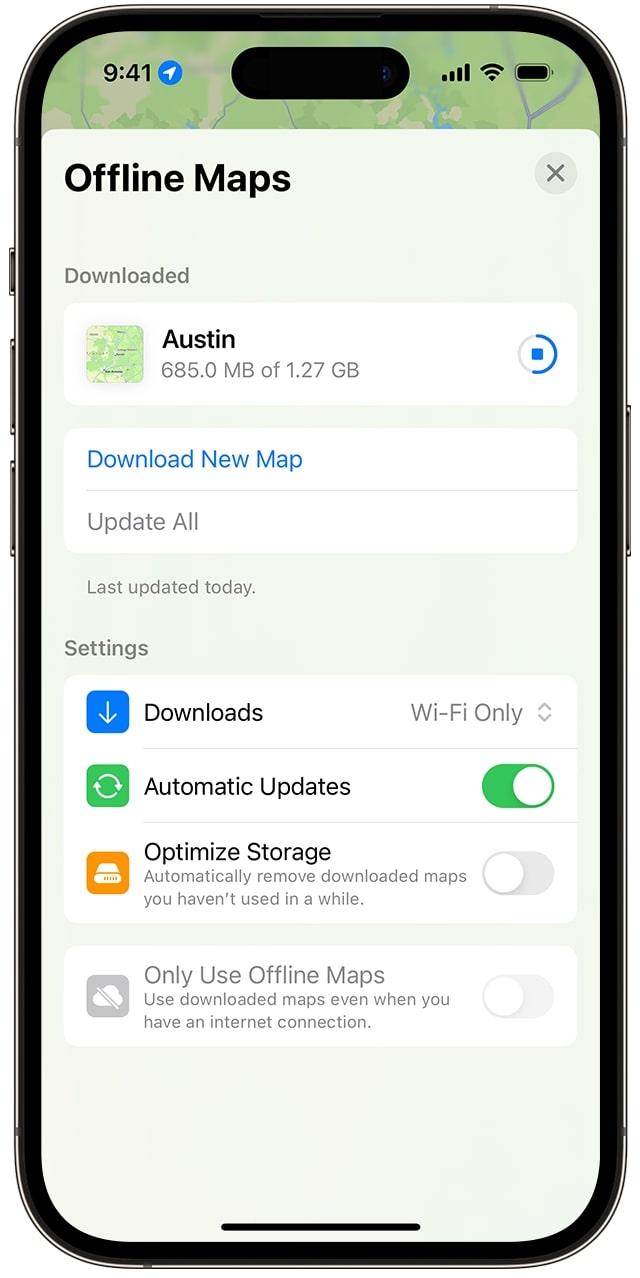
- Pinch to select the region you want, then hit Download.
Apple Maps will automatically update its offline maps in the background, keeping them up to date.
2. Visited Places Tracking
Apple Maps keeps a log of places you visit, creating a private location history on your iPhone. You can use it to remember that great café or share a cool spot with friends. And don’t worry; these logs are end-to-end encrypted and can’t be accessed even by Apple.
- Open Apple Maps on your iPhone.
- Tap your profile picture to open your library, then select Places.
- Now, tap the new Visited Places option.
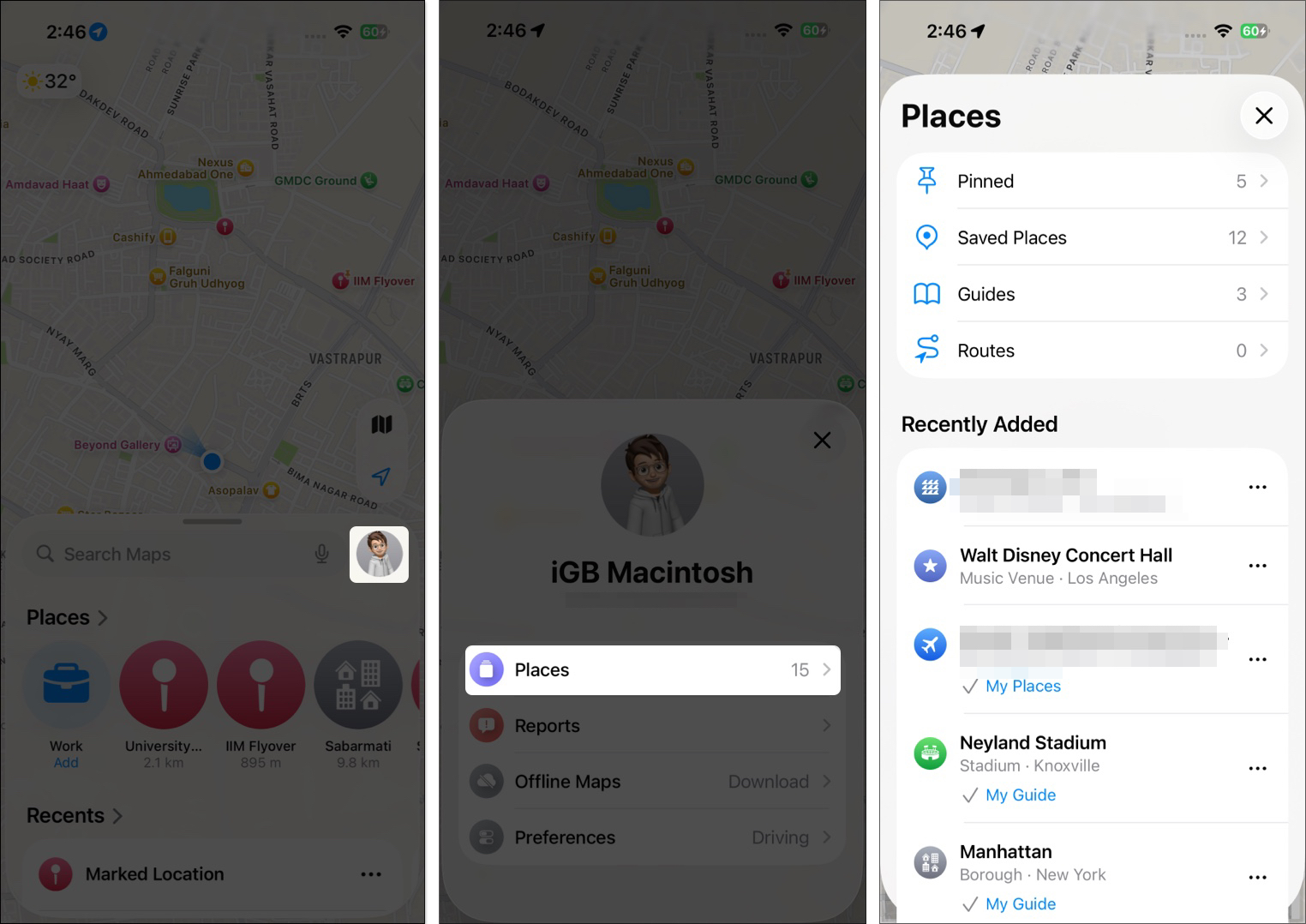
- Here, you will see a list of locations that you’ve visited, sorted by month. To find a specific place, use the search option.
3. Enable Preferred Route and Smart Route Suggestions
With iOS 26, Apple Maps now quietly learns which routes you usually take. For example, if you drive the same path to work every morning, your iPhone will start recognizing that as your go-to route.
- Maps will automatically suggest your preferred route at the right time and give you estimated travel times upfront.
- If there’s a traffic jam or delay on your usual path, you will get alerts ahead of time.
- Easily report and view road closures, traffic, and road work while navigating.
- Smart route suggestions use on-device intelligence to proactively send you an alternate route when traffic is slow or a road is blocked. So, you can avoid delays before you leave or even while en route.
- You’ll also see this info pop up in the new “Suggestions” widget on your Home Screen. So, you know what’s coming even before you open the app.
This feature runs completely on-device, meaning Apple doesn’t know about your commute, and it never leaves your iPhone.
4. PIN Your Favorite Places for Faster Access
If there are places you visit often, like your gym, workplace, or your favorite café, pin them.
- Search for the location.
- Swipe up the place card.
- Tap Pin at the bottom.
Now, the place will appear under the search bar, making it easier to start navigation instantly. You can also add a note to the place card, which you can only see.
5. Explore with Look Around
Look Around is Apple Maps’ version of Google Maps’ Street View. It follows the same concept: you find a location on the map, and the app gives you a sneak peek of that street as if you’re standing there.
When searching for a location, tap the binocular icon. It should display a pop-up window that covers half the screen. You can tap the arrows in the top left of the window to expand the view to full screen. Check our guide on using Look Around in Apple Maps for a better understanding.
6. Use Gestures to Change Your Map View
Maps can be difficult to use. Don’t worry; you can use gestures to navigate Maps on iOS. For example,
- You can use two fingers to rotate the map
- Double-tap to zoom in on the map.
- Use pinch-to-zoom gestures to zoom in and out of the display.
What’s more? You can also adjust the tilt of your map, whether you’re on a 2D or 3D view.
7. Share Your Location and ETA
If you want to share your current location with somebody, pull up the route card at the bottom and tap Share My Location.
To share your ETA with your contacts, ask Siri, “Share my ETA,” and specify who you want to send it to. This is useful if someone is waiting for you. You can also do it manually:
- While in navigation mode, touch the route card → tap Share ETA.
- Select a contact to share your estimated arrival with.
- To stop sharing, tap the banner and select Stop Sharing ETA.
Note:
If you don’t see this option, it may not be turned on. Go to Settings → scroll down to Apps and select Maps → toggle on Share ETA.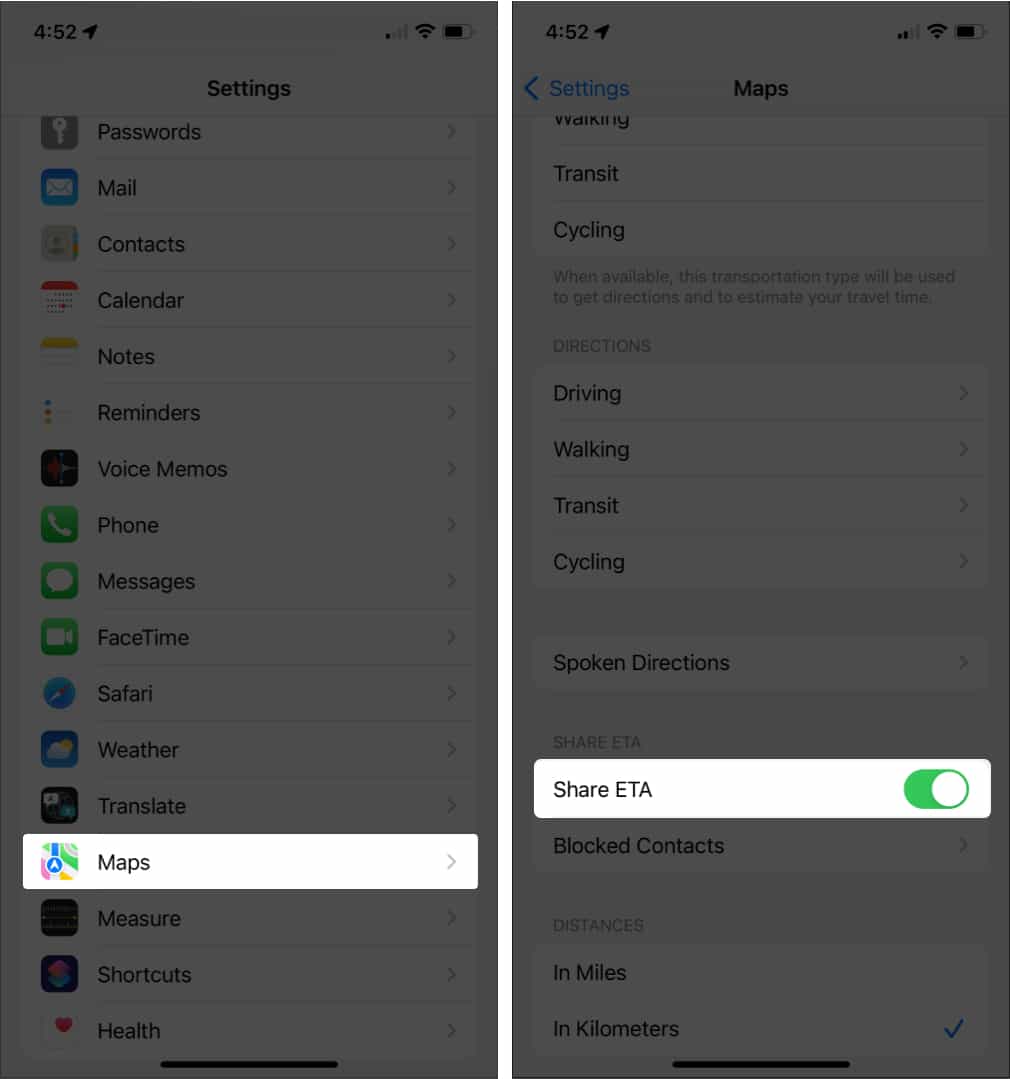
8. Find Your Parked Car
Apple Maps is equipped not only to locate you but also your parked car. This feature will save you time wandering the streets, especially in an unfamiliar area.
To find your parked car on Maps, your device is connected and paired with your car’s Bluetooth or CarPlay. To set it up:
- Go to Settings on your iPhone, tap Apps, and select Maps.
- Under the Your Car section, toggle Show Parked Location on.
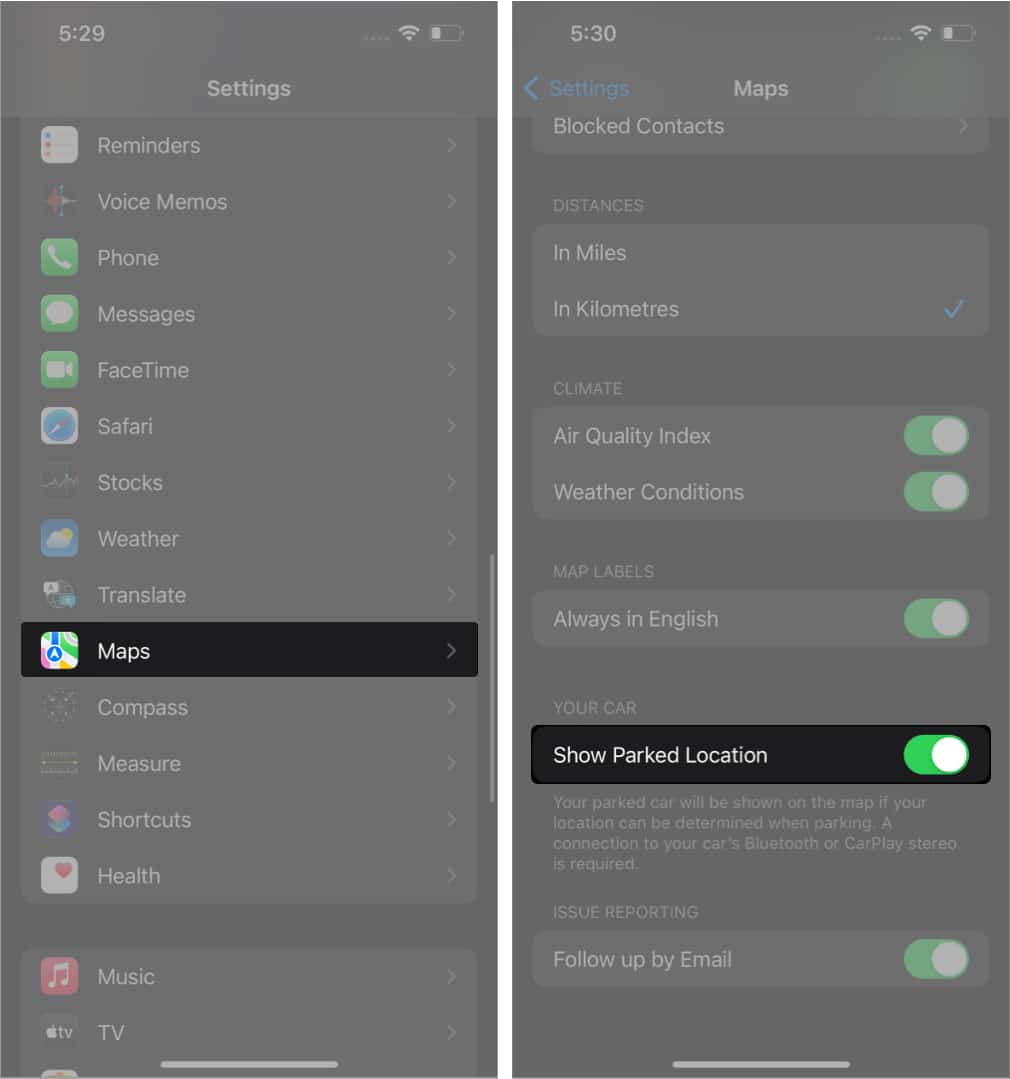
Now, Maps will automatically drop a marker on Maps when you disconnect your iPhone from your car.
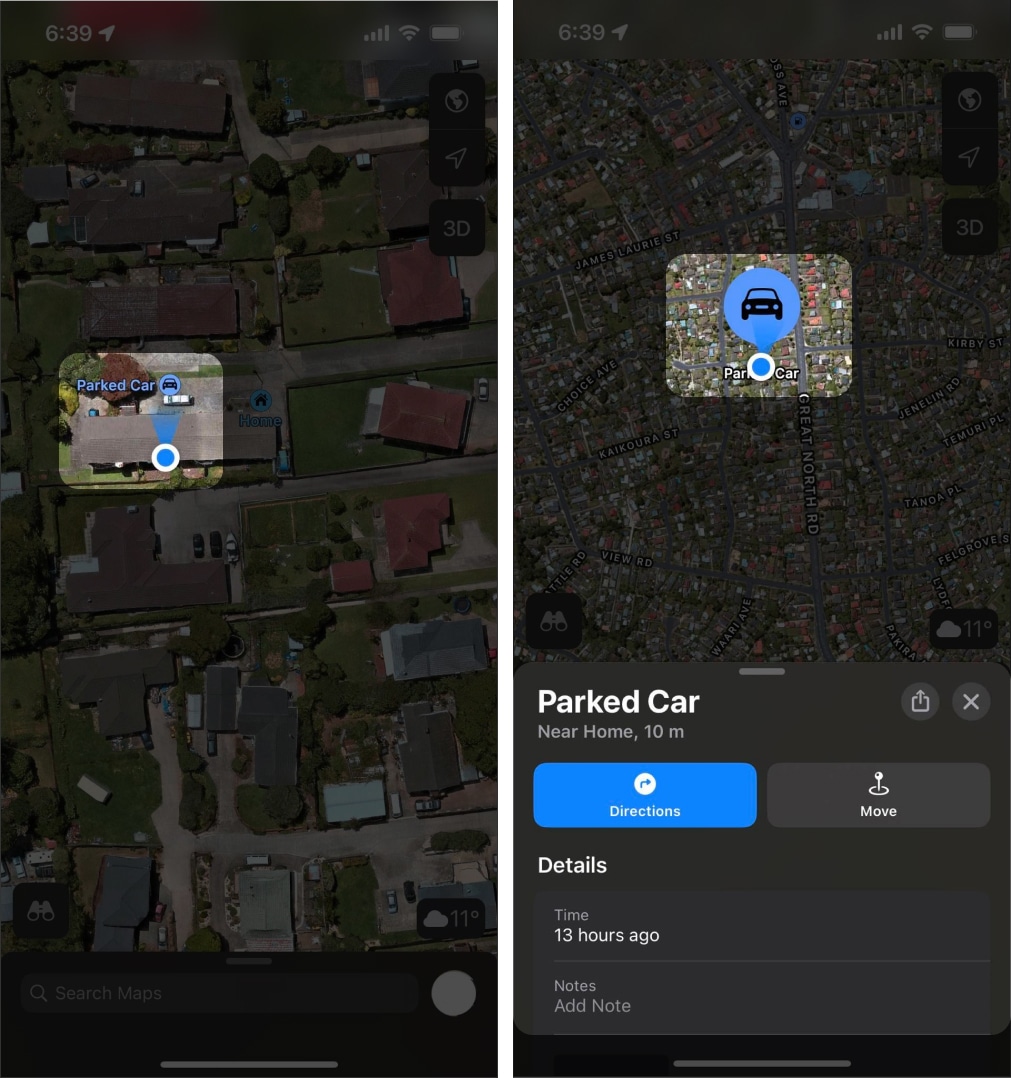
- Open the Maps app on your iPhone.
- You’ll see a blue Parked Car marker where you parked.
- Tap the pin to see more details about the location.
- Select Directions to get navigation to your parked car.
9. See Immersive AR Directions
If you’re headed to a major city, Apple Maps lets you scan the buildings around you to locate them and provides step-by-step walking guidance in augmented reality (AR).
Tap Directions and follow the route as usual, but select Walking → tap Go. On the right side of the screen, tap the AR icon that looks like a 3D hexagon. Note that this feature isn’t always available, so you won’t always see this icon on your screen.
Your iPhone’s Camera will be initiated, prompting you to scan your surroundings. After this, it should be able to pinpoint where you are and where you’re looking. As you pan your iPhone around, you’ll also see massive street signs in 3D.
Additionally, there’s a hack that lets non-Apple users use Apple Maps on their devices!
10. Mark Location
If you want to make a mental note of a place you want to visit in the near future or see how far a location is from you, you can drop a pin on the map. Pinning will show you its complete address and estimate how long it would take to walk, commute, or drive.
Check out our guide to know how to drop a pin in Apple Maps.
11. Quickly Search for Amenities
You can also use Maps’ Nearby feature to search for nearby places. These are organized into different categories to help you find what you need faster.
- On Maps, swipe up the Search bar to expand it.
- You should see the categories under Find Nearby.
- Scroll to the right to find more options like Fast Food, Hotels, Restaurants, Transit Stations, and more.
Next, tap a category to narrow your search. For example, if you want to look for a nearby restaurant, tap Restaurants. Doing so will highlight all the Restaurants on the map. Use available filters to narrow down your search.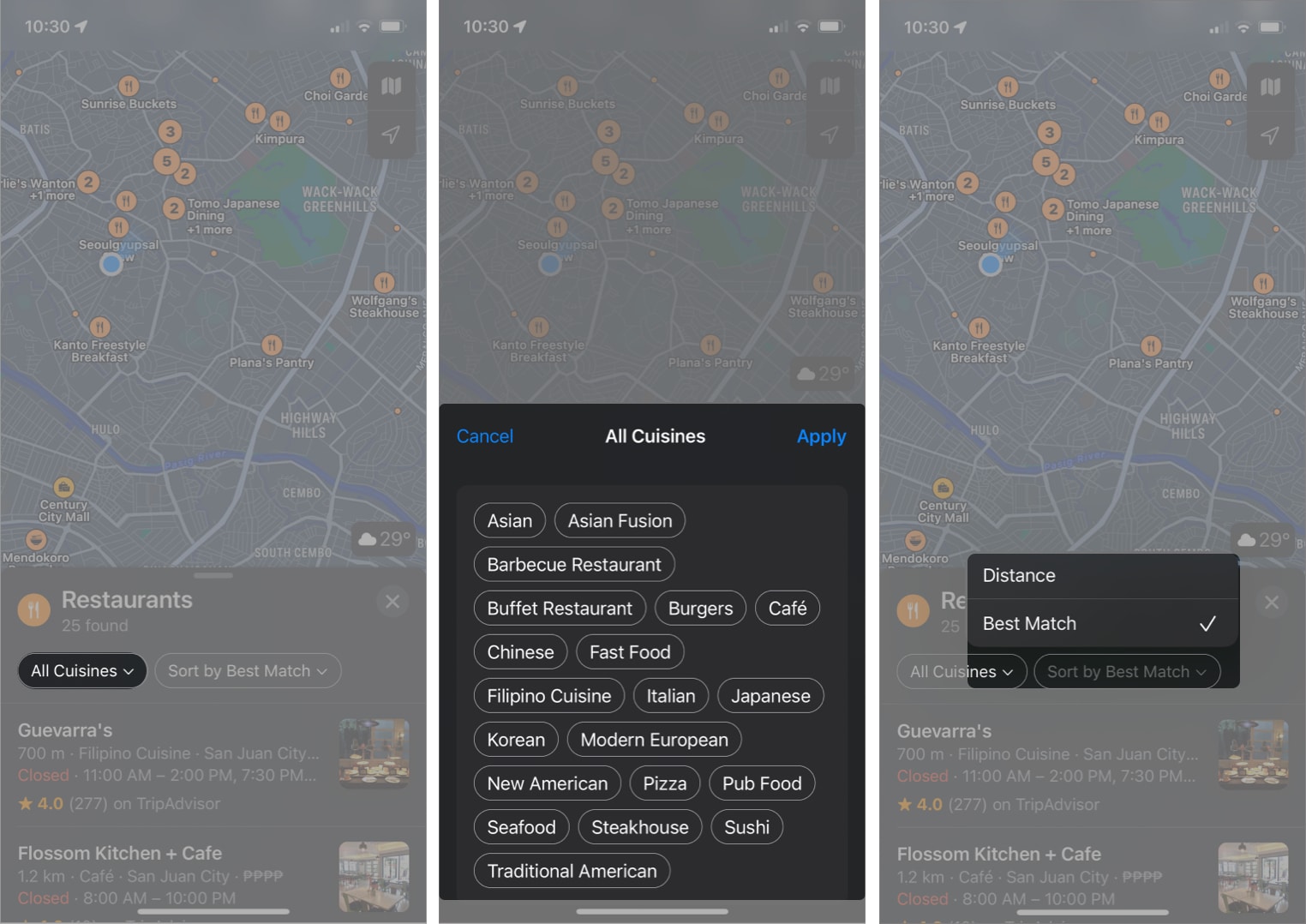
You can also use the Search Here feature to populate the map with your search query as you explore the map.
12. Create Your Guide
If you’re planning a vacation or a road trip, you can use Apple Maps Guides to help you organize everything. This also lets you curate destinations for easy access later when you need them. To begin:
- Search for a location on the map → select the location.
- Scroll down the place card and choose an existing Guide.
- To create your own, tap the three-dot icon and select Add to Guides.
- Tap the plus sign at the bottom and enter a name.
- Hit the checkmark to save it.
To access your Guides, pull up the route card on Maps, scroll to the bottom and select a guide.
13. Ask Siri for a Direction on Maps
You may have already figured out that Siri is a pretty fantastic assistant. It not only knows how to answer funny questions or handle Apple Music requests but also helps you reach your destination.
To do this:
- Launch Siri by saying, “Hey Siri!”
- Say something like “directions to Guevarra’s.”
- Tap the transportation mode.
- You may begin immediately by tapping Go.
If you can’t, navigation will start within five seconds.
You may also tell Siri to end navigation before reaching your destination by saying, “Hey Siri, stop navigating.”
As I often use my car to commute, I have set driving as my preferred type of travel. So, Siri always shows the driving navigation. Learn how to change the default direction type in Apple Maps.
14. Avoid Highways and Tolls
If you prefer avoiding tolls or the highways for a more leisurely drive on your next road trip, you can modify some of Apple Maps’ settings.
Once you’ve selected a destination and are ready to choose the best route, scroll down to the bottom of the route suggestions and tap Avoid. Now, toggle on Tolls and Highways. This is more helpful when you are planning a multi-stop route.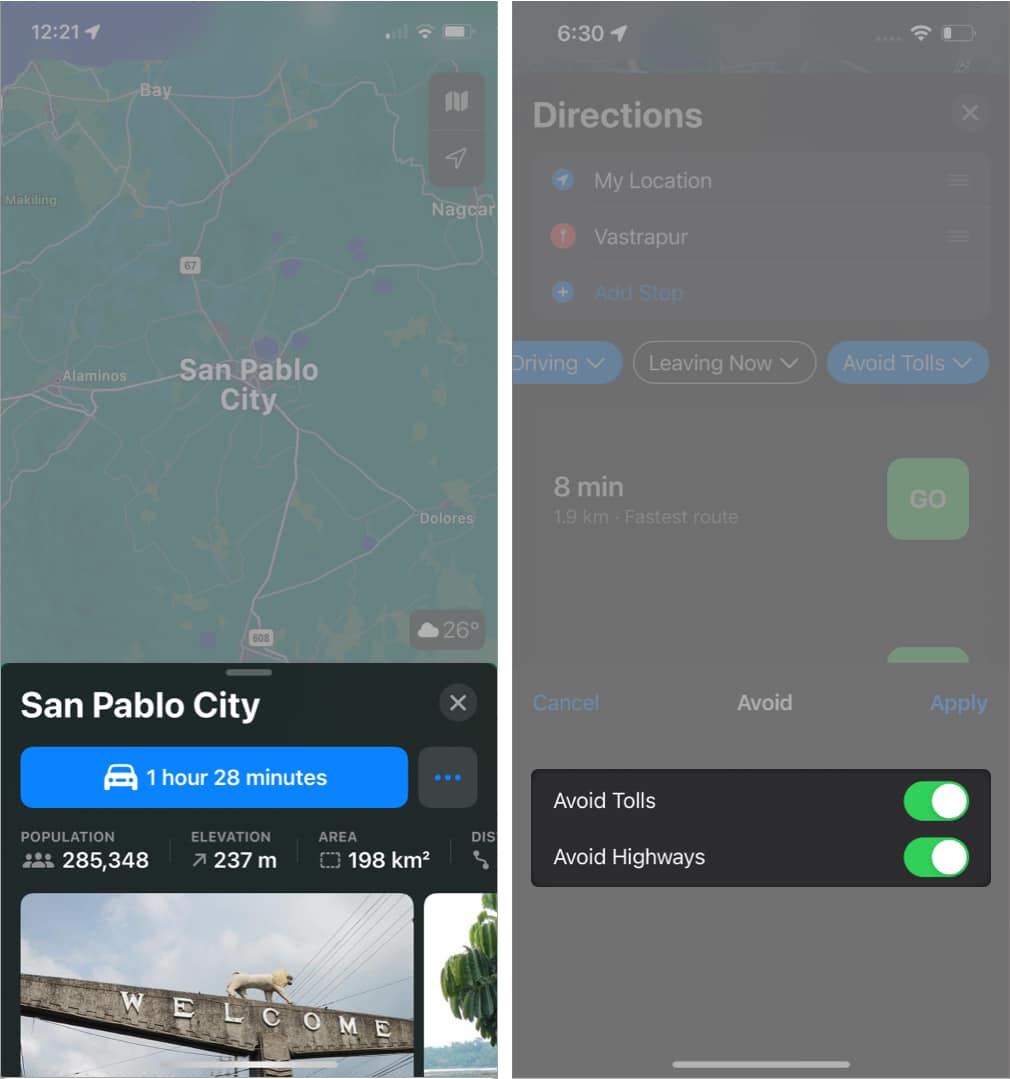
You can apply these Apple Maps settings to all your destinations by heading to Settings → Apps → Maps → Driving → toggle on Tolls and Highways.
You can also set arrival and leaving times in Apple Maps to get the best possible route.
15. Access Wikipedia From Apple Maps
If you need additional information about your destination, Apple Maps sometimes gives information snippets. Instead of searching from your browser, swipe the place card and tap Wikipedia at the bottom. It will open the Wikipedia page about that location.
16. Automatically Switch on Driving Focus
Distractions are never welcome when we’re trying to focus. If you’re an iPhone owner, you can enable Focus Mode to stay in the moment and silence all distracting notifications and alerts.
For many, driving requires intense focus. The good thing is that you can allow Maps to automatically switch to Driving Focus mode as soon as it senses that you’re driving.
You may also automatically allow it to activate once connected to CarPlay. To do so, just toggle Activate With CarPlay on.
17. Navigate with Indoor Maps
Maps work not only on roads but also in large establishments like shopping malls and airports. This may be handy when locating bathrooms, stores, or lounges inside the establishment.
To do so, search for an establishment like the Airport, and you will see exterior and interior photos, along with amenities such as Gates, Check-ins, etc. Apple has also integrated this feature into the Wallet app on iOS 26. So, when you add a boarding pass, you will see a dedicated AirPort map.
18. Report Accidents, Speed Checks, and Hazards
Everybody hates delays from accidents and hazards. Help other drivers avoid the hassle by reporting them through the app. Check out our explainer on how you can report an accident or hazards.
If your hands aren’t free, you can make Siri do it by saying something like, “Hey Siri, report a crash” or “Hey Siri, report a roadblock in the road.”
19. Reduce Podcast Interruptions
Many drivers take time to listen to podcasts while driving. This makes Siri’s voice giving navigations on top of them pretty annoying. You can make your phone pause your podcast every time Maps gives you navigation instructions so you won’t miss anything:
- Go to Settings → Apps → Maps.
- Tap Spoken Directions → toggle on Directions Pause Podcasts.
20. Enable Compass on Maps
Navigating a map oriented in a particular way can be confusing if you aren’t familiar with the area. With Compass mode, your iPhone serves as the compass, and the map follows and rotates depending on where your iPhone is pointed.
To enable compass mode, go to Settings → Apps → Maps → Driving → toggle on Compass. Now, tap and hold the Location arrow until it becomes vertical with a line on top. A small compass will also appear. Now, move your iPhone to see the direction.
Master Apple Maps Like a Pro!
Apple Maps seems like a pretty basic app, but it has many useful features. From enjoying a 3D view and AR directions to helping you navigate indoor establishments to curating your next road trip, Apple Maps can make travel and navigation smoother. I hope these Apple Maps tips and tricks for iPhone helped make your life easier!
What’s your favorite feature? Anything we missed out on? Comment on them below!
Topics

Written by
Rachel Ann Tee-MelegritoRachel, an experienced Apple technology writer since 2021 and a long-time user since 2003, began her journey with a silver iPod Classic. Currently, she owns an array of modern Apple gadgets. At iGeeksBlog, her expertise shines through in the crafting of comprehensive how-to articles, informative guides, and well-curated roundups.
View all posts →More from How-to

Snapchat Parental Controls: How to Set Up Family Center and Keep Your Teen Safe
Snapchat’s Family Center lets parents monitor their teen’s friend activity and screen time without reading private messages. Here’s how to set it up and what to expect.
 VikhyatMarch 3, 2026
How to Block and Unblock Someone on Instagram
Instagram lets you block or unblock someone in seconds. Follow these simple steps to take full control of your privacy and online peace.
 Ava BiswasMarch 2, 2026
Apple Watch Not Responding? 8 Fixes That Actually Work
Is your Apple Watch unresponsive or stuck on a black screen? Here are 8 proven fixes to help you unfreeze it and get it working again quickly.
VikhyatMarch 3, 2026