FaceTime Like a Pro
Get our exclusive Ultimate FaceTime Guide 📚 — absolutely FREE when you sign up for our newsletter below.

FaceTime Like a Pro
Get our exclusive Ultimate FaceTime Guide 📚 — absolutely FREE when you sign up for our newsletter below.


Having trouble signing in to Snapchat?
Learn simple steps to fix login problems and access your Snapchat account again.
 ByVikhyat


Social media has become a central part of how younger users communicate, and Snapchat continues to lead the way with its fast-paced, visual style of interaction. Millions of people open the app daily to send snaps, maintain streaks, and stay connected with friends. So when Snapchat suddenly refuses to log you in, it can feel frustrating and disruptive.
Luckily, most Snapchat login issues are temporary and can be resolved quickly with the right approach.
Keep reading to learn why Snapchat login issues happen and how to regain access to your account.
According to Snapchat’s official support documentation, most login failures usually occur due to one of the following reasons:
Besides these, in some cases, global outages can also prevent login entirely.
Like any social media platform, Snapchat relies on a stable internet connection to authenticate your account and complete the login process. When your connection is slow, unstable, or temporarily unavailable, the app may fail to communicate with Snapchat’s servers, resulting in login errors or endless loading screens.
To rule out this possibility, check whether the internet is working fine in other apps. If not, switching between Wi-Fi and mobile data, reconnecting to your network, or briefly enabling Airplane Mode can often resolve temporary connectivity issues and restore access to your account.
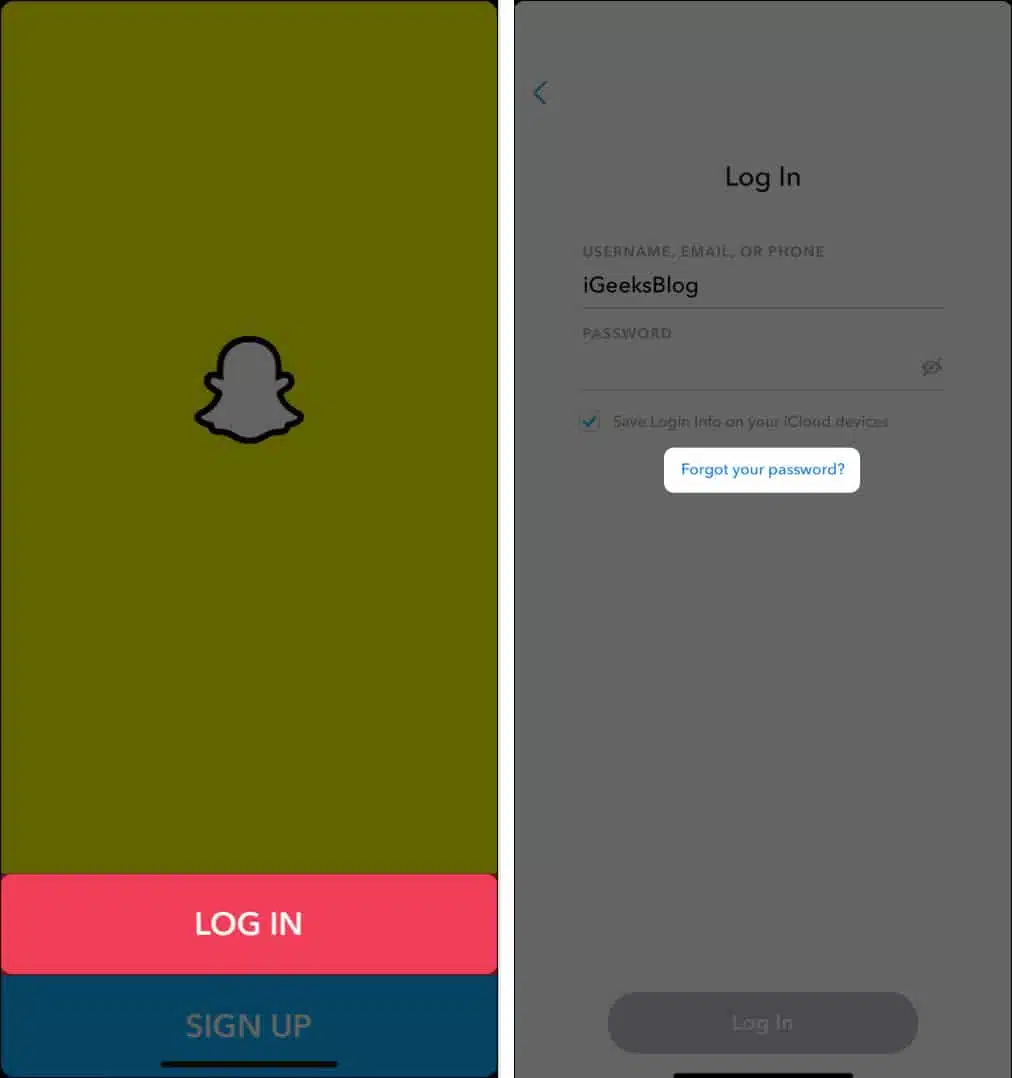
Another common cause of login issues is an incorrect username or password. Even a small typing mistake, an extra space added by autofill, or incorrect capitalization can prevent successful authentication.
Here’s what you can do about this:
Sometimes the issue is not related to your device or account at all. Snapchat servers may temporarily go down for maintenance, updates, or unexpected outages, preventing users worldwide from logging in.
When this happens, you may see generic errors such as “Something went wrong” or repeated login failures even when entering the correct credentials.
Check online outage trackers like Downdetector or search for Snapchat server status updates to confirm. If servers are experiencing downtime, the only solution is to wait until services are restored.
If Snapchat’s servers are working properly, the issue is likely related to your device or the app itself. Temporary software glitches or background process conflicts can interfere with Snapchat’s login system, preventing successful authentication.
In most cases, restarting the app and your device refreshes system resources and clears minor bugs that may be affecting performance.
Force-close the Snapchat app completely (not just minimize it), then reopen it and try logging in again. This ensures the app starts a fresh session rather than continuing a faulty one.
If the issue persists, restart your phone to reset system processes, refresh network connections, and eliminate temporary software glitches that could be interfering with authentication.
Just as running an outdated software version can cause compatibility issues on your phone, running an outdated version of Snapchat can lead to compatibility issues with newer server updates. To fix this:
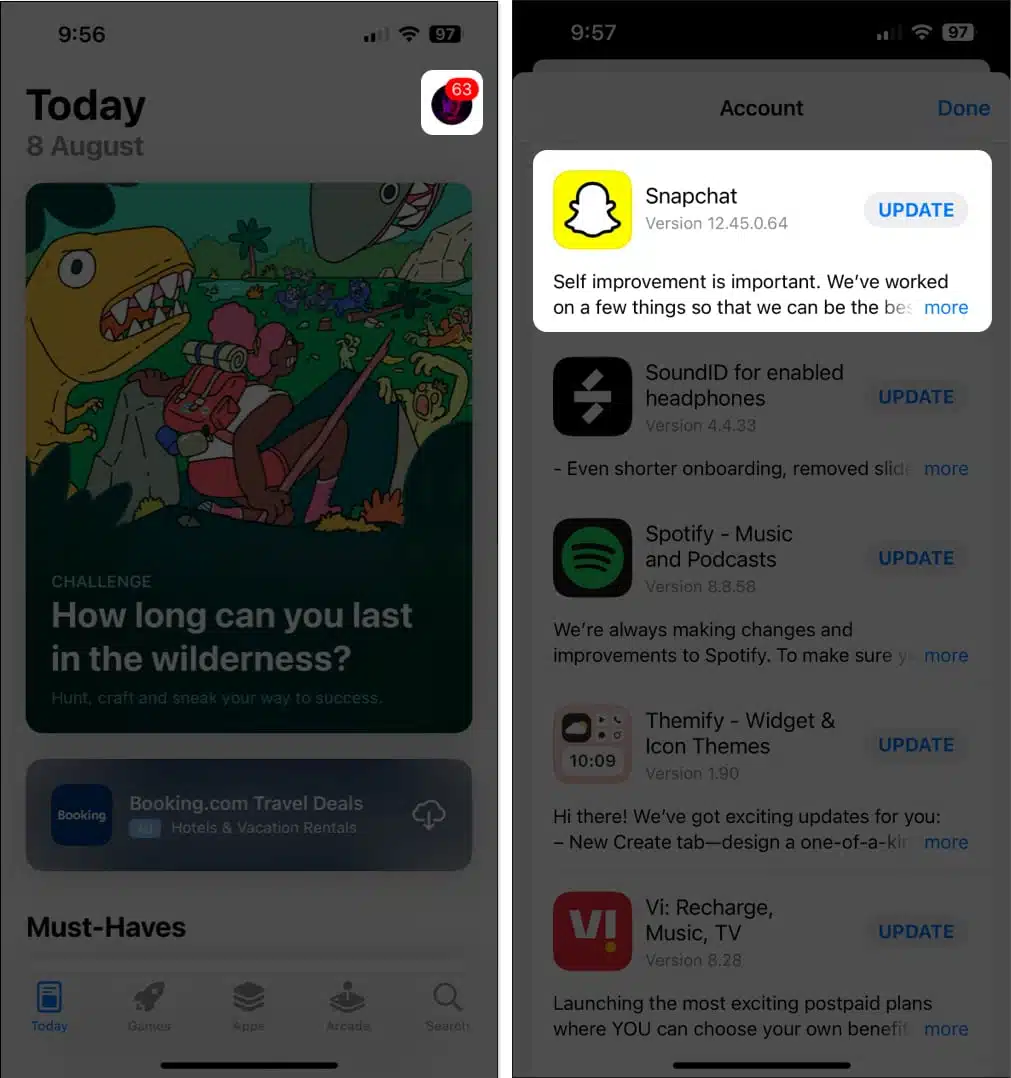
Once the update is installed, open the Snapchat app again and try logging in.
Over time, Snapchat stores temporary data to improve performance. When this cached data becomes corrupted, it can prevent the app from completing login requests successfully.
Go to your device settings, open the Snapchat app settings, and clear the cache from the storage section. This removes temporary files without deleting your chats or account data.

Note: iPhone users cannot manually clear app cache from system settings. Cache files can only be cleared from withinSnapchat’s in-app settings, so reinstalling the app serves as the closest equivalent solution when login issues occur.
Snapchat uses security systems to detect suspicious login activity. VPNs, proxy servers, or private DNS services can mask your IP address and trigger security blocks, preventing you from signing in.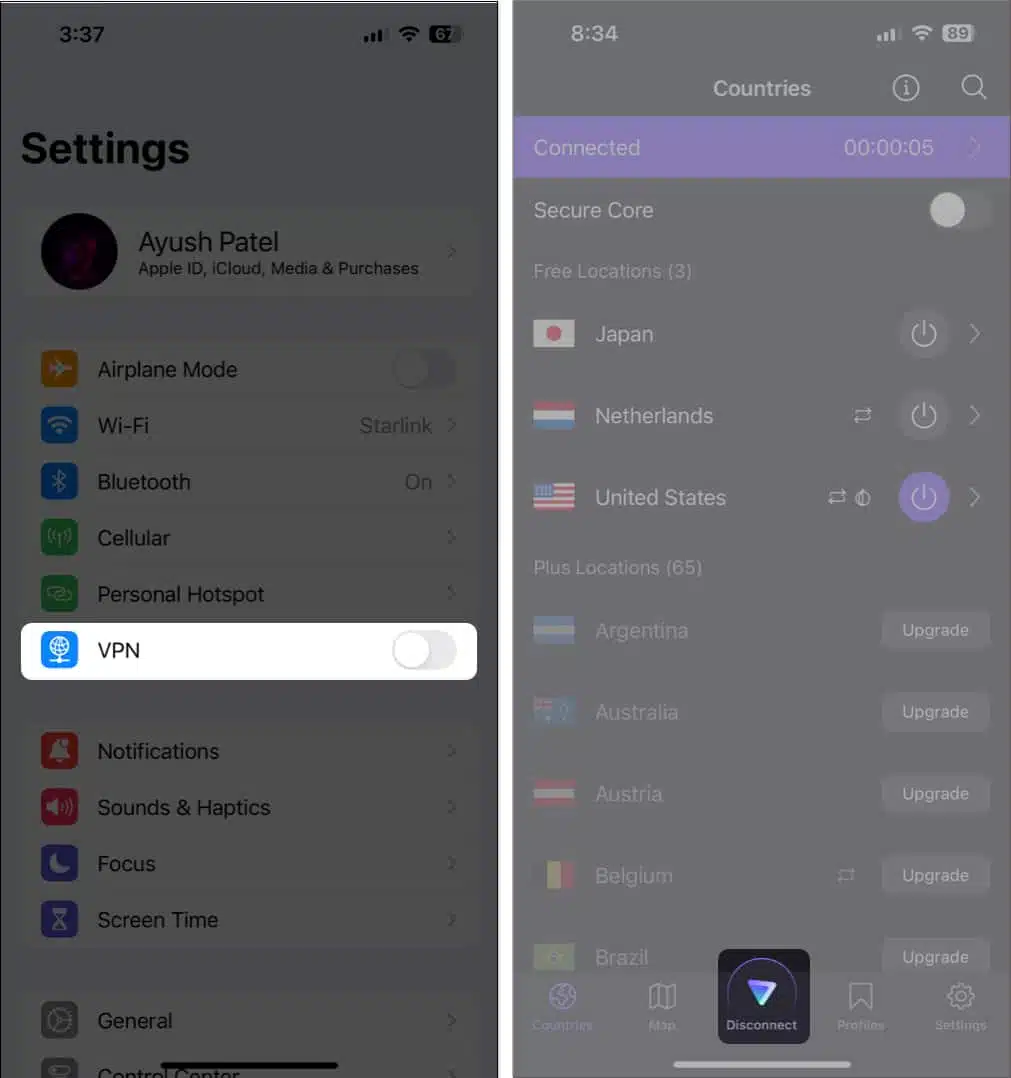
Temporarily disable any VPN or proxy, then try logging in again using your regular network. Once you successfully log in to your account, you can decide whether to enable these services again.
Snapchat may temporarily lock accounts when it detects unusual behavior such as multiple failed login attempts, logins from different locations, or the use of unauthorized third-party apps.
To unlock your account:
If you have two-factor authentication enabled on Snapchat, login attempts require an additional verification code in addition to your password. Problems accessing this verification code can prevent you from signing in, even when your login credentials are correct.
It might be that you changed your phone number, switched devices, lost access to your authenticator app, or cannot receive SMS verification codes. In such cases, Snapchat cannot complete the authentication process and blocks the login attempt for security reasons.
Here’s what you can do:
Note: Keeping your recovery codes saved in a secure place can help avoid future login interruptions.
Snapchat includes built-in security measures that temporarily restrict access after multiple failed login attempts within a short period. This protection helps prevent unauthorized access but can also lock you out if you repeatedly enter incorrect credentials or try to log in too many times.
When this happens, Snapchat may display errors such as “Too many requests” or temporarily block further login attempts, even if you later enter the correct password. Continuing to retry immediately can extend the restriction period.
The best solution is to stop trying to log in and wait for a while before trying again.
If none of the fixes above resolve the login issue, the problem may be related to account restrictions, security flags, or verification errors that require manual assistance from Snapchat’s support team.
In such cases, contacting Snapchat Support is the best course of action. The support team can review your account status, verify your identity, and help restore access if your account has been locked, compromised, or incorrectly restricted.
| Error Message | Meaning | Fix |
|---|---|---|
| Temporarily disabled | Too many attempts or suspicious activity | Wait and retry later |
| Incorrect password | Wrong credentials | Reset password |
| Something went wrong | Server or network issue | Check outage status |
| Account locked | Policy or security trigger | Unlock or appeal |
While the fixes listed above can help you regain access to your Snapchat account, following a few best practices can reduce the likelihood of encountering login issues in the future.
And that’s it; we hope this guide helped fix the Snapchat login issues. Make sure to work through the fixes in order, starting with connection checks and password verification, then move toward account unlock and support options.
Know any other fixes that helped you resolve Snapchat login issues? Share them in the comments below to help other users facing the same problem.
Also read: