I used to send full articles and then follow it up with another message like, “scroll to the third paragraph” or “check the section under the second heading.” It always felt inefficient and, honestly, a bit annoying for the person on the receiving end.
Most people wouldn’t find the exact section I was referring to. Some wouldn’t even open the link. Sending a long URL like that is basically handing over an entire webpage and expecting someone else to do the work of finding your point.
So I went looking for a better way to share just the part that actually matters.
That’s when I came across a small but incredibly useful feature in Safari on macOS.
The feature that changed how I share links
Safari has a built-in option called Copy Link with Highlight, and it completely changes how you share content.
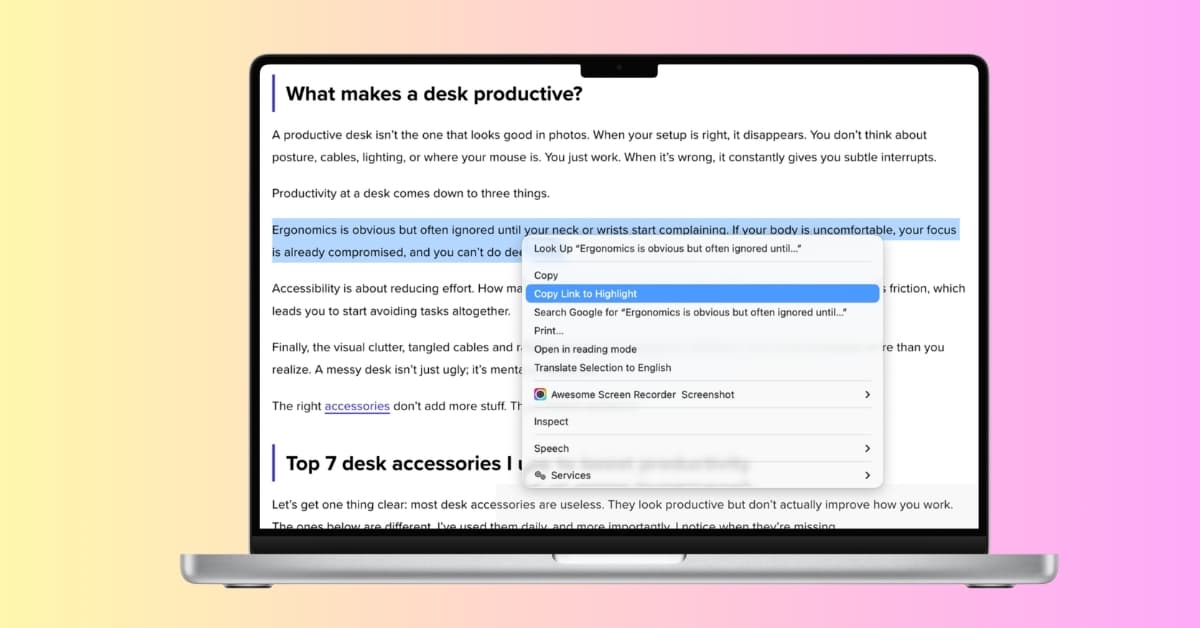
Instead of sending someone an entire article, you can highlight a specific line or paragraph and generate a link that takes them directly to it. When they open it, the browser automatically scrolls to that section and highlights it. No instructions needed.
It’s one of those features that doesn’t seem like a big deal at first, but once you start using it, it quietly becomes part of your workflow.
Related: Safari Highlights on Mac: The Hidden Feature You Need to Try
How to use Copy Link with Highlight in safari on Mac
There’s no setup required. Once I found it, it instantly became second nature.
Here’s how it works:
- Open the webpage in Safari on your Mac.
- Select the text you want to share.
- Right-click on the selected text.
- Now, select the Copy Link with Highlight option in the contextual menu that appears.
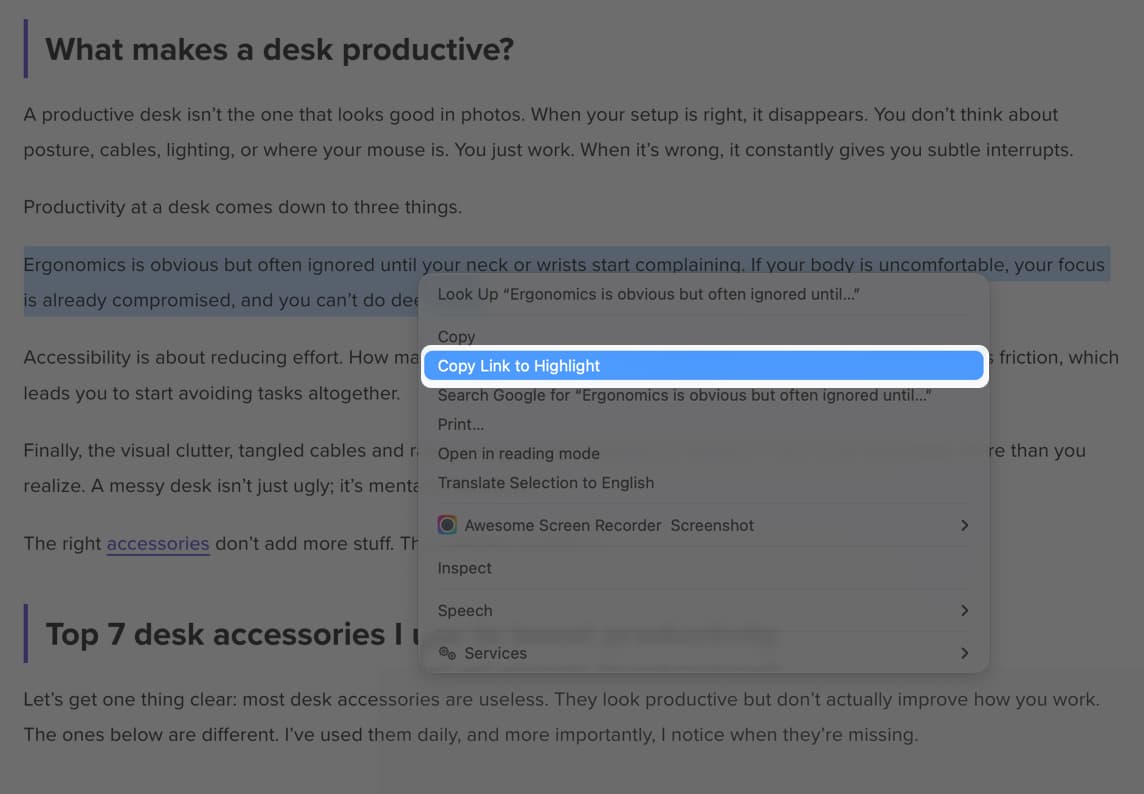
Once done, Safari then generates a special URL that includes the selected text reference and automatically adds it to the clipboard.
You can paste that link anywhere, Messages, Mail, Slack, Notes, and when someone clicks it, they land exactly on that part of the page. No guessing, no scrolling.
Why this is more useful than it sounds
This isn’t just a convenience feature. It genuinely improves how you communicate.
Instead of sending a link and expecting someone to find your point, you’re guiding them straight to it. That saves time, removes confusion, and makes your intent clear.
It also changes how people respond. When someone lands exactly where you want them to, they’re far more likely to read it and respond quickly.
Where I actually use it
I’ve started using this almost everywhere I share content.
- When sending guides, I highlight the exact step someone needs.
- When sharing articles, I pick the most relevant paragraph.
- When quoting something, I link directly to the source line.
It’s a small shift, but it changes how information is consumed. Instead of sharing everything, you’re sharing exactly what matters.
Limitations of Safari Copy Link with Highlight feature
As useful as this feature is, it’s not perfect, and it’s better to know where it can break.
The biggest limitation is website compatibility. This feature relies on text fragments, and not every website supports them properly. On clean, modern sites, it works flawlessly. On heavily scripted or dynamic pages, the link may open without jumping to the highlighted section.
PDFs are another weak spot. If you’re viewing a PDF in Safari, the option is either missing or inconsistent. So for documents and research papers, you’ll still end up using the old method.
There’s also a reliability factor. If the webpage content changes and the exact text you highlighted shifts or disappears, the link can lose its context.
And finally, browser behavior varies. Safari handles it best, but other browsers may not always show the highlight exactly the same way.
Small feature, big upgrade
This is one of those features Apple never really highlights, but once you discover it, it solves a very real, everyday problem.
If you share links often, whether for work, writing, or just sending something interesting, this makes your communication sharper and far more efficient.
At this point, I don’t send full links anymore. I send exactly what I want people to read.
Final thought
It’s rare to find a feature this simple that actually changes a habit. But this one does.
Once you start using it, going back to “scroll to this part” feels unnecessarily clunky.
You might also like: