


Obsidian is one of those apps that sounds amazing until you open it for the first time. You hear people talk about “second brains,” linked notes, graph view, Markdown, daily notes, MOCs, plugins, and Zettelkasten. Then the app opens to a mostly blank space, and suddenly, even creating your first note feels confusing.
That is normal. Obsidian is powerful, but you do not need to understand everything on day one. The best way to start is much simpler: create a note, write something useful, and let your system grow slowly.
This setup is best for beginners who want to use Obsidian for personal notes, writing ideas, projects, reading notes, or daily thinking without building a complicated second-brain system. You can always add more structure later, but you do not need a perfect system before you start.
What Obsidian is
Obsidian is a note-taking app that stores your notes as local .md files. Those files sit inside a folder called a vault. That matters because your notes are not locked inside Obsidian’s cloud. You can open the folder, back it up, move it, or edit the files with another Markdown app.
This local-first approach is one of Obsidian’s biggest strengths. Your notes remain yours, and the app simply gives you a powerful way to write, search, connect, and organize them.
Use Obsidian if you want local notes that can grow into a connected workspace. If you want a simpler notes app with fewer choices, this list of the best note-taking apps for Mac can help you compare options.
The terms you need first
Learn these terms before you change settings or install plugins.
| Term | What it means | Beginner advice |
|---|---|---|
| Vault | The folder where Obsidian stores your notes | Start with one vault |
| Note | One Markdown file inside the vault | Keep each note focused |
| Link | A connection from one note to another | Use links when ideas relate |
| Backlink | A note that links back to the current note | Let Obsidian find these for you |
| Graph view | A visual map of linked notes | Ignore it at first |
| Plugin | A feature you can turn on or install | Add only when you need one |
| Property | Structured data at the top of a note | Skip until your notes need metadata |
| Canvas | A visual board for notes and ideas | Useful for planning, not required |
If you remember only four words, make them vault, note, link, and backlink. Those are the pieces that make Obsidian different from a regular notes app, and they are enough to get started.
Create one vault
A vault is a normal folder on your computer or phone. For your first setup, create one vault and give it a plain name such as Personal.
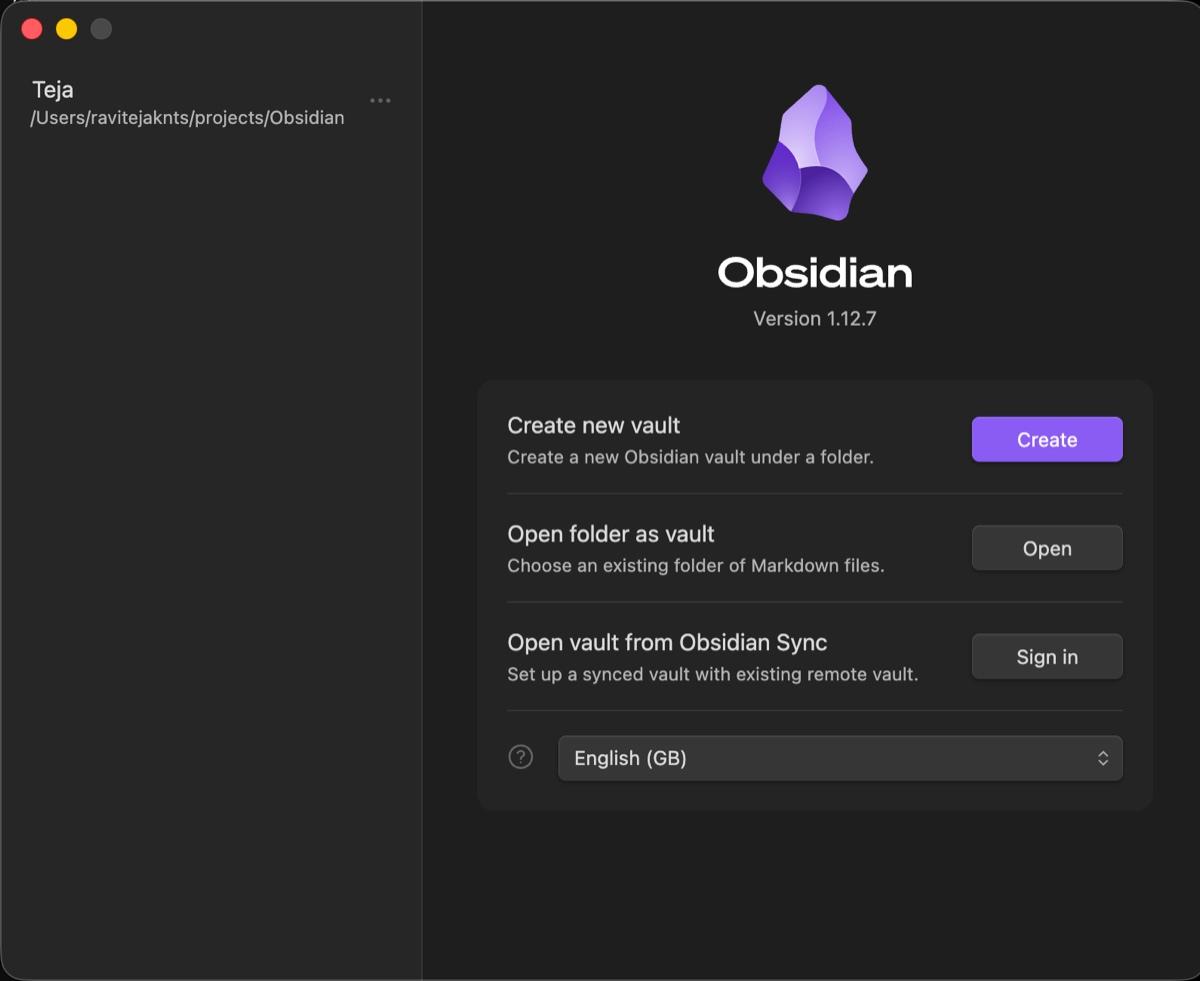
Do not create separate vaults for work, life, ideas, reading, and projects right away. That usually creates a new problem: you stop knowing where a note belongs.
Start with one vault:
PersonalInside it, create three folders:
Inbox
Notes
Projects
Use Inbox for quick thoughts, Notes for things you want to keep, and Projects for active work. You can rename or move folders later because Obsidian is working with normal files.
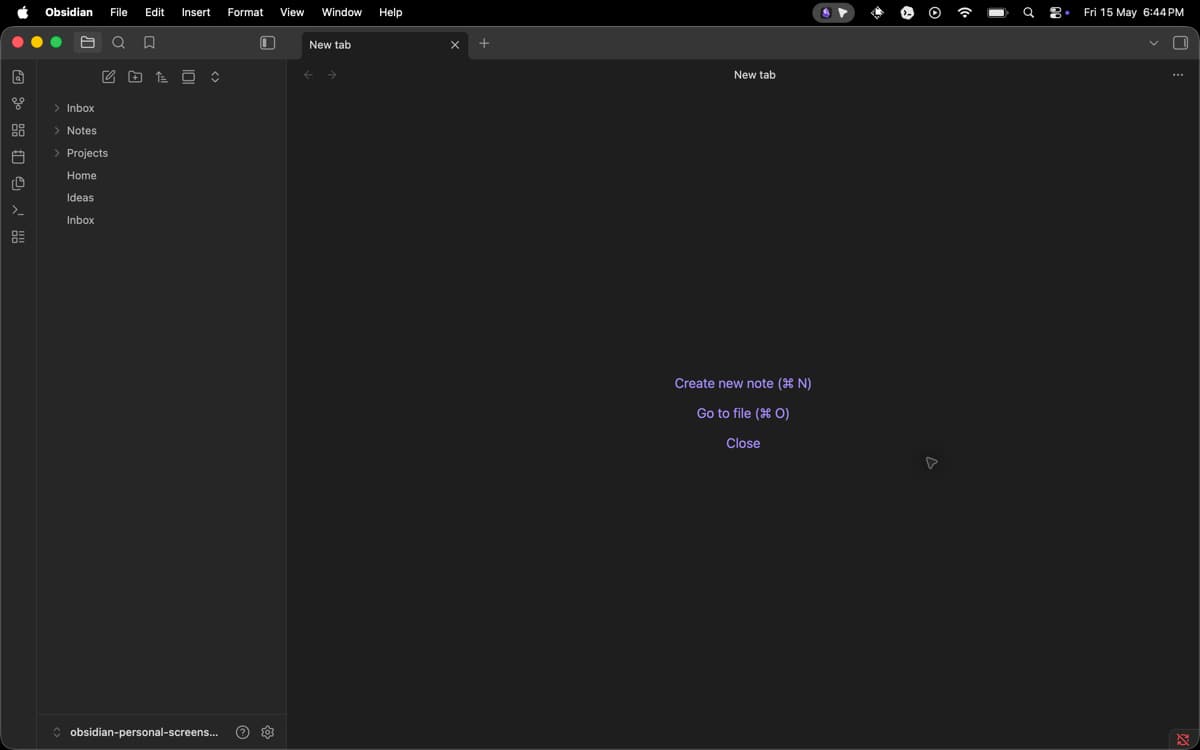
You are not locking yourself into this structure. Since Obsidian uses normal folders and files, you can rename, move, or reorganize everything later without breaking your whole setup.
Create your first notes
Make the vault useful before you make it tidy.
Start with three notes:
- Create a note called
Home. - Create a note called
Inbox. - Create one real note about something you are working on or thinking about.
Your Home note can be this simple:
# Home

## Quick links

- [[Inbox]]
- [[Projects]]
- [[Ideas]]
This gives you a basic starting page without a dashboard, banner, template, or plugin.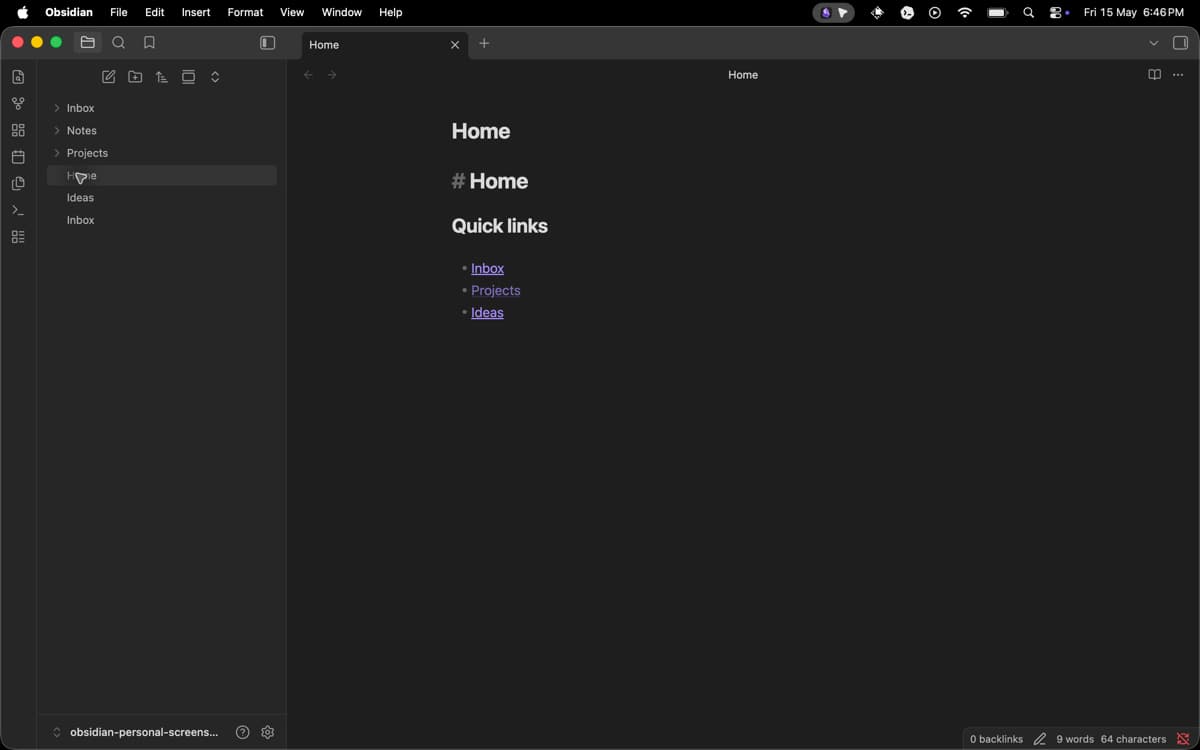
Now create one real note. For example:
# Obsidian setup

I want Obsidian to help me collect ideas, write better notes, and find old thoughts without digging through folders.

## Things to try

- Link related notes
- Use fewer folders
- Avoid plugins for the first week
This is enough for the first day. Your goal is to write notes you can find and connect later, not to build a perfect productivity system before you have anything inside it.
Use links before building a folder system
In most note apps, organization starts with folders. In Obsidian, links can do more of the work.
To link one note to another, type two square brackets and the note name:
[[Obsidian setup]]Obsidian can autocomplete note names as you type. That makes Wikilinks easier for beginners than full Markdown links.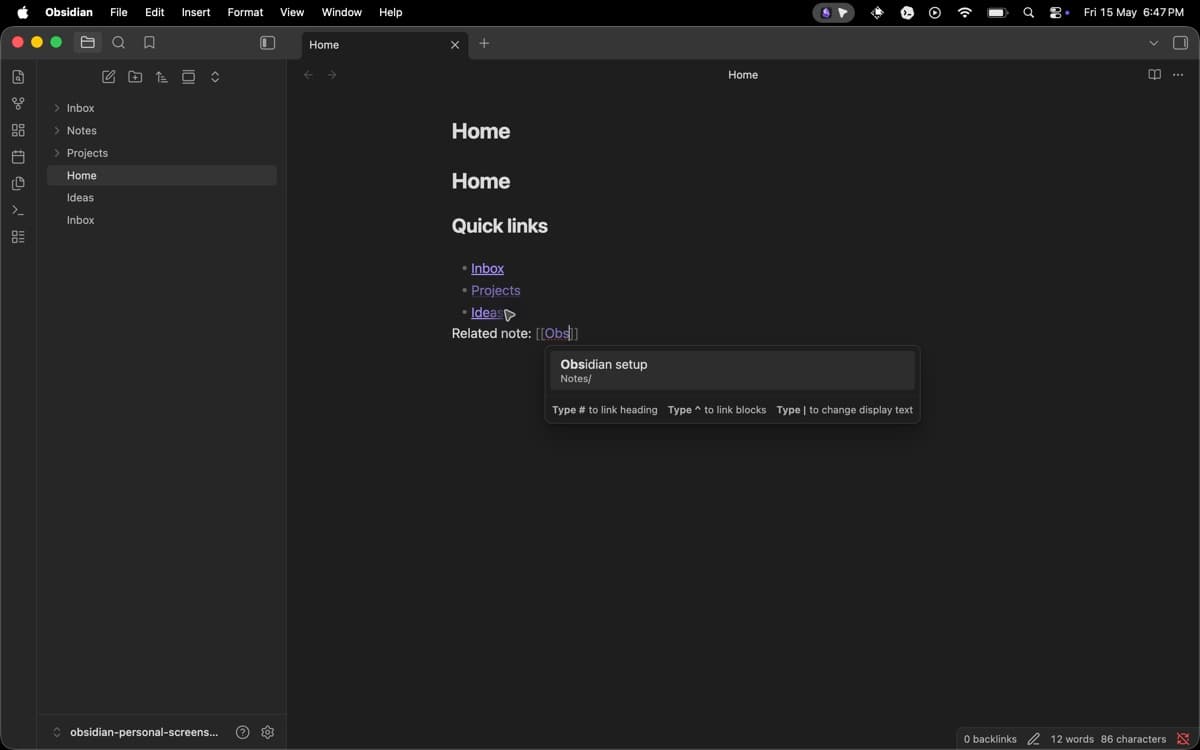
Use links when two notes clearly relate. A note about writing ideas can link to Obsidian setup, content calendar, and AI tools without moving all of them into the same folder.
Use backlinks as a discovery tool
Backlinks show notes that point to the note you are viewing. If a note about AI tools is linked from writing workflow, local AI, and Obsidian setup, Obsidian shows those connections for you.
There are two useful backlink types:
- Linked mentions: notes that already link to the current note.
- Unlinked mentions: notes where the current note’s name appears as text but is not linked.
Do not force backlinks. Add links when they help, and the backlink panel will become useful as your vault grows.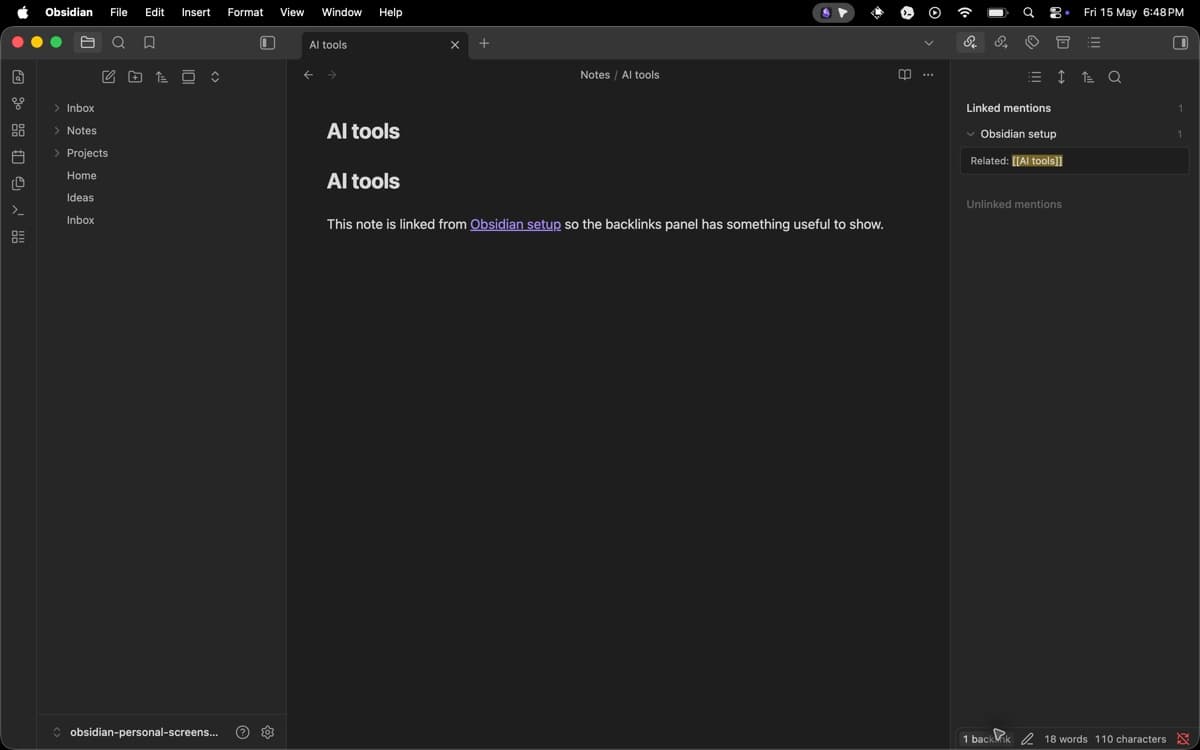
At first, backlinks may not show much because you do not have many notes yet. That is fine. The value appears naturally over time. After a few weeks of writing and linking, backlinks can help you rediscover older thoughts, connect related ideas, and see patterns you would have missed in a normal folder-based notes app.
Use folders, tags, and properties for different jobs
Beginners often spend too much time choosing between folders, tags, links, and properties. Use each one for a specific job.
| Tool | Use it for | Beginner advice |
|---|---|---|
| Folders | Broad storage areas | Keep only a few |
| Tags | Status or loose grouping | Use sparingly |
| Links | Connecting ideas | Use often |
| Properties | Structured metadata | Skip until you need it |
Folders are good for broad areas like Inbox, Notes, and Projects. Tags are better for status labels such as #todo, #reading, or #idea. Links are better for connecting ideas across folders.
Properties are useful when you need structured data, such as dates, checkboxes, numbers, aliases, or tags at the top of a note. Skip them until your notes need that structure.
A simple rule helps: use folders for where a note roughly lives, tags for what state it is in, and links for what it connects to.
Leave graph view, plugins, and sync for later
Graph view looks useful because it turns your notes into a map. At the start, it mostly shows that your vault is still small. Build notes for search, links, and backlinks first.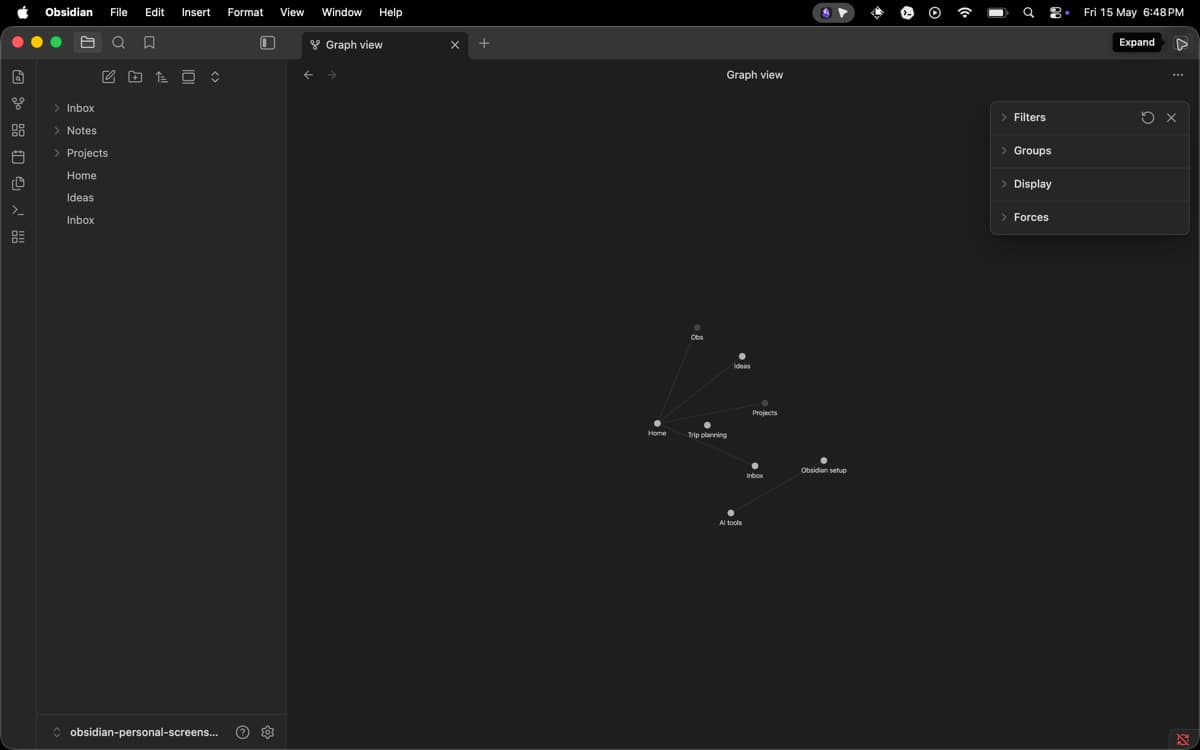
Core plugins are built into Obsidian. Useful ones for beginners include:
- File explorer
- Search
- Backlinks
- Quick switcher
- Daily notes, if you journal
- Templates, after you repeat the same note structure often
Community plugins can help later, but do not install them before you know the problem they solve. “I need a better way to track tasks across notes” is a real reason. “Everyone recommends this plugin” is not.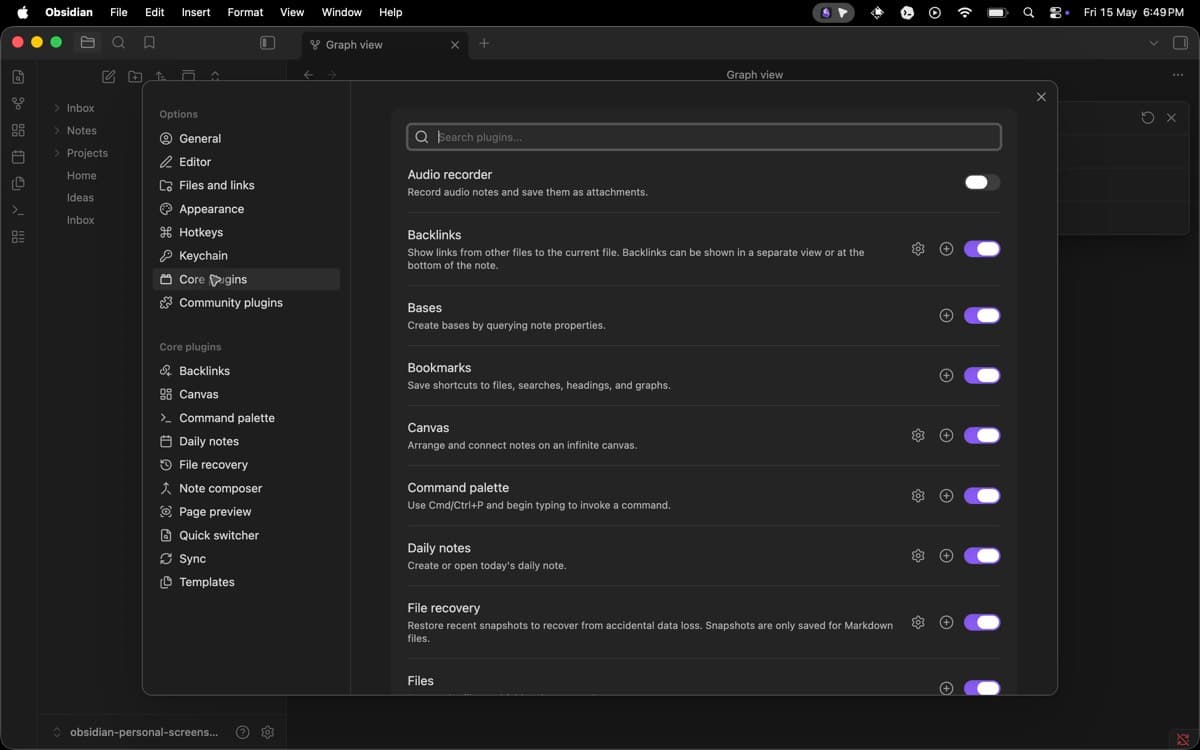
If you use Obsidian on more than one device, think about syncing after your basic workflow feels comfortable. Obsidian Sync is the official paid option, but local files also work with other backup or sync methods.
The same advice applies here: solve real problems as they appear. Do not add complexity just because advanced users have it in their screenshots.
A simple first-week workflow
Use this setup for one week before adding more structure:
- Install Obsidian from the official download page.
- Create one vault called
Personal. - Add
Inbox,Notes, andProjects. - Create a
Homenote with links to important areas. - Put quick thoughts in
Inbox. - Move clear notes into
NotesorProjects. - Link notes with
[[note name]]when two ideas relate. - Use search and backlinks before adding more folders.
- Avoid community plugins until you can name the exact problem.
The best beginner workflow is simple: capture first, organize lightly, link when useful, and review later.
Use Inbox When you do not know where something belongs. Use links when notes relate. Use folders only for broad separation. Use tags only when they help you find a group of notes quickly.
Obsidian becomes useful when you stop trying to design the perfect system and start writing notes you actually need. Begin with one vault, a few folders, simple links, and no extra plugins. Once your notes grow, the structure you need will become obvious.
You might also like: